<!DOCTYPE html>
    <html lang="vi" xmlns="http://www.w3.org/1999/xhtml" prefix="og: http://ogp.me/ns#">
    <head>
<title>Cách định vị và quản lý nội dung tải xuống trong Chrome</title>
<meta name="description" content="Cách định vị và quản lý nội dung tải xuống trong Chrome - Savefile - Tin Tức -...">
<meta name="author" content=".: Nguoicodonvn2008.info - Cõi lòng người cô đơn :.">
<meta name="copyright" content=".: Nguoicodonvn2008.info - Cõi lòng người cô đơn :. [admin@nguoicodonvn2008.info]">
<meta name="robots" content="index, archive, follow, noodp">
<meta name="googlebot" content="index,archive,follow,noodp">
<meta name="msnbot" content="all,index,follow">
<meta name="generator" content="NukeViet v4.5">
<meta http-equiv="Content-Type" content="text/html; charset=utf-8">
<meta property="og:title" content="Cách định vị và quản lý nội dung tải xuống trong Chrome">
<meta property="og:type" content="website">
<meta property="og:description" content="Savefile - Tin Tức - https&#x3A;&#x002F;&#x002F;www.nguoicodonvn2008.info&#x002F;vi&#x002F;news&#x002F;savefile&#x002F;kien-thuc-may-tinh&#x002F;cach-dinh-vi-va-quan-ly-noi-dung-tai-xuong-trong-chrome-8651.html">
<meta property="og:site_name" content=".&#x3A; Nguoicodonvn2008.info - Cõi lòng người cô đơn &#x3A;.">
<meta property="og:url" content="https://www.nguoicodonvn2008.info/vi/news/savefile/kien-thuc-may-tinh/cach-dinh-vi-va-quan-ly-noi-dung-tai-xuong-trong-chrome-8651.html">
<link rel="shortcut icon" href="https://www.nguoicodonvn2008.info/favicon.ico">
<link rel="canonical" href="https://www.nguoicodonvn2008.info/vi/news/savefile/kien-thuc-may-tinh/cach-dinh-vi-va-quan-ly-noi-dung-tai-xuong-trong-chrome-8651.html">
<link rel="alternate" href="https://www.nguoicodonvn2008.info/vi/news/rss/" title="Tin Tức" type="application/rss+xml">
<link rel="alternate" href="https://www.nguoicodonvn2008.info/vi/news/rss/karaoke-dual/" title="Tin Tức - Karaoke Dual" type="application/rss+xml">
<link rel="alternate" href="https://www.nguoicodonvn2008.info/vi/news/rss/nhac-tre/" title="Tin Tức - Nhạc trẻ" type="application/rss+xml">
<link rel="alternate" href="https://www.nguoicodonvn2008.info/vi/news/rss/tru-tinh/" title="Tin Tức - Trữ tình" type="application/rss+xml">
<link rel="alternate" href="https://www.nguoicodonvn2008.info/vi/news/rss/nuoc-ngoai/" title="Tin Tức - Nước ngoài" type="application/rss+xml">
<link rel="alternate" href="https://www.nguoicodonvn2008.info/vi/news/rss/remix/" title="Tin Tức - Remix" type="application/rss+xml">
<link rel="alternate" href="https://www.nguoicodonvn2008.info/vi/news/rss/tam-su-tinh-yeu/" title="Tin Tức - Tâm sự tình yêu" type="application/rss+xml">
<link rel="alternate" href="https://www.nguoicodonvn2008.info/vi/news/rss/tho-suu-tam/" title="Tin Tức - Thơ sưu tầm" type="application/rss+xml">
<link rel="alternate" href="https://www.nguoicodonvn2008.info/vi/news/rss/cuoc-song/" title="Tin Tức - Cuộc sống" type="application/rss+xml">
<link rel="alternate" href="https://www.nguoicodonvn2008.info/vi/news/rss/phan-mem/" title="Tin Tức - Phần mềm" type="application/rss+xml">
<link rel="alternate" href="https://www.nguoicodonvn2008.info/vi/news/rss/kien-thuc-may-tinh/" title="Tin Tức - Kiến thức máy tính" type="application/rss+xml">
<link rel="alternate" href="https://www.nguoicodonvn2008.info/vi/news/rss/hoc-tap/" title="Tin Tức - Học tập" type="application/rss+xml">
<link rel="alternate" href="https://www.nguoicodonvn2008.info/vi/news/rss/tai-lieu/" title="Tin Tức - Tài liệu" type="application/rss+xml">
<link rel="alternate" href="https://www.nguoicodonvn2008.info/vi/news/rss/de-thi/" title="Tin Tức - Đề thi" type="application/rss+xml">
<link rel="preload" as="style" href="https://www.nguoicodonvn2008.info/assets/css/font-awesome.min.css" type="text/css">
<link rel="preload" as="style" href="https://www.nguoicodonvn2008.info/themes/default/css/bootstrap.non-responsive.css" type="text/css">
<link rel="preload" as="style" href="https://www.nguoicodonvn2008.info/themes/default/css/style.css" type="text/css">
<link rel="preload" as="style" href="https://www.nguoicodonvn2008.info/themes/default/css/style.non-responsive.css" type="text/css">
<link rel="preload" as="style" href="https://www.nguoicodonvn2008.info/themes/default/css/news.css" type="text/css">
<link rel="preload" as="style" href="https://www.nguoicodonvn2008.info/themes/default/css/custom.css" type="text/css">
<link rel="preload" as="script" href="https://www.nguoicodonvn2008.info/assets/js/jquery/jquery.min.js" type="text/javascript">
<link rel="preload" as="script" href="https://www.nguoicodonvn2008.info/assets/js/language/vi.js" type="text/javascript">
<link rel="preload" as="script" href="https://www.nguoicodonvn2008.info/assets/js/DOMPurify/purify3.js" type="text/javascript">
<link rel="preload" as="script" href="https://www.nguoicodonvn2008.info/assets/js/global.js" type="text/javascript">
<link rel="preload" as="script" href="https://www.nguoicodonvn2008.info/assets/js/site.js" type="text/javascript">
<link rel="preload" as="script" href="https://www.nguoicodonvn2008.info/themes/default/js/news.js" type="text/javascript">
<link rel="preload" as="script" href="https://www.nguoicodonvn2008.info/themes/default/js/main.js" type="text/javascript">
<link rel="preload" as="script" href="https://www.nguoicodonvn2008.info/themes/default/js/custom.js" type="text/javascript">
<link rel="preload" as="script" href="https://www.nguoicodonvn2008.info/themes/default/js/bootstrap.min.js" type="text/javascript">
<link rel="stylesheet" href="https://www.nguoicodonvn2008.info/assets/css/font-awesome.min.css">
<link rel="stylesheet" href="https://www.nguoicodonvn2008.info/themes/default/css/bootstrap.non-responsive.css">
<link rel="stylesheet" href="https://www.nguoicodonvn2008.info/themes/default/css/style.css">
<link rel="stylesheet" href="https://www.nguoicodonvn2008.info/themes/default/css/style.non-responsive.css">
<link rel="StyleSheet" href="https://www.nguoicodonvn2008.info/themes/default/css/news.css">
<link rel="stylesheet" href="https://www.nguoicodonvn2008.info/themes/default/css/custom.css">
<style type="text/css">
	body{background: #fff;}
</style>
    </head>
    <body>
<div id="print">
	<div id="hd_print">
		<h2 class="pull-left">.&#x3A; Nguoicodonvn2008.info - Cõi lòng người cô đơn &#x3A;.</h2>
		<p class="pull-right"><a title=".&#x3A; Nguoicodonvn2008.info - Cõi lòng người cô đơn &#x3A;." href="https://www.nguoicodonvn2008.info/">https://www.nguoicodonvn2008.info</a></p>
	</div>
	<div class="clear"></div>
	<hr />
	<div id="content">
		<h1>Cách định vị và quản lý nội dung tải xuống trong Chrome</h1>
		<ul class="list-inline">
			<li>Thứ bảy - 13/07/2024 02:53</li>
			<li class="hidden-print txtrequired"><em class="fa fa-print">&nbsp;</em><a title="In ra" href="javascript:;" onclick="window.print()">In ra</a></li>
			<li class="hidden-print txtrequired"><em class="fa fa-power-off">&nbsp;</em><a title="Đóng cửa sổ này" href="javascript:;" onclick="window.close()">Đóng cửa sổ này</a></li>
		</ul>
		<div class="clear"></div>
		<div id="hometext">
		</div>
				<div class="imghome">
			<img alt="Cách định vị và quản lý nội dung tải xuống trong Chrome" src="https://st.quantrimang.com/photos/image/2024/07/13/quan-ly-noi-dung-tai-xuong-trong-chrome-7.jpg" width="460" class="img-thumbnail" />
		</div>
		<div class="clear"></div>
		<div id="bodytext" class="clearfix">
			<p style="text-align: justify;">Tải xuống file trong khi duyệt thường dễ dàng bằng cách nhấp vào liên kết hoặc nút Download. Điều không dễ dàng là tìm các bản tải xuống và quản lý cài đặt download của bạn.</p>

<p style="text-align: justify;">Dưới đây là cách định vị và quản lý nội dung tải xuống trong&nbsp;Google Chrome.</p>

<h2 style="text-align: justify;">Cách định vị và quản lý nội dung tải xuống trong Chrome trên desktop</h2>

<p style="text-align: justify;">Việc định vị các bản tải xuống trong Chrome cực kỳ dễ dàng nếu bạn đã tải xuống một file.</p>

<figure>
<div style="text-align: justify;"><img alt="" data-i="0" data-src="https://st.quantrimang.com/photos/image/2024/07/13/quan-ly-noi-dung-tai-xuong-trong-chrome-1.jpg" data-was-processed="true" height="200" src="https://st.quantrimang.com/photos/image/2024/07/13/quan-ly-noi-dung-tai-xuong-trong-chrome-1.jpg" width="306" /></div>
</figure>

<figure>
<div style="text-align: justify;"><img alt="" data-adbro-processed="true" data-i="1" data-src="https://st.quantrimang.com/photos/image/2024/07/13/quan-ly-noi-dung-tai-xuong-trong-chrome-2.jpg" data-was-processed="true" height="640" src="https://st.quantrimang.com/photos/image/2024/07/13/quan-ly-noi-dung-tai-xuong-trong-chrome-2.jpg" width="454" /></div>
</figure>

<figure>
<div style="text-align: justify;">&nbsp;</div>
</figure>

<ol>
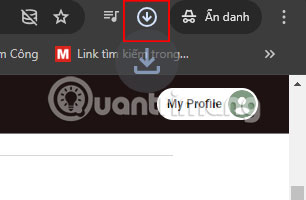
	<li style="text-align: justify;">Ở góc trên bên phải màn hình, bạn sẽ thấy một mũi tên hướng xuống được bao trong một vòng tròn.</li>
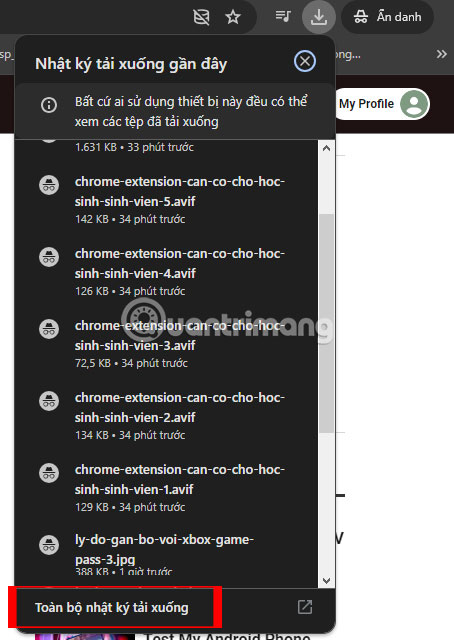
	<li style="text-align: justify;">Khi nhấp vào biểu tượng này, bạn sẽ tìm thấy danh sách thu nhỏ các bản tải xuống của mình.</li>
	<li style="text-align: justify;">Sau đó, bạn có thể nhấp vào&nbsp;<strong>Toàn bộ nhật ký tải xuống</strong>&nbsp;để có danh sách mở rộng về tất cả các bản tải xuống.</li>
</ol>

<div style="text-align: justify;">&nbsp;</div>

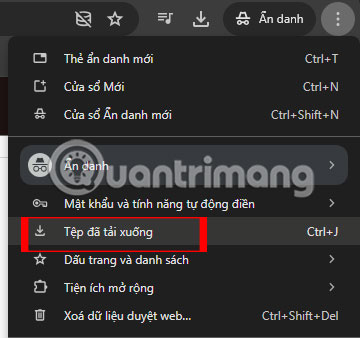
<p style="text-align: justify;">Nếu chưa tải xuống file, bạn sẽ không tìm thấy biểu tượng download khi mở Chrome. Thay vào đó, hãy nhấp vào menu ba chấm ở góc trên bên phải màn hình rồi chọn&nbsp;<strong>Tệp đã tải xuống</strong>.</p>

<figure>
<div style="text-align: justify;"><img alt="Trang chủ Google Chrome có trang cài đặt xuất hiện trong chế độ xem" data-i="3" data-src="https://st.quantrimang.com/photos/image/2024/07/13/quan-ly-noi-dung-tai-xuong-trong-chrome-4.jpg" data-was-processed="true" height="338" src="https://st.quantrimang.com/photos/image/2024/07/13/quan-ly-noi-dung-tai-xuong-trong-chrome-4.jpg" width="360" /></div>

<figcaption>
<div style="text-align: justify;">Trang chủ Google Chrome có trang cài đặt xuất hiện trong chế độ xem</div>
</figcaption>
</figure>

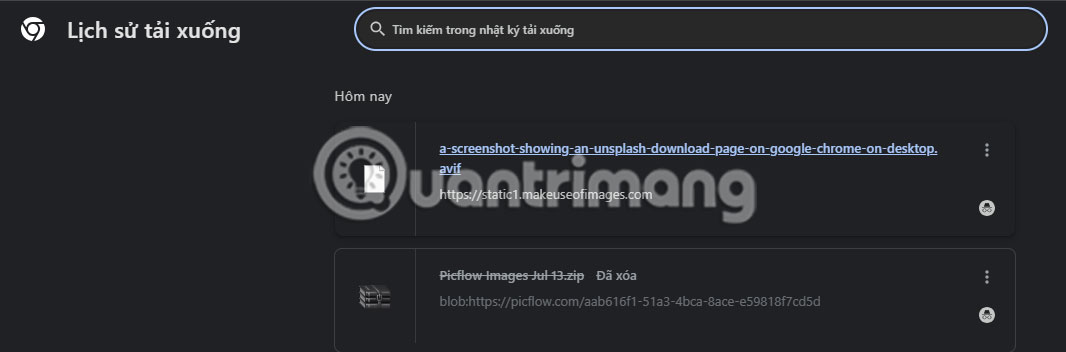
<p style="text-align: justify;">Ngoài ra, chỉ cần nhấn&nbsp;<strong>Ctrl + J</strong>. Bây giờ, bạn sẽ thấy danh sách tất cả các bản tải xuống gần đây của mình. Lưu ý rằng có nhiều biểu tượng ba chấm trên trang: Một biểu tượng bên cạnh mỗi nội dung tải xuống và một biểu tượng ở góc trên cùng bên phải của trang&nbsp;<strong>Lịch sử tải xuống</strong>.</p>

<figure>
<div style="text-align: justify;"><img alt="Trang lịch sử tải xuống Google Chrome có hai file" data-i="4" data-src="https://st.quantrimang.com/photos/image/2024/07/13/quan-ly-noi-dung-tai-xuong-trong-chrome-3.jpg" data-was-processed="true" height="352" src="https://st.quantrimang.com/photos/image/2024/07/13/quan-ly-noi-dung-tai-xuong-trong-chrome-3.jpg" width="1066" /></div>

<figcaption>
<div style="text-align: justify;">Trang lịch sử tải xuống Google Chrome có hai file</div>
</figcaption>
</figure>

<p style="text-align: justify;">Khi nhấp vào biểu tượng ba chấm ở góc trên cùng bên phải của trang Lịch sử tải xuống, bạn có thể xóa tất cả các file trong lịch sử tải xuống hoặc nhấp vào&nbsp;<strong>Mở thư mục tải xuống</strong>.</p>

<p style="text-align: justify;">Để xóa bất kỳ file nào khỏi danh sách tải xuống, hãy nhấp vào biểu tượng ba chấm bên cạnh file và chọn&nbsp;<strong>Xóa khỏi nhật ký</strong>. Để tìm một bản tải xuống cụ thể, hãy nhập từ khóa hoặc truy vấn vào thanh Tìm kiếm lịch sử tải xuống. Ngoài ra, hãy cuộn xuống để tìm bản tải xuống đang tìm kiếm.</p>

<figure>
<div style="text-align: justify;"><img alt="Trang lịch sử tải xuống Google Chrome có tùy chọn hiển thị trong thư mục và xóa khỏi lịch sử trong chế độ xem" data-i="5" data-src="https://st.quantrimang.com/photos/image/2024/07/13/quan-ly-noi-dung-tai-xuong-trong-chrome-5.jpg" data-was-processed="true" height="122" src="https://st.quantrimang.com/photos/image/2024/07/13/quan-ly-noi-dung-tai-xuong-trong-chrome-5.jpg" width="224" /></div>

<figcaption>
<div style="text-align: justify;">Trang lịch sử tải xuống Google Chrome có tùy chọn hiển thị trong thư mục và xóa khỏi lịch sử trong chế độ xem</div>
</figcaption>
</figure>

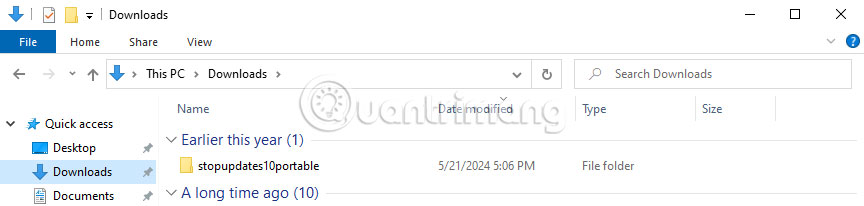
<p style="text-align: justify;">Bạn cũng có thể nhấp vào&nbsp;<strong>Hiển thị trong thư mục</strong>&nbsp;để xem mọi file đã tải xuống trong thư mục tải xuống trên máy tính. Bạn sẽ thấy thư mục tải xuống tương tự như thư mục hiển thị bên dưới.</p>

<figure>
<div style="text-align: justify;"><img alt="Thư mục Downloads trên PC Windows" data-i="6" data-src="https://st.quantrimang.com/photos/image/2024/07/13/quan-ly-noi-dung-tai-xuong-trong-chrome-6.jpg" data-was-processed="true" height="206" src="https://st.quantrimang.com/photos/image/2024/07/13/quan-ly-noi-dung-tai-xuong-trong-chrome-6.jpg" width="864" /></div>

<figcaption>
<div style="text-align: justify;">Thư mục Downloads trên PC Windows</div>
</figcaption>
</figure>

<p style="text-align: justify;">Tại đây, bạn có thể tìm, sắp xếp, xem và xóa file cùng với một số chức năng khác.</p>

<h2 style="text-align: justify;">Cách xác định vị trí và quản lý nội dung tải xuống trong Chrome trên thiết bị di động</h2>

<p style="text-align: justify;">Hãy làm theo các bước sau để định vị và quản lý nội dung tải xuống trong Chrome trên ứng dụng dành cho thiết bị di động.</p>

<ol>
	<li style="text-align: justify;">Mở Chrome.</li>
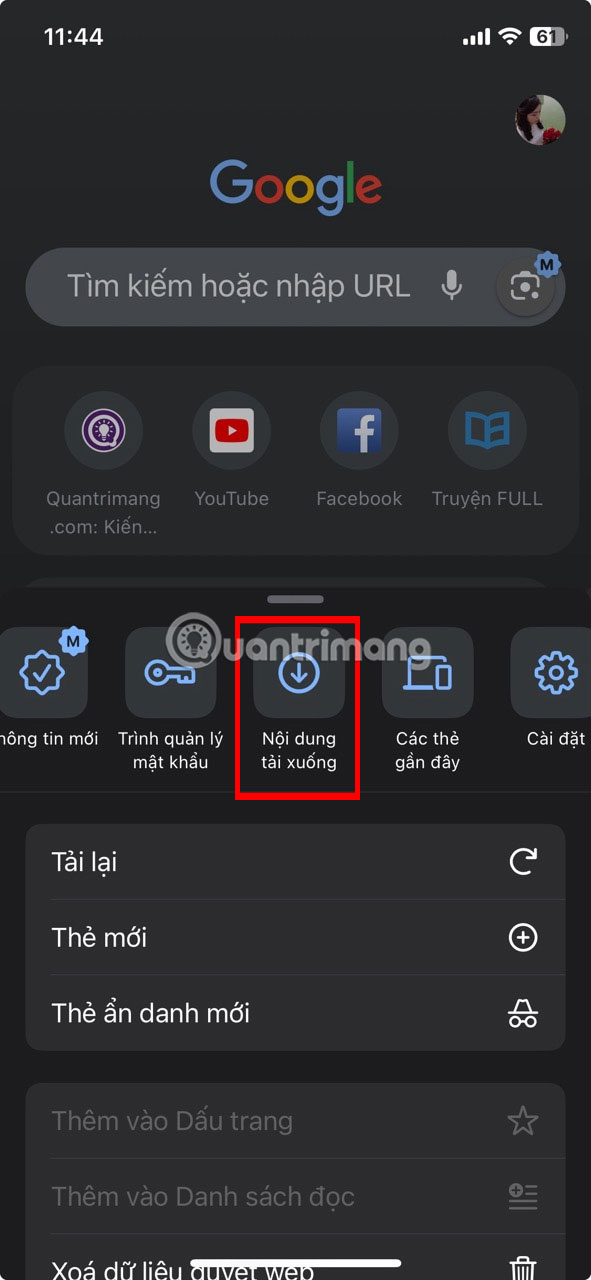
	<li style="text-align: justify;">Để xem tất cả các bản tải xuống, hãy nhấn vào menu ba chấm ở góc dưới bên phải màn hình và chọn&nbsp;<strong>Nội dung tải xuống</strong>.</li>
	<li style="text-align: justify;">Bạn có thể xem các bản tải xuống của mình bằng cách nhấn vào biểu tượng bánh răng ở góc trên bên phải. Nếu muốn Chrome luôn hỏi bạn nơi lưu nội dung tải xuống, hãy bật nút&nbsp;<strong>Hỏi vị trí lưu file</strong>. Nhấn vào nút quay lại khi bạn hoàn tất.</li>
	<li style="text-align: justify;">Nếu đang tìm kiếm một bản tải xuống cụ thể, bạn có thể nhấn vào biểu tượng tìm kiếm và nhập từ khóa để tìm kiếm bản tải xuống.</li>
	<li style="text-align: justify;">Nội dung tải xuống được sắp xếp thành 4 danh mục:&nbsp;<strong>Video, Hình ảnh, Trang</strong>&nbsp;và&nbsp;<strong>Khác</strong>. Nhấn vào bất kỳ danh mục nào trong số này ở đầu trang sẽ hiển thị các loại nội dung tải xuống cụ thể đó.</li>
	<li style="text-align: justify;">Để xóa nhanh file tải xuống, hãy nhấn và giữ vào file để chọn file đó. Sau đó, chọn biểu tượng&nbsp;<strong>Xóa</strong>&nbsp;ở góc trên bên phải.</li>
	<li style="text-align: justify;">Ngoài ra, bạn cũng có thể nhấn vào biểu tượng&nbsp;<strong>Chia sẻ</strong>&nbsp;để chia sẻ file.</li>
	<li style="text-align: justify;">Sau khi bạn hoàn tất việc quản lý nội dung tải xuống của mình, hãy chọn nút&nbsp;<strong>X</strong>&nbsp;ở góc trên bên phải màn hình để thoát menu.</li>
</ol>

<figure>
<div style="text-align: justify;"><img alt="" data-i="7" data-src="https://st.quantrimang.com/photos/image/2024/07/13/quan-ly-noi-dung-tai-xuong-trong-chrome-7.jpg" data-was-processed="true" height="1280" src="https://st.quantrimang.com/photos/image/2024/07/13/quan-ly-noi-dung-tai-xuong-trong-chrome-7.jpg" width="591" /></div>
</figure>

<p style="text-align: justify;">Nội dung tải xuống rất quan trọng! Chúng cũng sẽ có ích khi bạn cần. Biết cách tìm và quản lý nội dung tải xuống trong Chrome, cho dù trên thiết bị di động hay desktop, có thể giúp bạn sắp xếp mọi thứ ngăn nắp hơn, đồng thời tiết kiệm thời gian quý báu.</p>
		</div>
				<div id="author">
						<p>
				<strong>Nguồn tin:</strong>
				Quantrimang.com:
			</p>
		</div>
	</div>
	<div id="footer" class="clearfix">
		<div id="url">
			<strong>URL của bản tin này: </strong><a href="https://www.nguoicodonvn2008.info/vi/news/savefile/kien-thuc-may-tinh/cach-dinh-vi-va-quan-ly-noi-dung-tai-xuong-trong-chrome-8651.html" title="Cách định vị và quản lý nội dung tải xuống trong Chrome">https://www.nguoicodonvn2008.info/vi/news/savefile/kien-thuc-may-tinh/cach-dinh-vi-va-quan-ly-noi-dung-tai-xuong-trong-chrome-8651.html</a>

		</div>
		<div class="clear"></div>
		<div class="copyright">
			&copy; .&#x3A; Nguoicodonvn2008.info - Cõi lòng người cô đơn &#x3A;.
		</div>
		<div id="contact">
			<a href="mailto:admin@nguoicodonvn2008.info">admin@nguoicodonvn2008.info</a>
		</div>
	</div>
</div>
        <div id="timeoutsess" class="chromeframe">
            Bạn đã không sử dụng Site, <a onclick="timeoutsesscancel();" href="https://www.nguoicodonvn2008.info/#">Bấm vào đây để duy trì trạng thái đăng nhập</a>. Thời gian chờ: <span id="secField"> 60 </span> giây
        </div>
        <div id="openidResult" class="nv-alert" style="display:none"></div>
        <div id="openidBt" data-result="" data-redirect=""></div>
		</script>
		<div class="car-top">
  <span><img src="https://www.nguoicodonvn2008.info/themes/default/images/car.png" alt=""></span>
</div>
<script src="https://www.nguoicodonvn2008.info/assets/js/jquery/jquery.min.js"></script>
<script>var nv_base_siteurl="/",nv_lang_data="vi",nv_lang_interface="vi",nv_name_variable="nv",nv_fc_variable="op",nv_lang_variable="language",nv_module_name="news",nv_func_name="savefile",nv_is_user=0, nv_my_ofs=-4,nv_my_abbr="EDT",nv_cookie_prefix="nv4c_e856T",nv_check_pass_mstime=1738000,nv_area_admin=0,nv_safemode=0,theme_responsive=0,nv_recaptcha_ver=2,nv_recaptcha_sitekey="",nv_recaptcha_type="image",XSSsanitize=1;</script>
<script src="https://www.nguoicodonvn2008.info/assets/js/language/vi.js"></script>
<script src="https://www.nguoicodonvn2008.info/assets/js/DOMPurify/purify3.js"></script>
<script src="https://www.nguoicodonvn2008.info/assets/js/global.js"></script>
<script src="https://www.nguoicodonvn2008.info/assets/js/site.js"></script>
<script src="https://www.nguoicodonvn2008.info/themes/default/js/news.js"></script>
<script src="https://www.nguoicodonvn2008.info/themes/default/js/main.js"></script>
<script src="https://www.nguoicodonvn2008.info/themes/default/js/custom.js"></script>
<script type="application/ld+json">
        {
            "@context": "https://schema.org",
            "@type": "Organization",
            "url": "https://www.nguoicodonvn2008.info",
            "logo": "https://www.nguoicodonvn2008.info/uploads/angel.gif"
        }
        </script>
<script src="https://www.nguoicodonvn2008.info/themes/default/js/bootstrap.min.js"></script>
<script type="text/javascript">
var $scrolltop = $('.car-top');
$scrolltop.on('click', function () {
    $('html,body').animate({
        scrollTop: 0
    }, 800);
    $(this).addClass("car-run");
    setTimeout(function(){ $scrolltop.removeClass('car-run');}, 1000);
    return false;
});
$(window).on('scroll', function ()
{ 
    if($(window).scrollTop() >= 200)
    {
        $scrolltop.addClass("show");
        $scrolltop.addClass("car-down");
    }
    else
    {
       $scrolltop.removeClass("show");
       setTimeout(function(){ $scrolltop.removeClass('car-down');}, 300);
    }
});
</script>
</body>
</html>