<!DOCTYPE html>
    <html lang="vi" xmlns="http://www.w3.org/1999/xhtml" prefix="og: http://ogp.me/ns#">
    <head>
<title>Cách định dạng dữ liệu dựa trên điều kiện ô khác trong Excel</title>
<meta name="description" content="Cách định dạng dữ liệu dựa trên điều kiện ô khác trong Excel - Savefile - Tin Tức -...">
<meta name="author" content=".: Nguoicodonvn2008.info - Cõi lòng người cô đơn :.">
<meta name="copyright" content=".: Nguoicodonvn2008.info - Cõi lòng người cô đơn :. [admin@nguoicodonvn2008.info]">
<meta name="robots" content="index, archive, follow, noodp">
<meta name="googlebot" content="index,archive,follow,noodp">
<meta name="msnbot" content="all,index,follow">
<meta name="generator" content="NukeViet v4.5">
<meta http-equiv="Content-Type" content="text/html; charset=utf-8">
<meta property="og:title" content="Cách định dạng dữ liệu dựa trên điều kiện ô khác trong Excel">
<meta property="og:type" content="website">
<meta property="og:description" content="Savefile - Tin Tức - https&#x3A;&#x002F;&#x002F;www.nguoicodonvn2008.info&#x002F;vi&#x002F;news&#x002F;savefile&#x002F;kien-thuc-may-tinh&#x002F;cach-dinh-dang-du-lieu-dua-tren-dieu-kien-o-khac-trong-excel-7352.html">
<meta property="og:site_name" content=".&#x3A; Nguoicodonvn2008.info - Cõi lòng người cô đơn &#x3A;.">
<meta property="og:url" content="https://www.nguoicodonvn2008.info/vi/news/savefile/kien-thuc-may-tinh/cach-dinh-dang-du-lieu-dua-tren-dieu-kien-o-khac-trong-excel-7352.html">
<link rel="shortcut icon" href="https://www.nguoicodonvn2008.info/favicon.ico">
<link rel="canonical" href="https://www.nguoicodonvn2008.info/vi/news/savefile/kien-thuc-may-tinh/cach-dinh-dang-du-lieu-dua-tren-dieu-kien-o-khac-trong-excel-7352.html">
<link rel="alternate" href="https://www.nguoicodonvn2008.info/vi/news/rss/" title="Tin Tức" type="application/rss+xml">
<link rel="alternate" href="https://www.nguoicodonvn2008.info/vi/news/rss/karaoke-dual/" title="Tin Tức - Karaoke Dual" type="application/rss+xml">
<link rel="alternate" href="https://www.nguoicodonvn2008.info/vi/news/rss/nhac-tre/" title="Tin Tức - Nhạc trẻ" type="application/rss+xml">
<link rel="alternate" href="https://www.nguoicodonvn2008.info/vi/news/rss/tru-tinh/" title="Tin Tức - Trữ tình" type="application/rss+xml">
<link rel="alternate" href="https://www.nguoicodonvn2008.info/vi/news/rss/nuoc-ngoai/" title="Tin Tức - Nước ngoài" type="application/rss+xml">
<link rel="alternate" href="https://www.nguoicodonvn2008.info/vi/news/rss/remix/" title="Tin Tức - Remix" type="application/rss+xml">
<link rel="alternate" href="https://www.nguoicodonvn2008.info/vi/news/rss/tam-su-tinh-yeu/" title="Tin Tức - Tâm sự tình yêu" type="application/rss+xml">
<link rel="alternate" href="https://www.nguoicodonvn2008.info/vi/news/rss/tho-suu-tam/" title="Tin Tức - Thơ sưu tầm" type="application/rss+xml">
<link rel="alternate" href="https://www.nguoicodonvn2008.info/vi/news/rss/cuoc-song/" title="Tin Tức - Cuộc sống" type="application/rss+xml">
<link rel="alternate" href="https://www.nguoicodonvn2008.info/vi/news/rss/phan-mem/" title="Tin Tức - Phần mềm" type="application/rss+xml">
<link rel="alternate" href="https://www.nguoicodonvn2008.info/vi/news/rss/kien-thuc-may-tinh/" title="Tin Tức - Kiến thức máy tính" type="application/rss+xml">
<link rel="alternate" href="https://www.nguoicodonvn2008.info/vi/news/rss/hoc-tap/" title="Tin Tức - Học tập" type="application/rss+xml">
<link rel="alternate" href="https://www.nguoicodonvn2008.info/vi/news/rss/tai-lieu/" title="Tin Tức - Tài liệu" type="application/rss+xml">
<link rel="alternate" href="https://www.nguoicodonvn2008.info/vi/news/rss/de-thi/" title="Tin Tức - Đề thi" type="application/rss+xml">
<link rel="preload" as="style" href="https://www.nguoicodonvn2008.info/assets/css/font-awesome.min.css" type="text/css">
<link rel="preload" as="style" href="https://www.nguoicodonvn2008.info/themes/default/css/bootstrap.non-responsive.css" type="text/css">
<link rel="preload" as="style" href="https://www.nguoicodonvn2008.info/themes/default/css/style.css" type="text/css">
<link rel="preload" as="style" href="https://www.nguoicodonvn2008.info/themes/default/css/style.non-responsive.css" type="text/css">
<link rel="preload" as="style" href="https://www.nguoicodonvn2008.info/themes/default/css/news.css" type="text/css">
<link rel="preload" as="style" href="https://www.nguoicodonvn2008.info/themes/default/css/custom.css" type="text/css">
<link rel="preload" as="script" href="https://www.nguoicodonvn2008.info/assets/js/jquery/jquery.min.js" type="text/javascript">
<link rel="preload" as="script" href="https://www.nguoicodonvn2008.info/assets/js/language/vi.js" type="text/javascript">
<link rel="preload" as="script" href="https://www.nguoicodonvn2008.info/assets/js/DOMPurify/purify3.js" type="text/javascript">
<link rel="preload" as="script" href="https://www.nguoicodonvn2008.info/assets/js/global.js" type="text/javascript">
<link rel="preload" as="script" href="https://www.nguoicodonvn2008.info/assets/js/site.js" type="text/javascript">
<link rel="preload" as="script" href="https://www.nguoicodonvn2008.info/themes/default/js/news.js" type="text/javascript">
<link rel="preload" as="script" href="https://www.nguoicodonvn2008.info/themes/default/js/main.js" type="text/javascript">
<link rel="preload" as="script" href="https://www.nguoicodonvn2008.info/themes/default/js/custom.js" type="text/javascript">
<link rel="preload" as="script" href="https://www.nguoicodonvn2008.info/themes/default/js/bootstrap.min.js" type="text/javascript">
<link rel="stylesheet" href="https://www.nguoicodonvn2008.info/assets/css/font-awesome.min.css">
<link rel="stylesheet" href="https://www.nguoicodonvn2008.info/themes/default/css/bootstrap.non-responsive.css">
<link rel="stylesheet" href="https://www.nguoicodonvn2008.info/themes/default/css/style.css">
<link rel="stylesheet" href="https://www.nguoicodonvn2008.info/themes/default/css/style.non-responsive.css">
<link rel="StyleSheet" href="https://www.nguoicodonvn2008.info/themes/default/css/news.css">
<link rel="stylesheet" href="https://www.nguoicodonvn2008.info/themes/default/css/custom.css">
<style type="text/css">
	body{background: #fff;}
</style>
    </head>
    <body>
<div id="print">
	<div id="hd_print">
		<h2 class="pull-left">.&#x3A; Nguoicodonvn2008.info - Cõi lòng người cô đơn &#x3A;.</h2>
		<p class="pull-right"><a title=".&#x3A; Nguoicodonvn2008.info - Cõi lòng người cô đơn &#x3A;." href="https://www.nguoicodonvn2008.info/">https://www.nguoicodonvn2008.info</a></p>
	</div>
	<div class="clear"></div>
	<hr />
	<div id="content">
		<h1>Cách định dạng dữ liệu dựa trên điều kiện ô khác trong Excel</h1>
		<ul class="list-inline">
			<li>Thứ sáu - 04/08/2023 10:40</li>
			<li class="hidden-print txtrequired"><em class="fa fa-print">&nbsp;</em><a title="In ra" href="javascript:;" onclick="window.print()">In ra</a></li>
			<li class="hidden-print txtrequired"><em class="fa fa-power-off">&nbsp;</em><a title="Đóng cửa sổ này" href="javascript:;" onclick="window.close()">Đóng cửa sổ này</a></li>
		</ul>
		<div class="clear"></div>
		<div id="hometext">
		</div>
				<div class="imghome">
			<img alt="Cách định dạng dữ liệu dựa trên điều kiện ô khác trong Excel" src="https://st.quantrimang.com/photos/image/2023/08/03/Excel-dinh-dang-dieu-kien-dua-vao-o-9.jpg" width="460" class="img-thumbnail" />
		</div>
		<div class="clear"></div>
		<div id="bodytext" class="clearfix">
			<p style="text-align: justify;">Định dạng có điều kiện trong Excel&nbsp;giúp bạn phân loại hoặc đánh dấu dữ liệu dễ hơn, dựa trên điều kiện mà bạn đặt ra. Tuy nhiên cũng có trường hợp bạn sẽ định dạng điều kiện dựa trên dữ liệu của ô khác. Về cơ bản thao tác định dạng có điều kiện dựa trên ô khác cũng tương tự như khi bạn tạo điều kiện định dạng vậy. Dưới đây là hướng dẫn chi tiết định dạng có điều kiện dựa trên ô khác trên Zalo.</p>

<h2 style="text-align: justify;">Hướng dẫn định dạng có điều kiện dựa trên cột khác Excel</h2>

<p style="text-align: justify;"><strong>Bước 1:</strong></p>

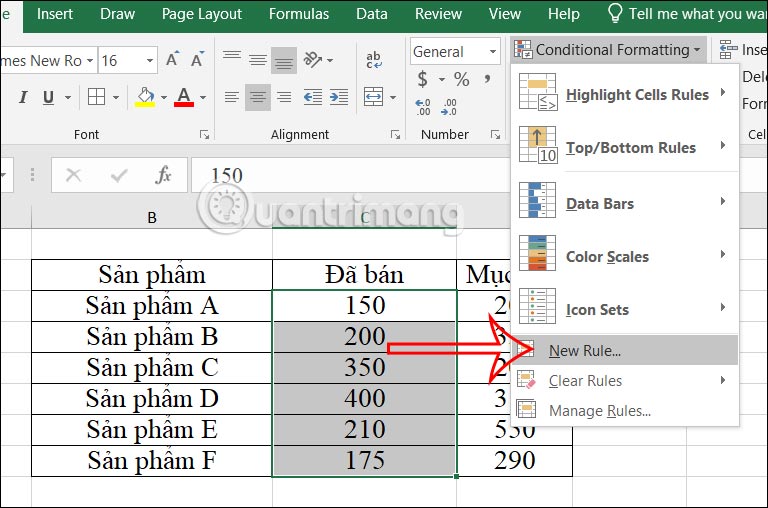
<p style="text-align: justify;">Đầu tiên chúng ta tạo bảng dữ liệu trên Excel như bình thường. Bây giờ bạn&nbsp;<strong>bôi đen cột dữ liệu muốn tạo định dạng</strong>&nbsp;<strong>điều kiện</strong>&nbsp;dựa trên cột khác. Sau đó nhấn vào&nbsp;<strong>Conditional Formatting</strong>&nbsp;và chọn&nbsp;<strong>New Rule</strong>.</p>

<p style="text-align: justify;"><img alt="Tạo điều kiện mới trên Excel " data-i="0" data-src="https://st.quantrimang.com/photos/image/2023/08/03/Excel-dinh-dang-dieu-kien-dua-vao-o-1.jpg" data-was-processed="true" height="384" src="https://st.quantrimang.com/photos/image/2023/08/03/Excel-dinh-dang-dieu-kien-dua-vao-o-1.jpg" width="580" /></p>

<p style="text-align: justify;"><strong>Bước 2:</strong></p>

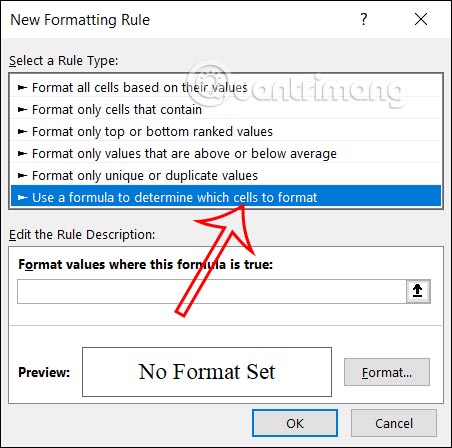
<p style="text-align: justify;">Lúc này hiển thị giao diện để thiết lập định dạng. Tại danh sách các kiểu định dạng bạn kéo xuống và&nbsp;<strong>nhấn vào Use a formula to determine which cells to format</strong>.</p>

<p style="text-align: justify;"><img alt="Chọn kiểu điều kiện trên Excel " data-i="1" data-src="https://st.quantrimang.com/photos/image/2023/08/03/Excel-dinh-dang-dieu-kien-dua-vao-o-2.jpg" data-was-processed="true" height="396" src="https://st.quantrimang.com/photos/image/2023/08/03/Excel-dinh-dang-dieu-kien-dua-vao-o-2.jpg" width="400" /></p>

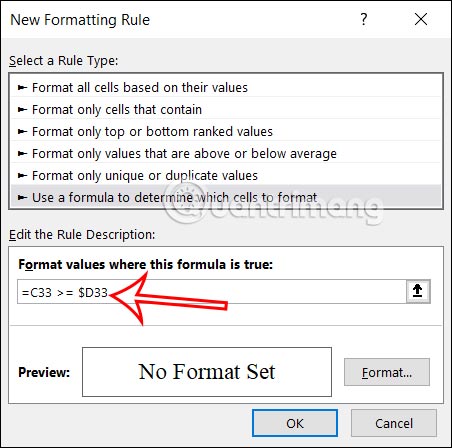
<p style="text-align: justify;">Tiếp đến tại<strong>&nbsp;Format values where this formula is true</strong>, bạn nhập điều kiện định dạng là&nbsp;<strong>=C33 &gt;= $D33</strong>. Trong đó C33 là ô bắt đầu của cột cần định dạng, D33 là cột dữ liệu điều kiện với điều kiện cột C33 lớn hơn hoặc bằng dữ liệu tại cột D33.</p>

<p style="text-align: justify;"><img alt="Điền công thức định dạng dữ liệu theo điều kiện cột trên Excel " data-i="2" data-src="https://st.quantrimang.com/photos/image/2023/08/03/Excel-dinh-dang-dieu-kien-dua-vao-o-3.jpg" data-was-processed="true" height="396" src="https://st.quantrimang.com/photos/image/2023/08/03/Excel-dinh-dang-dieu-kien-dua-vao-o-3.jpg" width="400" /></p>

<p style="text-align: justify;"><strong>Bước 3:</strong></p>

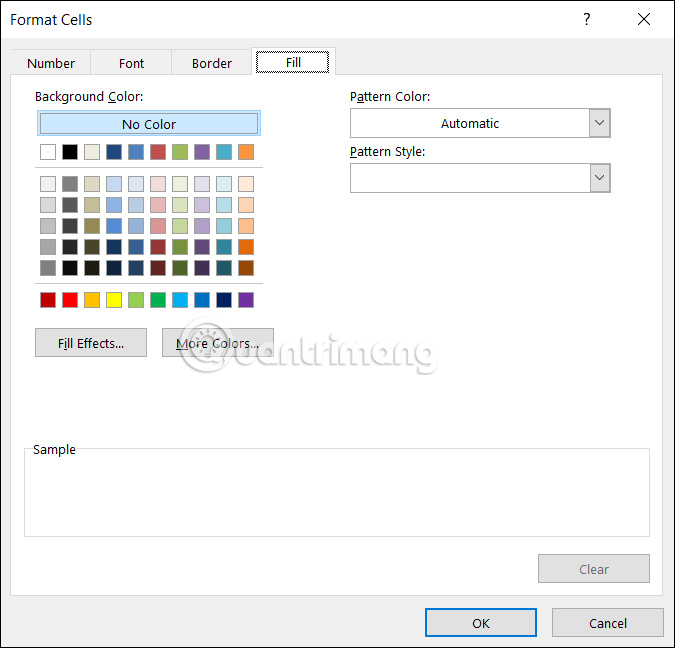
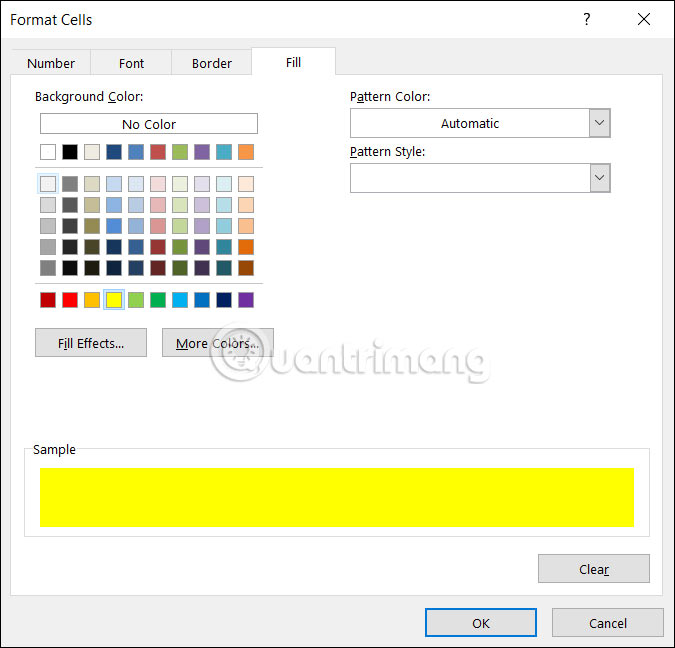
<p style="text-align: justify;">Bạn nhấn&nbsp;<strong>tiếp vào nút Format</strong>&nbsp;rồi nhấn tiếp vào<strong>&nbsp;tab Fill&nbsp;</strong>để<strong>&nbsp;chọn màu sắc</strong>&nbsp;bạn muốn đặt cho dữ liệu được định dạng theo điều kiện. Thiết lập xong thì nhấn vào nút OK để lưu lại định dạng cho dữ liệu theo điều kiện bạn chọn.</p>

<p style="text-align: justify;"><img alt="Chọn màu sắc cho dữ liệu định dạng trên Excel " data-i="3" data-src="https://st.quantrimang.com/photos/image/2023/08/03/Excel-dinh-dang-dieu-kien-dua-vao-o-4.jpg" data-was-processed="true" height="528" src="https://st.quantrimang.com/photos/image/2023/08/03/Excel-dinh-dang-dieu-kien-dua-vao-o-4.jpg" width="550" /></p>

<p style="text-align: justify;"><strong>Bước 4:</strong></p>

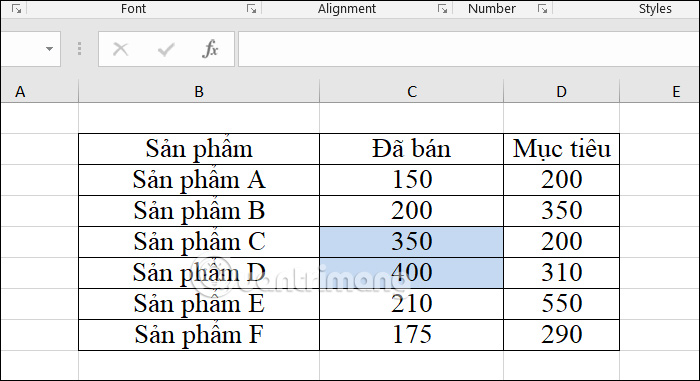
<p style="text-align: justify;">Kết quả bạn sẽ thấy ô dữ liệu được định dạng dựa trên điều kiện mà bạn thiết lập. Những ô có giá trị lớn hơn được đánh dấu để bạn dễ nhận biết.</p>

<p style="text-align: justify;"><img alt="Dữ liệu định dạng theo điều kiện cột trên Excel " data-i="4" data-src="https://st.quantrimang.com/photos/image/2023/08/03/Excel-dinh-dang-dieu-kien-dua-vao-o-5.jpg" data-was-processed="true" height="327" src="https://st.quantrimang.com/photos/image/2023/08/03/Excel-dinh-dang-dieu-kien-dua-vao-o-5.jpg" width="600" /></p>

<h2 style="text-align: justify;">Cách định dạng dữ liệu Excel dựa trên ô khác</h2>

<p style="text-align: justify;"><strong>Bước 1:</strong></p>

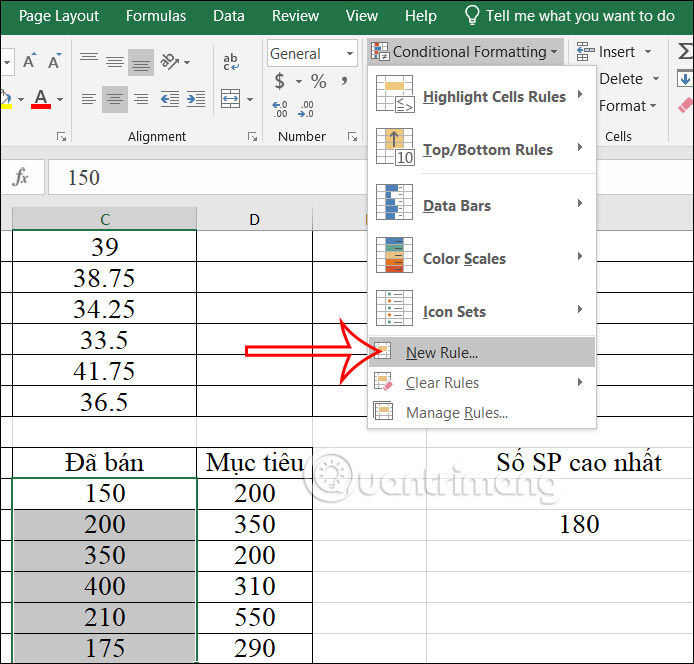
<p style="text-align: justify;">Đầu tiên bạn cũng tạo bảng dữ liệu và ô giá trị muốn sử dụng làm điều kiện. Tiếp đến bôi đen cột muốn định dạng dữ liệu, sau đó nhấn vào<strong>&nbsp;Conditional Formatting chọn New Rule</strong>.</p>

<p style="text-align: justify;"><img alt="Thiết lập định dạng điều kiện trên Excel " data-i="5" data-src="https://st.quantrimang.com/photos/image/2023/08/03/Excel-dinh-dang-dieu-kien-dua-vao-o-6.jpg" data-was-processed="true" height="526" src="https://st.quantrimang.com/photos/image/2023/08/03/Excel-dinh-dang-dieu-kien-dua-vao-o-6.jpg" width="550" /></p>

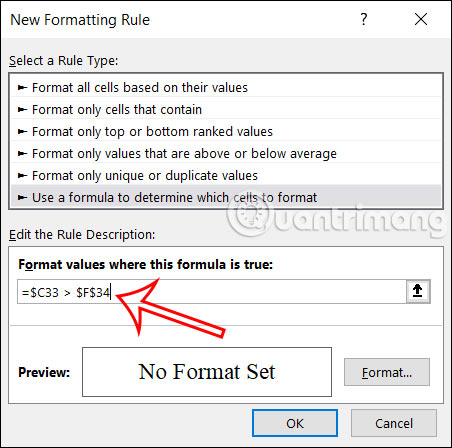
<p style="text-align: justify;">Chuyển sang giao diện mới bạn&nbsp;<strong>nhấn vào Use a formula to determine which cells to format</strong>.</p>

<p style="text-align: justify;">Tiếp đến bạn&nbsp;<strong>nhập điều kiện =$C33 &gt; $F$34&nbsp;</strong>với ô F34 là dữ liệu điều kiện để bạn định dạng cho cột C33.</p>

<p style="text-align: justify;"><img alt="Thiết lập định dạng điều kiện theo ô trên Excel " data-i="6" data-src="https://st.quantrimang.com/photos/image/2023/08/03/Excel-dinh-dang-dieu-kien-dua-vao-o-7.jpg" data-was-processed="true" height="396" src="https://st.quantrimang.com/photos/image/2023/08/03/Excel-dinh-dang-dieu-kien-dua-vao-o-7.jpg" width="400" /></p>

<p style="text-align: justify;"><strong>Bước 2:</strong></p>

<p style="text-align: justify;">Nhấn vào&nbsp;<strong>nút Format rồi nhấn vào tab Fill&nbsp;</strong>để lựa chọn màu sắc cho dữ liệu. Cuối cùng bạn nhấn OK để tiến hành định dạng dữ liệu theo điều kiện giá trị trong ô đã chọn.</p>

<p style="text-align: justify;"><img alt="Chọn màu cho dữ liệu trên Excel " data-i="7" data-src="https://st.quantrimang.com/photos/image/2023/08/03/Excel-dinh-dang-dieu-kien-dua-vao-o-8.jpg" data-was-processed="true" height="528" src="https://st.quantrimang.com/photos/image/2023/08/03/Excel-dinh-dang-dieu-kien-dua-vao-o-8.jpg" width="550" /></p>

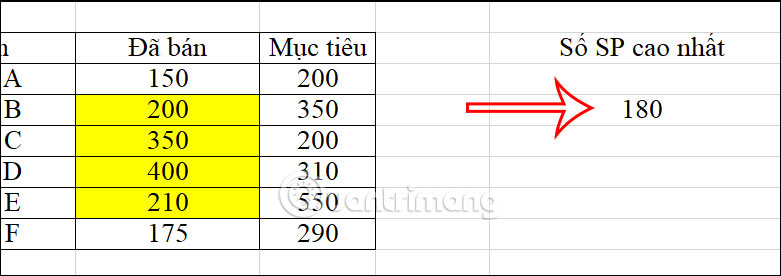
<p style="text-align: justify;">Kết quả chúng ta sẽ nhìn thấy những ô dữ liệu lớn hơn hoặc bằng với ô giá trị điều kiện mà bạn đã chọn.</p>

<p style="text-align: justify;"><img alt="Dữ liệu định dạng điều kiện theo ô trên Excel " data-i="8" data-src="https://st.quantrimang.com/photos/image/2023/08/03/Excel-dinh-dang-dieu-kien-dua-vao-o-9.jpg" data-was-processed="true" height="223" src="https://st.quantrimang.com/photos/image/2023/08/03/Excel-dinh-dang-dieu-kien-dua-vao-o-9.jpg" width="630" /></p>

<div style="text-align: justify;">&nbsp;</div>
		</div>
				<div id="author">
						<p>
				<strong>Nguồn tin:</strong>
				Quantrimang.com
			</p>
		</div>
	</div>
	<div id="footer" class="clearfix">
		<div id="url">
			<strong>URL của bản tin này: </strong><a href="https://www.nguoicodonvn2008.info/vi/news/savefile/kien-thuc-may-tinh/cach-dinh-dang-du-lieu-dua-tren-dieu-kien-o-khac-trong-excel-7352.html" title="Cách định dạng dữ liệu dựa trên điều kiện ô khác trong Excel">https://www.nguoicodonvn2008.info/vi/news/savefile/kien-thuc-may-tinh/cach-dinh-dang-du-lieu-dua-tren-dieu-kien-o-khac-trong-excel-7352.html</a>

		</div>
		<div class="clear"></div>
		<div class="copyright">
			&copy; .&#x3A; Nguoicodonvn2008.info - Cõi lòng người cô đơn &#x3A;.
		</div>
		<div id="contact">
			<a href="mailto:admin@nguoicodonvn2008.info">admin@nguoicodonvn2008.info</a>
		</div>
	</div>
</div>
        <div id="timeoutsess" class="chromeframe">
            Bạn đã không sử dụng Site, <a onclick="timeoutsesscancel();" href="https://www.nguoicodonvn2008.info/#">Bấm vào đây để duy trì trạng thái đăng nhập</a>. Thời gian chờ: <span id="secField"> 60 </span> giây
        </div>
        <div id="openidResult" class="nv-alert" style="display:none"></div>
        <div id="openidBt" data-result="" data-redirect=""></div>
		</script>
		<div class="car-top">
  <span><img src="https://www.nguoicodonvn2008.info/themes/default/images/car.png" alt=""></span>
</div>
<script src="https://www.nguoicodonvn2008.info/assets/js/jquery/jquery.min.js"></script>
<script>var nv_base_siteurl="/",nv_lang_data="vi",nv_lang_interface="vi",nv_name_variable="nv",nv_fc_variable="op",nv_lang_variable="language",nv_module_name="news",nv_func_name="savefile",nv_is_user=0, nv_my_ofs=-4,nv_my_abbr="EDT",nv_cookie_prefix="nv4c_e856T",nv_check_pass_mstime=1738000,nv_area_admin=0,nv_safemode=0,theme_responsive=0,nv_recaptcha_ver=2,nv_recaptcha_sitekey="",nv_recaptcha_type="image",XSSsanitize=1;</script>
<script src="https://www.nguoicodonvn2008.info/assets/js/language/vi.js"></script>
<script src="https://www.nguoicodonvn2008.info/assets/js/DOMPurify/purify3.js"></script>
<script src="https://www.nguoicodonvn2008.info/assets/js/global.js"></script>
<script src="https://www.nguoicodonvn2008.info/assets/js/site.js"></script>
<script src="https://www.nguoicodonvn2008.info/themes/default/js/news.js"></script>
<script src="https://www.nguoicodonvn2008.info/themes/default/js/main.js"></script>
<script src="https://www.nguoicodonvn2008.info/themes/default/js/custom.js"></script>
<script type="application/ld+json">
        {
            "@context": "https://schema.org",
            "@type": "Organization",
            "url": "https://www.nguoicodonvn2008.info",
            "logo": "https://www.nguoicodonvn2008.info/uploads/angel.gif"
        }
        </script>
<script src="https://www.nguoicodonvn2008.info/themes/default/js/bootstrap.min.js"></script>
<script type="text/javascript">
var $scrolltop = $('.car-top');
$scrolltop.on('click', function () {
    $('html,body').animate({
        scrollTop: 0
    }, 800);
    $(this).addClass("car-run");
    setTimeout(function(){ $scrolltop.removeClass('car-run');}, 1000);
    return false;
});
$(window).on('scroll', function ()
{ 
    if($(window).scrollTop() >= 200)
    {
        $scrolltop.addClass("show");
        $scrolltop.addClass("car-down");
    }
    else
    {
       $scrolltop.removeClass("show");
       setTimeout(function(){ $scrolltop.removeClass('car-down');}, 300);
    }
});
</script>
</body>
</html>