<!DOCTYPE html>
    <html lang="vi" xmlns="http://www.w3.org/1999/xhtml" prefix="og: http://ogp.me/ns#">
    <head>
<title>Cách điều chỉnh tốc độ chuột trên Windows 10 và 11</title>
<meta name="description" content="Cách điều chỉnh tốc độ chuột trên Windows 10 và 11 - Savefile - Tin Tức -...">
<meta name="author" content=".: Nguoicodonvn2008.info - Cõi lòng người cô đơn :.">
<meta name="copyright" content=".: Nguoicodonvn2008.info - Cõi lòng người cô đơn :. [admin@nguoicodonvn2008.info]">
<meta name="robots" content="index, archive, follow, noodp">
<meta name="googlebot" content="index,archive,follow,noodp">
<meta name="msnbot" content="all,index,follow">
<meta name="generator" content="NukeViet v4.5">
<meta http-equiv="Content-Type" content="text/html; charset=utf-8">
<meta property="og:title" content="Cách điều chỉnh tốc độ chuột trên Windows 10 và 11">
<meta property="og:type" content="website">
<meta property="og:description" content="Savefile - Tin Tức - https&#x3A;&#x002F;&#x002F;www.nguoicodonvn2008.info&#x002F;vi&#x002F;news&#x002F;savefile&#x002F;kien-thuc-may-tinh&#x002F;cach-dieu-chinh-toc-do-chuot-tren-windows-10-va-11-5253.html">
<meta property="og:site_name" content=".&#x3A; Nguoicodonvn2008.info - Cõi lòng người cô đơn &#x3A;.">
<meta property="og:url" content="https://www.nguoicodonvn2008.info/vi/news/savefile/kien-thuc-may-tinh/cach-dieu-chinh-toc-do-chuot-tren-windows-10-va-11-5253.html">
<link rel="shortcut icon" href="https://www.nguoicodonvn2008.info/favicon.ico">
<link rel="canonical" href="https://www.nguoicodonvn2008.info/vi/news/savefile/kien-thuc-may-tinh/cach-dieu-chinh-toc-do-chuot-tren-windows-10-va-11-5253.html">
<link rel="alternate" href="https://www.nguoicodonvn2008.info/vi/news/rss/" title="Tin Tức" type="application/rss+xml">
<link rel="alternate" href="https://www.nguoicodonvn2008.info/vi/news/rss/karaoke-dual/" title="Tin Tức - Karaoke Dual" type="application/rss+xml">
<link rel="alternate" href="https://www.nguoicodonvn2008.info/vi/news/rss/nhac-tre/" title="Tin Tức - Nhạc trẻ" type="application/rss+xml">
<link rel="alternate" href="https://www.nguoicodonvn2008.info/vi/news/rss/tru-tinh/" title="Tin Tức - Trữ tình" type="application/rss+xml">
<link rel="alternate" href="https://www.nguoicodonvn2008.info/vi/news/rss/nuoc-ngoai/" title="Tin Tức - Nước ngoài" type="application/rss+xml">
<link rel="alternate" href="https://www.nguoicodonvn2008.info/vi/news/rss/remix/" title="Tin Tức - Remix" type="application/rss+xml">
<link rel="alternate" href="https://www.nguoicodonvn2008.info/vi/news/rss/tam-su-tinh-yeu/" title="Tin Tức - Tâm sự tình yêu" type="application/rss+xml">
<link rel="alternate" href="https://www.nguoicodonvn2008.info/vi/news/rss/tho-suu-tam/" title="Tin Tức - Thơ sưu tầm" type="application/rss+xml">
<link rel="alternate" href="https://www.nguoicodonvn2008.info/vi/news/rss/cuoc-song/" title="Tin Tức - Cuộc sống" type="application/rss+xml">
<link rel="alternate" href="https://www.nguoicodonvn2008.info/vi/news/rss/phan-mem/" title="Tin Tức - Phần mềm" type="application/rss+xml">
<link rel="alternate" href="https://www.nguoicodonvn2008.info/vi/news/rss/kien-thuc-may-tinh/" title="Tin Tức - Kiến thức máy tính" type="application/rss+xml">
<link rel="alternate" href="https://www.nguoicodonvn2008.info/vi/news/rss/hoc-tap/" title="Tin Tức - Học tập" type="application/rss+xml">
<link rel="alternate" href="https://www.nguoicodonvn2008.info/vi/news/rss/tai-lieu/" title="Tin Tức - Tài liệu" type="application/rss+xml">
<link rel="alternate" href="https://www.nguoicodonvn2008.info/vi/news/rss/de-thi/" title="Tin Tức - Đề thi" type="application/rss+xml">
<link rel="preload" as="style" href="https://www.nguoicodonvn2008.info/assets/css/font-awesome.min.css" type="text/css">
<link rel="preload" as="style" href="https://www.nguoicodonvn2008.info/themes/default/css/bootstrap.non-responsive.css" type="text/css">
<link rel="preload" as="style" href="https://www.nguoicodonvn2008.info/themes/default/css/style.css" type="text/css">
<link rel="preload" as="style" href="https://www.nguoicodonvn2008.info/themes/default/css/style.non-responsive.css" type="text/css">
<link rel="preload" as="style" href="https://www.nguoicodonvn2008.info/themes/default/css/news.css" type="text/css">
<link rel="preload" as="style" href="https://www.nguoicodonvn2008.info/themes/default/css/custom.css" type="text/css">
<link rel="preload" as="script" href="https://www.nguoicodonvn2008.info/assets/js/jquery/jquery.min.js" type="text/javascript">
<link rel="preload" as="script" href="https://www.nguoicodonvn2008.info/assets/js/language/vi.js" type="text/javascript">
<link rel="preload" as="script" href="https://www.nguoicodonvn2008.info/assets/js/DOMPurify/purify3.js" type="text/javascript">
<link rel="preload" as="script" href="https://www.nguoicodonvn2008.info/assets/js/global.js" type="text/javascript">
<link rel="preload" as="script" href="https://www.nguoicodonvn2008.info/assets/js/site.js" type="text/javascript">
<link rel="preload" as="script" href="https://www.nguoicodonvn2008.info/themes/default/js/news.js" type="text/javascript">
<link rel="preload" as="script" href="https://www.nguoicodonvn2008.info/themes/default/js/main.js" type="text/javascript">
<link rel="preload" as="script" href="https://www.nguoicodonvn2008.info/themes/default/js/custom.js" type="text/javascript">
<link rel="preload" as="script" href="https://www.nguoicodonvn2008.info/themes/default/js/bootstrap.min.js" type="text/javascript">
<link rel="stylesheet" href="https://www.nguoicodonvn2008.info/assets/css/font-awesome.min.css">
<link rel="stylesheet" href="https://www.nguoicodonvn2008.info/themes/default/css/bootstrap.non-responsive.css">
<link rel="stylesheet" href="https://www.nguoicodonvn2008.info/themes/default/css/style.css">
<link rel="stylesheet" href="https://www.nguoicodonvn2008.info/themes/default/css/style.non-responsive.css">
<link rel="StyleSheet" href="https://www.nguoicodonvn2008.info/themes/default/css/news.css">
<link rel="stylesheet" href="https://www.nguoicodonvn2008.info/themes/default/css/custom.css">
<style type="text/css">
	body{background: #fff;}
</style>
    </head>
    <body>
<div id="print">
	<div id="hd_print">
		<h2 class="pull-left">.&#x3A; Nguoicodonvn2008.info - Cõi lòng người cô đơn &#x3A;.</h2>
		<p class="pull-right"><a title=".&#x3A; Nguoicodonvn2008.info - Cõi lòng người cô đơn &#x3A;." href="https://www.nguoicodonvn2008.info/">https://www.nguoicodonvn2008.info</a></p>
	</div>
	<div class="clear"></div>
	<hr />
	<div id="content">
		<h1>Cách điều chỉnh tốc độ chuột trên Windows 10 và 11</h1>
		<ul class="list-inline">
			<li>Thứ tư - 09/03/2022 22:51</li>
			<li class="hidden-print txtrequired"><em class="fa fa-print">&nbsp;</em><a title="In ra" href="javascript:;" onclick="window.print()">In ra</a></li>
			<li class="hidden-print txtrequired"><em class="fa fa-power-off">&nbsp;</em><a title="Đóng cửa sổ này" href="javascript:;" onclick="window.close()">Đóng cửa sổ này</a></li>
		</ul>
		<div class="clear"></div>
		<div id="hometext">
		</div>
				<div class="imghome">
			<img alt="Cách điều chỉnh tốc độ chuột trên Windows 10 và 11" src="https://st.quantrimang.com/photos/image/2022/03/09/dieu-chinh-toc-do-chuot-tren-window-10-va-11-2.jpg" width="460" class="img-thumbnail" />
		</div>
		<div class="clear"></div>
		<div id="bodytext" class="clearfix">
			<p style="text-align: justify;">Chuột là công cụ không thể thiếu giúp bạn điều hướng, thao tác các tác vụ của máy tính. Vậy nhưng phải làm sao nếu như con chuột của bạn đang trở nên quá chậm chạp, làm ảnh hưởng tới hiệu quả công việc. Dưới đây là cách giúp cho bạn có thể dễ dàng điều chỉnh lại tốc độ của chuột trên&nbsp;Windows 10&nbsp;và 11.</p>

<h2 style="text-align: justify;">Mục lục của bài viết</h2>

<div style="text-align: justify;">&nbsp;</div>

<h2 id="mcetoc_1ftmo9amv89" style="text-align: justify;">Tốc độ chuột là gì?</h2>

<p style="text-align: justify;">Tốc độ chuột được tính bằng chỉ số DPI - Dots Per Inch (số điểm/inch). Đây là chỉ số tính toán độ nhạy của cảm biến trên chuột. Nếu như chỉ số DPI càng cao thì tốc độ di chuyển của chuột sẽ càng chính xác hơn.</p>

<div style="text-align: justify;">&nbsp;</div>

<h2 id="mcetoc_1ftmo9amv8a" style="text-align: justify;">Cách điều chỉnh tốc độ chuột trên Windows 10 và 11</h2>

<h3 id="mcetoc_1ftmo9amv8b" style="text-align: justify;">Điều chỉnh tốc độ chuột qua Setting</h3>

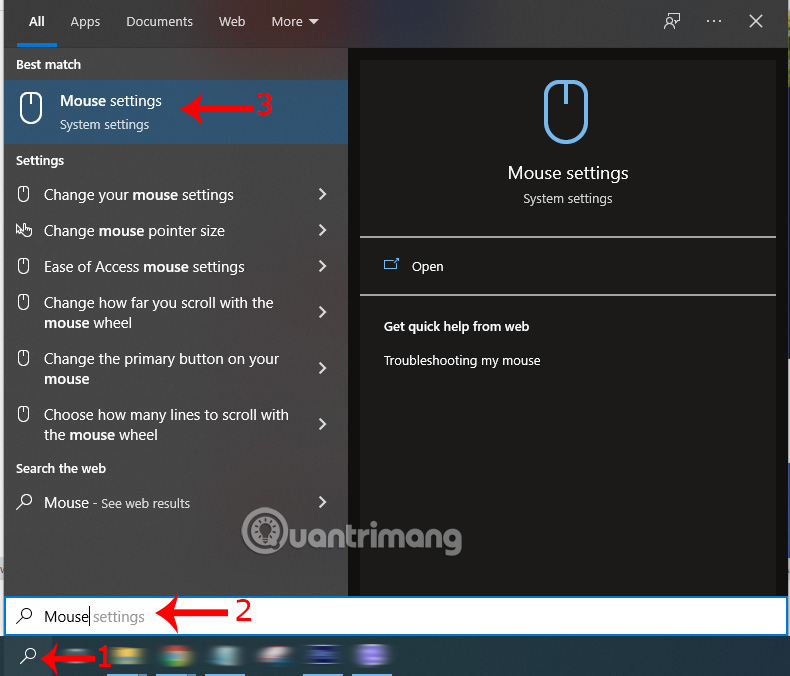
<p style="text-align: justify;">Bạn có thể điều chỉnh tốc độ chuột thông qua phần&nbsp;<strong>Settings</strong>. Trên Windows 10 và 11 bạn có thể trực tiếp nhấn chọn biểu tượng&nbsp;<strong>Kính Lúp</strong>&nbsp;ở dưới cùng bên trái màn hình máy tính. Sau đó gõ&nbsp;<strong>Mouse</strong>&nbsp;vào thanh tìm kiếm là phần&nbsp;<strong>Mouse Settings</strong>&nbsp;sẽ xuất hiện trên mục nội dung tìm kiếm.</p>

<p style="text-align: justify;">Bạn chỉ cần click chuột vào&nbsp;<strong>Mouse Settings</strong>&nbsp;để có thể nhanh chóng truy cập vào phần thiết lập chuột máy tính.</p>

<p style="text-align: justify;"><img alt="Các bước điều chỉnh tốc độ chuột qua Settings" data-i="0" data-src="https://st.quantrimang.com/photos/image/2022/03/09/dieu-chinh-toc-do-chuot-tren-window-10-va-11-2.jpg" data-was-processed="true" height="548" src="https://st.quantrimang.com/photos/image/2022/03/09/dieu-chinh-toc-do-chuot-tren-window-10-va-11-2.jpg" width="640" /></p>

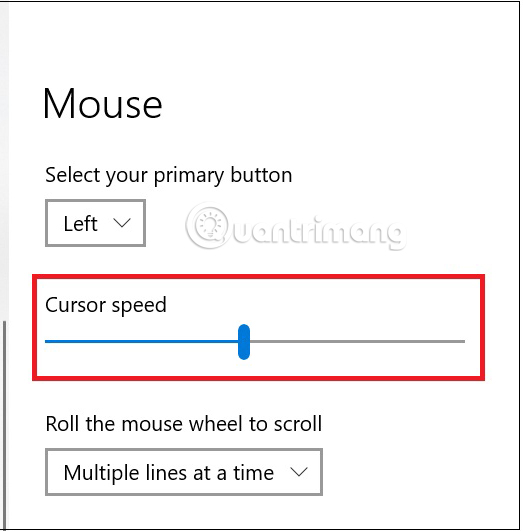
<p style="text-align: justify;">Tại đây có một mục là&nbsp;<strong>Cursor speed,</strong>&nbsp;khi muốn điều chỉnh tốc độ chuột chậm hơn bạn chỉ việc kéo thanh màu xanh về phía bên trái và ngược lại kéo nó về bên phải khi muốn gia tăng tốc độ cho chuột.</p>

<p style="text-align: justify;"><img alt="Di chuyển thanh điều hướng để điều chỉnh tốc độ chuột" data-i="1" data-src="https://st.quantrimang.com/photos/image/2022/03/09/dieu-chinh-toc-do-chuot-tren-window-10-va-11-3.jpg" data-was-processed="true" height="531" src="https://st.quantrimang.com/photos/image/2022/03/09/dieu-chinh-toc-do-chuot-tren-window-10-va-11-3.jpg" width="523" /></p>

<p style="text-align: justify;">Vậy là bạn đã có thể nhanh chóng điều chỉnh tốc độ chuột trên máy tính sao cho phù hợp với nhu cầu sử dụng.</p>

<h3 id="mcetoc_1ftmo9amv8c" style="text-align: justify;">Điều chỉnh tốc độ chuột qua Control Panel</h3>

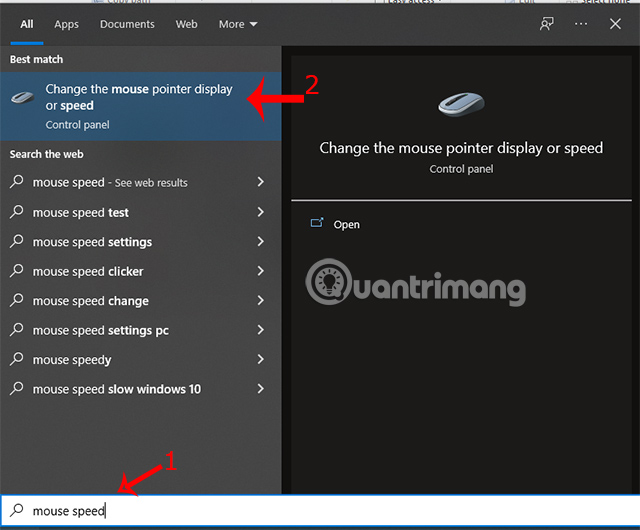
<p style="text-align: justify;">Một cách khác giúp bạn cải thiện được tốc độ chuột chính là thông qua&nbsp;<strong>Control Panel</strong>. Điều đầu tiên bạn cần làm chính là ấn vào biểu tượng&nbsp;<strong>Kính Lúp</strong>&nbsp;trên&nbsp;<strong>thanh Taskbar</strong>&nbsp;và gõ&nbsp;<strong>Mouse speed</strong>. Trên thanh tìm kiếm sẽ xuất hiện phần cài đặt chuột thông qua&nbsp;<strong>Control Panel.</strong></p>

<p style="text-align: justify;"><img alt="Các bước để tiến hành cài đặt tốc độ chuột qua Control Panel" data-i="2" data-src="https://st.quantrimang.com/photos/image/2022/03/09/dieu-chinh-toc-do-chuot-tren-window-10-va-11-4.jpg" data-was-processed="true" height="530" src="https://st.quantrimang.com/photos/image/2022/03/09/dieu-chinh-toc-do-chuot-tren-window-10-va-11-4.jpg" width="640" /></p>

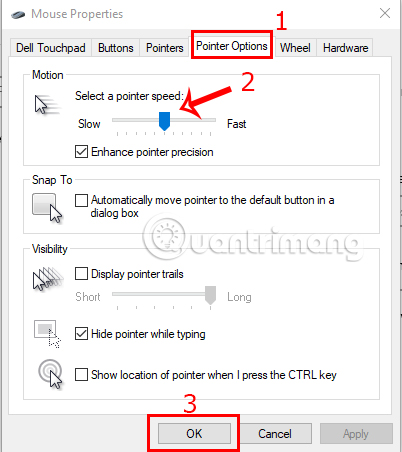
<p style="text-align: justify;">Sau khi ấn vào đây một cửa sổ pop-up mới sẽ hiện lên, chọn&nbsp;<strong>Pointer Options&nbsp;</strong>để chuyển sang phần thiết lập cho chuột. Tại&nbsp;<strong>Motion</strong>&nbsp;sẽ có 1 thanh bar cho phép bạn điều chỉnh tốc độ của chuột, di nút xanh sang trái để giảm tốc độ chuột và sang phải để tăng tốc độ chuột.</p>

<p style="text-align: justify;">Sau khi đã đạt được tốc độ chuột phù hợp thì bạn chỉ cần click vào&nbsp;<strong>OK</strong>&nbsp;ở dưới cùng của cửa sổ pop-up để xác nhận cài đặt.</p>

<p style="text-align: justify;"><img alt="Điều chỉnh tốc đô chuột trong Control Panel" data-i="3" data-src="https://st.quantrimang.com/photos/image/2022/03/09/dieu-chinh-toc-do-chuot-tren-window-10-va-11-5.jpg" data-was-processed="true" height="453" src="https://st.quantrimang.com/photos/image/2022/03/09/dieu-chinh-toc-do-chuot-tren-window-10-va-11-5.jpg" width="403" /></p>

<h2 id="mcetoc_1ftmo9amv8d" style="text-align: justify;">Lưu ý về tốc độ chuột (DPI)</h2>

<p style="text-align: justify;">Tùy vào nhu cầu sử dụng khác nhau mà người dùng có thể lựa chọn loại chuột có tốc độ phù hợp cho mình. Nếu vẫn còn chưa biết nên chọn loại chuột có tốc độ ra sao cho phù hợp thì đây là gợi ý tham khảo dành cho bạn</p>

<ul>
	<li style="text-align: justify;"><strong>DPI 800-100:</strong>&nbsp;Phù hợp cho các nhu cầu học tập và làm việc thao tác cơ bản.</li>
	<li style="text-align: justify;"><strong>DPI 1000-1600:&nbsp;</strong>Phù hợp cho nhu cầu chỉnh sửa đồ họa, chơi các tựa game đơn giản.</li>
	<li style="text-align: justify;"><strong>DPI 1600-4000:&nbsp;</strong>Phù hợp cho nhu cầu chỉnh sửa hình ảnh chuyên nghiệp, chơi các tựa game cấu hình tầm trung, game nhập vai...</li>
	<li style="text-align: justify;"><strong>DPI trên 4000:&nbsp;</strong>Phù hợp cho các công việc chỉnh sửa đồ họa, video đặc thù, chơi game cấu hình cao, chuyên nghiệp...</li>
</ul>
		</div>
				<div id="author">
						<p>
				<strong>Nguồn tin:</strong>
				Quantrimang.com
			</p>
		</div>
	</div>
	<div id="footer" class="clearfix">
		<div id="url">
			<strong>URL của bản tin này: </strong><a href="https://www.nguoicodonvn2008.info/vi/news/savefile/kien-thuc-may-tinh/cach-dieu-chinh-toc-do-chuot-tren-windows-10-va-11-5253.html" title="Cách điều chỉnh tốc độ chuột trên Windows 10 và 11">https://www.nguoicodonvn2008.info/vi/news/savefile/kien-thuc-may-tinh/cach-dieu-chinh-toc-do-chuot-tren-windows-10-va-11-5253.html</a>

		</div>
		<div class="clear"></div>
		<div class="copyright">
			&copy; .&#x3A; Nguoicodonvn2008.info - Cõi lòng người cô đơn &#x3A;.
		</div>
		<div id="contact">
			<a href="mailto:admin@nguoicodonvn2008.info">admin@nguoicodonvn2008.info</a>
		</div>
	</div>
</div>
        <div id="timeoutsess" class="chromeframe">
            Bạn đã không sử dụng Site, <a onclick="timeoutsesscancel();" href="https://www.nguoicodonvn2008.info/#">Bấm vào đây để duy trì trạng thái đăng nhập</a>. Thời gian chờ: <span id="secField"> 60 </span> giây
        </div>
        <div id="openidResult" class="nv-alert" style="display:none"></div>
        <div id="openidBt" data-result="" data-redirect=""></div>
		</script>
		<div class="car-top">
  <span><img src="https://www.nguoicodonvn2008.info/themes/default/images/car.png" alt=""></span>
</div>
<script src="https://www.nguoicodonvn2008.info/assets/js/jquery/jquery.min.js"></script>
<script>var nv_base_siteurl="/",nv_lang_data="vi",nv_lang_interface="vi",nv_name_variable="nv",nv_fc_variable="op",nv_lang_variable="language",nv_module_name="news",nv_func_name="savefile",nv_is_user=0, nv_my_ofs=-4,nv_my_abbr="EDT",nv_cookie_prefix="nv4c_e856T",nv_check_pass_mstime=1738000,nv_area_admin=0,nv_safemode=0,theme_responsive=0,nv_recaptcha_ver=2,nv_recaptcha_sitekey="",nv_recaptcha_type="image",XSSsanitize=1;</script>
<script src="https://www.nguoicodonvn2008.info/assets/js/language/vi.js"></script>
<script src="https://www.nguoicodonvn2008.info/assets/js/DOMPurify/purify3.js"></script>
<script src="https://www.nguoicodonvn2008.info/assets/js/global.js"></script>
<script src="https://www.nguoicodonvn2008.info/assets/js/site.js"></script>
<script src="https://www.nguoicodonvn2008.info/themes/default/js/news.js"></script>
<script src="https://www.nguoicodonvn2008.info/themes/default/js/main.js"></script>
<script src="https://www.nguoicodonvn2008.info/themes/default/js/custom.js"></script>
<script type="application/ld+json">
        {
            "@context": "https://schema.org",
            "@type": "Organization",
            "url": "https://www.nguoicodonvn2008.info",
            "logo": "https://www.nguoicodonvn2008.info/uploads/angel.gif"
        }
        </script>
<script src="https://www.nguoicodonvn2008.info/themes/default/js/bootstrap.min.js"></script>
<script type="text/javascript">
var $scrolltop = $('.car-top');
$scrolltop.on('click', function () {
    $('html,body').animate({
        scrollTop: 0
    }, 800);
    $(this).addClass("car-run");
    setTimeout(function(){ $scrolltop.removeClass('car-run');}, 1000);
    return false;
});
$(window).on('scroll', function ()
{ 
    if($(window).scrollTop() >= 200)
    {
        $scrolltop.addClass("show");
        $scrolltop.addClass("car-down");
    }
    else
    {
       $scrolltop.removeClass("show");
       setTimeout(function(){ $scrolltop.removeClass('car-down');}, 300);
    }
});
</script>
</body>
</html>