<!DOCTYPE html>
    <html lang="vi" xmlns="http://www.w3.org/1999/xhtml" prefix="og: http://ogp.me/ns#">
    <head>
<title>Cách chuyển đổi, xuất file tài liệu Word thành bài trình chiếu PowerPoint</title>
<meta name="description" content="Cách chuyển đổi, xuất file tài liệu Word thành bài trình chiếu PowerPoint - Savefile - Tin Tức -...">
<meta name="author" content=".: Nguoicodonvn2008.info - Cõi lòng người cô đơn :.">
<meta name="copyright" content=".: Nguoicodonvn2008.info - Cõi lòng người cô đơn :. [admin@nguoicodonvn2008.info]">
<meta name="robots" content="index, archive, follow, noodp">
<meta name="googlebot" content="index,archive,follow,noodp">
<meta name="msnbot" content="all,index,follow">
<meta name="generator" content="NukeViet v4.5">
<meta http-equiv="Content-Type" content="text/html; charset=utf-8">
<meta property="og:title" content="Cách chuyển đổi, xuất file tài liệu Word thành bài trình chiếu PowerPoint">
<meta property="og:type" content="website">
<meta property="og:description" content="Savefile - Tin Tức -...">
<meta property="og:site_name" content=".&#x3A; Nguoicodonvn2008.info - Cõi lòng người cô đơn &#x3A;.">
<meta property="og:url" content="https://www.nguoicodonvn2008.info/vi/news/savefile/kien-thuc-may-tinh/cach-chuyen-doi-xuat-file-tai-lieu-word-thanh-bai-trinh-chieu-powerpoint-4315.html">
<link rel="shortcut icon" href="https://www.nguoicodonvn2008.info/favicon.ico">
<link rel="canonical" href="https://www.nguoicodonvn2008.info/vi/news/savefile/kien-thuc-may-tinh/cach-chuyen-doi-xuat-file-tai-lieu-word-thanh-bai-trinh-chieu-powerpoint-4315.html">
<link rel="alternate" href="https://www.nguoicodonvn2008.info/vi/news/rss/" title="Tin Tức" type="application/rss+xml">
<link rel="alternate" href="https://www.nguoicodonvn2008.info/vi/news/rss/karaoke-dual/" title="Tin Tức - Karaoke Dual" type="application/rss+xml">
<link rel="alternate" href="https://www.nguoicodonvn2008.info/vi/news/rss/nhac-tre/" title="Tin Tức - Nhạc trẻ" type="application/rss+xml">
<link rel="alternate" href="https://www.nguoicodonvn2008.info/vi/news/rss/tru-tinh/" title="Tin Tức - Trữ tình" type="application/rss+xml">
<link rel="alternate" href="https://www.nguoicodonvn2008.info/vi/news/rss/nuoc-ngoai/" title="Tin Tức - Nước ngoài" type="application/rss+xml">
<link rel="alternate" href="https://www.nguoicodonvn2008.info/vi/news/rss/remix/" title="Tin Tức - Remix" type="application/rss+xml">
<link rel="alternate" href="https://www.nguoicodonvn2008.info/vi/news/rss/tam-su-tinh-yeu/" title="Tin Tức - Tâm sự tình yêu" type="application/rss+xml">
<link rel="alternate" href="https://www.nguoicodonvn2008.info/vi/news/rss/tho-suu-tam/" title="Tin Tức - Thơ sưu tầm" type="application/rss+xml">
<link rel="alternate" href="https://www.nguoicodonvn2008.info/vi/news/rss/cuoc-song/" title="Tin Tức - Cuộc sống" type="application/rss+xml">
<link rel="alternate" href="https://www.nguoicodonvn2008.info/vi/news/rss/phan-mem/" title="Tin Tức - Phần mềm" type="application/rss+xml">
<link rel="alternate" href="https://www.nguoicodonvn2008.info/vi/news/rss/kien-thuc-may-tinh/" title="Tin Tức - Kiến thức máy tính" type="application/rss+xml">
<link rel="alternate" href="https://www.nguoicodonvn2008.info/vi/news/rss/hoc-tap/" title="Tin Tức - Học tập" type="application/rss+xml">
<link rel="alternate" href="https://www.nguoicodonvn2008.info/vi/news/rss/tai-lieu/" title="Tin Tức - Tài liệu" type="application/rss+xml">
<link rel="alternate" href="https://www.nguoicodonvn2008.info/vi/news/rss/de-thi/" title="Tin Tức - Đề thi" type="application/rss+xml">
<link rel="preload" as="style" href="https://www.nguoicodonvn2008.info/assets/css/font-awesome.min.css" type="text/css">
<link rel="preload" as="style" href="https://www.nguoicodonvn2008.info/themes/default/css/bootstrap.non-responsive.css" type="text/css">
<link rel="preload" as="style" href="https://www.nguoicodonvn2008.info/themes/default/css/style.css" type="text/css">
<link rel="preload" as="style" href="https://www.nguoicodonvn2008.info/themes/default/css/style.non-responsive.css" type="text/css">
<link rel="preload" as="style" href="https://www.nguoicodonvn2008.info/themes/default/css/news.css" type="text/css">
<link rel="preload" as="style" href="https://www.nguoicodonvn2008.info/themes/default/css/custom.css" type="text/css">
<link rel="preload" as="script" href="https://www.nguoicodonvn2008.info/assets/js/jquery/jquery.min.js" type="text/javascript">
<link rel="preload" as="script" href="https://www.nguoicodonvn2008.info/assets/js/language/vi.js" type="text/javascript">
<link rel="preload" as="script" href="https://www.nguoicodonvn2008.info/assets/js/DOMPurify/purify3.js" type="text/javascript">
<link rel="preload" as="script" href="https://www.nguoicodonvn2008.info/assets/js/global.js" type="text/javascript">
<link rel="preload" as="script" href="https://www.nguoicodonvn2008.info/assets/js/site.js" type="text/javascript">
<link rel="preload" as="script" href="https://www.nguoicodonvn2008.info/themes/default/js/news.js" type="text/javascript">
<link rel="preload" as="script" href="https://www.nguoicodonvn2008.info/themes/default/js/main.js" type="text/javascript">
<link rel="preload" as="script" href="https://www.nguoicodonvn2008.info/themes/default/js/custom.js" type="text/javascript">
<link rel="preload" as="script" href="https://www.nguoicodonvn2008.info/themes/default/js/bootstrap.min.js" type="text/javascript">
<link rel="stylesheet" href="https://www.nguoicodonvn2008.info/assets/css/font-awesome.min.css">
<link rel="stylesheet" href="https://www.nguoicodonvn2008.info/themes/default/css/bootstrap.non-responsive.css">
<link rel="stylesheet" href="https://www.nguoicodonvn2008.info/themes/default/css/style.css">
<link rel="stylesheet" href="https://www.nguoicodonvn2008.info/themes/default/css/style.non-responsive.css">
<link rel="StyleSheet" href="https://www.nguoicodonvn2008.info/themes/default/css/news.css">
<link rel="stylesheet" href="https://www.nguoicodonvn2008.info/themes/default/css/custom.css">
<style type="text/css">
	body{background: #fff;}
</style>
    </head>
    <body>
<div id="print">
	<div id="hd_print">
		<h2 class="pull-left">.&#x3A; Nguoicodonvn2008.info - Cõi lòng người cô đơn &#x3A;.</h2>
		<p class="pull-right"><a title=".&#x3A; Nguoicodonvn2008.info - Cõi lòng người cô đơn &#x3A;." href="https://www.nguoicodonvn2008.info/">https://www.nguoicodonvn2008.info</a></p>
	</div>
	<div class="clear"></div>
	<hr />
	<div id="content">
		<h1>Cách chuyển đổi, xuất file tài liệu Word thành bài trình chiếu PowerPoint</h1>
		<ul class="list-inline">
			<li>Thứ bảy - 26/06/2021 00:03</li>
			<li class="hidden-print txtrequired"><em class="fa fa-print">&nbsp;</em><a title="In ra" href="javascript:;" onclick="window.print()">In ra</a></li>
			<li class="hidden-print txtrequired"><em class="fa fa-power-off">&nbsp;</em><a title="Đóng cửa sổ này" href="javascript:;" onclick="window.close()">Đóng cửa sổ này</a></li>
		</ul>
		<div class="clear"></div>
		<div id="hometext">
		</div>
				<div class="imghome">
			<img alt="Cách chuyển đổi, xuất file tài liệu Word thành bài trình chiếu PowerPoint" src="https://st.quantrimang.com/photos/image/2021/06/17/chuyen-doi-file-word-thanh-powerpoint6.jpg" width="460" class="img-thumbnail" />
		</div>
		<div class="clear"></div>
		<div id="bodytext" class="clearfix">
			<p style="text-align: justify;">Nhiều người có thói quen chuyển đổi (convert) bản trình chiếu PowerPoint của mình sang tài liệu Word để có thể chỉnh sửa các nội dung văn bản dễ dàng hơn. Nhưng không phải ai cũng biết rằng hoàn toàn có thể làm điều ngược lại, “biến” một file tài liệu Microsoft Word trở thành bản trình chiếu Microsoft PowerPoint tương ứng chỉ với một vài thao tác đơn giản.</p>

<h2 style="text-align: justify;">Những điều cần lưu ý</h2>

<p style="text-align: justify;">Dưới đây là một vài điều mà bạn cần lưu ý khi chuyển đổi tài liệu Microsoft Word thành bản trình chiếu PowerPoint. Trên thực tế, tính năng này cũng chỉ mới được Microsoft ra mắt đầu năm 2021 trên nền tảng Word Online, do đó mọi thứ có thể được cập nhật, thay đổi theo thời gian.</p>

<ul>
	<li style="text-align: justify;">Tính năng chuyển đổi tài liệu Word thành bài trình chiếu PowerPoint hiện chỉ khả dụng trong nền tảng Word trên web.</li>
	<li style="text-align: justify;">Tùy chọn này hiện chỉ có sẵn dưới dạng tiếng Anh.</li>
	<li style="text-align: justify;">Tính năng này hiện không khả dụng trên trình duyệt Safari hoặc Internet Explorer.</li>
	<li style="text-align: justify;">Hiện tại, Microsoft mới chỉ hỗ trợ xuất nội dung văn bản từ file Word thành nội dung trong slide PowerPoint. Đối với các nội dung phương tiện như hình ảnh, video, bạn sẽ phải thêm thủ công vào slide PowerPoint tương ứng.</li>
</ul>

<h2 style="text-align: justify;">Chuyển đổi tài liệu Word sang PowerPoint</h2>

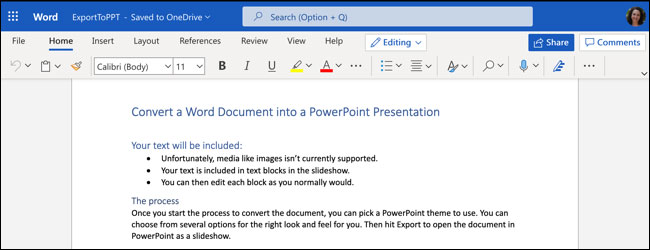
<p style="text-align: justify;">Trước tiên, hãy truy cập trang web trực tuyến của Microsoft Office, đăng nhập vào tài khoản của bạn và mở tài liệu bạn muốn chuyển đổi trong Word. (Không cần phải mở PowerPoint).</p>

<p style="text-align: justify;"><img alt="Mở tài liệu Word" data-i="0" data-src="https://st.quantrimang.com/photos/image/2021/06/17/chuyen-doi-file-word-thanh-powerpoint1.jpg" data-was-processed="true" height="250" src="https://st.quantrimang.com/photos/image/2021/06/17/chuyen-doi-file-word-thanh-powerpoint1.jpg" width="650" /></p>

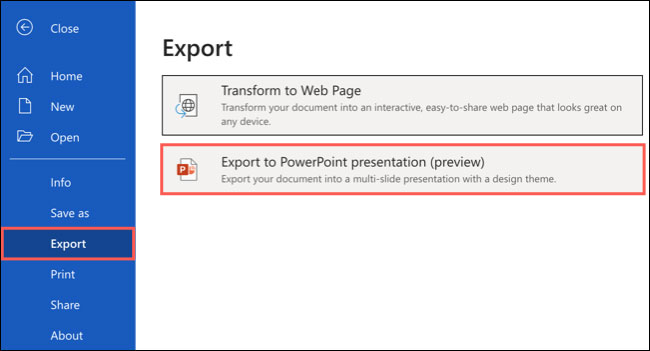
<p style="text-align: justify;">Nhấp vào&nbsp;<strong>File &gt; Export</strong>&nbsp;và chọn tùy chọn “<strong>Export to PowerPoint Presentation</strong>”.</p>

<p style="text-align: justify;"><img alt="Nhấp vào File &gt; Export" data-i="1" data-src="https://st.quantrimang.com/photos/image/2021/06/17/chuyen-doi-file-word-thanh-powerpoint2.jpg" data-was-processed="true" height="351" src="https://st.quantrimang.com/photos/image/2021/06/17/chuyen-doi-file-word-thanh-powerpoint2.jpg" width="650" /></p>

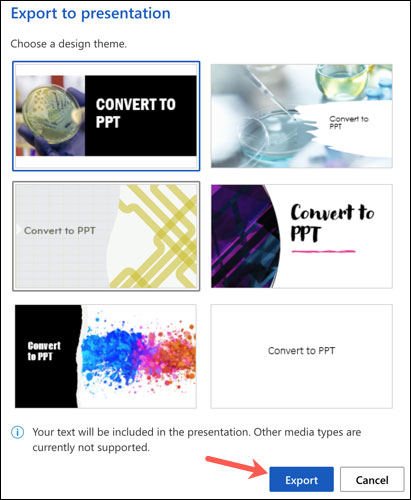
<p style="text-align: justify;">Lập tức, bạn sẽ thấy một cửa sổ bật lên xuất hiện trên màn hình, trong đó hiển thị một bộ sưu tập các chủ đề khác nhau cho bản trình chiếu. Chọn một chủ đề bạn muốn sử dụng và nhấp vào “<strong>Export</strong>”. Tất nhiên, bạn cũng hoàn toàn có thể tùy ý thay đổi chủ đề này trong PowerPoint sau khi file đã được chuyển đổi.</p>

<p style="text-align: justify;"><img alt="Nhấp vào “Export”" data-i="2" data-src="https://st.quantrimang.com/photos/image/2021/06/17/chuyen-doi-file-word-thanh-powerpoint3.jpg" data-was-processed="true" height="500" src="https://st.quantrimang.com/photos/image/2021/06/17/chuyen-doi-file-word-thanh-powerpoint3.jpg" width="411" /></p>

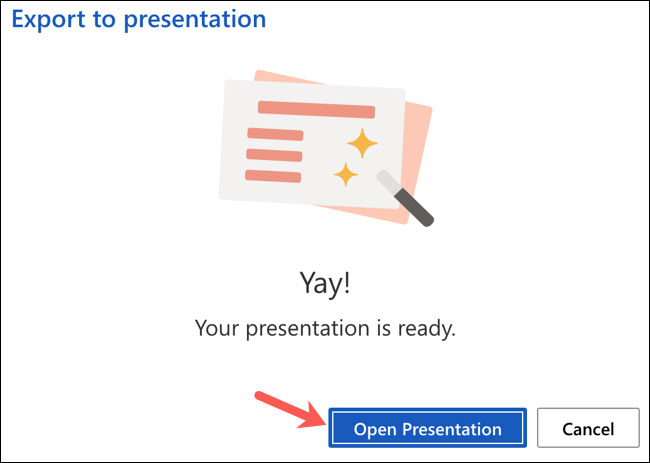
<p style="text-align: justify;">Sau vài phút, bạn sẽ nhận được thông báo cho biết bản trình chiếu mới được chuyển đổi từ file Word của bạn hiện đã sẵn sàng để sử dụng. Hãy nhấp vào nút “<strong>Open Presentation</strong>”.</p>

<p style="text-align: justify;"><img alt="Nhấp vào nút “Open Presentation”" data-i="3" data-src="https://st.quantrimang.com/photos/image/2021/06/17/chuyen-doi-file-word-thanh-powerpoint4.jpg" data-was-processed="true" height="463" src="https://st.quantrimang.com/photos/image/2021/06/17/chuyen-doi-file-word-thanh-powerpoint4.jpg" width="650" /></p>

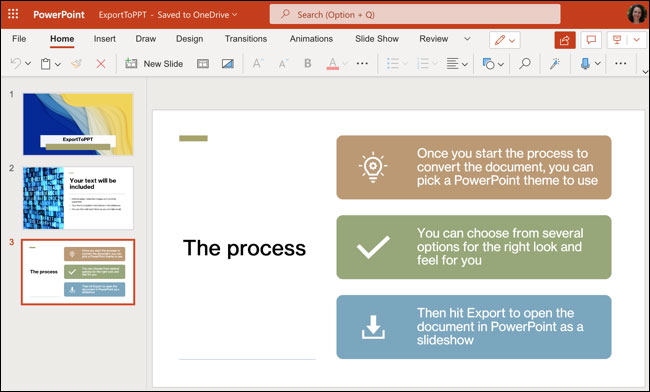
<p style="text-align: justify;">Bạn trình chiếu mà bạn vừa tạo từ file Word này sẽ lập tức được mở trong Microsoft PowerPoint web, trong một tab mới.</p>

<p style="text-align: justify;"><img alt="Bạn trình chiếu tương ứng" data-i="4" data-src="https://st.quantrimang.com/photos/image/2021/06/17/chuyen-doi-file-word-thanh-powerpoint5.jpg" data-was-processed="true" height="392" src="https://st.quantrimang.com/photos/image/2021/06/17/chuyen-doi-file-word-thanh-powerpoint5.jpg" width="650" /></p>

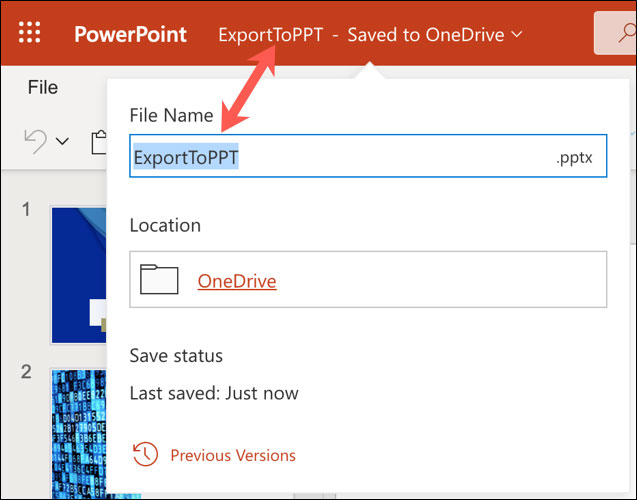
<p style="text-align: justify;">Bản trình chiếu sẽ tự động được lưu vào OneDrive, với tên tương tự như tên file tài liệu Microsoft Word gốc mà bạn chuyển đổi. Nếu bạn chưa đặt tên cho tài liệu của mình, nó sẽ hiển thị tên mặc định, chẳng hạn như “<strong>Document 1</strong>”. Nhấp vào tên ở góc trên cùng bên trái và đặt tên mới nếu muốn.</p>

<p style="text-align: justify;"><img alt="Đổi tên file" data-i="5" data-src="https://st.quantrimang.com/photos/image/2021/06/17/chuyen-doi-file-word-thanh-powerpoint6.jpg" data-was-processed="true" height="500" src="https://st.quantrimang.com/photos/image/2021/06/17/chuyen-doi-file-word-thanh-powerpoint6.jpg" width="637" /></p>

<p style="text-align: justify;">Các thành phần như tiêu đề và dấu đầu dòng đều sẽ được chuyển đổi tương ứng. Tuy nhiên, điều này có thể thay đổi tùy thuộc vào chủ đề bạn chọn. Hãy nhớ rằng bạn nên thực hiện một số điều chỉnh đối với bản trình chiếu sau khi chuyển đổi, để mọi thứ trở nên hoàn hảo hơn.</p>
		</div>
				<div id="author">
						<p>
				<strong>Nguồn tin:</strong>
				Quantrimang.com
			</p>
		</div>
	</div>
	<div id="footer" class="clearfix">
		<div id="url">
			<strong>URL của bản tin này: </strong><a href="https://www.nguoicodonvn2008.info/vi/news/savefile/kien-thuc-may-tinh/cach-chuyen-doi-xuat-file-tai-lieu-word-thanh-bai-trinh-chieu-powerpoint-4315.html" title="Cách chuyển đổi, xuất file tài liệu Word thành bài trình chiếu PowerPoint">https://www.nguoicodonvn2008.info/vi/news/savefile/kien-thuc-may-tinh/cach-chuyen-doi-xuat-file-tai-lieu-word-thanh-bai-trinh-chieu-powerpoint-4315.html</a>

		</div>
		<div class="clear"></div>
		<div class="copyright">
			&copy; .&#x3A; Nguoicodonvn2008.info - Cõi lòng người cô đơn &#x3A;.
		</div>
		<div id="contact">
			<a href="mailto:admin@nguoicodonvn2008.info">admin@nguoicodonvn2008.info</a>
		</div>
	</div>
</div>
        <div id="timeoutsess" class="chromeframe">
            Bạn đã không sử dụng Site, <a onclick="timeoutsesscancel();" href="https://www.nguoicodonvn2008.info/#">Bấm vào đây để duy trì trạng thái đăng nhập</a>. Thời gian chờ: <span id="secField"> 60 </span> giây
        </div>
        <div id="openidResult" class="nv-alert" style="display:none"></div>
        <div id="openidBt" data-result="" data-redirect=""></div>
		</script>
		<div class="car-top">
  <span><img src="https://www.nguoicodonvn2008.info/themes/default/images/car.png" alt=""></span>
</div>
<script src="https://www.nguoicodonvn2008.info/assets/js/jquery/jquery.min.js"></script>
<script>var nv_base_siteurl="/",nv_lang_data="vi",nv_lang_interface="vi",nv_name_variable="nv",nv_fc_variable="op",nv_lang_variable="language",nv_module_name="news",nv_func_name="savefile",nv_is_user=0, nv_my_ofs=-4,nv_my_abbr="EDT",nv_cookie_prefix="nv4c_e856T",nv_check_pass_mstime=1738000,nv_area_admin=0,nv_safemode=0,theme_responsive=0,nv_recaptcha_ver=2,nv_recaptcha_sitekey="",nv_recaptcha_type="image",XSSsanitize=1;</script>
<script src="https://www.nguoicodonvn2008.info/assets/js/language/vi.js"></script>
<script src="https://www.nguoicodonvn2008.info/assets/js/DOMPurify/purify3.js"></script>
<script src="https://www.nguoicodonvn2008.info/assets/js/global.js"></script>
<script src="https://www.nguoicodonvn2008.info/assets/js/site.js"></script>
<script src="https://www.nguoicodonvn2008.info/themes/default/js/news.js"></script>
<script src="https://www.nguoicodonvn2008.info/themes/default/js/main.js"></script>
<script src="https://www.nguoicodonvn2008.info/themes/default/js/custom.js"></script>
<script type="application/ld+json">
        {
            "@context": "https://schema.org",
            "@type": "Organization",
            "url": "https://www.nguoicodonvn2008.info",
            "logo": "https://www.nguoicodonvn2008.info/uploads/angel.gif"
        }
        </script>
<script src="https://www.nguoicodonvn2008.info/themes/default/js/bootstrap.min.js"></script>
<script type="text/javascript">
var $scrolltop = $('.car-top');
$scrolltop.on('click', function () {
    $('html,body').animate({
        scrollTop: 0
    }, 800);
    $(this).addClass("car-run");
    setTimeout(function(){ $scrolltop.removeClass('car-run');}, 1000);
    return false;
});
$(window).on('scroll', function ()
{ 
    if($(window).scrollTop() >= 200)
    {
        $scrolltop.addClass("show");
        $scrolltop.addClass("car-down");
    }
    else
    {
       $scrolltop.removeClass("show");
       setTimeout(function(){ $scrolltop.removeClass('car-down');}, 300);
    }
});
</script>
</body>
</html>