<!DOCTYPE html>
    <html lang="vi" xmlns="http://www.w3.org/1999/xhtml" prefix="og: http://ogp.me/ns#">
    <head>
<title>Cách chọn vị trí cài đặt ứng dụng trong Windows 10</title>
<meta name="description" content="Cách chọn vị trí cài đặt ứng dụng trong Windows 10 - Savefile - Tin Tức -...">
<meta name="author" content=".: Nguoicodonvn2008.info - Cõi lòng người cô đơn :.">
<meta name="copyright" content=".: Nguoicodonvn2008.info - Cõi lòng người cô đơn :. [admin@nguoicodonvn2008.info]">
<meta name="robots" content="index, archive, follow, noodp">
<meta name="googlebot" content="index,archive,follow,noodp">
<meta name="msnbot" content="all,index,follow">
<meta name="generator" content="NukeViet v4.5">
<meta http-equiv="Content-Type" content="text/html; charset=utf-8">
<meta property="og:title" content="Cách chọn vị trí cài đặt ứng dụng trong Windows 10">
<meta property="og:type" content="website">
<meta property="og:description" content="Savefile - Tin Tức - https&#x3A;&#x002F;&#x002F;www.nguoicodonvn2008.info&#x002F;vi&#x002F;news&#x002F;savefile&#x002F;kien-thuc-may-tinh&#x002F;cach-chon-vi-tri-cai-dat-ung-dung-trong-windows-10-2857.html">
<meta property="og:site_name" content=".&#x3A; Nguoicodonvn2008.info - Cõi lòng người cô đơn &#x3A;.">
<meta property="og:url" content="https://www.nguoicodonvn2008.info/vi/news/savefile/kien-thuc-may-tinh/cach-chon-vi-tri-cai-dat-ung-dung-trong-windows-10-2857.html">
<link rel="shortcut icon" href="https://www.nguoicodonvn2008.info/favicon.ico">
<link rel="canonical" href="https://www.nguoicodonvn2008.info/vi/news/savefile/kien-thuc-may-tinh/cach-chon-vi-tri-cai-dat-ung-dung-trong-windows-10-2857.html">
<link rel="alternate" href="https://www.nguoicodonvn2008.info/vi/news/rss/" title="Tin Tức" type="application/rss+xml">
<link rel="alternate" href="https://www.nguoicodonvn2008.info/vi/news/rss/karaoke-dual/" title="Tin Tức - Karaoke Dual" type="application/rss+xml">
<link rel="alternate" href="https://www.nguoicodonvn2008.info/vi/news/rss/nhac-tre/" title="Tin Tức - Nhạc trẻ" type="application/rss+xml">
<link rel="alternate" href="https://www.nguoicodonvn2008.info/vi/news/rss/tru-tinh/" title="Tin Tức - Trữ tình" type="application/rss+xml">
<link rel="alternate" href="https://www.nguoicodonvn2008.info/vi/news/rss/nuoc-ngoai/" title="Tin Tức - Nước ngoài" type="application/rss+xml">
<link rel="alternate" href="https://www.nguoicodonvn2008.info/vi/news/rss/remix/" title="Tin Tức - Remix" type="application/rss+xml">
<link rel="alternate" href="https://www.nguoicodonvn2008.info/vi/news/rss/tam-su-tinh-yeu/" title="Tin Tức - Tâm sự tình yêu" type="application/rss+xml">
<link rel="alternate" href="https://www.nguoicodonvn2008.info/vi/news/rss/tho-suu-tam/" title="Tin Tức - Thơ sưu tầm" type="application/rss+xml">
<link rel="alternate" href="https://www.nguoicodonvn2008.info/vi/news/rss/cuoc-song/" title="Tin Tức - Cuộc sống" type="application/rss+xml">
<link rel="alternate" href="https://www.nguoicodonvn2008.info/vi/news/rss/phan-mem/" title="Tin Tức - Phần mềm" type="application/rss+xml">
<link rel="alternate" href="https://www.nguoicodonvn2008.info/vi/news/rss/kien-thuc-may-tinh/" title="Tin Tức - Kiến thức máy tính" type="application/rss+xml">
<link rel="alternate" href="https://www.nguoicodonvn2008.info/vi/news/rss/hoc-tap/" title="Tin Tức - Học tập" type="application/rss+xml">
<link rel="alternate" href="https://www.nguoicodonvn2008.info/vi/news/rss/tai-lieu/" title="Tin Tức - Tài liệu" type="application/rss+xml">
<link rel="alternate" href="https://www.nguoicodonvn2008.info/vi/news/rss/de-thi/" title="Tin Tức - Đề thi" type="application/rss+xml">
<link rel="preload" as="style" href="https://www.nguoicodonvn2008.info/assets/css/font-awesome.min.css" type="text/css">
<link rel="preload" as="style" href="https://www.nguoicodonvn2008.info/themes/default/css/bootstrap.non-responsive.css" type="text/css">
<link rel="preload" as="style" href="https://www.nguoicodonvn2008.info/themes/default/css/style.css" type="text/css">
<link rel="preload" as="style" href="https://www.nguoicodonvn2008.info/themes/default/css/style.non-responsive.css" type="text/css">
<link rel="preload" as="style" href="https://www.nguoicodonvn2008.info/themes/default/css/news.css" type="text/css">
<link rel="preload" as="style" href="https://www.nguoicodonvn2008.info/themes/default/css/custom.css" type="text/css">
<link rel="preload" as="script" href="https://www.nguoicodonvn2008.info/assets/js/jquery/jquery.min.js" type="text/javascript">
<link rel="preload" as="script" href="https://www.nguoicodonvn2008.info/assets/js/language/vi.js" type="text/javascript">
<link rel="preload" as="script" href="https://www.nguoicodonvn2008.info/assets/js/DOMPurify/purify3.js" type="text/javascript">
<link rel="preload" as="script" href="https://www.nguoicodonvn2008.info/assets/js/global.js" type="text/javascript">
<link rel="preload" as="script" href="https://www.nguoicodonvn2008.info/assets/js/site.js" type="text/javascript">
<link rel="preload" as="script" href="https://www.nguoicodonvn2008.info/themes/default/js/news.js" type="text/javascript">
<link rel="preload" as="script" href="https://www.nguoicodonvn2008.info/themes/default/js/main.js" type="text/javascript">
<link rel="preload" as="script" href="https://www.nguoicodonvn2008.info/themes/default/js/custom.js" type="text/javascript">
<link rel="preload" as="script" href="https://www.nguoicodonvn2008.info/themes/default/js/bootstrap.min.js" type="text/javascript">
<link rel="stylesheet" href="https://www.nguoicodonvn2008.info/assets/css/font-awesome.min.css">
<link rel="stylesheet" href="https://www.nguoicodonvn2008.info/themes/default/css/bootstrap.non-responsive.css">
<link rel="stylesheet" href="https://www.nguoicodonvn2008.info/themes/default/css/style.css">
<link rel="stylesheet" href="https://www.nguoicodonvn2008.info/themes/default/css/style.non-responsive.css">
<link rel="StyleSheet" href="https://www.nguoicodonvn2008.info/themes/default/css/news.css">
<link rel="stylesheet" href="https://www.nguoicodonvn2008.info/themes/default/css/custom.css">
<style type="text/css">
	body{background: #fff;}
</style>
    </head>
    <body>
<div id="print">
	<div id="hd_print">
		<h2 class="pull-left">.&#x3A; Nguoicodonvn2008.info - Cõi lòng người cô đơn &#x3A;.</h2>
		<p class="pull-right"><a title=".&#x3A; Nguoicodonvn2008.info - Cõi lòng người cô đơn &#x3A;." href="https://www.nguoicodonvn2008.info/">https://www.nguoicodonvn2008.info</a></p>
	</div>
	<div class="clear"></div>
	<hr />
	<div id="content">
		<h1>Cách chọn vị trí cài đặt ứng dụng trong Windows 10</h1>
		<ul class="list-inline">
			<li>Thứ tư - 07/10/2020 01:00</li>
			<li class="hidden-print txtrequired"><em class="fa fa-print">&nbsp;</em><a title="In ra" href="javascript:;" onclick="window.print()">In ra</a></li>
			<li class="hidden-print txtrequired"><em class="fa fa-power-off">&nbsp;</em><a title="Đóng cửa sổ này" href="javascript:;" onclick="window.close()">Đóng cửa sổ này</a></li>
		</ul>
		<div class="clear"></div>
		<div id="hometext">
		</div>
				<div class="imghome">
			<img alt="Cách chọn vị trí cài đặt ứng dụng trong Windows 10" src="https://st.quantrimang.com/photos/image/2020/10/06/chon-vi-tri-cai-dat-ung-dung-2.jpg" width="460" class="img-thumbnail" />
		</div>
		<div class="clear"></div>
		<div id="bodytext" class="clearfix">
			<p style="text-align: justify;">Bắt đầu với Windows 10 bản build 15042, bạn có thể chọn nơi để cài đặt ứng dụng. Hướng dẫn này sẽ chỉ cho bạn cách chọn nơi có thể cài đặt ứng dụng cho tất cả người dùng trong Windows 10.</p>

<p style="text-align: justify;"><strong>Lưu ý:</strong></p>

<ul>
	<li style="text-align: justify;">Bạn phải đăng nhập với tư cách admin để có thể chọn nơi cài đặt ứng dụng.</li>
	<li style="text-align: justify;">Nếu bạn đang sử dụng Windows 10 trên thiết bị ARM, thiết bị sẽ chỉ có thể cài đặt ứng dụng từ Microsoft Store.</li>
</ul>

<h2 style="text-align: justify;">Chọn nơi có thể cài đặt ứng dụng trong Settings</h2>

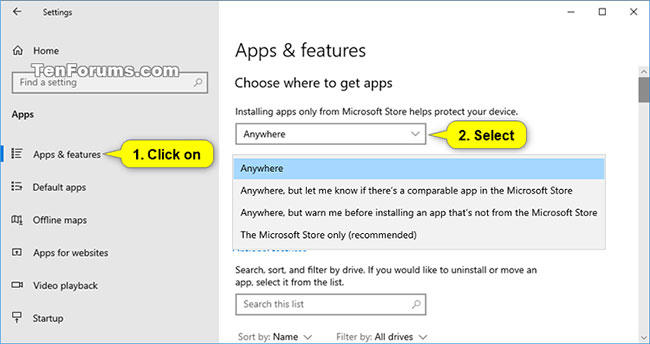
<p style="text-align: justify;">1.&nbsp;Mở Settings&nbsp;và nhấp vào biểu tượng&nbsp;<strong>Apps.</strong></p>

<p style="text-align: justify;">2. Nhấp vào&nbsp;<strong>Apps &amp; features</strong>&nbsp;ở bên trái, chọn&nbsp;<strong>Anywhere</strong>&nbsp;(mặc định);&nbsp;<strong>Anywhere, but let me know if there&#039;s a comparable app in the Microsoft Store</strong>;&nbsp;<strong>Anywhere, but warn me before installing an app that&#039;s not from the Microsoft Store</strong>&nbsp;hoặc&nbsp;<strong>The Microsoft Store only</strong>, tùy thuộc vào những gì bạn muốn từ menu drop-down&nbsp;<strong>Choose where to get apps</strong>&nbsp;ở bên phải.</p>

<p style="text-align: justify;">Cài đặt&nbsp;<strong>Choose where to get apps</strong>&nbsp;sẽ không khả dụng nếu bạn hiện đang đăng nhập với tư cách người dùng thông thường. Cài đặt này chỉ có sẵn cho admin.</p>

<p style="text-align: justify;">3. Khi hoàn tất, bạn có thể đóng&nbsp;<strong>Settings</strong>&nbsp;nếu muốn.</p>

<figure>
<div style="text-align: justify;"><img alt="Chọn nơi có thể cài đặt ứng dụng trong Settings" data-i="0" data-src="https://st.quantrimang.com/photos/image/2020/10/06/chon-vi-tri-cai-dat-ung-dung-1.jpg" data-was-processed="true" height="344" src="https://st.quantrimang.com/photos/image/2020/10/06/chon-vi-tri-cai-dat-ung-dung-1.jpg" width="650" /></div>

<figcaption>
<div style="text-align: justify;">Chọn nơi có thể cài đặt ứng dụng trong Settings</div>
</figcaption>
</figure>

<div style="text-align: justify;">&nbsp;</div>

<h2 style="text-align: justify;">Chọn nơi cài đặt ứng dụng thông qua policy trong Local Group Policy Editor</h2>

<p style="text-align: justify;">Local Group Policy Editor chỉ khả dụng trong các phiên bản Windows 10 Pro, Enterprise và Education.</p>

<p style="text-align: justify;">1.&nbsp;Mở Local Group Policy Editor.</p>

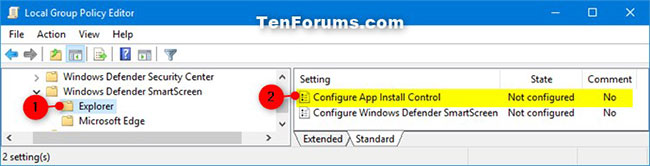
<p style="text-align: justify;">2. Điều hướng đến vị trí bên dưới trong ngăn bên trái của Local Group Policy Editor.</p>

<pre id="pre0">
<code>Computer Configuration &gt; Administrative Templates &gt; Windows Components &gt; Windows Defender SmartScreen &gt; Explorer</code></pre>

<figure>
<div style="text-align: justify;"><img alt="Điều hướng đến đúng vị trí trong Local Group Policy Editor" data-i="1" data-src="https://st.quantrimang.com/photos/image/2020/10/06/chon-vi-tri-cai-dat-ung-dung-2.jpg" data-was-processed="true" height="166" src="https://st.quantrimang.com/photos/image/2020/10/06/chon-vi-tri-cai-dat-ung-dung-2.jpg" width="650" /></div>

<figcaption>
<div style="text-align: justify;">Điều hướng đến đúng vị trí trong Local Group Policy Editor</div>
</figcaption>
</figure>

<p style="text-align: justify;">3. Trong bảng điều khiển bên phải của Explorer trong Local Group Policy Editor, hãy nhấp đúp vào policy&nbsp;<strong>Configure App Install Control</strong>&nbsp;để chỉnh sửa nó.</p>

<p style="text-align: justify;">4. Thực hiện bước 5 (mặc định) hoặc bước 6 (để chỉ định) bên dưới, tùy thuộc vào những gì bạn muốn làm.</p>

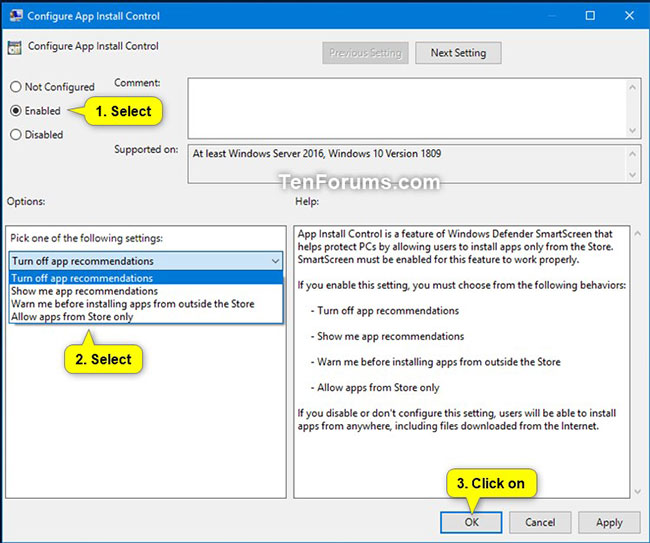
<p style="text-align: justify;">5. Nếu không chỉ định nơi có thể cài đặt ứng dụng, chọn&nbsp;<strong>Not Configured</strong>&nbsp;hoặc<strong>&nbsp;Disabled</strong>, nhấn&nbsp;<strong>OK</strong>&nbsp;và chuyển sang bước 7 bên dưới.&nbsp;<strong>Not Configured</strong>&nbsp;là cài đặt mặc định.</p>

<p style="text-align: justify;">6. Để chỉ định nơi có thể cài đặt ứng dụng, tích vào&nbsp;<strong>Enabled</strong>, chọn một trong các cài đặt bên dưới, nhấn vào&nbsp;<strong>OK</strong>&nbsp;và chuyển sang bước 7 bên dưới.</p>

<ul>
	<li style="text-align: justify;">Turn off app recommendations</li>
	<li style="text-align: justify;">Show me app recommendations (default)</li>
	<li style="text-align: justify;">Warn me before installing apps from outside the Store</li>
	<li style="text-align: justify;">Allow apps from the Store only</li>
</ul>

<figure>
<div style="text-align: justify;"><img alt="Tích vào Enabled và chọn một trong các cài đặt bên dưới" data-i="2" data-src="https://st.quantrimang.com/photos/image/2020/10/06/chon-vi-tri-cai-dat-ung-dung-3.jpg" data-was-processed="true" height="543" src="https://st.quantrimang.com/photos/image/2020/10/06/chon-vi-tri-cai-dat-ung-dung-3.jpg" width="650" /></div>

<figcaption>
<div style="text-align: justify;">Tích vào Enabled và chọn một trong các cài đặt bên dưới</div>
</figcaption>
</figure>

<p style="text-align: justify;">7. Đóng&nbsp;<strong>Local Group Policy Editor</strong>.</p>
		</div>
				<div id="author">
						<p>
				<strong>Nguồn tin:</strong>
				Quantrimang.com
			</p>
		</div>
	</div>
	<div id="footer" class="clearfix">
		<div id="url">
			<strong>URL của bản tin này: </strong><a href="https://www.nguoicodonvn2008.info/vi/news/savefile/kien-thuc-may-tinh/cach-chon-vi-tri-cai-dat-ung-dung-trong-windows-10-2857.html" title="Cách chọn vị trí cài đặt ứng dụng trong Windows 10">https://www.nguoicodonvn2008.info/vi/news/savefile/kien-thuc-may-tinh/cach-chon-vi-tri-cai-dat-ung-dung-trong-windows-10-2857.html</a>

		</div>
		<div class="clear"></div>
		<div class="copyright">
			&copy; .&#x3A; Nguoicodonvn2008.info - Cõi lòng người cô đơn &#x3A;.
		</div>
		<div id="contact">
			<a href="mailto:admin@nguoicodonvn2008.info">admin@nguoicodonvn2008.info</a>
		</div>
	</div>
</div>
        <div id="timeoutsess" class="chromeframe">
            Bạn đã không sử dụng Site, <a onclick="timeoutsesscancel();" href="https://www.nguoicodonvn2008.info/#">Bấm vào đây để duy trì trạng thái đăng nhập</a>. Thời gian chờ: <span id="secField"> 60 </span> giây
        </div>
        <div id="openidResult" class="nv-alert" style="display:none"></div>
        <div id="openidBt" data-result="" data-redirect=""></div>
		</script>
		<div class="car-top">
  <span><img src="https://www.nguoicodonvn2008.info/themes/default/images/car.png" alt=""></span>
</div>
<script src="https://www.nguoicodonvn2008.info/assets/js/jquery/jquery.min.js"></script>
<script>var nv_base_siteurl="/",nv_lang_data="vi",nv_lang_interface="vi",nv_name_variable="nv",nv_fc_variable="op",nv_lang_variable="language",nv_module_name="news",nv_func_name="savefile",nv_is_user=0, nv_my_ofs=-4,nv_my_abbr="EDT",nv_cookie_prefix="nv4c_e856T",nv_check_pass_mstime=1738000,nv_area_admin=0,nv_safemode=0,theme_responsive=0,nv_recaptcha_ver=2,nv_recaptcha_sitekey="",nv_recaptcha_type="image",XSSsanitize=1;</script>
<script src="https://www.nguoicodonvn2008.info/assets/js/language/vi.js"></script>
<script src="https://www.nguoicodonvn2008.info/assets/js/DOMPurify/purify3.js"></script>
<script src="https://www.nguoicodonvn2008.info/assets/js/global.js"></script>
<script src="https://www.nguoicodonvn2008.info/assets/js/site.js"></script>
<script src="https://www.nguoicodonvn2008.info/themes/default/js/news.js"></script>
<script src="https://www.nguoicodonvn2008.info/themes/default/js/main.js"></script>
<script src="https://www.nguoicodonvn2008.info/themes/default/js/custom.js"></script>
<script type="application/ld+json">
        {
            "@context": "https://schema.org",
            "@type": "Organization",
            "url": "https://www.nguoicodonvn2008.info",
            "logo": "https://www.nguoicodonvn2008.info/uploads/angel.gif"
        }
        </script>
<script src="https://www.nguoicodonvn2008.info/themes/default/js/bootstrap.min.js"></script>
<script type="text/javascript">
var $scrolltop = $('.car-top');
$scrolltop.on('click', function () {
    $('html,body').animate({
        scrollTop: 0
    }, 800);
    $(this).addClass("car-run");
    setTimeout(function(){ $scrolltop.removeClass('car-run');}, 1000);
    return false;
});
$(window).on('scroll', function ()
{ 
    if($(window).scrollTop() >= 200)
    {
        $scrolltop.addClass("show");
        $scrolltop.addClass("car-down");
    }
    else
    {
       $scrolltop.removeClass("show");
       setTimeout(function(){ $scrolltop.removeClass('car-down');}, 300);
    }
});
</script>
</body>
</html>