<!DOCTYPE html>
    <html lang="vi" xmlns="http://www.w3.org/1999/xhtml" prefix="og: http://ogp.me/ns#">
    <head>
<title>Cách cho phép hiển thị cửa sổ Pop-Up trong Microsoft Edge</title>
<meta name="description" content="Cách cho phép hiển thị cửa sổ Pop-Up trong Microsoft Edge - Savefile - Tin Tức -...">
<meta name="author" content=".: Nguoicodonvn2008.info - Cõi lòng người cô đơn :.">
<meta name="copyright" content=".: Nguoicodonvn2008.info - Cõi lòng người cô đơn :. [admin@nguoicodonvn2008.info]">
<meta name="robots" content="index, archive, follow, noodp">
<meta name="googlebot" content="index,archive,follow,noodp">
<meta name="msnbot" content="all,index,follow">
<meta name="generator" content="NukeViet v4.5">
<meta http-equiv="Content-Type" content="text/html; charset=utf-8">
<meta property="og:title" content="Cách cho phép hiển thị cửa sổ Pop-Up trong Microsoft Edge">
<meta property="og:type" content="website">
<meta property="og:description" content="Savefile - Tin Tức - https&#x3A;&#x002F;&#x002F;www.nguoicodonvn2008.info&#x002F;vi&#x002F;news&#x002F;savefile&#x002F;kien-thuc-may-tinh&#x002F;cach-cho-phep-hien-thi-cua-so-pop-up-trong-microsoft-edge-4284.html">
<meta property="og:site_name" content=".&#x3A; Nguoicodonvn2008.info - Cõi lòng người cô đơn &#x3A;.">
<meta property="og:url" content="https://www.nguoicodonvn2008.info/vi/news/savefile/kien-thuc-may-tinh/cach-cho-phep-hien-thi-cua-so-pop-up-trong-microsoft-edge-4284.html">
<link rel="shortcut icon" href="https://www.nguoicodonvn2008.info/favicon.ico">
<link rel="canonical" href="https://www.nguoicodonvn2008.info/vi/news/savefile/kien-thuc-may-tinh/cach-cho-phep-hien-thi-cua-so-pop-up-trong-microsoft-edge-4284.html">
<link rel="alternate" href="https://www.nguoicodonvn2008.info/vi/news/rss/" title="Tin Tức" type="application/rss+xml">
<link rel="alternate" href="https://www.nguoicodonvn2008.info/vi/news/rss/karaoke-dual/" title="Tin Tức - Karaoke Dual" type="application/rss+xml">
<link rel="alternate" href="https://www.nguoicodonvn2008.info/vi/news/rss/nhac-tre/" title="Tin Tức - Nhạc trẻ" type="application/rss+xml">
<link rel="alternate" href="https://www.nguoicodonvn2008.info/vi/news/rss/tru-tinh/" title="Tin Tức - Trữ tình" type="application/rss+xml">
<link rel="alternate" href="https://www.nguoicodonvn2008.info/vi/news/rss/nuoc-ngoai/" title="Tin Tức - Nước ngoài" type="application/rss+xml">
<link rel="alternate" href="https://www.nguoicodonvn2008.info/vi/news/rss/remix/" title="Tin Tức - Remix" type="application/rss+xml">
<link rel="alternate" href="https://www.nguoicodonvn2008.info/vi/news/rss/tam-su-tinh-yeu/" title="Tin Tức - Tâm sự tình yêu" type="application/rss+xml">
<link rel="alternate" href="https://www.nguoicodonvn2008.info/vi/news/rss/tho-suu-tam/" title="Tin Tức - Thơ sưu tầm" type="application/rss+xml">
<link rel="alternate" href="https://www.nguoicodonvn2008.info/vi/news/rss/cuoc-song/" title="Tin Tức - Cuộc sống" type="application/rss+xml">
<link rel="alternate" href="https://www.nguoicodonvn2008.info/vi/news/rss/phan-mem/" title="Tin Tức - Phần mềm" type="application/rss+xml">
<link rel="alternate" href="https://www.nguoicodonvn2008.info/vi/news/rss/kien-thuc-may-tinh/" title="Tin Tức - Kiến thức máy tính" type="application/rss+xml">
<link rel="alternate" href="https://www.nguoicodonvn2008.info/vi/news/rss/hoc-tap/" title="Tin Tức - Học tập" type="application/rss+xml">
<link rel="alternate" href="https://www.nguoicodonvn2008.info/vi/news/rss/tai-lieu/" title="Tin Tức - Tài liệu" type="application/rss+xml">
<link rel="alternate" href="https://www.nguoicodonvn2008.info/vi/news/rss/de-thi/" title="Tin Tức - Đề thi" type="application/rss+xml">
<link rel="preload" as="style" href="https://www.nguoicodonvn2008.info/assets/css/font-awesome.min.css" type="text/css">
<link rel="preload" as="style" href="https://www.nguoicodonvn2008.info/themes/default/css/bootstrap.non-responsive.css" type="text/css">
<link rel="preload" as="style" href="https://www.nguoicodonvn2008.info/themes/default/css/style.css" type="text/css">
<link rel="preload" as="style" href="https://www.nguoicodonvn2008.info/themes/default/css/style.non-responsive.css" type="text/css">
<link rel="preload" as="style" href="https://www.nguoicodonvn2008.info/themes/default/css/news.css" type="text/css">
<link rel="preload" as="style" href="https://www.nguoicodonvn2008.info/themes/default/css/custom.css" type="text/css">
<link rel="preload" as="script" href="https://www.nguoicodonvn2008.info/assets/js/jquery/jquery.min.js" type="text/javascript">
<link rel="preload" as="script" href="https://www.nguoicodonvn2008.info/assets/js/language/vi.js" type="text/javascript">
<link rel="preload" as="script" href="https://www.nguoicodonvn2008.info/assets/js/DOMPurify/purify3.js" type="text/javascript">
<link rel="preload" as="script" href="https://www.nguoicodonvn2008.info/assets/js/global.js" type="text/javascript">
<link rel="preload" as="script" href="https://www.nguoicodonvn2008.info/assets/js/site.js" type="text/javascript">
<link rel="preload" as="script" href="https://www.nguoicodonvn2008.info/themes/default/js/news.js" type="text/javascript">
<link rel="preload" as="script" href="https://www.nguoicodonvn2008.info/themes/default/js/main.js" type="text/javascript">
<link rel="preload" as="script" href="https://www.nguoicodonvn2008.info/themes/default/js/custom.js" type="text/javascript">
<link rel="preload" as="script" href="https://www.nguoicodonvn2008.info/themes/default/js/bootstrap.min.js" type="text/javascript">
<link rel="stylesheet" href="https://www.nguoicodonvn2008.info/assets/css/font-awesome.min.css">
<link rel="stylesheet" href="https://www.nguoicodonvn2008.info/themes/default/css/bootstrap.non-responsive.css">
<link rel="stylesheet" href="https://www.nguoicodonvn2008.info/themes/default/css/style.css">
<link rel="stylesheet" href="https://www.nguoicodonvn2008.info/themes/default/css/style.non-responsive.css">
<link rel="StyleSheet" href="https://www.nguoicodonvn2008.info/themes/default/css/news.css">
<link rel="stylesheet" href="https://www.nguoicodonvn2008.info/themes/default/css/custom.css">
<style type="text/css">
	body{background: #fff;}
</style>
    </head>
    <body>
<div id="print">
	<div id="hd_print">
		<h2 class="pull-left">.&#x3A; Nguoicodonvn2008.info - Cõi lòng người cô đơn &#x3A;.</h2>
		<p class="pull-right"><a title=".&#x3A; Nguoicodonvn2008.info - Cõi lòng người cô đơn &#x3A;." href="https://www.nguoicodonvn2008.info/">https://www.nguoicodonvn2008.info</a></p>
	</div>
	<div class="clear"></div>
	<hr />
	<div id="content">
		<h1>Cách cho phép hiển thị cửa sổ Pop-Up trong Microsoft Edge</h1>
		<ul class="list-inline">
			<li>Thứ ba - 22/06/2021 00:52</li>
			<li class="hidden-print txtrequired"><em class="fa fa-print">&nbsp;</em><a title="In ra" href="javascript:;" onclick="window.print()">In ra</a></li>
			<li class="hidden-print txtrequired"><em class="fa fa-power-off">&nbsp;</em><a title="Đóng cửa sổ này" href="javascript:;" onclick="window.close()">Đóng cửa sổ này</a></li>
		</ul>
		<div class="clear"></div>
		<div id="hometext">
		</div>
				<div class="imghome">
			<img alt="Cách cho phép hiển thị cửa sổ Pop-Up trong Microsoft Edge" src="https://st.quantrimang.com/photos/image/2021/06/11/cho-phep-hien-thi-cua-so-pop-up-trong-microsoft-edge1.jpg" width="460" class="img-thumbnail" />
		</div>
		<div class="clear"></div>
		<div id="bodytext" class="clearfix">
			<p style="text-align: justify;">Lâu nay khi nhắc đến cửa sổ pop-up, loại thông báo tự động bật lên khi truy cập một trang web, đa số chúng ta sẽ liên tưởng ngay đến những sự phiền toái. Nhưng đôi khi, trong Microsoft Edge, bạn cần bật cửa sổ pop-up để một số trang web có thể hoạt động bình thường.</p>

<p style="text-align: justify;">Hãy cùng tìm hiểu cách kích hoạt cửa sổ pop-up trên tất cả các trang web hoặc chỉ một số website cụ thể trong trình duyệt Microsoft Edge dành cho Windows 10 hoặc Mac ngay sau đây.</p>

<div style="text-align: justify;">&nbsp;</div>

<h2 style="text-align: justify;">Cách bật cửa sổ pop-up trên mọi trang web trong Edge</h2>

<div style="text-align: justify;">&nbsp;</div>

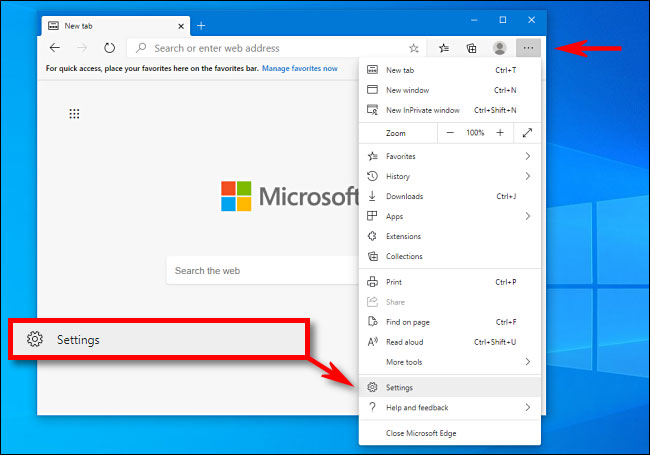
<p style="text-align: justify;">Trước tiên, hãy khởi chạy trình duyệt Microsoft Edge trên PC Windows 10 hoặc máy Mac của bạn. Trong bất kỳ tab nào, bạn nhấp vào biểu tượng ba chấm ở góc trên bên phải màn hình để mở menu hệ thống. Trong danh sách tùy chọn hiện ra, bạn bấm vào “<strong>Settings</strong>” (Cài đặt).</p>

<p style="text-align: justify;"><img alt="Bấm vào “Settings”" data-i="0" data-src="https://st.quantrimang.com/photos/image/2021/06/11/cho-phep-hien-thi-cua-so-pop-up-trong-microsoft-edge1.jpg" data-was-processed="true" height="455" src="https://st.quantrimang.com/photos/image/2021/06/11/cho-phep-hien-thi-cua-so-pop-up-trong-microsoft-edge1.jpg" width="650" /></p>

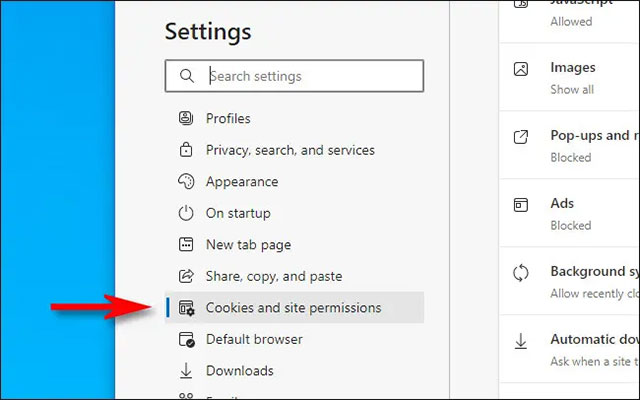
<p style="text-align: justify;">Trong tab Settings, bạn nhìn sang menu bên trái và nhấp vào mục “<strong>Cookies and Site Permissions</strong>” (Cookie và Quyền trang web).</p>

<p style="text-align: justify;"><img alt="Nhấp vào mục “Cookies and Site Permissions”" data-i="1" data-src="https://st.quantrimang.com/photos/image/2021/06/11/cho-phep-hien-thi-cua-so-pop-up-trong-microsoft-edge2.jpg" data-was-processed="true" height="400" src="https://st.quantrimang.com/photos/image/2021/06/11/cho-phep-hien-thi-cua-so-pop-up-trong-microsoft-edge2.jpg" width="640" /></p>

<div style="text-align: justify;">&nbsp;</div>

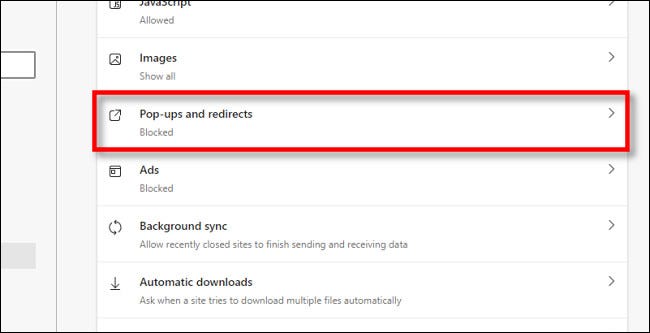
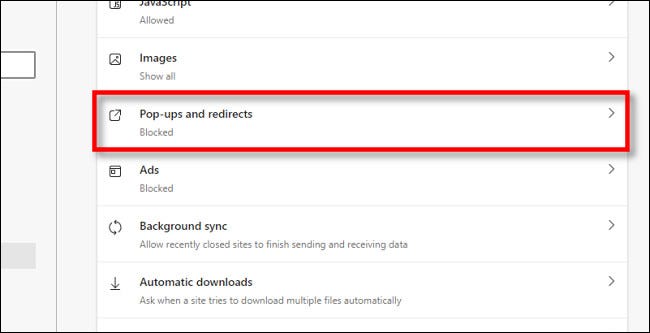
<p style="text-align: justify;">Sau đó, cuộn xuống phần “<strong>Site Permissions</strong>” (Quyền trang web) và nhấp vào “<strong>Pop-Ups and Redirects</strong>” (Cửa sổ bật lên và chuyển hướng).</p>

<p style="text-align: justify;"><img alt="Nhấp vào “Pop-Ups and Redirects”" data-i="2" data-src="https://st.quantrimang.com/photos/image/2021/06/11/cho-phep-hien-thi-cua-so-pop-up-trong-microsoft-edge3.jpg" data-was-processed="true" height="333" src="https://st.quantrimang.com/photos/image/2021/06/11/cho-phep-hien-thi-cua-so-pop-up-trong-microsoft-edge3.jpg" width="650" /></p>

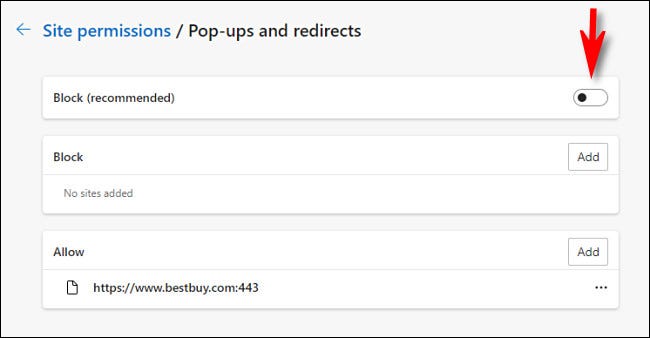
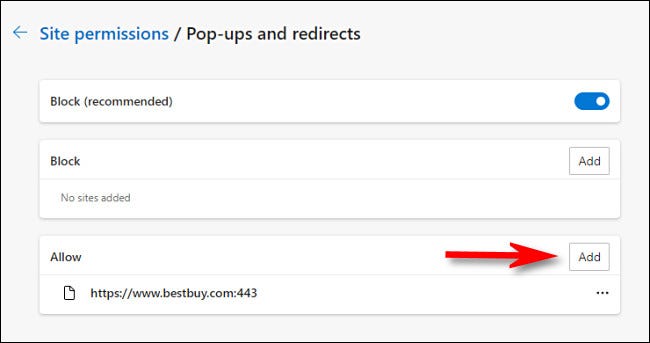
<p style="text-align: justify;">Trong phần cài đặt “<strong>Pop-Ups and Redirects</strong>”, hãy nhấp vào công tắc bên cạnh tùy chọn “<strong>Block (recommended)</strong>” để đưa nó về trạng thái tắt. Điều này sẽ cho phép cửa sổ pop-up được quyền hiển thị tự do trên tất cả các trang web mà bạn truy cập trong Edge.</p>

<p style="text-align: justify;"><img alt="Tắt tùy chọn “Block (recommended)”" data-i="3" data-src="https://st.quantrimang.com/photos/image/2021/06/11/cho-phep-hien-thi-cua-so-pop-up-trong-microsoft-edge4.jpg" data-was-processed="true" height="338" src="https://st.quantrimang.com/photos/image/2021/06/11/cho-phep-hien-thi-cua-so-pop-up-trong-microsoft-edge4.jpg" width="650" /></p>

<h2 style="text-align: justify;">Cách bật cửa sổ pop-up trên những trang web cụ thể trong Edge</h2>

<p style="text-align: justify;">Nếu bạn chỉ muốn cho phép cửa sổ pop-up được quyền hiển thị trên một số trang web cụ thể mà mình truy cập trong Edge, chỉ cần thực hiện các thao tác thiết lập sau.</p>

<div style="text-align: justify;">&nbsp;</div>

<p style="text-align: justify;">Đầu tiên, khởi chạy Microsoft Edge và nhấp vào nút menu ba chấm ở góc trên cùng bên phải màn hình, sau đó chọn “<strong>Settings</strong>”. Tiếp theo, nhấp vào “<strong>Cookies and Site Permissions</strong>” trong menu bên phải và chọn “<strong>Pop-Ups and Redirects</strong>”.</p>

<p style="text-align: justify;"><img alt="Chọn “Pop-Ups and Redirects”" data-i="4" data-src="https://st.quantrimang.com/photos/image/2021/06/11/cho-phep-hien-thi-cua-so-pop-up-trong-microsoft-edge5.jpg" data-was-processed="true" height="333" src="https://st.quantrimang.com/photos/image/2021/06/11/cho-phep-hien-thi-cua-so-pop-up-trong-microsoft-edge5.jpg" width="650" /></p>

<p style="text-align: justify;">Lần này, chúng ta sẽ không thực hiện bất cứ thay đổi nào với tùy chọn “<strong>Block (recommended)</strong>”. Thay vào đó, bạn tiếp tục cuộn xuống cuối trang, nhấp vào nút “<strong>Add</strong>” (Thêm) trong phần “<strong>Allow</strong>” (Cho phép).</p>

<p style="text-align: justify;"><img alt="Nhấp vào nút “Add”" data-i="5" data-src="https://st.quantrimang.com/photos/image/2021/06/11/cho-phep-hien-thi-cua-so-pop-up-trong-microsoft-edge6.jpg" data-was-processed="true" height="343" src="https://st.quantrimang.com/photos/image/2021/06/11/cho-phep-hien-thi-cua-so-pop-up-trong-microsoft-edge6.jpg" width="650" /></p>

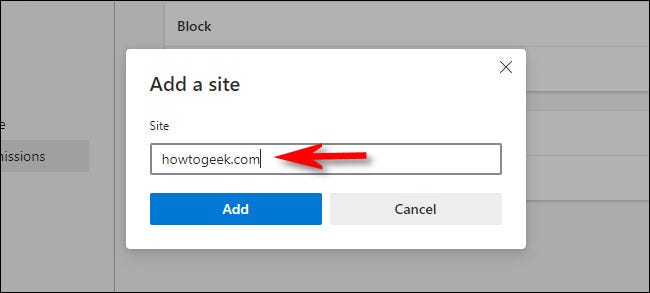
<p style="text-align: justify;">Lập tức một hộp thoại sẽ xuất hiện trên màn hình, hãy nhập hoặc paste địa chỉ URL của trang web bạn muốn cho phép hiển thị cửa sổ pop-up, sau đó nhấp vào “<strong>Add</strong>” (Thêm).</p>

<p style="text-align: justify;"><img alt="Paste địa chỉ URL của trang web bạn muốn cho phép hiển thị cửa sổ pop-up" data-i="6" data-src="https://st.quantrimang.com/photos/image/2021/06/11/cho-phep-hien-thi-cua-so-pop-up-trong-microsoft-edge7.jpg" data-was-processed="true" height="293" src="https://st.quantrimang.com/photos/image/2021/06/11/cho-phep-hien-thi-cua-so-pop-up-trong-microsoft-edge7.jpg" width="650" /></p>

<p style="text-align: justify;">Lặp lại quy trình này với bất kỳ trang web nào khác mà bạn muốn cho phép hiển thị cửa sổ pop-up.</p>

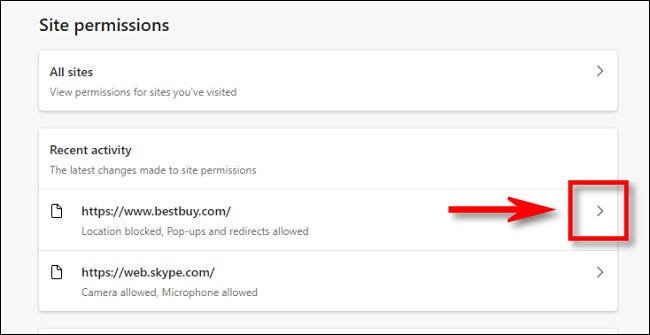
<p style="text-align: justify;">Ngoài ra, bạn cũng có thể truy cập&nbsp;<strong>Settings &gt; Cookies and Permissions</strong>, sau đó xem trong phần “<strong>Recent Activity</strong>” (Hoạt động gần đây). Nhấp vào mũi tên bên cạnh địa chỉ của trang web mà bạn muốn cho phép hiển thị cửa sổ pop-up.</p>

<p style="text-align: justify;"><img alt="Nhấp vào mũi tên" data-i="7" data-src="https://st.quantrimang.com/photos/image/2021/06/11/cho-phep-hien-thi-cua-so-pop-up-trong-microsoft-edge8.jpg" data-was-processed="true" height="335" src="https://st.quantrimang.com/photos/image/2021/06/11/cho-phep-hien-thi-cua-so-pop-up-trong-microsoft-edge8.jpg" width="650" /></p>

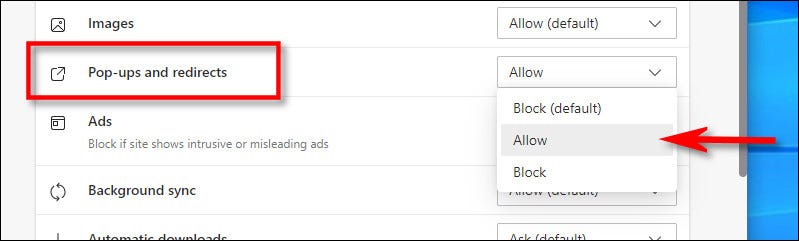
<p style="text-align: justify;">Trên trang “<strong>Site Permissions</strong>” của trang web đó, hãy cuộn xuống và đặt tùy chọn “<strong>Pop-Ups and Redirects</strong>” (Cửa sổ bật lên và Chuyển hướng) thành “<strong>Allow</strong>” (Cho phép).</p>

<p style="text-align: justify;"><img alt="Chuyển thành “Allow”" data-i="8" data-src="https://st.quantrimang.com/photos/image/2021/06/11/hien-thi-tung-trang-van-ban-trong-microsoft-word9.jpg" data-was-processed="true" height="193" src="https://st.quantrimang.com/photos/image/2021/06/11/hien-thi-tung-trang-van-ban-trong-microsoft-word9.jpg" width="640" /></p>

<p style="text-align: justify;">Các thay đổi của bạn sẽ được lưu tự động, vì vậy sau khi hoàn tất, chỉ cần đóng tab Settings. Bây giờ, bạn sẽ thấy cửa sổ pop-up hiển thị trên tất cả các trang web đã cho phép ở trên.</p>
		</div>
				<div id="author">
						<p>
				<strong>Nguồn tin:</strong>
				Quantrimang.com
			</p>
		</div>
	</div>
	<div id="footer" class="clearfix">
		<div id="url">
			<strong>URL của bản tin này: </strong><a href="https://www.nguoicodonvn2008.info/vi/news/savefile/kien-thuc-may-tinh/cach-cho-phep-hien-thi-cua-so-pop-up-trong-microsoft-edge-4284.html" title="Cách cho phép hiển thị cửa sổ Pop-Up trong Microsoft Edge">https://www.nguoicodonvn2008.info/vi/news/savefile/kien-thuc-may-tinh/cach-cho-phep-hien-thi-cua-so-pop-up-trong-microsoft-edge-4284.html</a>

		</div>
		<div class="clear"></div>
		<div class="copyright">
			&copy; .&#x3A; Nguoicodonvn2008.info - Cõi lòng người cô đơn &#x3A;.
		</div>
		<div id="contact">
			<a href="mailto:admin@nguoicodonvn2008.info">admin@nguoicodonvn2008.info</a>
		</div>
	</div>
</div>
        <div id="timeoutsess" class="chromeframe">
            Bạn đã không sử dụng Site, <a onclick="timeoutsesscancel();" href="https://www.nguoicodonvn2008.info/#">Bấm vào đây để duy trì trạng thái đăng nhập</a>. Thời gian chờ: <span id="secField"> 60 </span> giây
        </div>
        <div id="openidResult" class="nv-alert" style="display:none"></div>
        <div id="openidBt" data-result="" data-redirect=""></div>
		</script>
		<div class="car-top">
  <span><img src="https://www.nguoicodonvn2008.info/themes/default/images/car.png" alt=""></span>
</div>
<script src="https://www.nguoicodonvn2008.info/assets/js/jquery/jquery.min.js"></script>
<script>var nv_base_siteurl="/",nv_lang_data="vi",nv_lang_interface="vi",nv_name_variable="nv",nv_fc_variable="op",nv_lang_variable="language",nv_module_name="news",nv_func_name="savefile",nv_is_user=0, nv_my_ofs=-4,nv_my_abbr="EDT",nv_cookie_prefix="nv4c_e856T",nv_check_pass_mstime=1738000,nv_area_admin=0,nv_safemode=0,theme_responsive=0,nv_recaptcha_ver=2,nv_recaptcha_sitekey="",nv_recaptcha_type="image",XSSsanitize=1;</script>
<script src="https://www.nguoicodonvn2008.info/assets/js/language/vi.js"></script>
<script src="https://www.nguoicodonvn2008.info/assets/js/DOMPurify/purify3.js"></script>
<script src="https://www.nguoicodonvn2008.info/assets/js/global.js"></script>
<script src="https://www.nguoicodonvn2008.info/assets/js/site.js"></script>
<script src="https://www.nguoicodonvn2008.info/themes/default/js/news.js"></script>
<script src="https://www.nguoicodonvn2008.info/themes/default/js/main.js"></script>
<script src="https://www.nguoicodonvn2008.info/themes/default/js/custom.js"></script>
<script type="application/ld+json">
        {
            "@context": "https://schema.org",
            "@type": "Organization",
            "url": "https://www.nguoicodonvn2008.info",
            "logo": "https://www.nguoicodonvn2008.info/uploads/angel.gif"
        }
        </script>
<script src="https://www.nguoicodonvn2008.info/themes/default/js/bootstrap.min.js"></script>
<script type="text/javascript">
var $scrolltop = $('.car-top');
$scrolltop.on('click', function () {
    $('html,body').animate({
        scrollTop: 0
    }, 800);
    $(this).addClass("car-run");
    setTimeout(function(){ $scrolltop.removeClass('car-run');}, 1000);
    return false;
});
$(window).on('scroll', function ()
{ 
    if($(window).scrollTop() >= 200)
    {
        $scrolltop.addClass("show");
        $scrolltop.addClass("car-down");
    }
    else
    {
       $scrolltop.removeClass("show");
       setTimeout(function(){ $scrolltop.removeClass('car-down');}, 300);
    }
});
</script>
</body>
</html>