<!DOCTYPE html>
    <html lang="vi" xmlns="http://www.w3.org/1999/xhtml" prefix="og: http://ogp.me/ns#">
    <head>
<title>Cách chèn checkbox trong Excel</title>
<meta name="description" content="Cách chèn checkbox trong Excel - Savefile - Tin Tức - https&#x3A;&#x002F;&#x002F;www.nguoicodonvn2008.info&#x002F;vi&#x002F;news&#x002F;savefile&#x002F;kien-thuc-may-tinh&#x002F;cach-chen-checkbox-trong-excel-4076.html">
<meta name="author" content=".: Nguoicodonvn2008.info - Cõi lòng người cô đơn :.">
<meta name="copyright" content=".: Nguoicodonvn2008.info - Cõi lòng người cô đơn :. [admin@nguoicodonvn2008.info]">
<meta name="robots" content="index, archive, follow, noodp">
<meta name="googlebot" content="index,archive,follow,noodp">
<meta name="msnbot" content="all,index,follow">
<meta name="generator" content="NukeViet v4.5">
<meta http-equiv="Content-Type" content="text/html; charset=utf-8">
<meta property="og:title" content="Cách chèn checkbox trong Excel">
<meta property="og:type" content="website">
<meta property="og:description" content="Savefile - Tin Tức - https&#x3A;&#x002F;&#x002F;www.nguoicodonvn2008.info&#x002F;vi&#x002F;news&#x002F;savefile&#x002F;kien-thuc-may-tinh&#x002F;cach-chen-checkbox-trong-excel-4076.html">
<meta property="og:site_name" content=".&#x3A; Nguoicodonvn2008.info - Cõi lòng người cô đơn &#x3A;.">
<meta property="og:url" content="https://www.nguoicodonvn2008.info/vi/news/savefile/kien-thuc-may-tinh/cach-chen-checkbox-trong-excel-4076.html">
<link rel="shortcut icon" href="https://www.nguoicodonvn2008.info/favicon.ico">
<link rel="canonical" href="https://www.nguoicodonvn2008.info/vi/news/savefile/kien-thuc-may-tinh/cach-chen-checkbox-trong-excel-4076.html">
<link rel="alternate" href="https://www.nguoicodonvn2008.info/vi/news/rss/" title="Tin Tức" type="application/rss+xml">
<link rel="alternate" href="https://www.nguoicodonvn2008.info/vi/news/rss/karaoke-dual/" title="Tin Tức - Karaoke Dual" type="application/rss+xml">
<link rel="alternate" href="https://www.nguoicodonvn2008.info/vi/news/rss/nhac-tre/" title="Tin Tức - Nhạc trẻ" type="application/rss+xml">
<link rel="alternate" href="https://www.nguoicodonvn2008.info/vi/news/rss/tru-tinh/" title="Tin Tức - Trữ tình" type="application/rss+xml">
<link rel="alternate" href="https://www.nguoicodonvn2008.info/vi/news/rss/nuoc-ngoai/" title="Tin Tức - Nước ngoài" type="application/rss+xml">
<link rel="alternate" href="https://www.nguoicodonvn2008.info/vi/news/rss/remix/" title="Tin Tức - Remix" type="application/rss+xml">
<link rel="alternate" href="https://www.nguoicodonvn2008.info/vi/news/rss/tam-su-tinh-yeu/" title="Tin Tức - Tâm sự tình yêu" type="application/rss+xml">
<link rel="alternate" href="https://www.nguoicodonvn2008.info/vi/news/rss/tho-suu-tam/" title="Tin Tức - Thơ sưu tầm" type="application/rss+xml">
<link rel="alternate" href="https://www.nguoicodonvn2008.info/vi/news/rss/cuoc-song/" title="Tin Tức - Cuộc sống" type="application/rss+xml">
<link rel="alternate" href="https://www.nguoicodonvn2008.info/vi/news/rss/phan-mem/" title="Tin Tức - Phần mềm" type="application/rss+xml">
<link rel="alternate" href="https://www.nguoicodonvn2008.info/vi/news/rss/kien-thuc-may-tinh/" title="Tin Tức - Kiến thức máy tính" type="application/rss+xml">
<link rel="alternate" href="https://www.nguoicodonvn2008.info/vi/news/rss/hoc-tap/" title="Tin Tức - Học tập" type="application/rss+xml">
<link rel="alternate" href="https://www.nguoicodonvn2008.info/vi/news/rss/tai-lieu/" title="Tin Tức - Tài liệu" type="application/rss+xml">
<link rel="alternate" href="https://www.nguoicodonvn2008.info/vi/news/rss/de-thi/" title="Tin Tức - Đề thi" type="application/rss+xml">
<link rel="preload" as="style" href="https://www.nguoicodonvn2008.info/assets/css/font-awesome.min.css" type="text/css">
<link rel="preload" as="style" href="https://www.nguoicodonvn2008.info/themes/default/css/bootstrap.non-responsive.css" type="text/css">
<link rel="preload" as="style" href="https://www.nguoicodonvn2008.info/themes/default/css/style.css" type="text/css">
<link rel="preload" as="style" href="https://www.nguoicodonvn2008.info/themes/default/css/style.non-responsive.css" type="text/css">
<link rel="preload" as="style" href="https://www.nguoicodonvn2008.info/themes/default/css/news.css" type="text/css">
<link rel="preload" as="style" href="https://www.nguoicodonvn2008.info/themes/default/css/custom.css" type="text/css">
<link rel="preload" as="script" href="https://www.nguoicodonvn2008.info/assets/js/jquery/jquery.min.js" type="text/javascript">
<link rel="preload" as="script" href="https://www.nguoicodonvn2008.info/assets/js/language/vi.js" type="text/javascript">
<link rel="preload" as="script" href="https://www.nguoicodonvn2008.info/assets/js/DOMPurify/purify3.js" type="text/javascript">
<link rel="preload" as="script" href="https://www.nguoicodonvn2008.info/assets/js/global.js" type="text/javascript">
<link rel="preload" as="script" href="https://www.nguoicodonvn2008.info/assets/js/site.js" type="text/javascript">
<link rel="preload" as="script" href="https://www.nguoicodonvn2008.info/themes/default/js/news.js" type="text/javascript">
<link rel="preload" as="script" href="https://www.nguoicodonvn2008.info/themes/default/js/main.js" type="text/javascript">
<link rel="preload" as="script" href="https://www.nguoicodonvn2008.info/themes/default/js/custom.js" type="text/javascript">
<link rel="preload" as="script" href="https://www.nguoicodonvn2008.info/themes/default/js/bootstrap.min.js" type="text/javascript">
<link rel="stylesheet" href="https://www.nguoicodonvn2008.info/assets/css/font-awesome.min.css">
<link rel="stylesheet" href="https://www.nguoicodonvn2008.info/themes/default/css/bootstrap.non-responsive.css">
<link rel="stylesheet" href="https://www.nguoicodonvn2008.info/themes/default/css/style.css">
<link rel="stylesheet" href="https://www.nguoicodonvn2008.info/themes/default/css/style.non-responsive.css">
<link rel="StyleSheet" href="https://www.nguoicodonvn2008.info/themes/default/css/news.css">
<link rel="stylesheet" href="https://www.nguoicodonvn2008.info/themes/default/css/custom.css">
<style type="text/css">
	body{background: #fff;}
</style>
    </head>
    <body>
<div id="print">
	<div id="hd_print">
		<h2 class="pull-left">.&#x3A; Nguoicodonvn2008.info - Cõi lòng người cô đơn &#x3A;.</h2>
		<p class="pull-right"><a title=".&#x3A; Nguoicodonvn2008.info - Cõi lòng người cô đơn &#x3A;." href="https://www.nguoicodonvn2008.info/">https://www.nguoicodonvn2008.info</a></p>
	</div>
	<div class="clear"></div>
	<hr />
	<div id="content">
		<h1>Cách chèn checkbox trong Excel</h1>
		<ul class="list-inline">
			<li>Thứ sáu - 14/05/2021 00:41</li>
			<li class="hidden-print txtrequired"><em class="fa fa-print">&nbsp;</em><a title="In ra" href="javascript:;" onclick="window.print()">In ra</a></li>
			<li class="hidden-print txtrequired"><em class="fa fa-power-off">&nbsp;</em><a title="Đóng cửa sổ này" href="javascript:;" onclick="window.close()">Đóng cửa sổ này</a></li>
		</ul>
		<div class="clear"></div>
		<div id="hometext">
		</div>
				<div class="imghome">
			<img alt="Cách chèn checkbox trong Excel" src="https://st.quantrimang.com/photos/image/2021/05/12/Excel-chen-o-checkbox-9.jpg" width="460" class="img-thumbnail" />
		</div>
		<div class="clear"></div>
		<div id="bodytext" class="clearfix">
			<p style="text-align: justify;">Việc chèn checkbox trong Excel giúp việc lựa chọn ý kiến, nội dung được nhanh chóng hơn khi chúng ta dễ dàng tổng hợp qua số lần tích. Với những ai làm bảng khảo sát thì việc thêm checkbox trong bảng dữ liệu Excel là điều cần thiết và cũng tạo được sự chuyên nghiệp. Trước đây Quản trị mạng cũng từng hướng dẫn bạn đọc&nbsp;chèn ô checkbox trong Word&nbsp;với những thao tác rất đơn giản và&nbsp;chèn checkbox trên Google Sheets. Bài viết dưới đây sẽ hướng dẫn bạn đọc cách chèn ô checkbox trong Excel.</p>

<h2 style="text-align: justify;">1. Chèn checkbox trong Excel bằng hộp kiểm</h2>

<p style="text-align: justify;">Trong Developer có rất nhiều tính năng hữu ích để phục vụ cho những yêu cầu nâng cao, trong đó có việc chèn checkbox vào Excel.</p>

<p style="text-align: justify;"><strong>Bước 1:</strong></p>

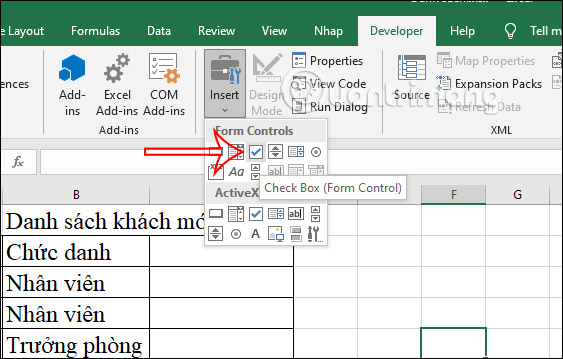
<p style="text-align: justify;">Tại giao diện trên Excel bạn nhấn vào&nbsp;<strong>tab Developer</strong>&nbsp;rồi nhìn xuống bên dưới, tại nhóm Controls bạn nhấn&nbsp;<strong>nút Insert</strong>&nbsp;rồi nhấn vào&nbsp;<strong>biểu tượng Check box (From control)</strong>.</p>

<p style="text-align: justify;"><img alt="Biểu tượng checkbox" data-i="0" data-src="https://st.quantrimang.com/photos/image/2021/05/12/Excel-chen-o-checkbox-1.jpg" data-was-processed="true" height="359" src="https://st.quantrimang.com/photos/image/2021/05/12/Excel-chen-o-checkbox-1.jpg" width="563" /></p>

<p style="text-align: justify;"><strong>Bước 2:</strong></p>

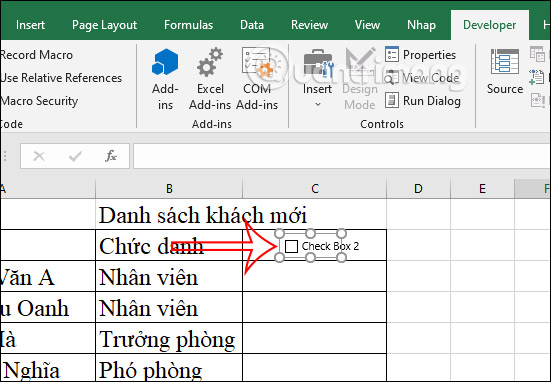
<p style="text-align: justify;">Lúc này tại vùng cần chèn checkbox, bạn cần&nbsp;<strong>kéo chuột để tạo thành ô cần tạo checkbox</strong>&nbsp;như hình dưới đây.</p>

<p style="text-align: justify;"><img alt="Tạo ô checkbox" data-i="1" data-src="https://st.quantrimang.com/photos/image/2021/05/12/Excel-chen-o-checkbox-2.jpg" data-was-processed="true" height="382" src="https://st.quantrimang.com/photos/image/2021/05/12/Excel-chen-o-checkbox-2.jpg" width="551" /></p>

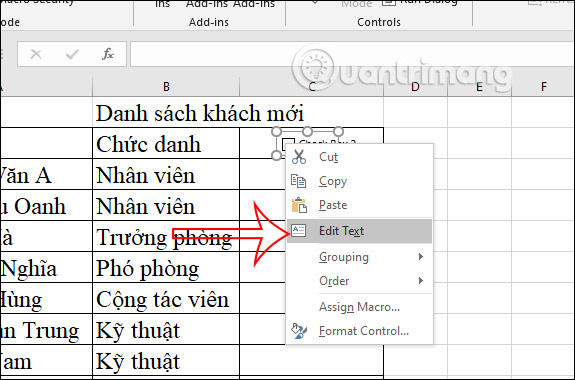
<p style="text-align: justify;">Nhấn chuột phải vào ô checkbox đã tạo được rồi&nbsp;<strong>chọn Edit Text</strong>&nbsp;trong menu hiển thị. Sau đó bạn chỉ cần&nbsp;<strong>xóa chữ hiển thị trong checkbox</strong>&nbsp;đi là được.</p>

<p style="text-align: justify;"><img alt="Xóa chữ " data-i="2" data-src="https://st.quantrimang.com/photos/image/2021/05/12/Excel-chen-o-checkbox-3.jpg" data-was-processed="true" height="380" src="https://st.quantrimang.com/photos/image/2021/05/12/Excel-chen-o-checkbox-3.jpg" width="575" /></p>

<p style="text-align: justify;"><strong>Bước 3:</strong></p>

<p style="text-align: justify;">Cuối cùng click chuột tại ô checkbox đầu tiên rồi kéo xuống những ô còn lại là được. Khi người nhận bảng khảo sát hoặc đánh giá chỉ cần tích vào ô vuông là được.</p>

<p style="text-align: justify;"><img alt="Checkbox " data-i="3" data-src="https://st.quantrimang.com/photos/image/2021/05/12/Excel-chen-o-checkbox-4.jpg" data-was-processed="true" height="372" src="https://st.quantrimang.com/photos/image/2021/05/12/Excel-chen-o-checkbox-4.jpg" width="621" /></p>

<h2 style="text-align: justify;">2. Cách chèn checkbox hàng loạt trong Excel</h2>

<p style="text-align: justify;"><strong>Bước 1:</strong></p>

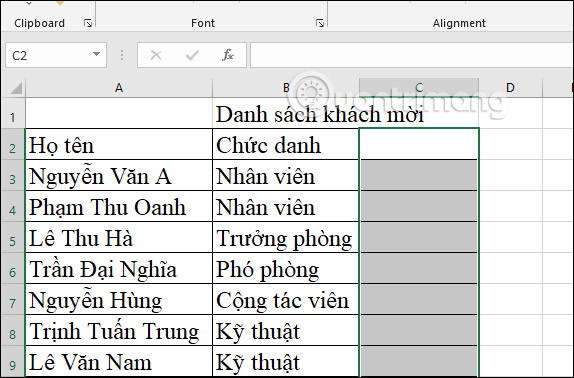
<p style="text-align: justify;">Trước hết bạn cần&nbsp;<strong>bôi đen vùng dữ liệu</strong>&nbsp;cần chèn ô checkbox để khoanh vùng lại.</p>

<p style="text-align: justify;"><img alt="Bôi đen vùng" data-i="4" data-src="https://st.quantrimang.com/photos/image/2021/05/12/Excel-chen-o-checkbox-5.jpg" data-was-processed="true" height="378" src="https://st.quantrimang.com/photos/image/2021/05/12/Excel-chen-o-checkbox-5.jpg" width="574" /></p>

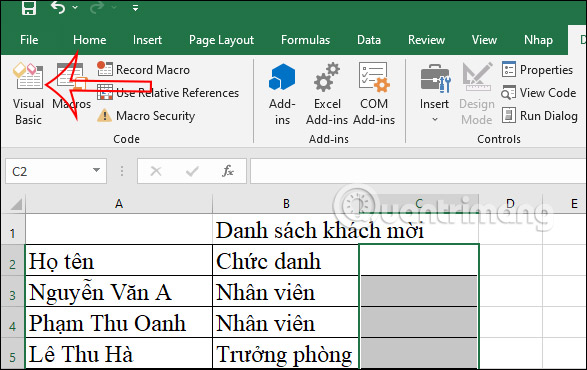
<p style="text-align: justify;">Sau đó cũng nhấn vào<strong>&nbsp;tab Developer</strong>&nbsp;rồi nhấn tiếp vào&nbsp;<strong>Visual Basic</strong>&nbsp;ở bên dưới.</p>

<p style="text-align: justify;"><img alt="Visual Basic" data-i="5" data-src="https://st.quantrimang.com/photos/image/2021/05/12/Excel-chen-o-checkbox-6.jpg" data-was-processed="true" height="370" src="https://st.quantrimang.com/photos/image/2021/05/12/Excel-chen-o-checkbox-6.jpg" width="587" /></p>

<p style="text-align: justify;"><strong>Bước 2:</strong></p>

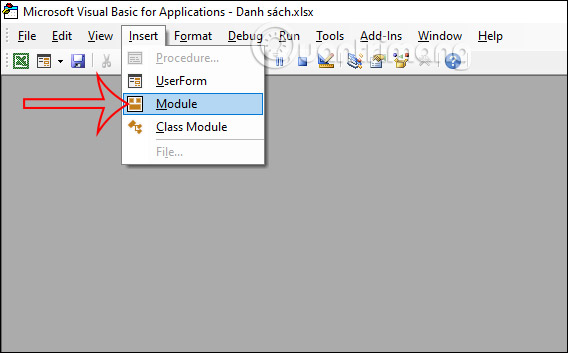
<p style="text-align: justify;">Chuyển sang giao diện mới, chúng ta nhấn vào&nbsp;<strong>Insert rồi chọn Module</strong>&nbsp;ở bên dưới.</p>

<p style="text-align: justify;"><img alt="Mở giao diện chèn code" data-i="6" data-src="https://st.quantrimang.com/photos/image/2021/05/12/Excel-chen-o-checkbox-7.jpg" data-was-processed="true" height="353" src="https://st.quantrimang.com/photos/image/2021/05/12/Excel-chen-o-checkbox-7.jpg" width="568" /></p>

<p style="text-align: justify;">Lúc này hiển thị giao diện để điền code VBA ở bên dưới đây.</p>

<pre id="pre0">
<code>Sub InsertCheckBoxes()

‘Update 20140506

Dim Rng As Range

Dim WorkRng As Range

Dim Ws As Worksheet

On Error Resume Next

xTitleId = “KutoolsforExcel”

Set WorkRng = Application.Selection

Set WorkRng = Application.InputBox(“Range”, xTitleId, WorkRng.Address, Type:=8)

Set Ws = Application.ActiveSheet

Application.ScreenUpdating = False

For Each Rng In WorkRng

With Ws.CheckBoxes.Add(Rng.Left, Rng.Top, Rng.Width, Rng.Height)

.Characters.Text = Rng.Value

End With

Next

WorkRng.ClearContents

WorkRng.Select

Application.ScreenUpdating = True

End Sub</code></pre>

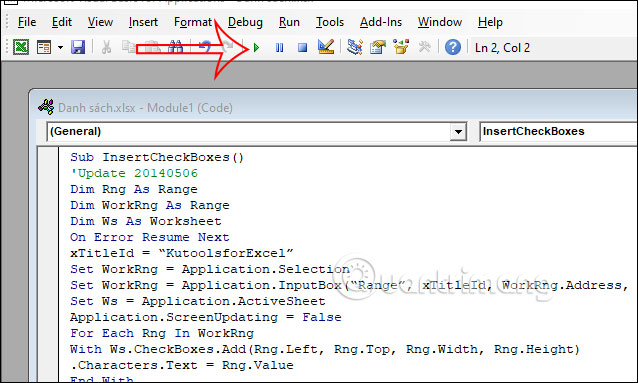
<p style="text-align: justify;">Khi nhập xong bạn<strong>&nbsp;nhấn vào nút Run</strong>&nbsp;ở thanh công cụ bên trên để chạy code. Lúc này hiển thị vùng dữ liệu bạn đã bôi đen trước đó để chèn ô checkbox, nhấn OK để đồng ý.</p>

<p style="text-align: justify;"><img alt="Chạy code" data-i="7" data-src="https://st.quantrimang.com/photos/image/2021/05/12/Excel-chen-o-checkbox-8.jpg" data-was-processed="true" height="383" src="https://st.quantrimang.com/photos/image/2021/05/12/Excel-chen-o-checkbox-8.jpg" width="638" /></p>

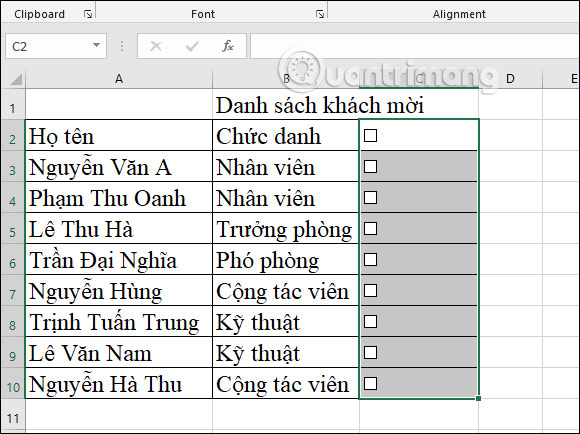
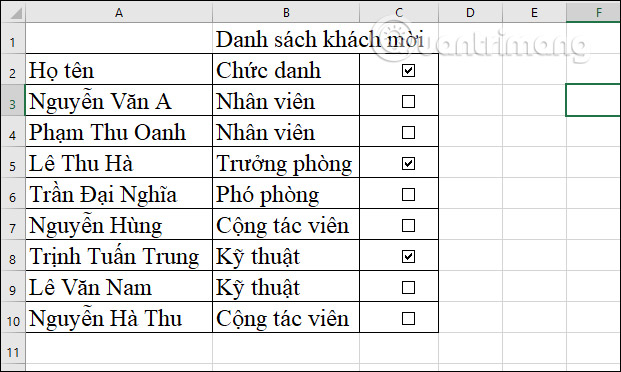
<p style="text-align: justify;">Kết quả các ô checkbox đã tự động được chèn hàng loạt vào vùng dữ liệu bạn chọn.</p>

<p style="text-align: justify;"><img alt="Chèn ô checkbox tự động" data-i="8" data-src="https://st.quantrimang.com/photos/image/2021/05/12/Excel-chen-o-checkbox-9.jpg" data-was-processed="true" height="434" src="https://st.quantrimang.com/photos/image/2021/05/12/Excel-chen-o-checkbox-9.jpg" width="580" /></p>

<h2 style="text-align: justify;">Video hướng dẫn chèn ô checkbox trong Excel</h2>

<p style="text-align: center;"><iframe allowfullscreen="" data-src="https://www.nguoicodonvn2008.info//www.youtube.com/embed/Jf38w-6x96Y" data-was-processed="true" frameborder="0" height="360" scrolling="no" src="https://www.youtube.com/embed/Jf38w-6x96Y" title="YouTube video player" width="480"></iframe></p>
		</div>
				<div id="author">
						<p>
				<strong>Nguồn tin:</strong>
				Quantrimang.com
			</p>
		</div>
	</div>
	<div id="footer" class="clearfix">
		<div id="url">
			<strong>URL của bản tin này: </strong><a href="https://www.nguoicodonvn2008.info/vi/news/savefile/kien-thuc-may-tinh/cach-chen-checkbox-trong-excel-4076.html" title="Cách chèn checkbox trong Excel">https://www.nguoicodonvn2008.info/vi/news/savefile/kien-thuc-may-tinh/cach-chen-checkbox-trong-excel-4076.html</a>

		</div>
		<div class="clear"></div>
		<div class="copyright">
			&copy; .&#x3A; Nguoicodonvn2008.info - Cõi lòng người cô đơn &#x3A;.
		</div>
		<div id="contact">
			<a href="mailto:admin@nguoicodonvn2008.info">admin@nguoicodonvn2008.info</a>
		</div>
	</div>
</div>
        <div id="timeoutsess" class="chromeframe">
            Bạn đã không sử dụng Site, <a onclick="timeoutsesscancel();" href="https://www.nguoicodonvn2008.info/#">Bấm vào đây để duy trì trạng thái đăng nhập</a>. Thời gian chờ: <span id="secField"> 60 </span> giây
        </div>
        <div id="openidResult" class="nv-alert" style="display:none"></div>
        <div id="openidBt" data-result="" data-redirect=""></div>
		</script>
		<div class="car-top">
  <span><img src="https://www.nguoicodonvn2008.info/themes/default/images/car.png" alt=""></span>
</div>
<script src="https://www.nguoicodonvn2008.info/assets/js/jquery/jquery.min.js"></script>
<script>var nv_base_siteurl="/",nv_lang_data="vi",nv_lang_interface="vi",nv_name_variable="nv",nv_fc_variable="op",nv_lang_variable="language",nv_module_name="news",nv_func_name="savefile",nv_is_user=0, nv_my_ofs=-4,nv_my_abbr="EDT",nv_cookie_prefix="nv4c_e856T",nv_check_pass_mstime=1738000,nv_area_admin=0,nv_safemode=0,theme_responsive=0,nv_recaptcha_ver=2,nv_recaptcha_sitekey="",nv_recaptcha_type="image",XSSsanitize=1;</script>
<script src="https://www.nguoicodonvn2008.info/assets/js/language/vi.js"></script>
<script src="https://www.nguoicodonvn2008.info/assets/js/DOMPurify/purify3.js"></script>
<script src="https://www.nguoicodonvn2008.info/assets/js/global.js"></script>
<script src="https://www.nguoicodonvn2008.info/assets/js/site.js"></script>
<script src="https://www.nguoicodonvn2008.info/themes/default/js/news.js"></script>
<script src="https://www.nguoicodonvn2008.info/themes/default/js/main.js"></script>
<script src="https://www.nguoicodonvn2008.info/themes/default/js/custom.js"></script>
<script type="application/ld+json">
        {
            "@context": "https://schema.org",
            "@type": "Organization",
            "url": "https://www.nguoicodonvn2008.info",
            "logo": "https://www.nguoicodonvn2008.info/uploads/angel.gif"
        }
        </script>
<script src="https://www.nguoicodonvn2008.info/themes/default/js/bootstrap.min.js"></script>
<script type="text/javascript">
var $scrolltop = $('.car-top');
$scrolltop.on('click', function () {
    $('html,body').animate({
        scrollTop: 0
    }, 800);
    $(this).addClass("car-run");
    setTimeout(function(){ $scrolltop.removeClass('car-run');}, 1000);
    return false;
});
$(window).on('scroll', function ()
{ 
    if($(window).scrollTop() >= 200)
    {
        $scrolltop.addClass("show");
        $scrolltop.addClass("car-down");
    }
    else
    {
       $scrolltop.removeClass("show");
       setTimeout(function(){ $scrolltop.removeClass('car-down');}, 300);
    }
});
</script>
</body>
</html>