<!DOCTYPE html>
    <html lang="vi" xmlns="http://www.w3.org/1999/xhtml" prefix="og: http://ogp.me/ns#">
    <head>
<title>Cách chạy Ubuntu Container trong Chrome OS</title>
<meta name="description" content="Cách chạy Ubuntu Container trong Chrome OS - Savefile - Tin Tức -...">
<meta name="author" content=".: Nguoicodonvn2008.info - Cõi lòng người cô đơn :.">
<meta name="copyright" content=".: Nguoicodonvn2008.info - Cõi lòng người cô đơn :. [admin@nguoicodonvn2008.info]">
<meta name="robots" content="index, archive, follow, noodp">
<meta name="googlebot" content="index,archive,follow,noodp">
<meta name="msnbot" content="all,index,follow">
<meta name="generator" content="NukeViet v4.5">
<meta http-equiv="Content-Type" content="text/html; charset=utf-8">
<meta property="og:title" content="Cách chạy Ubuntu Container trong Chrome OS">
<meta property="og:type" content="website">
<meta property="og:description" content="Savefile - Tin Tức - https&#x3A;&#x002F;&#x002F;www.nguoicodonvn2008.info&#x002F;vi&#x002F;news&#x002F;savefile&#x002F;kien-thuc-may-tinh&#x002F;cach-chay-ubuntu-container-trong-chrome-os-1054.html">
<meta property="og:site_name" content=".&#x3A; Nguoicodonvn2008.info - Cõi lòng người cô đơn &#x3A;.">
<meta property="og:url" content="https://www.nguoicodonvn2008.info/vi/news/savefile/kien-thuc-may-tinh/cach-chay-ubuntu-container-trong-chrome-os-1054.html">
<link rel="shortcut icon" href="https://www.nguoicodonvn2008.info/favicon.ico">
<link rel="canonical" href="https://www.nguoicodonvn2008.info/vi/news/savefile/kien-thuc-may-tinh/cach-chay-ubuntu-container-trong-chrome-os-1054.html">
<link rel="alternate" href="https://www.nguoicodonvn2008.info/vi/news/rss/" title="Tin Tức" type="application/rss+xml">
<link rel="alternate" href="https://www.nguoicodonvn2008.info/vi/news/rss/karaoke-dual/" title="Tin Tức - Karaoke Dual" type="application/rss+xml">
<link rel="alternate" href="https://www.nguoicodonvn2008.info/vi/news/rss/nhac-tre/" title="Tin Tức - Nhạc trẻ" type="application/rss+xml">
<link rel="alternate" href="https://www.nguoicodonvn2008.info/vi/news/rss/tru-tinh/" title="Tin Tức - Trữ tình" type="application/rss+xml">
<link rel="alternate" href="https://www.nguoicodonvn2008.info/vi/news/rss/nuoc-ngoai/" title="Tin Tức - Nước ngoài" type="application/rss+xml">
<link rel="alternate" href="https://www.nguoicodonvn2008.info/vi/news/rss/remix/" title="Tin Tức - Remix" type="application/rss+xml">
<link rel="alternate" href="https://www.nguoicodonvn2008.info/vi/news/rss/tam-su-tinh-yeu/" title="Tin Tức - Tâm sự tình yêu" type="application/rss+xml">
<link rel="alternate" href="https://www.nguoicodonvn2008.info/vi/news/rss/tho-suu-tam/" title="Tin Tức - Thơ sưu tầm" type="application/rss+xml">
<link rel="alternate" href="https://www.nguoicodonvn2008.info/vi/news/rss/cuoc-song/" title="Tin Tức - Cuộc sống" type="application/rss+xml">
<link rel="alternate" href="https://www.nguoicodonvn2008.info/vi/news/rss/phan-mem/" title="Tin Tức - Phần mềm" type="application/rss+xml">
<link rel="alternate" href="https://www.nguoicodonvn2008.info/vi/news/rss/kien-thuc-may-tinh/" title="Tin Tức - Kiến thức máy tính" type="application/rss+xml">
<link rel="alternate" href="https://www.nguoicodonvn2008.info/vi/news/rss/hoc-tap/" title="Tin Tức - Học tập" type="application/rss+xml">
<link rel="alternate" href="https://www.nguoicodonvn2008.info/vi/news/rss/tai-lieu/" title="Tin Tức - Tài liệu" type="application/rss+xml">
<link rel="alternate" href="https://www.nguoicodonvn2008.info/vi/news/rss/de-thi/" title="Tin Tức - Đề thi" type="application/rss+xml">
<link rel="preload" as="style" href="https://www.nguoicodonvn2008.info/assets/css/font-awesome.min.css" type="text/css">
<link rel="preload" as="style" href="https://www.nguoicodonvn2008.info/themes/default/css/bootstrap.non-responsive.css" type="text/css">
<link rel="preload" as="style" href="https://www.nguoicodonvn2008.info/themes/default/css/style.css" type="text/css">
<link rel="preload" as="style" href="https://www.nguoicodonvn2008.info/themes/default/css/style.non-responsive.css" type="text/css">
<link rel="preload" as="style" href="https://www.nguoicodonvn2008.info/themes/default/css/news.css" type="text/css">
<link rel="preload" as="style" href="https://www.nguoicodonvn2008.info/themes/default/css/custom.css" type="text/css">
<link rel="preload" as="script" href="https://www.nguoicodonvn2008.info/assets/js/jquery/jquery.min.js" type="text/javascript">
<link rel="preload" as="script" href="https://www.nguoicodonvn2008.info/assets/js/language/vi.js" type="text/javascript">
<link rel="preload" as="script" href="https://www.nguoicodonvn2008.info/assets/js/DOMPurify/purify3.js" type="text/javascript">
<link rel="preload" as="script" href="https://www.nguoicodonvn2008.info/assets/js/global.js" type="text/javascript">
<link rel="preload" as="script" href="https://www.nguoicodonvn2008.info/assets/js/site.js" type="text/javascript">
<link rel="preload" as="script" href="https://www.nguoicodonvn2008.info/themes/default/js/news.js" type="text/javascript">
<link rel="preload" as="script" href="https://www.nguoicodonvn2008.info/themes/default/js/main.js" type="text/javascript">
<link rel="preload" as="script" href="https://www.nguoicodonvn2008.info/themes/default/js/custom.js" type="text/javascript">
<link rel="preload" as="script" href="https://www.nguoicodonvn2008.info/themes/default/js/bootstrap.min.js" type="text/javascript">
<link rel="stylesheet" href="https://www.nguoicodonvn2008.info/assets/css/font-awesome.min.css">
<link rel="stylesheet" href="https://www.nguoicodonvn2008.info/themes/default/css/bootstrap.non-responsive.css">
<link rel="stylesheet" href="https://www.nguoicodonvn2008.info/themes/default/css/style.css">
<link rel="stylesheet" href="https://www.nguoicodonvn2008.info/themes/default/css/style.non-responsive.css">
<link rel="StyleSheet" href="https://www.nguoicodonvn2008.info/themes/default/css/news.css">
<link rel="stylesheet" href="https://www.nguoicodonvn2008.info/themes/default/css/custom.css">
<style type="text/css">
	body{background: #fff;}
</style>
    </head>
    <body>
<div id="print">
	<div id="hd_print">
		<h2 class="pull-left">.&#x3A; Nguoicodonvn2008.info - Cõi lòng người cô đơn &#x3A;.</h2>
		<p class="pull-right"><a title=".&#x3A; Nguoicodonvn2008.info - Cõi lòng người cô đơn &#x3A;." href="https://www.nguoicodonvn2008.info/">https://www.nguoicodonvn2008.info</a></p>
	</div>
	<div class="clear"></div>
	<hr />
	<div id="content">
		<h1>Cách chạy Ubuntu Container trong Chrome OS</h1>
		<ul class="list-inline">
			<li>Thứ bảy - 28/09/2019 12:20</li>
			<li class="hidden-print txtrequired"><em class="fa fa-print">&nbsp;</em><a title="In ra" href="javascript:;" onclick="window.print()">In ra</a></li>
			<li class="hidden-print txtrequired"><em class="fa fa-power-off">&nbsp;</em><a title="Đóng cửa sổ này" href="javascript:;" onclick="window.close()">Đóng cửa sổ này</a></li>
		</ul>
		<div class="clear"></div>
		<div id="hometext">
		</div>
				<div class="imghome">
			<img alt="Cách chạy Ubuntu Container trong Chrome OS" src="https://st.quantrimang.com/photos/image/2019/09/28/chay-ubuntu-container-trong-chrome-os-4.jpg" width="460" class="img-thumbnail" />
		</div>
		<div class="clear"></div>
		<div id="bodytext" class="clearfix">
			<p style="text-align: justify;">Kể từ Chrome OS 69, người dùng Chrome OS (trên Chromebook đã chọn) có thể cài đặt và sử dụng những ứng dụng&nbsp;Linux. Được gọi là dự án Crostini, những gì Chrome OS làm là chạy hệ điều hành Linux trong một container LXD (tương tự như&nbsp;máy ảo) để bạn có thể cài đặt và chạy các ứng dụng Linux trong môi trường&nbsp;sandbox.</p>

<p style="text-align: justify;">Bản phân phối Linux mặc định được sử dụng trong Crostini là Debian, đây là bản phân phối ổn định mà bạn có thể dựa vào. Tuy nhiên, nếu không phải là fan hâm mộ của Debian vì danh sách phần mềm hơi cũ của nó, bạn có thể chuyển sang&nbsp;Ubuntu&nbsp;thay thế.</p>

<p style="text-align: justify;">Quy trình chuyển đổi này sẽ yêu cầu bạn truy cập Terminal và gõ hàng đống lệnh. Nếu bạn không thoải mái với terminal, thì đây không phải là lựa chọn dành cho bạn. Sau đây là cách bạn có thể chạy Ubuntu container trong Chrome OS.</p>

<h2 style="text-align: justify;">Chạy Ubuntu container trong Chrome OS</h2>

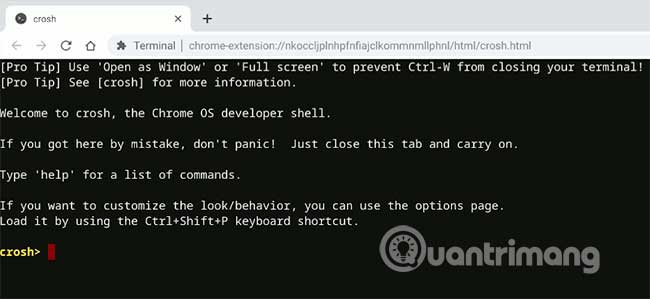
<p style="text-align: justify;">1. Khởi động&nbsp;Chromebook. Không mở bất kỳ ứng dụng Linux nào. Mở trình duyệt Chrome và nhấn&nbsp;<code>Ctrl</code>+<code>Alt</code>+<code>T</code>&nbsp;để khởi chạy trình Crosh shell.</p>

<p style="text-align: justify;"><img alt="Mở trình duyệt Chrome và nhấn Ctrl+Alt+T để khởi chạy trình Crosh shell" data-i="0" data-src="https://st.quantrimang.com/photos/image/2019/09/28/chay-ubuntu-container-trong-chrome-os-1.jpg" data-was-processed="true" height="299" src="https://st.quantrimang.com/photos/image/2019/09/28/chay-ubuntu-container-trong-chrome-os-1.jpg" width="650" /></p>

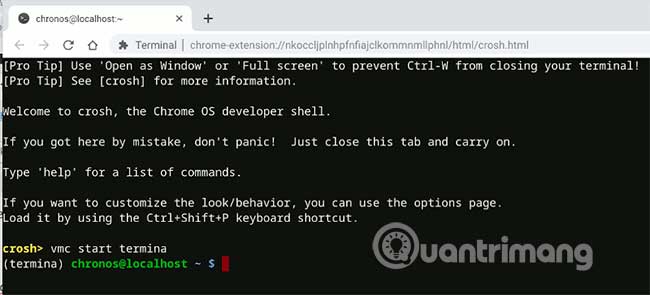
<p style="text-align: justify;">Bắt đầu terminal với lệnh này:</p>

<pre id="pre0">
<code>vmc start termina</code></pre>

<p style="text-align: justify;"><img alt="Bắt đầu terminal với lệnh này" data-i="1" data-src="https://st.quantrimang.com/photos/image/2019/09/28/chay-ubuntu-container-trong-chrome-os-2.jpg" data-was-processed="true" height="295" src="https://st.quantrimang.com/photos/image/2019/09/28/chay-ubuntu-container-trong-chrome-os-2.jpg" width="650" /></p>

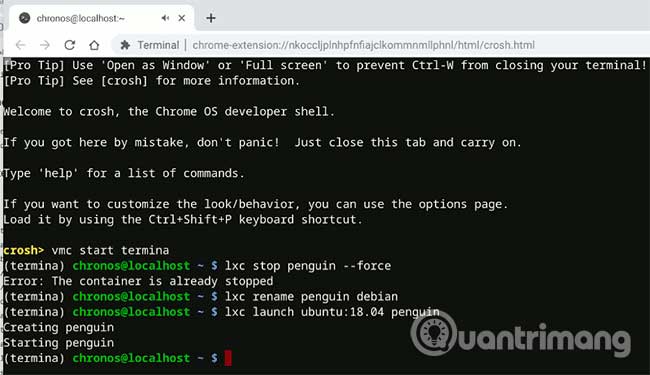
<p style="text-align: justify;">2. Debian container mặc định được gắn nhãn là&nbsp;<strong>“penguin”,</strong>&nbsp;được sử dụng để tích hợp với hệ thống file Chrome OS. Để thay thế Debian, trước tiên bạn sẽ cần loại bỏ Debian container của nhãn&nbsp;<strong>“penguin”:</strong></p>

<pre id="pre1">
<code>lxc stop penguin --force
 lxc rename penguin debian</code></pre>

<p style="text-align: justify;">3. Tiếp theo, tạo một Ubuntu container mới có tên là&nbsp;<strong>penguin:</strong></p>

<pre id="pre2">
<code>lxc launch ubuntu:18.04 penguin</code></pre>

<p style="text-align: justify;">Quá trình này sẽ mất khá nhiều thời gian vì nó phải kéo image từ Internet.</p>

<p style="text-align: justify;"><img alt="Tiếp theo, tạo một Ubuntu container mới có tên là penguin" data-i="2" data-src="https://st.quantrimang.com/photos/image/2019/09/28/chay-ubuntu-container-trong-chrome-os-3.jpg" data-was-processed="true" height="375" src="https://st.quantrimang.com/photos/image/2019/09/28/chay-ubuntu-container-trong-chrome-os-3.jpg" width="650" /></p>

<p style="text-align: justify;">4. Sau khi hoàn thành, khởi động vào container mới:</p>

<pre id="pre3">
<code>lxc exec penguin -- bash</code></pre>

<p style="text-align: justify;">5. Cập nhật và nâng cấp hệ thống:</p>

<pre id="pre4">
<code>apt update
 apt upgrade</code></pre>

<p style="text-align: justify;">6. Cài đặt các gói Crostini để nó có thể tích hợp với hệ thống file gốc. Nhập các lệnh sau để thêm gói cros của repo:</p>

<pre id="pre5">
<code>cros-packages’ repo:
 echo &quot;deb https://storage.googleapis.com/cros-packages stretch main&quot; &gt; /etc/apt/sources.list.d/cros.list
 if &#91; -f /dev/.cros_milestone &#93;; then sudo sed -i &quot;s?packages?packages/$(cat /dev/.cros_milestone)?&quot; /etc/apt/sources.list.d/cros.list; fi
 apt-key adv --keyserver keyserver.ubuntu.com --recv-keys 1397BC53640DB551
 apt update</code></pre>

<p style="text-align: justify;">Cài đặt các dependency:</p>

<pre id="pre6">
<code>apt install binutils</code></pre>

<p style="text-align: justify;">7. Mặc dù đã thêm repo, nhưng bạn không thể cài đặt các gói Crostini trực tiếp. Đây là cách giải quyết.</p>

<p style="text-align: justify;">Tải xuống gói Crostini bằng lệnh:</p>

<pre id="pre7">
<code>apt download cros-ui-config</code></pre>

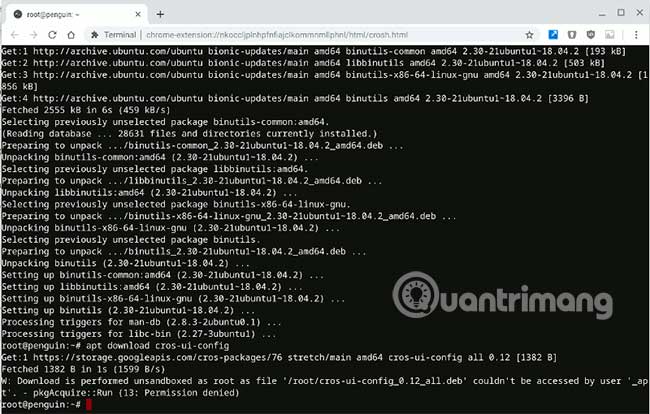
<p style="text-align: justify;">Bạn sẽ nhận được một tin nhắn cảnh báo. Cứ bỏ qua nó.</p>

<p style="text-align: justify;"><img alt="Bỏ qua tin nhắn cảnh báo" data-i="3" data-src="https://st.quantrimang.com/photos/image/2019/09/28/chay-ubuntu-container-trong-chrome-os-4.jpg" data-was-processed="true" height="414" src="https://st.quantrimang.com/photos/image/2019/09/28/chay-ubuntu-container-trong-chrome-os-4.jpg" width="650" /></p>

<p style="text-align: justify;">Bây giờ giải nén các gói đã tải xuống:</p>

<pre id="pre8">
<code>ar x cros-ui-config_0.12_all.deb data.tar.gz
 gunzip data.tar.gz
 tar f data.tar --delete ./etc/gtk-3.0/settings.ini
 gzip data.tar
 ar r cros-ui-config_0.12_all.deb data.tar.gz
 rm -rf data.tar.gz</code></pre>

<p style="text-align: justify;">Cài đặt gói Crostini từ file deb:</p>

<pre id="pre9">
<code>apt install cros-guest-tools ./cros-ui-config_0.12_all.deb</code></pre>

<p style="text-align: justify;">8. Cuối cùng, xóa gói đã tải xuống:</p>

<pre id="pre10">
<code>rm cros-ui-config_0.12_all.deb</code></pre>

<p style="text-align: justify;">9. Cài đặt gói&nbsp;<strong>adwaita-icon-theme-full.</strong>&nbsp;Nếu không có gói này, các ứng dụng GUI Linux sẽ có một con trỏ rất nhỏ.</p>

<pre id="pre11">
<code>apt install adwaita-icon-theme-full</code></pre>

<p style="text-align: justify;">10. User mặc định trong container là&nbsp;<strong>“ubuntu”.</strong>&nbsp;Bạn cần xóa nó và thay thế bằng tên người dùng Gmail của bạn. Sử dụng tên người dùng Gmail (tài khoản&nbsp;Gmail&nbsp;bạn sử dụng để đăng nhập vào Chromebook) là điều cần thiết nếu bạn muốn tích hợp Ubuntu container này với hệ thống file gốc. Nếu không có điều này, bạn sẽ không thể truy cập các file Linux của mình từ trình quản lý file.</p>

<pre id="pre12">
<code>killall -u ubuntu
 groupmod -n gmail-username ubuntu
 usermod -md /home/gmail-username -l gmail-username ubuntu
 usermod -aG users gmail-username
 loginctl enable-linger gmail-username
 sed -i &#039;s/ubuntu/gmail-username/&#039; /etc/sudoers.d/90-cloud-init-users</code></pre>

<p style="text-align: justify;"><strong>Lưu ý</strong>: Thay thế&nbsp;<strong>“gmail-username”</strong>&nbsp;bằng tên người dùng Gmail của riêng bạn.</p>

<p style="text-align: justify;">11. Một khi điều này được hoàn thành, hãy tắt container:</p>

<pre id="pre13">
<code>shutdown -h now</code></pre>

<p style="text-align: justify;">Và khởi động lại Chromebook. Sau khi khởi động lại, khởi động ứng dụng Terminal từ launcher. Nếu thất bại, hãy thử lại.</p>

<p style="text-align: justify;">12. Thử cập nhật lại hệ thống.</p>

<pre id="pre14">
<code>sudo apt update</code></pre>

<p style="text-align: justify;">Nếu bạn thấy thông báo lỗi:</p>

<blockquote>
<p style="text-align: justify;">The following signatures couldn’t be verified because the public key is not available: NO_PUBKEY 7638D0442B90D010 NO_PUBKEY 04EE7237B7D453EC</p>
</blockquote>

<p style="text-align: justify;">Đó là bởi vì private key của gói Crostini không được tìm thấy trong hệ thống. Thêm private key bằng lệnh bên dưới:</p>

<pre id="pre15">
<code>sudo apt-key adv --keyserver keyserver.ubuntu.com --recv-keys 7638D0442B90D010 8B48AD6246925553</code></pre>

<p style="text-align: justify;">Và bạn sẽ có thể chạy apt update mà không gặp vấn đề gì.</p>

<p style="text-align: justify;">Bây giờ, bạn có thể bắt đầu cài đặt các ứng dụng Linux bằng lệnh&nbsp;<strong>apt install</strong>. Ví dụ, để cài đặt phiên bản Firefox mới nhất, hãy sử dụng lệnh:</p>

<pre id="pre16">
<code>sudo apt install firefox</code></pre>

<div style="text-align: justify;">&nbsp;</div>

<h2 style="text-align: justify;">Xóa container Debian</h2>

<p style="text-align: justify;">Nếu không còn sử dụng Debian container, bạn có thể xóa nó để giải phóng không gian lưu trữ.</p>

<p style="text-align: justify;">1. Trong trình duyệt Chrome, nhấn&nbsp;<code>Ctrl</code>+<code>Alt</code>+<code>T</code>&nbsp;để khởi chạy trình Crosh shell.</p>

<p style="text-align: justify;">2. Bắt đầu terminal:</p>

<pre id="pre17">
<code>vmc start termina</code></pre>

<p style="text-align: justify;">3. Xóa Debian container:</p>

<pre id="pre18">
<code>lxc delete debian</code></pre>

<p style="text-align: justify;">Nếu bạn thích sự ổn định và bảo mật, thì gắn bó với Debian container mặc định là lựa chọn tốt nhất. Nếu không, bạn có thể chuyển sang Ubuntu, vì nó cung cấp nhiều tùy chọn phần mềm và linh hoạt hơn. Có rất nhiều image LXD bạn có thể sử dụng, vì vậy bạn không bị hạn chế đối với Ubuntu.</p>

<p style="text-align: justify;">Chúc bạn thực hiện thành công!</p>
		</div>
				<div id="author">
						<p>
				<strong>Nguồn tin:</strong>
				Quantrimang.com
			</p>
		</div>
	</div>
	<div id="footer" class="clearfix">
		<div id="url">
			<strong>URL của bản tin này: </strong><a href="https://www.nguoicodonvn2008.info/vi/news/savefile/kien-thuc-may-tinh/cach-chay-ubuntu-container-trong-chrome-os-1054.html" title="Cách chạy Ubuntu Container trong Chrome OS">https://www.nguoicodonvn2008.info/vi/news/savefile/kien-thuc-may-tinh/cach-chay-ubuntu-container-trong-chrome-os-1054.html</a>

		</div>
		<div class="clear"></div>
		<div class="copyright">
			&copy; .&#x3A; Nguoicodonvn2008.info - Cõi lòng người cô đơn &#x3A;.
		</div>
		<div id="contact">
			<a href="mailto:admin@nguoicodonvn2008.info">admin@nguoicodonvn2008.info</a>
		</div>
	</div>
</div>
        <div id="timeoutsess" class="chromeframe">
            Bạn đã không sử dụng Site, <a onclick="timeoutsesscancel();" href="https://www.nguoicodonvn2008.info/#">Bấm vào đây để duy trì trạng thái đăng nhập</a>. Thời gian chờ: <span id="secField"> 60 </span> giây
        </div>
        <div id="openidResult" class="nv-alert" style="display:none"></div>
        <div id="openidBt" data-result="" data-redirect=""></div>
		</script>
		<div class="car-top">
  <span><img src="https://www.nguoicodonvn2008.info/themes/default/images/car.png" alt=""></span>
</div>
<script src="https://www.nguoicodonvn2008.info/assets/js/jquery/jquery.min.js"></script>
<script>var nv_base_siteurl="/",nv_lang_data="vi",nv_lang_interface="vi",nv_name_variable="nv",nv_fc_variable="op",nv_lang_variable="language",nv_module_name="news",nv_func_name="savefile",nv_is_user=0, nv_my_ofs=-4,nv_my_abbr="EDT",nv_cookie_prefix="nv4c_e856T",nv_check_pass_mstime=1738000,nv_area_admin=0,nv_safemode=0,theme_responsive=0,nv_recaptcha_ver=2,nv_recaptcha_sitekey="",nv_recaptcha_type="image",XSSsanitize=1;</script>
<script src="https://www.nguoicodonvn2008.info/assets/js/language/vi.js"></script>
<script src="https://www.nguoicodonvn2008.info/assets/js/DOMPurify/purify3.js"></script>
<script src="https://www.nguoicodonvn2008.info/assets/js/global.js"></script>
<script src="https://www.nguoicodonvn2008.info/assets/js/site.js"></script>
<script src="https://www.nguoicodonvn2008.info/themes/default/js/news.js"></script>
<script src="https://www.nguoicodonvn2008.info/themes/default/js/main.js"></script>
<script src="https://www.nguoicodonvn2008.info/themes/default/js/custom.js"></script>
<script type="application/ld+json">
        {
            "@context": "https://schema.org",
            "@type": "Organization",
            "url": "https://www.nguoicodonvn2008.info",
            "logo": "https://www.nguoicodonvn2008.info/uploads/angel.gif"
        }
        </script>
<script src="https://www.nguoicodonvn2008.info/themes/default/js/bootstrap.min.js"></script>
<script type="text/javascript">
var $scrolltop = $('.car-top');
$scrolltop.on('click', function () {
    $('html,body').animate({
        scrollTop: 0
    }, 800);
    $(this).addClass("car-run");
    setTimeout(function(){ $scrolltop.removeClass('car-run');}, 1000);
    return false;
});
$(window).on('scroll', function ()
{ 
    if($(window).scrollTop() >= 200)
    {
        $scrolltop.addClass("show");
        $scrolltop.addClass("car-down");
    }
    else
    {
       $scrolltop.removeClass("show");
       setTimeout(function(){ $scrolltop.removeClass('car-down');}, 300);
    }
});
</script>
</body>
</html>