<!DOCTYPE html>
    <html lang="vi" xmlns="http://www.w3.org/1999/xhtml" prefix="og: http://ogp.me/ns#">
    <head>
<title>Cách cấu hình cho nhiều User cùng kết nối từ xa vào Windows Server 2016 bằng Remote Desktop</title>
<meta name="description" content="Cách cấu hình cho nhiều User cùng kết nối từ xa vào Windows Server 2016 bằng Remote Desktop - Savefile - Tin Tức -...">
<meta name="author" content=".: Nguoicodonvn2008.info - Cõi lòng người cô đơn :.">
<meta name="copyright" content=".: Nguoicodonvn2008.info - Cõi lòng người cô đơn :. [admin@nguoicodonvn2008.info]">
<meta name="robots" content="index, archive, follow, noodp">
<meta name="googlebot" content="index,archive,follow,noodp">
<meta name="msnbot" content="all,index,follow">
<meta name="generator" content="NukeViet v4.5">
<meta http-equiv="Content-Type" content="text/html; charset=utf-8">
<meta property="og:title" content="Cách cấu hình cho nhiều User cùng kết nối từ xa vào Windows Server 2016 bằng Remote Desktop">
<meta property="og:type" content="website">
<meta property="og:description" content="Savefile - Tin Tức -...">
<meta property="og:site_name" content=".&#x3A; Nguoicodonvn2008.info - Cõi lòng người cô đơn &#x3A;.">
<meta property="og:url" content="https://www.nguoicodonvn2008.info/vi/news/savefile/kien-thuc-may-tinh/cach-cau-hinh-cho-nhieu-user-cung-ket-noi-tu-xa-vao-windows-server-2016-bang-remote-desktop-4286.html">
<link rel="shortcut icon" href="https://www.nguoicodonvn2008.info/favicon.ico">
<link rel="canonical" href="https://www.nguoicodonvn2008.info/vi/news/savefile/kien-thuc-may-tinh/cach-cau-hinh-cho-nhieu-user-cung-ket-noi-tu-xa-vao-windows-server-2016-bang-remote-desktop-4286.html">
<link rel="alternate" href="https://www.nguoicodonvn2008.info/vi/news/rss/" title="Tin Tức" type="application/rss+xml">
<link rel="alternate" href="https://www.nguoicodonvn2008.info/vi/news/rss/karaoke-dual/" title="Tin Tức - Karaoke Dual" type="application/rss+xml">
<link rel="alternate" href="https://www.nguoicodonvn2008.info/vi/news/rss/nhac-tre/" title="Tin Tức - Nhạc trẻ" type="application/rss+xml">
<link rel="alternate" href="https://www.nguoicodonvn2008.info/vi/news/rss/tru-tinh/" title="Tin Tức - Trữ tình" type="application/rss+xml">
<link rel="alternate" href="https://www.nguoicodonvn2008.info/vi/news/rss/nuoc-ngoai/" title="Tin Tức - Nước ngoài" type="application/rss+xml">
<link rel="alternate" href="https://www.nguoicodonvn2008.info/vi/news/rss/remix/" title="Tin Tức - Remix" type="application/rss+xml">
<link rel="alternate" href="https://www.nguoicodonvn2008.info/vi/news/rss/tam-su-tinh-yeu/" title="Tin Tức - Tâm sự tình yêu" type="application/rss+xml">
<link rel="alternate" href="https://www.nguoicodonvn2008.info/vi/news/rss/tho-suu-tam/" title="Tin Tức - Thơ sưu tầm" type="application/rss+xml">
<link rel="alternate" href="https://www.nguoicodonvn2008.info/vi/news/rss/cuoc-song/" title="Tin Tức - Cuộc sống" type="application/rss+xml">
<link rel="alternate" href="https://www.nguoicodonvn2008.info/vi/news/rss/phan-mem/" title="Tin Tức - Phần mềm" type="application/rss+xml">
<link rel="alternate" href="https://www.nguoicodonvn2008.info/vi/news/rss/kien-thuc-may-tinh/" title="Tin Tức - Kiến thức máy tính" type="application/rss+xml">
<link rel="alternate" href="https://www.nguoicodonvn2008.info/vi/news/rss/hoc-tap/" title="Tin Tức - Học tập" type="application/rss+xml">
<link rel="alternate" href="https://www.nguoicodonvn2008.info/vi/news/rss/tai-lieu/" title="Tin Tức - Tài liệu" type="application/rss+xml">
<link rel="alternate" href="https://www.nguoicodonvn2008.info/vi/news/rss/de-thi/" title="Tin Tức - Đề thi" type="application/rss+xml">
<link rel="preload" as="style" href="https://www.nguoicodonvn2008.info/assets/css/font-awesome.min.css" type="text/css">
<link rel="preload" as="style" href="https://www.nguoicodonvn2008.info/themes/default/css/bootstrap.non-responsive.css" type="text/css">
<link rel="preload" as="style" href="https://www.nguoicodonvn2008.info/themes/default/css/style.css" type="text/css">
<link rel="preload" as="style" href="https://www.nguoicodonvn2008.info/themes/default/css/style.non-responsive.css" type="text/css">
<link rel="preload" as="style" href="https://www.nguoicodonvn2008.info/themes/default/css/news.css" type="text/css">
<link rel="preload" as="style" href="https://www.nguoicodonvn2008.info/themes/default/css/custom.css" type="text/css">
<link rel="preload" as="script" href="https://www.nguoicodonvn2008.info/assets/js/jquery/jquery.min.js" type="text/javascript">
<link rel="preload" as="script" href="https://www.nguoicodonvn2008.info/assets/js/language/vi.js" type="text/javascript">
<link rel="preload" as="script" href="https://www.nguoicodonvn2008.info/assets/js/DOMPurify/purify3.js" type="text/javascript">
<link rel="preload" as="script" href="https://www.nguoicodonvn2008.info/assets/js/global.js" type="text/javascript">
<link rel="preload" as="script" href="https://www.nguoicodonvn2008.info/assets/js/site.js" type="text/javascript">
<link rel="preload" as="script" href="https://www.nguoicodonvn2008.info/themes/default/js/news.js" type="text/javascript">
<link rel="preload" as="script" href="https://www.nguoicodonvn2008.info/themes/default/js/main.js" type="text/javascript">
<link rel="preload" as="script" href="https://www.nguoicodonvn2008.info/themes/default/js/custom.js" type="text/javascript">
<link rel="preload" as="script" href="https://www.nguoicodonvn2008.info/themes/default/js/bootstrap.min.js" type="text/javascript">
<link rel="stylesheet" href="https://www.nguoicodonvn2008.info/assets/css/font-awesome.min.css">
<link rel="stylesheet" href="https://www.nguoicodonvn2008.info/themes/default/css/bootstrap.non-responsive.css">
<link rel="stylesheet" href="https://www.nguoicodonvn2008.info/themes/default/css/style.css">
<link rel="stylesheet" href="https://www.nguoicodonvn2008.info/themes/default/css/style.non-responsive.css">
<link rel="StyleSheet" href="https://www.nguoicodonvn2008.info/themes/default/css/news.css">
<link rel="stylesheet" href="https://www.nguoicodonvn2008.info/themes/default/css/custom.css">
<style type="text/css">
	body{background: #fff;}
</style>
    </head>
    <body>
<div id="print">
	<div id="hd_print">
		<h2 class="pull-left">.&#x3A; Nguoicodonvn2008.info - Cõi lòng người cô đơn &#x3A;.</h2>
		<p class="pull-right"><a title=".&#x3A; Nguoicodonvn2008.info - Cõi lòng người cô đơn &#x3A;." href="https://www.nguoicodonvn2008.info/">https://www.nguoicodonvn2008.info</a></p>
	</div>
	<div class="clear"></div>
	<hr />
	<div id="content">
		<h1>Cách cấu hình cho nhiều User cùng kết nối từ xa vào Windows Server 2016 bằng Remote Desktop</h1>
		<ul class="list-inline">
			<li>Thứ ba - 22/06/2021 00:56</li>
			<li class="hidden-print txtrequired"><em class="fa fa-print">&nbsp;</em><a title="In ra" href="javascript:;" onclick="window.print()">In ra</a></li>
			<li class="hidden-print txtrequired"><em class="fa fa-power-off">&nbsp;</em><a title="Đóng cửa sổ này" href="javascript:;" onclick="window.close()">Đóng cửa sổ này</a></li>
		</ul>
		<div class="clear"></div>
		<div id="hometext">
		</div>
				<div class="imghome">
			<img alt="Cách cấu hình cho nhiều User cùng kết nối từ xa vào Windows Server 2016 bằng Remote Desktop" src="https://st.quantrimang.com/photos/image/2021/06/21/nhieu-user-remote-desktop-connection-1.jpg" width="460" class="img-thumbnail" />
		</div>
		<div class="clear"></div>
		<div id="bodytext" class="clearfix">
			<p style="text-align: justify;">Với&nbsp;Remote Desktop Connection, người dùng Windows có thể dễ dàng kết nối và làm việc từ xa. Tuy nhiên, nếu muốn cho phép nhiều người kết nối cùng lúc vào một máy tính&nbsp;Windows Server&nbsp;thì phải làm như thế nào?</p>

<p style="text-align: justify;">Trong bài viết này sẽ hướng dẫn bạn cách cấu hình cho nhiều User cùng kết nối từ xa vào&nbsp;Windows Server 2016&nbsp;bằng Remote Desktop.</p>

<div style="text-align: justify;">&nbsp;</div>

<h2 style="text-align: justify;">Bước 1: Tạo tài khoản và cho phép quyền truy cập Remote Desktop</h2>

<ul>
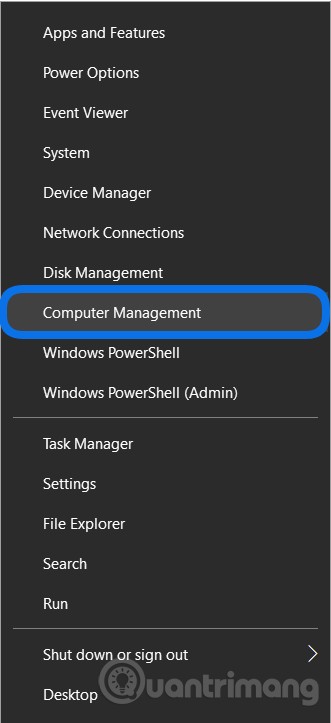
	<li style="text-align: justify;">Bạn cần nhấp chuột phải vào nút&nbsp;<strong>Start</strong>&nbsp;sau đó chọn&nbsp;<strong>Computer Management</strong></li>
</ul>

<p style="text-align: justify;"><img alt="" data-i="0" data-src="https://st.quantrimang.com/photos/image/2021/06/21/nhieu-user-remote-desktop-connection.jpg" data-was-processed="true" height="723" src="https://st.quantrimang.com/photos/image/2021/06/21/nhieu-user-remote-desktop-connection.jpg" width="331" /></p>

<ul>
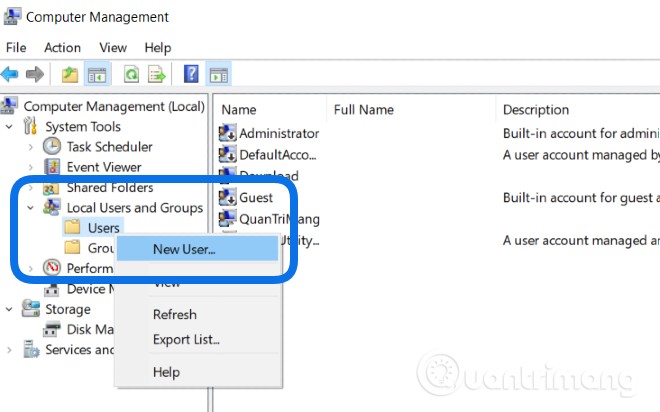
	<li style="text-align: justify;">Sau đó, bạn cọn&nbsp;<strong>Local Users and Group</strong>, nhấp chuột phải vào&nbsp;<strong>User</strong>&nbsp;rồi chọn&nbsp;<strong>New User</strong></li>
</ul>

<p style="text-align: justify;"><strong><img alt="" data-i="1" data-src="https://st.quantrimang.com/photos/image/2021/06/21/nhieu-user-remote-desktop-connection-1.jpg" data-was-processed="true" height="412" src="https://st.quantrimang.com/photos/image/2021/06/21/nhieu-user-remote-desktop-connection-1.jpg" width="660" /></strong></p>

<ul>
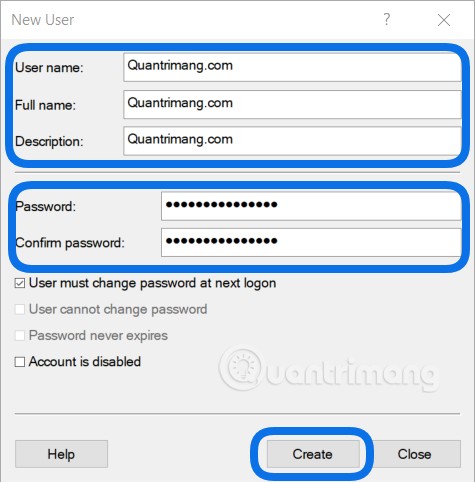
	<li style="text-align: justify;">Bạn tạo tài khoản đăng nhập với đầy đủ thông tin như&nbsp;<strong>User name</strong>,&nbsp;<strong>Password</strong>&nbsp;rồi tích vào các lựa chọn cho phép User đổi password hay không. Nhấn&nbsp;<strong>Create</strong></li>
</ul>

<p style="text-align: justify;"><strong><img alt="" data-i="2" data-src="https://st.quantrimang.com/photos/image/2021/06/21/nhieu-user-remote-desktop-connection-2.jpg" data-was-processed="true" height="482" src="https://st.quantrimang.com/photos/image/2021/06/21/nhieu-user-remote-desktop-connection-2.jpg" width="475" /></strong></p>

<ul>
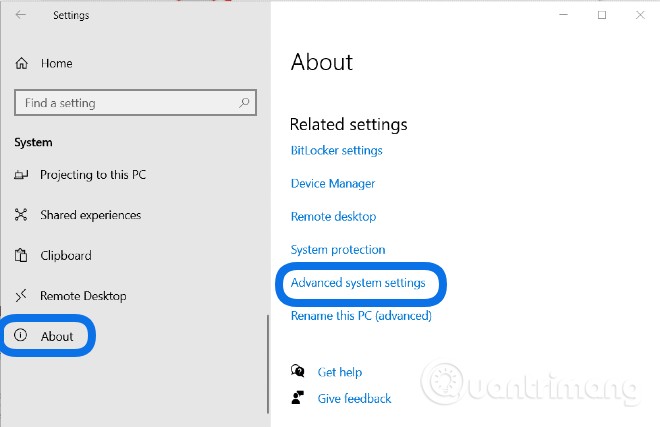
	<li style="text-align: justify;">Tiếp theo, bạn cần cấu hình để cho phép User vừa tạo được phép kết nối vào Windows Server qua Remote Desktop. Nhấn&nbsp;<strong>Windows + I</strong>&nbsp;để mở&nbsp;<strong>Settings</strong>&nbsp;sau đó chọn&nbsp;<strong>System</strong></li>
	<li style="text-align: justify;">Nhấn vào&nbsp;<strong>About</strong>&nbsp;ở thanh bên trái rồi kéo xuống ở thanh bên phải để chọn&nbsp;<strong>Advanced system setting</strong>. Nếu dùng&nbsp;<strong>Control</strong>&nbsp;<strong>Panel</strong>&nbsp;bạn cần truy cập&nbsp;<strong>System &gt; Advanced system setting</strong></li>
</ul>

<p style="text-align: justify;"><strong><img alt="" data-i="3" data-src="https://st.quantrimang.com/photos/image/2021/06/21/nhieu-user-remote-desktop-connection-3.jpg" data-was-processed="true" height="427" src="https://st.quantrimang.com/photos/image/2021/06/21/nhieu-user-remote-desktop-connection-3.jpg" width="660" /></strong></p>

<ul>
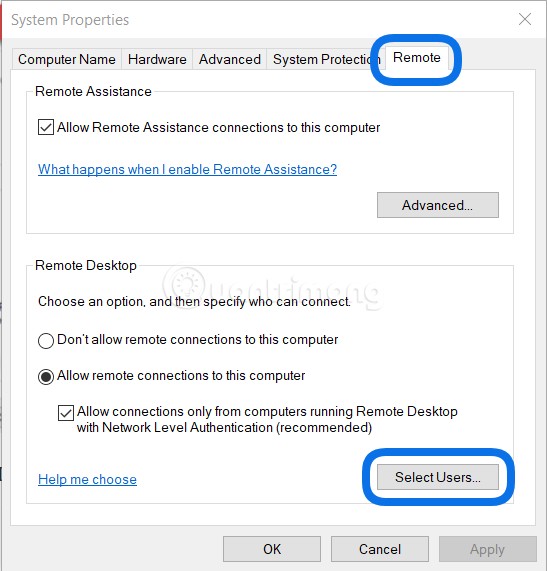
	<li style="text-align: justify;">Trong cửa sổ mới hiện ra, bạn nhấn thẻ&nbsp;<strong>Remote</strong>&nbsp;rồi nhấn nút&nbsp;<strong>Select Users...</strong></li>
</ul>

<p style="text-align: justify;"><strong><img alt="" data-i="4" data-src="https://st.quantrimang.com/photos/image/2021/06/21/nhieu-user-remote-desktop-connection-4.jpg" data-was-processed="true" height="571" src="https://st.quantrimang.com/photos/image/2021/06/21/nhieu-user-remote-desktop-connection-4.jpg" width="547" /></strong></p>

<ul>
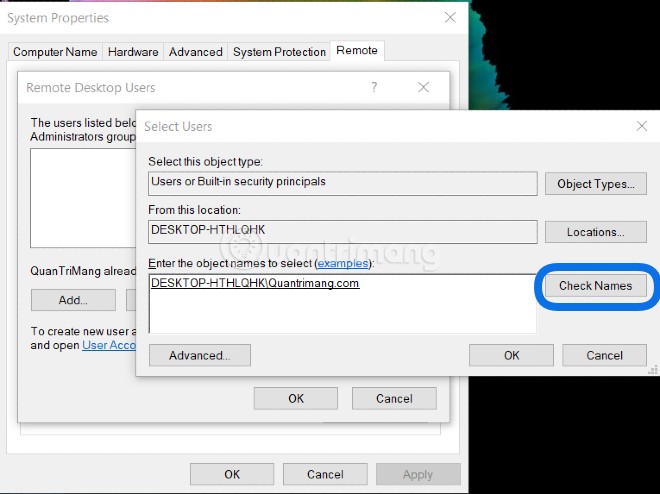
	<li style="text-align: justify;">Bạn nhấn nút&nbsp;<strong>Add</strong>&nbsp;để thêm User được phép&nbsp;<strong>Remote Desktop</strong>&nbsp;vào. Bạn chỉ cần gõ đúng tên User vừa tạo sau đó nhấn&nbsp;<strong>Check Names</strong>&nbsp;là hệ thống sẽ tự tìm ra tài khoản với đường dẫn chuẩn như hình. Bạn nhấn&nbsp;<strong>OK</strong>&nbsp;để xác nhận chọn tài khoản</li>
</ul>

<p style="text-align: justify;"><img alt="" data-i="5" data-src="https://st.quantrimang.com/photos/image/2021/06/21/nhieu-user-remote-desktop-connection-5.jpg" data-was-processed="true" height="494" src="https://st.quantrimang.com/photos/image/2021/06/21/nhieu-user-remote-desktop-connection-5.jpg" width="660" /></p>

<div style="text-align: justify;">&nbsp;</div>

<ul>
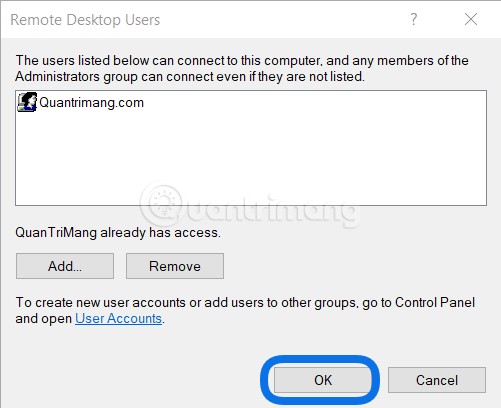
	<li style="text-align: justify;">Sau đó danh sách tài khoản được phép kết nối sẽ hiện ra</li>
</ul>

<p style="text-align: justify;"><img alt="" data-i="6" data-src="https://st.quantrimang.com/photos/image/2021/06/21/nhieu-user-remote-desktop-connection-6.jpg" data-was-processed="true" height="408" src="https://st.quantrimang.com/photos/image/2021/06/21/nhieu-user-remote-desktop-connection-6.jpg" width="501" /></p>

<ul>
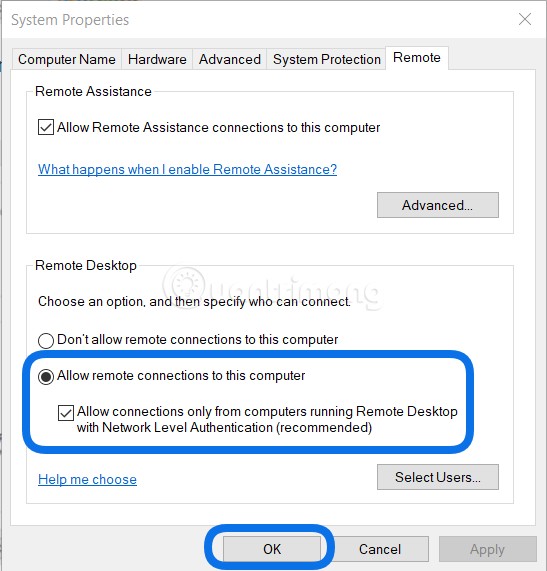
	<li style="text-align: justify;">Ở phần này, bạn hãy đảm bảo rằng đã chọn tại mục&nbsp;<strong>Allow connections only from computers...</strong></li>
</ul>

<p style="text-align: justify;"><strong><img alt="" data-i="7" data-src="https://st.quantrimang.com/photos/image/2021/06/21/nhieu-user-remote-desktop-connection-7.jpg" data-was-processed="true" height="571" src="https://st.quantrimang.com/photos/image/2021/06/21/nhieu-user-remote-desktop-connection-7.jpg" width="547" /></strong></p>

<h2 style="text-align: justify;">Bước 2: Cho phép nhiều User cùng truy cập bằng Remote Desktop</h2>

<ul>
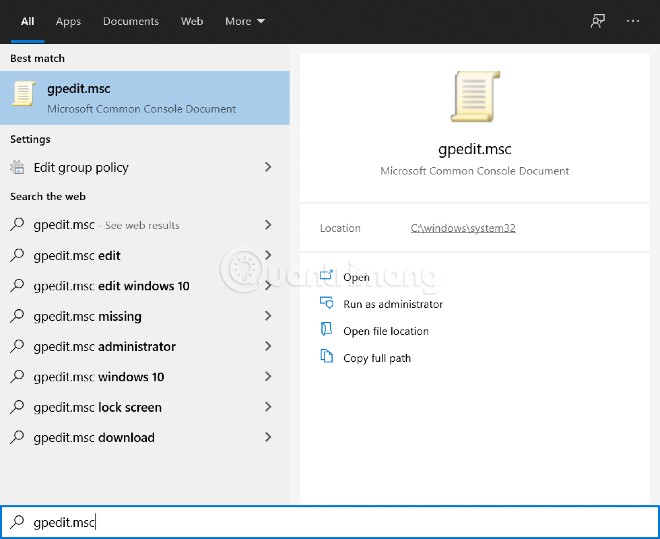
	<li style="text-align: justify;">Đầu tiên, bạn nhấn nút&nbsp;<strong>Start</strong>&nbsp;sau đó nhập&nbsp;<strong>gpedit.msc</strong>&nbsp;rồi nhấn đúp vào để chọn/mở</li>
</ul>

<p style="text-align: justify;">&nbsp;</p>

<div style="text-align: justify;"><br />
<img alt="" data-i="8" data-src="https://st.quantrimang.com/photos/image/2021/06/21/nhieu-user-remote-desktop-connection-8.jpg" data-was-processed="true" height="539" src="https://st.quantrimang.com/photos/image/2021/06/21/nhieu-user-remote-desktop-connection-8.jpg" width="660" /></div>

<ul>
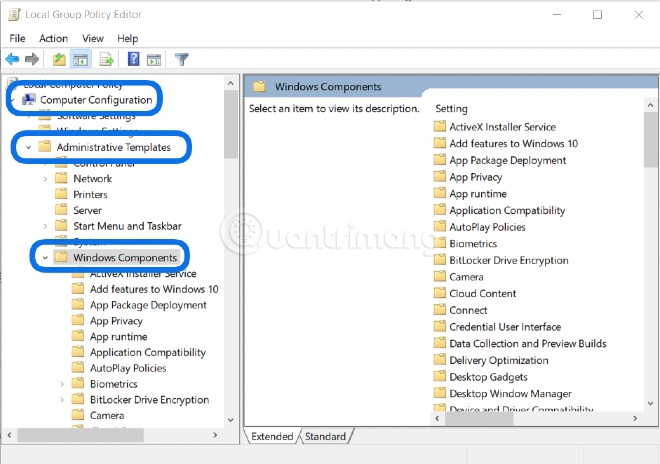
	<li style="text-align: justify;">Bạn tìm lần lượt tới&nbsp;<strong>Computer Configuration</strong>&nbsp;=&gt;&nbsp;<strong>Administrative Templates</strong>&nbsp;=&gt;&nbsp;<strong>Windows Components</strong></li>
</ul>

<p style="text-align: justify;"><strong><img alt="" data-i="9" data-src="https://st.quantrimang.com/photos/image/2021/06/21/nhieu-user-remote-desktop-connection-9.jpg" data-was-processed="true" height="464" src="https://st.quantrimang.com/photos/image/2021/06/21/nhieu-user-remote-desktop-connection-9.jpg" width="660" /></strong></p>

<ul>
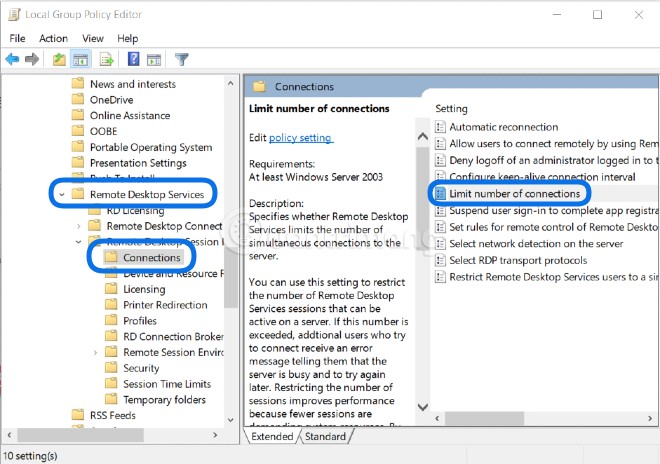
	<li style="text-align: justify;">Tiếp tục truy cập tới&nbsp;<strong>Remote Desktop Services =&gt; Remote Desktop Session Host =&gt; Connections</strong>&nbsp;rồi chuyển sang bên phải tìm kiếm mục&nbsp;<strong>Limit number of connections</strong>, nhấp đúp để mở</li>
</ul>

<p style="text-align: justify;"><img alt="" data-i="10" data-src="https://st.quantrimang.com/photos/image/2021/06/21/nhieu-user-remote-desktop-connection-10.jpg" data-was-processed="true" height="464" src="https://st.quantrimang.com/photos/image/2021/06/21/nhieu-user-remote-desktop-connection-10.jpg" width="660" /></p>

<ul>
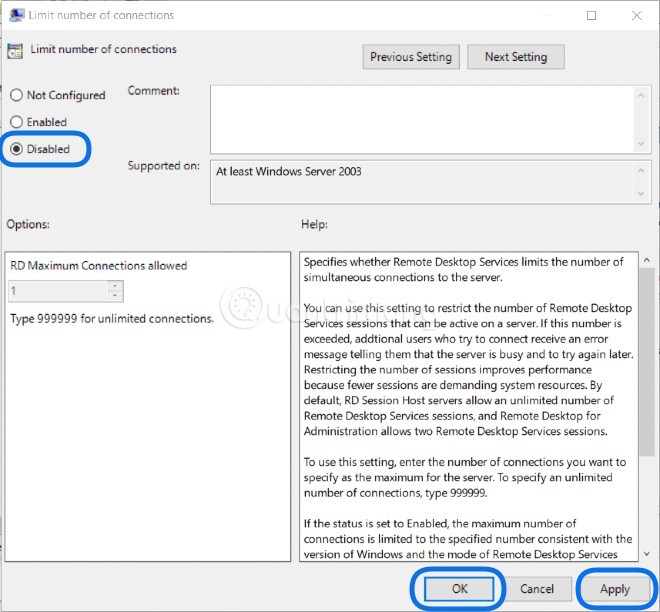
	<li style="text-align: justify;">Chọn&nbsp;<strong>Disable</strong>&nbsp;rồi nhấn&nbsp;<strong>OK</strong>&nbsp;để không giới hạn số người dùng truy cập. Ngoài ra, bạn cũng có thể chọn&nbsp;<strong>Enable</strong>&nbsp;để nhập số lượng người được phép truy cập ở phần&nbsp;<strong>RD Maximum Connections allowed</strong>. Chọn xong bạn nhấn&nbsp;<strong>Apply</strong>&nbsp;=&gt;&nbsp;<strong>OK</strong>&nbsp;để lưu</li>
</ul>

<p style="text-align: justify;"><img alt="" data-i="11" data-src="https://st.quantrimang.com/photos/image/2021/06/21/nhieu-user-remote-desktop-connection-11.jpg" data-was-processed="true" height="612" src="https://st.quantrimang.com/photos/image/2021/06/21/nhieu-user-remote-desktop-connection-11.jpg" width="660" /></p>

<ul>
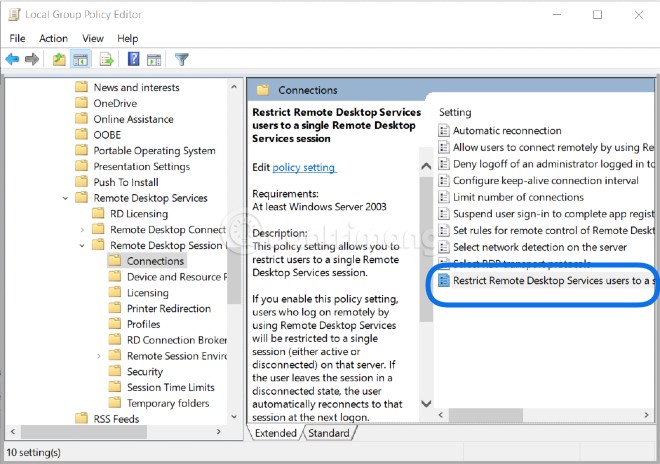
	<li style="text-align: justify;">Tiếp tục chọn và mở&nbsp;<strong>Restrict Remote Desktop Services...</strong></li>
</ul>

<p style="text-align: justify;"><strong><img alt="" data-i="12" data-src="https://st.quantrimang.com/photos/image/2021/06/21/nhieu-user-remote-desktop-connection-12.jpg" data-was-processed="true" height="464" src="https://st.quantrimang.com/photos/image/2021/06/21/nhieu-user-remote-desktop-connection-12.jpg" width="660" /></strong></p>

<ul>
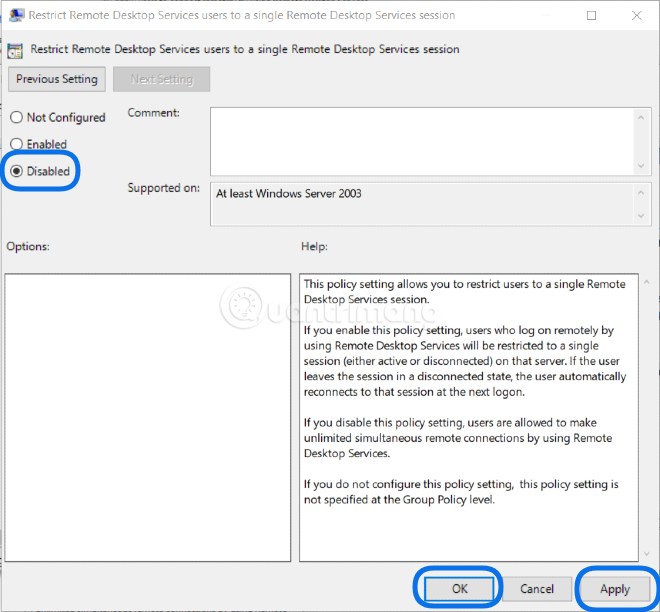
	<li style="text-align: justify;">Chọn Disable rồi nhấn&nbsp;<strong>Apply</strong>&nbsp;=&gt;&nbsp;<strong>OK</strong></li>
</ul>

<p style="text-align: justify;"><strong><img alt="" data-i="13" data-src="https://st.quantrimang.com/photos/image/2021/06/21/nhieu-user-remote-desktop-connection-13.jpg" data-was-processed="true" height="612" src="https://st.quantrimang.com/photos/image/2021/06/21/nhieu-user-remote-desktop-connection-13.jpg" width="660" /></strong></p>

<h2 style="text-align: justify;">Bước 3: Đăng ký dịch vụ để có thể cho phép nhiều hơn 2 User có thể truy cập Remote Desktop</h2>

<p style="text-align: justify;">Phần này được thực hiện trên Windows Server 2016.</p>

<ul>
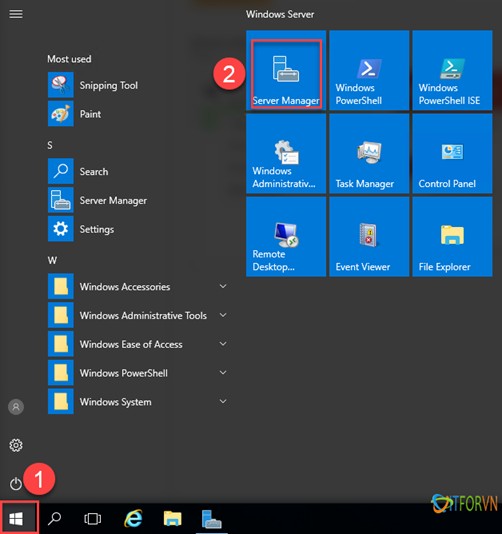
	<li style="text-align: justify;">Bạn nhấn&nbsp;<strong>Start</strong>&nbsp;rồi chọn&nbsp;<strong>Server Manager</strong></li>
</ul>

<p style="text-align: justify;"><strong><img alt="" data-i="14" data-src="https://st.quantrimang.com/photos/image/2021/06/21/nhieu-user-remote-desktop-connection-14.jpg" data-was-processed="true" height="534" src="https://st.quantrimang.com/photos/image/2021/06/21/nhieu-user-remote-desktop-connection-14.jpg" width="502" /></strong></p>

<ul>
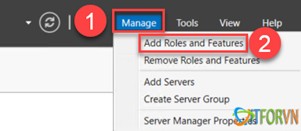
	<li style="text-align: justify;">Tiếp theo, trên góc phải cửa sổ&nbsp;<strong>Server Manager</strong>&nbsp;bạn chọn&nbsp;<strong>Manage</strong>&nbsp;=&gt;&nbsp;<strong>Add Roles and Features</strong></li>
</ul>

<p style="text-align: justify;"><strong><img alt="" data-i="15" data-src="https://st.quantrimang.com/photos/image/2021/06/21/nhieu-user-remote-desktop-connection-15.jpg" data-was-processed="true" height="131" src="https://st.quantrimang.com/photos/image/2021/06/21/nhieu-user-remote-desktop-connection-15.jpg" width="301" /></strong></p>

<ul>
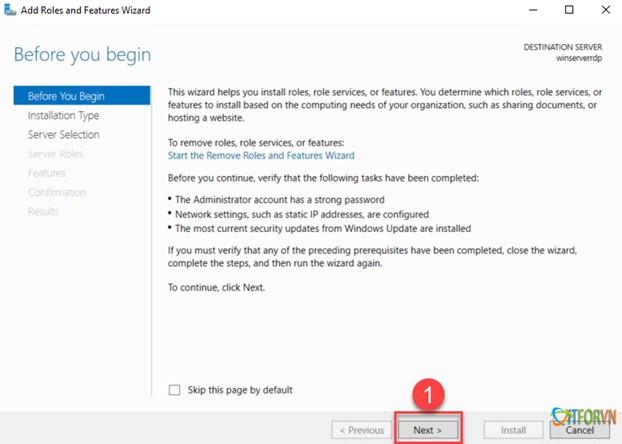
	<li style="text-align: justify;">Ở cửa sổ mới này bạn nhấn&nbsp;<strong>Next</strong>&nbsp;để tiếp tục</li>
</ul>

<p style="text-align: justify;"><img alt="" data-i="16" data-src="https://st.quantrimang.com/photos/image/2021/06/21/nhieu-user-remote-desktop-connection-16.jpg" data-was-processed="true" height="444" src="https://st.quantrimang.com/photos/image/2021/06/21/nhieu-user-remote-desktop-connection-16.jpg" width="622" /></p>

<ul>
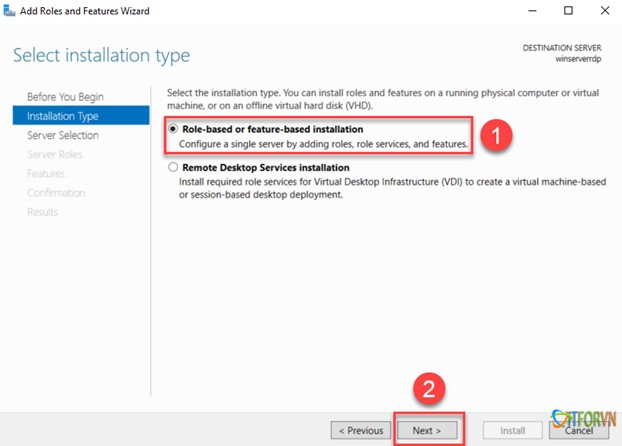
	<li style="text-align: justify;">Bạn chọn&nbsp;<strong>Role-based or feature-based installation</strong>&nbsp;rồi nhấn&nbsp;<strong>Next</strong></li>
</ul>

<p style="text-align: justify;"><strong><img alt="" data-i="17" data-src="https://st.quantrimang.com/photos/image/2021/06/21/nhieu-user-remote-desktop-connection-17.jpg" data-was-processed="true" height="446" src="https://st.quantrimang.com/photos/image/2021/06/21/nhieu-user-remote-desktop-connection-17.jpg" width="622" /></strong></p>

<ul>
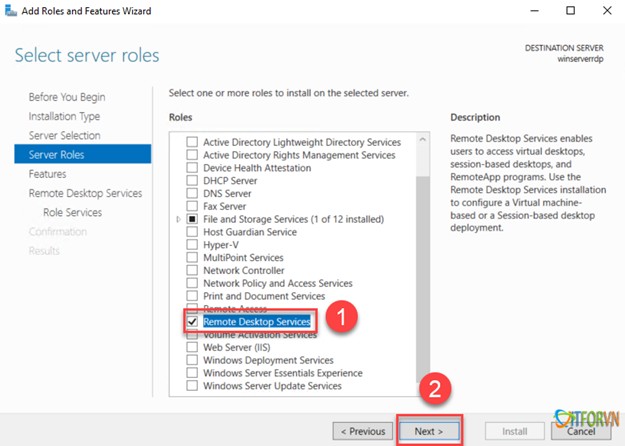
	<li style="text-align: justify;">Bạn tick chọn&nbsp;<strong>Remote Desktop Services</strong>&nbsp;và tiếp tục nhấn&nbsp;<strong>Next</strong></li>
</ul>

<p style="text-align: justify;"><strong><img alt="" data-i="18" data-src="https://st.quantrimang.com/photos/image/2021/06/21/nhieu-user-remote-desktop-connection-18.jpg" data-was-processed="true" height="446" src="https://st.quantrimang.com/photos/image/2021/06/21/nhieu-user-remote-desktop-connection-18.jpg" width="625" /></strong></p>

<ul>
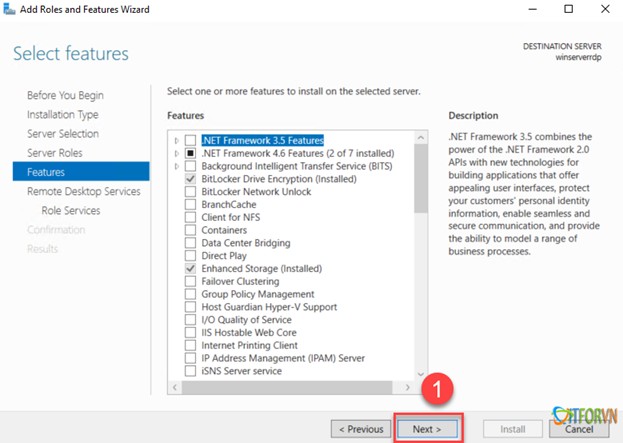
	<li style="text-align: justify;">Nhấn&nbsp;<strong>Next</strong></li>
</ul>

<p style="text-align: justify;"><strong><img alt="" data-i="19" data-src="https://st.quantrimang.com/photos/image/2021/06/21/nhieu-user-remote-desktop-connection-23.jpg" data-was-processed="true" height="443" src="https://st.quantrimang.com/photos/image/2021/06/21/nhieu-user-remote-desktop-connection-23.jpg" width="623" /></strong></p>

<ul>
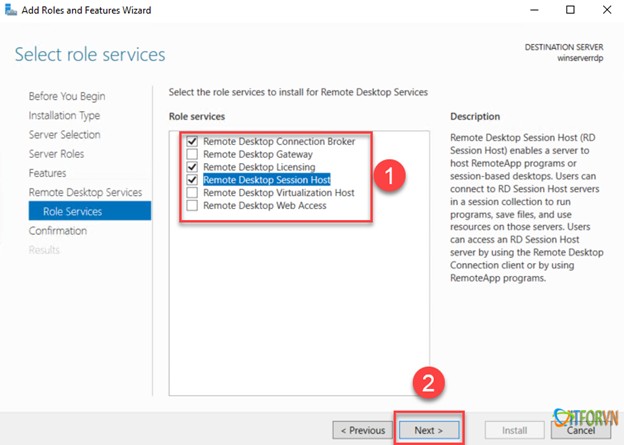
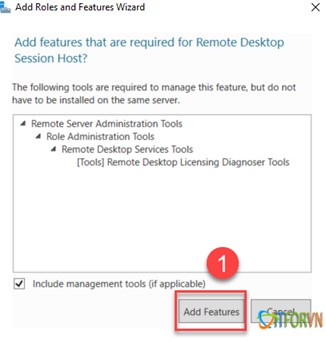
	<li style="text-align: justify;">Bạn tick chọn 3 dịch vụ là:&nbsp;<strong>Remote Desktop Connection Broker, Remote Desktop Licensing, Remote Desktop Session Host</strong>. Sau mỗi lần tick sẽ có một bảng xác nhận hiện ra bạn hãy nhấn&nbsp;<strong>Add features</strong></li>
</ul>

<p style="text-align: justify;"><strong><img alt="" data-i="20" data-src="https://st.quantrimang.com/photos/image/2021/06/21/nhieu-user-remote-desktop-connection-19.jpg" data-was-processed="true" height="445" src="https://st.quantrimang.com/photos/image/2021/06/21/nhieu-user-remote-desktop-connection-19.jpg" width="624" /></strong></p>

<p style="text-align: justify;"><strong><img alt="" data-i="21" data-src="https://st.quantrimang.com/photos/image/2021/06/21/nhieu-user-remote-desktop-connection-20.jpg" data-was-processed="true" height="343" src="https://st.quantrimang.com/photos/image/2021/06/21/nhieu-user-remote-desktop-connection-20.jpg" width="326" /></strong></p>

<ul>
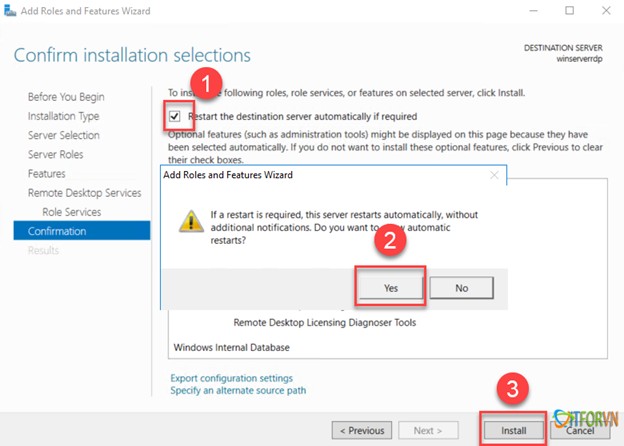
	<li style="text-align: justify;">Bạn hãy tick vào&nbsp;<strong>Restart the destination server...</strong>&nbsp;để tự khởi động lại máy chủ sau khi cài xong dịch vụ. Nhấn&nbsp;<strong>Yes</strong>&nbsp;để xác nhận sau đó nhấn&nbsp;<strong>Install</strong></li>
</ul>

<p style="text-align: justify;"><strong><img alt="" data-i="22" data-src="https://st.quantrimang.com/photos/image/2021/06/21/nhieu-user-remote-desktop-connection-21.jpg" data-was-processed="true" height="446" src="https://st.quantrimang.com/photos/image/2021/06/21/nhieu-user-remote-desktop-connection-21.jpg" width="624" /></strong></p>

<ul>
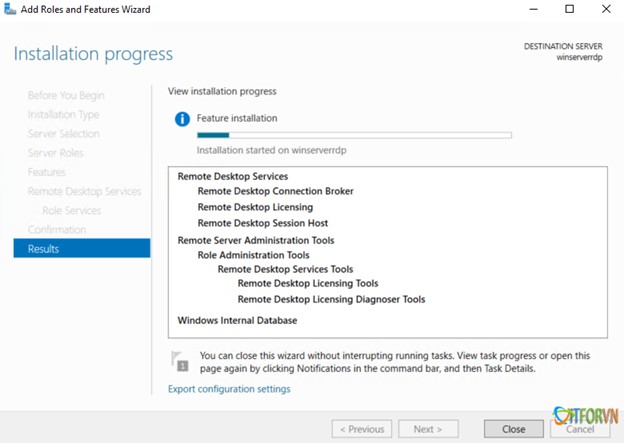
	<li style="text-align: justify;">Bạn chờ máy chủ cài đặt xong và khởi động lại là hoàn thành thiết lập và có thể kết nối trên 2 máy tính qua Remote Desktop vào Windows Server 2016.</li>
</ul>

<p style="text-align: justify;"><img alt="" data-i="23" data-src="https://st.quantrimang.com/photos/image/2021/06/21/nhieu-user-remote-desktop-connection-22.jpg" data-was-processed="true" height="443" src="https://st.quantrimang.com/photos/image/2021/06/21/nhieu-user-remote-desktop-connection-22.jpg" width="624" /></p>

<p style="text-align: justify;">Chúc các bạn thành công!</p>
		</div>
				<div id="author">
						<p>
				<strong>Nguồn tin:</strong>
				Quantrimang.com
			</p>
		</div>
	</div>
	<div id="footer" class="clearfix">
		<div id="url">
			<strong>URL của bản tin này: </strong><a href="https://www.nguoicodonvn2008.info/vi/news/savefile/kien-thuc-may-tinh/cach-cau-hinh-cho-nhieu-user-cung-ket-noi-tu-xa-vao-windows-server-2016-bang-remote-desktop-4286.html" title="Cách cấu hình cho nhiều User cùng kết nối từ xa vào Windows Server 2016 bằng Remote Desktop">https://www.nguoicodonvn2008.info/vi/news/savefile/kien-thuc-may-tinh/cach-cau-hinh-cho-nhieu-user-cung-ket-noi-tu-xa-vao-windows-server-2016-bang-remote-desktop-4286.html</a>

		</div>
		<div class="clear"></div>
		<div class="copyright">
			&copy; .&#x3A; Nguoicodonvn2008.info - Cõi lòng người cô đơn &#x3A;.
		</div>
		<div id="contact">
			<a href="mailto:admin@nguoicodonvn2008.info">admin@nguoicodonvn2008.info</a>
		</div>
	</div>
</div>
        <div id="timeoutsess" class="chromeframe">
            Bạn đã không sử dụng Site, <a onclick="timeoutsesscancel();" href="https://www.nguoicodonvn2008.info/#">Bấm vào đây để duy trì trạng thái đăng nhập</a>. Thời gian chờ: <span id="secField"> 60 </span> giây
        </div>
        <div id="openidResult" class="nv-alert" style="display:none"></div>
        <div id="openidBt" data-result="" data-redirect=""></div>
		</script>
		<div class="car-top">
  <span><img src="https://www.nguoicodonvn2008.info/themes/default/images/car.png" alt=""></span>
</div>
<script src="https://www.nguoicodonvn2008.info/assets/js/jquery/jquery.min.js"></script>
<script>var nv_base_siteurl="/",nv_lang_data="vi",nv_lang_interface="vi",nv_name_variable="nv",nv_fc_variable="op",nv_lang_variable="language",nv_module_name="news",nv_func_name="savefile",nv_is_user=0, nv_my_ofs=-4,nv_my_abbr="EDT",nv_cookie_prefix="nv4c_e856T",nv_check_pass_mstime=1738000,nv_area_admin=0,nv_safemode=0,theme_responsive=0,nv_recaptcha_ver=2,nv_recaptcha_sitekey="",nv_recaptcha_type="image",XSSsanitize=1;</script>
<script src="https://www.nguoicodonvn2008.info/assets/js/language/vi.js"></script>
<script src="https://www.nguoicodonvn2008.info/assets/js/DOMPurify/purify3.js"></script>
<script src="https://www.nguoicodonvn2008.info/assets/js/global.js"></script>
<script src="https://www.nguoicodonvn2008.info/assets/js/site.js"></script>
<script src="https://www.nguoicodonvn2008.info/themes/default/js/news.js"></script>
<script src="https://www.nguoicodonvn2008.info/themes/default/js/main.js"></script>
<script src="https://www.nguoicodonvn2008.info/themes/default/js/custom.js"></script>
<script type="application/ld+json">
        {
            "@context": "https://schema.org",
            "@type": "Organization",
            "url": "https://www.nguoicodonvn2008.info",
            "logo": "https://www.nguoicodonvn2008.info/uploads/angel.gif"
        }
        </script>
<script src="https://www.nguoicodonvn2008.info/themes/default/js/bootstrap.min.js"></script>
<script type="text/javascript">
var $scrolltop = $('.car-top');
$scrolltop.on('click', function () {
    $('html,body').animate({
        scrollTop: 0
    }, 800);
    $(this).addClass("car-run");
    setTimeout(function(){ $scrolltop.removeClass('car-run');}, 1000);
    return false;
});
$(window).on('scroll', function ()
{ 
    if($(window).scrollTop() >= 200)
    {
        $scrolltop.addClass("show");
        $scrolltop.addClass("car-down");
    }
    else
    {
       $scrolltop.removeClass("show");
       setTimeout(function(){ $scrolltop.removeClass('car-down');}, 300);
    }
});
</script>
</body>
</html>