<!DOCTYPE html>
    <html lang="vi" xmlns="http://www.w3.org/1999/xhtml" prefix="og: http://ogp.me/ns#">
    <head>
<title>Cách cài đặt Windows 11 bằng tài khoản cục bộ offline không cần Microsoft Account</title>
<meta name="description" content="Cách cài đặt Windows 11 bằng tài khoản cục bộ offline không cần Microsoft Account - Savefile - Tin Tức -...">
<meta name="author" content=".: Nguoicodonvn2008.info - Cõi lòng người cô đơn :.">
<meta name="copyright" content=".: Nguoicodonvn2008.info - Cõi lòng người cô đơn :. [admin@nguoicodonvn2008.info]">
<meta name="robots" content="index, archive, follow, noodp">
<meta name="googlebot" content="index,archive,follow,noodp">
<meta name="msnbot" content="all,index,follow">
<meta name="generator" content="NukeViet v4.5">
<meta http-equiv="Content-Type" content="text/html; charset=utf-8">
<meta property="og:title" content="Cách cài đặt Windows 11 bằng tài khoản cục bộ offline không cần Microsoft Account">
<meta property="og:type" content="website">
<meta property="og:description" content="Savefile - Tin Tức -...">
<meta property="og:site_name" content=".&#x3A; Nguoicodonvn2008.info - Cõi lòng người cô đơn &#x3A;.">
<meta property="og:url" content="https://www.nguoicodonvn2008.info/vi/news/savefile/kien-thuc-may-tinh/cach-cai-dat-windows-11-bang-tai-khoan-cuc-bo-offline-khong-can-microsoft-account-11385.html">
<link rel="shortcut icon" href="https://www.nguoicodonvn2008.info/favicon.ico">
<link rel="canonical" href="https://www.nguoicodonvn2008.info/vi/news/savefile/kien-thuc-may-tinh/cach-cai-dat-windows-11-bang-tai-khoan-cuc-bo-offline-khong-can-microsoft-account-11385.html">
<link rel="alternate" href="https://www.nguoicodonvn2008.info/vi/news/rss/" title="Tin Tức" type="application/rss+xml">
<link rel="alternate" href="https://www.nguoicodonvn2008.info/vi/news/rss/karaoke-dual/" title="Tin Tức - Karaoke Dual" type="application/rss+xml">
<link rel="alternate" href="https://www.nguoicodonvn2008.info/vi/news/rss/nhac-tre/" title="Tin Tức - Nhạc trẻ" type="application/rss+xml">
<link rel="alternate" href="https://www.nguoicodonvn2008.info/vi/news/rss/tru-tinh/" title="Tin Tức - Trữ tình" type="application/rss+xml">
<link rel="alternate" href="https://www.nguoicodonvn2008.info/vi/news/rss/nuoc-ngoai/" title="Tin Tức - Nước ngoài" type="application/rss+xml">
<link rel="alternate" href="https://www.nguoicodonvn2008.info/vi/news/rss/remix/" title="Tin Tức - Remix" type="application/rss+xml">
<link rel="alternate" href="https://www.nguoicodonvn2008.info/vi/news/rss/tam-su-tinh-yeu/" title="Tin Tức - Tâm sự tình yêu" type="application/rss+xml">
<link rel="alternate" href="https://www.nguoicodonvn2008.info/vi/news/rss/tho-suu-tam/" title="Tin Tức - Thơ sưu tầm" type="application/rss+xml">
<link rel="alternate" href="https://www.nguoicodonvn2008.info/vi/news/rss/cuoc-song/" title="Tin Tức - Cuộc sống" type="application/rss+xml">
<link rel="alternate" href="https://www.nguoicodonvn2008.info/vi/news/rss/phan-mem/" title="Tin Tức - Phần mềm" type="application/rss+xml">
<link rel="alternate" href="https://www.nguoicodonvn2008.info/vi/news/rss/kien-thuc-may-tinh/" title="Tin Tức - Kiến thức máy tính" type="application/rss+xml">
<link rel="alternate" href="https://www.nguoicodonvn2008.info/vi/news/rss/hoc-tap/" title="Tin Tức - Học tập" type="application/rss+xml">
<link rel="alternate" href="https://www.nguoicodonvn2008.info/vi/news/rss/tai-lieu/" title="Tin Tức - Tài liệu" type="application/rss+xml">
<link rel="alternate" href="https://www.nguoicodonvn2008.info/vi/news/rss/de-thi/" title="Tin Tức - Đề thi" type="application/rss+xml">
<link rel="preload" as="style" href="https://www.nguoicodonvn2008.info/assets/css/font-awesome.min.css" type="text/css">
<link rel="preload" as="style" href="https://www.nguoicodonvn2008.info/themes/default/css/bootstrap.non-responsive.css" type="text/css">
<link rel="preload" as="style" href="https://www.nguoicodonvn2008.info/themes/default/css/style.css" type="text/css">
<link rel="preload" as="style" href="https://www.nguoicodonvn2008.info/themes/default/css/style.non-responsive.css" type="text/css">
<link rel="preload" as="style" href="https://www.nguoicodonvn2008.info/themes/default/css/news.css" type="text/css">
<link rel="preload" as="style" href="https://www.nguoicodonvn2008.info/themes/default/css/custom.css" type="text/css">
<link rel="preload" as="script" href="https://www.nguoicodonvn2008.info/assets/js/jquery/jquery.min.js" type="text/javascript">
<link rel="preload" as="script" href="https://www.nguoicodonvn2008.info/assets/js/language/vi.js" type="text/javascript">
<link rel="preload" as="script" href="https://www.nguoicodonvn2008.info/assets/js/DOMPurify/purify3.js" type="text/javascript">
<link rel="preload" as="script" href="https://www.nguoicodonvn2008.info/assets/js/global.js" type="text/javascript">
<link rel="preload" as="script" href="https://www.nguoicodonvn2008.info/assets/js/site.js" type="text/javascript">
<link rel="preload" as="script" href="https://www.nguoicodonvn2008.info/themes/default/js/news.js" type="text/javascript">
<link rel="preload" as="script" href="https://www.nguoicodonvn2008.info/themes/default/js/main.js" type="text/javascript">
<link rel="preload" as="script" href="https://www.nguoicodonvn2008.info/themes/default/js/custom.js" type="text/javascript">
<link rel="preload" as="script" href="https://www.nguoicodonvn2008.info/themes/default/js/bootstrap.min.js" type="text/javascript">
<link rel="stylesheet" href="https://www.nguoicodonvn2008.info/assets/css/font-awesome.min.css">
<link rel="stylesheet" href="https://www.nguoicodonvn2008.info/themes/default/css/bootstrap.non-responsive.css">
<link rel="stylesheet" href="https://www.nguoicodonvn2008.info/themes/default/css/style.css">
<link rel="stylesheet" href="https://www.nguoicodonvn2008.info/themes/default/css/style.non-responsive.css">
<link rel="StyleSheet" href="https://www.nguoicodonvn2008.info/themes/default/css/news.css">
<link rel="stylesheet" href="https://www.nguoicodonvn2008.info/themes/default/css/custom.css">
<style type="text/css">
	body{background: #fff;}
</style>
    </head>
    <body>
<div id="print">
	<div id="hd_print">
		<h2 class="pull-left">.&#x3A; Nguoicodonvn2008.info - Cõi lòng người cô đơn &#x3A;.</h2>
		<p class="pull-right"><a title=".&#x3A; Nguoicodonvn2008.info - Cõi lòng người cô đơn &#x3A;." href="https://www.nguoicodonvn2008.info/">https://www.nguoicodonvn2008.info</a></p>
	</div>
	<div class="clear"></div>
	<hr />
	<div id="content">
		<h1>Cách cài đặt Windows 11 bằng tài khoản cục bộ offline không cần Microsoft Account</h1>
		<ul class="list-inline">
			<li>Thứ năm - 16/10/2025 00:39</li>
			<li class="hidden-print txtrequired"><em class="fa fa-print">&nbsp;</em><a title="In ra" href="javascript:;" onclick="window.print()">In ra</a></li>
			<li class="hidden-print txtrequired"><em class="fa fa-power-off">&nbsp;</em><a title="Đóng cửa sổ này" href="javascript:;" onclick="window.close()">Đóng cửa sổ này</a></li>
		</ul>
		<div class="clear"></div>
		<div id="hometext">
		</div>
				<div class="imghome">
			<img alt="Cách cài đặt Windows 11 bằng tài khoản cục bộ offline không cần Microsoft Account" src="https://st.quantrimang.com/photos/image/2025/10/13/cai-dat-windows-11-bang-tai-khoan-cuc-bo-offline-khong-can-microsoft-account2.jpg" width="460" class="img-thumbnail" />
		</div>
		<div class="clear"></div>
		<div id="bodytext" class="clearfix">
			<div class="ckeditor-html5-audio" style="text-align: center;">
<audio controls="controls" controlslist="nodownload" src="https://st.quantrimang.com/photos/media/2025/10/15/211533-20251015959.mp3">&nbsp;</audio>
</div>

<p style="text-align: justify;">Một trong những điểm gây khó chịu khi người dùng chuyển từ&nbsp;<strong>Windows 10</strong>&nbsp;sang&nbsp;<strong>Windows 11</strong>&nbsp;, đặc biệt là khi&nbsp;<strong>cài mới hoàn toàn (clean install)</strong>&nbsp;, chính là việc không thể tạo tài khoản cục bộ và thiết lập máy ở chế độ offline.</p>

<div style="text-align: justify;">&nbsp;</div>

<p style="text-align: justify;">Trước đây, Windows 10 vẫn cho phép người dùng thiết lập mà không cần Internet hay tài khoản Microsoft. Tuy nhiên, trên Windows 11, bạn bắt buộc phải đăng nhập tài khoản Microsoft để tiếp tục quá trình cài đặt. Không những thế, Microsoft còn liên tục “khóa” các cách lách luật này trong từng bản cập nhật mới.</p>

<p style="text-align: justify;">Nhưng nếu bạn vẫn muốn sử dụng tài khoản cục bộ, vẫn có cách để cài đặt Windows 11 ở chế độ offline. Dưới đây là hướng dẫn chi tiết.</p>

<h3 style="text-align: justify;">Vì sao nên cài Windows 11 ở chế độ offline?</h3>

<p style="text-align: justify;">Một số lợi ích rõ ràng của việc cài đặt Windows 11 ở chế độ offline có thể kể đến như:</p>

<ul>
	<li aria-level="1" style="text-align: justify;">Bỏ qua nhiều màn hình quảng cáo và tùy chọn không cần thiết.</li>
	<li aria-level="1" style="text-align: justify;">Truy cập nhanh hơn vào màn hình desktop.</li>
	<li aria-level="1" style="text-align: justify;">Chủ động cài đặt&nbsp;<strong>phiên bản driver</strong>&nbsp;mong muốn thay vì để&nbsp;<strong>Windows Update tự động</strong>&nbsp;.</li>
	<li aria-level="1" style="text-align: justify;">Phù hợp với những người không muốn liên kết tài khoản Microsoft vào máy tính cá nhân.</li>
</ul>

<h2 style="text-align: justify;">Cách 1: Cài đặt không cần công cụ bên thứ ba</h2>

<p style="text-align: justify;"><strong>Bước 1:</strong>&nbsp;Khi cài Windows 11,&nbsp;<strong>đảm bảo máy không kết nối Internet.</strong></p>

<ul>
	<li aria-level="1" style="text-align: justify;">Rút cáp mạng nếu đang dùng LAN.</li>
	<li aria-level="1" style="text-align: justify;">Không kết nối Wi-Fi khi hệ thống yêu cầu.</li>
</ul>

<p style="text-align: justify;"><strong>Bước 2:</strong>&nbsp;Trong giai đoạn thiết lập (OOBE), nhấn&nbsp;<strong>Shift + F10</strong>&nbsp;để mở&nbsp;<strong>Command Prompt</strong>&nbsp;.</p>

<p style="text-align: justify;"><strong>Bước 3:</strong>&nbsp;Gõ lệnh sau và nhấn&nbsp;<strong>Enter</strong>&nbsp;:</p>

<pre id="pre0" style="text-align: justify;">
oobe\bypassnro</pre>

<p style="text-align: justify;">Nhiều người nghĩ rằng lệnh này đã bị Microsoft xóa, nhưng thực tế&nbsp;<strong>nó vẫn hoạt động</strong>&nbsp;— miễn là bạn đang&nbsp;<strong>ngắt kết nối Internet</strong>&nbsp;.</p>

<p style="text-align: justify;"><strong>Bước 4:</strong>&nbsp;Máy tính sẽ khởi động lại. Tiếp tục quá trình cài đặt,&nbsp;<strong>nhưng đừng kết nối mạng</strong>&nbsp;cho tới khi vào được desktop.</p>

<p style="text-align: justify;">Nhờ vậy, Windows 11 sẽ buộc tạo tài khoản cục bộ, đồng thời bỏ qua toàn bộ màn hình quảng cáo hoặc yêu cầu đăng nhập Microsoft.</p>

<p style="text-align: justify;">Cách này hoạt động trên&nbsp;<strong>Windows 11 phiên bản 24H2 và 25H2</strong>&nbsp;.</p>

<p style="text-align: justify;"><strong>Mẹo nhỏ:</strong></p>

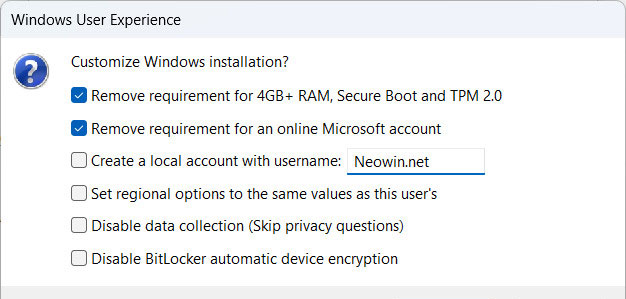
<p style="text-align: justify;">Sau khi vào desktop, truy cập&nbsp;<strong>Settings → System → Notifications → Additional settings</strong>&nbsp;, rồi&nbsp;<strong>bỏ tích cả 3 tùy chọn</strong>&nbsp;để tránh bị quảng cáo toàn màn hình từ Microsoft trong những lần khởi động sau.</p>

<figure>
<div style="text-align: justify;"><img alt="" data-adbro-processed="true" data-i="0" data-src="https://st.quantrimang.com/photos/image/2025/10/13/cai-dat-windows-11-bang-tai-khoan-cuc-bo-offline-khong-can-microsoft-account1.jpg" data-was-processed="true" height="804" src="https://st.quantrimang.com/photos/image/2025/10/13/cai-dat-windows-11-bang-tai-khoan-cuc-bo-offline-khong-can-microsoft-account1.jpg" width="1280" /></div>
</figure>

<h2 style="text-align: justify;">Cách 2: Dùng công cụ Rufus để tạo USB cài đặt tùy chỉnh</h2>

<p style="text-align: justify;">Nếu bạn muốn&nbsp;<strong>cài mới hoàn toàn Windows 11</strong>&nbsp;, đặc biệt là bản&nbsp;<strong>25H2 mới nhất</strong>&nbsp;, hãy dùng ứng dụng&nbsp;<strong>Rufus</strong>&nbsp;để tạo&nbsp;<strong>USB boot</strong>&nbsp;có thể&nbsp;<strong>tự động bỏ qua yêu cầu tài khoản Microsoft và Internet</strong>&nbsp;.</p>

<p style="text-align: justify;"><strong>Các bước thực hiện:</strong></p>

<ol>
	<li aria-level="1" style="text-align: justify;">Truy cập&nbsp;<strong>trang web chính thức của Windows 11</strong>&nbsp;để tải&nbsp;<strong>file ISO</strong>&nbsp;(hoặc qua&nbsp;<strong>Media Creation Tool</strong>&nbsp;).</li>
	<li aria-level="1" style="text-align: justify;">Vào&nbsp;<strong>trang chủ Rufus</strong>&nbsp;và tải ứng dụng (bản cài hoặc portable).</li>
	<li aria-level="1" style="text-align: justify;">Mở Rufus → Cắm&nbsp;<strong>USB</strong>&nbsp;vào máy.</li>
	<li aria-level="1" style="text-align: justify;">Chọn&nbsp;<strong>USB drive</strong>&nbsp;và&nbsp;<strong>file ISO Windows 11</strong>&nbsp;.</li>
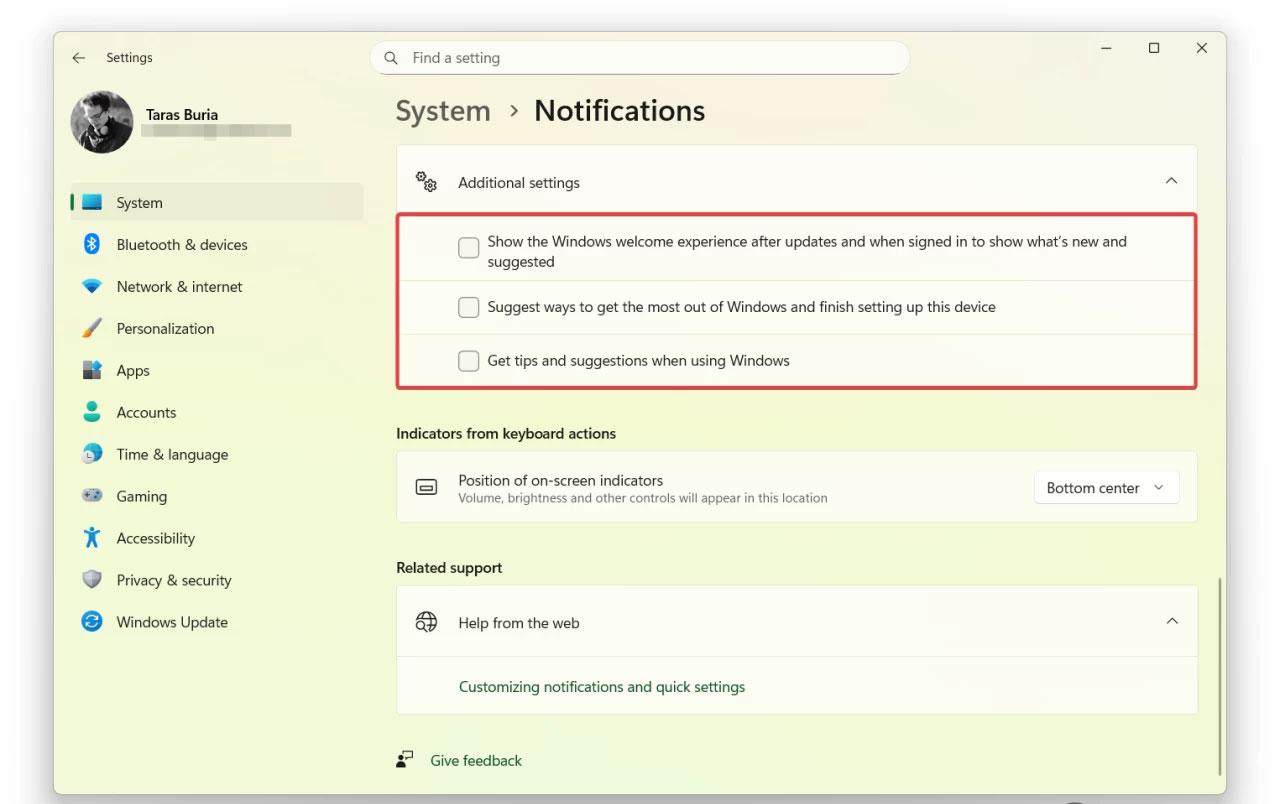
	<li aria-level="1" style="text-align: justify;">Nhấn&nbsp;<strong>Start</strong>&nbsp;, Rufus sẽ hiện hộp thoại tùy chọn:
	<ul>
		<li aria-level="2">Tick vào&nbsp;<strong>&quot;Remove requirement for an online Microsoft account&quot;</strong>&nbsp;để bỏ qua yêu cầu đăng nhập.</li>
		<li aria-level="2">Tick thêm&nbsp;<strong>&quot;Create a local account with username&quot;</strong>&nbsp;nếu muốn đặt sẵn tên tài khoản cục bộ.</li>
		<li aria-level="2">Có thể chọn thêm các tùy chọn khác tùy nhu cầu.
		<figure>
		<div style="text-align: justify;"><img alt="" data-i="1" data-src="https://st.quantrimang.com/photos/image/2025/10/13/cai-dat-windows-11-bang-tai-khoan-cuc-bo-offline-khong-can-microsoft-account2.jpg" data-was-processed="true" height="299" src="https://st.quantrimang.com/photos/image/2025/10/13/cai-dat-windows-11-bang-tai-khoan-cuc-bo-offline-khong-can-microsoft-account2.jpg" width="626" /></div>
		</figure>
		</li>
	</ul>
	</li>
	<li aria-level="1" style="text-align: justify;">Nhấn&nbsp;<strong>OK</strong>&nbsp;để bắt đầu tạo USB cài đặt.</li>
	<li aria-level="1" style="text-align: justify;">Khi hoàn tất, tiến hành&nbsp;<strong>cài Windows 11 như bình thường</strong>&nbsp;, nhớ&nbsp;<strong>ngắt kết nối Internet</strong>&nbsp;trong quá trình thiết lập ban đầu.</li>
</ol>

<p style="text-align: justify;">Kết quả: bạn sẽ có&nbsp;<strong>Windows 11 hoàn chỉnh</strong>&nbsp;,&nbsp;<strong>không cần tài khoản Microsoft</strong>&nbsp;, và&nbsp;<strong>thiết lập hoàn toàn offline</strong>&nbsp;.</p>

<div style="text-align: justify;">&nbsp;</div>
		</div>
				<div id="author">
						<p>
				<strong>Nguồn tin:</strong>
				Quantrimang.com:
			</p>
		</div>
	</div>
	<div id="footer" class="clearfix">
		<div id="url">
			<strong>URL của bản tin này: </strong><a href="https://www.nguoicodonvn2008.info/vi/news/savefile/kien-thuc-may-tinh/cach-cai-dat-windows-11-bang-tai-khoan-cuc-bo-offline-khong-can-microsoft-account-11385.html" title="Cách cài đặt Windows 11 bằng tài khoản cục bộ offline không cần Microsoft Account">https://www.nguoicodonvn2008.info/vi/news/savefile/kien-thuc-may-tinh/cach-cai-dat-windows-11-bang-tai-khoan-cuc-bo-offline-khong-can-microsoft-account-11385.html</a>

		</div>
		<div class="clear"></div>
		<div class="copyright">
			&copy; .&#x3A; Nguoicodonvn2008.info - Cõi lòng người cô đơn &#x3A;.
		</div>
		<div id="contact">
			<a href="mailto:admin@nguoicodonvn2008.info">admin@nguoicodonvn2008.info</a>
		</div>
	</div>
</div>
        <div id="timeoutsess" class="chromeframe">
            Bạn đã không sử dụng Site, <a onclick="timeoutsesscancel();" href="https://www.nguoicodonvn2008.info/#">Bấm vào đây để duy trì trạng thái đăng nhập</a>. Thời gian chờ: <span id="secField"> 60 </span> giây
        </div>
        <div id="openidResult" class="nv-alert" style="display:none"></div>
        <div id="openidBt" data-result="" data-redirect=""></div>
		</script>
		<div class="car-top">
  <span><img src="https://www.nguoicodonvn2008.info/themes/default/images/car.png" alt=""></span>
</div>
<script src="https://www.nguoicodonvn2008.info/assets/js/jquery/jquery.min.js"></script>
<script>var nv_base_siteurl="/",nv_lang_data="vi",nv_lang_interface="vi",nv_name_variable="nv",nv_fc_variable="op",nv_lang_variable="language",nv_module_name="news",nv_func_name="savefile",nv_is_user=0, nv_my_ofs=-4,nv_my_abbr="EDT",nv_cookie_prefix="nv4c_e856T",nv_check_pass_mstime=1738000,nv_area_admin=0,nv_safemode=0,theme_responsive=0,nv_recaptcha_ver=2,nv_recaptcha_sitekey="",nv_recaptcha_type="image",XSSsanitize=1;</script>
<script src="https://www.nguoicodonvn2008.info/assets/js/language/vi.js"></script>
<script src="https://www.nguoicodonvn2008.info/assets/js/DOMPurify/purify3.js"></script>
<script src="https://www.nguoicodonvn2008.info/assets/js/global.js"></script>
<script src="https://www.nguoicodonvn2008.info/assets/js/site.js"></script>
<script src="https://www.nguoicodonvn2008.info/themes/default/js/news.js"></script>
<script src="https://www.nguoicodonvn2008.info/themes/default/js/main.js"></script>
<script src="https://www.nguoicodonvn2008.info/themes/default/js/custom.js"></script>
<script type="application/ld+json">
        {
            "@context": "https://schema.org",
            "@type": "Organization",
            "url": "https://www.nguoicodonvn2008.info",
            "logo": "https://www.nguoicodonvn2008.info/uploads/angel.gif"
        }
        </script>
<script src="https://www.nguoicodonvn2008.info/themes/default/js/bootstrap.min.js"></script>
<script type="text/javascript">
var $scrolltop = $('.car-top');
$scrolltop.on('click', function () {
    $('html,body').animate({
        scrollTop: 0
    }, 800);
    $(this).addClass("car-run");
    setTimeout(function(){ $scrolltop.removeClass('car-run');}, 1000);
    return false;
});
$(window).on('scroll', function ()
{ 
    if($(window).scrollTop() >= 200)
    {
        $scrolltop.addClass("show");
        $scrolltop.addClass("car-down");
    }
    else
    {
       $scrolltop.removeClass("show");
       setTimeout(function(){ $scrolltop.removeClass('car-down');}, 300);
    }
});
</script>
</body>
</html>