<!DOCTYPE html>
    <html lang="vi" xmlns="http://www.w3.org/1999/xhtml" prefix="og: http://ogp.me/ns#">
    <head>
<title>Cách cài đặt và thiết lập Windows 11 không cần kết nối Internet</title>
<meta name="description" content="Cách cài đặt và thiết lập Windows 11 không cần kết nối Internet - Savefile - Tin Tức -...">
<meta name="author" content=".: Nguoicodonvn2008.info - Cõi lòng người cô đơn :.">
<meta name="copyright" content=".: Nguoicodonvn2008.info - Cõi lòng người cô đơn :. [admin@nguoicodonvn2008.info]">
<meta name="robots" content="index, archive, follow, noodp">
<meta name="googlebot" content="index,archive,follow,noodp">
<meta name="msnbot" content="all,index,follow">
<meta name="generator" content="NukeViet v4.5">
<meta http-equiv="Content-Type" content="text/html; charset=utf-8">
<meta property="og:title" content="Cách cài đặt và thiết lập Windows 11 không cần kết nối Internet">
<meta property="og:type" content="website">
<meta property="og:description" content="Savefile - Tin Tức - https&#x3A;&#x002F;&#x002F;www.nguoicodonvn2008.info&#x002F;vi&#x002F;news&#x002F;savefile&#x002F;kien-thuc-may-tinh&#x002F;cach-cai-dat-va-thiet-lap-windows-11-khong-can-ket-noi-internet-11789.html">
<meta property="og:site_name" content=".&#x3A; Nguoicodonvn2008.info - Cõi lòng người cô đơn &#x3A;.">
<meta property="og:url" content="https://www.nguoicodonvn2008.info/vi/news/savefile/kien-thuc-may-tinh/cach-cai-dat-va-thiet-lap-windows-11-khong-can-ket-noi-internet-11789.html">
<link rel="shortcut icon" href="https://www.nguoicodonvn2008.info/favicon.ico">
<link rel="canonical" href="https://www.nguoicodonvn2008.info/vi/news/savefile/kien-thuc-may-tinh/cach-cai-dat-va-thiet-lap-windows-11-khong-can-ket-noi-internet-11789.html">
<link rel="alternate" href="https://www.nguoicodonvn2008.info/vi/news/rss/" title="Tin Tức" type="application/rss+xml">
<link rel="alternate" href="https://www.nguoicodonvn2008.info/vi/news/rss/karaoke-dual/" title="Tin Tức - Karaoke Dual" type="application/rss+xml">
<link rel="alternate" href="https://www.nguoicodonvn2008.info/vi/news/rss/nhac-tre/" title="Tin Tức - Nhạc trẻ" type="application/rss+xml">
<link rel="alternate" href="https://www.nguoicodonvn2008.info/vi/news/rss/tru-tinh/" title="Tin Tức - Trữ tình" type="application/rss+xml">
<link rel="alternate" href="https://www.nguoicodonvn2008.info/vi/news/rss/nuoc-ngoai/" title="Tin Tức - Nước ngoài" type="application/rss+xml">
<link rel="alternate" href="https://www.nguoicodonvn2008.info/vi/news/rss/remix/" title="Tin Tức - Remix" type="application/rss+xml">
<link rel="alternate" href="https://www.nguoicodonvn2008.info/vi/news/rss/tam-su-tinh-yeu/" title="Tin Tức - Tâm sự tình yêu" type="application/rss+xml">
<link rel="alternate" href="https://www.nguoicodonvn2008.info/vi/news/rss/tho-suu-tam/" title="Tin Tức - Thơ sưu tầm" type="application/rss+xml">
<link rel="alternate" href="https://www.nguoicodonvn2008.info/vi/news/rss/cuoc-song/" title="Tin Tức - Cuộc sống" type="application/rss+xml">
<link rel="alternate" href="https://www.nguoicodonvn2008.info/vi/news/rss/phan-mem/" title="Tin Tức - Phần mềm" type="application/rss+xml">
<link rel="alternate" href="https://www.nguoicodonvn2008.info/vi/news/rss/kien-thuc-may-tinh/" title="Tin Tức - Kiến thức máy tính" type="application/rss+xml">
<link rel="alternate" href="https://www.nguoicodonvn2008.info/vi/news/rss/hoc-tap/" title="Tin Tức - Học tập" type="application/rss+xml">
<link rel="alternate" href="https://www.nguoicodonvn2008.info/vi/news/rss/tai-lieu/" title="Tin Tức - Tài liệu" type="application/rss+xml">
<link rel="alternate" href="https://www.nguoicodonvn2008.info/vi/news/rss/de-thi/" title="Tin Tức - Đề thi" type="application/rss+xml">
<link rel="preload" as="style" href="https://www.nguoicodonvn2008.info/assets/css/font-awesome.min.css" type="text/css">
<link rel="preload" as="style" href="https://www.nguoicodonvn2008.info/themes/default/css/bootstrap.non-responsive.css" type="text/css">
<link rel="preload" as="style" href="https://www.nguoicodonvn2008.info/themes/default/css/style.css" type="text/css">
<link rel="preload" as="style" href="https://www.nguoicodonvn2008.info/themes/default/css/style.non-responsive.css" type="text/css">
<link rel="preload" as="style" href="https://www.nguoicodonvn2008.info/themes/default/css/news.css" type="text/css">
<link rel="preload" as="style" href="https://www.nguoicodonvn2008.info/themes/default/css/custom.css" type="text/css">
<link rel="preload" as="script" href="https://www.nguoicodonvn2008.info/assets/js/jquery/jquery.min.js" type="text/javascript">
<link rel="preload" as="script" href="https://www.nguoicodonvn2008.info/assets/js/language/vi.js" type="text/javascript">
<link rel="preload" as="script" href="https://www.nguoicodonvn2008.info/assets/js/DOMPurify/purify3.js" type="text/javascript">
<link rel="preload" as="script" href="https://www.nguoicodonvn2008.info/assets/js/global.js" type="text/javascript">
<link rel="preload" as="script" href="https://www.nguoicodonvn2008.info/assets/js/site.js" type="text/javascript">
<link rel="preload" as="script" href="https://www.nguoicodonvn2008.info/themes/default/js/news.js" type="text/javascript">
<link rel="preload" as="script" href="https://www.nguoicodonvn2008.info/themes/default/js/main.js" type="text/javascript">
<link rel="preload" as="script" href="https://www.nguoicodonvn2008.info/themes/default/js/custom.js" type="text/javascript">
<link rel="preload" as="script" href="https://www.nguoicodonvn2008.info/themes/default/js/bootstrap.min.js" type="text/javascript">
<link rel="stylesheet" href="https://www.nguoicodonvn2008.info/assets/css/font-awesome.min.css">
<link rel="stylesheet" href="https://www.nguoicodonvn2008.info/themes/default/css/bootstrap.non-responsive.css">
<link rel="stylesheet" href="https://www.nguoicodonvn2008.info/themes/default/css/style.css">
<link rel="stylesheet" href="https://www.nguoicodonvn2008.info/themes/default/css/style.non-responsive.css">
<link rel="StyleSheet" href="https://www.nguoicodonvn2008.info/themes/default/css/news.css">
<link rel="stylesheet" href="https://www.nguoicodonvn2008.info/themes/default/css/custom.css">
<style type="text/css">
	body{background: #fff;}
</style>
    </head>
    <body>
<div id="print">
	<div id="hd_print">
		<h2 class="pull-left">.&#x3A; Nguoicodonvn2008.info - Cõi lòng người cô đơn &#x3A;.</h2>
		<p class="pull-right"><a title=".&#x3A; Nguoicodonvn2008.info - Cõi lòng người cô đơn &#x3A;." href="https://www.nguoicodonvn2008.info/">https://www.nguoicodonvn2008.info</a></p>
	</div>
	<div class="clear"></div>
	<hr />
	<div id="content">
		<h1>Cách cài đặt và thiết lập Windows 11 không cần kết nối Internet</h1>
		<ul class="list-inline">
			<li>Thứ năm - 04/12/2025 01:05</li>
			<li class="hidden-print txtrequired"><em class="fa fa-print">&nbsp;</em><a title="In ra" href="javascript:;" onclick="window.print()">In ra</a></li>
			<li class="hidden-print txtrequired"><em class="fa fa-power-off">&nbsp;</em><a title="Đóng cửa sổ này" href="javascript:;" onclick="window.close()">Đóng cửa sổ này</a></li>
		</ul>
		<div class="clear"></div>
		<div id="hometext">
		</div>
				<div class="imghome">
			<img alt="Cách cài đặt và thiết lập Windows 11 không cần kết nối Internet" src="https://st.quantrimang.com/photos/image/2024/08/12/windows-11-khong-can-internet-8.jpg" width="460" class="img-thumbnail" />
		</div>
		<div class="clear"></div>
		<div id="bodytext" class="clearfix">
			<p style="text-align: justify;">Windows 11&nbsp;yêu cầu bạn phải đăng nhập bằng&nbsp;tài khoản Microsoft&nbsp;để hoàn tất quá trình thiết lập máy tính mới. Tuy nhiên, nếu bạn không có kết nối Internet đang hoạt động hoặc muốn sử dụng tài khoản người dùng cục bộ, bạn có thể làm theo các phương pháp sau để thiết lập Windows 11.</p>

<div style="text-align: justify;">&nbsp;</div>

<h2 style="text-align: justify;">1. Bỏ qua yêu cầu Internet Out-of-Box Experience (OOBE)</h2>

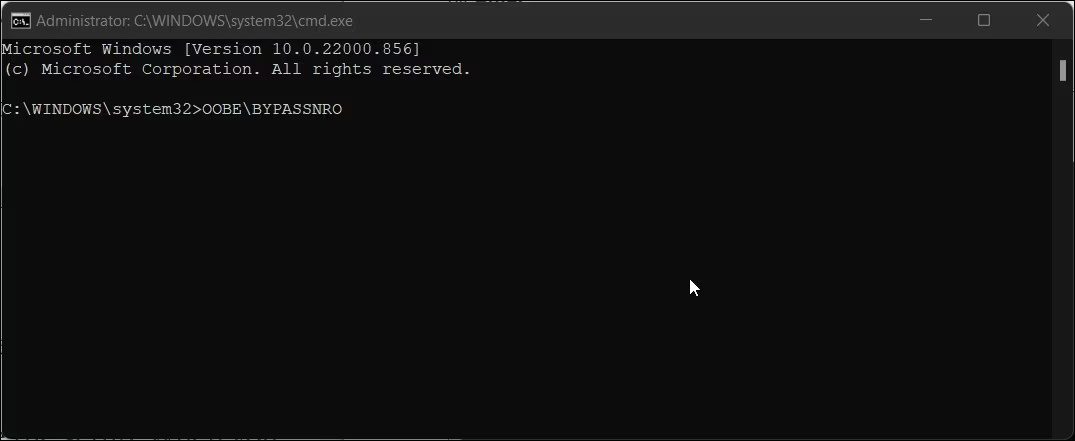
<p style="text-align: justify;">Bạn có thể bỏ qua màn hình Let&#039;s connect you to a network bằng lệnh OOBE \BYPASSNRO trong Command Prompt. Khi được thực thi, lệnh này sẽ chạy một script CMD hiện có, bypassnro.cmd, được lưu trữ trong thư mục System32 để sửa đổi Windows registry. Việc sửa đổi này cho phép bạn hoàn tất quá trình thiết lập Windows 11 mà không cần kết nối Internet. Để thực hiện việc này:</p>

<p style="text-align: justify;">1. Khởi động máy tính bằng phương tiện cài đặt Windows. Bỏ qua Bước 6 bên dưới nếu bạn đã ở màn hình&nbsp;<strong>Let&#039;s connect you to a network</strong>.</p>

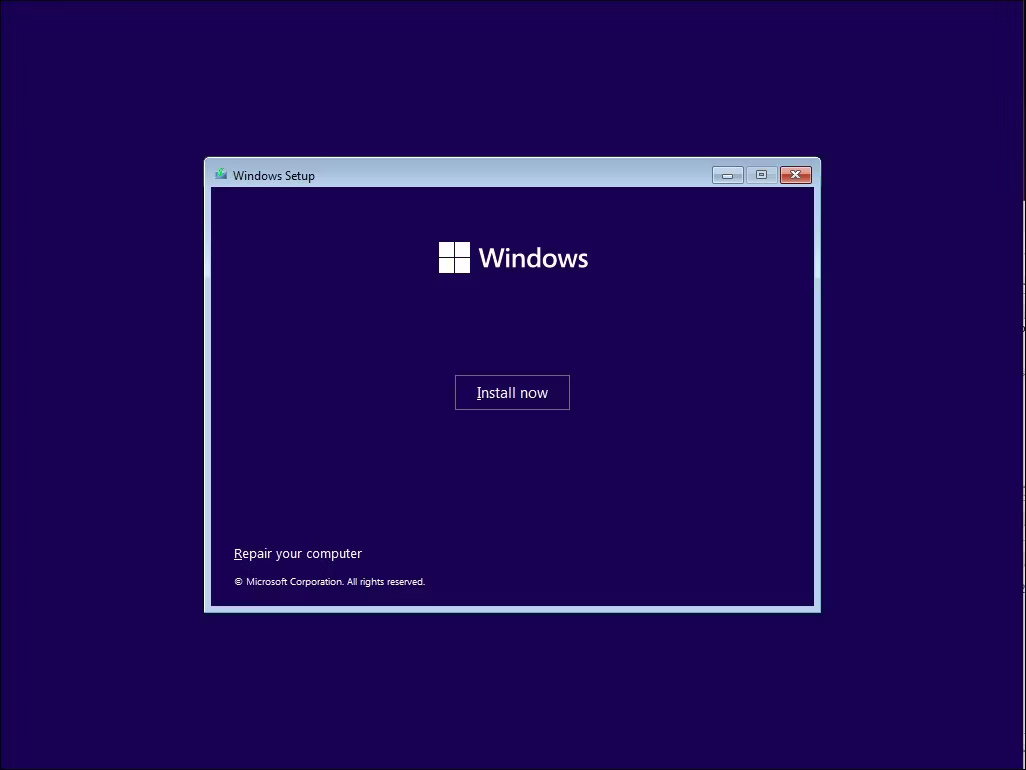
<p style="text-align: justify;">2. Khi hộp thoại&nbsp;<strong>Windows Setup</strong>&nbsp;xuất hiện, hãy chọn ngôn ngữ, thời gian và bố cục đầu vào bàn phím ưa thích rồi nhấp vào&nbsp;<strong>Next</strong>. Sau đó, nhấp vào&nbsp;<strong>Install Now</strong>.</p>

<figure>
<div style="text-align: justify;"><img alt="Màn hình thiết lập ban đầu của Windows 11" data-adbro-processed="true" data-i="0" data-src="https://st.quantrimang.com/photos/image/2024/08/12/windows-11-khong-can-internet-1.jpg" data-was-processed="true" height="770" src="https://st.quantrimang.com/photos/image/2024/08/12/windows-11-khong-can-internet-1.jpg" width="1026" /></div>

<figcaption>
<div style="text-align: justify;">Màn hình thiết lập ban đầu của Windows 11</div>
</figcaption>
</figure>

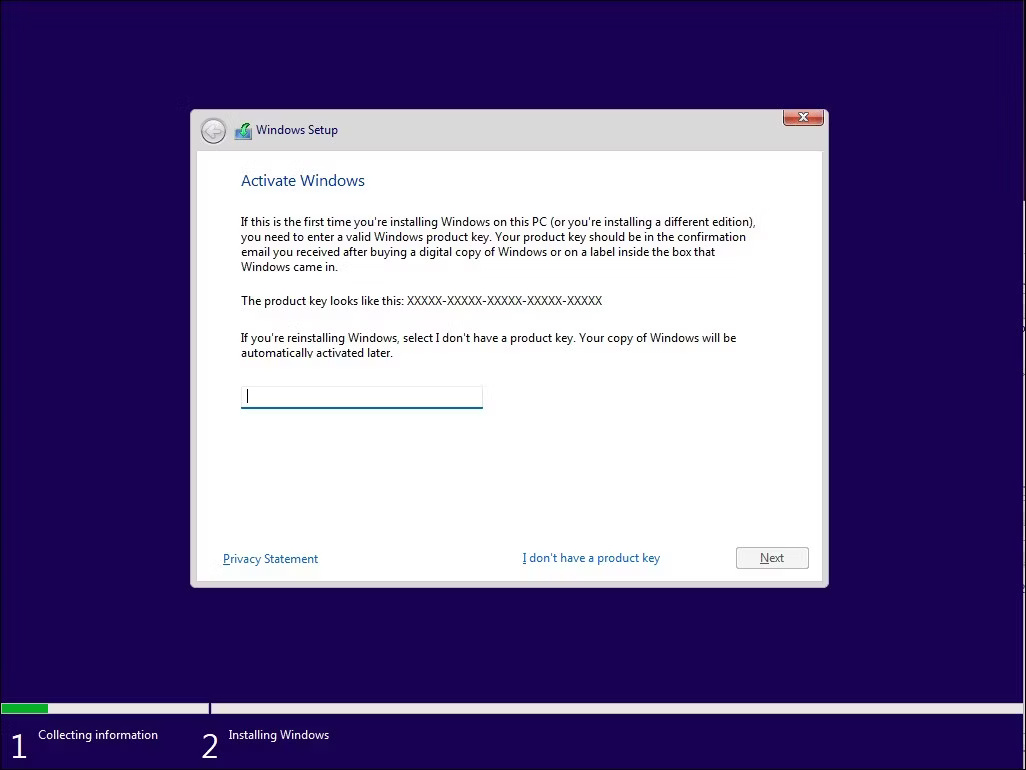
<p style="text-align: justify;">3. Nhập product key để kích hoạt Windows 11. Nếu bạn không có product key, hãy nhấp vào liên kết&nbsp;<strong>I don&#039;t have a product key</strong>&nbsp;ở góc dưới bên phải. Nếu bạn đang nâng cấp từ Windows 10 hoặc phiên bản Windows 11 cũ hơn, hệ điều hành sẽ tự động nhận dạng và xác thực product key Windows được liên kết với phần cứng máy tính của bạn.</p>

<figure>
<div style="text-align: justify;"><img alt="Màn hình thiết lập Windows 11 để nhập product key" data-i="1" data-src="https://st.quantrimang.com/photos/image/2024/08/12/windows-11-khong-can-internet-2.jpg" data-was-processed="true" height="770" src="https://st.quantrimang.com/photos/image/2024/08/12/windows-11-khong-can-internet-2.jpg" width="1026" /></div>

<figcaption>
<div style="text-align: justify;">Màn hình thiết lập Windows 11 để nhập product key</div>
</figcaption>
</figure>

<p style="text-align: justify;">4. Tiếp theo, nếu được nhắc, hãy chọn phiên bản Windows 11 mà bạn muốn cài đặt. Đánh dấu vào ô để chấp nhận các điều khoản và nhấp vào&nbsp;<strong>Next</strong>. Sau đó, chọn&nbsp;<strong>Custom: Install Windows Only (Advanced)</strong>.</p>

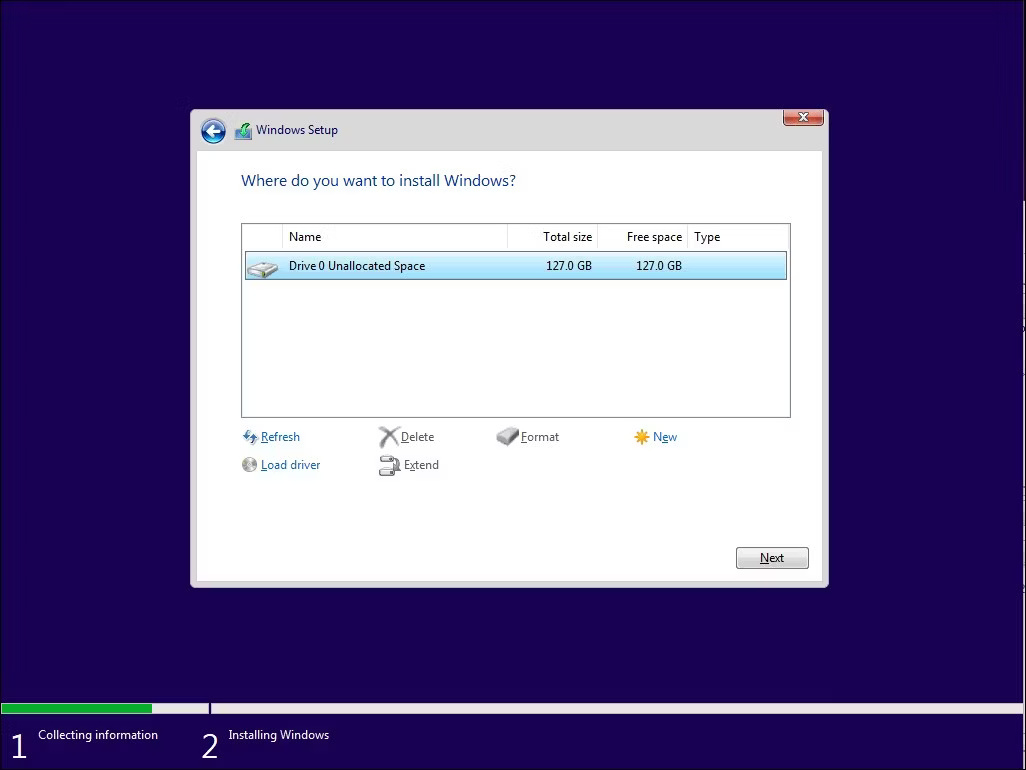
<p style="text-align: justify;">5. Chọn ổ cài đặt và nhấp vào&nbsp;<strong>Next</strong>. Đợi Windows hoàn tất cài đặt và&nbsp;<a data-type="internal" href="https://quantrimang.com/cong-nghe/6-cach-khoi-dong-lai-windows-that-pro-116819" title="6 cách khởi động lại máy tính Windows từ đơn giản đến &#039;Pro&#039;">khởi động lại máy tính</a>. Trong màn hình thiết lập, hãy chọn vùng và bố cục bàn phím của bạn.</p>

<figure>
<div style="text-align: justify;"><img alt="Màn hình thiết lập Windows 11 để chọn ổ cài đặt" data-i="2" data-src="https://st.quantrimang.com/photos/image/2024/08/12/windows-11-khong-can-internet-3.jpg" data-was-processed="true" height="770" src="https://st.quantrimang.com/photos/image/2024/08/12/windows-11-khong-can-internet-3.jpg" width="1026" /></div>

<figcaption>
<div style="text-align: justify;">Màn hình thiết lập Windows 11 để chọn ổ cài đặt</div>
</figcaption>
</figure>

<p style="text-align: justify;">6. Khi ở màn hình&nbsp;<strong>Let&#039;s connect you to a network</strong>, hãy nhấn&nbsp;<strong>Shift + F10</strong>&nbsp;để khởi chạy&nbsp;<strong>Command Prompt</strong>.</p>

<figure>
<div style="text-align: justify;"><img alt="" data-i="3" data-src="https://st.quantrimang.com/photos/image/2024/08/12/windows-11-khong-can-internet-4.jpg" data-was-processed="true" height="441" src="https://st.quantrimang.com/photos/image/2024/08/12/windows-11-khong-can-internet-4.jpg" width="1075" /></div>
</figure>

<p style="text-align: justify;">7. Trong cửa sổ Command Prompt, nhập lệnh sau và nhấn&nbsp;<strong>Enter</strong>:</p>

<pre id="pre0">
<code>OOBE\BYPASSNRO</code></pre>

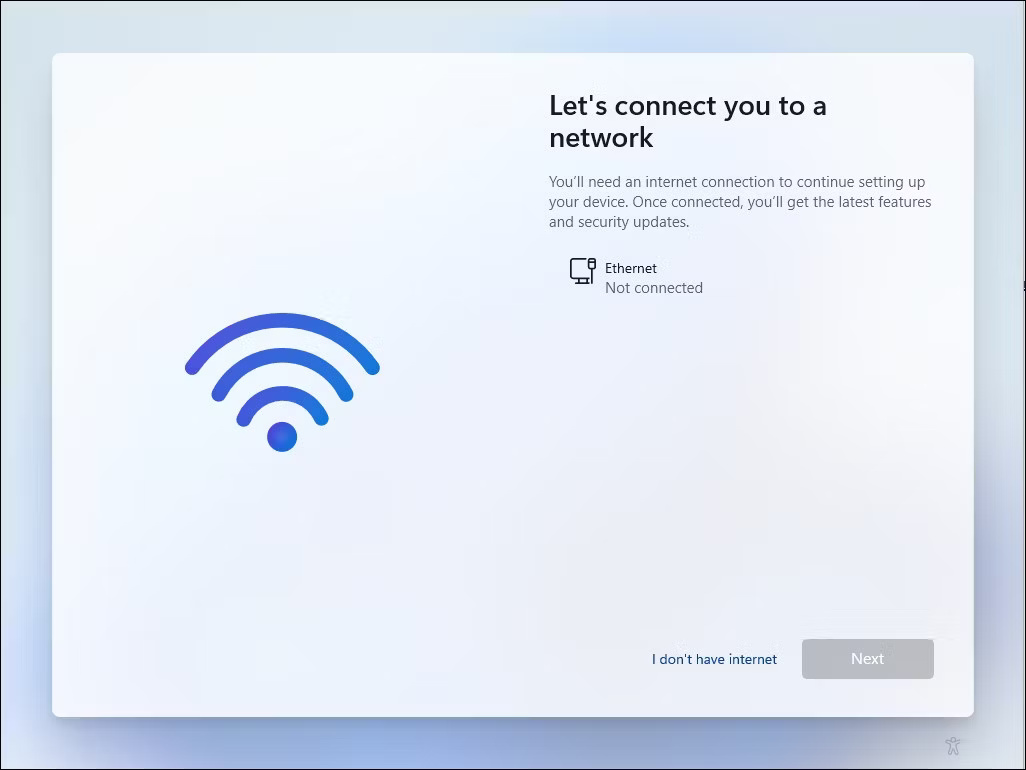
<p style="text-align: justify;">8. Bây giờ, hệ thống sẽ khởi động lại và khởi chạy lại hộp thoại OOBE. Làm theo hướng dẫn trên màn hình để hoàn tất thiết lập. Khi bạn đến màn hình&nbsp;<strong>Let&#039;s connect you to a network</strong>, hãy nhấp vào&nbsp;<strong>I don&#039;t have Internet</strong>.</p>

<figure>
<div style="text-align: justify;"><img alt="Thiết lập Windows 11 Let&#039;s connect you to a network screen với tùy chọn I don&#039;t have Internet" data-i="4" data-src="https://st.quantrimang.com/photos/image/2024/08/12/windows-11-khong-can-internet-5.jpg" data-was-processed="true" height="770" src="https://st.quantrimang.com/photos/image/2024/08/12/windows-11-khong-can-internet-5.jpg" width="1026" /></div>

<figcaption>
<div style="text-align: justify;">Thiết lập Windows 11 Let&#039;s connect you to a network screen với tùy chọn I don&#039;t have Internet</div>
</figcaption>
</figure>

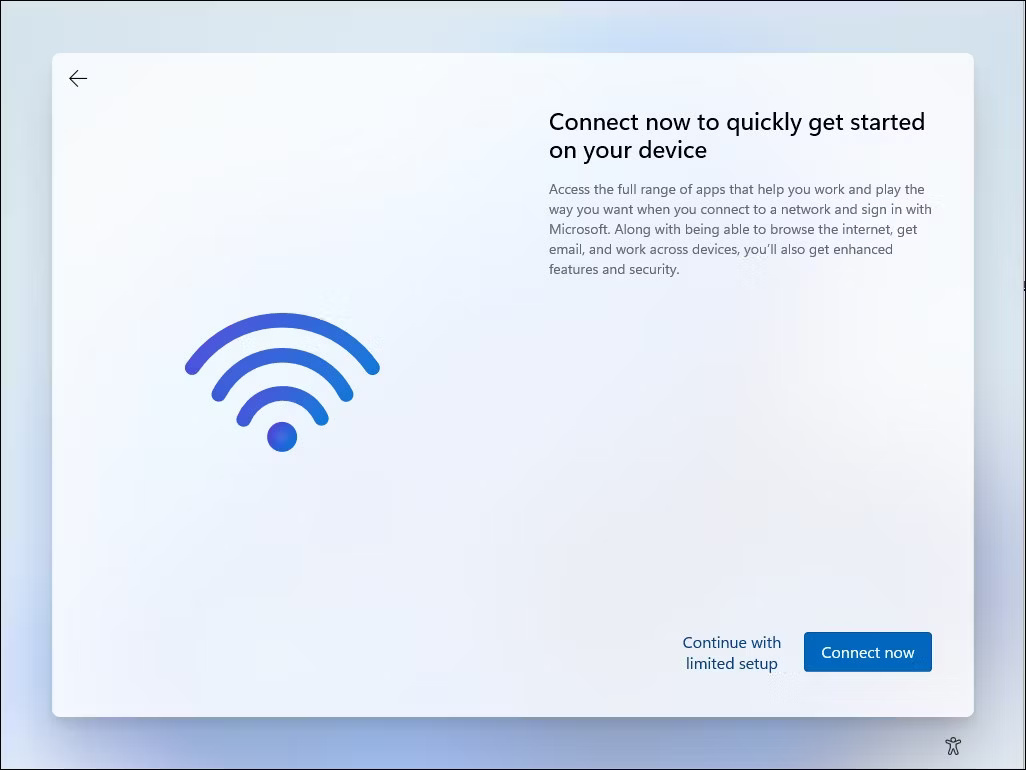
<p style="text-align: justify;">9. Tiếp theo, nhấp vào&nbsp;<strong>Continue with limited setup</strong>. Sau đó, chấp nhận thỏa thuận cấp phép và tiến hành tạo tài khoản người dùng cục bộ của bạn.</p>

<figure>
<div style="text-align: justify;"><img alt="Màn hình thiết lập Windows 11 với tùy chọn Continue with limited setup" data-i="5" data-src="https://st.quantrimang.com/photos/image/2024/08/12/windows-11-khong-can-internet-6.jpg" data-was-processed="true" height="770" src="https://st.quantrimang.com/photos/image/2024/08/12/windows-11-khong-can-internet-6.jpg" width="1026" /></div>

<figcaption>
<div style="text-align: justify;">Màn hình thiết lập Windows 11 với tùy chọn Continue with limited setup</div>
</figcaption>
</figure>

<p style="text-align: justify;">Ngoài ra, hãy đảm bảo thêm các câu hỏi bảo mật. Điều này sẽ giúp bạn khôi phục tài khoản người dùng cục bộ của mình trong trường hợp bạn quên mật khẩu. Sau khi hoàn tất, hãy làm theo hướng dẫn trên màn hình để hoàn tất thiết lập.</p>

<h2 style="text-align: justify;">2. Kết thúc tiến trình Network Connection Flow bằng Task Manager</h2>

<p style="text-align: justify;">Bạn có thể bỏ qua màn hình &quot;Let&#039;s connect you to a network&quot; bằng cách kết thúc tiến trình oobenetworkconnectionflow.exe. Vì đã cài đặt Windows 11 ở giai đoạn này, bạn có thể khởi chạy Task Manager trên đầu trình hướng dẫn thiết lập của mình bằng Command Prompt và kết thúc tiến trình.</p>

<p style="text-align: justify;"><strong>Lưu ý</strong>: Phương pháp này có thể không phải lúc nào cũng hiệu quả vì các bản cập nhật Windows mới thường vá những giải pháp thay thế như vậy.</p>

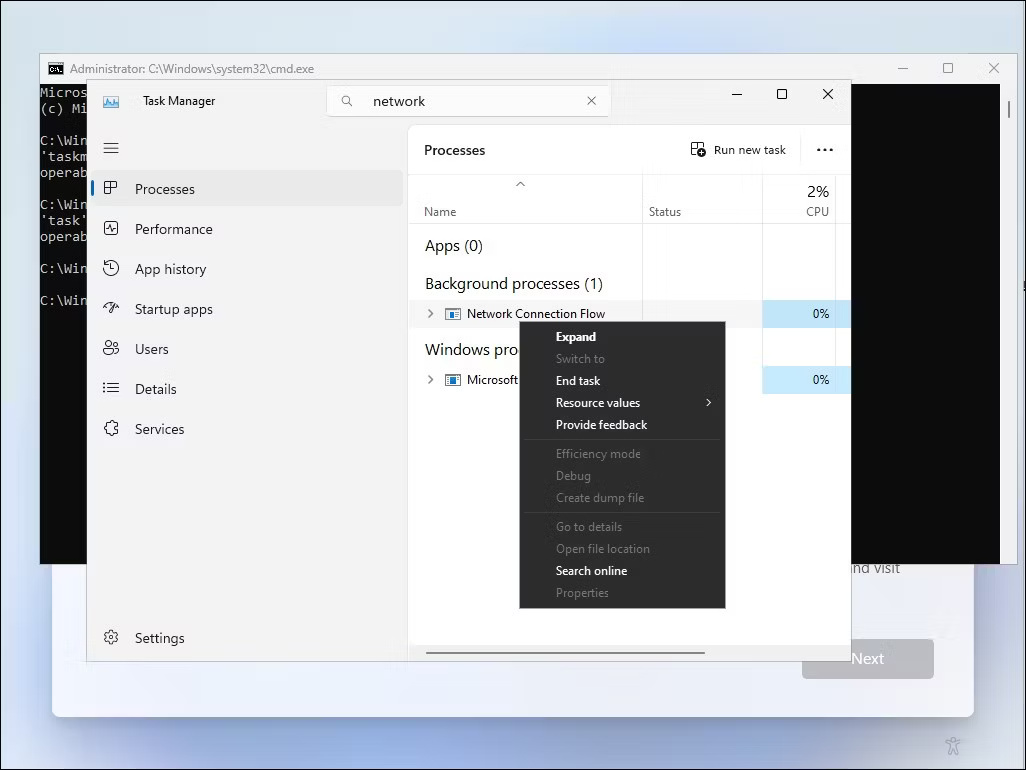
<p style="text-align: justify;">Để bỏ qua thiết lập mạng Windows 11 bằng Task Manager:</p>

<p style="text-align: justify;">1. Giả sử bạn đang ở màn hình&nbsp;<strong>Let&#039;s connect you to a network screen</strong>, hãy nhấn&nbsp;<strong>Shift + F10</strong>&nbsp;để khởi chạy Command Prompt.</p>

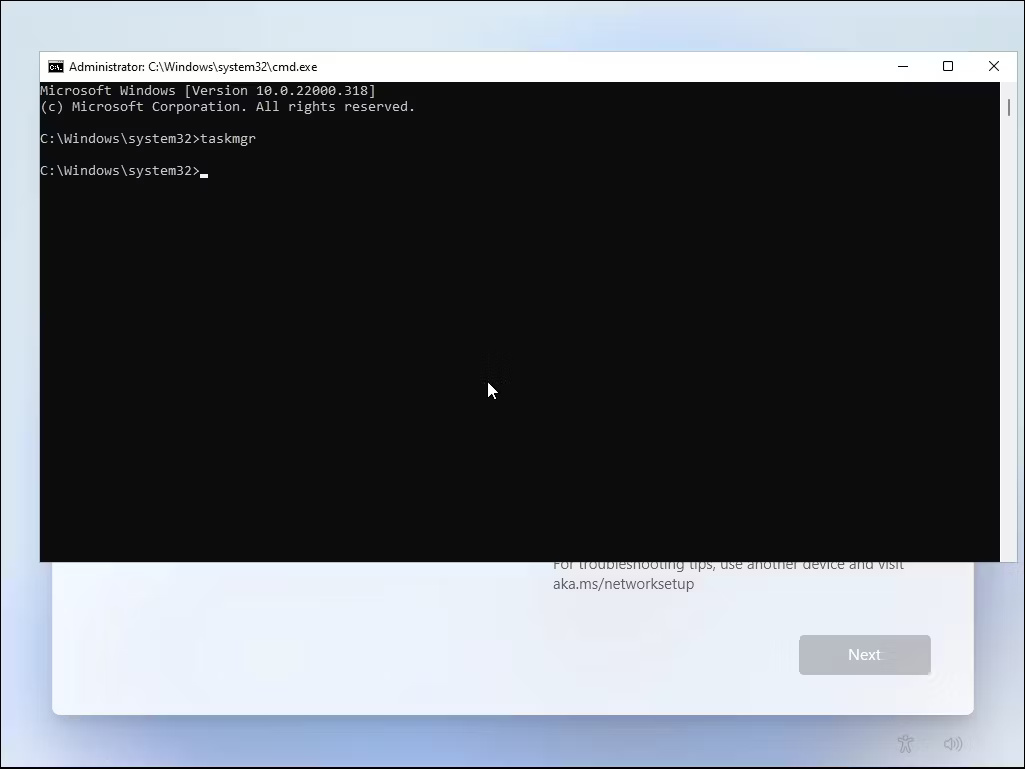
<p style="text-align: justify;">2. Trong cửa sổ Command Prompt, nhập&nbsp;<strong>taskmgr</strong>&nbsp;và nhấn&nbsp;<strong>Enter</strong>&nbsp;để&nbsp;khởi chạy Task Manager. Ngoài ra, bạn có thể nhấn&nbsp;<strong>Ctrl + Shift + Esc</strong>&nbsp;để khởi chạy.</p>

<figure>
<div style="text-align: justify;"><img alt="Lệnh Taskmgr đang chạy trong Command Prompt" data-i="6" data-src="https://st.quantrimang.com/photos/image/2024/08/12/windows-11-khong-can-internet-7.jpg" data-was-processed="true" height="769" src="https://st.quantrimang.com/photos/image/2024/08/12/windows-11-khong-can-internet-7.jpg" width="1025" /></div>

<figcaption>
<div style="text-align: justify;">Lệnh Taskmgr đang chạy trong Command Prompt</div>
</figcaption>
</figure>

<p style="text-align: justify;">3. Nhấp vào&nbsp;<strong>More Details</strong>&nbsp;để mở Task Manager ở chế độ xem đầy đủ.</p>

<p style="text-align: justify;">4. Đi tới tab&nbsp;<strong>Processes</strong>&nbsp;và sử dụng thanh tìm kiếm trong Task Manager để tìm tiến trình&nbsp;<strong>Network Connection Flow</strong>.</p>

<figure>
<div style="text-align: justify;"><img alt="Màn hình Task Manager Windows 11 với tiến trình Network Connection Flow" data-i="7" data-src="https://st.quantrimang.com/photos/image/2024/08/12/windows-11-khong-can-internet-8.jpg" data-was-processed="true" height="770" src="https://st.quantrimang.com/photos/image/2024/08/12/windows-11-khong-can-internet-8.jpg" width="1026" /></div>

<figcaption>
<div style="text-align: justify;">Màn hình Task Manager Windows 11 với tiến trình Network Connection Flow</div>
</figcaption>
</figure>

<p style="text-align: justify;">5. Chọn tiến trình&nbsp;<strong>Network Connection Flow</strong>&nbsp;rồi nhấp vào nút&nbsp;<strong>End task</strong>. Đợi tiến trình kết thúc, sau đó đóng Task Manager.</p>

<p style="text-align: justify;">6. Nhập&nbsp;<strong>exit</strong>&nbsp;vào Command Prompt và nhấn phím&nbsp;<strong>Enter</strong>.</p>

<p style="text-align: justify;">Quá trình cài đặt sẽ refresh và bạn sẽ được chuyển hướng đến trình hướng dẫn thiết lập. Nó sẽ hiển thị một số hình ảnh động đang load và sau đó tiến hành bước tiếp theo. Tại đây, nhập tên và mật khẩu để tạo tài khoản người dùng cục bộ trong Windows 11 và hoàn tất thiết lập.</p>

<p style="text-align: justify;">Sau khi hoàn tất thiết lập, hãy kết nối với Internet. Sau đó, hãy vào&nbsp;<strong>Settings &gt; Windows Update</strong>&nbsp;và tải xuống tất cả các bản cập nhật bảo mật và tính năng quan trọng. Bạn cũng có thể nhận thấy một số biểu tượng bị thiếu sau khi thiết lập ban đầu. Windows sẽ tải xuống các biểu tượng này khi bạn kết nối PC của mình với Internet.</p>
		</div>
				<div id="author">
						<p>
				<strong>Nguồn tin:</strong>
				Quantrimang.com:
			</p>
		</div>
	</div>
	<div id="footer" class="clearfix">
		<div id="url">
			<strong>URL của bản tin này: </strong><a href="https://www.nguoicodonvn2008.info/vi/news/savefile/kien-thuc-may-tinh/cach-cai-dat-va-thiet-lap-windows-11-khong-can-ket-noi-internet-11789.html" title="Cách cài đặt và thiết lập Windows 11 không cần kết nối Internet">https://www.nguoicodonvn2008.info/vi/news/savefile/kien-thuc-may-tinh/cach-cai-dat-va-thiet-lap-windows-11-khong-can-ket-noi-internet-11789.html</a>

		</div>
		<div class="clear"></div>
		<div class="copyright">
			&copy; .&#x3A; Nguoicodonvn2008.info - Cõi lòng người cô đơn &#x3A;.
		</div>
		<div id="contact">
			<a href="mailto:admin@nguoicodonvn2008.info">admin@nguoicodonvn2008.info</a>
		</div>
	</div>
</div>
        <div id="timeoutsess" class="chromeframe">
            Bạn đã không sử dụng Site, <a onclick="timeoutsesscancel();" href="https://www.nguoicodonvn2008.info/#">Bấm vào đây để duy trì trạng thái đăng nhập</a>. Thời gian chờ: <span id="secField"> 60 </span> giây
        </div>
        <div id="openidResult" class="nv-alert" style="display:none"></div>
        <div id="openidBt" data-result="" data-redirect=""></div>
		</script>
		<div class="car-top">
  <span><img src="https://www.nguoicodonvn2008.info/themes/default/images/car.png" alt=""></span>
</div>
<script src="https://www.nguoicodonvn2008.info/assets/js/jquery/jquery.min.js"></script>
<script>var nv_base_siteurl="/",nv_lang_data="vi",nv_lang_interface="vi",nv_name_variable="nv",nv_fc_variable="op",nv_lang_variable="language",nv_module_name="news",nv_func_name="savefile",nv_is_user=0, nv_my_ofs=-4,nv_my_abbr="EDT",nv_cookie_prefix="nv4c_e856T",nv_check_pass_mstime=1738000,nv_area_admin=0,nv_safemode=0,theme_responsive=0,nv_recaptcha_ver=2,nv_recaptcha_sitekey="",nv_recaptcha_type="image",XSSsanitize=1;</script>
<script src="https://www.nguoicodonvn2008.info/assets/js/language/vi.js"></script>
<script src="https://www.nguoicodonvn2008.info/assets/js/DOMPurify/purify3.js"></script>
<script src="https://www.nguoicodonvn2008.info/assets/js/global.js"></script>
<script src="https://www.nguoicodonvn2008.info/assets/js/site.js"></script>
<script src="https://www.nguoicodonvn2008.info/themes/default/js/news.js"></script>
<script src="https://www.nguoicodonvn2008.info/themes/default/js/main.js"></script>
<script src="https://www.nguoicodonvn2008.info/themes/default/js/custom.js"></script>
<script type="application/ld+json">
        {
            "@context": "https://schema.org",
            "@type": "Organization",
            "url": "https://www.nguoicodonvn2008.info",
            "logo": "https://www.nguoicodonvn2008.info/uploads/angel.gif"
        }
        </script>
<script src="https://www.nguoicodonvn2008.info/themes/default/js/bootstrap.min.js"></script>
<script type="text/javascript">
var $scrolltop = $('.car-top');
$scrolltop.on('click', function () {
    $('html,body').animate({
        scrollTop: 0
    }, 800);
    $(this).addClass("car-run");
    setTimeout(function(){ $scrolltop.removeClass('car-run');}, 1000);
    return false;
});
$(window).on('scroll', function ()
{ 
    if($(window).scrollTop() >= 200)
    {
        $scrolltop.addClass("show");
        $scrolltop.addClass("car-down");
    }
    else
    {
       $scrolltop.removeClass("show");
       setTimeout(function(){ $scrolltop.removeClass('car-down');}, 300);
    }
});
</script>
</body>
</html>