<!DOCTYPE html>
    <html lang="vi" xmlns="http://www.w3.org/1999/xhtml" prefix="og: http://ogp.me/ns#">
    <head>
<title>Cách cài đặt và chạy Nginx Server trên Windows 10</title>
<meta name="description" content="Cách cài đặt và chạy Nginx Server trên Windows 10 - Savefile - Tin Tức -...">
<meta name="author" content=".: Nguoicodonvn2008.info - Cõi lòng người cô đơn :.">
<meta name="copyright" content=".: Nguoicodonvn2008.info - Cõi lòng người cô đơn :. [admin@nguoicodonvn2008.info]">
<meta name="robots" content="index, archive, follow, noodp">
<meta name="googlebot" content="index,archive,follow,noodp">
<meta name="msnbot" content="all,index,follow">
<meta name="generator" content="NukeViet v4.5">
<meta http-equiv="Content-Type" content="text/html; charset=utf-8">
<meta property="og:title" content="Cách cài đặt và chạy Nginx Server trên Windows 10">
<meta property="og:type" content="website">
<meta property="og:description" content="Savefile - Tin Tức - https&#x3A;&#x002F;&#x002F;www.nguoicodonvn2008.info&#x002F;vi&#x002F;news&#x002F;savefile&#x002F;kien-thuc-may-tinh&#x002F;cach-cai-dat-va-chay-nginx-server-tren-windows-10-1021.html">
<meta property="og:site_name" content=".&#x3A; Nguoicodonvn2008.info - Cõi lòng người cô đơn &#x3A;.">
<meta property="og:url" content="https://www.nguoicodonvn2008.info/vi/news/savefile/kien-thuc-may-tinh/cach-cai-dat-va-chay-nginx-server-tren-windows-10-1021.html">
<link rel="shortcut icon" href="https://www.nguoicodonvn2008.info/favicon.ico">
<link rel="canonical" href="https://www.nguoicodonvn2008.info/vi/news/savefile/kien-thuc-may-tinh/cach-cai-dat-va-chay-nginx-server-tren-windows-10-1021.html">
<link rel="alternate" href="https://www.nguoicodonvn2008.info/vi/news/rss/" title="Tin Tức" type="application/rss+xml">
<link rel="alternate" href="https://www.nguoicodonvn2008.info/vi/news/rss/karaoke-dual/" title="Tin Tức - Karaoke Dual" type="application/rss+xml">
<link rel="alternate" href="https://www.nguoicodonvn2008.info/vi/news/rss/nhac-tre/" title="Tin Tức - Nhạc trẻ" type="application/rss+xml">
<link rel="alternate" href="https://www.nguoicodonvn2008.info/vi/news/rss/tru-tinh/" title="Tin Tức - Trữ tình" type="application/rss+xml">
<link rel="alternate" href="https://www.nguoicodonvn2008.info/vi/news/rss/nuoc-ngoai/" title="Tin Tức - Nước ngoài" type="application/rss+xml">
<link rel="alternate" href="https://www.nguoicodonvn2008.info/vi/news/rss/remix/" title="Tin Tức - Remix" type="application/rss+xml">
<link rel="alternate" href="https://www.nguoicodonvn2008.info/vi/news/rss/tam-su-tinh-yeu/" title="Tin Tức - Tâm sự tình yêu" type="application/rss+xml">
<link rel="alternate" href="https://www.nguoicodonvn2008.info/vi/news/rss/tho-suu-tam/" title="Tin Tức - Thơ sưu tầm" type="application/rss+xml">
<link rel="alternate" href="https://www.nguoicodonvn2008.info/vi/news/rss/cuoc-song/" title="Tin Tức - Cuộc sống" type="application/rss+xml">
<link rel="alternate" href="https://www.nguoicodonvn2008.info/vi/news/rss/phan-mem/" title="Tin Tức - Phần mềm" type="application/rss+xml">
<link rel="alternate" href="https://www.nguoicodonvn2008.info/vi/news/rss/kien-thuc-may-tinh/" title="Tin Tức - Kiến thức máy tính" type="application/rss+xml">
<link rel="alternate" href="https://www.nguoicodonvn2008.info/vi/news/rss/hoc-tap/" title="Tin Tức - Học tập" type="application/rss+xml">
<link rel="alternate" href="https://www.nguoicodonvn2008.info/vi/news/rss/tai-lieu/" title="Tin Tức - Tài liệu" type="application/rss+xml">
<link rel="alternate" href="https://www.nguoicodonvn2008.info/vi/news/rss/de-thi/" title="Tin Tức - Đề thi" type="application/rss+xml">
<link rel="preload" as="style" href="https://www.nguoicodonvn2008.info/assets/css/font-awesome.min.css" type="text/css">
<link rel="preload" as="style" href="https://www.nguoicodonvn2008.info/themes/default/css/bootstrap.non-responsive.css" type="text/css">
<link rel="preload" as="style" href="https://www.nguoicodonvn2008.info/themes/default/css/style.css" type="text/css">
<link rel="preload" as="style" href="https://www.nguoicodonvn2008.info/themes/default/css/style.non-responsive.css" type="text/css">
<link rel="preload" as="style" href="https://www.nguoicodonvn2008.info/themes/default/css/news.css" type="text/css">
<link rel="preload" as="style" href="https://www.nguoicodonvn2008.info/themes/default/css/custom.css" type="text/css">
<link rel="preload" as="script" href="https://www.nguoicodonvn2008.info/assets/js/jquery/jquery.min.js" type="text/javascript">
<link rel="preload" as="script" href="https://www.nguoicodonvn2008.info/assets/js/language/vi.js" type="text/javascript">
<link rel="preload" as="script" href="https://www.nguoicodonvn2008.info/assets/js/DOMPurify/purify3.js" type="text/javascript">
<link rel="preload" as="script" href="https://www.nguoicodonvn2008.info/assets/js/global.js" type="text/javascript">
<link rel="preload" as="script" href="https://www.nguoicodonvn2008.info/assets/js/site.js" type="text/javascript">
<link rel="preload" as="script" href="https://www.nguoicodonvn2008.info/themes/default/js/news.js" type="text/javascript">
<link rel="preload" as="script" href="https://www.nguoicodonvn2008.info/themes/default/js/main.js" type="text/javascript">
<link rel="preload" as="script" href="https://www.nguoicodonvn2008.info/themes/default/js/custom.js" type="text/javascript">
<link rel="preload" as="script" href="https://www.nguoicodonvn2008.info/themes/default/js/bootstrap.min.js" type="text/javascript">
<link rel="stylesheet" href="https://www.nguoicodonvn2008.info/assets/css/font-awesome.min.css">
<link rel="stylesheet" href="https://www.nguoicodonvn2008.info/themes/default/css/bootstrap.non-responsive.css">
<link rel="stylesheet" href="https://www.nguoicodonvn2008.info/themes/default/css/style.css">
<link rel="stylesheet" href="https://www.nguoicodonvn2008.info/themes/default/css/style.non-responsive.css">
<link rel="StyleSheet" href="https://www.nguoicodonvn2008.info/themes/default/css/news.css">
<link rel="stylesheet" href="https://www.nguoicodonvn2008.info/themes/default/css/custom.css">
<style type="text/css">
	body{background: #fff;}
</style>
    </head>
    <body>
<div id="print">
	<div id="hd_print">
		<h2 class="pull-left">.&#x3A; Nguoicodonvn2008.info - Cõi lòng người cô đơn &#x3A;.</h2>
		<p class="pull-right"><a title=".&#x3A; Nguoicodonvn2008.info - Cõi lòng người cô đơn &#x3A;." href="https://www.nguoicodonvn2008.info/">https://www.nguoicodonvn2008.info</a></p>
	</div>
	<div class="clear"></div>
	<hr />
	<div id="content">
		<h1>Cách cài đặt và chạy Nginx Server trên Windows 10</h1>
		<ul class="list-inline">
			<li>Thứ hai - 23/09/2019 01:53</li>
			<li class="hidden-print txtrequired"><em class="fa fa-print">&nbsp;</em><a title="In ra" href="javascript:;" onclick="window.print()">In ra</a></li>
			<li class="hidden-print txtrequired"><em class="fa fa-power-off">&nbsp;</em><a title="Đóng cửa sổ này" href="javascript:;" onclick="window.close()">Đóng cửa sổ này</a></li>
		</ul>
		<div class="clear"></div>
		<div id="hometext">
		</div>
				<div class="imghome">
			<img alt="Cách cài đặt và chạy Nginx Server trên Windows 10" src="https://st.quantrimang.com/photos/image/2019/09/23/cai-dat-va-chay-nginx-server-tren-windows-10-10.jpg" width="460" class="img-thumbnail" />
		</div>
		<div class="clear"></div>
		<div id="bodytext" class="clearfix">
			<p style="text-align: justify;">Nginx là một web server rất phổ biến với các hệ thống&nbsp;Linux&nbsp;và BSD. Nhiều người cho rằng không thể cài đặt Nginx trên Windows. Điều đó hoàn toàn không đúng vì web server này thực sự có thể được cài đặt trên&nbsp;Windows 10.</p>

<p style="text-align: justify;">Tuy nhiên, theo trang web riêng của Nginx, có một vài hạn chế về hiệu suất chưa được khắc phục cho đến thời điểm hiện tại. Chúng chỉ bao gồm một ứng dụng web chạy thành công, thiếu khả năng mở rộng và các vấn đề xác thực UDP có thể xảy ra.</p>

<p style="text-align: justify;">Đến bây giờ, Nginx đã đề cập rằng mình sẽ giải quyết tất cả những vấn đề trong các bản phát hành cho Windows tương lai. Để cài đặt và chạy Nginx thành công trên Windows 10, hãy làm theo các bước dưới đây.</p>

<h2 style="text-align: justify;">Tải Nginx server</h2>

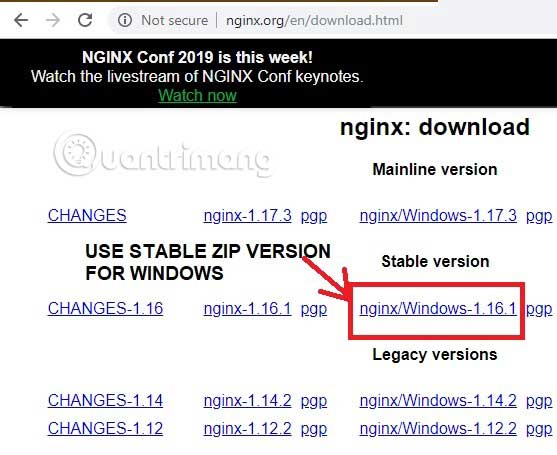
<p style="text-align: justify;">Có nhiều phiên bản tải xuống của Nginx cho Windows và Nginx khuyên bạn nên sử dụng phiên bản chính. Tuy nhiên, bạn sẽ không thấy bất kỳ vấn đề nào, nếu tải xuống phiên bản ổn định gần đây nhất cho Windows.</p>

<p style="text-align: justify;">Chọn file zip mới nhất và tải nó vào một thư mục mới.</p>

<p style="text-align: justify;"><img alt="Chọn file zip mới nhất và tải nó vào một thư mục mới" data-i="0" data-src="https://st.quantrimang.com/photos/image/2019/09/23/cai-dat-va-chay-nginx-server-tren-windows-10-1.jpg" data-was-processed="true" height="455" src="https://st.quantrimang.com/photos/image/2019/09/23/cai-dat-va-chay-nginx-server-tren-windows-10-1.jpg" width="557" /></p>

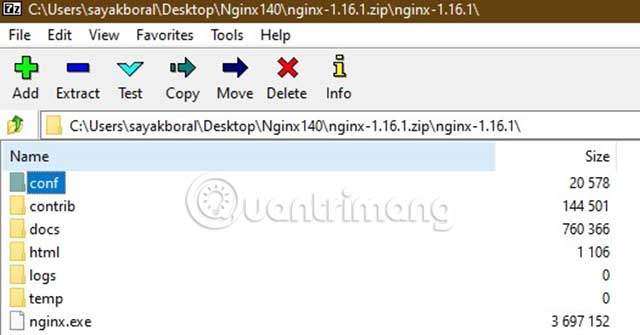
<p style="text-align: justify;">Bước đầu tiên, bạn cần giải nén thư mục mới. Bạn có thể sử dụng 7-zip, WinRAR hoặc bất kỳ&nbsp;phần mềm giải nén phổ biến&nbsp;nào khác.</p>

<p style="text-align: justify;"><img alt="Bước đầu tiên, bạn cần giải nén thư mục mới" data-i="1" data-src="https://st.quantrimang.com/photos/image/2019/09/23/cai-dat-va-chay-nginx-server-tren-windows-10-2.jpg" data-was-processed="true" height="262" src="https://st.quantrimang.com/photos/image/2019/09/23/cai-dat-va-chay-nginx-server-tren-windows-10-2.jpg" width="500" /></p>

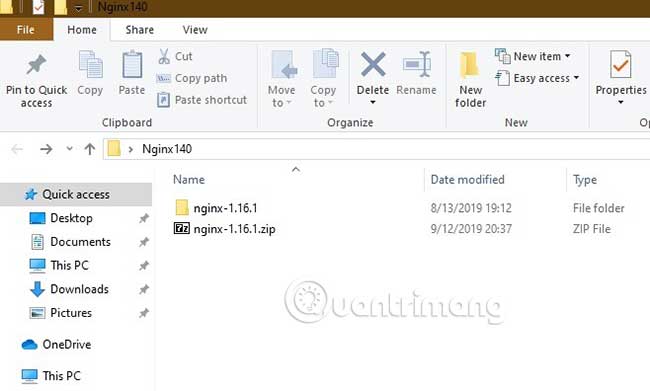
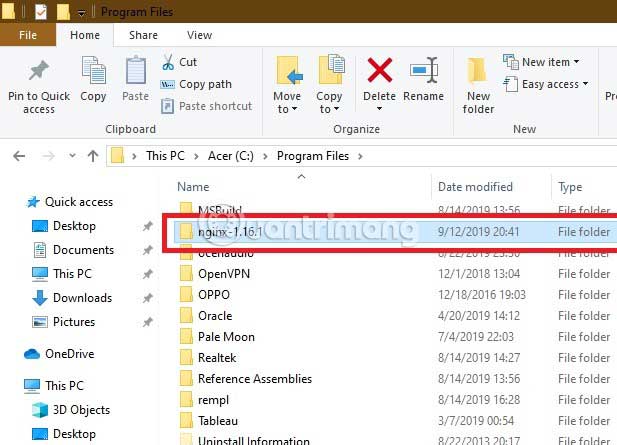
<p style="text-align: justify;">Sau khi giải nén nội dung file trong thư mục gốc, bạn phải di chuyển toàn bộ thư mục đi kèm với bản sao tải xuống tích hợp. Ví dụ sẽ chuyển thư mục sang&nbsp;<strong>“Program Files”.</strong></p>

<p style="text-align: justify;"><strong><img alt="Sau khi giải nén nội dung file trong thư mục gốc, bạn phải di chuyển toàn bộ thư mục đi kèm với bản sao tải xuống tích hợp" data-i="2" data-src="https://st.quantrimang.com/photos/image/2019/09/23/cai-dat-va-chay-nginx-server-tren-windows-10-3.jpg" data-was-processed="true" height="391" src="https://st.quantrimang.com/photos/image/2019/09/23/cai-dat-va-chay-nginx-server-tren-windows-10-3.jpg" width="650" /></strong></p>

<p style="text-align: justify;">Dán thư mục trong các file chương trình. Ví dụ sẽ chạy Nginx từ vị trí này như một chương trình web service.</p>

<p style="text-align: justify;"><img alt="Dán thư mục trong các file chương trình" data-i="3" data-src="https://st.quantrimang.com/photos/image/2019/09/23/cai-dat-va-chay-nginx-server-tren-windows-10-4.jpg" data-was-processed="true" height="445" src="https://st.quantrimang.com/photos/image/2019/09/23/cai-dat-va-chay-nginx-server-tren-windows-10-4.jpg" width="617" /></p>

<div style="text-align: justify;">&nbsp;</div>

<h2 style="text-align: justify;">Cài đặt Nginx</h2>

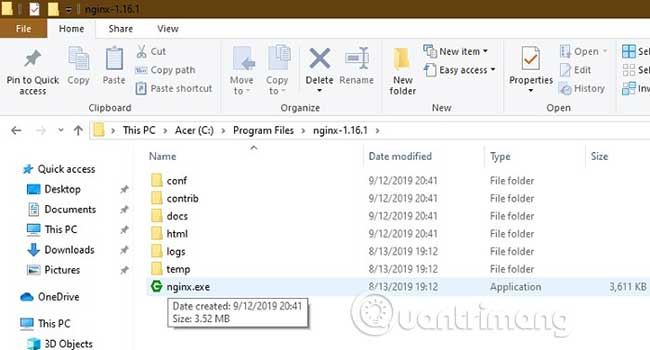
<p style="text-align: justify;">Để cài đặt và chạy Nginx, hãy chọn và nhấp đúp vào file&nbsp;<strong>Nginx.exe.</strong>&nbsp;Bây giờ, nó đã được kích hoạt để sử dụng.</p>

<p style="text-align: justify;"><img alt="Để cài đặt và chạy Nginx, hãy chọn và nhấp đúp vào file Nginx.exe" data-i="4" data-src="https://st.quantrimang.com/photos/image/2019/09/23/cai-dat-va-chay-nginx-server-tren-windows-10-5.jpg" data-was-processed="true" height="350" src="https://st.quantrimang.com/photos/image/2019/09/23/cai-dat-va-chay-nginx-server-tren-windows-10-5.jpg" width="650" /></p>

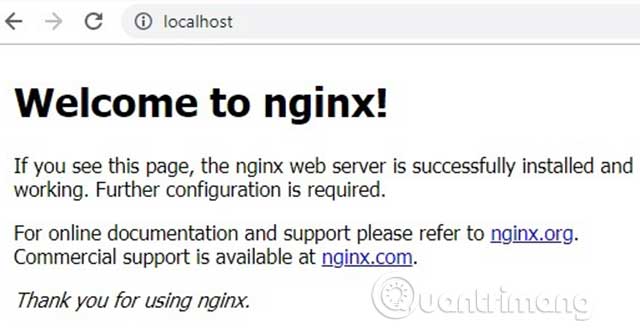
<p style="text-align: justify;">Trong bước tiếp theo, bạn cần xác minh cài đặt có thành công không. Để làm điều này, bạn có thể truy cập trình duyệt mặc định của mình và nhập&nbsp;<strong>“localhost”.</strong>&nbsp;Nếu bạn thấy màn hình sau đây, cho biết Nginx web server đã được cài đặt thành công và đang hoạt động, sẽ không có vấn đề gì trong quá trình cài đặt Windows 10 cả.</p>

<p style="text-align: justify;"><img alt="Truy cập trình duyệt mặc định của mình và nhập “localhost”" data-i="5" data-src="https://st.quantrimang.com/photos/image/2019/09/23/cai-dat-va-chay-nginx-server-tren-windows-10-6.jpg" data-was-processed="true" height="262" src="https://st.quantrimang.com/photos/image/2019/09/23/cai-dat-va-chay-nginx-server-tren-windows-10-6.jpg" width="500" /></p>

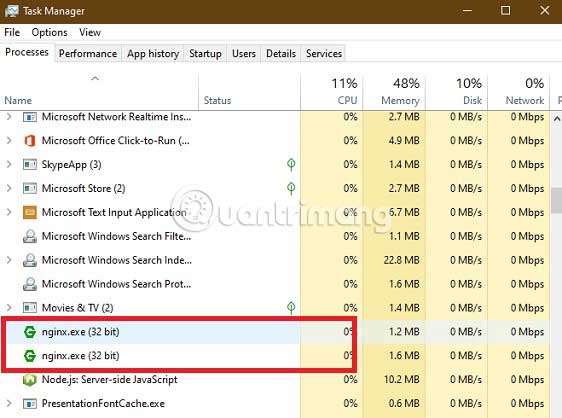
<p style="text-align: justify;">Để dừng Nginx, bạn có thể kết thúc nó từ cửa sổ&nbsp;<strong>Task Manager</strong>.</p>

<p style="text-align: justify;"><img alt="Để dừng Nginx, bạn có thể kết thúc nó từ cửa sổ Task Manager" data-i="6" data-src="https://st.quantrimang.com/photos/image/2019/09/23/cai-dat-va-chay-nginx-server-tren-windows-10-7.jpg" data-was-processed="true" height="418" src="https://st.quantrimang.com/photos/image/2019/09/23/cai-dat-va-chay-nginx-server-tren-windows-10-7.jpg" width="562" /></p>

<h2 style="text-align: justify;">Chạy Nginx trên PC Windows</h2>

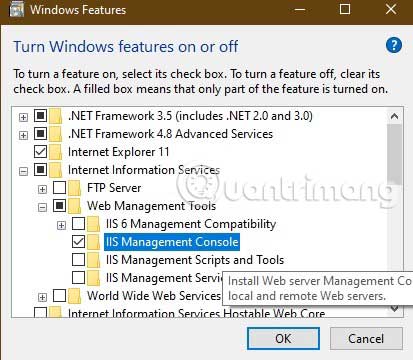
<p style="text-align: justify;">Để chạy Nginx, bạn phải sử dụng&nbsp;<strong>Internet Information Services (IIS</strong>), một máy chủ web của Microsoft cung cấp các trang hoặc file HTML được yêu cầu. Bạn có thể kích hoạt nó từ&nbsp;<strong>“Turn Windows Features On or Off”</strong>&nbsp;trên&nbsp;<strong>Control Panel</strong>. Tích vào các trường bắt buộc&nbsp;<strong>“Web Management Tools”</strong>&nbsp;và<strong>&nbsp;“IIS Management Console”</strong>.</p>

<p style="text-align: justify;"><img alt="Tích vào các trường bắt buộc “Web Management Tools” và “IIS Management Console”" data-i="7" data-src="https://st.quantrimang.com/photos/image/2019/09/23/cai-dat-va-chay-nginx-server-tren-windows-10-8.jpg" data-was-processed="true" height="360" src="https://st.quantrimang.com/photos/image/2019/09/23/cai-dat-va-chay-nginx-server-tren-windows-10-8.jpg" width="413" /></p>

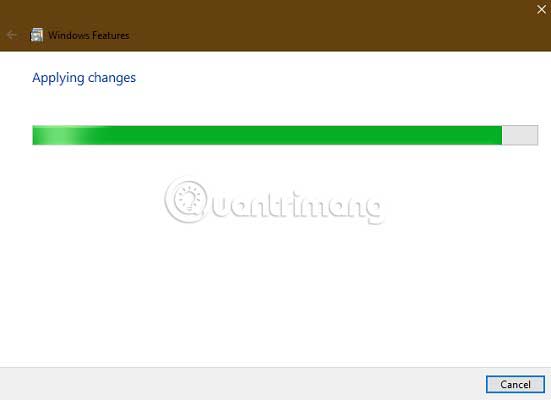
<p style="text-align: justify;">Sẽ mất một lúc để IIS được kích hoạt trên máy tính khi những thay đổi được áp dụng.</p>

<p style="text-align: justify;"><img alt="Sẽ mất một lúc để IIS được kích hoạt trên máy tính" data-i="8" data-src="https://st.quantrimang.com/photos/image/2019/09/23/cai-dat-va-chay-nginx-server-tren-windows-10-9.jpg" data-was-processed="true" height="400" src="https://st.quantrimang.com/photos/image/2019/09/23/cai-dat-va-chay-nginx-server-tren-windows-10-9.jpg" width="551" /></p>

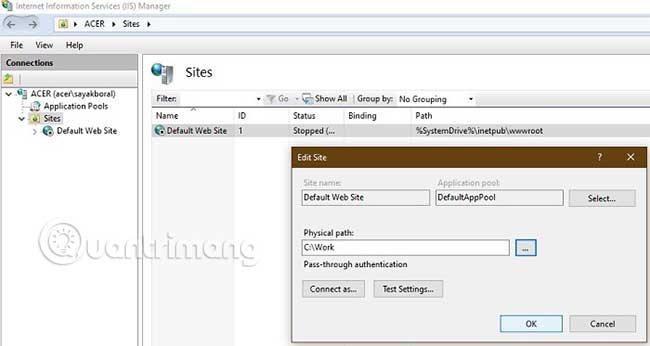
<p style="text-align: justify;">Bạn có thể mở&nbsp;<strong>IIS Manager</strong>&nbsp;trực tiếp từ menu&nbsp;<strong>Start.</strong>&nbsp;Tại đây, bạn sẽ có thể truy cập trang web mặc định, thường được đặt tại&nbsp;<strong>“inetpub wwwroot”.</strong>&nbsp;Đây còn được gọi là root ứng dụng web.</p>

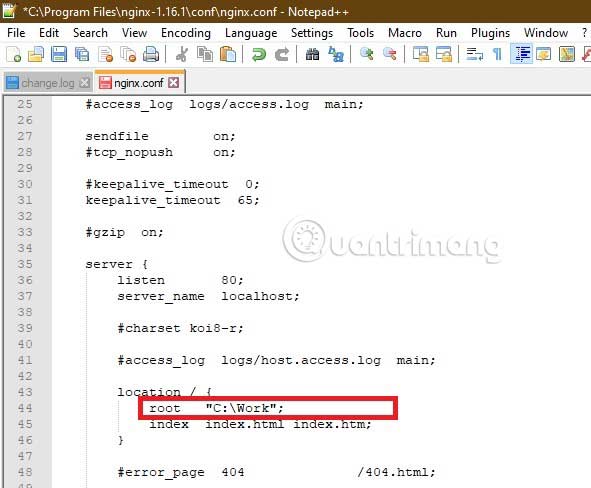
<p style="text-align: justify;">Việc thay đổi đường dẫn vật lý của root này thành một thư mục mong muốn rất hữu ích. Ví dụ đã tạo một thư mục mới tên&nbsp;<strong>“Work”</strong>&nbsp;trong&nbsp;<strong>C:\</strong>&nbsp;và đã thay đổi đường dẫn vật lý thành&nbsp;<strong>C:\Work.</strong></p>

<p style="text-align: justify;"><strong><img alt="Việc thay đổi đường dẫn vật lý của root này thành một thư mục mong muốn rất hữu ích" data-i="9" data-src="https://st.quantrimang.com/photos/image/2019/09/23/cai-dat-va-chay-nginx-server-tren-windows-10-10.jpg" data-was-processed="true" height="346" src="https://st.quantrimang.com/photos/image/2019/09/23/cai-dat-va-chay-nginx-server-tren-windows-10-10.jpg" width="650" /></strong></p>

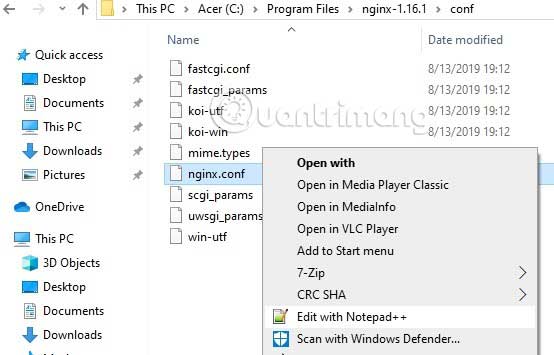
<p style="text-align: justify;">Sau đó, đi đến thư mục Nginx mà bạn đã đổi tên trong&nbsp;<strong>Program Files</strong>. Nhấp vào&nbsp;<strong>Conf</strong>&nbsp;và chọn&nbsp;<strong>“nginx.conf”.</strong>&nbsp;File này có thể được chỉnh sửa bằng trình soạn thảo văn bản Notepad++.</p>

<p style="text-align: justify;"><img alt="Nhấp vào Conf và chọn “nginx.conf”" data-i="10" data-src="https://st.quantrimang.com/photos/image/2019/09/23/cai-dat-va-chay-nginx-server-tren-windows-10-11.jpg" data-was-processed="true" height="355" src="https://st.quantrimang.com/photos/image/2019/09/23/cai-dat-va-chay-nginx-server-tren-windows-10-11.jpg" width="554" /></p>

<p style="text-align: justify;">Trong Notepad++, thay đổi root thành đường dẫn vật lý đã chỉnh sửa như những gì bài viết thảo luận ở trên.</p>

<p style="text-align: justify;"><img alt="Trong Notepad++, thay đổi root thành đường dẫn vật lý đã chỉnh sửa" data-i="11" data-src="https://st.quantrimang.com/photos/image/2019/09/23/cai-dat-va-chay-nginx-server-tren-windows-10-12.jpg" data-was-processed="true" height="488" src="https://st.quantrimang.com/photos/image/2019/09/23/cai-dat-va-chay-nginx-server-tren-windows-10-12.jpg" width="591" /></p>

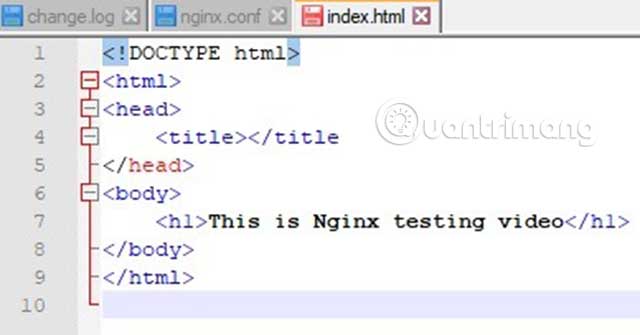
<p style="text-align: justify;">Bạn có thể chỉnh sửa file&nbsp;<strong>index.html</strong>&nbsp;trong thư mục root trên một tab riêng. Thay đổi văn bản thành những gì bạn muốn web server hiển thị trên màn hình.</p>

<p style="text-align: justify;"><img alt="Bây giờ, hãy chạy chương trình Nginx.exe một lần nữa và gõ “localhost” trên cửa sổ trình duyệt" data-i="12" data-src="https://st.quantrimang.com/photos/image/2019/09/23/cai-dat-va-chay-nginx-server-tren-windows-10-13.jpg" data-was-processed="true" height="262" src="https://st.quantrimang.com/photos/image/2019/09/23/cai-dat-va-chay-nginx-server-tren-windows-10-13.jpg" width="500" /></p>

<p style="text-align: justify;">Bây giờ, hãy chạy chương trình&nbsp;<strong>Nginx.exe</strong>&nbsp;một lần nữa và gõ&nbsp;<strong>“localhost”</strong>&nbsp;trên cửa sổ trình duyệt. Nginx web server sẽ highlight các chỉnh sửa bạn đã thực hiện.</p>

<p style="text-align: justify;"><img alt="Bây giờ, hãy chạy chương trình Nginx.exe một lần nữa và gõ “localhost” trên cửa sổ trình duyệt" data-i="13" data-src="https://st.quantrimang.com/photos/image/2019/09/23/cai-dat-va-chay-nginx-server-tren-windows-10-14.jpg" data-was-processed="true" height="76" src="https://st.quantrimang.com/photos/image/2019/09/23/cai-dat-va-chay-nginx-server-tren-windows-10-14.jpg" width="366" /></p>

<p style="text-align: justify;">Trang web tài nguyên Nginx có một danh sách đầy đủ các ứng dụng web server mà bạn có thể sử dụng để chạy nhiều ứng dụng khác nhau trên PC Windows. Tham khảo tại:</p>

<pre id="pre0">
<code>https://www.nginx.com/resources/wiki/start/</code></pre>

<p style="text-align: justify;">Nginx là một trong những công ty web server hàng đầu dự kiến ​​sẽ làm “lu mờ” Apache trong tương lai. Nginx server nhanh hơn, có thể xử lý nhiều vấn đề đồng thời và rất đáng tin cậy. Tóm lại, nếu bạn có một trang web đơn giản muốn kết nối với Nginx, bạn có thể làm điều đó ngay bây giờ mà không gặp vấn đề gì.</p>

<p style="text-align: justify;">Bạn đã thử cài đặt và chạy Nginx trên các hệ thống Windows chưa? Những vấn đề bạn gặp phải là gì? Hãy cho mọi người biết ý kiến trong phần bình luận bên dưới nhé!</p>

<p style="text-align: justify;">Chúc bạn thực hiện thành công!</p>
		</div>
				<div id="author">
						<p>
				<strong>Nguồn tin:</strong>
				Quantrimang.com
			</p>
		</div>
	</div>
	<div id="footer" class="clearfix">
		<div id="url">
			<strong>URL của bản tin này: </strong><a href="https://www.nguoicodonvn2008.info/vi/news/savefile/kien-thuc-may-tinh/cach-cai-dat-va-chay-nginx-server-tren-windows-10-1021.html" title="Cách cài đặt và chạy Nginx Server trên Windows 10">https://www.nguoicodonvn2008.info/vi/news/savefile/kien-thuc-may-tinh/cach-cai-dat-va-chay-nginx-server-tren-windows-10-1021.html</a>

		</div>
		<div class="clear"></div>
		<div class="copyright">
			&copy; .&#x3A; Nguoicodonvn2008.info - Cõi lòng người cô đơn &#x3A;.
		</div>
		<div id="contact">
			<a href="mailto:admin@nguoicodonvn2008.info">admin@nguoicodonvn2008.info</a>
		</div>
	</div>
</div>
        <div id="timeoutsess" class="chromeframe">
            Bạn đã không sử dụng Site, <a onclick="timeoutsesscancel();" href="https://www.nguoicodonvn2008.info/#">Bấm vào đây để duy trì trạng thái đăng nhập</a>. Thời gian chờ: <span id="secField"> 60 </span> giây
        </div>
        <div id="openidResult" class="nv-alert" style="display:none"></div>
        <div id="openidBt" data-result="" data-redirect=""></div>
		</script>
		<div class="car-top">
  <span><img src="https://www.nguoicodonvn2008.info/themes/default/images/car.png" alt=""></span>
</div>
<script src="https://www.nguoicodonvn2008.info/assets/js/jquery/jquery.min.js"></script>
<script>var nv_base_siteurl="/",nv_lang_data="vi",nv_lang_interface="vi",nv_name_variable="nv",nv_fc_variable="op",nv_lang_variable="language",nv_module_name="news",nv_func_name="savefile",nv_is_user=0, nv_my_ofs=-4,nv_my_abbr="EDT",nv_cookie_prefix="nv4c_e856T",nv_check_pass_mstime=1738000,nv_area_admin=0,nv_safemode=0,theme_responsive=0,nv_recaptcha_ver=2,nv_recaptcha_sitekey="",nv_recaptcha_type="image",XSSsanitize=1;</script>
<script src="https://www.nguoicodonvn2008.info/assets/js/language/vi.js"></script>
<script src="https://www.nguoicodonvn2008.info/assets/js/DOMPurify/purify3.js"></script>
<script src="https://www.nguoicodonvn2008.info/assets/js/global.js"></script>
<script src="https://www.nguoicodonvn2008.info/assets/js/site.js"></script>
<script src="https://www.nguoicodonvn2008.info/themes/default/js/news.js"></script>
<script src="https://www.nguoicodonvn2008.info/themes/default/js/main.js"></script>
<script src="https://www.nguoicodonvn2008.info/themes/default/js/custom.js"></script>
<script type="application/ld+json">
        {
            "@context": "https://schema.org",
            "@type": "Organization",
            "url": "https://www.nguoicodonvn2008.info",
            "logo": "https://www.nguoicodonvn2008.info/uploads/angel.gif"
        }
        </script>
<script src="https://www.nguoicodonvn2008.info/themes/default/js/bootstrap.min.js"></script>
<script type="text/javascript">
var $scrolltop = $('.car-top');
$scrolltop.on('click', function () {
    $('html,body').animate({
        scrollTop: 0
    }, 800);
    $(this).addClass("car-run");
    setTimeout(function(){ $scrolltop.removeClass('car-run');}, 1000);
    return false;
});
$(window).on('scroll', function ()
{ 
    if($(window).scrollTop() >= 200)
    {
        $scrolltop.addClass("show");
        $scrolltop.addClass("car-down");
    }
    else
    {
       $scrolltop.removeClass("show");
       setTimeout(function(){ $scrolltop.removeClass('car-down');}, 300);
    }
});
</script>
</body>
</html>