<!DOCTYPE html>
    <html lang="vi" xmlns="http://www.w3.org/1999/xhtml" prefix="og: http://ogp.me/ns#">
    <head>
<title>Cách cài đặt phiên bản LibreOffice mới nhất trên CentOS 8</title>
<meta name="description" content="Cách cài đặt phiên bản LibreOffice mới nhất trên CentOS 8 - Savefile - Tin Tức -...">
<meta name="author" content=".: Nguoicodonvn2008.info - Cõi lòng người cô đơn :.">
<meta name="copyright" content=".: Nguoicodonvn2008.info - Cõi lòng người cô đơn :. [admin@nguoicodonvn2008.info]">
<meta name="robots" content="index, archive, follow, noodp">
<meta name="googlebot" content="index,archive,follow,noodp">
<meta name="msnbot" content="all,index,follow">
<meta name="generator" content="NukeViet v4.5">
<meta http-equiv="Content-Type" content="text/html; charset=utf-8">
<meta property="og:title" content="Cách cài đặt phiên bản LibreOffice mới nhất trên CentOS 8">
<meta property="og:type" content="website">
<meta property="og:description" content="Savefile - Tin Tức - https&#x3A;&#x002F;&#x002F;www.nguoicodonvn2008.info&#x002F;vi&#x002F;news&#x002F;savefile&#x002F;kien-thuc-may-tinh&#x002F;cach-cai-dat-phien-ban-libreoffice-moi-nhat-tren-centos-8-2188.html">
<meta property="og:site_name" content=".&#x3A; Nguoicodonvn2008.info - Cõi lòng người cô đơn &#x3A;.">
<meta property="og:url" content="https://www.nguoicodonvn2008.info/vi/news/savefile/kien-thuc-may-tinh/cach-cai-dat-phien-ban-libreoffice-moi-nhat-tren-centos-8-2188.html">
<link rel="shortcut icon" href="https://www.nguoicodonvn2008.info/favicon.ico">
<link rel="canonical" href="https://www.nguoicodonvn2008.info/vi/news/savefile/kien-thuc-may-tinh/cach-cai-dat-phien-ban-libreoffice-moi-nhat-tren-centos-8-2188.html">
<link rel="alternate" href="https://www.nguoicodonvn2008.info/vi/news/rss/" title="Tin Tức" type="application/rss+xml">
<link rel="alternate" href="https://www.nguoicodonvn2008.info/vi/news/rss/karaoke-dual/" title="Tin Tức - Karaoke Dual" type="application/rss+xml">
<link rel="alternate" href="https://www.nguoicodonvn2008.info/vi/news/rss/nhac-tre/" title="Tin Tức - Nhạc trẻ" type="application/rss+xml">
<link rel="alternate" href="https://www.nguoicodonvn2008.info/vi/news/rss/tru-tinh/" title="Tin Tức - Trữ tình" type="application/rss+xml">
<link rel="alternate" href="https://www.nguoicodonvn2008.info/vi/news/rss/nuoc-ngoai/" title="Tin Tức - Nước ngoài" type="application/rss+xml">
<link rel="alternate" href="https://www.nguoicodonvn2008.info/vi/news/rss/remix/" title="Tin Tức - Remix" type="application/rss+xml">
<link rel="alternate" href="https://www.nguoicodonvn2008.info/vi/news/rss/tam-su-tinh-yeu/" title="Tin Tức - Tâm sự tình yêu" type="application/rss+xml">
<link rel="alternate" href="https://www.nguoicodonvn2008.info/vi/news/rss/tho-suu-tam/" title="Tin Tức - Thơ sưu tầm" type="application/rss+xml">
<link rel="alternate" href="https://www.nguoicodonvn2008.info/vi/news/rss/cuoc-song/" title="Tin Tức - Cuộc sống" type="application/rss+xml">
<link rel="alternate" href="https://www.nguoicodonvn2008.info/vi/news/rss/phan-mem/" title="Tin Tức - Phần mềm" type="application/rss+xml">
<link rel="alternate" href="https://www.nguoicodonvn2008.info/vi/news/rss/kien-thuc-may-tinh/" title="Tin Tức - Kiến thức máy tính" type="application/rss+xml">
<link rel="alternate" href="https://www.nguoicodonvn2008.info/vi/news/rss/hoc-tap/" title="Tin Tức - Học tập" type="application/rss+xml">
<link rel="alternate" href="https://www.nguoicodonvn2008.info/vi/news/rss/tai-lieu/" title="Tin Tức - Tài liệu" type="application/rss+xml">
<link rel="alternate" href="https://www.nguoicodonvn2008.info/vi/news/rss/de-thi/" title="Tin Tức - Đề thi" type="application/rss+xml">
<link rel="preload" as="style" href="https://www.nguoicodonvn2008.info/assets/css/font-awesome.min.css" type="text/css">
<link rel="preload" as="style" href="https://www.nguoicodonvn2008.info/themes/default/css/bootstrap.non-responsive.css" type="text/css">
<link rel="preload" as="style" href="https://www.nguoicodonvn2008.info/themes/default/css/style.css" type="text/css">
<link rel="preload" as="style" href="https://www.nguoicodonvn2008.info/themes/default/css/style.non-responsive.css" type="text/css">
<link rel="preload" as="style" href="https://www.nguoicodonvn2008.info/themes/default/css/news.css" type="text/css">
<link rel="preload" as="style" href="https://www.nguoicodonvn2008.info/themes/default/css/custom.css" type="text/css">
<link rel="preload" as="script" href="https://www.nguoicodonvn2008.info/assets/js/jquery/jquery.min.js" type="text/javascript">
<link rel="preload" as="script" href="https://www.nguoicodonvn2008.info/assets/js/language/vi.js" type="text/javascript">
<link rel="preload" as="script" href="https://www.nguoicodonvn2008.info/assets/js/DOMPurify/purify3.js" type="text/javascript">
<link rel="preload" as="script" href="https://www.nguoicodonvn2008.info/assets/js/global.js" type="text/javascript">
<link rel="preload" as="script" href="https://www.nguoicodonvn2008.info/assets/js/site.js" type="text/javascript">
<link rel="preload" as="script" href="https://www.nguoicodonvn2008.info/themes/default/js/news.js" type="text/javascript">
<link rel="preload" as="script" href="https://www.nguoicodonvn2008.info/themes/default/js/main.js" type="text/javascript">
<link rel="preload" as="script" href="https://www.nguoicodonvn2008.info/themes/default/js/custom.js" type="text/javascript">
<link rel="preload" as="script" href="https://www.nguoicodonvn2008.info/themes/default/js/bootstrap.min.js" type="text/javascript">
<link rel="stylesheet" href="https://www.nguoicodonvn2008.info/assets/css/font-awesome.min.css">
<link rel="stylesheet" href="https://www.nguoicodonvn2008.info/themes/default/css/bootstrap.non-responsive.css">
<link rel="stylesheet" href="https://www.nguoicodonvn2008.info/themes/default/css/style.css">
<link rel="stylesheet" href="https://www.nguoicodonvn2008.info/themes/default/css/style.non-responsive.css">
<link rel="StyleSheet" href="https://www.nguoicodonvn2008.info/themes/default/css/news.css">
<link rel="stylesheet" href="https://www.nguoicodonvn2008.info/themes/default/css/custom.css">
<style type="text/css">
	body{background: #fff;}
</style>
    </head>
    <body>
<div id="print">
	<div id="hd_print">
		<h2 class="pull-left">.&#x3A; Nguoicodonvn2008.info - Cõi lòng người cô đơn &#x3A;.</h2>
		<p class="pull-right"><a title=".&#x3A; Nguoicodonvn2008.info - Cõi lòng người cô đơn &#x3A;." href="https://www.nguoicodonvn2008.info/">https://www.nguoicodonvn2008.info</a></p>
	</div>
	<div class="clear"></div>
	<hr />
	<div id="content">
		<h1>Cách cài đặt phiên bản LibreOffice mới nhất trên CentOS 8</h1>
		<ul class="list-inline">
			<li>Thứ tư - 10/06/2020 00:55</li>
			<li class="hidden-print txtrequired"><em class="fa fa-print">&nbsp;</em><a title="In ra" href="javascript:;" onclick="window.print()">In ra</a></li>
			<li class="hidden-print txtrequired"><em class="fa fa-power-off">&nbsp;</em><a title="Đóng cửa sổ này" href="javascript:;" onclick="window.close()">Đóng cửa sổ này</a></li>
		</ul>
		<div class="clear"></div>
		<div id="hometext">
		</div>
				<div class="imghome">
			<img alt="Cách cài đặt phiên bản LibreOffice mới nhất trên CentOS 8" src="https://st.quantrimang.com/photos/image/2020/06/03/cai-libreoffice-tren-centos-1.jpg" width="460" class="img-thumbnail" />
		</div>
		<div class="clear"></div>
		<div id="bodytext" class="clearfix">
			<p style="text-align: justify;">LibreOffice&nbsp;là một bộ ứng dụng Office mã nguồn mở và mạnh mẽ, có thể được sử dụng trên Linux, Mac cũng như trên Windows. Nó cung cấp nhiều tính năng khác nhau như tạo tài liệu Word, bảng tính, xử lý dữ liệu, bản vẽ, thiết kế bài thuyết trình, tính toán, v.v... LibreOffice hỗ trợ 110 ngôn ngữ và chạy trên tất cả các hệ điều hành quan trọng.</p>

<p style="text-align: justify;">Trong bài viết này, bạn sẽ tìm hiểu cách cài đặt LibreOffice trên CentOS 8. Tại thời điểm viết bài viết này, phiên bản mới nhất LibreOffice 6.4.3 có sẵn để cài đặt.</p>

<h2 style="text-align: justify;">Cài đặt phiên bản mới nhất của LibreOffice trên CentOS 8</h2>

<p style="text-align: justify;">Để cài đặt LibreOffice 6.4.3, bạn cần thực hiện các bước sau trên CentOS 8:</p>

<div style="text-align: justify;">&nbsp;</div>

<h3 style="text-align: justify;">Bước 1. Tải xuống file rpm Linux</h3>

<p style="text-align: justify;">Mở trang web chính thức cho bộ công cụ LibreOffice:&nbsp;<strong><span style="color:rgb(192, 57, 43);">https://www.libreoffice.org/</span></strong>&nbsp;và nhấp nút&nbsp;<strong>Download Now</strong>&nbsp;để tải file.&nbsp;</p>

<p style="text-align: justify;">Bạn cũng có thể chọn tùy chọn tải xuống từ thanh menu trên cùng.</p>

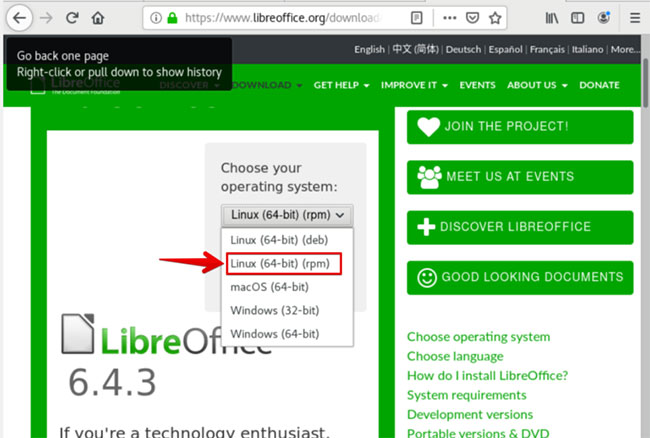
<p style="text-align: justify;">Bây giờ, chọn và tải xuống gói rpm từ danh sách drop-down theo thông số hệ thống đang có (nghĩa là chọn 32 bit hoặc 64 bit). Ở đây, bài viết đang sử dụng hệ thống 64 bit, vì vậy, ví dụ chọn gói&nbsp;<strong>Linux 64-bit (rpm)</strong>&nbsp;để cài đặt:</p>

<figure>
<div style="text-align: justify;"><img alt="Chọn và tải xuống gói rpm từ danh sách drop-down" data-i="0" data-src="https://st.quantrimang.com/photos/image/2020/06/03/cai-libreoffice-tren-centos-1.jpg" data-was-processed="true" height="438" src="https://st.quantrimang.com/photos/image/2020/06/03/cai-libreoffice-tren-centos-1.jpg" width="650" /></div>

<figcaption>
<div style="text-align: justify;">Chọn và tải xuống gói rpm từ danh sách drop-down</div>
</figcaption>
</figure>

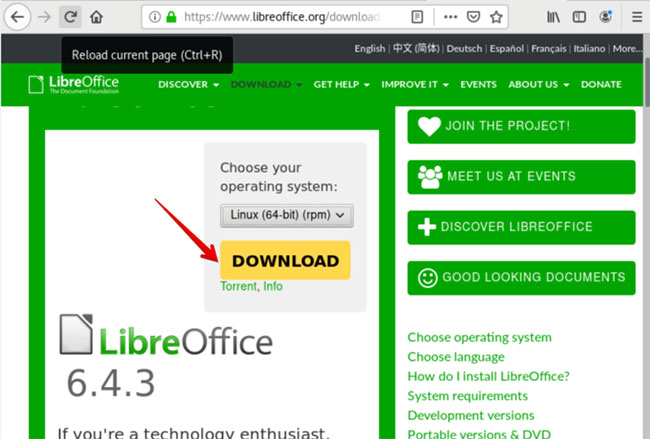
<p style="text-align: justify;">Nhấp vào nút&nbsp;<strong>Download</strong>&nbsp;để tải xuống gói.</p>

<figure>
<div style="text-align: justify;"><img alt="Nhấp vào nút Download" data-i="1" data-src="https://st.quantrimang.com/photos/image/2020/06/03/cai-libreoffice-tren-centos-2.jpg" data-was-processed="true" height="439" src="https://st.quantrimang.com/photos/image/2020/06/03/cai-libreoffice-tren-centos-2.jpg" width="650" /></div>

<figcaption>
<div style="text-align: justify;">Nhấp vào nút Download</div>
</figcaption>
</figure>

<p style="text-align: justify;">Khi bạn nhấp vào nút&nbsp;<strong>Download</strong>, hộp thoại sau sẽ mở ra trên cửa sổ. Tại đây, bạn chọn tùy chọn&nbsp;<strong>Save file</strong>&nbsp;và nhấp vào&nbsp;<strong>OK.</strong></p>

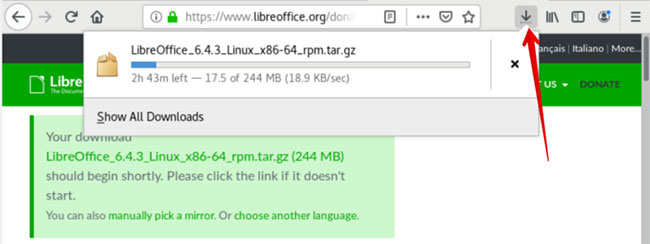
<p style="text-align: justify;">Bạn có thể kiểm tra tiến trình tải xuống của mình như sau:</p>

<figure>
<div style="text-align: justify;"><img alt="Bạn có thể kiểm tra tiến trình tải xuống của mình" data-i="2" data-src="https://st.quantrimang.com/photos/image/2020/06/03/cai-libreoffice-tren-centos-3.jpg" data-was-processed="true" height="244" src="https://st.quantrimang.com/photos/image/2020/06/03/cai-libreoffice-tren-centos-3.jpg" width="650" /></div>

<figcaption>
<div style="text-align: justify;">Bạn có thể kiểm tra tiến trình tải xuống của mình</div>
</figcaption>
</figure>

<h3 style="text-align: justify;">Bước 2. Mở Terminal</h3>

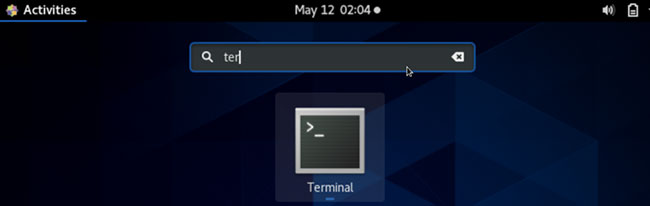
<p style="text-align: justify;">Sau khi quá trình tải xuống hoàn tất, bây giờ, bạn hãy mở ứng dụng Terminal bằng cách sử dụng&nbsp;<code>Ctrl</code>+<code>Alt</code>+<code>T</code>, hoặc khởi chạy nhanh từ trình khởi chạy ứng dụng:</p>

<figure>
<div style="text-align: justify;"><img alt="Khởi chạy ứng dụng" data-i="3" data-src="https://st.quantrimang.com/photos/image/2020/06/03/cai-libreoffice-tren-centos-4.jpg" data-was-processed="true" height="206" src="https://st.quantrimang.com/photos/image/2020/06/03/cai-libreoffice-tren-centos-4.jpg" width="650" /></div>

<figcaption>
<div style="text-align: justify;">Khởi chạy ứng dụng</div>
</figcaption>
</figure>

<div style="text-align: justify;">&nbsp;</div>

<h3 style="text-align: justify;">Bước 3. Điều hướng thư mục</h3>

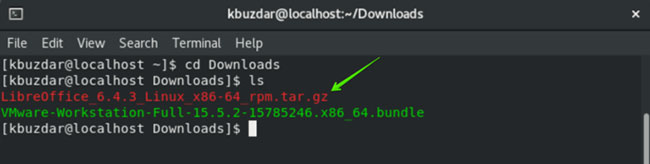
<p style="text-align: justify;">Bây giờ, hãy điều hướng vào thư mục lưu file đã tải xuống. Để thực hiện mục đích này, thực thi lệnh sau:</p>

<pre id="pre0">
<code>$ cd Downloads</code></pre>

<p style="text-align: justify;">Liệt kê tất cả các file của thư mục này bằng lệnh&nbsp;<code>ls</code>:</p>

<figure>
<div style="text-align: justify;"><img alt="Liệt kê tất cả các file của thư mục này bằng lệnh ls" data-i="4" data-src="https://st.quantrimang.com/photos/image/2020/06/03/cai-libreoffice-tren-centos-5.jpg" data-was-processed="true" height="164" src="https://st.quantrimang.com/photos/image/2020/06/03/cai-libreoffice-tren-centos-5.jpg" width="650" /></div>

<figcaption>
<div style="text-align: justify;">Liệt kê tất cả các file của thư mục này bằng lệnh ls</div>
</figcaption>
</figure>

<h3 style="text-align: justify;">Bước 4. Trích xuất gói đã tải xuống</h3>

<p style="text-align: justify;">Giải nén gói đã tải xuống bằng lệnh&nbsp;<code>tar</code>:</p>

<pre id="pre1">
<code>$ tar -xvf LibreOffice_6.4.3_Linux_x86-64_rpm.tar.gz</code></pre>

<p style="text-align: justify;">Sẽ mất một chút thời gian để trích xuất tất cả các file từ gói được nén. Bây giờ, bạn có thể xác minh rằng việc trích xuất đã được hoàn thành hay chưa. Do đó, một lần nữa, hãy liệt kê các mục trong thư mục&nbsp;<strong>Downloads.</strong></p>

<h3 style="text-align: justify;">Bước 5. Cài đặt LibreOffice 6.4.3</h3>

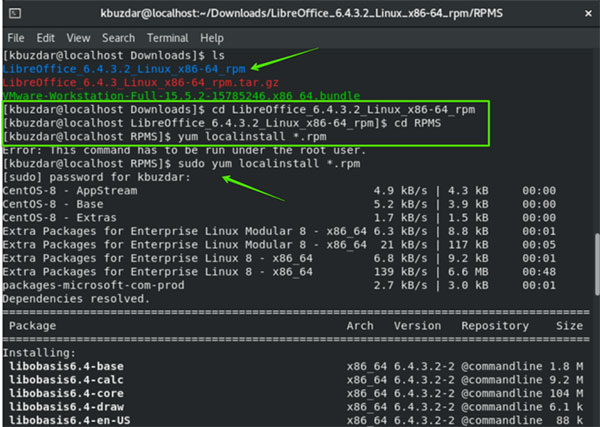
<p style="text-align: justify;">Sau khi giải nén gói đã tải xuống, bạn sẽ có thư mục trong đó có thể tìm thấy một folder hoặc thư mục con có tên&nbsp;<strong>RPMS.</strong>&nbsp;Bây giờ, bạn cần thực thi những lệnh sau để cài đặt tất cả các file rpm:</p>

<pre id="pre2">
<code>// Directory navigation
 $ cd LibreOffice_6.4.3.2_Linux_x86-64_rpm
 $ cd RPMS
 // installation of LibreOffice 6.4.3
 $ yum localinstall *.rpm</code></pre>

<figure>
<div style="text-align: justify;"><img alt="Cài đặt tất cả các file rpm" data-i="5" data-src="https://st.quantrimang.com/photos/image/2020/06/03/cai-libreoffice-tren-centos-6.jpg" data-was-processed="true" height="427" src="https://st.quantrimang.com/photos/image/2020/06/03/cai-libreoffice-tren-centos-6.jpg" width="600" /></div>

<figcaption>
<div style="text-align: justify;">Cài đặt tất cả các file rpm</div>
</figcaption>
</figure>

<p style="text-align: justify;">Lời nhắc người dùng sẽ yêu cầu bạn xác nhận cài đặt tất cả các gói. Hãy nhấn&nbsp;<code>Y</code>&nbsp;và&nbsp;<code>Enter</code>&nbsp;để xác nhận quá trình cài đặt.</p>

<p style="text-align: justify;">Sau một khoảng thời gian, bạn sẽ thấy cài đặt được hoàn thành trên hệ thống.</p>

<div style="text-align: justify;">&nbsp;</div>

<h3 style="text-align: justify;">Bước 6. Khởi chạy LibreOffice 6.4.3</h3>

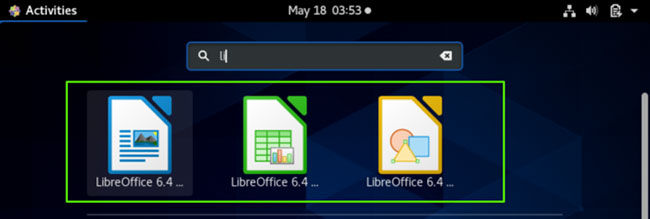
<p style="text-align: justify;">Sau khi cài đặt hoàn tất, bây giờ, bạn có thể khởi chạy LibreOffice 6.4.3 thông qua trình khởi chạy ứng dụng. Nhấp vào&nbsp;<strong>Activities</strong>&nbsp;và nhập&nbsp;<strong>LibreOffice</strong>&nbsp;(hoặc một số ký tự đầu tiên) trong thanh tìm kiếm. Bạn sẽ thấy biểu tượng LibreOffice được hiển thị trong kết quả tìm kiếm. Chọn biểu tượng này và nhấp vào nó:</p>

<figure>
<div style="text-align: justify;"><img alt="Nhấp vào biểu tượng LibreOffice" data-i="6" data-src="https://st.quantrimang.com/photos/image/2020/06/03/cai-libreoffice-tren-centos-7.jpg" data-was-processed="true" height="219" src="https://st.quantrimang.com/photos/image/2020/06/03/cai-libreoffice-tren-centos-7.jpg" width="650" /></div>

<figcaption>
<div style="text-align: justify;">Nhấp vào biểu tượng LibreOffice</div>
</figcaption>
</figure>

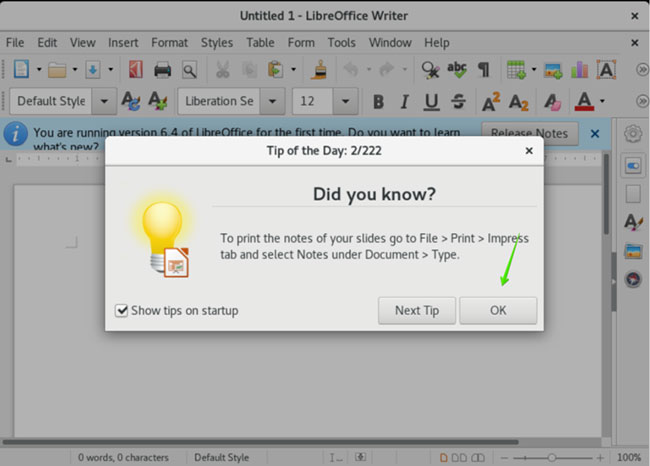
<p style="text-align: justify;">Sau khi nhấp vào biểu tượng&nbsp;<strong>LibreOffice,</strong>&nbsp;bạn sẽ thấy cửa sổ sau trên hệ thống của mình:</p>

<p style="text-align: justify;">Đây là giao diện ban đầu hiển thị trên mỗi cài đặt LibreOffice mới.</p>

<figure>
<div style="text-align: justify;"><img alt="Giao diện ban đầu hiển thị trên mỗi cài đặt LibreOffice mới" data-i="7" data-src="https://st.quantrimang.com/photos/image/2020/06/03/cai-libreoffice-tren-centos-8.jpg" data-was-processed="true" height="466" src="https://st.quantrimang.com/photos/image/2020/06/03/cai-libreoffice-tren-centos-8.jpg" width="650" /></div>

<figcaption>
<div style="text-align: justify;">Giao diện ban đầu hiển thị trên mỗi cài đặt LibreOffice mới</div>
</figcaption>
</figure>

<p style="text-align: justify;">Chúc mừng! LibreOffice đã được cài đặt thành công trên hệ thống CentOS 8 của bạn.</p>
		</div>
				<div id="author">
						<p>
				<strong>Nguồn tin:</strong>
				Quantrimang.com
			</p>
		</div>
	</div>
	<div id="footer" class="clearfix">
		<div id="url">
			<strong>URL của bản tin này: </strong><a href="https://www.nguoicodonvn2008.info/vi/news/savefile/kien-thuc-may-tinh/cach-cai-dat-phien-ban-libreoffice-moi-nhat-tren-centos-8-2188.html" title="Cách cài đặt phiên bản LibreOffice mới nhất trên CentOS 8">https://www.nguoicodonvn2008.info/vi/news/savefile/kien-thuc-may-tinh/cach-cai-dat-phien-ban-libreoffice-moi-nhat-tren-centos-8-2188.html</a>

		</div>
		<div class="clear"></div>
		<div class="copyright">
			&copy; .&#x3A; Nguoicodonvn2008.info - Cõi lòng người cô đơn &#x3A;.
		</div>
		<div id="contact">
			<a href="mailto:admin@nguoicodonvn2008.info">admin@nguoicodonvn2008.info</a>
		</div>
	</div>
</div>
        <div id="timeoutsess" class="chromeframe">
            Bạn đã không sử dụng Site, <a onclick="timeoutsesscancel();" href="https://www.nguoicodonvn2008.info/#">Bấm vào đây để duy trì trạng thái đăng nhập</a>. Thời gian chờ: <span id="secField"> 60 </span> giây
        </div>
        <div id="openidResult" class="nv-alert" style="display:none"></div>
        <div id="openidBt" data-result="" data-redirect=""></div>
		</script>
		<div class="car-top">
  <span><img src="https://www.nguoicodonvn2008.info/themes/default/images/car.png" alt=""></span>
</div>
<script src="https://www.nguoicodonvn2008.info/assets/js/jquery/jquery.min.js"></script>
<script>var nv_base_siteurl="/",nv_lang_data="vi",nv_lang_interface="vi",nv_name_variable="nv",nv_fc_variable="op",nv_lang_variable="language",nv_module_name="news",nv_func_name="savefile",nv_is_user=0, nv_my_ofs=-4,nv_my_abbr="EDT",nv_cookie_prefix="nv4c_e856T",nv_check_pass_mstime=1738000,nv_area_admin=0,nv_safemode=0,theme_responsive=0,nv_recaptcha_ver=2,nv_recaptcha_sitekey="",nv_recaptcha_type="image",XSSsanitize=1;</script>
<script src="https://www.nguoicodonvn2008.info/assets/js/language/vi.js"></script>
<script src="https://www.nguoicodonvn2008.info/assets/js/DOMPurify/purify3.js"></script>
<script src="https://www.nguoicodonvn2008.info/assets/js/global.js"></script>
<script src="https://www.nguoicodonvn2008.info/assets/js/site.js"></script>
<script src="https://www.nguoicodonvn2008.info/themes/default/js/news.js"></script>
<script src="https://www.nguoicodonvn2008.info/themes/default/js/main.js"></script>
<script src="https://www.nguoicodonvn2008.info/themes/default/js/custom.js"></script>
<script type="application/ld+json">
        {
            "@context": "https://schema.org",
            "@type": "Organization",
            "url": "https://www.nguoicodonvn2008.info",
            "logo": "https://www.nguoicodonvn2008.info/uploads/angel.gif"
        }
        </script>
<script src="https://www.nguoicodonvn2008.info/themes/default/js/bootstrap.min.js"></script>
<script type="text/javascript">
var $scrolltop = $('.car-top');
$scrolltop.on('click', function () {
    $('html,body').animate({
        scrollTop: 0
    }, 800);
    $(this).addClass("car-run");
    setTimeout(function(){ $scrolltop.removeClass('car-run');}, 1000);
    return false;
});
$(window).on('scroll', function ()
{ 
    if($(window).scrollTop() >= 200)
    {
        $scrolltop.addClass("show");
        $scrolltop.addClass("car-down");
    }
    else
    {
       $scrolltop.removeClass("show");
       setTimeout(function(){ $scrolltop.removeClass('car-down');}, 300);
    }
});
</script>
</body>
</html>