<!DOCTYPE html>
    <html lang="vi" xmlns="http://www.w3.org/1999/xhtml" prefix="og: http://ogp.me/ns#">
    <head>
<title>Cách cài đặt Microsoft Works trên Windows 10&#x002F;11</title>
<meta name="description" content="Cách cài đặt Microsoft Works trên Windows 10&#x002F;11 - Savefile - Tin Tức -...">
<meta name="author" content=".: Nguoicodonvn2008.info - Cõi lòng người cô đơn :.">
<meta name="copyright" content=".: Nguoicodonvn2008.info - Cõi lòng người cô đơn :. [admin@nguoicodonvn2008.info]">
<meta name="robots" content="index, archive, follow, noodp">
<meta name="googlebot" content="index,archive,follow,noodp">
<meta name="msnbot" content="all,index,follow">
<meta name="generator" content="NukeViet v4.5">
<meta http-equiv="Content-Type" content="text/html; charset=utf-8">
<meta property="og:title" content="Cách cài đặt Microsoft Works trên Windows 10&#x002F;11">
<meta property="og:type" content="website">
<meta property="og:description" content="Savefile - Tin Tức - https&#x3A;&#x002F;&#x002F;www.nguoicodonvn2008.info&#x002F;vi&#x002F;news&#x002F;savefile&#x002F;kien-thuc-may-tinh&#x002F;cach-cai-dat-microsoft-works-tren-windows-10-11-7608.html">
<meta property="og:site_name" content=".&#x3A; Nguoicodonvn2008.info - Cõi lòng người cô đơn &#x3A;.">
<meta property="og:url" content="https://www.nguoicodonvn2008.info/vi/news/savefile/kien-thuc-may-tinh/cach-cai-dat-microsoft-works-tren-windows-10-11-7608.html">
<link rel="shortcut icon" href="https://www.nguoicodonvn2008.info/favicon.ico">
<link rel="canonical" href="https://www.nguoicodonvn2008.info/vi/news/savefile/kien-thuc-may-tinh/cach-cai-dat-microsoft-works-tren-windows-10-11-7608.html">
<link rel="alternate" href="https://www.nguoicodonvn2008.info/vi/news/rss/" title="Tin Tức" type="application/rss+xml">
<link rel="alternate" href="https://www.nguoicodonvn2008.info/vi/news/rss/karaoke-dual/" title="Tin Tức - Karaoke Dual" type="application/rss+xml">
<link rel="alternate" href="https://www.nguoicodonvn2008.info/vi/news/rss/nhac-tre/" title="Tin Tức - Nhạc trẻ" type="application/rss+xml">
<link rel="alternate" href="https://www.nguoicodonvn2008.info/vi/news/rss/tru-tinh/" title="Tin Tức - Trữ tình" type="application/rss+xml">
<link rel="alternate" href="https://www.nguoicodonvn2008.info/vi/news/rss/nuoc-ngoai/" title="Tin Tức - Nước ngoài" type="application/rss+xml">
<link rel="alternate" href="https://www.nguoicodonvn2008.info/vi/news/rss/remix/" title="Tin Tức - Remix" type="application/rss+xml">
<link rel="alternate" href="https://www.nguoicodonvn2008.info/vi/news/rss/tam-su-tinh-yeu/" title="Tin Tức - Tâm sự tình yêu" type="application/rss+xml">
<link rel="alternate" href="https://www.nguoicodonvn2008.info/vi/news/rss/tho-suu-tam/" title="Tin Tức - Thơ sưu tầm" type="application/rss+xml">
<link rel="alternate" href="https://www.nguoicodonvn2008.info/vi/news/rss/cuoc-song/" title="Tin Tức - Cuộc sống" type="application/rss+xml">
<link rel="alternate" href="https://www.nguoicodonvn2008.info/vi/news/rss/phan-mem/" title="Tin Tức - Phần mềm" type="application/rss+xml">
<link rel="alternate" href="https://www.nguoicodonvn2008.info/vi/news/rss/kien-thuc-may-tinh/" title="Tin Tức - Kiến thức máy tính" type="application/rss+xml">
<link rel="alternate" href="https://www.nguoicodonvn2008.info/vi/news/rss/hoc-tap/" title="Tin Tức - Học tập" type="application/rss+xml">
<link rel="alternate" href="https://www.nguoicodonvn2008.info/vi/news/rss/tai-lieu/" title="Tin Tức - Tài liệu" type="application/rss+xml">
<link rel="alternate" href="https://www.nguoicodonvn2008.info/vi/news/rss/de-thi/" title="Tin Tức - Đề thi" type="application/rss+xml">
<link rel="preload" as="style" href="https://www.nguoicodonvn2008.info/assets/css/font-awesome.min.css" type="text/css">
<link rel="preload" as="style" href="https://www.nguoicodonvn2008.info/themes/default/css/bootstrap.non-responsive.css" type="text/css">
<link rel="preload" as="style" href="https://www.nguoicodonvn2008.info/themes/default/css/style.css" type="text/css">
<link rel="preload" as="style" href="https://www.nguoicodonvn2008.info/themes/default/css/style.non-responsive.css" type="text/css">
<link rel="preload" as="style" href="https://www.nguoicodonvn2008.info/themes/default/css/news.css" type="text/css">
<link rel="preload" as="style" href="https://www.nguoicodonvn2008.info/themes/default/css/custom.css" type="text/css">
<link rel="preload" as="script" href="https://www.nguoicodonvn2008.info/assets/js/jquery/jquery.min.js" type="text/javascript">
<link rel="preload" as="script" href="https://www.nguoicodonvn2008.info/assets/js/language/vi.js" type="text/javascript">
<link rel="preload" as="script" href="https://www.nguoicodonvn2008.info/assets/js/DOMPurify/purify3.js" type="text/javascript">
<link rel="preload" as="script" href="https://www.nguoicodonvn2008.info/assets/js/global.js" type="text/javascript">
<link rel="preload" as="script" href="https://www.nguoicodonvn2008.info/assets/js/site.js" type="text/javascript">
<link rel="preload" as="script" href="https://www.nguoicodonvn2008.info/themes/default/js/news.js" type="text/javascript">
<link rel="preload" as="script" href="https://www.nguoicodonvn2008.info/themes/default/js/main.js" type="text/javascript">
<link rel="preload" as="script" href="https://www.nguoicodonvn2008.info/themes/default/js/custom.js" type="text/javascript">
<link rel="preload" as="script" href="https://www.nguoicodonvn2008.info/themes/default/js/bootstrap.min.js" type="text/javascript">
<link rel="stylesheet" href="https://www.nguoicodonvn2008.info/assets/css/font-awesome.min.css">
<link rel="stylesheet" href="https://www.nguoicodonvn2008.info/themes/default/css/bootstrap.non-responsive.css">
<link rel="stylesheet" href="https://www.nguoicodonvn2008.info/themes/default/css/style.css">
<link rel="stylesheet" href="https://www.nguoicodonvn2008.info/themes/default/css/style.non-responsive.css">
<link rel="StyleSheet" href="https://www.nguoicodonvn2008.info/themes/default/css/news.css">
<link rel="stylesheet" href="https://www.nguoicodonvn2008.info/themes/default/css/custom.css">
<style type="text/css">
	body{background: #fff;}
</style>
    </head>
    <body>
<div id="print">
	<div id="hd_print">
		<h2 class="pull-left">.&#x3A; Nguoicodonvn2008.info - Cõi lòng người cô đơn &#x3A;.</h2>
		<p class="pull-right"><a title=".&#x3A; Nguoicodonvn2008.info - Cõi lòng người cô đơn &#x3A;." href="https://www.nguoicodonvn2008.info/">https://www.nguoicodonvn2008.info</a></p>
	</div>
	<div class="clear"></div>
	<hr />
	<div id="content">
		<h1>Cách cài đặt Microsoft Works trên Windows 10&#x002F;11</h1>
		<ul class="list-inline">
			<li>Thứ sáu - 06/10/2023 09:45</li>
			<li class="hidden-print txtrequired"><em class="fa fa-print">&nbsp;</em><a title="In ra" href="javascript:;" onclick="window.print()">In ra</a></li>
			<li class="hidden-print txtrequired"><em class="fa fa-power-off">&nbsp;</em><a title="Đóng cửa sổ này" href="javascript:;" onclick="window.close()">Đóng cửa sổ này</a></li>
		</ul>
		<div class="clear"></div>
		<div id="hometext">
		</div>
				<div class="imghome">
			<img alt="Cách cài đặt Microsoft Works trên Windows 10&#x002F;11" src="https://st.quantrimang.com/photos/image/2023/10/06/cai-dat-microsoft-works-1.jpg" width="460" class="img-thumbnail" />
		</div>
		<div class="clear"></div>
		<div id="bodytext" class="clearfix">
			<p style="text-align: justify;">Microsoft Works là bộ ứng dụng office đã ngừng phát triển, được Microsoft thay thế bằng MS Office Stater vào năm 2010. Works là một giải pháp thay thế rẻ hơn cho Microsoft Office. Bộ phần mềm đó kết hợp các ứng dụng xử lý văn bản, bảng tính và cơ sở dữ liệu với nhiều tính năng hạn chế hơn MS Word, Excel và Access.</p>

<p style="text-align: justify;">Bạn vẫn có thể sử dụng Microsoft Works 9 trên PC chạy Windows 10 hoặc 11 ngay hôm nay. Mặc dù bộ phần mềm đó có thể hơi lỗi thời nhưng nó được cung cấp miễn phí và đi kèm với nhiều template để tạo tài liệu. Đây là cách bạn có thể cài đặt và dùng thử Microsoft Works trên PC chạy Windows 11/10.</p>

<h2 style="text-align: justify;">Cách tải xuống và cài đặt Microsoft Works 9</h2>

<p style="text-align: justify;">Bộ Microsoft Works thường không có sẵn trên các trang tải xuống phần mềm. Tuy nhiên, bạn vẫn có thể cài đặt và sử dụng phần mềm đó bằng file ISO MS Works được lưu giữ trên trang web Internet Archives.</p>

<p style="text-align: justify;">Nếu bạn đang thắc mắc&nbsp;ISO là gì&nbsp;thì đó là một file được tạo từ đĩa quang. Do đó, Works ISO được lấy từ đĩa mà người dùng đã cài đặt bộ phần mềm đó. Bạn có thể tải và cài đặt Microsoft Works 9 bằng file ISO đó như sau:</p>

<p style="text-align: justify;">1.&nbsp;Mở trang web Internet Archives này&nbsp;trong trình duyệt của bạn:<br />
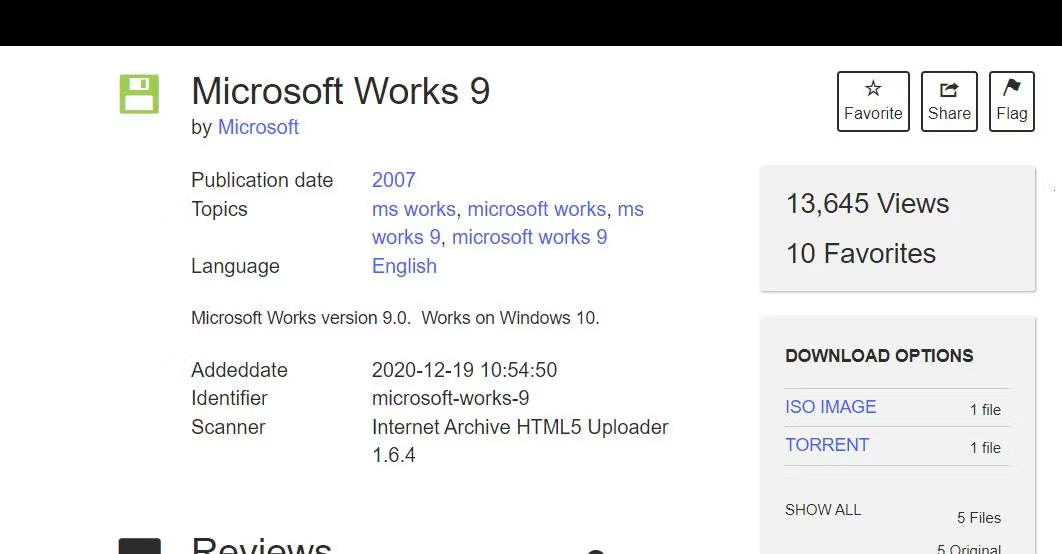
<span style="color:rgb(192, 57, 43);"><strong>https://archive.org/details/microsoft-works-9</strong></span></p>

<p style="text-align: justify;">2. Nhấp vào liên kết tải xuống&nbsp;<strong>ISO IMAGE.</strong></p>

<figure>
<div style="text-align: justify;"><img alt="Tùy chọn tải xuống ISO IMAGE" data-i="0" data-src="https://st.quantrimang.com/photos/image/2023/10/06/cai-dat-microsoft-works-1.jpg" data-was-processed="true" height="554" src="https://st.quantrimang.com/photos/image/2023/10/06/cai-dat-microsoft-works-1.jpg" width="1062" /></div>

<figcaption>
<div style="text-align: justify;">Tùy chọn tải xuống ISO IMAGE</div>
</figcaption>
</figure>

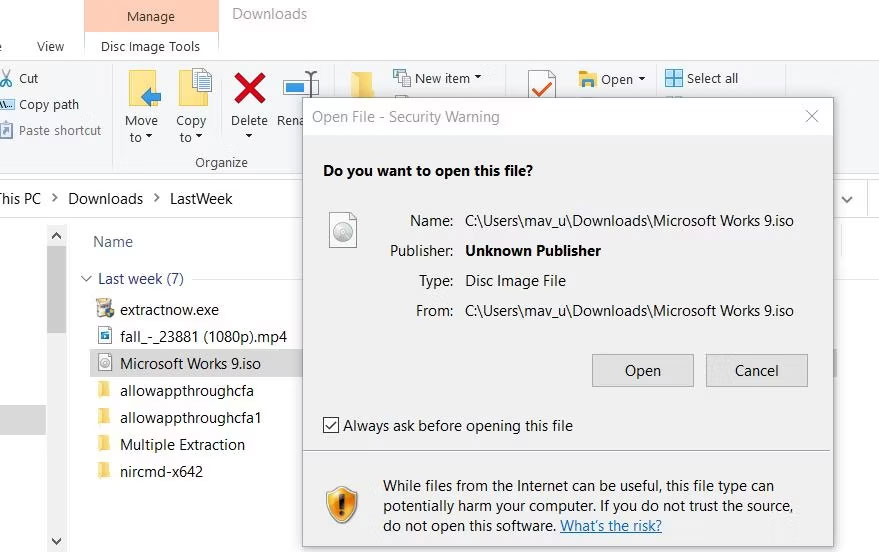
<p style="text-align: justify;">3. Nhấp đúp vào file&nbsp;<strong>Microsoft Works 9.ISO</strong>&nbsp;và nhấn&nbsp;<strong>Open</strong>&nbsp;nếu hộp thoại Security Warning xuất hiện.</p>

<figure>
<div style="text-align: justify;"><img alt="Tùy chọn Open" data-i="1" data-src="https://st.quantrimang.com/photos/image/2023/10/06/cai-dat-microsoft-works-2.jpg" data-was-processed="true" height="552" src="https://st.quantrimang.com/photos/image/2023/10/06/cai-dat-microsoft-works-2.jpg" width="879" /></div>

<figcaption>
<div style="text-align: justify;">Tùy chọn Open</div>
</figcaption>
</figure>

<p style="text-align: justify;">4. Sau đó, nhấp đúp vào file&nbsp;<strong>Setup.exe</strong>&nbsp;cho Microsoft Works 9.</p>

<p style="text-align: justify;">5. Nhấp vào&nbsp;<strong>Next</strong>&nbsp;bên trong cửa sổ thiết lập Microsoft Works.</p>

<p style="text-align: justify;">6. Nhấp vào&nbsp;<strong>Create a desktop shortcut</strong>&nbsp;để chọn tùy chọn đó.</p>

<figure>
<div style="text-align: justify;"><img alt="Tùy chọn cài đặt Microsoft Works" data-i="2" data-src="https://st.quantrimang.com/photos/image/2023/10/06/cai-dat-microsoft-works-3.jpg" data-was-processed="true" height="551" src="https://st.quantrimang.com/photos/image/2023/10/06/cai-dat-microsoft-works-3.jpg" width="1241" /></div>

<figcaption>
<div style="text-align: justify;">Tùy chọn cài đặt Microsoft Works</div>
</figcaption>
</figure>

<p style="text-align: justify;">7. Chọn tùy chọn&nbsp;<strong>Install MS Works 9</strong>.</p>

<p style="text-align: justify;">8. Nhấn&nbsp;<strong>Continue</strong>&nbsp;để cài đặt các thành phần khác.</p>

<p style="text-align: justify;">9. Sau đó chọn&nbsp;<strong>OK</strong>&nbsp;trên hộp thoại xác nhận MS Works đã được cài đặt.</p>

<p style="text-align: justify;">Microsoft Works hiện đã được cài đặt trên PC của bạn. Bạn sẽ thấy biểu tượng MS hoạt động trên desktop. Nhấp đúp vào desktop shortcut để khởi chạy MS Works.</p>

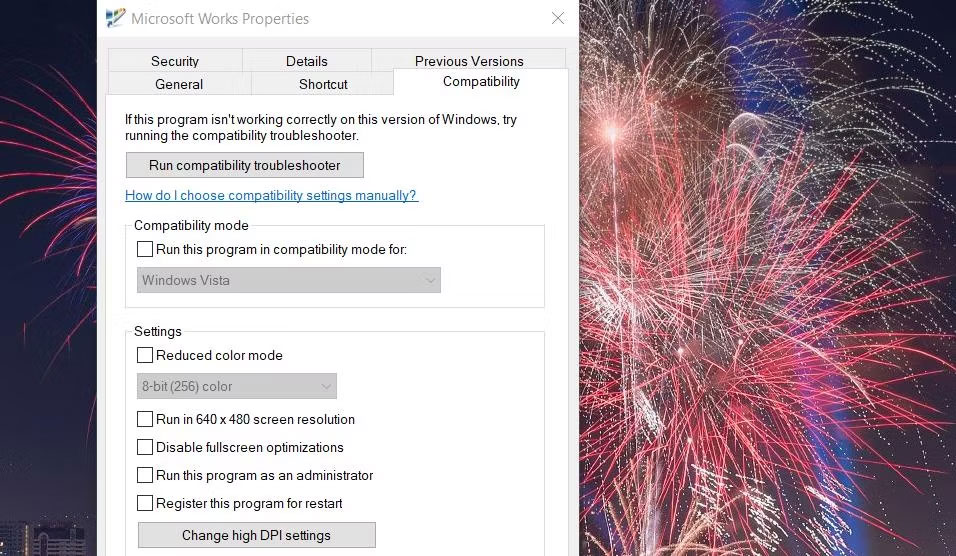
<p style="text-align: justify;">Nếu Works không khởi động với bạn, hãy thử chạy nó ở chế độ tương thích. Bấm chuột phải vào desktop shortcut Works để chọn&nbsp;<strong>Properties &gt; Compatibility</strong>. Nhấp vào cài đặt&nbsp;<strong>Run this program in compatibility mode</strong>&nbsp;và chọn&nbsp;<strong>Windows Vista</strong>&nbsp;trên menu drop-down. Chọn&nbsp;<strong>Apply</strong>&nbsp;để lưu cài đặt chế độ tương thích&nbsp;<strong>Vista.</strong></p>

<figure>
<div style="text-align: justify;"><img alt="Chạy chương trình này với quyền admin" data-i="3" data-src="https://st.quantrimang.com/photos/image/2023/10/06/cai-dat-microsoft-works-4.jpg" data-was-processed="true" height="556" src="https://st.quantrimang.com/photos/image/2023/10/06/cai-dat-microsoft-works-4.jpg" width="956" /></div>

<figcaption>
<div style="text-align: justify;">Chạy chương trình này với quyền admin</div>
</figcaption>
</figure>

<h2 style="text-align: justify;">Bắt đầu với Microsoft Works 9</h2>

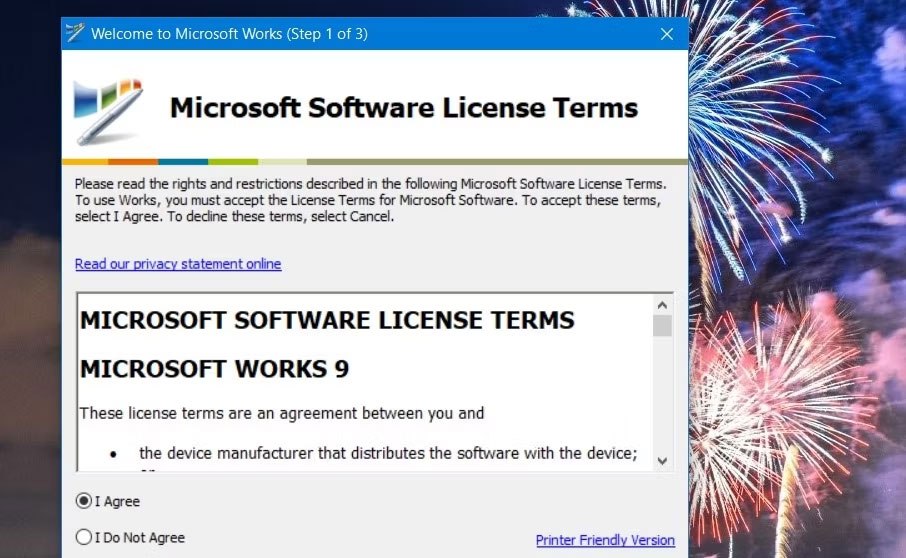
<p style="text-align: justify;">Bạn sẽ thấy cửa sổ Welcome to Microsoft Works vào lần đầu tiên bạn chạy phần mềm. Chọn tùy chọn&nbsp;<strong>I Agree</strong>&nbsp;trên cửa sổ đó để chấp nhận các điều khoản cấp phép. Bạn cũng sẽ được hỏi về việc tham gia chương trình trải nghiệm khách hàng. Bấm&nbsp;<strong>No</strong>&nbsp;để từ chối tham gia. Sau đó nhấn nút&nbsp;<strong>Finish&nbsp;</strong>để vào Microsoft Works 9.</p>

<figure>
<div style="text-align: justify;"><img alt="Nút I Agree" data-i="4" data-src="https://st.quantrimang.com/photos/image/2023/10/06/cai-dat-microsoft-works-5.jpg" data-was-processed="true" height="558" src="https://st.quantrimang.com/photos/image/2023/10/06/cai-dat-microsoft-works-5.jpg" width="906" /></div>

<figcaption>
<div style="text-align: justify;">Nút I Agree</div>
</figcaption>
</figure>

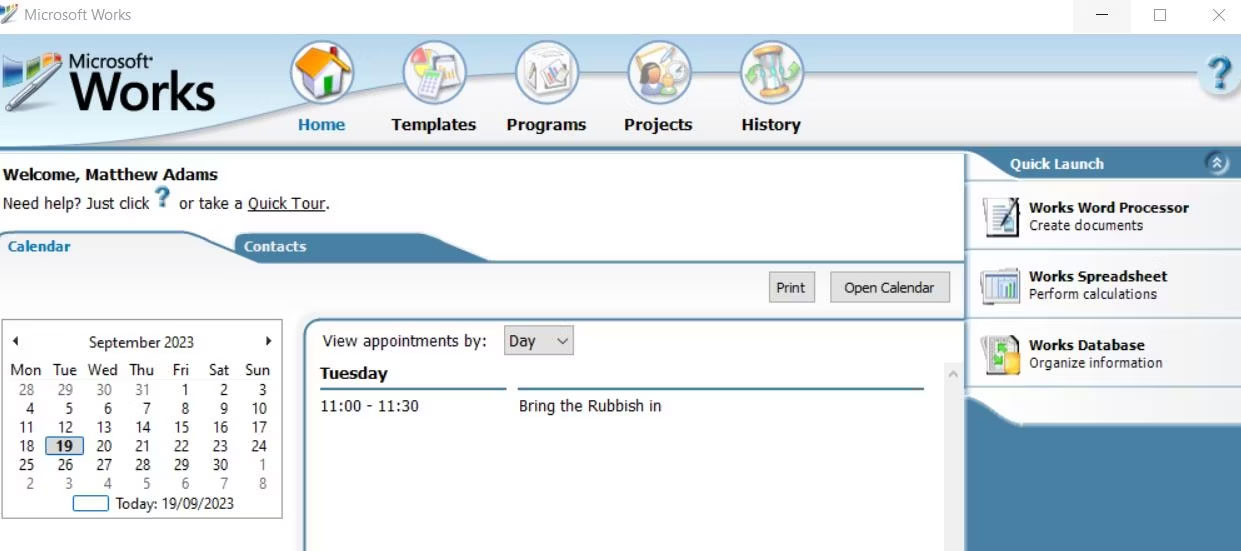
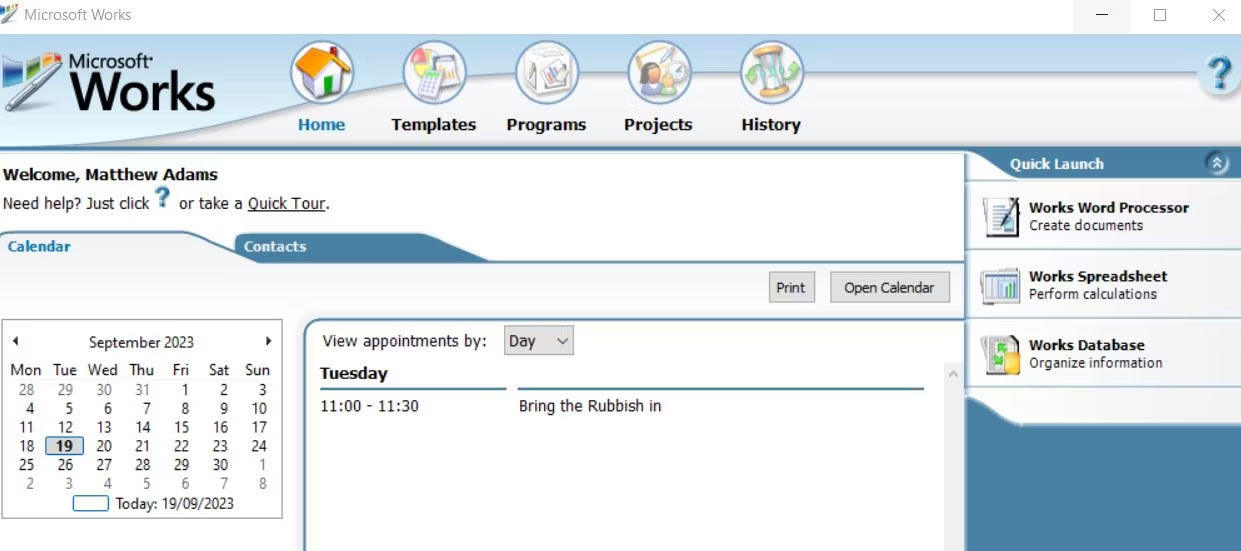
<p style="text-align: justify;">Bây giờ, bạn có thể bắt đầu sử dụng bộ Microsoft Works 9. Một cửa sổ Microsoft Works mà bạn có thể chọn để mở các ứng dụng của bộ ứng dụng sẽ mở ra. Bạn có thể khởi chạy ứng dụng bằng cách nhấp vào các tùy chọn&nbsp;<strong>Works Word Processor</strong>,&nbsp;<strong>Database</strong>&nbsp;và&nbsp;<strong>Spreadsheet</strong>&nbsp;trong thanh&nbsp;<strong>Quick Launch</strong>&nbsp;của cửa sổ đó.</p>

<figure>
<div style="text-align: justify;"><img alt="Cửa sổ Microsoft Works Suite" data-i="5" data-src="https://st.quantrimang.com/photos/image/2023/10/06/cai-dat-microsoft-works-6.jpg" data-was-processed="true" height="551" src="https://st.quantrimang.com/photos/image/2023/10/06/cai-dat-microsoft-works-6.jpg" width="1241" /></div>

<figcaption>
<div style="text-align: justify;">Cửa sổ Microsoft Works Suite</div>
</figcaption>
</figure>

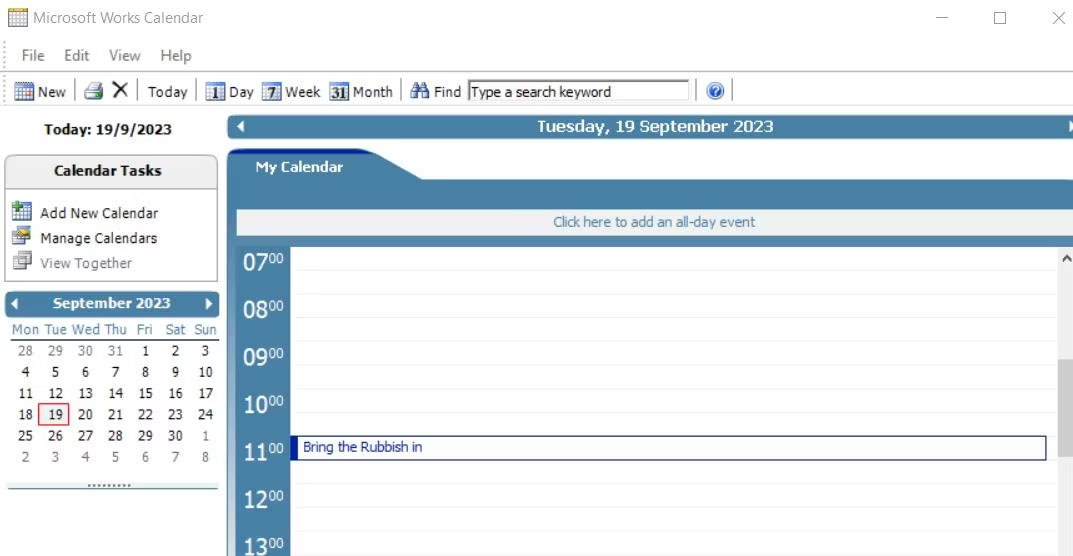
<p style="text-align: justify;">Bạn cũng sẽ nhận thấy rằng cửa sổ này có lịch để bạn có thể xem các cuộc hẹn. Để làm như vậy, bạn cần thêm cuộc hẹn bên trong ứng dụng Works Calendar. Bạn có thể khởi chạy phần mềm đó bằng cách nhấp vào nút&nbsp;<strong>Open Calendar</strong>. Để thêm sự kiện, hãy chọn một ngày trong ứng dụng Calendar rồi nhập ghi chú cho ngày đó vào tab&nbsp;<strong>My Calendar</strong>.</p>

<figure>
<div style="text-align: justify;"><img alt="Microsoft Works Calendar" data-i="6" data-src="https://st.quantrimang.com/photos/image/2023/10/06/cai-dat-microsoft-works-7.jpg" data-was-processed="true" height="556" src="https://st.quantrimang.com/photos/image/2023/10/06/cai-dat-microsoft-works-7.jpg" width="1073" /></div>

<figcaption>
<div style="text-align: justify;">Microsoft Works Calendar</div>
</figcaption>
</figure>

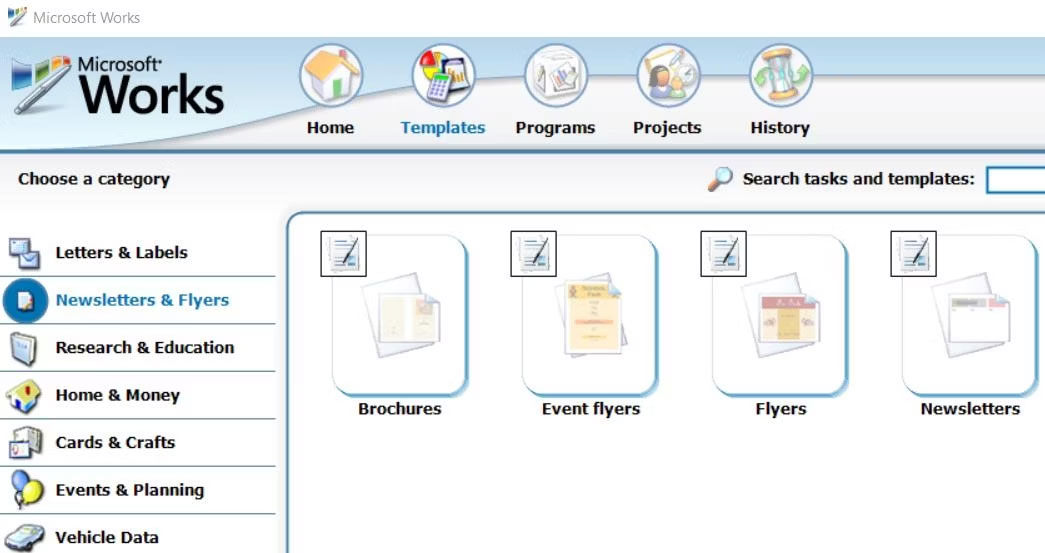
<p style="text-align: justify;">Nhấp vào tab&nbsp;<strong>Templates</strong>&nbsp;ở đầu Microsoft Works để truy cập các template được tạo sẵn. Ở đó, bạn có thể chọn các danh mục template để tạo bản tin, tờ rơi, thẻ, tài liệu lập ngân sách gia đình, du lịch và thể thao trong Works. Sau đó chọn một template để mở trong phần mềm xử lý văn bản, bảng tính hoặc cơ sở dữ liệu MS Works.</p>

<figure>
<div style="text-align: justify;"><img alt="Tab Templates trong MS Works" data-i="7" data-src="https://st.quantrimang.com/photos/image/2023/10/06/cai-dat-microsoft-works-8.jpg" data-was-processed="true" height="553" src="https://st.quantrimang.com/photos/image/2023/10/06/cai-dat-microsoft-works-8.jpg" width="1045" /></div>

<figcaption>
<div style="text-align: justify;">Tab Templates trong MS Works</div>
</figcaption>
</figure>

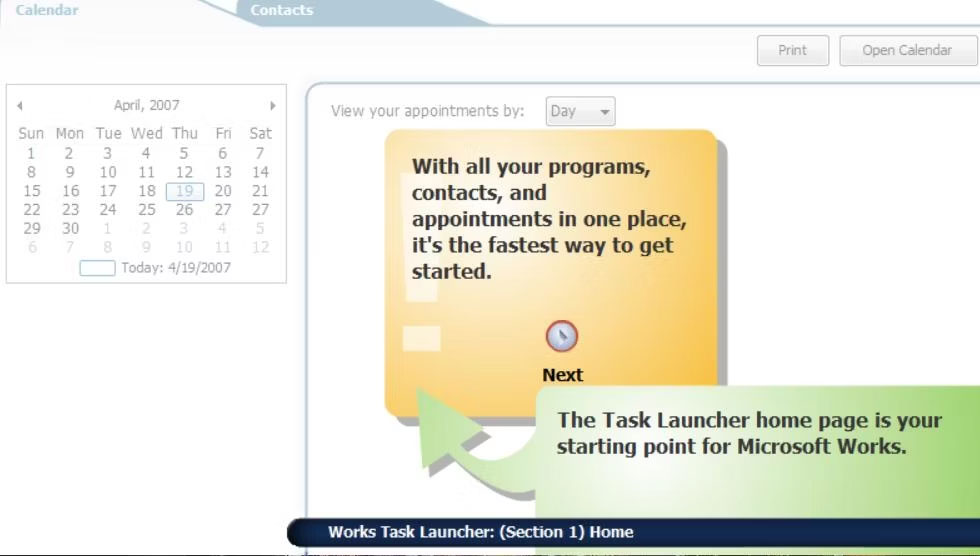
<p style="text-align: justify;">Microsoft Works cũng có một phần giới thiệu tương tác về bộ phần mềm này. Hướng dẫn đó cung cấp thông tin chi tiết về cách sử dụng lịch, danh bạ và template trong cửa sổ Microsoft Works. Nhấp vào tùy chọn&nbsp;<strong>Quick Tour</strong>&nbsp;ngay phía trên tab&nbsp;<strong>Calendar</strong>&nbsp;để mở. Sau đó nhấp vào&nbsp;<strong>Next</strong>&nbsp;để thực hiện chuyến tham quan.</p>

<figure>
<div style="text-align: justify;"><img alt="Cửa sổ Quick Tour của MS Works" data-i="8" data-src="https://st.quantrimang.com/photos/image/2023/10/06/cai-dat-microsoft-works-9.jpg" data-was-processed="true" height="556" src="https://st.quantrimang.com/photos/image/2023/10/06/cai-dat-microsoft-works-9.jpg" width="980" /></div>

<figcaption>
<div style="text-align: justify;">Cửa sổ Quick Tour của MS Works</div>
</figcaption>
</figure>

<div style="text-align: justify;">&nbsp;</div>
		</div>
				<div id="author">
						<p>
				<strong>Nguồn tin:</strong>
				Quantrimang.com
			</p>
		</div>
	</div>
	<div id="footer" class="clearfix">
		<div id="url">
			<strong>URL của bản tin này: </strong><a href="https://www.nguoicodonvn2008.info/vi/news/savefile/kien-thuc-may-tinh/cach-cai-dat-microsoft-works-tren-windows-10-11-7608.html" title="Cách cài đặt Microsoft Works trên Windows 10&#x002F;11">https://www.nguoicodonvn2008.info/vi/news/savefile/kien-thuc-may-tinh/cach-cai-dat-microsoft-works-tren-windows-10-11-7608.html</a>

		</div>
		<div class="clear"></div>
		<div class="copyright">
			&copy; .&#x3A; Nguoicodonvn2008.info - Cõi lòng người cô đơn &#x3A;.
		</div>
		<div id="contact">
			<a href="mailto:admin@nguoicodonvn2008.info">admin@nguoicodonvn2008.info</a>
		</div>
	</div>
</div>
        <div id="timeoutsess" class="chromeframe">
            Bạn đã không sử dụng Site, <a onclick="timeoutsesscancel();" href="https://www.nguoicodonvn2008.info/#">Bấm vào đây để duy trì trạng thái đăng nhập</a>. Thời gian chờ: <span id="secField"> 60 </span> giây
        </div>
        <div id="openidResult" class="nv-alert" style="display:none"></div>
        <div id="openidBt" data-result="" data-redirect=""></div>
		</script>
		<div class="car-top">
  <span><img src="https://www.nguoicodonvn2008.info/themes/default/images/car.png" alt=""></span>
</div>
<script src="https://www.nguoicodonvn2008.info/assets/js/jquery/jquery.min.js"></script>
<script>var nv_base_siteurl="/",nv_lang_data="vi",nv_lang_interface="vi",nv_name_variable="nv",nv_fc_variable="op",nv_lang_variable="language",nv_module_name="news",nv_func_name="savefile",nv_is_user=0, nv_my_ofs=-4,nv_my_abbr="EDT",nv_cookie_prefix="nv4c_e856T",nv_check_pass_mstime=1738000,nv_area_admin=0,nv_safemode=0,theme_responsive=0,nv_recaptcha_ver=2,nv_recaptcha_sitekey="",nv_recaptcha_type="image",XSSsanitize=1;</script>
<script src="https://www.nguoicodonvn2008.info/assets/js/language/vi.js"></script>
<script src="https://www.nguoicodonvn2008.info/assets/js/DOMPurify/purify3.js"></script>
<script src="https://www.nguoicodonvn2008.info/assets/js/global.js"></script>
<script src="https://www.nguoicodonvn2008.info/assets/js/site.js"></script>
<script src="https://www.nguoicodonvn2008.info/themes/default/js/news.js"></script>
<script src="https://www.nguoicodonvn2008.info/themes/default/js/main.js"></script>
<script src="https://www.nguoicodonvn2008.info/themes/default/js/custom.js"></script>
<script type="application/ld+json">
        {
            "@context": "https://schema.org",
            "@type": "Organization",
            "url": "https://www.nguoicodonvn2008.info",
            "logo": "https://www.nguoicodonvn2008.info/uploads/angel.gif"
        }
        </script>
<script src="https://www.nguoicodonvn2008.info/themes/default/js/bootstrap.min.js"></script>
<script type="text/javascript">
var $scrolltop = $('.car-top');
$scrolltop.on('click', function () {
    $('html,body').animate({
        scrollTop: 0
    }, 800);
    $(this).addClass("car-run");
    setTimeout(function(){ $scrolltop.removeClass('car-run');}, 1000);
    return false;
});
$(window).on('scroll', function ()
{ 
    if($(window).scrollTop() >= 200)
    {
        $scrolltop.addClass("show");
        $scrolltop.addClass("car-down");
    }
    else
    {
       $scrolltop.removeClass("show");
       setTimeout(function(){ $scrolltop.removeClass('car-down');}, 300);
    }
});
</script>
</body>
</html>