<!DOCTYPE html>
    <html lang="vi" xmlns="http://www.w3.org/1999/xhtml" prefix="og: http://ogp.me/ns#">
    <head>
<title>Cách cài đặt Magento 2 trên AlmaLinux</title>
<meta name="description" content="Cách cài đặt Magento 2 trên AlmaLinux - Savefile - Tin Tức -...">
<meta name="author" content=".: Nguoicodonvn2008.info - Cõi lòng người cô đơn :.">
<meta name="copyright" content=".: Nguoicodonvn2008.info - Cõi lòng người cô đơn :. [admin@nguoicodonvn2008.info]">
<meta name="robots" content="index, archive, follow, noodp">
<meta name="googlebot" content="index,archive,follow,noodp">
<meta name="msnbot" content="all,index,follow">
<meta name="generator" content="NukeViet v4.5">
<meta http-equiv="Content-Type" content="text/html; charset=utf-8">
<meta property="og:title" content="Cách cài đặt Magento 2 trên AlmaLinux">
<meta property="og:type" content="website">
<meta property="og:description" content="Savefile - Tin Tức - https&#x3A;&#x002F;&#x002F;www.nguoicodonvn2008.info&#x002F;vi&#x002F;news&#x002F;savefile&#x002F;kien-thuc-may-tinh&#x002F;cach-cai-dat-magento-2-tren-almalinux-10628.html">
<meta property="og:site_name" content=".&#x3A; Nguoicodonvn2008.info - Cõi lòng người cô đơn &#x3A;.">
<meta property="og:url" content="https://www.nguoicodonvn2008.info/vi/news/savefile/kien-thuc-may-tinh/cach-cai-dat-magento-2-tren-almalinux-10628.html">
<link rel="shortcut icon" href="https://www.nguoicodonvn2008.info/favicon.ico">
<link rel="canonical" href="https://www.nguoicodonvn2008.info/vi/news/savefile/kien-thuc-may-tinh/cach-cai-dat-magento-2-tren-almalinux-10628.html">
<link rel="alternate" href="https://www.nguoicodonvn2008.info/vi/news/rss/" title="Tin Tức" type="application/rss+xml">
<link rel="alternate" href="https://www.nguoicodonvn2008.info/vi/news/rss/karaoke-dual/" title="Tin Tức - Karaoke Dual" type="application/rss+xml">
<link rel="alternate" href="https://www.nguoicodonvn2008.info/vi/news/rss/nhac-tre/" title="Tin Tức - Nhạc trẻ" type="application/rss+xml">
<link rel="alternate" href="https://www.nguoicodonvn2008.info/vi/news/rss/tru-tinh/" title="Tin Tức - Trữ tình" type="application/rss+xml">
<link rel="alternate" href="https://www.nguoicodonvn2008.info/vi/news/rss/nuoc-ngoai/" title="Tin Tức - Nước ngoài" type="application/rss+xml">
<link rel="alternate" href="https://www.nguoicodonvn2008.info/vi/news/rss/remix/" title="Tin Tức - Remix" type="application/rss+xml">
<link rel="alternate" href="https://www.nguoicodonvn2008.info/vi/news/rss/tam-su-tinh-yeu/" title="Tin Tức - Tâm sự tình yêu" type="application/rss+xml">
<link rel="alternate" href="https://www.nguoicodonvn2008.info/vi/news/rss/tho-suu-tam/" title="Tin Tức - Thơ sưu tầm" type="application/rss+xml">
<link rel="alternate" href="https://www.nguoicodonvn2008.info/vi/news/rss/cuoc-song/" title="Tin Tức - Cuộc sống" type="application/rss+xml">
<link rel="alternate" href="https://www.nguoicodonvn2008.info/vi/news/rss/phan-mem/" title="Tin Tức - Phần mềm" type="application/rss+xml">
<link rel="alternate" href="https://www.nguoicodonvn2008.info/vi/news/rss/kien-thuc-may-tinh/" title="Tin Tức - Kiến thức máy tính" type="application/rss+xml">
<link rel="alternate" href="https://www.nguoicodonvn2008.info/vi/news/rss/hoc-tap/" title="Tin Tức - Học tập" type="application/rss+xml">
<link rel="alternate" href="https://www.nguoicodonvn2008.info/vi/news/rss/tai-lieu/" title="Tin Tức - Tài liệu" type="application/rss+xml">
<link rel="alternate" href="https://www.nguoicodonvn2008.info/vi/news/rss/de-thi/" title="Tin Tức - Đề thi" type="application/rss+xml">
<link rel="preload" as="style" href="https://www.nguoicodonvn2008.info/assets/css/font-awesome.min.css" type="text/css">
<link rel="preload" as="style" href="https://www.nguoicodonvn2008.info/themes/default/css/bootstrap.non-responsive.css" type="text/css">
<link rel="preload" as="style" href="https://www.nguoicodonvn2008.info/themes/default/css/style.css" type="text/css">
<link rel="preload" as="style" href="https://www.nguoicodonvn2008.info/themes/default/css/style.non-responsive.css" type="text/css">
<link rel="preload" as="style" href="https://www.nguoicodonvn2008.info/themes/default/css/news.css" type="text/css">
<link rel="preload" as="style" href="https://www.nguoicodonvn2008.info/themes/default/css/custom.css" type="text/css">
<link rel="preload" as="script" href="https://www.nguoicodonvn2008.info/assets/js/jquery/jquery.min.js" type="text/javascript">
<link rel="preload" as="script" href="https://www.nguoicodonvn2008.info/assets/js/language/vi.js" type="text/javascript">
<link rel="preload" as="script" href="https://www.nguoicodonvn2008.info/assets/js/DOMPurify/purify3.js" type="text/javascript">
<link rel="preload" as="script" href="https://www.nguoicodonvn2008.info/assets/js/global.js" type="text/javascript">
<link rel="preload" as="script" href="https://www.nguoicodonvn2008.info/assets/js/site.js" type="text/javascript">
<link rel="preload" as="script" href="https://www.nguoicodonvn2008.info/themes/default/js/news.js" type="text/javascript">
<link rel="preload" as="script" href="https://www.nguoicodonvn2008.info/themes/default/js/main.js" type="text/javascript">
<link rel="preload" as="script" href="https://www.nguoicodonvn2008.info/themes/default/js/custom.js" type="text/javascript">
<link rel="preload" as="script" href="https://www.nguoicodonvn2008.info/themes/default/js/bootstrap.min.js" type="text/javascript">
<link rel="stylesheet" href="https://www.nguoicodonvn2008.info/assets/css/font-awesome.min.css">
<link rel="stylesheet" href="https://www.nguoicodonvn2008.info/themes/default/css/bootstrap.non-responsive.css">
<link rel="stylesheet" href="https://www.nguoicodonvn2008.info/themes/default/css/style.css">
<link rel="stylesheet" href="https://www.nguoicodonvn2008.info/themes/default/css/style.non-responsive.css">
<link rel="StyleSheet" href="https://www.nguoicodonvn2008.info/themes/default/css/news.css">
<link rel="stylesheet" href="https://www.nguoicodonvn2008.info/themes/default/css/custom.css">
<style type="text/css">
	body{background: #fff;}
</style>
    </head>
    <body>
<div id="print">
	<div id="hd_print">
		<h2 class="pull-left">.&#x3A; Nguoicodonvn2008.info - Cõi lòng người cô đơn &#x3A;.</h2>
		<p class="pull-right"><a title=".&#x3A; Nguoicodonvn2008.info - Cõi lòng người cô đơn &#x3A;." href="https://www.nguoicodonvn2008.info/">https://www.nguoicodonvn2008.info</a></p>
	</div>
	<div class="clear"></div>
	<hr />
	<div id="content">
		<h1>Cách cài đặt Magento 2 trên AlmaLinux</h1>
		<ul class="list-inline">
			<li>Thứ hai - 23/06/2025 01:08</li>
			<li class="hidden-print txtrequired"><em class="fa fa-print">&nbsp;</em><a title="In ra" href="javascript:;" onclick="window.print()">In ra</a></li>
			<li class="hidden-print txtrequired"><em class="fa fa-power-off">&nbsp;</em><a title="Đóng cửa sổ này" href="javascript:;" onclick="window.close()">Đóng cửa sổ này</a></li>
		</ul>
		<div class="clear"></div>
		<div id="hometext">
		</div>
				<div class="imghome">
			<img alt="Cách cài đặt Magento 2 trên AlmaLinux" src="https://st.quantrimang.com/photos/image/2025/06/06/cai-dat-magento-tren-almalinux-1.jpg" width="460" class="img-thumbnail" />
		</div>
		<div class="clear"></div>
		<div id="bodytext" class="clearfix">
			<h1>&nbsp;</h1>

<p>Magento là một nền tảng thương mại điện tử miễn phí và mã nguồn mở được viết bằng PHP. Nền tảng này đơn giản, dễ sử dụng, có thể tùy chỉnh và cho phép bạn lưu trữ cửa hàng trực tuyến của mình trong vòng vài phút. Bạn có thể lưu trữ nhiều cửa hàng trên một máy chủ duy nhất và quản lý chúng bằng một giao diện duy nhất. Magento là một trong những nền tảng thương mại điện tử được sử dụng rộng rãi nhất trên thế giới do có nhiều tính năng.</p>

<p>Bài viết này sẽ chỉ cho bạn cách cài đặt Magento 2 với Apache và Let&#039;s Encrypt SSL trên AlmaLinux.</p>

<h2>Điều kiện tiên quyết</h2>

<ul>
	<li>Một máy chủ chạy AlmaLinux.</li>
	<li>Một mật khẩu root được cấu hình trên máy chủ.</li>
</ul>

<h2>Cài đặt Apache, MariaDB và PHP</h2>

<p>Magento sử dụng MariaDB làm cơ sở dữ liệu và chạy trên&nbsp;web server. Vì vậy, trước tiên hãy cài đặt máy chủ web Apache và gói máy chủ MariaDB bằng lệnh sau:</p>

<pre id="pre0">
<code>dnf install httpd mariadb-server -y</code></pre>

<p>Sau khi cài đặt cả hai gói, hãy khởi động service Apache và MariaDB, cho phép chúng bắt đầu khi khởi động lại hệ thống:</p>

<pre id="pre1">
<code>systemctl start httpd mariadb 
systemctl enable httpd mariadb</code></pre>

<p>Tiếp theo, bạn sẽ cần cài đặt PHP và các tiện ích mở rộng bắt buộc khác vào máy chủ của mình. Theo mặc định, phiên bản PHP mới nhất không được bao gồm trong kho lưu trữ mặc định của AlmaLinux. Vì vậy, bạn phải thêm kho lưu trữ EPEL và Remi PHP vào hệ thống. Bạn có thể cài đặt cả hai bằng lệnh sau:</p>

<pre id="pre2">
<code>rpm -Uvh https://dl.fedoraproject.org/pub/epel/epel-release-latest-8.noarch.rpm
dnf install -y https://rpms.remirepo.net/enterprise/remi-release-8.rpm</code></pre>

<p>Tiếp theo, đặt lại kho lưu trữ PHP mặc định và bật kho lưu trữ PHP7.4 bằng lệnh sau:</p>

<pre id="pre3">
<code>dnf module reset php
dnf module install php:remi-7.4</code></pre>

<p>Tiếp theo, cài đặt PHP với tất cả các tiện ích mở rộng cần thiết bằng lệnh sau:</p>

<pre id="pre4">
<code>dnf install php php-cli php-soap php-pdo php-bcmath php-mysqlnd php-opcache php-xml php-gd php-intl php-mbstring php-json php-iconv php-zip unzip git -y</code></pre>

<p>Sau khi cài đặt, hãy chỉnh sửa file php.ini và thực hiện một số thay đổi được đề xuất:</p>

<pre id="pre5">
<code>nano /etc/php.ini</code></pre>

<p>Thay đổi các giá trị sau:</p>

<pre id="pre6">
<code>memory_limit = 1024M
upload_max_filesize = 200M
zlib.output_compression = On 
max_execution_time = 300 
date.timezone = Asia/Kolkata</code></pre>

<p>Lưu và đóng file khi bạn hoàn tất.</p>

<h2>Tạo cơ sở dữ liệu cho Magento</h2>

<p>Đầu tiên, bảo mật cài đặt MariaDB và đặt mật khẩu root MariaDB bằng lệnh sau:</p>

<pre id="pre7">
<code>mysql_secure_installation</code></pre>

<p>Trả lời tất cả các câu hỏi như hiển thị bên dưới:</p>

<pre id="pre8">
<code>Enter current password for root (enter for none): 
Set root password? &#91;Y/n&#93; Y
New password: 
Re-enter new password: 
Remove anonymous users? &#91;Y/n&#93; Y
Disallow root login remotely? &#91;Y/n&#93; Y
Remove test database and access to it? &#91;Y/n&#93; Y
Reload privilege tables now? &#91;Y/n&#93; Y</code></pre>

<p>Sau khi hoàn tất, hãy đăng nhập vào MariaDB bằng lệnh sau:</p>

<pre id="pre9">
<code>mysql -u root -p</code></pre>

<p>Sau khi đăng nhập, hãy tạo cơ sở dữ liệu và người dùng cho Magento bằng lệnh sau:</p>

<pre id="pre10">
<code>MariaDB &#91;(none)&#93;&gt; CREATE DATABASE magento2;
MariaDB &#91;(none)&#93;&gt; GRANT ALL ON magento2.* TO magento2@localhost IDENTIFIED BY &#039;password&#039;;</code></pre>

<p>Tiếp theo, xóa các đặc quyền và thoát khỏi MariaDB bằng lệnh sau:</p>

<pre id="pre11">
<code>MariaDB &#91;(none)&#93;&gt; flush privileges;
MariaDB &#91;(none)&#93;&gt; exit;</code></pre>

<h2>Tải Magento 2</h2>

<p>Trước khi tải xuống Magento 2, bạn sẽ cần cài đặt Composer vào hệ thống của mình.</p>

<p>Chạy lệnh sau để cài đặt Composer:</p>

<pre id="pre12">
<code>curl -sS https://getcomposer.org/installer | php</code></pre>

<p>Bạn sẽ thấy kết quả sau:</p>

<pre id="pre13">
<code>All settings correct for using Composer
Downloading...

Composer (version 2.1.3) successfully installed to: /root/composer.phar
Use it: php composer.phar</code></pre>

<p>Tiếp theo, di chuyển file nhị phân Composer đến vị trí hệ thống bằng lệnh sau:</p>

<pre id="pre14">
<code>mv composer.phar /usr/local/bin/composer</code></pre>

<p>Tiếp theo, xác minh phiên bản Composer:</p>

<pre id="pre15">
<code>composer --version</code></pre>

<p>Đầu ra:</p>

<pre id="pre16">
<code>Composer version 2.1.3 2021-06-09 16:31:20Next, change the directory to Apache web root and download the latest version of Magento:</code></pre>

<pre id="pre17">
<code>cd /var/www/html/
wget https://github.com/magento/magento2/archive/2.3.zip</code></pre>

<p>Sau khi Magento 2 được tải xuống, hãy giải nén file đã tải xuống bằng lệnh sau:</p>

<pre id="pre18">
<code>unzip 2.3.zip</code></pre>

<p>Tiếp theo, đổi tên thư mục đã giải nén thành magento2:</p>

<pre id="pre19">
<code>mv magento2-2.3 magento2</code></pre>

<p>Tiếp theo, thay đổi thư mục thành magento2 và cập nhật composer bằng lệnh sau:</p>

<pre id="pre20">
<code>cd magento2 composer update
composer install</code></pre>

<p>Tiếp theo, tạo một cron job cho Magento:</p>

<pre id="pre21">
<code>./bin/magento cron:install</code></pre>

<p>Tiếp theo, liệt kê tất cả cron job cho Magento bằng lệnh sau:</p>

<pre id="pre22">
<code>crontab -l</code></pre>

<p>Bạn sẽ thấy kết quả sau:</p>

<pre id="pre23">
<code>#~ MAGENTO START f73db5f5dcf223372d4c9fab56bef0c1730eece898fad5cbee0c313b46b0dd1f
* * * * * /usr/bin/php /var/www/html/magento2/bin/magento cron:run 2&gt;&amp;1 | grep -v &quot;Ran jobs by schedule&quot; &gt;&gt; /var/www/html/magento2/var/log/magento.cron.log
#~ MAGENTO END f73db5f5dcf223372d4c9fab56bef0c1730eece898fad5cbee0c313b46b0dd1f</code></pre>

<p>Tiếp theo, thiết lập quyền và quyền sở hữu thích hợp cho thư mục magento2:</p>

<pre id="pre24">
<code>chown -R apache:apache /var/www/html/magento2
chmod -R 755 /var/www/html/magento2</code></pre>

<h2>Cấu hình Apache cho Magento 2</h2>

<p>Tiếp theo, bạn sẽ cần tạo file cấu hình máy chủ ảo Apache cho Magento 2. Bạn có thể tạo file này bằng lệnh sau:</p>

<pre id="pre25">
<code>nano /etc/httpd/conf.d/magento.conf</code></pre>

<p>Thêm các dòng sau:</p>

<pre id="pre26">
<code>&lt;VirtualHost *:80&gt;
ServerAdmin admin@example.com
ServerName magento.example.com
DocumentRoot /var/www/html/magento2/
DirectoryIndex index.php
&lt;Directory /var/www/html/magento2/&gt;
Options Indexes FollowSymLinks MultiViews
AllowOverride All
Order allow,deny
allow from all
&lt;/Directory&gt;
ErrorLog /var/log/httpd/magento_error.log
CustomLog /var/log/httpd/magento_access.log combined
&lt;/VirtualHost&gt;</code></pre>

<p>Lưu và đóng file, sau đó khởi động lại service Apache để áp dụng các thay đổi cấu hình:</p>

<pre id="pre27">
<code>systemctl restart httpd</code></pre>

<p>Bạn có thể kiểm tra trạng thái Apache bằng lệnh sau:</p>

<pre id="pre28">
<code>systemctl status httpd</code></pre>

<p>Bạn sẽ nhận được kết quả sau:</p>

<pre id="pre29">
<code>? httpd.service - The Apache HTTP Server
   Loaded: loaded (/usr/lib/systemd/system/httpd.service; disabled; vendor preset: disabled)
   Active: active (running) since Sat 2021-07-17 00:20:14 EDT; 8s ago
     Docs: man:httpd.service(8)
 Main PID: 10134 (httpd)
   Status: &quot;Started, listening on: port 80&quot;
    Tasks: 213 (limit: 25014)
   Memory: 30.8M
   CGroup: /system.slice/httpd.service
           ??10134 /usr/sbin/httpd -DFOREGROUND
           ??10135 /usr/sbin/httpd -DFOREGROUND
           ??10136 /usr/sbin/httpd -DFOREGROUND
           ??10137 /usr/sbin/httpd -DFOREGROUND
           ??10138 /usr/sbin/httpd -DFOREGROUND

Jul 17 00:20:14 AlmaLinux systemd&#91;1&#93;: Starting The Apache HTTP Server...</code></pre>

<h2>Cấu hình tường lửa</h2>

<p>Tiếp theo, bạn sẽ cần cho phép các cổng 80 và 443 qua&nbsp;<a data-type="internal" href="https://quantrimang.com/cong-nghe/tong-quan-ve-firewall-84474" title="Tường lửa (Firewall) là gì? Những kiến thức tổng quan về Firewall">tường lửa</a>. Bạn có thể cho phép chúng bằng lệnh sau:</p>

<pre id="pre30">
<code>firewall-cmd --permanent --add-service=http
firewall-cmd --permanent --add-service=https</code></pre>

<p>Tiếp theo, load lại dịch vụ tường lửa để áp dụng các thay đổi:</p>

<pre id="pre31">
<code>firewall-cmd --reload</code></pre>

<h2>Cài đặt Magento 2</h2>

<p>Tiếp theo, bạn sẽ cần thực hiện cài đặt Magento 2 từ giao diện dòng lệnh. Vì trình hướng dẫn cài đặt web Magento đã bị xóa kể từ phiên bản 2.3.7.</p>

<p>Đổi thư mục thành Magento2 và chạy lệnh sau để hoàn tất cài đặt:</p>

<pre id="pre32">
<code>cd /var/www/html/magento2/
bin/magento setup:install --admin-firstname=&quot;Hitesh&quot; --admin-lastname=&quot;Jethva&quot; --admin-email=&quot;admin@example.com&quot; --admin-user=&quot;admin&quot; --admin-password=&quot;Admin@1981&quot; --db-name=&quot;magento2&quot; --db-host=&quot;localhost&quot; --db-user=&quot;magento2&quot; --db-password=&quot;password&quot; --language=en_US --currency=USD --timezone=UTC --cleanup-database --base-url=http://&quot;magento.example.com&quot;</code></pre>

<p>Sau khi cài đặt thành công, bạn sẽ nhận được kết quả sau:</p>

<pre id="pre33">
<code>&#91;Progress: 701 / 706&#93;
Installing admin user...
&#91;Progress: 702 / 706&#93;
Caches clearing:
Cache cleared successfully
&#91;Progress: 703 / 706&#93;
Disabling Maintenance Mode:
&#91;Progress: 704 / 706&#93;
Post installation file permissions check...
For security, remove write permissions from these directories: &#039;/var/www/html/magento2/app/etc&#039;
&#91;Progress: 705 / 706&#93;
Write installation date...
&#91;Progress: 706 / 706&#93;
&#91;SUCCESS&#93;: Magento installation complete.
&#91;SUCCESS&#93;: Magento Admin URI: /admin_j6pqhm
Nothing to import.</code></pre>

<h2>Truy cập giao diện người dùng web Magento 2</h2>

<p>Bây giờ, bạn có thể truy cập giao diện người dùng web Magento 2 bằng URL&nbsp;<strong>http://magento.example.com/admin_j6pqhm.</strong>&nbsp;Nếu gặp bất kỳ lỗi ngoại lệ nào trên trình duyệt web, bạn sẽ cần chạy lệnh sau để giải quyết sự cố:</p>

<pre id="pre34">
<code>cd /var/www/html/magento2
php bin/magento setup:upgrade
php bin/magento setup:di:compile
php bin/magento setup:static-content:Deploy -f
chmod -R 777 var/* generated/* pub/static/</code></pre>

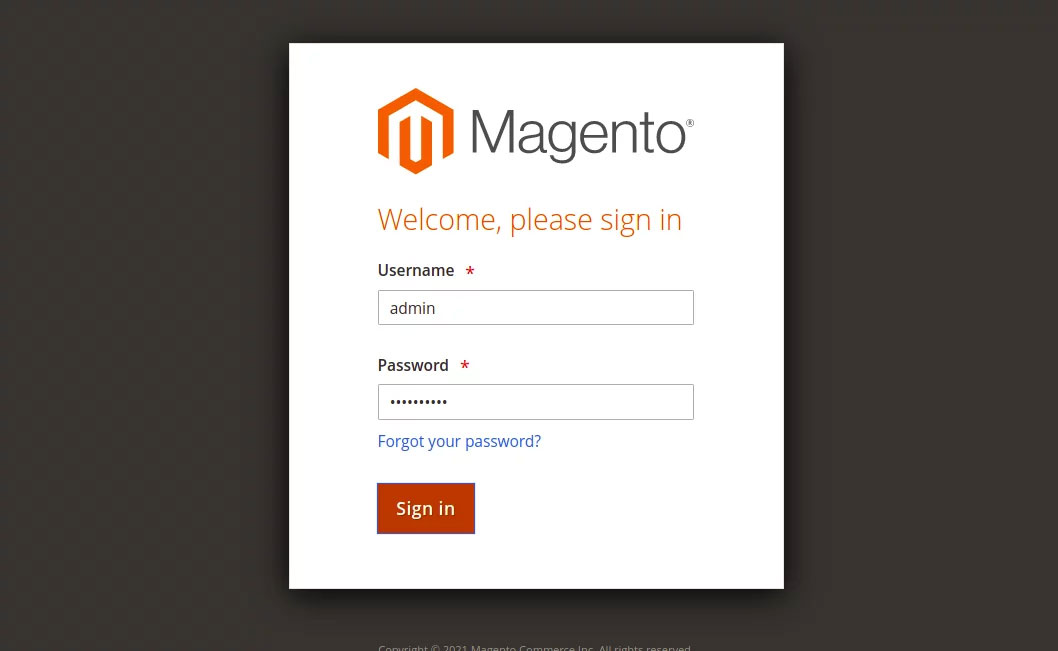
<p>Bây giờ, hãy làm mới trang web Magento. Bạn sẽ thấy trang đăng nhập Magento:</p>

<figure><img alt="" data-i="0" data-src="https://st.quantrimang.com/photos/image/2025/06/06/cai-dat-magento-tren-almalinux-1.jpg" data-was-processed="true" height="651" src="https://st.quantrimang.com/photos/image/2025/06/06/cai-dat-magento-tren-almalinux-1.jpg" width="1058" /></figure>

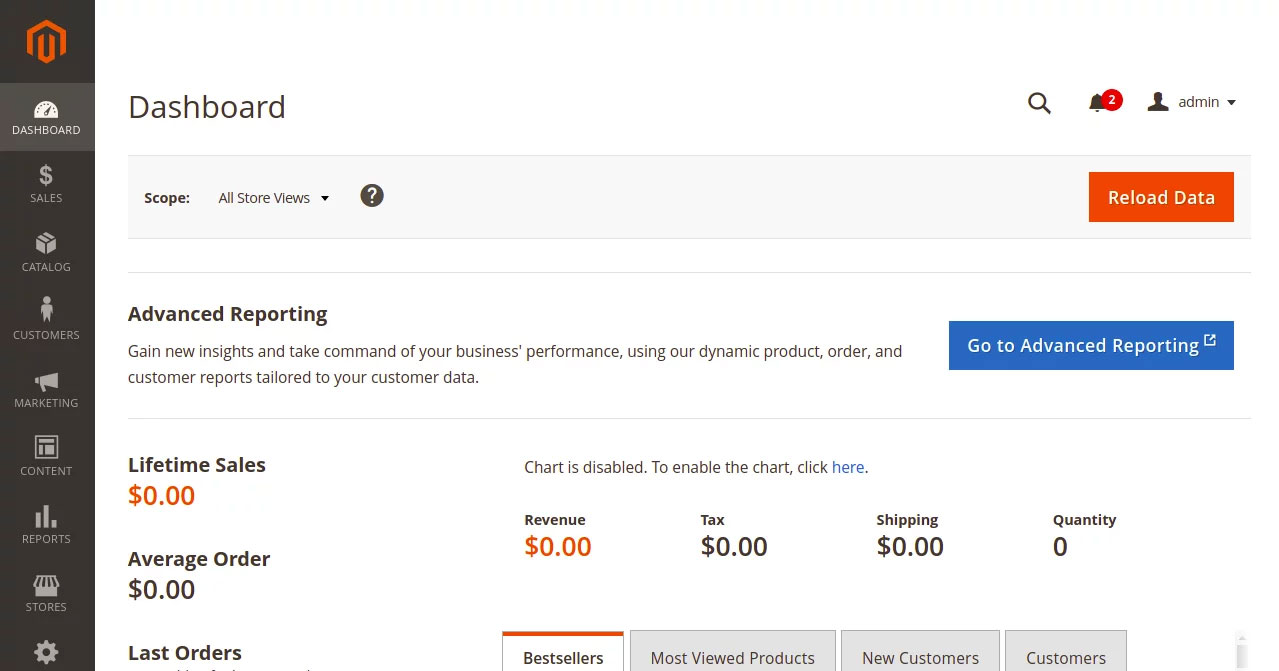
<p>Cung cấp tên người dùng, mật khẩu admin và nhấp vào nút&nbsp;<strong>Sign in</strong>. Bạn sẽ thấy bảng điều khiển Magento trên trang sau:</p>

<figure><img alt="" data-i="1" data-src="https://st.quantrimang.com/photos/image/2025/06/06/cai-dat-magento-tren-almalinux-2.jpg" data-was-processed="true" height="671" src="https://st.quantrimang.com/photos/image/2025/06/06/cai-dat-magento-tren-almalinux-2.jpg" width="1279" /></figure>

<h2>Bảo mật Magento2 bằng Let&#039;s Encrypt SSL</h2>

<p>Tiếp theo, bạn sẽ cần cài đặt client Certbot để cài đặt Let&#039;s Encrypt SSL cho Magento. Bạn có thể cài đặt bằng lệnh sau:</p>

<pre id="pre35">
<code>dnf install epel-release -y
dnf install letsencrypt python3-certbot-apache</code></pre>

<p>Tiếp theo, hãy lấy và cài đặt chứng chỉ SSL cho domain lets của bạn bằng lệnh sau:</p>

<pre id="pre36">
<code>certbot --apache -d magento.example.com</code></pre>

<p>Bạn sẽ được yêu cầu cung cấp địa chỉ email và chấp nhận điều khoản dịch vụ:</p>

<pre id="pre37">
<code>Saving debug log to /var/log/letsencrypt/letsencrypt.log
Plugins selected: Authenticator apache, Installer apache
Enter email address (used for urgent renewal and security notices)
 (Enter &#039;c&#039; to cancel): hitjethva@gmail.com

- - - - - - - - - - - - - - - - - - - - - - - - - - - - - - - - - - - - - - - -
Please read the Terms of Service at
https://letsencrypt.org/documents/LE-SA-v1.2-November-15-2017.pdf. You must
agree in order to register with the ACME server. Do you agree?
- - - - - - - - - - - - - - - - - - - - - - - - - - - - - - - - - - - - - - - -
(Y)es/(N)o: Y

- - - - - - - - - - - - - - - - - - - - - - - - - - - - - - - - - - - - - - - -
Would you be willing, once your first certificate is successfully issued, to
share your email address with the Electronic Frontier Foundation, a founding
partner of the Let&#039;s Encrypt project and the non-profit organization that
develops Certbot? We&#039;d like to send you email about our work encrypting the web,
EFF news, campaigns, and ways to support digital freedom.
- - - - - - - - - - - - - - - - - - - - - - - - - - - - - - - - - - - - - - - -
(Y)es/(N)o: Y
Account registered.
Requesting a certificate for magento.example.com
Performing the following challenges:
http-01 challenge for magento.example.com
Waiting for verification...
Cleaning up challenges
Deploying Certificate to VirtualHost /etc/httpd/conf.d/magento.conf
Redirecting all traffic on port 80 to ssl in /etc/httpd/conf.d/magento.conf

- - - - - - - - - - - - - - - - - - - - - - - - - - - - - - - - - - - - - - - -
Congratulations! You have successfully enabled https://magento.example.com
- - - - - - - - - - - - - - - - - - - - - - - - - - - - - - - - - - - - - - - -
Subscribe to the EFF mailing list (email: hitjethva@gmail.com).
IMPORTANT NOTES:
 - Congratulations! Your certificate and chain have been saved at:
   /etc/letsencrypt/live/magento.example.com/fullchain.pem
   Your key file has been saved at:
   /etc/letsencrypt/live/magento.example.com/privkey.pem
   Your certificate will expire on 2021-06-09. To obtain a new or
   tweaked version of this certificate in the future, simply run
   certbot again with the &quot;certonly&quot; option. To non-interactively
   renew *all* of your certificates, run &quot;certbot renew&quot;
 - If you like Certbot, please consider supporting our work by:

   Donating to ISRG / Let&#039;s Encrypt:   https://letsencrypt.org/donate
   Donating to EFF:                    https://eff.org/donate-le</code></pre>

<p>Sau khi trang web của bạn được bảo mật bằng Let&#039;s Encrypt SSL. Bạn có thể tiến hành bước tiếp theo.</p>

<p>Vậy là xong! Bạn đã cài đặt thành công Magento 2 với apache và Let&#039;s Encrypt SSL trên AlmaLinux 8. Bây giờ, bạn có thể tạo cửa hàng trực tuyến của riêng mình từ bảng điều khiển Magento.</p>
		</div>
				<div id="author">
						<p>
				<strong>Nguồn tin:</strong>
				Quantrimang.com:
			</p>
		</div>
	</div>
	<div id="footer" class="clearfix">
		<div id="url">
			<strong>URL của bản tin này: </strong><a href="https://www.nguoicodonvn2008.info/vi/news/savefile/kien-thuc-may-tinh/cach-cai-dat-magento-2-tren-almalinux-10628.html" title="Cách cài đặt Magento 2 trên AlmaLinux">https://www.nguoicodonvn2008.info/vi/news/savefile/kien-thuc-may-tinh/cach-cai-dat-magento-2-tren-almalinux-10628.html</a>

		</div>
		<div class="clear"></div>
		<div class="copyright">
			&copy; .&#x3A; Nguoicodonvn2008.info - Cõi lòng người cô đơn &#x3A;.
		</div>
		<div id="contact">
			<a href="mailto:admin@nguoicodonvn2008.info">admin@nguoicodonvn2008.info</a>
		</div>
	</div>
</div>
        <div id="timeoutsess" class="chromeframe">
            Bạn đã không sử dụng Site, <a onclick="timeoutsesscancel();" href="https://www.nguoicodonvn2008.info/#">Bấm vào đây để duy trì trạng thái đăng nhập</a>. Thời gian chờ: <span id="secField"> 60 </span> giây
        </div>
        <div id="openidResult" class="nv-alert" style="display:none"></div>
        <div id="openidBt" data-result="" data-redirect=""></div>
		</script>
		<div class="car-top">
  <span><img src="https://www.nguoicodonvn2008.info/themes/default/images/car.png" alt=""></span>
</div>
<script src="https://www.nguoicodonvn2008.info/assets/js/jquery/jquery.min.js"></script>
<script>var nv_base_siteurl="/",nv_lang_data="vi",nv_lang_interface="vi",nv_name_variable="nv",nv_fc_variable="op",nv_lang_variable="language",nv_module_name="news",nv_func_name="savefile",nv_is_user=0, nv_my_ofs=-4,nv_my_abbr="EDT",nv_cookie_prefix="nv4c_e856T",nv_check_pass_mstime=1738000,nv_area_admin=0,nv_safemode=0,theme_responsive=0,nv_recaptcha_ver=2,nv_recaptcha_sitekey="",nv_recaptcha_type="image",XSSsanitize=1;</script>
<script src="https://www.nguoicodonvn2008.info/assets/js/language/vi.js"></script>
<script src="https://www.nguoicodonvn2008.info/assets/js/DOMPurify/purify3.js"></script>
<script src="https://www.nguoicodonvn2008.info/assets/js/global.js"></script>
<script src="https://www.nguoicodonvn2008.info/assets/js/site.js"></script>
<script src="https://www.nguoicodonvn2008.info/themes/default/js/news.js"></script>
<script src="https://www.nguoicodonvn2008.info/themes/default/js/main.js"></script>
<script src="https://www.nguoicodonvn2008.info/themes/default/js/custom.js"></script>
<script type="application/ld+json">
        {
            "@context": "https://schema.org",
            "@type": "Organization",
            "url": "https://www.nguoicodonvn2008.info",
            "logo": "https://www.nguoicodonvn2008.info/uploads/angel.gif"
        }
        </script>
<script src="https://www.nguoicodonvn2008.info/themes/default/js/bootstrap.min.js"></script>
<script type="text/javascript">
var $scrolltop = $('.car-top');
$scrolltop.on('click', function () {
    $('html,body').animate({
        scrollTop: 0
    }, 800);
    $(this).addClass("car-run");
    setTimeout(function(){ $scrolltop.removeClass('car-run');}, 1000);
    return false;
});
$(window).on('scroll', function ()
{ 
    if($(window).scrollTop() >= 200)
    {
        $scrolltop.addClass("show");
        $scrolltop.addClass("car-down");
    }
    else
    {
       $scrolltop.removeClass("show");
       setTimeout(function(){ $scrolltop.removeClass('car-down');}, 300);
    }
});
</script>
</body>
</html>