<!DOCTYPE html>
    <html lang="vi" xmlns="http://www.w3.org/1999/xhtml" prefix="og: http://ogp.me/ns#">
    <head>
<title>Cách cài đặt Hyper Terminal trong Ubuntu 20.04</title>
<meta name="description" content="Cách cài đặt Hyper Terminal trong Ubuntu 20.04 - Savefile - Tin Tức -...">
<meta name="author" content=".: Nguoicodonvn2008.info - Cõi lòng người cô đơn :.">
<meta name="copyright" content=".: Nguoicodonvn2008.info - Cõi lòng người cô đơn :. [admin@nguoicodonvn2008.info]">
<meta name="robots" content="index, archive, follow, noodp">
<meta name="googlebot" content="index,archive,follow,noodp">
<meta name="msnbot" content="all,index,follow">
<meta name="generator" content="NukeViet v4.5">
<meta http-equiv="Content-Type" content="text/html; charset=utf-8">
<meta property="og:title" content="Cách cài đặt Hyper Terminal trong Ubuntu 20.04">
<meta property="og:type" content="website">
<meta property="og:description" content="Savefile - Tin Tức - https&#x3A;&#x002F;&#x002F;www.nguoicodonvn2008.info&#x002F;vi&#x002F;news&#x002F;savefile&#x002F;kien-thuc-may-tinh&#x002F;cach-cai-dat-hyper-terminal-trong-ubuntu-20-04-2856.html">
<meta property="og:site_name" content=".&#x3A; Nguoicodonvn2008.info - Cõi lòng người cô đơn &#x3A;.">
<meta property="og:url" content="https://www.nguoicodonvn2008.info/vi/news/savefile/kien-thuc-may-tinh/cach-cai-dat-hyper-terminal-trong-ubuntu-20-04-2856.html">
<link rel="shortcut icon" href="https://www.nguoicodonvn2008.info/favicon.ico">
<link rel="canonical" href="https://www.nguoicodonvn2008.info/vi/news/savefile/kien-thuc-may-tinh/cach-cai-dat-hyper-terminal-trong-ubuntu-20-04-2856.html">
<link rel="alternate" href="https://www.nguoicodonvn2008.info/vi/news/rss/" title="Tin Tức" type="application/rss+xml">
<link rel="alternate" href="https://www.nguoicodonvn2008.info/vi/news/rss/karaoke-dual/" title="Tin Tức - Karaoke Dual" type="application/rss+xml">
<link rel="alternate" href="https://www.nguoicodonvn2008.info/vi/news/rss/nhac-tre/" title="Tin Tức - Nhạc trẻ" type="application/rss+xml">
<link rel="alternate" href="https://www.nguoicodonvn2008.info/vi/news/rss/tru-tinh/" title="Tin Tức - Trữ tình" type="application/rss+xml">
<link rel="alternate" href="https://www.nguoicodonvn2008.info/vi/news/rss/nuoc-ngoai/" title="Tin Tức - Nước ngoài" type="application/rss+xml">
<link rel="alternate" href="https://www.nguoicodonvn2008.info/vi/news/rss/remix/" title="Tin Tức - Remix" type="application/rss+xml">
<link rel="alternate" href="https://www.nguoicodonvn2008.info/vi/news/rss/tam-su-tinh-yeu/" title="Tin Tức - Tâm sự tình yêu" type="application/rss+xml">
<link rel="alternate" href="https://www.nguoicodonvn2008.info/vi/news/rss/tho-suu-tam/" title="Tin Tức - Thơ sưu tầm" type="application/rss+xml">
<link rel="alternate" href="https://www.nguoicodonvn2008.info/vi/news/rss/cuoc-song/" title="Tin Tức - Cuộc sống" type="application/rss+xml">
<link rel="alternate" href="https://www.nguoicodonvn2008.info/vi/news/rss/phan-mem/" title="Tin Tức - Phần mềm" type="application/rss+xml">
<link rel="alternate" href="https://www.nguoicodonvn2008.info/vi/news/rss/kien-thuc-may-tinh/" title="Tin Tức - Kiến thức máy tính" type="application/rss+xml">
<link rel="alternate" href="https://www.nguoicodonvn2008.info/vi/news/rss/hoc-tap/" title="Tin Tức - Học tập" type="application/rss+xml">
<link rel="alternate" href="https://www.nguoicodonvn2008.info/vi/news/rss/tai-lieu/" title="Tin Tức - Tài liệu" type="application/rss+xml">
<link rel="alternate" href="https://www.nguoicodonvn2008.info/vi/news/rss/de-thi/" title="Tin Tức - Đề thi" type="application/rss+xml">
<link rel="preload" as="style" href="https://www.nguoicodonvn2008.info/assets/css/font-awesome.min.css" type="text/css">
<link rel="preload" as="style" href="https://www.nguoicodonvn2008.info/themes/default/css/bootstrap.non-responsive.css" type="text/css">
<link rel="preload" as="style" href="https://www.nguoicodonvn2008.info/themes/default/css/style.css" type="text/css">
<link rel="preload" as="style" href="https://www.nguoicodonvn2008.info/themes/default/css/style.non-responsive.css" type="text/css">
<link rel="preload" as="style" href="https://www.nguoicodonvn2008.info/themes/default/css/news.css" type="text/css">
<link rel="preload" as="style" href="https://www.nguoicodonvn2008.info/themes/default/css/custom.css" type="text/css">
<link rel="preload" as="script" href="https://www.nguoicodonvn2008.info/assets/js/jquery/jquery.min.js" type="text/javascript">
<link rel="preload" as="script" href="https://www.nguoicodonvn2008.info/assets/js/language/vi.js" type="text/javascript">
<link rel="preload" as="script" href="https://www.nguoicodonvn2008.info/assets/js/DOMPurify/purify3.js" type="text/javascript">
<link rel="preload" as="script" href="https://www.nguoicodonvn2008.info/assets/js/global.js" type="text/javascript">
<link rel="preload" as="script" href="https://www.nguoicodonvn2008.info/assets/js/site.js" type="text/javascript">
<link rel="preload" as="script" href="https://www.nguoicodonvn2008.info/themes/default/js/news.js" type="text/javascript">
<link rel="preload" as="script" href="https://www.nguoicodonvn2008.info/themes/default/js/main.js" type="text/javascript">
<link rel="preload" as="script" href="https://www.nguoicodonvn2008.info/themes/default/js/custom.js" type="text/javascript">
<link rel="preload" as="script" href="https://www.nguoicodonvn2008.info/themes/default/js/bootstrap.min.js" type="text/javascript">
<link rel="stylesheet" href="https://www.nguoicodonvn2008.info/assets/css/font-awesome.min.css">
<link rel="stylesheet" href="https://www.nguoicodonvn2008.info/themes/default/css/bootstrap.non-responsive.css">
<link rel="stylesheet" href="https://www.nguoicodonvn2008.info/themes/default/css/style.css">
<link rel="stylesheet" href="https://www.nguoicodonvn2008.info/themes/default/css/style.non-responsive.css">
<link rel="StyleSheet" href="https://www.nguoicodonvn2008.info/themes/default/css/news.css">
<link rel="stylesheet" href="https://www.nguoicodonvn2008.info/themes/default/css/custom.css">
<style type="text/css">
	body{background: #fff;}
</style>
    </head>
    <body>
<div id="print">
	<div id="hd_print">
		<h2 class="pull-left">.&#x3A; Nguoicodonvn2008.info - Cõi lòng người cô đơn &#x3A;.</h2>
		<p class="pull-right"><a title=".&#x3A; Nguoicodonvn2008.info - Cõi lòng người cô đơn &#x3A;." href="https://www.nguoicodonvn2008.info/">https://www.nguoicodonvn2008.info</a></p>
	</div>
	<div class="clear"></div>
	<hr />
	<div id="content">
		<h1>Cách cài đặt Hyper Terminal trong Ubuntu 20.04</h1>
		<ul class="list-inline">
			<li>Thứ tư - 07/10/2020 00:58</li>
			<li class="hidden-print txtrequired"><em class="fa fa-print">&nbsp;</em><a title="In ra" href="javascript:;" onclick="window.print()">In ra</a></li>
			<li class="hidden-print txtrequired"><em class="fa fa-power-off">&nbsp;</em><a title="Đóng cửa sổ này" href="javascript:;" onclick="window.close()">Đóng cửa sổ này</a></li>
		</ul>
		<div class="clear"></div>
		<div id="hometext">
		</div>
				<div class="imghome">
			<img alt="Cách cài đặt Hyper Terminal trong Ubuntu 20.04" src="https://st.quantrimang.com/photos/image/2020/10/06/cai-hyper-terminal-trong-ubuntu-5.jpg" width="460" class="img-thumbnail" />
		</div>
		<div class="clear"></div>
		<div id="bodytext" class="clearfix">
			<p style="text-align: justify;">Hyper là một trình giả lập Terminal có thể tùy chỉnh và cấu hình cao, được xây dựng trên HTML/CSS/JS, cho phép cài đặt các theme và plugin khác nhau để thêm những chức năng mới.</p>

<p style="text-align: justify;">Hyper là một ứng dụng mã nguồn mở được hỗ trợ trên cả ba nền tảng chính: Windows, Linux và MacOS. Trong hướng dẫn này,&nbsp;<strong>Quantrimang.com</strong>&nbsp;sẽ giải thích cách cài đặt Hyper Terminal trong hệ thống&nbsp;Ubuntu.</p>

<p style="text-align: justify;"><strong>Ghi chú:</strong></p>

<ul>
	<li style="text-align: justify;">Quy trình thảo luận trong bài viết này đã được thử nghiệm trên Ubuntu 20.04 LTS.</li>
	<li style="text-align: justify;">Quy trình tương tự có thể được thực hiện trong&nbsp;hệ thống Debian.</li>
	<li style="text-align: justify;">Để&nbsp;khởi chạy Terminal&nbsp;dòng lệnh, nhấn&nbsp;<strong>Ctrl + Alt + T</strong>.</li>
</ul>

<h2 style="text-align: justify;">Cài đặt Hyper Terminal</h2>

<p style="text-align: justify;">Làm theo các bước dưới đây để cài đặt Hyper Terminal trong Ubuntu:</p>

<div style="text-align: justify;">&nbsp;</div>

<h3 style="text-align: justify;">Bước 1: Tải Hyper Terminal</h3>

<p style="text-align: justify;">Đầu tiên, hãy truy cập trang web chính thức của Hyper và tải xuống file trình cài đặt Hyper Terminal.</p>

<p style="text-align: justify;">Để làm như vậy, hãy&nbsp;mở liên kết này&nbsp;trong trình duyệt và tải xuống gói có nhãn&nbsp;<strong>Debian (.deb)</strong>.</p>

<p style="text-align: justify;">Khi hộp thoại sau xuất hiện, bấm&nbsp;<strong>OK</strong>&nbsp;để lưu file này.</p>

<p style="text-align: justify;">Trình cài đặt (.deb) đã tải xuống cho Hyper Terminal sẽ được lưu vào thư mục&nbsp;<strong>Downloads.</strong></p>

<p style="text-align: justify;">Ngoài ra, bạn có thể tải xuống file trình cài đặt bằng một lệnh duy nhất trong dòng lệnh Terminal. Lệnh tải xuống trình cài đặt .deb cho Hyper Terminal như sau:</p>

<pre id="pre0">
<code>$ wget -O hyper_3.0.2_amd64 https://releases.hyper.is/download/deb</code></pre>

<p style="text-align: justify;">Trình cài đặt đã tải xuống sẽ được lưu vào thư mục Home.</p>

<h3 style="text-align: justify;">Bước 2: Cài đặt Hyper Terminal</h3>

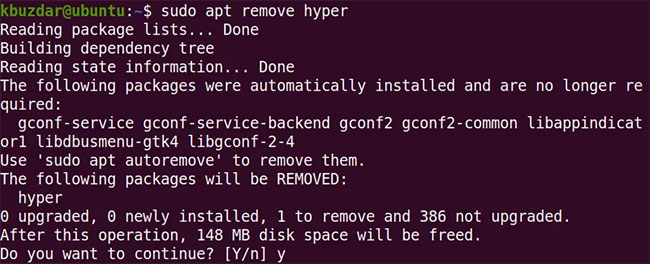
<p style="text-align: justify;">Bước tiếp theo là cài đặt ứng dụng Hyper Terminal. Di chuyển đến thư mục chứa file (.deb) cho Hyper Terminal. Sau đó chạy lệnh dưới đây để cài đặt nó:</p>

<pre id="pre1">
<code>$ sudo gdebi hyper_3.0.2_amd64</code></pre>

<p style="text-align: justify;">Khi được hỏi mật khẩu, hãy nhập mật khẩu sudo.</p>

<figure>
<div style="text-align: justify;"><img alt="Cài đặt Hyper Terminal" data-i="0" data-src="https://st.quantrimang.com/photos/image/2020/10/06/cai-hyper-terminal-trong-ubuntu-1.jpg" data-was-processed="true" height="187" src="https://st.quantrimang.com/photos/image/2020/10/06/cai-hyper-terminal-trong-ubuntu-1.jpg" width="650" /></div>

<figcaption>
<div style="text-align: justify;">Cài đặt Hyper Terminal</div>
</figcaption>
</figure>

<p style="text-align: justify;">Sau đó hệ thống sẽ yêu cầu bạn xác nhận có muốn cài đặt ứng dụng hay không. Nhấn&nbsp;<strong>y</strong>&nbsp;để xác nhận, sau đó quá trình cài đặt Hyper Terminal sẽ được bắt đầu.</p>

<div style="text-align: justify;">&nbsp;</div>

<h3 style="text-align: justify;">Bước 3: Khởi chạy Hyper Terminal</h3>

<p style="text-align: justify;">Sau khi cài đặt xong, bạn có thể mở Hyper bằng dòng lệnh hoặc bằng GUI.</p>

<p style="text-align: justify;">Để mở ứng dụng Hyper Terminal qua dòng lệnh, hãy chạy lệnh sau trong Terminal:</p>

<pre id="pre2">
<code>$ hyper</code></pre>

<p style="text-align: justify;">Để mở ứng dụng Hyper Terminal qua GUI, hãy nhấn phím super key trên bàn phím và nhập&nbsp;<strong>hyper.</strong>&nbsp;Khi biểu tượng cho Hyper Terminal xuất hiện như được hiển thị trong ảnh chụp màn hình sau, hãy nhấp vào biểu tượng đó để khởi chạy nó.</p>

<p style="text-align: justify;">Sau khi Hyper Terminal được khởi chạy, bạn sẽ thấy cửa sổ sau. Bạn có thể thấy nó trông giống với ứng dụng Terminal mặc định của Ubuntu.</p>

<figure>
<div style="text-align: justify;"><img alt="Cửa sổ Hyper Terminal" data-i="1" data-src="https://st.quantrimang.com/photos/image/2020/10/06/cai-hyper-terminal-trong-ubuntu-2.jpg" data-was-processed="true" height="82" src="https://st.quantrimang.com/photos/image/2020/10/06/cai-hyper-terminal-trong-ubuntu-2.jpg" width="650" /></div>

<figcaption>
<div style="text-align: justify;">Cửa sổ Hyper Terminal</div>
</figcaption>
</figure>

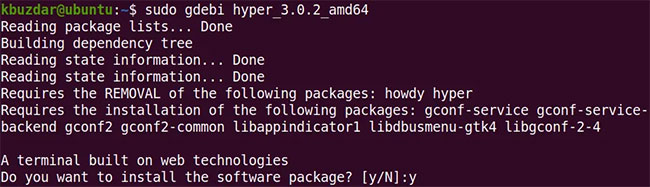
<p style="text-align: justify;">Tương tự như ứng dụng Terminal mặc định của Ubuntu, bạn có thể chạy bất kỳ lệnh nào trong Hyper Terminal.</p>

<figure>
<div style="text-align: justify;"><img alt="Bạn có thể chạy bất kỳ lệnh nào trong Hyper Terminal" data-i="2" data-src="https://st.quantrimang.com/photos/image/2020/10/06/cai-hyper-terminal-trong-ubuntu-3.jpg" data-was-processed="true" height="330" src="https://st.quantrimang.com/photos/image/2020/10/06/cai-hyper-terminal-trong-ubuntu-3.jpg" width="650" /></div>

<figcaption>
<div style="text-align: justify;">Bạn có thể chạy bất kỳ lệnh nào trong Hyper Terminal</div>
</figcaption>
</figure>

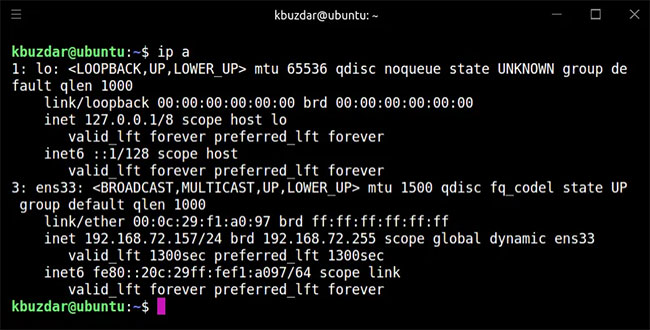
<p style="text-align: justify;">File cấu hình của Hyper Terminal là&nbsp;<strong>hyper.js</strong>&nbsp;nằm trong thư mục Home. Bạn có thể chỉnh sửa file này và cấu hình các thuộc tính khác nhau bao gồm phông chữ, chiều cao dòng, khoảng cách giữa các chữ cái, màu nền và nhiều thuộc tính khác.</p>

<p style="text-align: justify;">Để chỉnh sửa file này, hãy chạy lệnh sau trong Terminal mặc định hoặc Hyper Terminal:</p>

<pre id="pre3">
<code>$ sudo nano ~/.hyper.js</code></pre>

<p style="text-align: justify;">Bạn cũng có thể truy cập file này bằng cách nhấp vào menu (biểu tượng Hamburger) ở bên trái và sau đó đi tới&nbsp;<strong>Edit &gt; Preferences</strong>.</p>

<figure>
<div style="text-align: justify;"><img alt="Truy cập file cấu hình của Hyper Terminal" data-i="3" data-src="https://st.quantrimang.com/photos/image/2020/10/06/cai-hyper-terminal-trong-ubuntu-4.jpg" data-was-processed="true" height="450" src="https://st.quantrimang.com/photos/image/2020/10/06/cai-hyper-terminal-trong-ubuntu-4.jpg" width="650" /></div>

<figcaption>
<div style="text-align: justify;">Truy cập file cấu hình của Hyper Terminal</div>
</figcaption>
</figure>

<p style="text-align: justify;">Khi hoàn tất các cấu hình, hãy lưu file để áp dụng các thay đổi bạn đã thực hiện.</p>

<h2 style="text-align: justify;">Loại bỏ Hyper Terminal</h2>

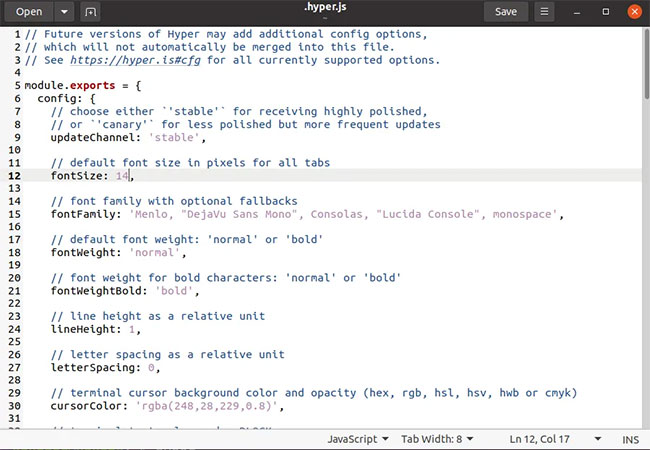
<p style="text-align: justify;">Trong trường hợp bạn không cần Hyper Terminal nữa, bạn có thể xóa nó bằng cách chạy lệnh sau trong Terminal:</p>

<pre id="pre4">
<code>$ sudo apt remove hyper</code></pre>

<p style="text-align: justify;">Nếu được hỏi mật khẩu, hãy cung cấp mật khẩu sudo.</p>

<figure>
<div style="text-align: justify;"><img alt="Loại bỏ Hyper Terminal" data-i="4" data-src="https://st.quantrimang.com/photos/image/2020/10/06/cai-hyper-terminal-trong-ubuntu-5.jpg" data-was-processed="true" height="264" src="https://st.quantrimang.com/photos/image/2020/10/06/cai-hyper-terminal-trong-ubuntu-5.jpg" width="650" /></div>

<figcaption>
<div style="text-align: justify;">Loại bỏ Hyper Terminal</div>
</figcaption>
</figure>

<p style="text-align: justify;">Sau đó hệ thống sẽ yêu cầu bạn xác nhận bạn có muốn gỡ gói đó hay không. Nhấn&nbsp;<strong>y</strong>&nbsp;để xác nhận, sau đó Hyper Terminal sẽ bị xóa khỏi hệ thống.</p>
		</div>
				<div id="author">
						<p>
				<strong>Nguồn tin:</strong>
				Quantrimang.com
			</p>
		</div>
	</div>
	<div id="footer" class="clearfix">
		<div id="url">
			<strong>URL của bản tin này: </strong><a href="https://www.nguoicodonvn2008.info/vi/news/savefile/kien-thuc-may-tinh/cach-cai-dat-hyper-terminal-trong-ubuntu-20-04-2856.html" title="Cách cài đặt Hyper Terminal trong Ubuntu 20.04">https://www.nguoicodonvn2008.info/vi/news/savefile/kien-thuc-may-tinh/cach-cai-dat-hyper-terminal-trong-ubuntu-20-04-2856.html</a>

		</div>
		<div class="clear"></div>
		<div class="copyright">
			&copy; .&#x3A; Nguoicodonvn2008.info - Cõi lòng người cô đơn &#x3A;.
		</div>
		<div id="contact">
			<a href="mailto:admin@nguoicodonvn2008.info">admin@nguoicodonvn2008.info</a>
		</div>
	</div>
</div>
        <div id="timeoutsess" class="chromeframe">
            Bạn đã không sử dụng Site, <a onclick="timeoutsesscancel();" href="https://www.nguoicodonvn2008.info/#">Bấm vào đây để duy trì trạng thái đăng nhập</a>. Thời gian chờ: <span id="secField"> 60 </span> giây
        </div>
        <div id="openidResult" class="nv-alert" style="display:none"></div>
        <div id="openidBt" data-result="" data-redirect=""></div>
		</script>
		<div class="car-top">
  <span><img src="https://www.nguoicodonvn2008.info/themes/default/images/car.png" alt=""></span>
</div>
<script src="https://www.nguoicodonvn2008.info/assets/js/jquery/jquery.min.js"></script>
<script>var nv_base_siteurl="/",nv_lang_data="vi",nv_lang_interface="vi",nv_name_variable="nv",nv_fc_variable="op",nv_lang_variable="language",nv_module_name="news",nv_func_name="savefile",nv_is_user=0, nv_my_ofs=-4,nv_my_abbr="EDT",nv_cookie_prefix="nv4c_e856T",nv_check_pass_mstime=1738000,nv_area_admin=0,nv_safemode=0,theme_responsive=0,nv_recaptcha_ver=2,nv_recaptcha_sitekey="",nv_recaptcha_type="image",XSSsanitize=1;</script>
<script src="https://www.nguoicodonvn2008.info/assets/js/language/vi.js"></script>
<script src="https://www.nguoicodonvn2008.info/assets/js/DOMPurify/purify3.js"></script>
<script src="https://www.nguoicodonvn2008.info/assets/js/global.js"></script>
<script src="https://www.nguoicodonvn2008.info/assets/js/site.js"></script>
<script src="https://www.nguoicodonvn2008.info/themes/default/js/news.js"></script>
<script src="https://www.nguoicodonvn2008.info/themes/default/js/main.js"></script>
<script src="https://www.nguoicodonvn2008.info/themes/default/js/custom.js"></script>
<script type="application/ld+json">
        {
            "@context": "https://schema.org",
            "@type": "Organization",
            "url": "https://www.nguoicodonvn2008.info",
            "logo": "https://www.nguoicodonvn2008.info/uploads/angel.gif"
        }
        </script>
<script src="https://www.nguoicodonvn2008.info/themes/default/js/bootstrap.min.js"></script>
<script type="text/javascript">
var $scrolltop = $('.car-top');
$scrolltop.on('click', function () {
    $('html,body').animate({
        scrollTop: 0
    }, 800);
    $(this).addClass("car-run");
    setTimeout(function(){ $scrolltop.removeClass('car-run');}, 1000);
    return false;
});
$(window).on('scroll', function ()
{ 
    if($(window).scrollTop() >= 200)
    {
        $scrolltop.addClass("show");
        $scrolltop.addClass("car-down");
    }
    else
    {
       $scrolltop.removeClass("show");
       setTimeout(function(){ $scrolltop.removeClass('car-down');}, 300);
    }
});
</script>
</body>
</html>