<!DOCTYPE html>
    <html lang="vi" xmlns="http://www.w3.org/1999/xhtml" prefix="og: http://ogp.me/ns#">
    <head>
<title>Cách cài đặt&#x002F;gỡ cài đặt Wireless Display trên Windows 11</title>
<meta name="description" content="Cách cài đặt&#x002F;gỡ cài đặt Wireless Display trên Windows 11 - Savefile - Tin Tức -...">
<meta name="author" content=".: Nguoicodonvn2008.info - Cõi lòng người cô đơn :.">
<meta name="copyright" content=".: Nguoicodonvn2008.info - Cõi lòng người cô đơn :. [admin@nguoicodonvn2008.info]">
<meta name="robots" content="index, archive, follow, noodp">
<meta name="googlebot" content="index,archive,follow,noodp">
<meta name="msnbot" content="all,index,follow">
<meta name="generator" content="NukeViet v4.5">
<meta http-equiv="Content-Type" content="text/html; charset=utf-8">
<meta property="og:title" content="Cách cài đặt&#x002F;gỡ cài đặt Wireless Display trên Windows 11">
<meta property="og:type" content="website">
<meta property="og:description" content="Savefile - Tin Tức - https&#x3A;&#x002F;&#x002F;www.nguoicodonvn2008.info&#x002F;vi&#x002F;news&#x002F;savefile&#x002F;kien-thuc-may-tinh&#x002F;cach-cai-dat-go-cai-dat-wireless-display-tren-windows-11-6341.html">
<meta property="og:site_name" content=".&#x3A; Nguoicodonvn2008.info - Cõi lòng người cô đơn &#x3A;.">
<meta property="og:url" content="https://www.nguoicodonvn2008.info/vi/news/savefile/kien-thuc-may-tinh/cach-cai-dat-go-cai-dat-wireless-display-tren-windows-11-6341.html">
<link rel="shortcut icon" href="https://www.nguoicodonvn2008.info/favicon.ico">
<link rel="canonical" href="https://www.nguoicodonvn2008.info/vi/news/savefile/kien-thuc-may-tinh/cach-cai-dat-go-cai-dat-wireless-display-tren-windows-11-6341.html">
<link rel="alternate" href="https://www.nguoicodonvn2008.info/vi/news/rss/" title="Tin Tức" type="application/rss+xml">
<link rel="alternate" href="https://www.nguoicodonvn2008.info/vi/news/rss/karaoke-dual/" title="Tin Tức - Karaoke Dual" type="application/rss+xml">
<link rel="alternate" href="https://www.nguoicodonvn2008.info/vi/news/rss/nhac-tre/" title="Tin Tức - Nhạc trẻ" type="application/rss+xml">
<link rel="alternate" href="https://www.nguoicodonvn2008.info/vi/news/rss/tru-tinh/" title="Tin Tức - Trữ tình" type="application/rss+xml">
<link rel="alternate" href="https://www.nguoicodonvn2008.info/vi/news/rss/nuoc-ngoai/" title="Tin Tức - Nước ngoài" type="application/rss+xml">
<link rel="alternate" href="https://www.nguoicodonvn2008.info/vi/news/rss/remix/" title="Tin Tức - Remix" type="application/rss+xml">
<link rel="alternate" href="https://www.nguoicodonvn2008.info/vi/news/rss/tam-su-tinh-yeu/" title="Tin Tức - Tâm sự tình yêu" type="application/rss+xml">
<link rel="alternate" href="https://www.nguoicodonvn2008.info/vi/news/rss/tho-suu-tam/" title="Tin Tức - Thơ sưu tầm" type="application/rss+xml">
<link rel="alternate" href="https://www.nguoicodonvn2008.info/vi/news/rss/cuoc-song/" title="Tin Tức - Cuộc sống" type="application/rss+xml">
<link rel="alternate" href="https://www.nguoicodonvn2008.info/vi/news/rss/phan-mem/" title="Tin Tức - Phần mềm" type="application/rss+xml">
<link rel="alternate" href="https://www.nguoicodonvn2008.info/vi/news/rss/kien-thuc-may-tinh/" title="Tin Tức - Kiến thức máy tính" type="application/rss+xml">
<link rel="alternate" href="https://www.nguoicodonvn2008.info/vi/news/rss/hoc-tap/" title="Tin Tức - Học tập" type="application/rss+xml">
<link rel="alternate" href="https://www.nguoicodonvn2008.info/vi/news/rss/tai-lieu/" title="Tin Tức - Tài liệu" type="application/rss+xml">
<link rel="alternate" href="https://www.nguoicodonvn2008.info/vi/news/rss/de-thi/" title="Tin Tức - Đề thi" type="application/rss+xml">
<link rel="preload" as="style" href="https://www.nguoicodonvn2008.info/assets/css/font-awesome.min.css" type="text/css">
<link rel="preload" as="style" href="https://www.nguoicodonvn2008.info/themes/default/css/bootstrap.non-responsive.css" type="text/css">
<link rel="preload" as="style" href="https://www.nguoicodonvn2008.info/themes/default/css/style.css" type="text/css">
<link rel="preload" as="style" href="https://www.nguoicodonvn2008.info/themes/default/css/style.non-responsive.css" type="text/css">
<link rel="preload" as="style" href="https://www.nguoicodonvn2008.info/themes/default/css/news.css" type="text/css">
<link rel="preload" as="style" href="https://www.nguoicodonvn2008.info/themes/default/css/custom.css" type="text/css">
<link rel="preload" as="script" href="https://www.nguoicodonvn2008.info/assets/js/jquery/jquery.min.js" type="text/javascript">
<link rel="preload" as="script" href="https://www.nguoicodonvn2008.info/assets/js/language/vi.js" type="text/javascript">
<link rel="preload" as="script" href="https://www.nguoicodonvn2008.info/assets/js/DOMPurify/purify3.js" type="text/javascript">
<link rel="preload" as="script" href="https://www.nguoicodonvn2008.info/assets/js/global.js" type="text/javascript">
<link rel="preload" as="script" href="https://www.nguoicodonvn2008.info/assets/js/site.js" type="text/javascript">
<link rel="preload" as="script" href="https://www.nguoicodonvn2008.info/themes/default/js/news.js" type="text/javascript">
<link rel="preload" as="script" href="https://www.nguoicodonvn2008.info/themes/default/js/main.js" type="text/javascript">
<link rel="preload" as="script" href="https://www.nguoicodonvn2008.info/themes/default/js/custom.js" type="text/javascript">
<link rel="preload" as="script" href="https://www.nguoicodonvn2008.info/themes/default/js/bootstrap.min.js" type="text/javascript">
<link rel="stylesheet" href="https://www.nguoicodonvn2008.info/assets/css/font-awesome.min.css">
<link rel="stylesheet" href="https://www.nguoicodonvn2008.info/themes/default/css/bootstrap.non-responsive.css">
<link rel="stylesheet" href="https://www.nguoicodonvn2008.info/themes/default/css/style.css">
<link rel="stylesheet" href="https://www.nguoicodonvn2008.info/themes/default/css/style.non-responsive.css">
<link rel="StyleSheet" href="https://www.nguoicodonvn2008.info/themes/default/css/news.css">
<link rel="stylesheet" href="https://www.nguoicodonvn2008.info/themes/default/css/custom.css">
<style type="text/css">
	body{background: #fff;}
</style>
    </head>
    <body>
<div id="print">
	<div id="hd_print">
		<h2 class="pull-left">.&#x3A; Nguoicodonvn2008.info - Cõi lòng người cô đơn &#x3A;.</h2>
		<p class="pull-right"><a title=".&#x3A; Nguoicodonvn2008.info - Cõi lòng người cô đơn &#x3A;." href="https://www.nguoicodonvn2008.info/">https://www.nguoicodonvn2008.info</a></p>
	</div>
	<div class="clear"></div>
	<hr />
	<div id="content">
		<h1>Cách cài đặt&#x002F;gỡ cài đặt Wireless Display trên Windows 11</h1>
		<ul class="list-inline">
			<li>Thứ sáu - 18/11/2022 00:01</li>
			<li class="hidden-print txtrequired"><em class="fa fa-print">&nbsp;</em><a title="In ra" href="javascript:;" onclick="window.print()">In ra</a></li>
			<li class="hidden-print txtrequired"><em class="fa fa-power-off">&nbsp;</em><a title="Đóng cửa sổ này" href="javascript:;" onclick="window.close()">Đóng cửa sổ này</a></li>
		</ul>
		<div class="clear"></div>
		<div id="hometext">
		</div>
				<div class="imghome">
			<img alt="Cách cài đặt&#x002F;gỡ cài đặt Wireless Display trên Windows 11" src="https://st.quantrimang.com/photos/image/2022/11/17/cai-dat-wireless-display-tren-windows-11-8.jpg" width="460" class="img-thumbnail" />
		</div>
		<div class="clear"></div>
		<div id="bodytext" class="clearfix">
			<p style="text-align: justify;">Tính năng Wireless Display trong Windows 11 cho phép bạn kết nối và chiếu màn hình điện thoại thông minh tới PC. Đây là một tiện ích hữu ích để xem nội dung từ điện thoại hoặc máy tính bảng của bạn trên màn hình lớn hơn.</p>

<p style="text-align: justify;">Trong&nbsp;Windows 11, Wireless Display là một tính năng tùy chọn và yêu cầu PC tương thích với Miracast để hoạt động. Vì đây là một tính năng tùy chọn nên bạn sẽ phải cài đặt nó để bắt đầu với Miracast. Bài viết hôm nay sẽ chỉ cho bạn hai cách cài đặt Wireless Display trong Windows 11 để giúp chiếu màn hình điện thoại Android lên PC.</p>

<h2 style="text-align: justify;">Cách bật Wireless Display bằng Settings</h2>

<p style="text-align: justify;">Bạn có thể cài đặt tính năng Wireless Display dưới dạng tính năng tùy chọn từ bảng điều khiển Settings. Trước đó, hãy đảm bảo kiểm tra xem PC của bạn có tương thích với Miracast không. Nếu có, hãy làm theo các bước bên dưới để cài đặt Wireless Display.</p>

<p style="text-align: justify;">Để cài đặt Wireless Display:</p>

<p style="text-align: justify;">1. Nhấn&nbsp;<strong>Win + I</strong>&nbsp;để&nbsp;mở Settings.</p>

<p style="text-align: justify;">2. Mở tab&nbsp;<strong>Apps</strong>&nbsp;ở ngăn bên trái.</p>

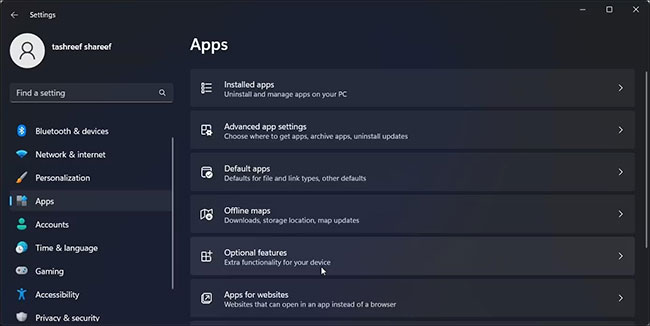
<p style="text-align: justify;">3. Tiếp theo, cuộn xuống và nhấp vào tùy chọn&nbsp;<strong>Optional features.</strong></p>

<figure>
<div style="text-align: justify;"><img alt="Optional features trong Windows 11 Settings" data-i="0" data-src="https://st.quantrimang.com/photos/image/2022/11/17/cai-dat-wireless-display-tren-windows-11-1.jpg" data-was-processed="true" height="326" src="https://st.quantrimang.com/photos/image/2022/11/17/cai-dat-wireless-display-tren-windows-11-1.jpg" width="650" /></div>

<figcaption>
<div style="text-align: justify;">Optional features trong Windows 11 Settings</div>
</figcaption>
</figure>

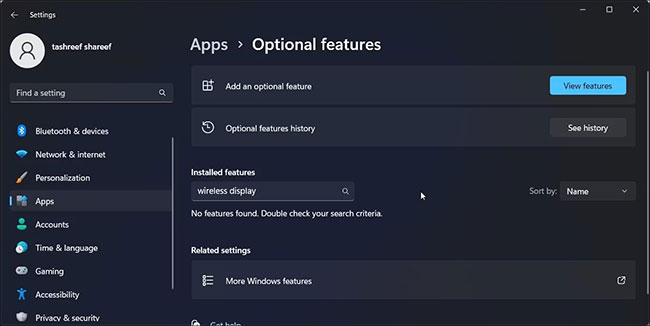
<p style="text-align: justify;">4. Nhấp vào&nbsp;<strong>View features</strong>&nbsp;cho&nbsp;<strong>Add an optional feature</strong>.</p>

<figure>
<div style="text-align: justify;"><img alt="Chọn View features cho Add an optional feature" data-i="1" data-src="https://st.quantrimang.com/photos/image/2022/11/17/cai-dat-wireless-display-tren-windows-11-2.jpg" data-was-processed="true" height="326" src="https://st.quantrimang.com/photos/image/2022/11/17/cai-dat-wireless-display-tren-windows-11-2.jpg" width="650" /></div>

<figcaption>
<div style="text-align: justify;">Chọn View features cho Add an optional feature</div>
</figcaption>
</figure>

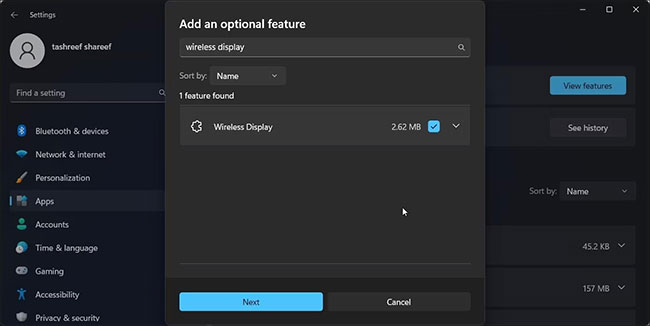
<p style="text-align: justify;">5. Trong hộp thoại&nbsp;<strong>Add an optional feature</strong>, nhập&nbsp;<strong>wireless display.</strong></p>

<figure>
<div style="text-align: justify;"><img alt="Nhập wireless display" data-i="2" data-src="https://st.quantrimang.com/photos/image/2022/11/17/cai-dat-wireless-display-tren-windows-11-3.jpg" data-was-processed="true" height="326" src="https://st.quantrimang.com/photos/image/2022/11/17/cai-dat-wireless-display-tren-windows-11-3.jpg" width="650" /></div>

<figcaption>
<div style="text-align: justify;">Nhập wireless display</div>
</figcaption>
</figure>

<p style="text-align: justify;">6. Chọn&nbsp;<strong>Wireless Display</strong>&nbsp;từ kết quả tìm kiếm và nhấp vào&nbsp;<strong>Next.</strong></p>

<p style="text-align: justify;">7. Nhấp vào<strong>&nbsp;Install</strong>, rồi đợi Windows tải xuống và cài đặt ứng dụng.</p>

<p style="text-align: justify;">Sau khi cài đặt, hãy&nbsp;khởi động lại PC. Sau khi khởi động lại, hãy mở Windows Search (<strong>Win + S</strong>) và nhập&nbsp;<strong>Wireless Display.</strong>&nbsp;Giờ đây, bạn có thể kết nối điện thoại thông minh hoặc máy tính bảng với PC và chiếu màn hình không dây.</p>

<h2 style="text-align: justify;">Cách cài đặt Wireless Display bằng Command Prompt</h2>

<figure>
<div style="text-align: justify;"><img alt="Command Prompt cài đặt Wireless Display thành công" data-i="3" data-src="https://st.quantrimang.com/photos/image/2022/11/17/cai-dat-wireless-display-tren-windows-11-4.jpg" data-was-processed="true" height="267" src="https://st.quantrimang.com/photos/image/2022/11/17/cai-dat-wireless-display-tren-windows-11-4.jpg" width="650" /></div>

<figcaption>
<div style="text-align: justify;">Command Prompt cài đặt Wireless Display thành công</div>
</figcaption>
</figure>

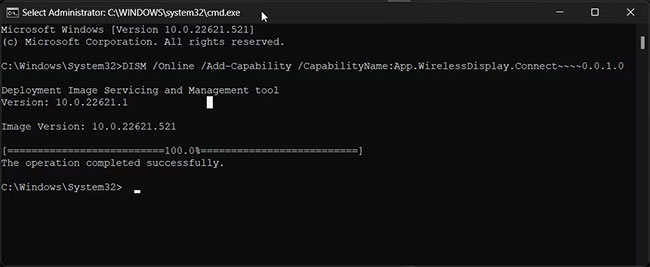
<p style="text-align: justify;">Bạn cũng có thể cài đặt Wireless Display bằng&nbsp;<a href="https://quantrimang.com/cong-nghe/huong-dan-su-dung-command-prompt-85301" title="Cách sử dụng Command Prompt, cách dùng cmd trên Windows">Command Prompt</a>. Để cài đặt ứng dụng, bạn có thể sử dụng lệnh Features on Demand(FODs) trong tiện ích dòng lệnh.</p>

<p style="text-align: justify;">Để cài đặt Wireless Display bằng Command Prompt:</p>

<p style="text-align: justify;">1. Nhấn phím&nbsp;<strong>Win</strong>&nbsp;và gõ&nbsp;<strong>cmd.</strong></p>

<p style="text-align: justify;">2. Từ kết quả tìm kiếm, nhấp chuột phải vào&nbsp;<strong>Command Prompt</strong>&nbsp;và chọn&nbsp;<strong>Run as administrator.</strong></p>

<p style="text-align: justify;">3. Trong cửa sổ&nbsp;<strong>Command Prompt</strong>, gõ lệnh sau và nhấn&nbsp;<strong>Enter:</strong></p>

<pre id="pre0">
<code>DISM /Online /Add-Capability /CapabilityName:App.WirelessDisplay.Connect~~~~0.0.1.0</code></pre>

<p style="text-align: justify;">4. Windows sẽ tải xuống và cài đặt ứng dụng Wireless Display. Quá trình này có thể mất một chút thời gian, vì vậy hãy đợi cho đến khi thanh tiến trình đạt 100%.</p>

<p style="text-align: justify;">5. Khi bạn thấy thông báo thành công, hãy đóng cửa sổ Command Prompt và khởi động lại PC.</p>

<h2 style="text-align: justify;">Cách chiếu màn hình bằng Wireless Display</h2>

<figure>
<div style="text-align: justify;"><img alt="Màn hình không dây kết nối trong Windows 11" data-i="4" data-src="https://st.quantrimang.com/photos/image/2022/11/17/cai-dat-wireless-display-tren-windows-11-5.jpg" data-was-processed="true" height="376" src="https://st.quantrimang.com/photos/image/2022/11/17/cai-dat-wireless-display-tren-windows-11-5.jpg" width="650" /></div>

<figcaption>
<div style="text-align: justify;">Màn hình không dây kết nối trong Windows 11</div>
</figcaption>
</figure>

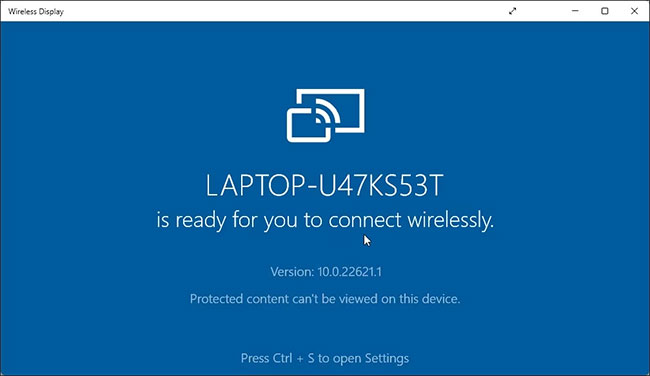
<p style="text-align: justify;">Bây giờ, bạn đã cài đặt thành công Wireless Display. Bạn có thể bắt đầu chiếu điện thoại thông minh hoặc các thiết bị tương thích khác tới màn hình của mình.</p>

<p style="text-align: justify;">Để sử dụng Wireless Display:</p>

<p style="text-align: justify;">1. Kết nối điện thoại Android của bạn và PC Windows với cùng một mạng WiFi.</p>

<p style="text-align: justify;">2. Tiếp theo, nhấn phím&nbsp;<strong>Win</strong>&nbsp;và gõ&nbsp;<strong>wireless display.</strong></p>

<p style="text-align: justify;">3. Từ kết quả tìm kiếm, nhấp vào&nbsp;<strong>Wireless Display</strong>&nbsp;để mở ứng dụng.</p>

<p style="text-align: justify;">4. Trên điện thoại Android, hãy quét tìm màn hình không dây. Ví dụ, trên thiết bị Samsung Galaxy, hãy mở&nbsp;<strong>Smart View</strong>&nbsp;và chọn PC của bạn từ danh sách các thiết bị khả dụng.</p>

<p style="text-align: justify;">Bạn có thể cấu hình thêm cài đặt trình chiếu trên PC của mình để Wireless Display luôn khả dụng. Bằng cách này, bạn có thể chiếu từ điện thoại Android của mình ngay cả khi ứng dụng Wireless Display không mở trên PC.</p>

<p style="text-align: justify;">Để Wireless Display luôn khả dụng:</p>

<p style="text-align: justify;">1. Nhấn&nbsp;<strong>Win + I&nbsp;</strong>để mở Settings.</p>

<figure>
<div style="text-align: justify;"><img alt="Projecting to this PC trên Windows 11" data-i="5" data-src="https://st.quantrimang.com/photos/image/2022/11/17/cai-dat-wireless-display-tren-windows-11-6.jpg" data-was-processed="true" height="326" src="https://st.quantrimang.com/photos/image/2022/11/17/cai-dat-wireless-display-tren-windows-11-6.jpg" width="650" /></div>

<figcaption>
<div style="text-align: justify;">Projecting to this PC trên Windows 11</div>
</figcaption>
</figure>

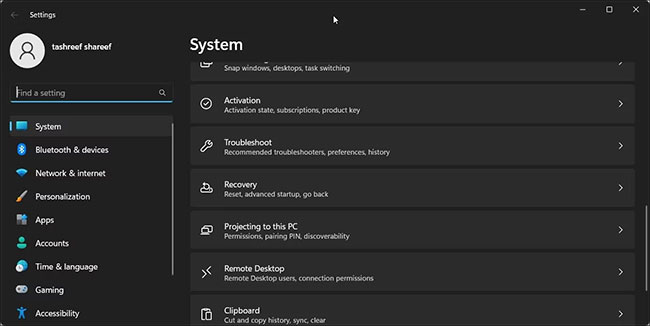
<p style="text-align: justify;">2. Với tab System được chọn, cuộn xuống và nhấp vào&nbsp;<strong>Projecting to this PC</strong>.</p>

<figure>
<div style="text-align: justify;"><img alt="Chiếu tới máy tính có sẵn" data-i="6" data-src="https://st.quantrimang.com/photos/image/2022/11/17/cai-dat-wireless-display-tren-windows-11-7.jpg" data-was-processed="true" height="326" src="https://st.quantrimang.com/photos/image/2022/11/17/cai-dat-wireless-display-tren-windows-11-7.jpg" width="650" /></div>

<figcaption>
<div style="text-align: justify;">Chiếu tới máy tính có sẵn</div>
</figcaption>
</figure>

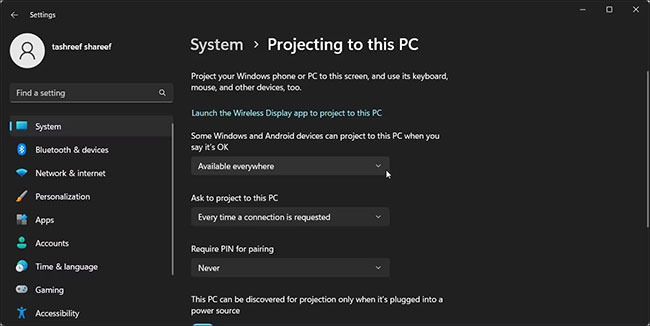
<p style="text-align: justify;">3. Tiếp theo, nhấp vào&nbsp;<strong>Some Windows and Android devices can project to this PC when you say it’s OK</strong>&nbsp;và chọn&nbsp;<strong>Available everywhere.</strong></p>

<p style="text-align: justify;">Giờ đây, nếu bạn cố gắng chiếu màn hình điện thoại Android của mình tới PC, Windows sẽ tự động khởi chạy ứng dụng Wireless Display và bắt đầu chiếu màn hình.</p>

<h2 style="text-align: justify;">Cách gỡ cài đặt Wireless Display trong Windows 11</h2>

<p style="text-align: justify;">Bạn có thể gỡ cài đặt Wireless Display khỏi Settings. Tương tự, Command Prompt là một tùy chọn đáng tin cậy khác để gỡ cài đặt ứng dụng trong nháy mắt.</p>

<p style="text-align: justify;">Hãy xem xét hai cách để gỡ cài đặt Wireless Display trong Windows 11.</p>

<h3 style="text-align: justify;">Sử dụng Settings:</h3>

<p style="text-align: justify;">1. Nhấn&nbsp;<strong>Win + I</strong>&nbsp;để mở Settings.</p>

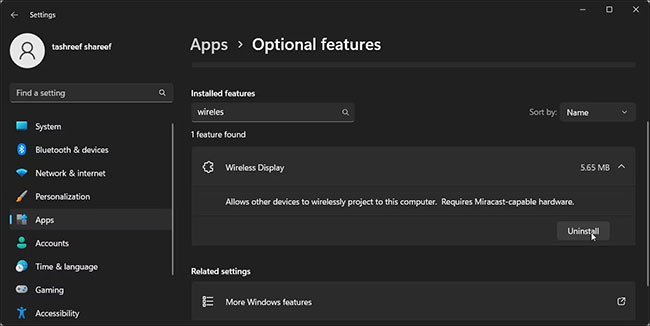
<p style="text-align: justify;">2. Chuyển đến&nbsp;<strong>Apps &gt; Optional features</strong>.</p>

<figure>
<div style="text-align: justify;"><img alt="Gỡ cài đặt Wireless Display trên Windows 11" data-i="7" data-src="https://st.quantrimang.com/photos/image/2022/11/17/cai-dat-wireless-display-tren-windows-11-8.jpg" data-was-processed="true" height="326" src="https://st.quantrimang.com/photos/image/2022/11/17/cai-dat-wireless-display-tren-windows-11-8.jpg" width="650" /></div>

<figcaption>
<div style="text-align: justify;">Gỡ cài đặt Wireless Display trên Windows 11</div>
</figcaption>
</figure>

<p style="text-align: justify;">3. Nhập&nbsp;<strong>Wireless Display</strong>&nbsp;vào thanh tìm kiếm&nbsp;<strong>Installed features.</strong></p>

<p style="text-align: justify;">4. Nhấp vào&nbsp;<strong>Wireless Display</strong>&nbsp;và sau đó chọn&nbsp;<strong>Uninstall.</strong></p>

<h3 style="text-align: justify;">Sử dụng Command Prompt:</h3>

<p style="text-align: justify;">1.&nbsp;Mở Command Prompt với quyền admin.</p>

<figure>
<div style="text-align: justify;"><img alt="Gỡ cài đặt Wireless Display trên Windows 11 bằng Command Prompt" data-i="8" data-src="https://st.quantrimang.com/photos/image/2022/11/17/cai-dat-wireless-display-tren-windows-11-9.jpg" data-was-processed="true" height="219" src="https://st.quantrimang.com/photos/image/2022/11/17/cai-dat-wireless-display-tren-windows-11-9.jpg" width="650" /></div>

<figcaption>
<div style="text-align: justify;">Gỡ cài đặt Wireless Display trên Windows 11 bằng Command Prompt</div>
</figcaption>
</figure>

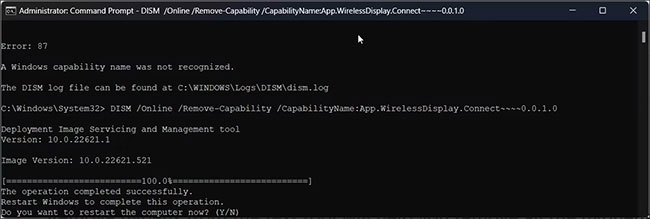
<p style="text-align: justify;">2. Trong cửa sổ&nbsp;<strong>Command Prompt</strong>, gõ lệnh sau và nhấn&nbsp;<strong>Enter:</strong></p>

<pre id="pre1">
<code>DISM /Online /Remove-Capability /CapabilityName:App.WirelessDisplay.Connect~~~~0.0.1.0</code></pre>

<p style="text-align: justify;">3. Đợi ứng dụng gỡ cài đặt. Sau đó khởi động lại PC để áp dụng các thay đổi.</p>

<p style="text-align: justify;">Ứng dụng Wireless Display giúp dễ dàng xem màn hình Android của bạn trên máy tính Windows. Nó cũng giúp bạn tránh khỏi rắc rối khi cài đặt các ứng dụng chiếu màn hình của bên thứ ba thường yêu cầu đăng ký.</p>

<p style="text-align: justify;">Thật không may, bạn không thể sử dụng Wireless Display để chiếu màn hình iPhone lên PC. Do hệ sinh thái của Apple, bạn sẽ phải dựa vào&nbsp;các ứng dụng của bên thứ ba để truyền màn hình iPhone sang máy tính Windows&nbsp;của mình.</p>
		</div>
				<div id="author">
						<p>
				<strong>Nguồn tin:</strong>
				Quantrimang.com
			</p>
		</div>
	</div>
	<div id="footer" class="clearfix">
		<div id="url">
			<strong>URL của bản tin này: </strong><a href="https://www.nguoicodonvn2008.info/vi/news/savefile/kien-thuc-may-tinh/cach-cai-dat-go-cai-dat-wireless-display-tren-windows-11-6341.html" title="Cách cài đặt&#x002F;gỡ cài đặt Wireless Display trên Windows 11">https://www.nguoicodonvn2008.info/vi/news/savefile/kien-thuc-may-tinh/cach-cai-dat-go-cai-dat-wireless-display-tren-windows-11-6341.html</a>

		</div>
		<div class="clear"></div>
		<div class="copyright">
			&copy; .&#x3A; Nguoicodonvn2008.info - Cõi lòng người cô đơn &#x3A;.
		</div>
		<div id="contact">
			<a href="mailto:admin@nguoicodonvn2008.info">admin@nguoicodonvn2008.info</a>
		</div>
	</div>
</div>
        <div id="timeoutsess" class="chromeframe">
            Bạn đã không sử dụng Site, <a onclick="timeoutsesscancel();" href="https://www.nguoicodonvn2008.info/#">Bấm vào đây để duy trì trạng thái đăng nhập</a>. Thời gian chờ: <span id="secField"> 60 </span> giây
        </div>
        <div id="openidResult" class="nv-alert" style="display:none"></div>
        <div id="openidBt" data-result="" data-redirect=""></div>
		</script>
		<div class="car-top">
  <span><img src="https://www.nguoicodonvn2008.info/themes/default/images/car.png" alt=""></span>
</div>
<script src="https://www.nguoicodonvn2008.info/assets/js/jquery/jquery.min.js"></script>
<script>var nv_base_siteurl="/",nv_lang_data="vi",nv_lang_interface="vi",nv_name_variable="nv",nv_fc_variable="op",nv_lang_variable="language",nv_module_name="news",nv_func_name="savefile",nv_is_user=0, nv_my_ofs=-4,nv_my_abbr="EDT",nv_cookie_prefix="nv4c_e856T",nv_check_pass_mstime=1738000,nv_area_admin=0,nv_safemode=0,theme_responsive=0,nv_recaptcha_ver=2,nv_recaptcha_sitekey="",nv_recaptcha_type="image",XSSsanitize=1;</script>
<script src="https://www.nguoicodonvn2008.info/assets/js/language/vi.js"></script>
<script src="https://www.nguoicodonvn2008.info/assets/js/DOMPurify/purify3.js"></script>
<script src="https://www.nguoicodonvn2008.info/assets/js/global.js"></script>
<script src="https://www.nguoicodonvn2008.info/assets/js/site.js"></script>
<script src="https://www.nguoicodonvn2008.info/themes/default/js/news.js"></script>
<script src="https://www.nguoicodonvn2008.info/themes/default/js/main.js"></script>
<script src="https://www.nguoicodonvn2008.info/themes/default/js/custom.js"></script>
<script type="application/ld+json">
        {
            "@context": "https://schema.org",
            "@type": "Organization",
            "url": "https://www.nguoicodonvn2008.info",
            "logo": "https://www.nguoicodonvn2008.info/uploads/angel.gif"
        }
        </script>
<script src="https://www.nguoicodonvn2008.info/themes/default/js/bootstrap.min.js"></script>
<script type="text/javascript">
var $scrolltop = $('.car-top');
$scrolltop.on('click', function () {
    $('html,body').animate({
        scrollTop: 0
    }, 800);
    $(this).addClass("car-run");
    setTimeout(function(){ $scrolltop.removeClass('car-run');}, 1000);
    return false;
});
$(window).on('scroll', function ()
{ 
    if($(window).scrollTop() >= 200)
    {
        $scrolltop.addClass("show");
        $scrolltop.addClass("car-down");
    }
    else
    {
       $scrolltop.removeClass("show");
       setTimeout(function(){ $scrolltop.removeClass('car-down');}, 300);
    }
});
</script>
</body>
</html>