<!DOCTYPE html>
    <html lang="vi" xmlns="http://www.w3.org/1999/xhtml" prefix="og: http://ogp.me/ns#">
    <head>
<title>Cách buộc đồng bộ thời gian trong Windows bằng lệnh</title>
<meta name="description" content="Cách buộc đồng bộ thời gian trong Windows bằng lệnh - Savefile - Tin Tức -...">
<meta name="author" content=".: Nguoicodonvn2008.info - Cõi lòng người cô đơn :.">
<meta name="copyright" content=".: Nguoicodonvn2008.info - Cõi lòng người cô đơn :. [admin@nguoicodonvn2008.info]">
<meta name="robots" content="index, archive, follow, noodp">
<meta name="googlebot" content="index,archive,follow,noodp">
<meta name="msnbot" content="all,index,follow">
<meta name="generator" content="NukeViet v4.5">
<meta http-equiv="Content-Type" content="text/html; charset=utf-8">
<meta property="og:title" content="Cách buộc đồng bộ thời gian trong Windows bằng lệnh">
<meta property="og:type" content="website">
<meta property="og:description" content="Savefile - Tin Tức - https&#x3A;&#x002F;&#x002F;www.nguoicodonvn2008.info&#x002F;vi&#x002F;news&#x002F;savefile&#x002F;kien-thuc-may-tinh&#x002F;cach-buoc-dong-bo-thoi-gian-trong-windows-bang-lenh-9439.html">
<meta property="og:site_name" content=".&#x3A; Nguoicodonvn2008.info - Cõi lòng người cô đơn &#x3A;.">
<meta property="og:url" content="https://www.nguoicodonvn2008.info/vi/news/savefile/kien-thuc-may-tinh/cach-buoc-dong-bo-thoi-gian-trong-windows-bang-lenh-9439.html">
<link rel="shortcut icon" href="https://www.nguoicodonvn2008.info/favicon.ico">
<link rel="canonical" href="https://www.nguoicodonvn2008.info/vi/news/savefile/kien-thuc-may-tinh/cach-buoc-dong-bo-thoi-gian-trong-windows-bang-lenh-9439.html">
<link rel="alternate" href="https://www.nguoicodonvn2008.info/vi/news/rss/" title="Tin Tức" type="application/rss+xml">
<link rel="alternate" href="https://www.nguoicodonvn2008.info/vi/news/rss/karaoke-dual/" title="Tin Tức - Karaoke Dual" type="application/rss+xml">
<link rel="alternate" href="https://www.nguoicodonvn2008.info/vi/news/rss/nhac-tre/" title="Tin Tức - Nhạc trẻ" type="application/rss+xml">
<link rel="alternate" href="https://www.nguoicodonvn2008.info/vi/news/rss/tru-tinh/" title="Tin Tức - Trữ tình" type="application/rss+xml">
<link rel="alternate" href="https://www.nguoicodonvn2008.info/vi/news/rss/nuoc-ngoai/" title="Tin Tức - Nước ngoài" type="application/rss+xml">
<link rel="alternate" href="https://www.nguoicodonvn2008.info/vi/news/rss/remix/" title="Tin Tức - Remix" type="application/rss+xml">
<link rel="alternate" href="https://www.nguoicodonvn2008.info/vi/news/rss/tam-su-tinh-yeu/" title="Tin Tức - Tâm sự tình yêu" type="application/rss+xml">
<link rel="alternate" href="https://www.nguoicodonvn2008.info/vi/news/rss/tho-suu-tam/" title="Tin Tức - Thơ sưu tầm" type="application/rss+xml">
<link rel="alternate" href="https://www.nguoicodonvn2008.info/vi/news/rss/cuoc-song/" title="Tin Tức - Cuộc sống" type="application/rss+xml">
<link rel="alternate" href="https://www.nguoicodonvn2008.info/vi/news/rss/phan-mem/" title="Tin Tức - Phần mềm" type="application/rss+xml">
<link rel="alternate" href="https://www.nguoicodonvn2008.info/vi/news/rss/kien-thuc-may-tinh/" title="Tin Tức - Kiến thức máy tính" type="application/rss+xml">
<link rel="alternate" href="https://www.nguoicodonvn2008.info/vi/news/rss/hoc-tap/" title="Tin Tức - Học tập" type="application/rss+xml">
<link rel="alternate" href="https://www.nguoicodonvn2008.info/vi/news/rss/tai-lieu/" title="Tin Tức - Tài liệu" type="application/rss+xml">
<link rel="alternate" href="https://www.nguoicodonvn2008.info/vi/news/rss/de-thi/" title="Tin Tức - Đề thi" type="application/rss+xml">
<link rel="preload" as="style" href="https://www.nguoicodonvn2008.info/assets/css/font-awesome.min.css" type="text/css">
<link rel="preload" as="style" href="https://www.nguoicodonvn2008.info/themes/default/css/bootstrap.non-responsive.css" type="text/css">
<link rel="preload" as="style" href="https://www.nguoicodonvn2008.info/themes/default/css/style.css" type="text/css">
<link rel="preload" as="style" href="https://www.nguoicodonvn2008.info/themes/default/css/style.non-responsive.css" type="text/css">
<link rel="preload" as="style" href="https://www.nguoicodonvn2008.info/themes/default/css/news.css" type="text/css">
<link rel="preload" as="style" href="https://www.nguoicodonvn2008.info/themes/default/css/custom.css" type="text/css">
<link rel="preload" as="script" href="https://www.nguoicodonvn2008.info/assets/js/jquery/jquery.min.js" type="text/javascript">
<link rel="preload" as="script" href="https://www.nguoicodonvn2008.info/assets/js/language/vi.js" type="text/javascript">
<link rel="preload" as="script" href="https://www.nguoicodonvn2008.info/assets/js/DOMPurify/purify3.js" type="text/javascript">
<link rel="preload" as="script" href="https://www.nguoicodonvn2008.info/assets/js/global.js" type="text/javascript">
<link rel="preload" as="script" href="https://www.nguoicodonvn2008.info/assets/js/site.js" type="text/javascript">
<link rel="preload" as="script" href="https://www.nguoicodonvn2008.info/themes/default/js/news.js" type="text/javascript">
<link rel="preload" as="script" href="https://www.nguoicodonvn2008.info/themes/default/js/main.js" type="text/javascript">
<link rel="preload" as="script" href="https://www.nguoicodonvn2008.info/themes/default/js/custom.js" type="text/javascript">
<link rel="preload" as="script" href="https://www.nguoicodonvn2008.info/themes/default/js/bootstrap.min.js" type="text/javascript">
<link rel="stylesheet" href="https://www.nguoicodonvn2008.info/assets/css/font-awesome.min.css">
<link rel="stylesheet" href="https://www.nguoicodonvn2008.info/themes/default/css/bootstrap.non-responsive.css">
<link rel="stylesheet" href="https://www.nguoicodonvn2008.info/themes/default/css/style.css">
<link rel="stylesheet" href="https://www.nguoicodonvn2008.info/themes/default/css/style.non-responsive.css">
<link rel="StyleSheet" href="https://www.nguoicodonvn2008.info/themes/default/css/news.css">
<link rel="stylesheet" href="https://www.nguoicodonvn2008.info/themes/default/css/custom.css">
<style type="text/css">
	body{background: #fff;}
</style>
    </head>
    <body>
<div id="print">
	<div id="hd_print">
		<h2 class="pull-left">.&#x3A; Nguoicodonvn2008.info - Cõi lòng người cô đơn &#x3A;.</h2>
		<p class="pull-right"><a title=".&#x3A; Nguoicodonvn2008.info - Cõi lòng người cô đơn &#x3A;." href="https://www.nguoicodonvn2008.info/">https://www.nguoicodonvn2008.info</a></p>
	</div>
	<div class="clear"></div>
	<hr />
	<div id="content">
		<h1>Cách buộc đồng bộ thời gian trong Windows bằng lệnh</h1>
		<ul class="list-inline">
			<li>Thứ ba - 26/11/2024 23:01</li>
			<li class="hidden-print txtrequired"><em class="fa fa-print">&nbsp;</em><a title="In ra" href="javascript:;" onclick="window.print()">In ra</a></li>
			<li class="hidden-print txtrequired"><em class="fa fa-power-off">&nbsp;</em><a title="Đóng cửa sổ này" href="javascript:;" onclick="window.close()">Đóng cửa sổ này</a></li>
		</ul>
		<div class="clear"></div>
		<div id="hometext">
		</div>
				<div class="imghome">
			<img alt="Cách buộc đồng bộ thời gian trong Windows bằng lệnh" src="https://st.quantrimang.com/photos/image/2020/05/06/buoc-dong-bo-thoi-gian-trong-windows-bang-lenh-1.jpg" width="460" class="img-thumbnail" />
		</div>
		<div class="clear"></div>
		<div id="bodytext" class="clearfix">
			<p style="text-align: justify;">Thỉnh thoảng, Windows có thể hành động kỳ lạ và hiển thị sai thời gian. Điều này đặc biệt đúng khi bạn khởi động kép hoặc một số chương trình gặp rắc rối với cài đặt thời gian. Nếu điều đó từng xảy ra với bạn, bạn có thể buộc đồng bộ thời gian Windows bằng một lệnh duy nhất.</p>

<p style="text-align: justify;"><strong>Lưu ý:</strong></p>

<p style="text-align: justify;">Bạn phải đăng nhập với tư cách admin để có thể đồng bộ thời gian của PC.</p>

<p style="text-align: justify;">Nếu PC của bạn nằm trên một domain, bạn không thể đồng bộ thời gian của mình với Internet time server bằng Internet Time Settings. Thay vào đó, đồng hồ của bạn sẽ tự động đồng bộ với domain controller. Bạn vẫn có thể sử dụng lệnh đồng bộ thời gian trong Command Prompt để đồng bộ theo cách thủ công với domain controller của mình bất kỳ lúc nào.</p>

<h2 style="text-align: justify;">Lệnh đồng bộ thời gian Windows</h2>

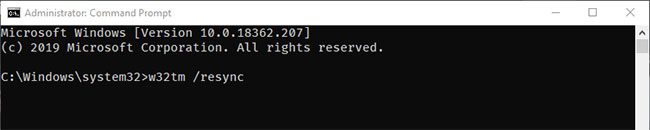
<p style="text-align: justify;">Để buộc thời gian đồng bộ trong Windows bằng Command Prompt, tất cả những gì bạn phải làm là thực thi một dòng lệnh đơn.</p>

<p style="text-align: justify;">Đầu tiên,&nbsp;mở Command Prompt với quyền admin.</p>

<p style="text-align: justify;">Trong cửa sổ&nbsp;<strong>Command Prompt</strong>, thực thi lệnh:</p>

<pre id="pre0" style="text-align: justify;">
w32tm /resync</pre>

<p style="text-align: justify;">Ngay khi bạn thực thi lệnh, Windows sẽ đồng bộ lại thời gian dựa trên múi giờ hiện tại của bạn. Trong trường hợp bạn đang tự hỏi, múi giờ được đặt tự động tùy thuộc vào vị trí của bạn. Ngoài ra, chi tiết thời gian được cập nhật từ máy chủ&nbsp;<strong>time.windows.com</strong>&nbsp;mặc định (Windows Internet Time Server).</p>

<figure>
<div style="text-align: justify;"><img alt="Lệnh đồng bộ thời gian Windows" data-i="0" data-src="https://st.quantrimang.com/photos/image/2020/05/06/buoc-dong-bo-thoi-gian-trong-windows-bang-lenh-1.jpg" data-was-processed="true" height="130" src="https://st.quantrimang.com/photos/image/2020/05/06/buoc-dong-bo-thoi-gian-trong-windows-bang-lenh-1.jpg" width="650" /></div>

<figcaption>
<div style="text-align: justify;">Lệnh đồng bộ thời gian Windows</div>
</figcaption>
</figure>

<p style="text-align: justify;">Nếu hệ thống Windows của bạn nằm trên một domain thì lệnh trên có thể không hoạt động. Trong những tình huống đó, hãy sử dụng lệnh:</p>

<div style="text-align: justify;">&nbsp;</div>

<pre id="pre1" style="text-align: justify;">
w32tm /domain</pre>

<p style="text-align: justify;"><strong>Lưu ý</strong>: Đôi khi bạn có thể thấy lỗi&nbsp;<em>&quot;The computer did not resync because no time data was available”</em>&nbsp;(Máy tính không đồng bộ lại vì không có dữ liệu thời gian). Điều này khá phổ biến. Đặc biệt là trong Windows 7 và 8. Chỉ cần cố gắng thực thi lệnh nhiều lần và cuối cùng nó sẽ hoạt động.</p>

<p style="text-align: justify;"><strong>Sử dụng time server tùy chỉnh</strong></p>

<p style="text-align: justify;">Giống như đã nói trước đây, Windows sử dụng&nbsp;<strong>time.windows.com</strong>&nbsp;làm time server mặc định. Nếu time server đó không hoạt động trong trường hợp của bạn hoặc nếu bạn muốn sử dụng một số time server tùy chỉnh khác, bạn cũng có thể làm điều đó.</p>

<p style="text-align: justify;">Mở&nbsp;<strong>Command Prompt</strong>&nbsp;với quyền admin và thực thi lệnh sau. Đừng quên thay thế&nbsp;<strong>time.server.url.com</strong>&nbsp;bằng URL time server thực tế. Bạn có thể sử dụng&nbsp;<strong>NTP Pool Project</strong>&nbsp;<em>(https://www.ntppool.org/zone/@)</em>&nbsp;để tìm địa chỉ time server của các quốc gia và địa điểm khác nhau.</p>

<pre id="pre2" style="text-align: justify;">
w32tm /config /update /manualpeerlist:time.server.url.com</pre>

<p style="text-align: justify;">Ngay khi bạn thực thi lệnh, Windows sẽ truy cập time server đó, lấy thời gian và đồng bộ với hệ thống của bạn.</p>

<h2 style="text-align: justify;">Cách khác để đồng bộ thời gian trong Windows 10</h2>

<h3 style="text-align: justify;">Đồng bộ thời gian với Internet Time Server trong Internet Time Settings</h3>

<p style="text-align: justify;">1.&nbsp;<a href="https://quantrimang.com/cong-nghe/cach-mo-control-panel-tren-windows-10-8-7-vista-va-xp-152771" title="Cách mở Control Panel trên Windows 10, 8.1, 7">Mở Control Panel</a>&nbsp;(chế độ xem biểu tượng) và nhấp vào biểu tượng&nbsp;<strong>Date and Time</strong>.</p>

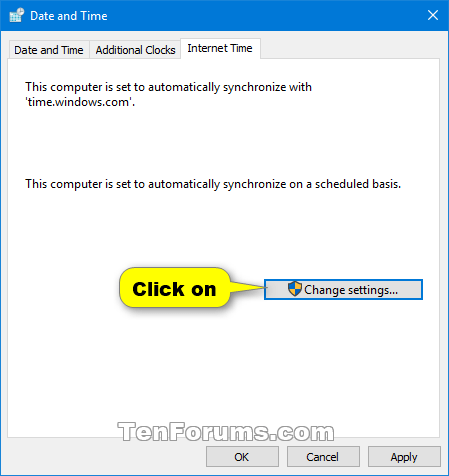
<p style="text-align: justify;">2. Nhấp vào tab&nbsp;<strong>Internet Time</strong>&nbsp;và kích vào nút&nbsp;<strong>Change settings.</strong></p>

<p style="text-align: justify;"><strong>Lưu ý:</strong></p>

<p style="text-align: justify;">Điều này cũng sẽ hiển thị cho bạn ngày và giờ khi đồng hồ được đồng bộ thành công lần cuối, cùng với tên của máy chủ Internet được sử dụng.</p>

<p style="text-align: justify;">Nếu PC của bạn nằm trên một domain, thì bạn sẽ không có tab&nbsp;<strong>Internet Time.</strong></p>

<figure>
<div style="text-align: justify;"><img alt="Nhấp vào tab Internet Time và kích vào nút Change settings" data-i="1" data-src="https://st.quantrimang.com/photos/image/2020/11/13/buoc-dong-bo-thoi-gian-trong-windows-1.png" data-was-processed="true" height="476" src="https://st.quantrimang.com/photos/image/2020/11/13/buoc-dong-bo-thoi-gian-trong-windows-1.png" width="449" /></div>

<figcaption>
<div style="text-align: justify;">Nhấp vào tab Internet Time và kích vào nút Change settings</div>
</figcaption>
</figure>

<div style="text-align: justify;">&nbsp;</div>

<p style="text-align: justify;">3. Nếu được UAC nhắc, hãy nhấp vào&nbsp;<strong>Yes</strong>&nbsp;để xác nhận.</p>

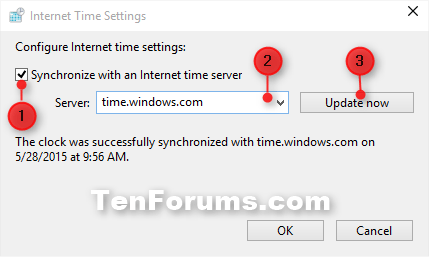
<p style="text-align: justify;">4. Tích vào hộp&nbsp;<strong>Synchronize with an Internet time server</strong>, chọn một time server và nhấn vào&nbsp;<strong>Update now.</strong></p>

<figure>
<div style="text-align: justify;"><img alt="Tích vào hộp Synchronize with an Internet time server, chọn một time server và nhấn vào Update now" data-i="2" data-src="https://st.quantrimang.com/photos/image/2020/11/13/buoc-dong-bo-thoi-gian-trong-windows-2.png" data-was-processed="true" height="257" src="https://st.quantrimang.com/photos/image/2020/11/13/buoc-dong-bo-thoi-gian-trong-windows-2.png" width="429" /></div>

<figcaption>
<div style="text-align: justify;">Tích vào hộp Synchronize with an Internet time server, chọn một time server và nhấn vào Update now</div>
</figcaption>
</figure>

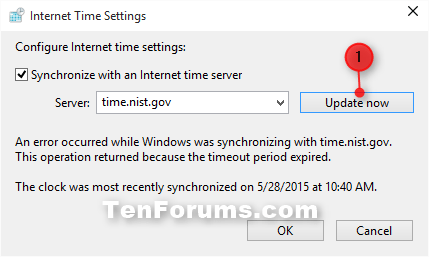
<p style="text-align: justify;">5. Nếu xảy ra lỗi, hãy nhấp lại vào&nbsp;<strong>Update now</strong>&nbsp;một lần nữa để xem liệu nó có thể đồng bộ thành công ngay bây giờ hay không. Nếu ngày hoặc giờ trên PC của bạn được đặt không chính xác quá nhiều, điều đó có thể gây ra lỗi khi cố đồng bộ thời gian.</p>

<figure>
<div style="text-align: justify;"><img alt="Nếu xảy ra lỗi, hãy nhấp lại vào Update now một lần nữa để xem liệu nó có thể đồng bộ thành công ngay bây giờ hay không" data-i="3" data-src="https://st.quantrimang.com/photos/image/2020/11/13/buoc-dong-bo-thoi-gian-trong-windows-3.png" data-was-processed="true" height="257" src="https://st.quantrimang.com/photos/image/2020/11/13/buoc-dong-bo-thoi-gian-trong-windows-3.png" width="429" /></div>

<figcaption>
<div style="text-align: justify;">Nếu xảy ra lỗi, hãy nhấp lại vào Update now một lần nữa để xem liệu nó có thể đồng bộ thành công ngay bây giờ hay không</div>
</figcaption>
</figure>

<p style="text-align: justify;">6. Khi thời gian được đồng bộ thành công, hãy nhấn vào&nbsp;<strong>OK.</strong></p>

<p style="text-align: justify;">7. Nhấn&nbsp;<strong>OK.</strong></p>

<h3 style="text-align: justify;">Đồng bộ thời gian với Internet Time Server trong Settings</h3>

<p style="text-align: justify;">Thay vào đó, bạn cũng có thể đồng bộ thời gian thông qua ứng dụng&nbsp;<strong>Settings</strong>&nbsp;của Windows 10. Trong thực tế, so với&nbsp;<a href="https://quantrimang.com/cong-nghe/huong-dan-su-dung-command-prompt-85301" title="Hướng dẫn sử dụng Command Prompt">Command Prompt</a>&nbsp;hoặc&nbsp;<a href="https://quantrimang.com/cong-nghe/huong-dan-su-dung-windows-control-panel-hieu-qua-84006" title="Hướng dẫn sử dụng Windows Control Panel hiệu quả">Control Panel</a>, các tùy chọn mới trong ứng dụng&nbsp;<strong>Settings</strong>&nbsp;dễ dàng truy cập và sử dụng hơn nhiều.</p>

<p style="text-align: justify;">Để đồng bộ thời gian qua ứng dụng&nbsp;<strong>Settings</strong>, trước tiên hãy mở ứng dụng&nbsp;<strong>Settings</strong>&nbsp;bằng cách nhấn phím tắt&nbsp;<code>Win</code>+<code>I</code>.</p>

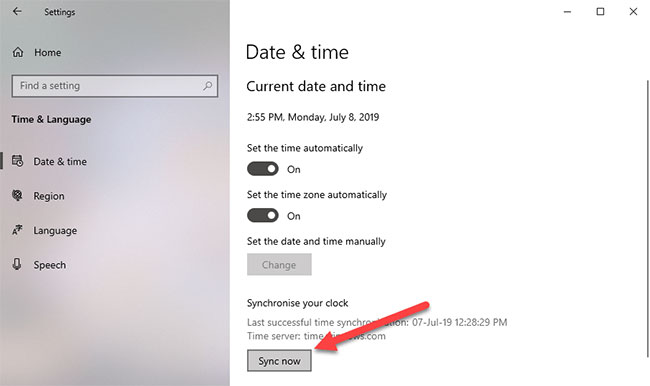
<p style="text-align: justify;">Trong ứng dụng&nbsp;<strong>Settings</strong>, đi đến&nbsp;<strong>Time &amp; Language &gt; Date &amp; Time</strong>. Ở bên phải, nhấp vào nút&nbsp;<strong>Sync</strong>&nbsp;trong phần&nbsp;<strong>Synchronize your clock</strong>.</p>

<figure>
<div style="text-align: justify;"><img alt="Nhấp vào nút Sync trong phần Synchronize your clock" data-adbro-processed="true" data-i="4" data-src="https://st.quantrimang.com/photos/image/2020/05/06/buoc-dong-bo-thoi-gian-trong-windows-bang-lenh-2.jpg" data-was-processed="true" height="386" src="https://st.quantrimang.com/photos/image/2020/05/06/buoc-dong-bo-thoi-gian-trong-windows-bang-lenh-2.jpg" width="650" /></div>

<figcaption>
<div style="text-align: justify;">Nhấp vào nút Sync trong phần Synchronize your clock</div>
</figcaption>
</figure>

<p style="text-align: justify;">Ngay khi bạn nhấp vào nút này, Windows sẽ đồng bộ thời gian. Một lần nữa, như đã nói trước đây, Windows sử dụng time server mặc định để đồng bộ thời gian. Nếu bạn muốn đồng bộ thời gian qua time server tùy chỉnh thì hãy sử dụng lệnh trên để đồng bộ thời gian Windows. Ở thời điểm bài viết này, ứng dụng&nbsp;<strong>Settings</strong>&nbsp;không có tùy chọn để thay đổi time server mặc định.</p>

<div style="text-align: justify;">&nbsp;</div>
		</div>
				<div id="author">
						<p>
				<strong>Nguồn tin:</strong>
				Quantrimang.com:
			</p>
		</div>
	</div>
	<div id="footer" class="clearfix">
		<div id="url">
			<strong>URL của bản tin này: </strong><a href="https://www.nguoicodonvn2008.info/vi/news/savefile/kien-thuc-may-tinh/cach-buoc-dong-bo-thoi-gian-trong-windows-bang-lenh-9439.html" title="Cách buộc đồng bộ thời gian trong Windows bằng lệnh">https://www.nguoicodonvn2008.info/vi/news/savefile/kien-thuc-may-tinh/cach-buoc-dong-bo-thoi-gian-trong-windows-bang-lenh-9439.html</a>

		</div>
		<div class="clear"></div>
		<div class="copyright">
			&copy; .&#x3A; Nguoicodonvn2008.info - Cõi lòng người cô đơn &#x3A;.
		</div>
		<div id="contact">
			<a href="mailto:admin@nguoicodonvn2008.info">admin@nguoicodonvn2008.info</a>
		</div>
	</div>
</div>
        <div id="timeoutsess" class="chromeframe">
            Bạn đã không sử dụng Site, <a onclick="timeoutsesscancel();" href="https://www.nguoicodonvn2008.info/#">Bấm vào đây để duy trì trạng thái đăng nhập</a>. Thời gian chờ: <span id="secField"> 60 </span> giây
        </div>
        <div id="openidResult" class="nv-alert" style="display:none"></div>
        <div id="openidBt" data-result="" data-redirect=""></div>
		</script>
		<div class="car-top">
  <span><img src="https://www.nguoicodonvn2008.info/themes/default/images/car.png" alt=""></span>
</div>
<script src="https://www.nguoicodonvn2008.info/assets/js/jquery/jquery.min.js"></script>
<script>var nv_base_siteurl="/",nv_lang_data="vi",nv_lang_interface="vi",nv_name_variable="nv",nv_fc_variable="op",nv_lang_variable="language",nv_module_name="news",nv_func_name="savefile",nv_is_user=0, nv_my_ofs=-4,nv_my_abbr="EDT",nv_cookie_prefix="nv4c_e856T",nv_check_pass_mstime=1738000,nv_area_admin=0,nv_safemode=0,theme_responsive=0,nv_recaptcha_ver=2,nv_recaptcha_sitekey="",nv_recaptcha_type="image",XSSsanitize=1;</script>
<script src="https://www.nguoicodonvn2008.info/assets/js/language/vi.js"></script>
<script src="https://www.nguoicodonvn2008.info/assets/js/DOMPurify/purify3.js"></script>
<script src="https://www.nguoicodonvn2008.info/assets/js/global.js"></script>
<script src="https://www.nguoicodonvn2008.info/assets/js/site.js"></script>
<script src="https://www.nguoicodonvn2008.info/themes/default/js/news.js"></script>
<script src="https://www.nguoicodonvn2008.info/themes/default/js/main.js"></script>
<script src="https://www.nguoicodonvn2008.info/themes/default/js/custom.js"></script>
<script type="application/ld+json">
        {
            "@context": "https://schema.org",
            "@type": "Organization",
            "url": "https://www.nguoicodonvn2008.info",
            "logo": "https://www.nguoicodonvn2008.info/uploads/angel.gif"
        }
        </script>
<script src="https://www.nguoicodonvn2008.info/themes/default/js/bootstrap.min.js"></script>
<script type="text/javascript">
var $scrolltop = $('.car-top');
$scrolltop.on('click', function () {
    $('html,body').animate({
        scrollTop: 0
    }, 800);
    $(this).addClass("car-run");
    setTimeout(function(){ $scrolltop.removeClass('car-run');}, 1000);
    return false;
});
$(window).on('scroll', function ()
{ 
    if($(window).scrollTop() >= 200)
    {
        $scrolltop.addClass("show");
        $scrolltop.addClass("car-down");
    }
    else
    {
       $scrolltop.removeClass("show");
       setTimeout(function(){ $scrolltop.removeClass('car-down');}, 300);
    }
});
</script>
</body>
</html>