<!DOCTYPE html>
    <html lang="vi" xmlns="http://www.w3.org/1999/xhtml" prefix="og: http://ogp.me/ns#">
    <head>
<title>Cách bật tính năng chống ransomware Controlled Folder Access trên Windows 10&#x002F;11</title>
<meta name="description" content="Cách bật tính năng chống ransomware Controlled Folder Access trên Windows 10&#x002F;11 - Savefile - Tin Tức -...">
<meta name="author" content=".: Nguoicodonvn2008.info - Cõi lòng người cô đơn :.">
<meta name="copyright" content=".: Nguoicodonvn2008.info - Cõi lòng người cô đơn :. [admin@nguoicodonvn2008.info]">
<meta name="robots" content="index, archive, follow, noodp">
<meta name="googlebot" content="index,archive,follow,noodp">
<meta name="msnbot" content="all,index,follow">
<meta name="generator" content="NukeViet v4.5">
<meta http-equiv="Content-Type" content="text/html; charset=utf-8">
<meta property="og:title" content="Cách bật tính năng chống ransomware Controlled Folder Access trên Windows 10&#x002F;11">
<meta property="og:type" content="website">
<meta property="og:description" content="Savefile - Tin Tức -...">
<meta property="og:site_name" content=".&#x3A; Nguoicodonvn2008.info - Cõi lòng người cô đơn &#x3A;.">
<meta property="og:url" content="https://www.nguoicodonvn2008.info/vi/news/savefile/kien-thuc-may-tinh/cach-bat-tinh-nang-chong-ransomware-controlled-folder-access-tren-windows-10-11-6684.html">
<link rel="shortcut icon" href="https://www.nguoicodonvn2008.info/favicon.ico">
<link rel="canonical" href="https://www.nguoicodonvn2008.info/vi/news/savefile/kien-thuc-may-tinh/cach-bat-tinh-nang-chong-ransomware-controlled-folder-access-tren-windows-10-11-6684.html">
<link rel="alternate" href="https://www.nguoicodonvn2008.info/vi/news/rss/" title="Tin Tức" type="application/rss+xml">
<link rel="alternate" href="https://www.nguoicodonvn2008.info/vi/news/rss/karaoke-dual/" title="Tin Tức - Karaoke Dual" type="application/rss+xml">
<link rel="alternate" href="https://www.nguoicodonvn2008.info/vi/news/rss/nhac-tre/" title="Tin Tức - Nhạc trẻ" type="application/rss+xml">
<link rel="alternate" href="https://www.nguoicodonvn2008.info/vi/news/rss/tru-tinh/" title="Tin Tức - Trữ tình" type="application/rss+xml">
<link rel="alternate" href="https://www.nguoicodonvn2008.info/vi/news/rss/nuoc-ngoai/" title="Tin Tức - Nước ngoài" type="application/rss+xml">
<link rel="alternate" href="https://www.nguoicodonvn2008.info/vi/news/rss/remix/" title="Tin Tức - Remix" type="application/rss+xml">
<link rel="alternate" href="https://www.nguoicodonvn2008.info/vi/news/rss/tam-su-tinh-yeu/" title="Tin Tức - Tâm sự tình yêu" type="application/rss+xml">
<link rel="alternate" href="https://www.nguoicodonvn2008.info/vi/news/rss/tho-suu-tam/" title="Tin Tức - Thơ sưu tầm" type="application/rss+xml">
<link rel="alternate" href="https://www.nguoicodonvn2008.info/vi/news/rss/cuoc-song/" title="Tin Tức - Cuộc sống" type="application/rss+xml">
<link rel="alternate" href="https://www.nguoicodonvn2008.info/vi/news/rss/phan-mem/" title="Tin Tức - Phần mềm" type="application/rss+xml">
<link rel="alternate" href="https://www.nguoicodonvn2008.info/vi/news/rss/kien-thuc-may-tinh/" title="Tin Tức - Kiến thức máy tính" type="application/rss+xml">
<link rel="alternate" href="https://www.nguoicodonvn2008.info/vi/news/rss/hoc-tap/" title="Tin Tức - Học tập" type="application/rss+xml">
<link rel="alternate" href="https://www.nguoicodonvn2008.info/vi/news/rss/tai-lieu/" title="Tin Tức - Tài liệu" type="application/rss+xml">
<link rel="alternate" href="https://www.nguoicodonvn2008.info/vi/news/rss/de-thi/" title="Tin Tức - Đề thi" type="application/rss+xml">
<link rel="preload" as="style" href="https://www.nguoicodonvn2008.info/assets/css/font-awesome.min.css" type="text/css">
<link rel="preload" as="style" href="https://www.nguoicodonvn2008.info/themes/default/css/bootstrap.non-responsive.css" type="text/css">
<link rel="preload" as="style" href="https://www.nguoicodonvn2008.info/themes/default/css/style.css" type="text/css">
<link rel="preload" as="style" href="https://www.nguoicodonvn2008.info/themes/default/css/style.non-responsive.css" type="text/css">
<link rel="preload" as="style" href="https://www.nguoicodonvn2008.info/themes/default/css/news.css" type="text/css">
<link rel="preload" as="style" href="https://www.nguoicodonvn2008.info/themes/default/css/custom.css" type="text/css">
<link rel="preload" as="script" href="https://www.nguoicodonvn2008.info/assets/js/jquery/jquery.min.js" type="text/javascript">
<link rel="preload" as="script" href="https://www.nguoicodonvn2008.info/assets/js/language/vi.js" type="text/javascript">
<link rel="preload" as="script" href="https://www.nguoicodonvn2008.info/assets/js/DOMPurify/purify3.js" type="text/javascript">
<link rel="preload" as="script" href="https://www.nguoicodonvn2008.info/assets/js/global.js" type="text/javascript">
<link rel="preload" as="script" href="https://www.nguoicodonvn2008.info/assets/js/site.js" type="text/javascript">
<link rel="preload" as="script" href="https://www.nguoicodonvn2008.info/themes/default/js/news.js" type="text/javascript">
<link rel="preload" as="script" href="https://www.nguoicodonvn2008.info/themes/default/js/main.js" type="text/javascript">
<link rel="preload" as="script" href="https://www.nguoicodonvn2008.info/themes/default/js/custom.js" type="text/javascript">
<link rel="preload" as="script" href="https://www.nguoicodonvn2008.info/themes/default/js/bootstrap.min.js" type="text/javascript">
<link rel="stylesheet" href="https://www.nguoicodonvn2008.info/assets/css/font-awesome.min.css">
<link rel="stylesheet" href="https://www.nguoicodonvn2008.info/themes/default/css/bootstrap.non-responsive.css">
<link rel="stylesheet" href="https://www.nguoicodonvn2008.info/themes/default/css/style.css">
<link rel="stylesheet" href="https://www.nguoicodonvn2008.info/themes/default/css/style.non-responsive.css">
<link rel="StyleSheet" href="https://www.nguoicodonvn2008.info/themes/default/css/news.css">
<link rel="stylesheet" href="https://www.nguoicodonvn2008.info/themes/default/css/custom.css">
<style type="text/css">
	body{background: #fff;}
</style>
    </head>
    <body>
<div id="print">
	<div id="hd_print">
		<h2 class="pull-left">.&#x3A; Nguoicodonvn2008.info - Cõi lòng người cô đơn &#x3A;.</h2>
		<p class="pull-right"><a title=".&#x3A; Nguoicodonvn2008.info - Cõi lòng người cô đơn &#x3A;." href="https://www.nguoicodonvn2008.info/">https://www.nguoicodonvn2008.info</a></p>
	</div>
	<div class="clear"></div>
	<hr />
	<div id="content">
		<h1>Cách bật tính năng chống ransomware Controlled Folder Access trên Windows 10&#x002F;11</h1>
		<ul class="list-inline">
			<li>Thứ hai - 06/02/2023 23:46</li>
			<li class="hidden-print txtrequired"><em class="fa fa-print">&nbsp;</em><a title="In ra" href="javascript:;" onclick="window.print()">In ra</a></li>
			<li class="hidden-print txtrequired"><em class="fa fa-power-off">&nbsp;</em><a title="Đóng cửa sổ này" href="javascript:;" onclick="window.close()">Đóng cửa sổ này</a></li>
		</ul>
		<div class="clear"></div>
		<div id="hometext">
		</div>
				<div class="imghome">
			<img alt="Cách bật tính năng chống ransomware Controlled Folder Access trên Windows 10&#x002F;11" src="https://st.quantrimang.com/photos/image/2023/02/06/controlled-folder-access-1.jpg" width="460" class="img-thumbnail" />
		</div>
		<div class="clear"></div>
		<div id="bodytext" class="clearfix">
			<p style="text-align: justify;">Controlled Folder Access là một tính năng của ứng dụng diệt virus Windows Security trên nền tảng desktop của Microsoft. Tính năng này ngăn chặn ransomware bằng cách ngăn sửa đổi các file trong các thư mục được bảo vệ. Việc bật Controlled Folder Access sẽ ngăn các ứng dụng không đáng tin cậy, phần mềm độc hại hoặc cách khác thay đổi file trong những thư mục được bảo vệ.</p>

<p style="text-align: justify;">Controlled Folder Access là một tính năng bảo mật bổ sung trong Windows 10 và 11 mà một số người dùng đánh giá cao.&nbsp;Ransomware&nbsp;không phải là thứ gì đó có thể xem nhẹ và việc kích hoạt tính năng này sẽ giữ cho các file của hệ thống và người dùng thêm an toàn. Đây là 4 cách bạn có thể kích hoạt Controlled Folder Access trong Windows.</p>

<h2 style="text-align: justify;">Cách bật Controlled Folder Access trong Windows Security</h2>

<p style="text-align: justify;">Cài đặt Controlled Folder Access nằm trong Ransomware Protection thuộc ứng dụng Windows Security. Thật dễ dàng để tìm và bật/tắt tùy chọn đó khi bạn biết nó ở đâu. Đây là cách bật tùy chọn Controlled Folder Access trong ứng dụng Windows Security.</p>

<p style="text-align: justify;">1. Để&nbsp;mở ứng dụng Windows Security, nhấp đúp vào biểu tượng khay hệ thống của nó.</p>

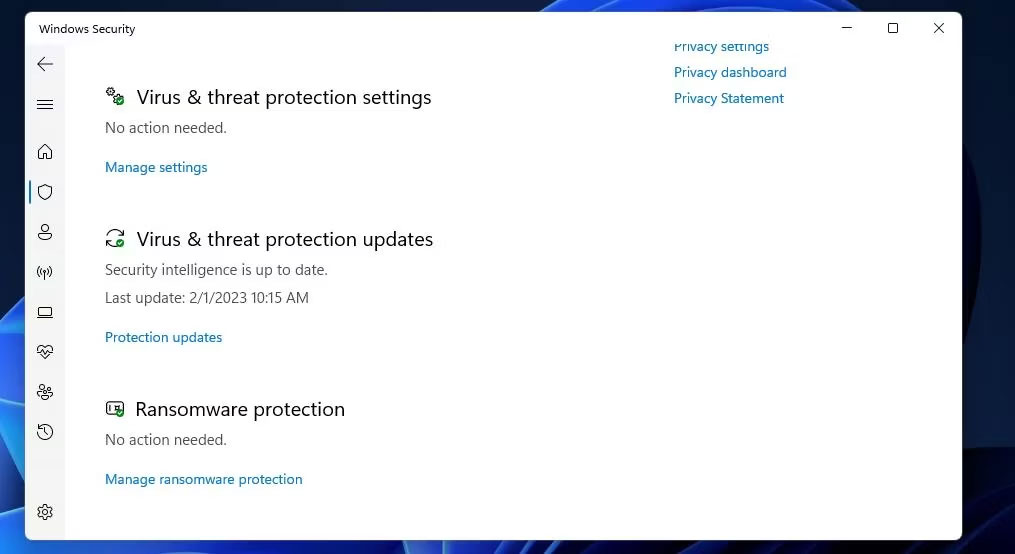
<p style="text-align: justify;">2. Chọn tab&nbsp;<strong>Virus &amp; threat protection</strong>&nbsp;của Windows Security.</p>

<figure>
<div style="text-align: justify;"><img alt="Tính năng Ransomware Protection" data-i="0" data-src="https://st.quantrimang.com/photos/image/2023/02/06/controlled-folder-access-1.jpg" data-was-processed="true" height="554" src="https://st.quantrimang.com/photos/image/2023/02/06/controlled-folder-access-1.jpg" width="1015" /></div>

<figcaption>
<div style="text-align: justify;">Tính năng Ransomware Protection</div>
</figcaption>
</figure>

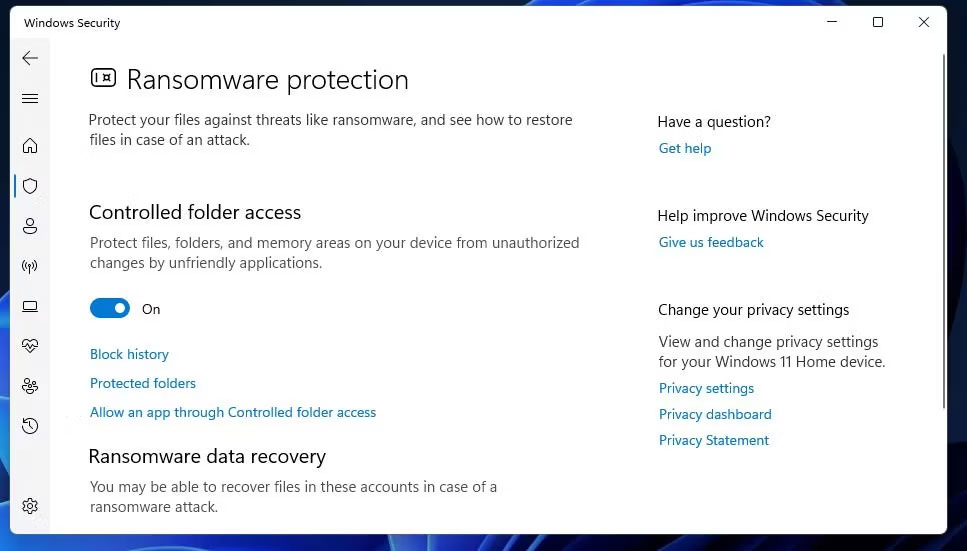
<p style="text-align: justify;">3. Nhấp vào&nbsp;<strong>Manage ransomware protection</strong>&nbsp;để đến cài đặt Controlled Folder Access.</p>

<figure>
<div style="text-align: justify;"><img alt="Tùy chọn Controlled Folder Access" data-i="1" data-src="https://st.quantrimang.com/photos/image/2023/02/06/controlled-folder-access-2.jpg" data-was-processed="true" height="551" src="https://st.quantrimang.com/photos/image/2023/02/06/controlled-folder-access-2.jpg" width="967" /></div>

<figcaption>
<div style="text-align: justify;">Tùy chọn Controlled Folder Access</div>
</figcaption>
</figure>

<p style="text-align: justify;">4. Bây giờ, hãy bật tùy chọn Controlled Folder Access để kích hoạt tính năng đó.</p>

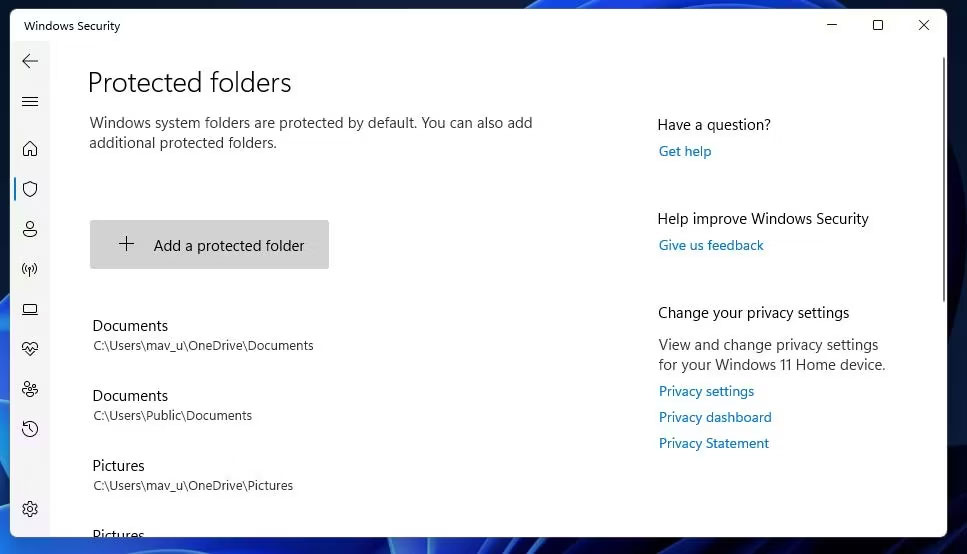
<p style="text-align: justify;">Controlled Folder Access bảo vệ các thư mục người dùng Documents, Videos, Pictures và Music khi được bật. Để xem danh sách các thư mục người dùng được bảo vệ, hãy nhấp vào&nbsp;<strong>Protected folder.</strong>&nbsp;Bạn có thể thêm nhiều hơn nữa vào danh sách bằng cách nhấp vào nút&nbsp;<strong>Add protected folder</strong>, chọn một thư mục và nhấp vào&nbsp;<strong>Select Folder.</strong></p>

<figure>
<div style="text-align: justify;"><img alt="Nút Add protected folder" data-i="2" data-src="https://st.quantrimang.com/photos/image/2023/02/06/controlled-folder-access-3.jpg" data-was-processed="true" height="554" src="https://st.quantrimang.com/photos/image/2023/02/06/controlled-folder-access-3.jpg" width="967" /></div>

<figcaption>
<div style="text-align: justify;">Nút Add protected folder</div>
</figcaption>
</figure>

<h2 style="text-align: justify;">Cách bật quyền Controlled Folder Access bằng PowerShell</h2>

<p style="text-align: justify;">Windows PowerShell&nbsp;cung cấp cho bạn một phương pháp thay thế để bật và tắt Controlled Folder Access bằng cách thực thi các lệnh. Bạn có thể bật Controlled Folder Access bằng PowerShell như sau:</p>

<p style="text-align: justify;">1. Để kích hoạt công cụ tìm kiếm file, nhấn&nbsp;<strong>Win + S</strong>.</p>

<p style="text-align: justify;">2. Nhập&nbsp;<strong>PowerShell</strong>&nbsp;trong tiện ích tìm kiếm đã kích hoạt.</p>

<p style="text-align: justify;">3.&nbsp;Mở PowerShell với quyền admin&nbsp;bằng cách chọn&nbsp;<strong>Run as administrator</strong>.</p>

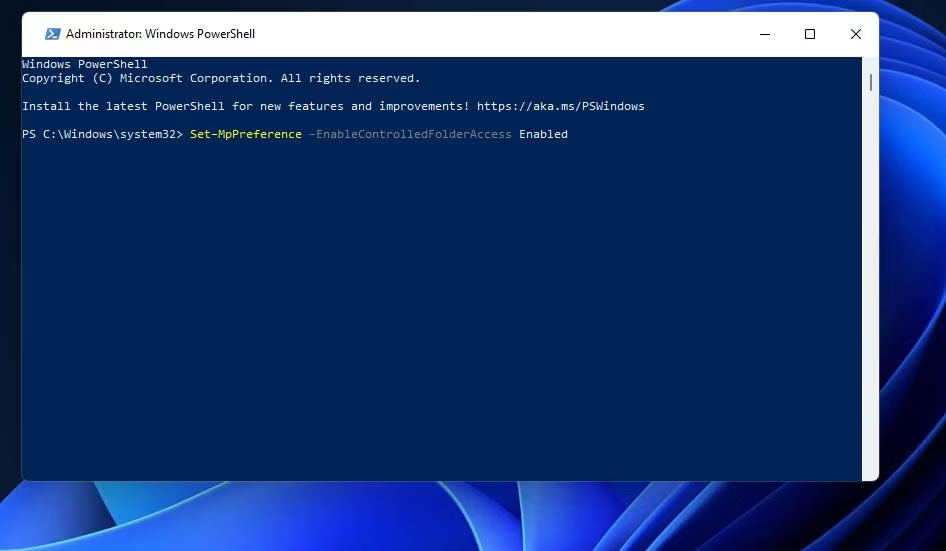
<p style="text-align: justify;">4. Để bật Controlled Folder Access, hãy nhập văn bản lệnh này và nhấn&nbsp;<strong>Enter</strong>:</p>

<pre id="pre0">
<code>Set-MpPreference -EnableControlledFolderAccess Enabled</code></pre>

<figure>
<div style="text-align: justify;"><img alt="Lệnh kích hoạt Controlled Folder Access" data-i="3" data-src="https://st.quantrimang.com/photos/image/2023/02/06/controlled-folder-access-4.jpg" data-was-processed="true" height="551" src="https://st.quantrimang.com/photos/image/2023/02/06/controlled-folder-access-4.jpg" width="946" /></div>

<figcaption>
<div style="text-align: justify;">Lệnh kích hoạt Controlled Folder Access</div>
</figcaption>
</figure>

<p style="text-align: justify;">5. Bạn có thể tắt Controlled Folder Access bằng cách thực hiện lệnh này:</p>

<pre id="pre1">
<code>Set-MpPreference -EnableControlledFolderAccess Disabled</code></pre>

<h2 style="text-align: justify;">Cách bật Controlled Folder Access với Group Policy Editor</h2>

<p style="text-align: justify;">Nếu có phiên bản Windows 11 Pro hoặc Enterprise, bạn có thể bật Controlled Folder Access bằng Group Policy Editor. Group Policy Editor cũng bao gồm một số cài đặt cấu hình bổ sung để truy cập Controlled Folder Access. Đây là cách bật Controlled Folder Access qua GPE.</p>

<p style="text-align: justify;"><strong>Lưu ý</strong>: Nếu bạn đang sử dụng Windows Home, Group Policy Editor sẽ không xuất hiện theo mặc định.</p>

<p style="text-align: justify;">1. Mở công cụ tìm kiếm trong Windows và nhập&nbsp;<strong>gpedit.msc</strong>&nbsp;vào đó.</p>

<p style="text-align: justify;">2. Chọn&nbsp;<strong>gpedit.msc</strong>&nbsp;để hiển thị Group Policy Editor.</p>

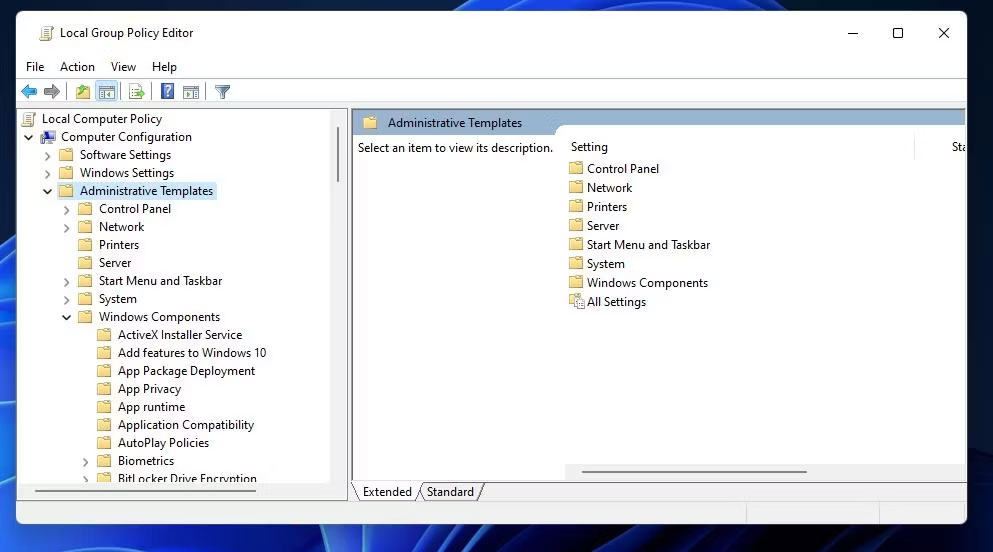
<p style="text-align: justify;">3. Nhấp vào&nbsp;<strong>Computer Configuration &gt; Administrative Templates</strong>&nbsp;trong ngăn bên trái của Group Policy Editor.</p>

<figure>
<div style="text-align: justify;"><img alt="Administrative Templates trong Group Policy Editor" data-i="4" data-src="https://st.quantrimang.com/photos/image/2023/02/06/controlled-folder-access-5.jpg" data-was-processed="true" height="552" src="https://st.quantrimang.com/photos/image/2023/02/06/controlled-folder-access-5.jpg" width="993" /></div>

<figcaption>
<div style="text-align: justify;">Administrative Templates trong Group Policy Editor</div>
</figcaption>
</figure>

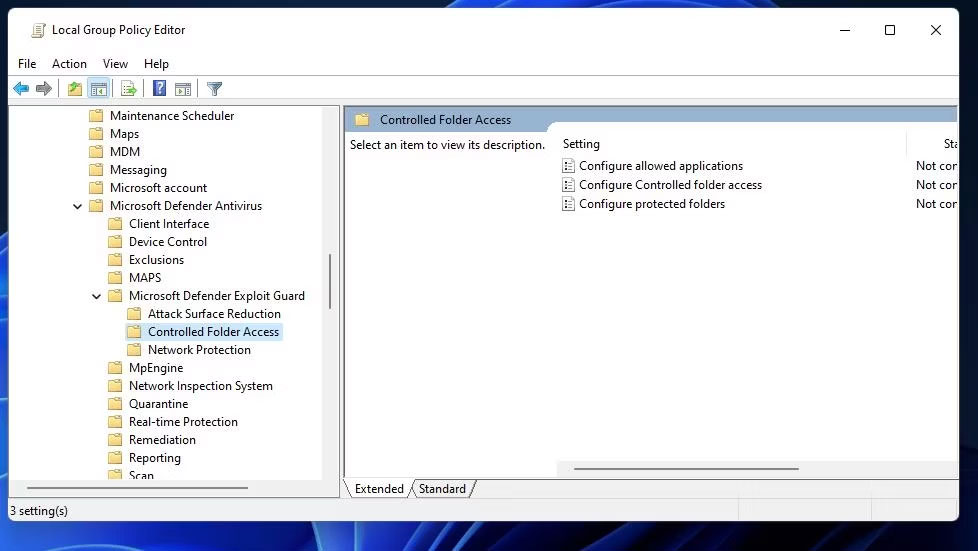
<p style="text-align: justify;">4. Nhấp đúp vào&nbsp;<strong>Windows Components</strong>&nbsp;để mở rộng nó.</p>

<p style="text-align: justify;">5. Bấm vào các mũi tên để mở rộng&nbsp;<strong>Microsoft Defender Antivirus</strong>&nbsp;và&nbsp;<strong>Microsoft Defender Exploit Guard</strong>.</p>

<p style="text-align: justify;">6. Chọn&nbsp;<strong>Controlled Folder Access</strong>&nbsp;để xem cài đặt policy cho tính năng đó.</p>

<p style="text-align: justify;">7. Sau đó nhấp đúp vào&nbsp;<strong>Configure Controlled folder access</strong>&nbsp;để xem cửa sổ của cài đặt đó.</p>

<figure>
<div style="text-align: justify;"><img alt="Policy Controlled Folder Access trong Group Policy Editor" data-i="5" data-src="https://st.quantrimang.com/photos/image/2023/02/06/controlled-folder-access-6.jpg" data-was-processed="true" height="551" src="https://st.quantrimang.com/photos/image/2023/02/06/controlled-folder-access-6.jpg" width="978" /></div>

<figcaption>
<div style="text-align: justify;">Policy Controlled Folder Access trong Group Policy Editor</div>
</figcaption>
</figure>

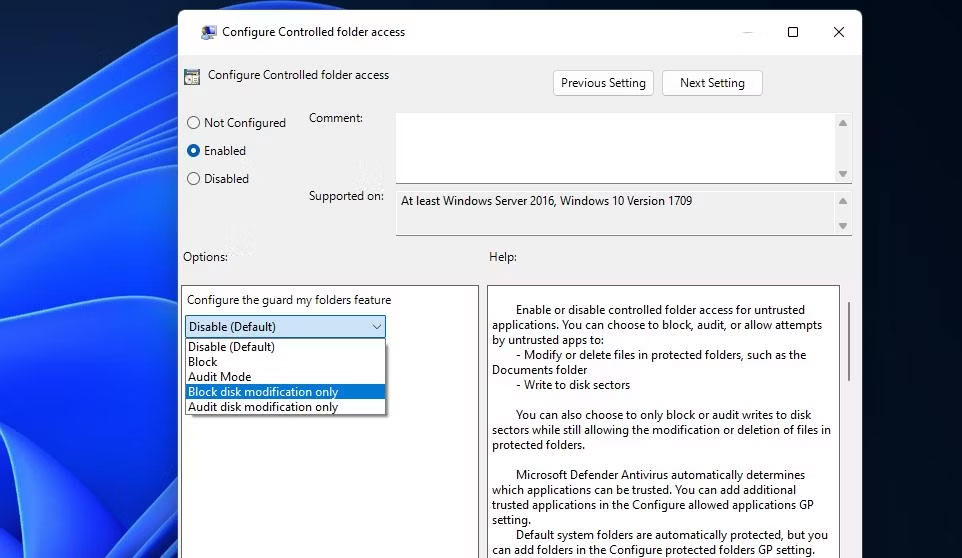
<p style="text-align: justify;">8. Chọn&nbsp;<strong>Enabled</strong>&nbsp;cho cửa sổ&nbsp;<strong>Configure Controlled folder access</strong>.</p>

<p style="text-align: justify;">9. Nhấp vào&nbsp;<strong>Block</strong>&nbsp;trên menu drop-down để chọn chế độ CFA nghiêm ngặt nhất. Tuy nhiên, bạn cũng có thể chọn các tùy chọn&nbsp;<strong>Audit Mode, Block disk notification only</strong>&nbsp;và&nbsp;<strong>Audit disk notification only</strong>&nbsp;để cho phép truy cập Controlled Folder Access.</p>

<figure>
<div style="text-align: justify;"><img alt="Menu drop-down Configure the guard my folders feature" data-i="6" data-src="https://st.quantrimang.com/photos/image/2023/02/06/controlled-folder-access-7.jpg" data-was-processed="true" height="558" src="https://st.quantrimang.com/photos/image/2023/02/06/controlled-folder-access-7.jpg" width="962" /></div>

<figcaption>
<div style="text-align: justify;">Menu drop-down Configure the guard my folders feature</div>
</figcaption>
</figure>

<p style="text-align: justify;">10. Chọn&nbsp;<strong>Apply</strong>&nbsp;trong cửa sổ&nbsp;<strong>Configure Controlled folder access</strong>.</p>

<p style="text-align: justify;">11. Nhấp vào nút&nbsp;<strong>OK</strong>&nbsp;của cửa sổ&nbsp;<strong>Configure Controlled folder access</strong>.</p>

<h2 style="text-align: justify;">Cách bật Controlled Folder Access từ menu ngữ cảnh Windows</h2>

<p style="text-align: justify;">Ngoài ra, bạn có thể tạo shortcut menu ngữ cảnh để bật/tắt Controlled Folder Access. Sau đó, bạn sẽ có thể truy cập cài đặt&nbsp;<strong>Turn on Control folder access&nbsp;</strong>từ khu vực desktop của Windows. Bạn có thể thêm tùy chọn CFA như vậy vào menu chuột phải bằng cách thiết lập và chạy registry script như sau:</p>

<p style="text-align: justify;">1. Mở&nbsp;<strong>Notepad.</strong></p>

<p style="text-align: justify;">2. Sau đó chọn văn bản script này và nhấn tổ hợp phím&nbsp;<strong>Ctrl + C</strong>:</p>

<pre id="pre2">
<code>Windows Registry Editor Version 5.00
 ; Created by: Shawn Brink

 ; Created on: July 19th 2018

 ; Tutorial: https://www.tenforums.com/tutorials/114389-add-turn-off-controlled-folder-access-context-menu-windows-10-a.html
 &#91;HKEY_CLASSES_ROOT\DesktopBackground\Shell\ControlledFolderAccess&#93;

 &quot;HasLUAShield&quot;=&quot;&quot;

 &quot;Icon&quot;=&quot;%ProgramFiles%\\Windows Defender\\EppManifest.dll,-101&quot;

 &quot;MUIVerb&quot;=&quot;Turn On or Off Control folder access&quot;

 &quot;Position&quot;=&quot;Bottom&quot;

 &quot;SubCommands&quot;=&quot;&quot;
 &#91;HKEY_CLASSES_ROOT\DesktopBackground\Shell\ControlledFolderAccess\shell\001flyout&#93;

 &quot;MUIVerb&quot;=&quot;Turn on Control folder access&quot;

 &quot;HasLUAShield&quot;=&quot;&quot;

 &quot;Icon&quot;=&quot;%ProgramFiles%\\Windows Defender\\EppManifest.dll,-101&quot;
 &#91;HKEY_CLASSES_ROOT\DesktopBackground\Shell\ControlledFolderAccess\shell\001flyout\command&#93;

 @=&quot;PowerShell -windowstyle hidden -Command \&quot;Start-Process cmd -ArgumentList &#039;/s,/c,start PowerShell.exe Set-MpPreference -EnableControlledFolderAccess Enabled&#039; -Verb RunAs\&quot;&quot;
 &#91;HKEY_CLASSES_ROOT\DesktopBackground\Shell\ControlledFolderAccess\shell\002flyout&#93;

 &quot;MUIVerb&quot;=&quot;Turn off Control folder access&quot;

 &quot;HasLUAShield&quot;=&quot;&quot;

 &quot;Icon&quot;=&quot;%ProgramFiles%\\Windows Defender\\EppManifest.dll,-101&quot;
 &#91;HKEY_CLASSES_ROOT\DesktopBackground\Shell\ControlledFolderAccess\shell\002flyout\command&#93;

 @=&quot;PowerShell -windowstyle hidden -Command \&quot;Start-Process cmd -ArgumentList &#039;/s,/c,start PowerShell.exe Set-MpPreference -EnableControlledFolderAccess Disabled&#039; -Verb RunAs\&quot;&quot;</code></pre>

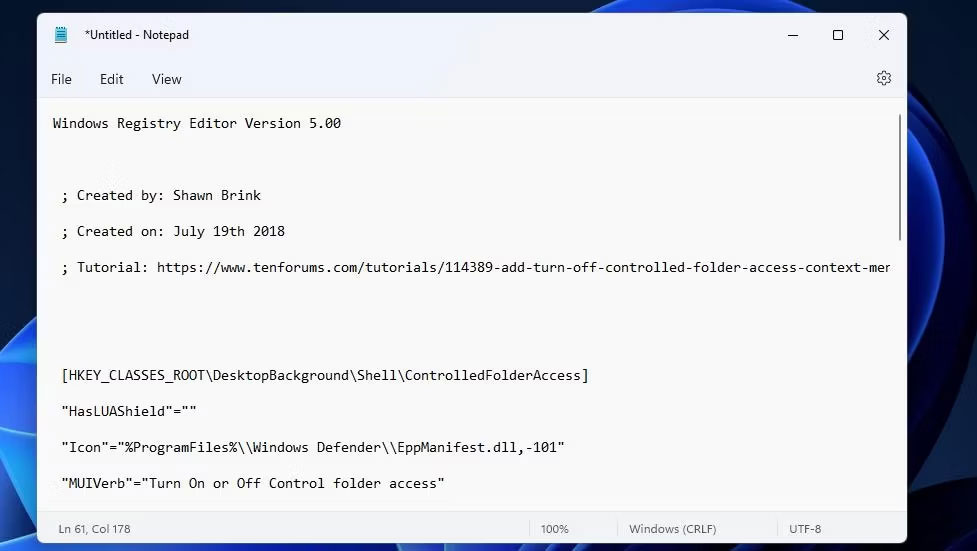
<p style="text-align: justify;">3.&nbsp;Dán script đó vào Notepad bằng cách nhấp vào cửa sổ của ứng dụng và nhấn&nbsp;<strong>Ctrl + V</strong>.</p>

<figure>
<div style="text-align: justify;"><img alt="Registry script truy cập Controlled Folder Access" data-i="7" data-src="https://st.quantrimang.com/photos/image/2023/02/06/controlled-folder-access-8.jpg" data-was-processed="true" height="551" src="https://st.quantrimang.com/photos/image/2023/02/06/controlled-folder-access-8.jpg" width="977" /></div>

<figcaption>
<div style="text-align: justify;">Registry script truy cập Controlled Folder Access</div>
</figcaption>
</figure>

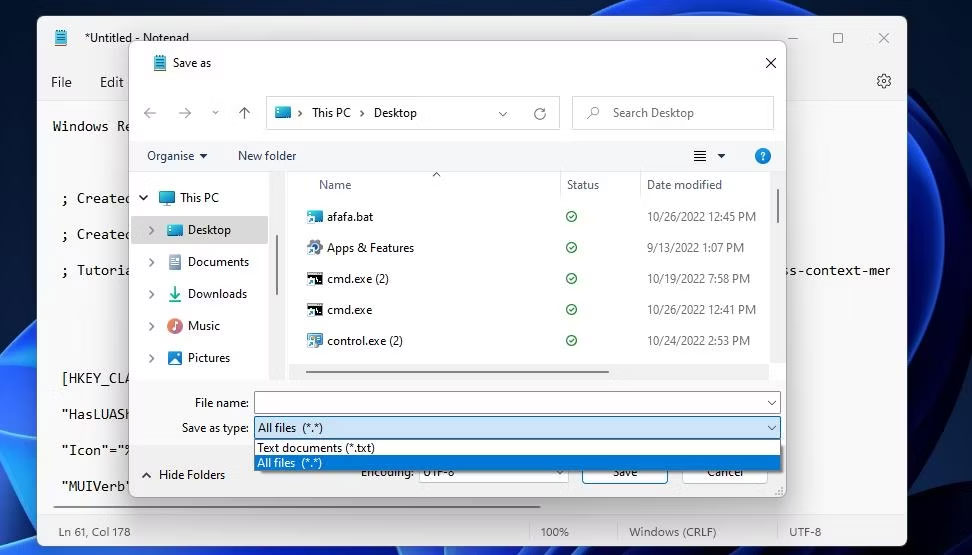
<p style="text-align: justify;">4. Tiếp theo, nhấn&nbsp;<strong>Ctrl + Shift + S</strong>&nbsp;để xem cửa sổ&nbsp;<strong>Save as</strong>&nbsp;của Notepad.</p>

<p style="text-align: justify;">5. Đặt tùy chọn&nbsp;<strong>Save as type</strong>&nbsp;thành&nbsp;<strong>All files</strong>.</p>

<figure>
<div style="text-align: justify;"><img alt="Tùy chọn All files" data-i="8" data-src="https://st.quantrimang.com/photos/image/2023/02/06/controlled-folder-access-9.jpg" data-was-processed="true" height="555" src="https://st.quantrimang.com/photos/image/2023/02/06/controlled-folder-access-9.jpg" width="972" /></div>

<figcaption>
<div style="text-align: justify;">Tùy chọn All files</div>
</figcaption>
</figure>

<p style="text-align: justify;">6. Nhập&nbsp;<strong>Turn on Control folder access.reg&nbsp;</strong>bên trong hộp tên file.</p>

<p style="text-align: justify;">7. Chọn để lưu script vào vị trí desktop.</p>

<p style="text-align: justify;">8. Nhấp vào&nbsp;<strong>Save</strong>&nbsp;để thêm file registry&nbsp;<strong>Turn on Control folder access</strong>&nbsp;vào desktop.</p>

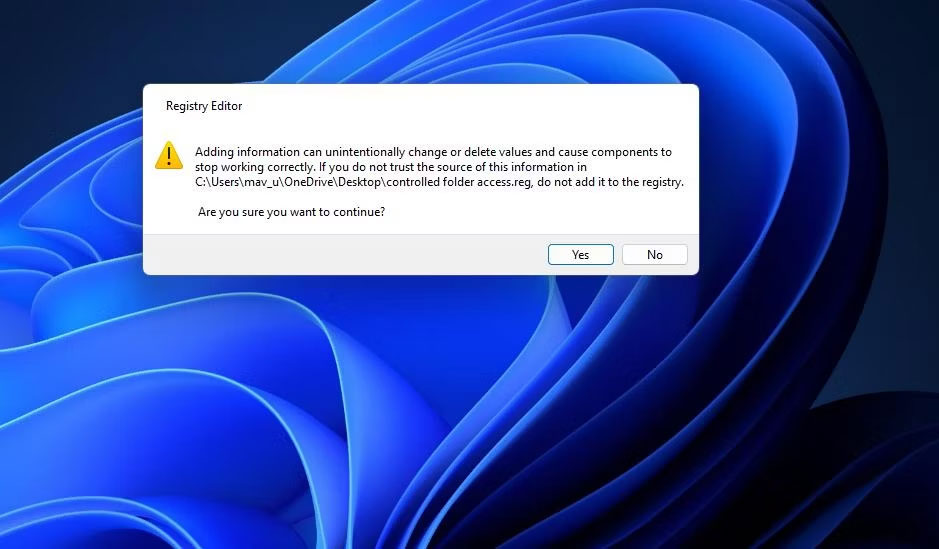
<p style="text-align: justify;">9. Đóng trình chỉnh sửa Notepad và nhấp đúp vào file&nbsp;<strong>Turn on Control folder access.reg</strong>&nbsp;trên desktop.</p>

<figure>
<div style="text-align: justify;"><img alt="Hộp thoại xác nhận script registry" data-i="9" data-src="https://st.quantrimang.com/photos/image/2023/02/06/controlled-folder-access-10.jpg" data-was-processed="true" height="549" src="https://st.quantrimang.com/photos/image/2023/02/06/controlled-folder-access-10.jpg" width="939" /></div>

<figcaption>
<div style="text-align: justify;">Hộp thoại xác nhận script registry</div>
</figcaption>
</figure>

<p style="text-align: justify;">10. Chọn&nbsp;<strong>Yes</strong>&nbsp;để xác nhận rằng bạn tin tưởng script.</p>

<p style="text-align: justify;">Giờ đây, bạn có thể kích hoạt quyền truy cập Controlled Folder Access từ menu ngữ cảnh của Windows.</p>
		</div>
				<div id="author">
						<p>
				<strong>Nguồn tin:</strong>
				Quantrimang.com
			</p>
		</div>
	</div>
	<div id="footer" class="clearfix">
		<div id="url">
			<strong>URL của bản tin này: </strong><a href="https://www.nguoicodonvn2008.info/vi/news/savefile/kien-thuc-may-tinh/cach-bat-tinh-nang-chong-ransomware-controlled-folder-access-tren-windows-10-11-6684.html" title="Cách bật tính năng chống ransomware Controlled Folder Access trên Windows 10&#x002F;11">https://www.nguoicodonvn2008.info/vi/news/savefile/kien-thuc-may-tinh/cach-bat-tinh-nang-chong-ransomware-controlled-folder-access-tren-windows-10-11-6684.html</a>

		</div>
		<div class="clear"></div>
		<div class="copyright">
			&copy; .&#x3A; Nguoicodonvn2008.info - Cõi lòng người cô đơn &#x3A;.
		</div>
		<div id="contact">
			<a href="mailto:admin@nguoicodonvn2008.info">admin@nguoicodonvn2008.info</a>
		</div>
	</div>
</div>
        <div id="timeoutsess" class="chromeframe">
            Bạn đã không sử dụng Site, <a onclick="timeoutsesscancel();" href="https://www.nguoicodonvn2008.info/#">Bấm vào đây để duy trì trạng thái đăng nhập</a>. Thời gian chờ: <span id="secField"> 60 </span> giây
        </div>
        <div id="openidResult" class="nv-alert" style="display:none"></div>
        <div id="openidBt" data-result="" data-redirect=""></div>
		</script>
		<div class="car-top">
  <span><img src="https://www.nguoicodonvn2008.info/themes/default/images/car.png" alt=""></span>
</div>
<script src="https://www.nguoicodonvn2008.info/assets/js/jquery/jquery.min.js"></script>
<script>var nv_base_siteurl="/",nv_lang_data="vi",nv_lang_interface="vi",nv_name_variable="nv",nv_fc_variable="op",nv_lang_variable="language",nv_module_name="news",nv_func_name="savefile",nv_is_user=0, nv_my_ofs=-4,nv_my_abbr="EDT",nv_cookie_prefix="nv4c_e856T",nv_check_pass_mstime=1738000,nv_area_admin=0,nv_safemode=0,theme_responsive=0,nv_recaptcha_ver=2,nv_recaptcha_sitekey="",nv_recaptcha_type="image",XSSsanitize=1;</script>
<script src="https://www.nguoicodonvn2008.info/assets/js/language/vi.js"></script>
<script src="https://www.nguoicodonvn2008.info/assets/js/DOMPurify/purify3.js"></script>
<script src="https://www.nguoicodonvn2008.info/assets/js/global.js"></script>
<script src="https://www.nguoicodonvn2008.info/assets/js/site.js"></script>
<script src="https://www.nguoicodonvn2008.info/themes/default/js/news.js"></script>
<script src="https://www.nguoicodonvn2008.info/themes/default/js/main.js"></script>
<script src="https://www.nguoicodonvn2008.info/themes/default/js/custom.js"></script>
<script type="application/ld+json">
        {
            "@context": "https://schema.org",
            "@type": "Organization",
            "url": "https://www.nguoicodonvn2008.info",
            "logo": "https://www.nguoicodonvn2008.info/uploads/angel.gif"
        }
        </script>
<script src="https://www.nguoicodonvn2008.info/themes/default/js/bootstrap.min.js"></script>
<script type="text/javascript">
var $scrolltop = $('.car-top');
$scrolltop.on('click', function () {
    $('html,body').animate({
        scrollTop: 0
    }, 800);
    $(this).addClass("car-run");
    setTimeout(function(){ $scrolltop.removeClass('car-run');}, 1000);
    return false;
});
$(window).on('scroll', function ()
{ 
    if($(window).scrollTop() >= 200)
    {
        $scrolltop.addClass("show");
        $scrolltop.addClass("car-down");
    }
    else
    {
       $scrolltop.removeClass("show");
       setTimeout(function(){ $scrolltop.removeClass('car-down');}, 300);
    }
});
</script>
</body>
</html>