<!DOCTYPE html>
    <html lang="vi" xmlns="http://www.w3.org/1999/xhtml" prefix="og: http://ogp.me/ns#">
    <head>
<title>Cách bật thông báo Gmail trong Google Chrome</title>
<meta name="description" content="Cách bật thông báo Gmail trong Google Chrome - Savefile - Tin Tức -...">
<meta name="author" content=".: Nguoicodonvn2008.info - Cõi lòng người cô đơn :.">
<meta name="copyright" content=".: Nguoicodonvn2008.info - Cõi lòng người cô đơn :. [admin@nguoicodonvn2008.info]">
<meta name="robots" content="index, archive, follow, noodp">
<meta name="googlebot" content="index,archive,follow,noodp">
<meta name="msnbot" content="all,index,follow">
<meta name="generator" content="NukeViet v4.5">
<meta http-equiv="Content-Type" content="text/html; charset=utf-8">
<meta property="og:title" content="Cách bật thông báo Gmail trong Google Chrome">
<meta property="og:type" content="website">
<meta property="og:description" content="Savefile - Tin Tức - https&#x3A;&#x002F;&#x002F;www.nguoicodonvn2008.info&#x002F;vi&#x002F;news&#x002F;savefile&#x002F;kien-thuc-may-tinh&#x002F;cach-bat-thong-bao-gmail-trong-google-chrome-6740.html">
<meta property="og:site_name" content=".&#x3A; Nguoicodonvn2008.info - Cõi lòng người cô đơn &#x3A;.">
<meta property="og:url" content="https://www.nguoicodonvn2008.info/vi/news/savefile/kien-thuc-may-tinh/cach-bat-thong-bao-gmail-trong-google-chrome-6740.html">
<link rel="shortcut icon" href="https://www.nguoicodonvn2008.info/favicon.ico">
<link rel="canonical" href="https://www.nguoicodonvn2008.info/vi/news/savefile/kien-thuc-may-tinh/cach-bat-thong-bao-gmail-trong-google-chrome-6740.html">
<link rel="alternate" href="https://www.nguoicodonvn2008.info/vi/news/rss/" title="Tin Tức" type="application/rss+xml">
<link rel="alternate" href="https://www.nguoicodonvn2008.info/vi/news/rss/karaoke-dual/" title="Tin Tức - Karaoke Dual" type="application/rss+xml">
<link rel="alternate" href="https://www.nguoicodonvn2008.info/vi/news/rss/nhac-tre/" title="Tin Tức - Nhạc trẻ" type="application/rss+xml">
<link rel="alternate" href="https://www.nguoicodonvn2008.info/vi/news/rss/tru-tinh/" title="Tin Tức - Trữ tình" type="application/rss+xml">
<link rel="alternate" href="https://www.nguoicodonvn2008.info/vi/news/rss/nuoc-ngoai/" title="Tin Tức - Nước ngoài" type="application/rss+xml">
<link rel="alternate" href="https://www.nguoicodonvn2008.info/vi/news/rss/remix/" title="Tin Tức - Remix" type="application/rss+xml">
<link rel="alternate" href="https://www.nguoicodonvn2008.info/vi/news/rss/tam-su-tinh-yeu/" title="Tin Tức - Tâm sự tình yêu" type="application/rss+xml">
<link rel="alternate" href="https://www.nguoicodonvn2008.info/vi/news/rss/tho-suu-tam/" title="Tin Tức - Thơ sưu tầm" type="application/rss+xml">
<link rel="alternate" href="https://www.nguoicodonvn2008.info/vi/news/rss/cuoc-song/" title="Tin Tức - Cuộc sống" type="application/rss+xml">
<link rel="alternate" href="https://www.nguoicodonvn2008.info/vi/news/rss/phan-mem/" title="Tin Tức - Phần mềm" type="application/rss+xml">
<link rel="alternate" href="https://www.nguoicodonvn2008.info/vi/news/rss/kien-thuc-may-tinh/" title="Tin Tức - Kiến thức máy tính" type="application/rss+xml">
<link rel="alternate" href="https://www.nguoicodonvn2008.info/vi/news/rss/hoc-tap/" title="Tin Tức - Học tập" type="application/rss+xml">
<link rel="alternate" href="https://www.nguoicodonvn2008.info/vi/news/rss/tai-lieu/" title="Tin Tức - Tài liệu" type="application/rss+xml">
<link rel="alternate" href="https://www.nguoicodonvn2008.info/vi/news/rss/de-thi/" title="Tin Tức - Đề thi" type="application/rss+xml">
<link rel="preload" as="style" href="https://www.nguoicodonvn2008.info/assets/css/font-awesome.min.css" type="text/css">
<link rel="preload" as="style" href="https://www.nguoicodonvn2008.info/themes/default/css/bootstrap.non-responsive.css" type="text/css">
<link rel="preload" as="style" href="https://www.nguoicodonvn2008.info/themes/default/css/style.css" type="text/css">
<link rel="preload" as="style" href="https://www.nguoicodonvn2008.info/themes/default/css/style.non-responsive.css" type="text/css">
<link rel="preload" as="style" href="https://www.nguoicodonvn2008.info/themes/default/css/news.css" type="text/css">
<link rel="preload" as="style" href="https://www.nguoicodonvn2008.info/themes/default/css/custom.css" type="text/css">
<link rel="preload" as="script" href="https://www.nguoicodonvn2008.info/assets/js/jquery/jquery.min.js" type="text/javascript">
<link rel="preload" as="script" href="https://www.nguoicodonvn2008.info/assets/js/language/vi.js" type="text/javascript">
<link rel="preload" as="script" href="https://www.nguoicodonvn2008.info/assets/js/DOMPurify/purify3.js" type="text/javascript">
<link rel="preload" as="script" href="https://www.nguoicodonvn2008.info/assets/js/global.js" type="text/javascript">
<link rel="preload" as="script" href="https://www.nguoicodonvn2008.info/assets/js/site.js" type="text/javascript">
<link rel="preload" as="script" href="https://www.nguoicodonvn2008.info/themes/default/js/news.js" type="text/javascript">
<link rel="preload" as="script" href="https://www.nguoicodonvn2008.info/themes/default/js/main.js" type="text/javascript">
<link rel="preload" as="script" href="https://www.nguoicodonvn2008.info/themes/default/js/custom.js" type="text/javascript">
<link rel="preload" as="script" href="https://www.nguoicodonvn2008.info/themes/default/js/bootstrap.min.js" type="text/javascript">
<link rel="stylesheet" href="https://www.nguoicodonvn2008.info/assets/css/font-awesome.min.css">
<link rel="stylesheet" href="https://www.nguoicodonvn2008.info/themes/default/css/bootstrap.non-responsive.css">
<link rel="stylesheet" href="https://www.nguoicodonvn2008.info/themes/default/css/style.css">
<link rel="stylesheet" href="https://www.nguoicodonvn2008.info/themes/default/css/style.non-responsive.css">
<link rel="StyleSheet" href="https://www.nguoicodonvn2008.info/themes/default/css/news.css">
<link rel="stylesheet" href="https://www.nguoicodonvn2008.info/themes/default/css/custom.css">
<style type="text/css">
	body{background: #fff;}
</style>
    </head>
    <body>
<div id="print">
	<div id="hd_print">
		<h2 class="pull-left">.&#x3A; Nguoicodonvn2008.info - Cõi lòng người cô đơn &#x3A;.</h2>
		<p class="pull-right"><a title=".&#x3A; Nguoicodonvn2008.info - Cõi lòng người cô đơn &#x3A;." href="https://www.nguoicodonvn2008.info/">https://www.nguoicodonvn2008.info</a></p>
	</div>
	<div class="clear"></div>
	<hr />
	<div id="content">
		<h1>Cách bật thông báo Gmail trong Google Chrome</h1>
		<ul class="list-inline">
			<li>Thứ năm - 16/02/2023 23:45</li>
			<li class="hidden-print txtrequired"><em class="fa fa-print">&nbsp;</em><a title="In ra" href="javascript:;" onclick="window.print()">In ra</a></li>
			<li class="hidden-print txtrequired"><em class="fa fa-power-off">&nbsp;</em><a title="Đóng cửa sổ này" href="javascript:;" onclick="window.close()">Đóng cửa sổ này</a></li>
		</ul>
		<div class="clear"></div>
		<div id="hometext">
		</div>
				<div class="imghome">
			<img alt="Cách bật thông báo Gmail trong Google Chrome" src="https://st.quantrimang.com/photos/image/2023/02/16/thong-bao-gmail-tren-trinh-duyet-chrome-1.jpg" width="460" class="img-thumbnail" />
		</div>
		<div class="clear"></div>
		<div id="bodytext" class="clearfix">
			<p style="text-align: justify;">Việc cập nhật email có thể là một thách thức, đặc biệt là khi bạn có một lịch trình bận rộn. Nếu&nbsp;sử dụng Gmail, bạn có thể muốn cập nhật email của mình mà không cần chuyển đổi qua lại từ dịch vụ email dựa trên web. Rất may, bạn có thể bật thông báo ngay từ Chrome.</p>

<p style="text-align: justify;">Nếu bạn dựa vào&nbsp;Gmail&nbsp;và muốn biết khi nào có email tới hộp thư đến của mình, thì hướng dẫn này sẽ giải thích cách bạn có thể nhận thông báo của Gmail trong Chrome với một số bước đơn giản.</p>

<h2 style="text-align: justify;">Cách bật thông báo Gmail trong Google Chrome</h2>

<p style="text-align: justify;">Để bật thông báo Gmail trong trình duyệt, chỉ cần thực hiện theo các bước bên dưới:</p>

<h3 style="text-align: justify;">1. Đảm bảo thông báo được bật</h3>

<figure>
<div style="text-align: justify;"><img alt="Menu drop-down Chrome Settings" data-i="0" data-src="https://st.quantrimang.com/photos/image/2023/02/16/thong-bao-gmail-tren-trinh-duyet-chrome-1.jpg" data-was-processed="true" height="750" src="https://st.quantrimang.com/photos/image/2023/02/16/thong-bao-gmail-tren-trinh-duyet-chrome-1.jpg" width="1200" /></div>

<figcaption>
<div style="text-align: justify;">Menu drop-down Chrome Settings</div>
</figcaption>
</figure>

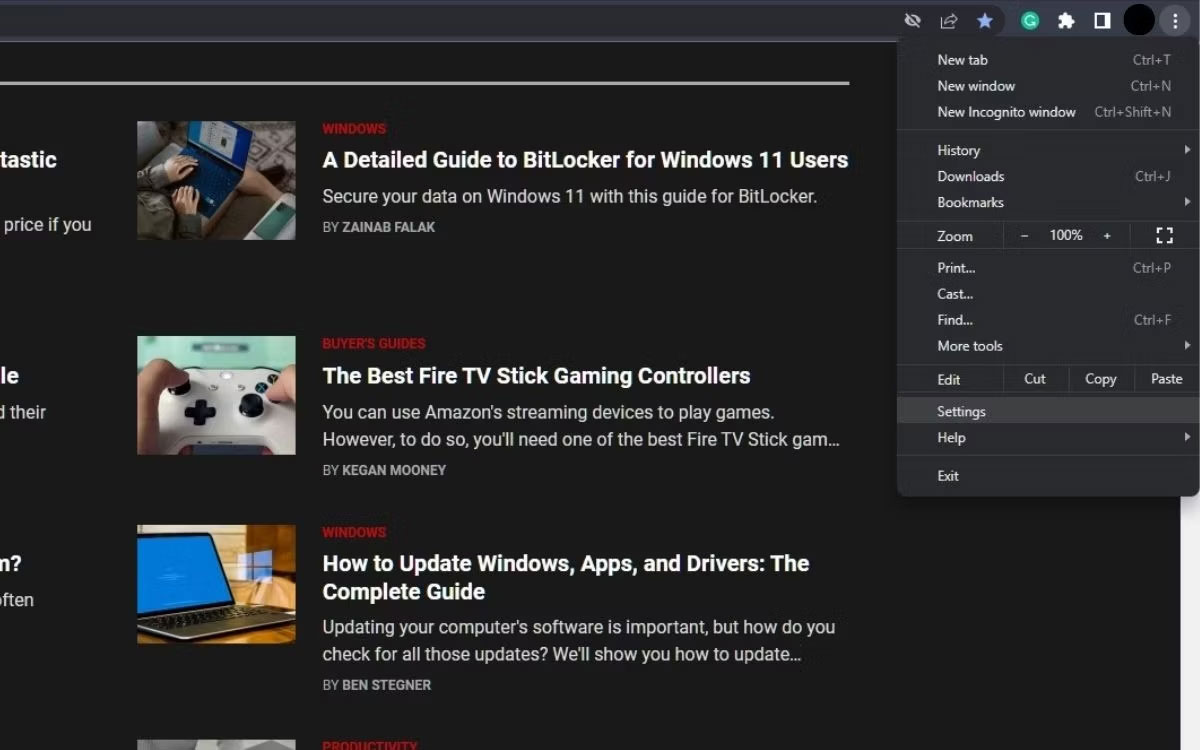
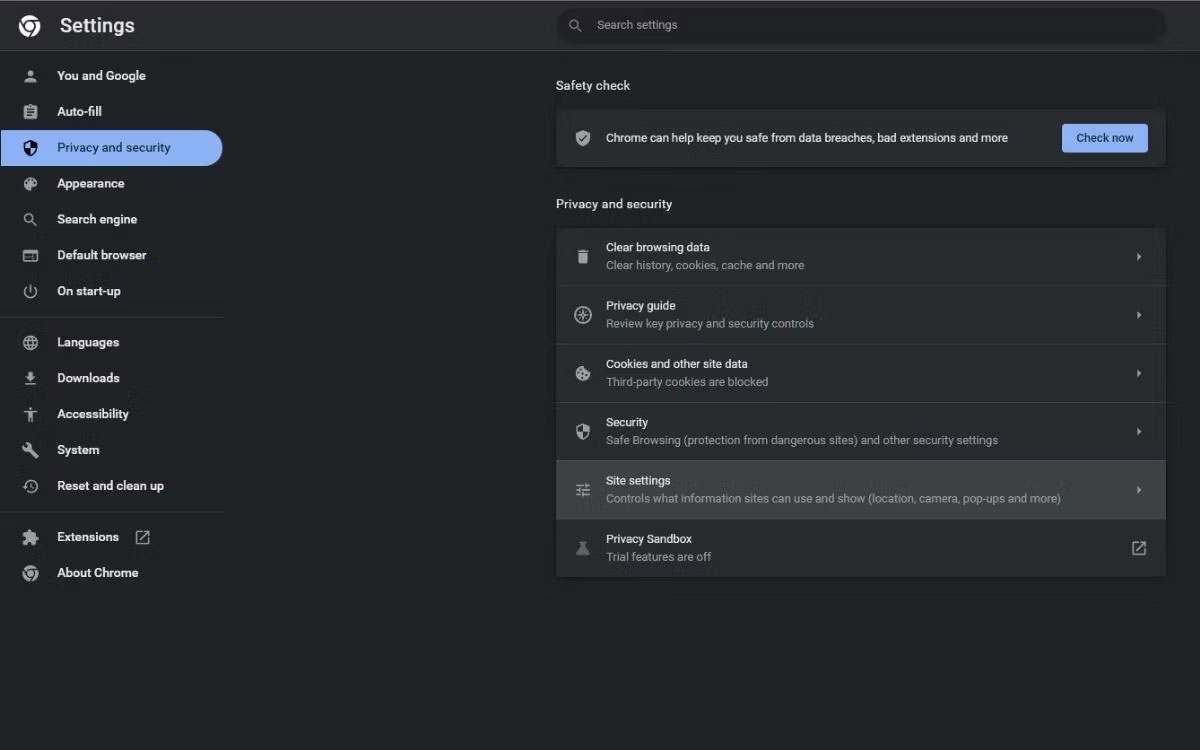
<p style="text-align: justify;">Để xem thông báo có được bật hay không, hãy nhấp vào ba dấu chấm dọc ở góc trên cùng bên phải của trình duyệt và từ menu drop-down, hãy nhấp vào&nbsp;<strong>Settings.</strong>&nbsp;Từ đó, nhấp vào&nbsp;<strong>Privacy and security</strong>&nbsp;từ tab bên trái, sau đó chọn&nbsp;<strong>Site settings</strong>.</p>

<figure>
<div style="text-align: justify;"><img alt="Trang Privacy and security của Chrome" data-i="1" data-src="https://st.quantrimang.com/photos/image/2023/02/16/thong-bao-gmail-tren-trinh-duyet-chrome-2.jpg" data-was-processed="true" height="750" src="https://st.quantrimang.com/photos/image/2023/02/16/thong-bao-gmail-tren-trinh-duyet-chrome-2.jpg" width="1200" /></div>

<figcaption>
<div style="text-align: justify;">Trang Privacy and security của Chrome</div>
</figcaption>
</figure>

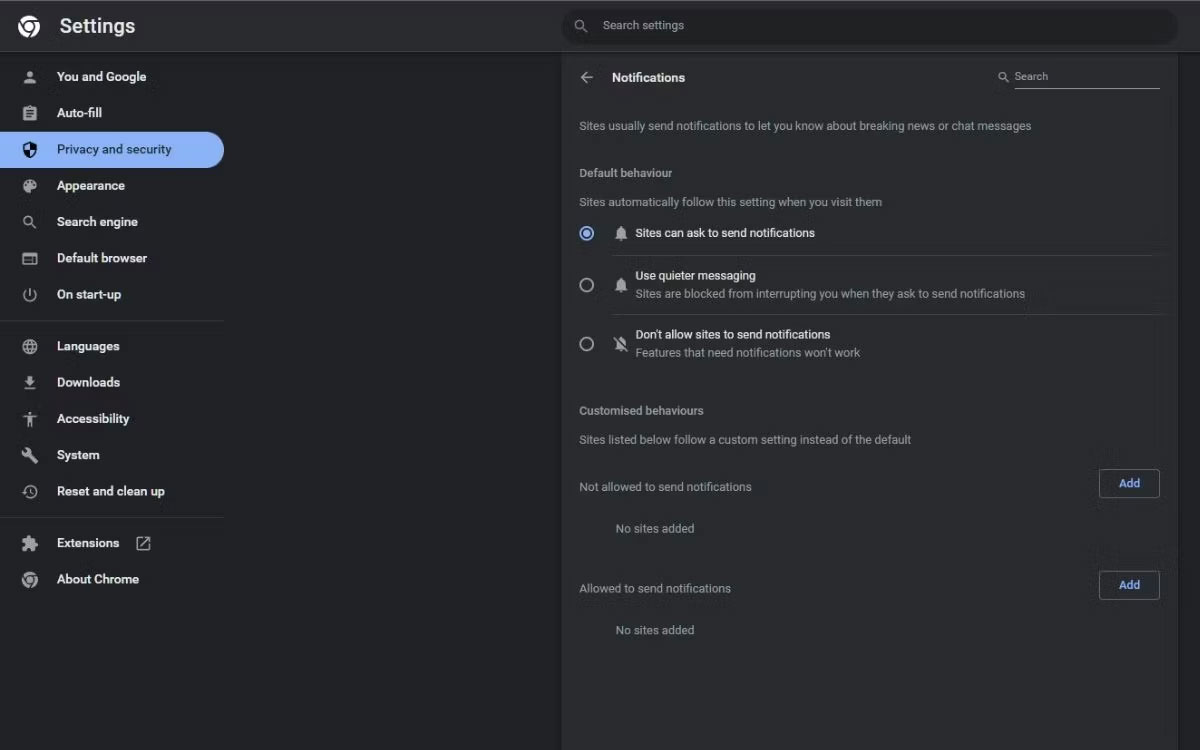
<p style="text-align: justify;">Trong phần&nbsp;<strong>Permissions</strong>, hãy tìm và nhấp vào&nbsp;<strong>Notifications</strong>, đảm bảo nút&nbsp;<strong>Sites can ask to send notifications</strong>&nbsp;được chọn.</p>

<figure>
<div style="text-align: justify;"><img alt="Trang cài đặt thông báo Chrome" data-i="2" data-src="https://st.quantrimang.com/photos/image/2023/02/16/thong-bao-gmail-tren-trinh-duyet-chrome-3.jpg" data-was-processed="true" height="750" src="https://st.quantrimang.com/photos/image/2023/02/16/thong-bao-gmail-tren-trinh-duyet-chrome-3.jpg" width="1200" /></div>

<figcaption>
<div style="text-align: justify;">Trang cài đặt thông báo Chrome</div>
</figcaption>
</figure>

<h3 style="text-align: justify;">2. Bật thông báo Gmail</h3>

<figure>
<div style="text-align: justify;"><img alt="Menu drop-down Quick Settings của Gmail" data-i="3" data-src="https://st.quantrimang.com/photos/image/2023/02/16/thong-bao-gmail-tren-trinh-duyet-chrome-4.jpg" data-was-processed="true" height="750" src="https://st.quantrimang.com/photos/image/2023/02/16/thong-bao-gmail-tren-trinh-duyet-chrome-4.jpg" width="1200" /></div>

<figcaption>
<div style="text-align: justify;">Menu drop-down Quick Settings của Gmail</div>
</figcaption>
</figure>

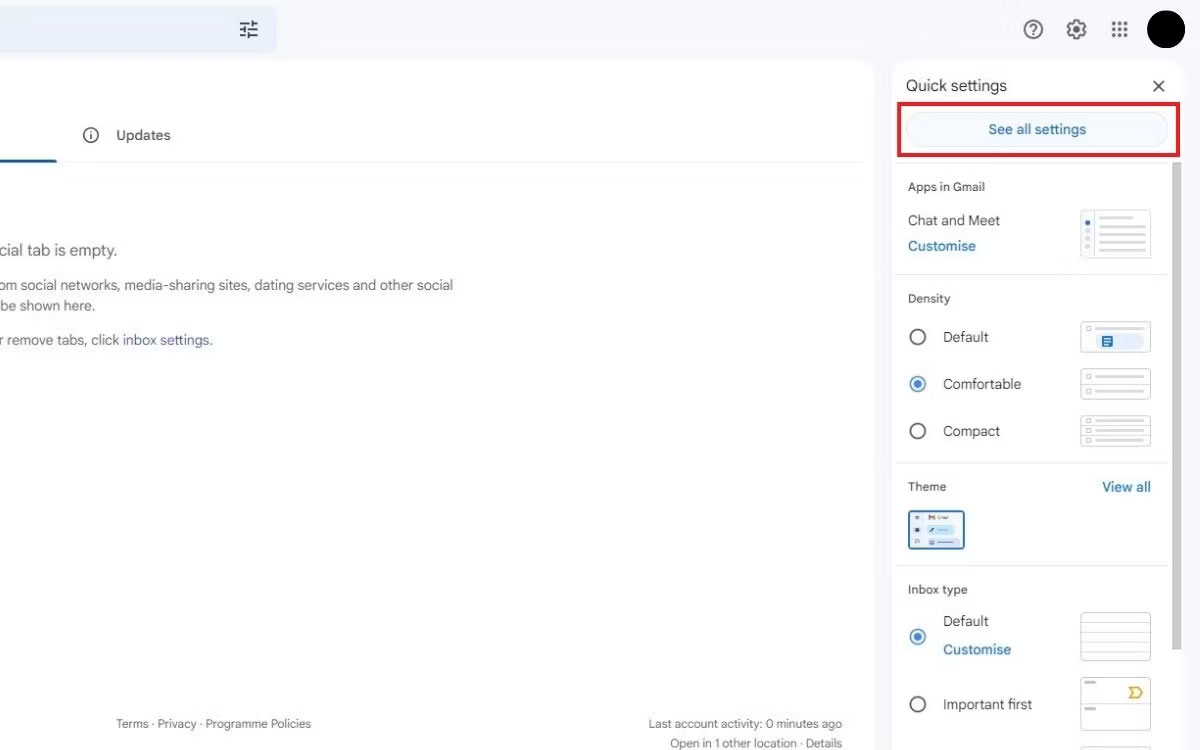
<p style="text-align: justify;">Bây giờ, hãy mở và đăng nhập Gmail nếu bạn chưa thực hiện. Tại đây, bạn sẽ bật thông báo trong Gmail. Nhấp vào&nbsp;<strong>Quick settings</strong>, biểu tượng có hình răng cưa ở góc trên cùng bên phải của trang, sau đó nhấp vào nút&nbsp;<strong>See all settings</strong>&nbsp;ở trên cùng.</p>

<figure>
<div style="text-align: justify;"><img alt="Tab General của Gmail" data-i="4" data-src="https://st.quantrimang.com/photos/image/2023/02/16/thong-bao-gmail-tren-trinh-duyet-chrome-5.jpg" data-was-processed="true" height="750" src="https://st.quantrimang.com/photos/image/2023/02/16/thong-bao-gmail-tren-trinh-duyet-chrome-5.jpg" width="1200" /></div>

<figcaption>
<div style="text-align: justify;">Tab General của Gmail</div>
</figcaption>
</figure>

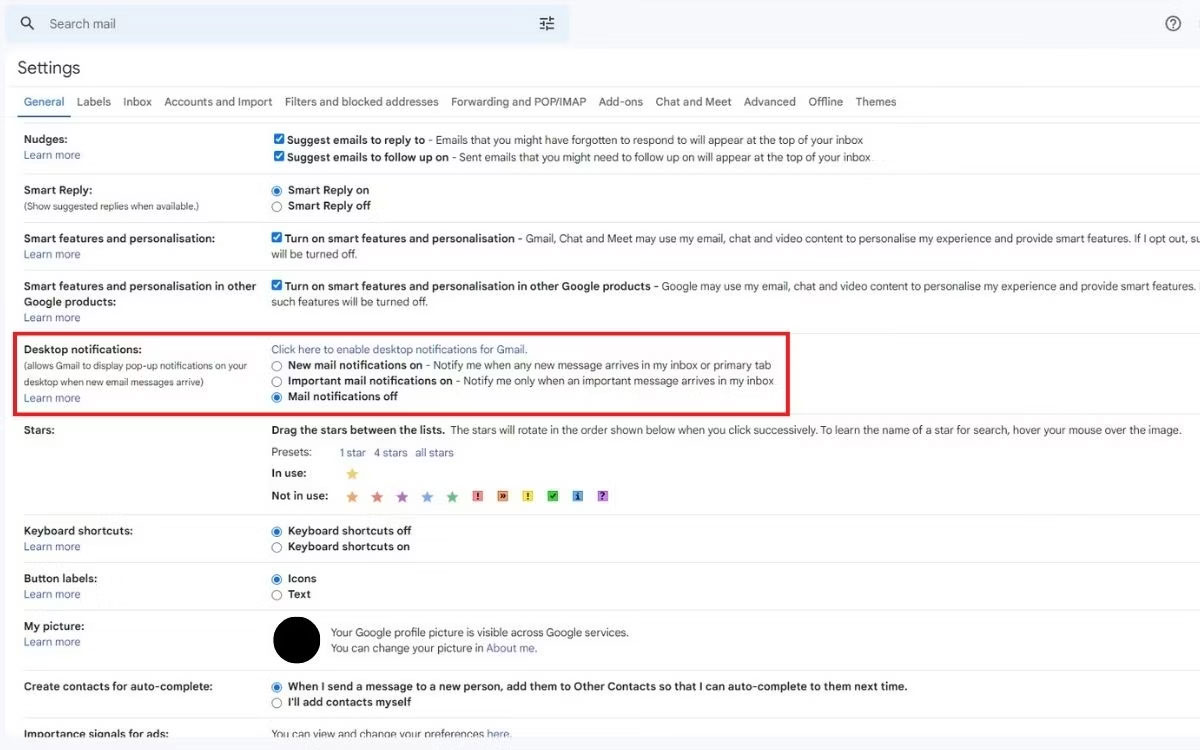
<p style="text-align: justify;">Trong tab&nbsp;<strong>General</strong>, cuộn xuống hoặc tìm kiếm&nbsp;<strong>Desktop notifications</strong>&nbsp;bằng&nbsp;<strong>Ctrl + F</strong>&nbsp;và nhấp vào liên kết phía trên các nút radio. Khi lời nhắc thông báo xuất hiện ở góc trên cùng bên trái, hãy nhấp vào nút&nbsp;<strong>Allow.</strong></p>

<p style="text-align: justify;">Khi bạn đã nhấp vào liên kết và cho phép thông báo, hãy chọn một trong hai tùy chọn đầu tiên bên dưới. Khi hoàn tất, hãy cuộn xuống cuối trang và nhấp vào&nbsp;<strong>Save Changes.</strong>&nbsp;Nếu không, thay đổi sẽ không có hiệu lực.</p>

<p style="text-align: justify;">Bạn đã bật thông báo Gmail trong Chrome và sẽ được thông báo về các email mới khi chúng xuất hiện trong hộp thư đến. Khi một thông báo xuất hiện ở góc dưới cùng bên phải, có hai tùy chọn: nhấp vào thông báo đó để mở một tab mới hoặc bỏ qua thông báo đó cho đến khi thông báo biến mất.</p>

<p style="text-align: justify;">Điều quan trọng cần lưu ý là bạn sẽ cần mở Gmail trong một tab. Hướng dẫn này là để tiết kiệm thời gian phải tự kiểm tra tab cửa sổ. Nếu bạn không muốn thông báo của Chrome, hãy làm theo các bước tương tự ở trên và nhấp vào&nbsp;<strong>Mail notifications off</strong>&nbsp;trong phần&nbsp;<strong>Desktop notifications.</strong></p>

<h2 style="text-align: justify;">Có thể tùy chỉnh thông báo Gmail không?</h2>

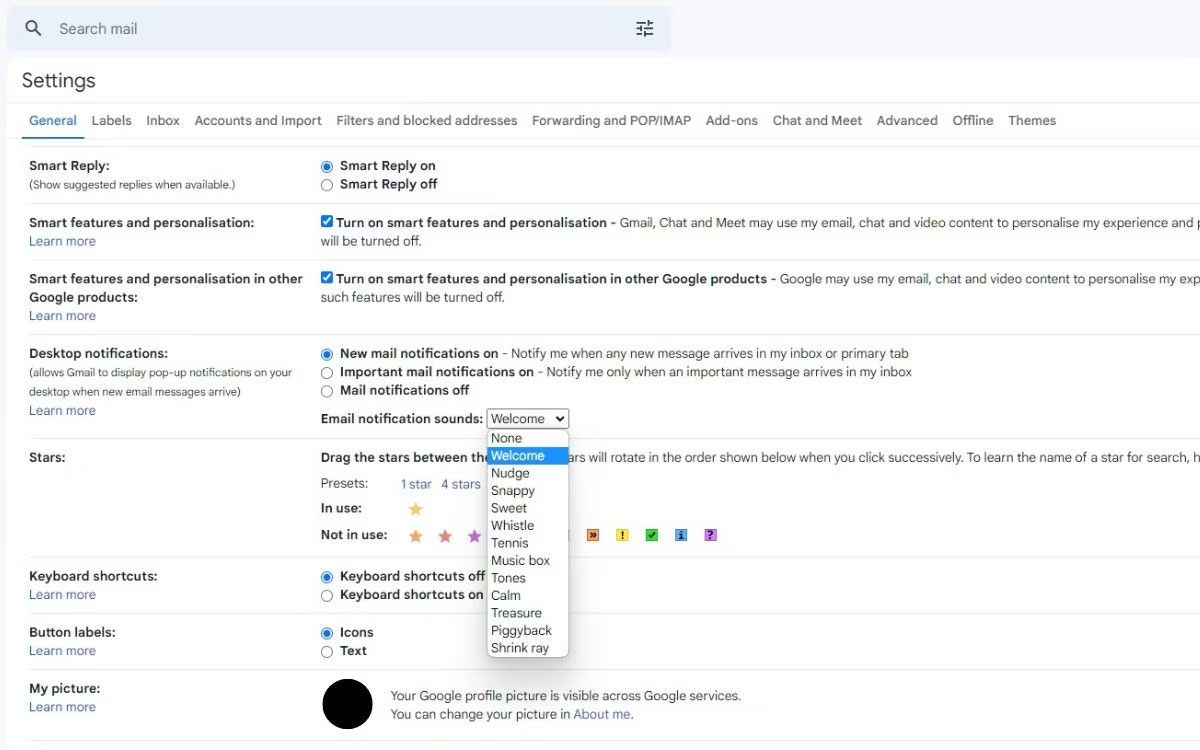
<p style="text-align: justify;">Có thể tùy chỉnh thông báo của mình vì Gmail cung cấp nhiều tùy chọn. Để nhận thông báo tùy chỉnh, hãy chuyển đến&nbsp;<strong>Quick settings</strong>&nbsp;như bạn đã thực hiện ở các bước trên. Trong tab&nbsp;<strong>General</strong>, cuộn xuống hoặc tìm kiếm&nbsp;<strong>Desktop notifications.</strong></p>

<figure>
<div style="text-align: justify;"><img alt="Menu drop-down Gmail Email Notification sounds trong tab General" data-i="5" data-src="https://st.quantrimang.com/photos/image/2023/02/16/thong-bao-gmail-tren-trinh-duyet-chrome-6.jpg" data-was-processed="true" height="750" src="https://st.quantrimang.com/photos/image/2023/02/16/thong-bao-gmail-tren-trinh-duyet-chrome-6.jpg" width="1200" /></div>

<figcaption>
<div style="text-align: justify;">Menu drop-down Gmail Email Notification sounds trong tab General</div>
</figcaption>
</figure>

<p style="text-align: justify;">Với một trong hai tùy chọn đầu tiên được chọn, phần âm thanh thông báo Email sẽ xuất hiện cùng với menu drop-down. Danh sách bao gồm các âm thanh bạn có thể đặt khi nhận được email mới. Bạn nhớ phải tăng âm lượng trên PC để nghe âm thanh.</p>

<h2 style="text-align: justify;">Cách kích hoạt thông báo Gmail bằng tiện ích mở rộng Chrome</h2>

<p style="text-align: justify;">Cài đặt tiện ích mở rộng trình duyệt là một tùy chọn khác mà bạn có thể xem xét.</p>

<p style="text-align: justify;">Chẳng hạn,&nbsp;Checker Plus for Gmail:&nbsp;<span style="color:rgb(192, 57, 43);"><strong>https://chrome.google.com/webstore/detail/checker-plus-for-gmail/oeopbcgkkoapgobdbedcemjljbihmemj/related?hl=en</strong></span>&nbsp;là một tiện ích mở rộng cung cấp nhiều cách hơn để tùy chỉnh thông báo của bạn. Các tùy chọn này bao gồm biểu tượng Gmail màu đỏ ở góc trên bên phải trình duyệt, không làm mất thời gian kiểm tra, cho phép đọc và xóa email mà không cần mở Gmail.</p>

<p style="text-align: justify;">Notifier for Gmail:&nbsp;<span style="color:rgb(192, 57, 43);"><strong>https://chrome.google.com/webstore/detail/notifier-for-gmail/dcjichoefijpinlfnjghokpkojhlhkgl?hl=en</strong></span>&nbsp;&nbsp;là tiện ích mở rộng có thể thông báo cho bạn về các email từ thanh công cụ của trình duyệt, bao gồm tùy chọn mở hộp thư đến, lưu trữ hoặc xóa email và đánh dấu email đó là thư rác.</p>

<p style="text-align: justify;">Có nhiều tiện ích mở rộng Gmail khác mà bạn có thể sử dụng để nhận thông báo Gmail trong Google Chrome.</p>
		</div>
				<div id="author">
						<p>
				<strong>Nguồn tin:</strong>
				Quantrimang.com
			</p>
		</div>
	</div>
	<div id="footer" class="clearfix">
		<div id="url">
			<strong>URL của bản tin này: </strong><a href="https://www.nguoicodonvn2008.info/vi/news/savefile/kien-thuc-may-tinh/cach-bat-thong-bao-gmail-trong-google-chrome-6740.html" title="Cách bật thông báo Gmail trong Google Chrome">https://www.nguoicodonvn2008.info/vi/news/savefile/kien-thuc-may-tinh/cach-bat-thong-bao-gmail-trong-google-chrome-6740.html</a>

		</div>
		<div class="clear"></div>
		<div class="copyright">
			&copy; .&#x3A; Nguoicodonvn2008.info - Cõi lòng người cô đơn &#x3A;.
		</div>
		<div id="contact">
			<a href="mailto:admin@nguoicodonvn2008.info">admin@nguoicodonvn2008.info</a>
		</div>
	</div>
</div>
        <div id="timeoutsess" class="chromeframe">
            Bạn đã không sử dụng Site, <a onclick="timeoutsesscancel();" href="https://www.nguoicodonvn2008.info/#">Bấm vào đây để duy trì trạng thái đăng nhập</a>. Thời gian chờ: <span id="secField"> 60 </span> giây
        </div>
        <div id="openidResult" class="nv-alert" style="display:none"></div>
        <div id="openidBt" data-result="" data-redirect=""></div>
		</script>
		<div class="car-top">
  <span><img src="https://www.nguoicodonvn2008.info/themes/default/images/car.png" alt=""></span>
</div>
<script src="https://www.nguoicodonvn2008.info/assets/js/jquery/jquery.min.js"></script>
<script>var nv_base_siteurl="/",nv_lang_data="vi",nv_lang_interface="vi",nv_name_variable="nv",nv_fc_variable="op",nv_lang_variable="language",nv_module_name="news",nv_func_name="savefile",nv_is_user=0, nv_my_ofs=-4,nv_my_abbr="EDT",nv_cookie_prefix="nv4c_e856T",nv_check_pass_mstime=1738000,nv_area_admin=0,nv_safemode=0,theme_responsive=0,nv_recaptcha_ver=2,nv_recaptcha_sitekey="",nv_recaptcha_type="image",XSSsanitize=1;</script>
<script src="https://www.nguoicodonvn2008.info/assets/js/language/vi.js"></script>
<script src="https://www.nguoicodonvn2008.info/assets/js/DOMPurify/purify3.js"></script>
<script src="https://www.nguoicodonvn2008.info/assets/js/global.js"></script>
<script src="https://www.nguoicodonvn2008.info/assets/js/site.js"></script>
<script src="https://www.nguoicodonvn2008.info/themes/default/js/news.js"></script>
<script src="https://www.nguoicodonvn2008.info/themes/default/js/main.js"></script>
<script src="https://www.nguoicodonvn2008.info/themes/default/js/custom.js"></script>
<script type="application/ld+json">
        {
            "@context": "https://schema.org",
            "@type": "Organization",
            "url": "https://www.nguoicodonvn2008.info",
            "logo": "https://www.nguoicodonvn2008.info/uploads/angel.gif"
        }
        </script>
<script src="https://www.nguoicodonvn2008.info/themes/default/js/bootstrap.min.js"></script>
<script type="text/javascript">
var $scrolltop = $('.car-top');
$scrolltop.on('click', function () {
    $('html,body').animate({
        scrollTop: 0
    }, 800);
    $(this).addClass("car-run");
    setTimeout(function(){ $scrolltop.removeClass('car-run');}, 1000);
    return false;
});
$(window).on('scroll', function ()
{ 
    if($(window).scrollTop() >= 200)
    {
        $scrolltop.addClass("show");
        $scrolltop.addClass("car-down");
    }
    else
    {
       $scrolltop.removeClass("show");
       setTimeout(function(){ $scrolltop.removeClass('car-down');}, 300);
    }
});
</script>
</body>
</html>