<!DOCTYPE html>
    <html lang="vi" xmlns="http://www.w3.org/1999/xhtml" prefix="og: http://ogp.me/ns#">
    <head>
<title>Cách bật&#x002F;tắt tự động chuyển đổi kết nối mạng không dây trong Windows 10</title>
<meta name="description" content="Cách bật&#x002F;tắt tự động chuyển đổi kết nối mạng không dây trong Windows 10 - Savefile - Tin Tức -...">
<meta name="author" content=".: Nguoicodonvn2008.info - Cõi lòng người cô đơn :.">
<meta name="copyright" content=".: Nguoicodonvn2008.info - Cõi lòng người cô đơn :. [admin@nguoicodonvn2008.info]">
<meta name="robots" content="index, archive, follow, noodp">
<meta name="googlebot" content="index,archive,follow,noodp">
<meta name="msnbot" content="all,index,follow">
<meta name="generator" content="NukeViet v4.5">
<meta http-equiv="Content-Type" content="text/html; charset=utf-8">
<meta property="og:title" content="Cách bật&#x002F;tắt tự động chuyển đổi kết nối mạng không dây trong Windows 10">
<meta property="og:type" content="website">
<meta property="og:description" content="Savefile - Tin Tức -...">
<meta property="og:site_name" content=".&#x3A; Nguoicodonvn2008.info - Cõi lòng người cô đơn &#x3A;.">
<meta property="og:url" content="https://www.nguoicodonvn2008.info/vi/news/savefile/kien-thuc-may-tinh/cach-bat-tat-tu-dong-chuyen-doi-ket-noi-mang-khong-day-trong-windows-10-3942.html">
<link rel="shortcut icon" href="https://www.nguoicodonvn2008.info/favicon.ico">
<link rel="canonical" href="https://www.nguoicodonvn2008.info/vi/news/savefile/kien-thuc-may-tinh/cach-bat-tat-tu-dong-chuyen-doi-ket-noi-mang-khong-day-trong-windows-10-3942.html">
<link rel="alternate" href="https://www.nguoicodonvn2008.info/vi/news/rss/" title="Tin Tức" type="application/rss+xml">
<link rel="alternate" href="https://www.nguoicodonvn2008.info/vi/news/rss/karaoke-dual/" title="Tin Tức - Karaoke Dual" type="application/rss+xml">
<link rel="alternate" href="https://www.nguoicodonvn2008.info/vi/news/rss/nhac-tre/" title="Tin Tức - Nhạc trẻ" type="application/rss+xml">
<link rel="alternate" href="https://www.nguoicodonvn2008.info/vi/news/rss/tru-tinh/" title="Tin Tức - Trữ tình" type="application/rss+xml">
<link rel="alternate" href="https://www.nguoicodonvn2008.info/vi/news/rss/nuoc-ngoai/" title="Tin Tức - Nước ngoài" type="application/rss+xml">
<link rel="alternate" href="https://www.nguoicodonvn2008.info/vi/news/rss/remix/" title="Tin Tức - Remix" type="application/rss+xml">
<link rel="alternate" href="https://www.nguoicodonvn2008.info/vi/news/rss/tam-su-tinh-yeu/" title="Tin Tức - Tâm sự tình yêu" type="application/rss+xml">
<link rel="alternate" href="https://www.nguoicodonvn2008.info/vi/news/rss/tho-suu-tam/" title="Tin Tức - Thơ sưu tầm" type="application/rss+xml">
<link rel="alternate" href="https://www.nguoicodonvn2008.info/vi/news/rss/cuoc-song/" title="Tin Tức - Cuộc sống" type="application/rss+xml">
<link rel="alternate" href="https://www.nguoicodonvn2008.info/vi/news/rss/phan-mem/" title="Tin Tức - Phần mềm" type="application/rss+xml">
<link rel="alternate" href="https://www.nguoicodonvn2008.info/vi/news/rss/kien-thuc-may-tinh/" title="Tin Tức - Kiến thức máy tính" type="application/rss+xml">
<link rel="alternate" href="https://www.nguoicodonvn2008.info/vi/news/rss/hoc-tap/" title="Tin Tức - Học tập" type="application/rss+xml">
<link rel="alternate" href="https://www.nguoicodonvn2008.info/vi/news/rss/tai-lieu/" title="Tin Tức - Tài liệu" type="application/rss+xml">
<link rel="alternate" href="https://www.nguoicodonvn2008.info/vi/news/rss/de-thi/" title="Tin Tức - Đề thi" type="application/rss+xml">
<link rel="preload" as="style" href="https://www.nguoicodonvn2008.info/assets/css/font-awesome.min.css" type="text/css">
<link rel="preload" as="style" href="https://www.nguoicodonvn2008.info/themes/default/css/bootstrap.non-responsive.css" type="text/css">
<link rel="preload" as="style" href="https://www.nguoicodonvn2008.info/themes/default/css/style.css" type="text/css">
<link rel="preload" as="style" href="https://www.nguoicodonvn2008.info/themes/default/css/style.non-responsive.css" type="text/css">
<link rel="preload" as="style" href="https://www.nguoicodonvn2008.info/themes/default/css/news.css" type="text/css">
<link rel="preload" as="style" href="https://www.nguoicodonvn2008.info/themes/default/css/custom.css" type="text/css">
<link rel="preload" as="script" href="https://www.nguoicodonvn2008.info/assets/js/jquery/jquery.min.js" type="text/javascript">
<link rel="preload" as="script" href="https://www.nguoicodonvn2008.info/assets/js/language/vi.js" type="text/javascript">
<link rel="preload" as="script" href="https://www.nguoicodonvn2008.info/assets/js/DOMPurify/purify3.js" type="text/javascript">
<link rel="preload" as="script" href="https://www.nguoicodonvn2008.info/assets/js/global.js" type="text/javascript">
<link rel="preload" as="script" href="https://www.nguoicodonvn2008.info/assets/js/site.js" type="text/javascript">
<link rel="preload" as="script" href="https://www.nguoicodonvn2008.info/themes/default/js/news.js" type="text/javascript">
<link rel="preload" as="script" href="https://www.nguoicodonvn2008.info/themes/default/js/main.js" type="text/javascript">
<link rel="preload" as="script" href="https://www.nguoicodonvn2008.info/themes/default/js/custom.js" type="text/javascript">
<link rel="preload" as="script" href="https://www.nguoicodonvn2008.info/themes/default/js/bootstrap.min.js" type="text/javascript">
<link rel="stylesheet" href="https://www.nguoicodonvn2008.info/assets/css/font-awesome.min.css">
<link rel="stylesheet" href="https://www.nguoicodonvn2008.info/themes/default/css/bootstrap.non-responsive.css">
<link rel="stylesheet" href="https://www.nguoicodonvn2008.info/themes/default/css/style.css">
<link rel="stylesheet" href="https://www.nguoicodonvn2008.info/themes/default/css/style.non-responsive.css">
<link rel="StyleSheet" href="https://www.nguoicodonvn2008.info/themes/default/css/news.css">
<link rel="stylesheet" href="https://www.nguoicodonvn2008.info/themes/default/css/custom.css">
<style type="text/css">
	body{background: #fff;}
</style>
    </head>
    <body>
<div id="print">
	<div id="hd_print">
		<h2 class="pull-left">.&#x3A; Nguoicodonvn2008.info - Cõi lòng người cô đơn &#x3A;.</h2>
		<p class="pull-right"><a title=".&#x3A; Nguoicodonvn2008.info - Cõi lòng người cô đơn &#x3A;." href="https://www.nguoicodonvn2008.info/">https://www.nguoicodonvn2008.info</a></p>
	</div>
	<div class="clear"></div>
	<hr />
	<div id="content">
		<h1>Cách bật&#x002F;tắt tự động chuyển đổi kết nối mạng không dây trong Windows 10</h1>
		<ul class="list-inline">
			<li>Thứ tư - 14/04/2021 00:58</li>
			<li class="hidden-print txtrequired"><em class="fa fa-print">&nbsp;</em><a title="In ra" href="javascript:;" onclick="window.print()">In ra</a></li>
			<li class="hidden-print txtrequired"><em class="fa fa-power-off">&nbsp;</em><a title="Đóng cửa sổ này" href="javascript:;" onclick="window.close()">Đóng cửa sổ này</a></li>
		</ul>
		<div class="clear"></div>
		<div id="hometext">
		</div>
				<div class="imghome">
			<img alt="Cách bật&#x002F;tắt tự động chuyển đổi kết nối mạng không dây trong Windows 10" src="https://st.quantrimang.com/photos/image/2021/04/13/tat-tu-dong-chuyen-doi-ket-noi-mang-khong-day-2.jpg" width="460" class="img-thumbnail" />
		</div>
		<div class="clear"></div>
		<div id="bodytext" class="clearfix">
			<p style="text-align: justify;">Khi bạn kết nối với một mạng không dây mới, Windows sẽ tạo một cấu hình cho mạng không dây. Cấu hình mạng không dây (WiFi) chứa&nbsp;SSID&nbsp;(tên mạng), khóa mật khẩu và thông tin bảo mật để có thể kết nối với mạng không dây.</p>

<p style="text-align: justify;">Nếu bạn đã bật tính năng tự động kết nối với mạng không dây, Windows sẽ tự động kết nối với cấu hình mạng không dây của bạn dựa trên thứ tự ưu tiên khi mạng không dây nằm trong phạm vi phủ sóng.</p>

<div style="text-align: justify;">&nbsp;</div>

<p style="text-align: justify;">Tham số autoSwitch kiểm soát hành vi chuyển vùng của mạng không dây được kết nối tự động khi mạng không dây được ưu tiên hơn nằm trong phạm vi phủ sóng.</p>

<p style="text-align: justify;">Nếu autoSwitch được bật, nó cho phép Windows tiếp tục tìm kiếm các mạng không dây được kết nối tự động khác, trong khi được kết nối với mạng không dây hiện tại. Nếu mạng không dây được kết nối tự động có mức ưu tiên cao hơn mạng không dây hiện đang kết nối nằm trong phạm vi, Windows sẽ tự động kết nối với mạng đó.</p>

<p style="text-align: justify;">Hướng dẫn này sẽ chỉ cho bạn cách bật hoặc tắt autoSwitch cho các mạng không dây trong Windows 7, Windows 8 và Windows 10.</p>

<h2 style="text-align: justify;">Bật/tắt tự động chuyển đổi kết nối mạng không dây trong Control Panel</h2>

<p style="text-align: justify;">Tùy chọn này yêu cầu bạn phải kết nối với mạng không dây mà bạn muốn bật hoặc tắt autoSwitch.</p>

<p style="text-align: justify;">1.&nbsp;Mở Control Panel&nbsp;(giao diện biểu tượng) và nhấp vào biểu tượng&nbsp;<strong>Network and Sharing Center</strong>.</p>

<div style="text-align: justify;">&nbsp;</div>

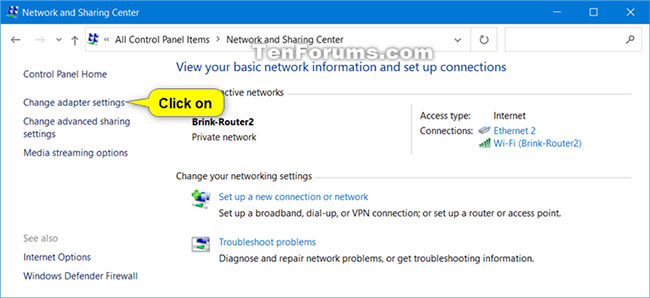
<p style="text-align: justify;">2. Nhấp vào liên kết&nbsp;<strong>Change adapter settings</strong>&nbsp;ở phía bên trái của&nbsp;<strong>Network and Sharing Center</strong>.</p>

<figure>
<div style="text-align: justify;"><img alt="Nhấp vào liên kết Change adapter settings ở phía bên trái của Network and Sharing Center" data-i="0" data-src="https://st.quantrimang.com/photos/image/2021/04/13/tat-tu-dong-chuyen-doi-ket-noi-mang-khong-day-1.jpg" data-was-processed="true" height="298" src="https://st.quantrimang.com/photos/image/2021/04/13/tat-tu-dong-chuyen-doi-ket-noi-mang-khong-day-1.jpg" width="650" /></div>

<figcaption>
<div style="text-align: justify;">Nhấp vào liên kết Change adapter settings ở phía bên trái của Network and Sharing Center</div>
</figcaption>
</figure>

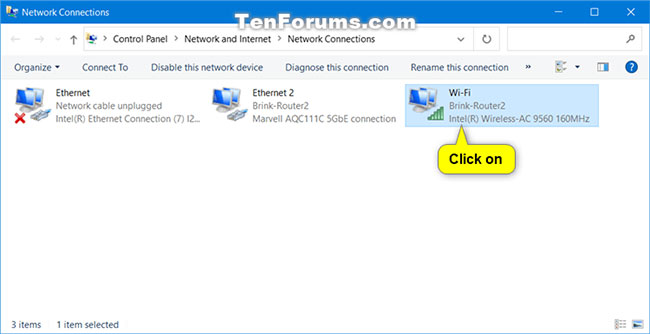
<p style="text-align: justify;">3. Nhấp vào kết nối mạng không dây (ví dụ:&nbsp;<strong>&quot;Brink-Router2&quot;</strong>) mà bạn muốn bật hoặc tắt autoSwitch để mở hộp thoại&nbsp;<strong>Status</strong>.</p>

<p style="text-align: justify;"><strong>Lưu ý</strong>: Bạn cũng có thể chọn kết nối mạng không dây (ví dụ:&nbsp;<strong>&quot;Brink-Router2&quot;</strong>) mà bạn muốn bật hoặc tắt autoSwitch và nhấn vào&nbsp;<strong>View status of this connection</strong>&nbsp;trên thanh công cụ.</p>

<figure>
<div style="text-align: justify;"><img alt="Nhấp vào kết nối mạng không dây" data-i="1" data-src="https://st.quantrimang.com/photos/image/2021/04/13/tat-tu-dong-chuyen-doi-ket-noi-mang-khong-day-2.jpg" data-was-processed="true" height="334" src="https://st.quantrimang.com/photos/image/2021/04/13/tat-tu-dong-chuyen-doi-ket-noi-mang-khong-day-2.jpg" width="650" /></div>

<figcaption>
<div style="text-align: justify;">Nhấp vào kết nối mạng không dây</div>
</figcaption>
</figure>

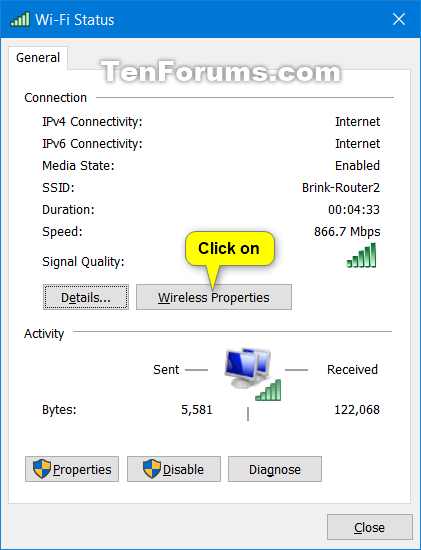
<p style="text-align: justify;">4. Nhấp vào nút&nbsp;<strong>Wireless Properties</strong>&nbsp;trong hộp thoại&nbsp;<strong>Status.</strong></p>

<figure>
<div style="text-align: justify;"><img alt="Nhấp vào nút Wireless Properties" data-i="2" data-src="https://st.quantrimang.com/photos/image/2021/04/13/tat-tu-dong-chuyen-doi-ket-noi-mang-khong-day-3.png" data-was-processed="true" height="550" src="https://st.quantrimang.com/photos/image/2021/04/13/tat-tu-dong-chuyen-doi-ket-noi-mang-khong-day-3.png" width="421" /></div>

<figcaption>
<div style="text-align: justify;">Nhấp vào nút Wireless Properties</div>
</figcaption>
</figure>

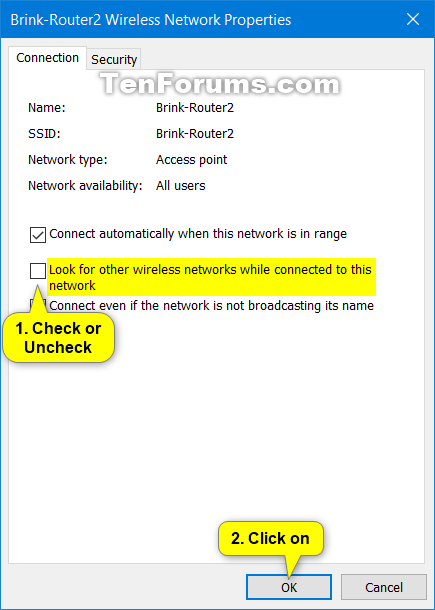
<p style="text-align: justify;">5. Chọn (bật) hoặc bỏ chọn (tắt - mặc định)&nbsp;<strong>Look for other wireless networks while connected to this network</strong>, tùy theo những gì bạn muốn và nhấn&nbsp;<strong>OK.</strong></p>

<p style="text-align: justify;">Nếu chọn&nbsp;<strong>Look for other wireless networks while connected to this network</strong>,<strong>&nbsp;Connect automatically when this network is in range</strong>&nbsp;cũng sẽ được chọn.</p>

<figure>
<div style="text-align: justify;"><img alt="Chọn hoặc bỏ chọn Look for other wireless networks while connected to this network" data-i="3" data-src="https://st.quantrimang.com/photos/image/2021/04/13/tat-tu-dong-chuyen-doi-ket-noi-mang-khong-day-4.png" data-was-processed="true" height="610" src="https://st.quantrimang.com/photos/image/2021/04/13/tat-tu-dong-chuyen-doi-ket-noi-mang-khong-day-4.png" width="435" /></div>

<figcaption>
<div style="text-align: justify;">Chọn hoặc bỏ chọn Look for other wireless networks while connected to this network</div>
</figcaption>
</figure>

<p style="text-align: justify;">6. Khi hoàn tất, bạn có thể đóng hộp thoại&nbsp;<strong>Status</strong>&nbsp;(bước 4),&nbsp;<strong>Network Connections</strong>&nbsp;(bước 3) và&nbsp;<strong>Network and Sharing Center</strong>&nbsp;(bước 2).</p>

<ul>
	<li style="text-align: justify;"><a href="https://quantrimang.com/cho-phep-ung-dung-giao-tiep-voi-thiet-bi-chua-duoc-ghep-noi-178102" title="Cách bật/tắt tùy chọn cho phép ứng dụng giao tiếp với thiết bị chưa được ghép nối trong Windows 10">Cách bật/tắt tùy chọn cho phép ứng dụng giao tiếp với thiết bị chưa được ghép nối trong Windows 10</a></li>
</ul>

<h2 style="text-align: justify;">Bật/tắt tự động chuyển đổi kết nối mạng không dây trong trong Command Prompt</h2>

<p style="text-align: justify;">Tùy chọn này không yêu cầu bạn phải kết nối với mạng không dây mà bạn muốn bật hoặc tắt autoSwitch.</p>

<p style="text-align: justify;">1.&nbsp;<a href="https://quantrimang.com/cach-mo-command-prompt-tren-windows-10-8-7-vista-va-xp-143530" title="Cách mở Command Prompt trên Windows 10, 8, 7, Vista và XP">Mở Command Prompt</a>.</p>

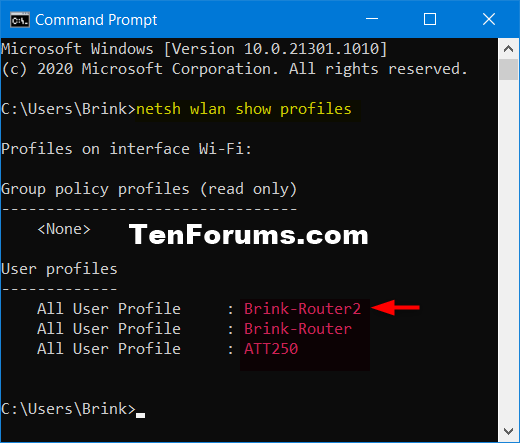
<p style="text-align: justify;">2. Sao chép và dán lệnh&nbsp;<code>netsh wlan show profiles</code>&nbsp;vào&nbsp;<a href="https://quantrimang.com/huong-dan-su-dung-command-prompt-85301" title="Hướng dẫn sử dụng Command Prompt">Command Prompt</a>, nhấn&nbsp;<strong>Enter.</strong>&nbsp;Các cấu hình mạng không dây sẽ được liệt kê theo thứ tự ưu tiên để kết nối khi ở trong phạm vi phủ sóng.</p>

<p style="text-align: justify;">Ghi lại tên cấu hình mạng không dây (ví dụ:&nbsp;<strong>&quot;Brink-Router2&quot;</strong>) mà bạn muốn bật hoặc tắt autoSwitch.</p>

<div style="text-align: justify;">&nbsp;</div>

<p style="text-align: justify;">Ghi lại tên interface (ví dụ:&nbsp;<strong>&quot;Wi-Fi&quot;</strong>) cấu hình mạng không dây (ví dụ:&nbsp;<strong>&quot;Brink-Router2&quot;</strong>) đang bật.</p>

<figure>
<div style="text-align: justify;"><img alt="Nhập lệnh vào Command Prompt" data-i="4" data-src="https://st.quantrimang.com/photos/image/2021/04/13/tat-tu-dong-chuyen-doi-ket-noi-mang-khong-day-5.png" data-was-processed="true" height="443" src="https://st.quantrimang.com/photos/image/2021/04/13/tat-tu-dong-chuyen-doi-ket-noi-mang-khong-day-5.png" width="520" /></div>

<figcaption>
<div style="text-align: justify;">Nhập lệnh vào Command Prompt</div>
</figcaption>
</figure>

<p style="text-align: justify;">3. Nhập lệnh bên dưới mà bạn muốn sử dụng vào Command Prompt và nhấn&nbsp;<strong>Enter</strong>.</p>

<ul>
	<li style="text-align: justify;">Để bật autoSwitch cho mạng không dây này:</li>
</ul>

<pre id="pre0">
<code>netsh wlan set profileparameter name=&quot;profile name&quot; autoswitch=Yes</code></pre>

<ul>
	<li style="text-align: justify;">Để bật autoSwitch cho mạng không dây này trên interface cụ thể:</li>
</ul>

<pre id="pre1">
<code>netsh wlan set profileparameter name=&quot;profile name&quot; interface=&quot;InterfaceName&quot; autoswitch=Yes</code></pre>

<ul>
	<li style="text-align: justify;">Mặc định - Để tắt autoSwitch cho mạng không dây này:</li>
</ul>

<pre id="pre2">
<code>netsh wlan set profileparameter name=&quot;profile name&quot; interface=&quot;InterfaceName&quot; autoswitch=No</code></pre>

<ul>
	<li style="text-align: justify;">Mặc định - Để tắt autoSwitch cho mạng không dây này trên interface cụ thể:</li>
</ul>

<pre id="pre3">
<code>netsh wlan set profileparameter name=&quot;profile name&quot; interface=&quot;InterfaceName&quot; autoswitch=No</code></pre>

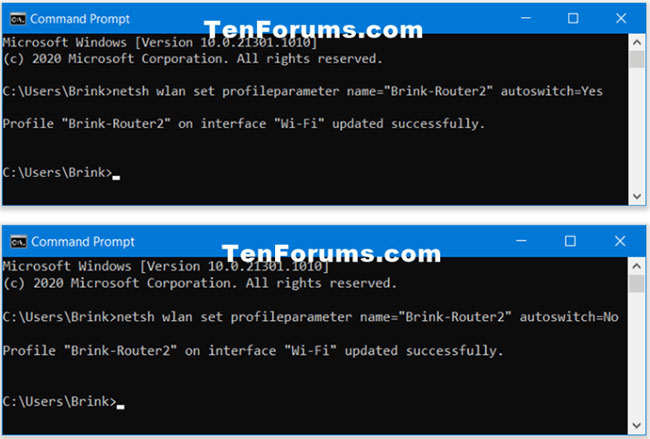
<p style="text-align: justify;">Thay thế profile name trong các lệnh trên bằng tên thực (ví dụ:&nbsp;<strong>&quot;Brink-Router2&quot;</strong>) của cấu hình mạng không dây từ bước 2.</p>

<p style="text-align: justify;">Thay thế&nbsp;<strong>InterfaceName</strong>&nbsp;trong lệnh trên bằng tên interface thực tế (ví dụ:&nbsp;<strong>&quot;Wi-Fi&quot;</strong>) từ bước 2. Việc chỉ định tên interface (còn gọi là wireless adapter) có thể hữu ích khi bạn có nhiều adapter không dây và chỉ muốn bật hoặc tắt autoSwitch cho mạng không dây trên một adapter không dây cụ thể (còn gọi là interface).</p>

<p style="text-align: justify;">Ví dụ:</p>

<p style="text-align: justify;">BẬT:</p>

<pre id="pre4">
<code>netsh wlan set profileparameter name=&quot;Brink-Router2&quot; autoswitch=Yes</code></pre>

<p style="text-align: justify;">BẬT (trên interface cụ thể):</p>

<pre id="pre5">
<code>netsh wlan set profileparameter name=&quot;Brink-Router2&quot; interface=&quot;Wi-Fi&quot; autoswitch=Yes</code></pre>

<p style="text-align: justify;">TẮT:</p>

<pre id="pre6">
<code>netsh wlan set profileparameter name=&quot;Brink-Router2&quot; autoswitch=No</code></pre>

<p style="text-align: justify;">TẮT (trên interface cụ thể):</p>

<pre id="pre7">
<code>netsh wlan set profileparameter name=&quot;Brink-Router2&quot; interface=&quot;Wi-Fi&quot; autoswitch=No</code></pre>

<figure>
<div style="text-align: justify;"><img alt="Tắt/bật tính năng tự động chuyển mạng" data-i="5" data-src="https://st.quantrimang.com/photos/image/2021/04/13/tat-tu-dong-chuyen-doi-ket-noi-mang-khong-day-6.jpg" data-was-processed="true" height="439" src="https://st.quantrimang.com/photos/image/2021/04/13/tat-tu-dong-chuyen-doi-ket-noi-mang-khong-day-6.jpg" width="650" /></div>

<figcaption>
<div style="text-align: justify;">Tắt/bật tính năng tự động chuyển mạng</div>
</figcaption>
</figure>

<p style="text-align: justify;">4. Bây giờ, bạn có thể đóng Command Prompt nếu muốn.</p>

<p style="text-align: justify;">Chúc bạn thực hiện thành công!</p>
		</div>
				<div id="author">
						<p>
				<strong>Nguồn tin:</strong>
				Quantrimang.com
			</p>
		</div>
	</div>
	<div id="footer" class="clearfix">
		<div id="url">
			<strong>URL của bản tin này: </strong><a href="https://www.nguoicodonvn2008.info/vi/news/savefile/kien-thuc-may-tinh/cach-bat-tat-tu-dong-chuyen-doi-ket-noi-mang-khong-day-trong-windows-10-3942.html" title="Cách bật&#x002F;tắt tự động chuyển đổi kết nối mạng không dây trong Windows 10">https://www.nguoicodonvn2008.info/vi/news/savefile/kien-thuc-may-tinh/cach-bat-tat-tu-dong-chuyen-doi-ket-noi-mang-khong-day-trong-windows-10-3942.html</a>

		</div>
		<div class="clear"></div>
		<div class="copyright">
			&copy; .&#x3A; Nguoicodonvn2008.info - Cõi lòng người cô đơn &#x3A;.
		</div>
		<div id="contact">
			<a href="mailto:admin@nguoicodonvn2008.info">admin@nguoicodonvn2008.info</a>
		</div>
	</div>
</div>
        <div id="timeoutsess" class="chromeframe">
            Bạn đã không sử dụng Site, <a onclick="timeoutsesscancel();" href="https://www.nguoicodonvn2008.info/#">Bấm vào đây để duy trì trạng thái đăng nhập</a>. Thời gian chờ: <span id="secField"> 60 </span> giây
        </div>
        <div id="openidResult" class="nv-alert" style="display:none"></div>
        <div id="openidBt" data-result="" data-redirect=""></div>
		</script>
		<div class="car-top">
  <span><img src="https://www.nguoicodonvn2008.info/themes/default/images/car.png" alt=""></span>
</div>
<script src="https://www.nguoicodonvn2008.info/assets/js/jquery/jquery.min.js"></script>
<script>var nv_base_siteurl="/",nv_lang_data="vi",nv_lang_interface="vi",nv_name_variable="nv",nv_fc_variable="op",nv_lang_variable="language",nv_module_name="news",nv_func_name="savefile",nv_is_user=0, nv_my_ofs=-4,nv_my_abbr="EDT",nv_cookie_prefix="nv4c_e856T",nv_check_pass_mstime=1738000,nv_area_admin=0,nv_safemode=0,theme_responsive=0,nv_recaptcha_ver=2,nv_recaptcha_sitekey="",nv_recaptcha_type="image",XSSsanitize=1;</script>
<script src="https://www.nguoicodonvn2008.info/assets/js/language/vi.js"></script>
<script src="https://www.nguoicodonvn2008.info/assets/js/DOMPurify/purify3.js"></script>
<script src="https://www.nguoicodonvn2008.info/assets/js/global.js"></script>
<script src="https://www.nguoicodonvn2008.info/assets/js/site.js"></script>
<script src="https://www.nguoicodonvn2008.info/themes/default/js/news.js"></script>
<script src="https://www.nguoicodonvn2008.info/themes/default/js/main.js"></script>
<script src="https://www.nguoicodonvn2008.info/themes/default/js/custom.js"></script>
<script type="application/ld+json">
        {
            "@context": "https://schema.org",
            "@type": "Organization",
            "url": "https://www.nguoicodonvn2008.info",
            "logo": "https://www.nguoicodonvn2008.info/uploads/angel.gif"
        }
        </script>
<script src="https://www.nguoicodonvn2008.info/themes/default/js/bootstrap.min.js"></script>
<script type="text/javascript">
var $scrolltop = $('.car-top');
$scrolltop.on('click', function () {
    $('html,body').animate({
        scrollTop: 0
    }, 800);
    $(this).addClass("car-run");
    setTimeout(function(){ $scrolltop.removeClass('car-run');}, 1000);
    return false;
});
$(window).on('scroll', function ()
{ 
    if($(window).scrollTop() >= 200)
    {
        $scrolltop.addClass("show");
        $scrolltop.addClass("car-down");
    }
    else
    {
       $scrolltop.removeClass("show");
       setTimeout(function(){ $scrolltop.removeClass('car-down');}, 300);
    }
});
</script>
</body>
</html>