<!DOCTYPE html>
    <html lang="vi" xmlns="http://www.w3.org/1999/xhtml" prefix="og: http://ogp.me/ns#">
    <head>
<title>Cách bật&#x002F;tắt thông báo từ ứng dụng và người gửi khác trong Windows 10</title>
<meta name="description" content="Cách bật&#x002F;tắt thông báo từ ứng dụng và người gửi khác trong Windows 10 - Savefile - Tin Tức -...">
<meta name="author" content=".: Nguoicodonvn2008.info - Cõi lòng người cô đơn :.">
<meta name="copyright" content=".: Nguoicodonvn2008.info - Cõi lòng người cô đơn :. [admin@nguoicodonvn2008.info]">
<meta name="robots" content="index, archive, follow, noodp">
<meta name="googlebot" content="index,archive,follow,noodp">
<meta name="msnbot" content="all,index,follow">
<meta name="generator" content="NukeViet v4.5">
<meta http-equiv="Content-Type" content="text/html; charset=utf-8">
<meta property="og:title" content="Cách bật&#x002F;tắt thông báo từ ứng dụng và người gửi khác trong Windows 10">
<meta property="og:type" content="website">
<meta property="og:description" content="Savefile - Tin Tức - https&#x3A;&#x002F;&#x002F;www.nguoicodonvn2008.info&#x002F;vi&#x002F;news&#x002F;savefile&#x002F;kien-thuc-may-tinh&#x002F;cach-bat-tat-thong-bao-tu-ung-dung-va-nguoi-gui-khac-trong-windows-10-4499.html">
<meta property="og:site_name" content=".&#x3A; Nguoicodonvn2008.info - Cõi lòng người cô đơn &#x3A;.">
<meta property="og:url" content="https://www.nguoicodonvn2008.info/vi/news/savefile/kien-thuc-may-tinh/cach-bat-tat-thong-bao-tu-ung-dung-va-nguoi-gui-khac-trong-windows-10-4499.html">
<link rel="shortcut icon" href="https://www.nguoicodonvn2008.info/favicon.ico">
<link rel="canonical" href="https://www.nguoicodonvn2008.info/vi/news/savefile/kien-thuc-may-tinh/cach-bat-tat-thong-bao-tu-ung-dung-va-nguoi-gui-khac-trong-windows-10-4499.html">
<link rel="alternate" href="https://www.nguoicodonvn2008.info/vi/news/rss/" title="Tin Tức" type="application/rss+xml">
<link rel="alternate" href="https://www.nguoicodonvn2008.info/vi/news/rss/karaoke-dual/" title="Tin Tức - Karaoke Dual" type="application/rss+xml">
<link rel="alternate" href="https://www.nguoicodonvn2008.info/vi/news/rss/nhac-tre/" title="Tin Tức - Nhạc trẻ" type="application/rss+xml">
<link rel="alternate" href="https://www.nguoicodonvn2008.info/vi/news/rss/tru-tinh/" title="Tin Tức - Trữ tình" type="application/rss+xml">
<link rel="alternate" href="https://www.nguoicodonvn2008.info/vi/news/rss/nuoc-ngoai/" title="Tin Tức - Nước ngoài" type="application/rss+xml">
<link rel="alternate" href="https://www.nguoicodonvn2008.info/vi/news/rss/remix/" title="Tin Tức - Remix" type="application/rss+xml">
<link rel="alternate" href="https://www.nguoicodonvn2008.info/vi/news/rss/tam-su-tinh-yeu/" title="Tin Tức - Tâm sự tình yêu" type="application/rss+xml">
<link rel="alternate" href="https://www.nguoicodonvn2008.info/vi/news/rss/tho-suu-tam/" title="Tin Tức - Thơ sưu tầm" type="application/rss+xml">
<link rel="alternate" href="https://www.nguoicodonvn2008.info/vi/news/rss/cuoc-song/" title="Tin Tức - Cuộc sống" type="application/rss+xml">
<link rel="alternate" href="https://www.nguoicodonvn2008.info/vi/news/rss/phan-mem/" title="Tin Tức - Phần mềm" type="application/rss+xml">
<link rel="alternate" href="https://www.nguoicodonvn2008.info/vi/news/rss/kien-thuc-may-tinh/" title="Tin Tức - Kiến thức máy tính" type="application/rss+xml">
<link rel="alternate" href="https://www.nguoicodonvn2008.info/vi/news/rss/hoc-tap/" title="Tin Tức - Học tập" type="application/rss+xml">
<link rel="alternate" href="https://www.nguoicodonvn2008.info/vi/news/rss/tai-lieu/" title="Tin Tức - Tài liệu" type="application/rss+xml">
<link rel="alternate" href="https://www.nguoicodonvn2008.info/vi/news/rss/de-thi/" title="Tin Tức - Đề thi" type="application/rss+xml">
<link rel="preload" as="style" href="https://www.nguoicodonvn2008.info/assets/css/font-awesome.min.css" type="text/css">
<link rel="preload" as="style" href="https://www.nguoicodonvn2008.info/themes/default/css/bootstrap.non-responsive.css" type="text/css">
<link rel="preload" as="style" href="https://www.nguoicodonvn2008.info/themes/default/css/style.css" type="text/css">
<link rel="preload" as="style" href="https://www.nguoicodonvn2008.info/themes/default/css/style.non-responsive.css" type="text/css">
<link rel="preload" as="style" href="https://www.nguoicodonvn2008.info/themes/default/css/news.css" type="text/css">
<link rel="preload" as="style" href="https://www.nguoicodonvn2008.info/themes/default/css/custom.css" type="text/css">
<link rel="preload" as="script" href="https://www.nguoicodonvn2008.info/assets/js/jquery/jquery.min.js" type="text/javascript">
<link rel="preload" as="script" href="https://www.nguoicodonvn2008.info/assets/js/language/vi.js" type="text/javascript">
<link rel="preload" as="script" href="https://www.nguoicodonvn2008.info/assets/js/DOMPurify/purify3.js" type="text/javascript">
<link rel="preload" as="script" href="https://www.nguoicodonvn2008.info/assets/js/global.js" type="text/javascript">
<link rel="preload" as="script" href="https://www.nguoicodonvn2008.info/assets/js/site.js" type="text/javascript">
<link rel="preload" as="script" href="https://www.nguoicodonvn2008.info/themes/default/js/news.js" type="text/javascript">
<link rel="preload" as="script" href="https://www.nguoicodonvn2008.info/themes/default/js/main.js" type="text/javascript">
<link rel="preload" as="script" href="https://www.nguoicodonvn2008.info/themes/default/js/custom.js" type="text/javascript">
<link rel="preload" as="script" href="https://www.nguoicodonvn2008.info/themes/default/js/bootstrap.min.js" type="text/javascript">
<link rel="stylesheet" href="https://www.nguoicodonvn2008.info/assets/css/font-awesome.min.css">
<link rel="stylesheet" href="https://www.nguoicodonvn2008.info/themes/default/css/bootstrap.non-responsive.css">
<link rel="stylesheet" href="https://www.nguoicodonvn2008.info/themes/default/css/style.css">
<link rel="stylesheet" href="https://www.nguoicodonvn2008.info/themes/default/css/style.non-responsive.css">
<link rel="StyleSheet" href="https://www.nguoicodonvn2008.info/themes/default/css/news.css">
<link rel="stylesheet" href="https://www.nguoicodonvn2008.info/themes/default/css/custom.css">
<style type="text/css">
	body{background: #fff;}
</style>
    </head>
    <body>
<div id="print">
	<div id="hd_print">
		<h2 class="pull-left">.&#x3A; Nguoicodonvn2008.info - Cõi lòng người cô đơn &#x3A;.</h2>
		<p class="pull-right"><a title=".&#x3A; Nguoicodonvn2008.info - Cõi lòng người cô đơn &#x3A;." href="https://www.nguoicodonvn2008.info/">https://www.nguoicodonvn2008.info</a></p>
	</div>
	<div class="clear"></div>
	<hr />
	<div id="content">
		<h1>Cách bật&#x002F;tắt thông báo từ ứng dụng và người gửi khác trong Windows 10</h1>
		<ul class="list-inline">
			<li>Thứ năm - 29/07/2021 10:56</li>
			<li class="hidden-print txtrequired"><em class="fa fa-print">&nbsp;</em><a title="In ra" href="javascript:;" onclick="window.print()">In ra</a></li>
			<li class="hidden-print txtrequired"><em class="fa fa-power-off">&nbsp;</em><a title="Đóng cửa sổ này" href="javascript:;" onclick="window.close()">Đóng cửa sổ này</a></li>
		</ul>
		<div class="clear"></div>
		<div id="hometext">
		</div>
				<div class="imghome">
			<img alt="Cách bật&#x002F;tắt thông báo từ ứng dụng và người gửi khác trong Windows 10" src="https://st.quantrimang.com/photos/image/2021/07/29/bat-tat-thong-bao-tu-ung-dung-va-nguoi-gui-8.jpg" width="460" class="img-thumbnail" />
		</div>
		<div class="clear"></div>
		<div id="bodytext" class="clearfix">
			<p style="text-align: justify;">Action Center trong&nbsp;Windows 10&nbsp;thu thập và hiển thị các thông báo và cảnh báo từ các ứng dụng Windows truyền thống và thông báo hệ thống, cùng với những thông báo được tạo từ các ứng dụng hiện đại. Sau đó, các thông báo được nhóm trong Action Center theo ứng dụng và thời gian. Khi Action Center nhận được thông báo mới, nó sẽ hiển thị ngắn gọn một biểu ngữ thông báo phía trên khu vực thông báo của thanh tác vụ cho người dùng biết.</p>

<p style="text-align: justify;">Bắt đầu với Windows 10 build 14328, bạn sẽ thấy các huy hiệu xuất hiện trên các ứng dụng UWP trong thanh tác vụ, ngoài các ô&nbsp;<strong>Live Tiles</strong>&nbsp;và trong&nbsp;<strong>Action Center.</strong>&nbsp;Những huy hiệu này là những thông báo ngắn gọn theo ngữ cảnh và dành riêng cho từng ứng dụng.</p>

<div style="text-align: justify;">&nbsp;</div>

<p style="text-align: justify;">Ví dụ, huy hiệu ứng dụng&nbsp;<strong>Mail</strong>&nbsp;hiển thị cho bạn số lượng email chưa thấy (không phải là chưa đọc). Huy hiệu của ứng dụng&nbsp;<strong>Alarms &amp; Clock</strong>&nbsp;sẽ cho bạn biết rằng bạn có một báo thức đang hoạt động. Huy hiệu của ứng dụng&nbsp;<strong>Weather</strong>&nbsp;cho bạn biết khi có cảnh báo thời tiết trong khu vực.</p>

<p style="text-align: justify;">Hướng dẫn này sẽ chỉ cho bạn cách bật hoặc tắt hoàn toàn việc nhận thông báo từ ứng dụng và người gửi khác trong Windows 10.</p>

<p style="text-align: justify;">Lưu ý: Điều này sẽ không ảnh hưởng đến các thông báo hệ thống Windows.</p>

<h2 style="text-align: justify;">Bật hoặc tắt tất cả thông báo từ ứng dụng và người gửi khác trong Settings</h2>

<p style="text-align: justify;">1.&nbsp;Mở&nbsp;<strong>Settings</strong>&nbsp;và nhấn vào biểu tượng&nbsp;<strong>System.</strong></p>

<p style="text-align: justify;">2. Thực hiện bước 3 (tắt) hoặc bước 4 (bật) bên dưới, tùy theo những gì bạn muốn làm.</p>

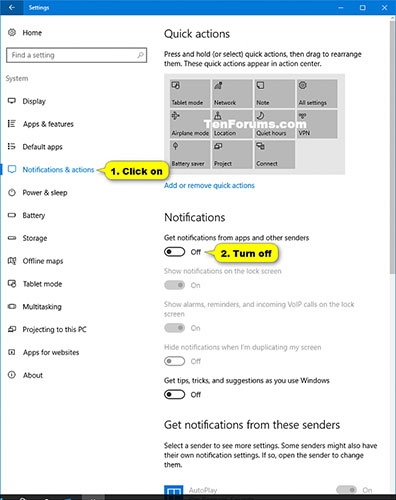
<p style="text-align: justify;">3. Để tắt thông báo từ ứng dụng và người gửi khác, nhấp vào&nbsp;<strong>Notifications &amp; actions</strong>&nbsp;ở phía bên trái, tắt&nbsp;<strong>Get notifications from apps and other senders</strong>&nbsp;rồi chuyển sang bước 5 bên dưới.</p>

<figure>
<div style="text-align: justify;"><img alt="Tắt Get notifications from apps and other senders" data-i="0" data-src="https://st.quantrimang.com/photos/image/2021/07/29/bat-tat-thong-bao-tu-ung-dung-va-nguoi-gui-1.jpg" data-was-processed="true" height="500" src="https://st.quantrimang.com/photos/image/2021/07/29/bat-tat-thong-bao-tu-ung-dung-va-nguoi-gui-1.jpg" width="396" /></div>

<figcaption>
<div style="text-align: justify;">Tắt Get notifications from apps and other senders</div>
</figcaption>
</figure>

<div style="text-align: justify;">&nbsp;</div>

<p style="text-align: justify;"><strong>Lưu ý:</strong></p>

<ul>
	<li style="text-align: justify;">Thao tác này sẽ tắt hiển thị thông báo trong Action Center và biểu ngữ thông báo cho tất cả các ứng dụng.</li>
	<li style="text-align: justify;">Khi tắt thông báo cho tất cả ứng dụng, bạn sẽ không thể bật hoặc tắt thông báo và biểu ngữ thông báo cho từng ứng dụng riêng lẻ nữa.</li>
</ul>

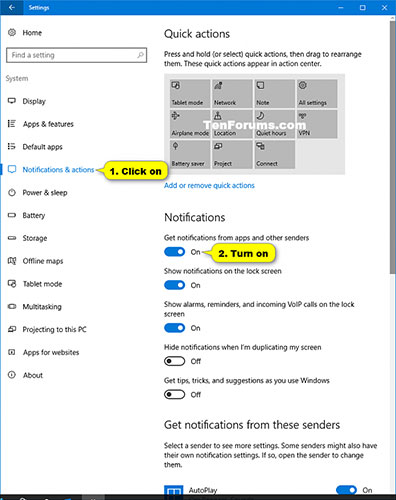
<p style="text-align: justify;">4. Bật thông báo từ ứng dụng và người gửi khác, nhấp vào&nbsp;<strong>Notifications &amp; actions</strong>&nbsp;ở phía bên trái và bật&nbsp;<strong>Get notifications from apps and other senders</strong>.</p>

<figure>
<div style="text-align: justify;"><img alt="Bật Get notifications from apps and other senders" data-i="1" data-src="https://st.quantrimang.com/photos/image/2021/07/29/bat-tat-thong-bao-tu-ung-dung-va-nguoi-gui-2.jpg" data-was-processed="true" height="500" src="https://st.quantrimang.com/photos/image/2021/07/29/bat-tat-thong-bao-tu-ung-dung-va-nguoi-gui-2.jpg" width="396" /></div>

<figcaption>
<div style="text-align: justify;">Bật Get notifications from apps and other senders</div>
</figcaption>
</figure>

<p style="text-align: justify;"><strong>Lưu ý:</strong></p>

<ul>
	<li style="text-align: justify;">Đây là thiết lập mặc định.</li>
	<li style="text-align: justify;">Sau khi bật thông báo ứng dụng, bây giờ bạn có thể bật hoặc tắt thông báo và biểu ngữ thông báo cho các ứng dụng riêng lẻ nếu muốn.</li>
</ul>

<p style="text-align: justify;">5. Khi hoàn tất, bạn có thể đóng&nbsp;<strong>Settings</strong>&nbsp;nếu muốn.</p>

<h2 style="text-align: justify;">Bật hoặc tắt thông báo từ ứng dụng và người gửi cụ thể trong Settings</h2>

<p style="text-align: justify;">1. Mở&nbsp;<strong>Settings</strong>&nbsp;và nhấp vào biểu tượng&nbsp;<strong>System.</strong></p>

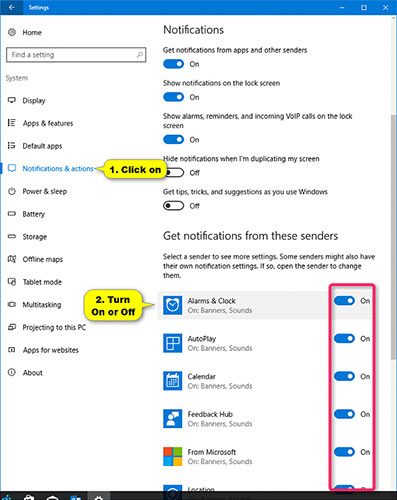
<p style="text-align: justify;">2. Nhấp vào&nbsp;<strong>Notifications &amp; actions</strong>&nbsp;ở bên trái, bật (mặc định) hoặc tắt thông báo cho ứng dụng và người gửi bạn muốn trong&nbsp;<strong>Get notifications from these senders</strong>&nbsp;ở phía bên phải.</p>

<figure>
<div style="text-align: justify;"><img alt="Bật hoặc tắt thông báo từ ứng dụng và người gửi cụ thể trong Settings" data-i="2" data-src="https://st.quantrimang.com/photos/image/2021/07/29/bat-tat-thong-bao-tu-ung-dung-va-nguoi-gui-3.jpg" data-was-processed="true" height="500" src="https://st.quantrimang.com/photos/image/2021/07/29/bat-tat-thong-bao-tu-ung-dung-va-nguoi-gui-3.jpg" width="397" /></div>

<figcaption>
<div style="text-align: justify;">Bật hoặc tắt thông báo từ ứng dụng và người gửi cụ thể trong Settings</div>
</figcaption>
</figure>

<p style="text-align: justify;"><strong>Lưu ý:</strong></p>

<ul>
	<li style="text-align: justify;">Nếu các ứng dụng và người gửi được liệt kê chuyển sang màu xám, thì bạn đã tắt hoàn toàn tùy chọn nhận thông báo.</li>
	<li style="text-align: justify;">Bạn sẽ chỉ thấy các ứng dụng và người gửi được liệt kê mà bạn đã nhận được thông báo.</li>
</ul>

<div style="text-align: justify;">&nbsp;</div>

<p style="text-align: justify;">3. Khi hoàn tất, bạn có thể đóng&nbsp;<strong>Settings</strong>&nbsp;nếu muốn.</p>

<div style="text-align: justify;">&nbsp;</div>

<h2 style="text-align: justify;">Tắt thông báo từ các ứng dụng và người gửi cụ thể trong Action Center</h2>

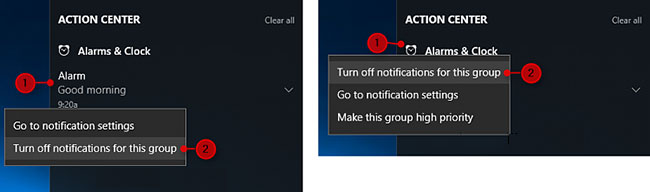
<p style="text-align: justify;">1. Mở&nbsp;<strong>Action Center</strong>.</p>

<p style="text-align: justify;">2. Nhấp chuột phải vào thông báo hoặc tên nhóm của ứng dụng/người gửi (ví dụ:&nbsp;<strong>Alarms &amp; Clock</strong>) bạn muốn và nhấn vào&nbsp;<strong>Turn off notifications for this group</strong>.</p>

<figure>
<div style="text-align: justify;"><img alt="Tắt thông báo từ các ứng dụng và người gửi cụ thể trong Action Center" data-i="3" data-src="https://st.quantrimang.com/photos/image/2021/07/29/bat-tat-thong-bao-tu-ung-dung-va-nguoi-gui-4.jpg" data-was-processed="true" height="192" src="https://st.quantrimang.com/photos/image/2021/07/29/bat-tat-thong-bao-tu-ung-dung-va-nguoi-gui-4.jpg" width="650" /></div>

<figcaption>
<div style="text-align: justify;">Tắt thông báo từ các ứng dụng và người gửi cụ thể trong Action Center</div>
</figcaption>
</figure>

<h2 style="text-align: justify;">Tắt thông báo cho ứng dụng cụ thể từ phần thông báo</h2>

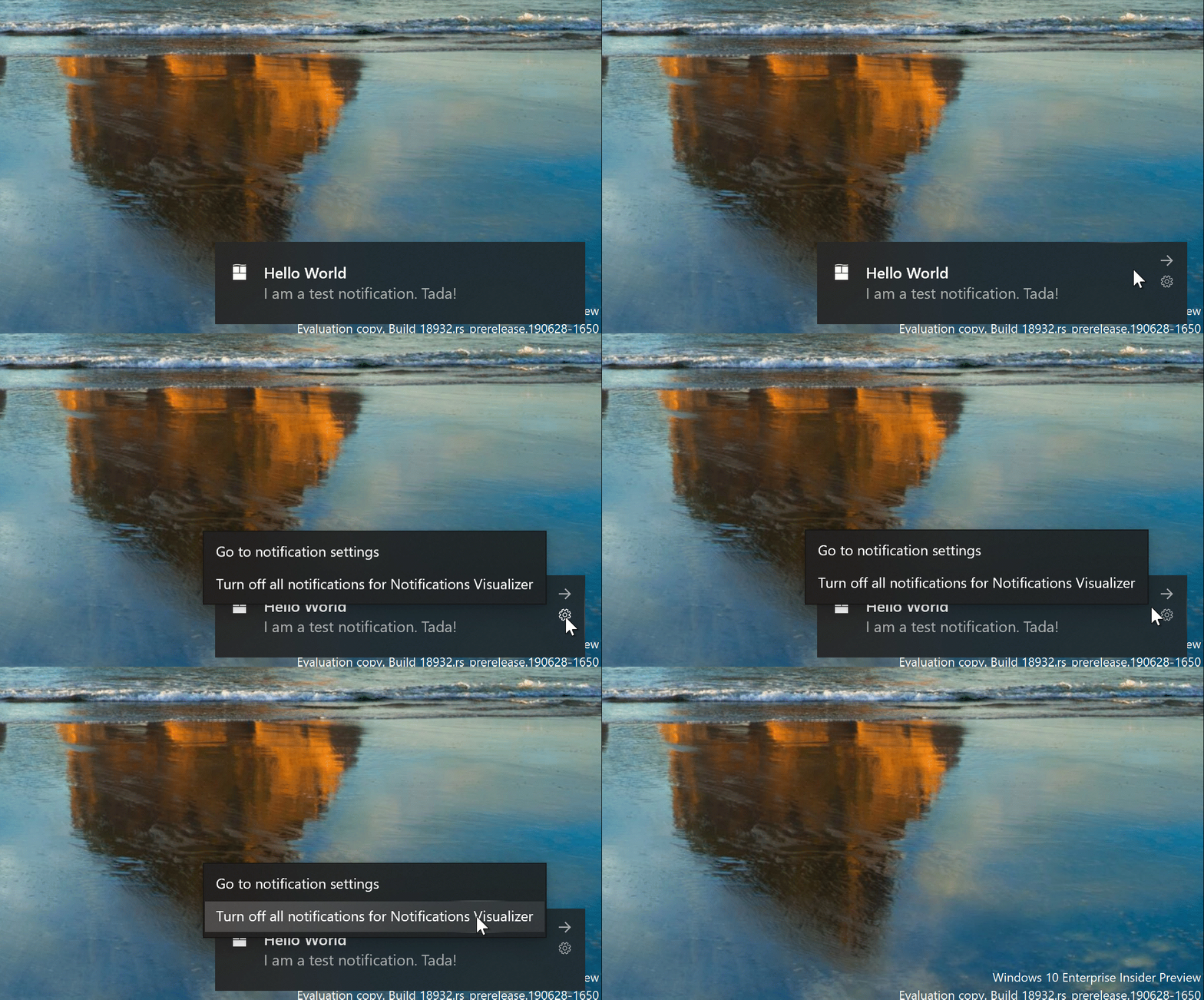
<p style="text-align: justify;"><strong>Lưu ý</strong>: Tùy chọn này chỉ khả dụng bắt đầu với Windows 10 build 18932 cho một số người dùng Insider trong Fast ring.</p>

<p style="text-align: justify;">Khi bạn nhận được thông báo từ một ứng dụng, hãy nhấp vào biểu tượng&nbsp;<strong>Settings</strong>&nbsp;(bánh răng) trong thông báo và nhấn vào&nbsp;<strong>Turn off all notifications for &lt;tên ứng dụng&gt;</strong>.</p>

<p style="text-align: justify;">&nbsp;</p>

<div style="text-align: justify;"><br />
<img alt="Tắt thông báo cho ứng dụng cụ thể từ phần thông báo" data-i="4" data-inimage-loaded="true" data-src="https://st.quantrimang.com/photos/image/2021/07/29/bat-tat-thong-bao-tu-ung-dung-va-nguoi-gui-5.gif" data-was-processed="true" height="360" src="https://st.quantrimang.com/photos/image/2021/07/29/bat-tat-thong-bao-tu-ung-dung-va-nguoi-gui-5.gif" width="650" /></div>

<h2 style="text-align: justify;">Bật hoặc tắt thông báo từ các ứng dụng và người gửi cụ thể trong Registry Editor</h2>

<p style="text-align: justify;">1. Nhấn phím&nbsp;<strong>Win + R</strong>&nbsp;để mở&nbsp;<strong>Run</strong>, nhập&nbsp;<strong>regedit</strong>&nbsp;vào&nbsp;<strong>Run</strong>&nbsp;và nhấn&nbsp;<strong>OK</strong>&nbsp;để&nbsp;<a href="https://quantrimang.com/cach-mo-registry-editor-tren-windows-143522" title="Cách mở Registry Editor trên Windows">mở Registry Editor</a>.</p>

<p style="text-align: justify;">2. Điều hướng đến key bên dưới trong ngăn bên trái của Registry Editor.</p>

<pre id="pre0">
<code>HKEY_CURRENT_USER\SOFTWARE\Microsoft\Windows\CurrentVersion\Notifications\Settings</code></pre>

<figure>
<div style="text-align: justify;"><img alt="Điều hướng đến key trên" data-i="5" data-src="https://st.quantrimang.com/photos/image/2021/07/29/bat-tat-thong-bao-tu-ung-dung-va-nguoi-gui-6.jpg" data-was-processed="true" height="346" src="https://st.quantrimang.com/photos/image/2021/07/29/bat-tat-thong-bao-tu-ung-dung-va-nguoi-gui-6.jpg" width="650" /></div>

<figcaption>
<div style="text-align: justify;">Điều hướng đến key trên</div>
</figcaption>
</figure>

<div style="text-align: justify;">&nbsp;</div>

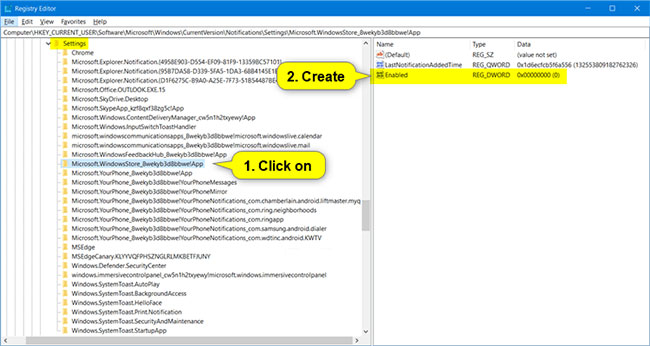
<p style="text-align: justify;">3. Dưới key&nbsp;<strong>Settings</strong>&nbsp;trong ngăn bên trái của Registry Editor, nhấp vào subkey (ví dụ:&nbsp;<strong>&quot;Microsoft.WindowsStore_8wekyb3d8bbwe!</strong>&nbsp;<strong>App&quot;</strong>) cho ứng dụng (ví dụ:&nbsp;<strong>&quot;Microsoft Store&quot;</strong>) mà bạn muốn bật hoặc tắt thông báo.</p>

<p style="text-align: justify;">4. Thực hiện bước 5 (tắt) hoặc bước 6 (bật) bên dưới, tùy theo những gì bạn muốn làm.</p>

<p style="text-align: justify;">5. Để tắt thông báo cho một ứng dụng cụ thể:</p>

<p style="text-align: justify;">A) Nhấp chuột phải vào vùng trống ở bên phải của key (ví dụ:&nbsp;<strong>&quot;Microsoft.WindowsStore_8wekyb3d8bbwe! App&quot;</strong>) cho ứng dụng (ví dụ:&nbsp;<strong>&quot;Microsoft Store&quot;</strong>) mà bạn muốn tắt thông báo.</p>

<p style="text-align: justify;">B) Nhấp vào&nbsp;<strong>New.</strong></p>

<p style="text-align: justify;">C) Nhấp vào&nbsp;<strong>DWORD (32-bit) Value</strong>.</p>

<p style="text-align: justify;">D) Nhập&nbsp;<strong>Enabled</strong>&nbsp;làm tên và nhấn&nbsp;<strong>Enter.</strong></p>

<p style="text-align: justify;">E) Chuyển đến bước 7</p>

<p style="text-align: justify;">6. Để bật thông báo cho một ứng dụng cụ thể:</p>

<p style="text-align: justify;"><strong>Lưu ý</strong>: Đây là thiết lập mặc định.</p>

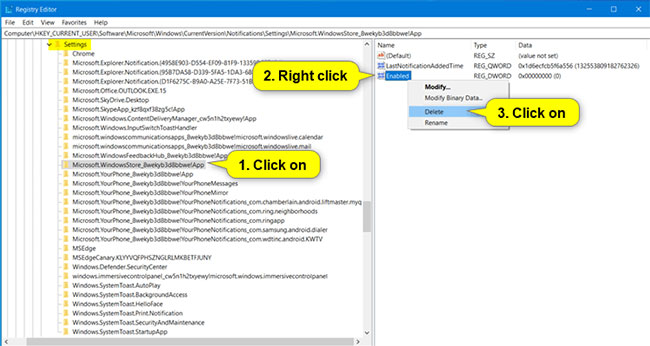
<p style="text-align: justify;">A) Nhấp chuột phải vào DWORD đã bật ở bên phải của key (ví dụ:&nbsp;<strong>&quot;Microsoft.WindowsStore_8wekyb3d8bbwe! App&quot;</strong>) cho ứng dụng (ví dụ:&nbsp;<strong>&quot;Microsoft Store&quot;</strong>) mà bạn muốn bật thông báo.</p>

<p style="text-align: justify;">B) Nhấp vào&nbsp;<strong>Delete.</strong></p>

<figure>
<div style="text-align: justify;"><img alt="Nhấp vào Delete" data-i="6" data-src="https://st.quantrimang.com/photos/image/2021/07/29/bat-tat-thong-bao-tu-ung-dung-va-nguoi-gui-7.jpg" data-was-processed="true" height="346" src="https://st.quantrimang.com/photos/image/2021/07/29/bat-tat-thong-bao-tu-ung-dung-va-nguoi-gui-7.jpg" width="650" /></div>

<figcaption>
<div style="text-align: justify;">Nhấp vào Delete</div>
</figcaption>
</figure>

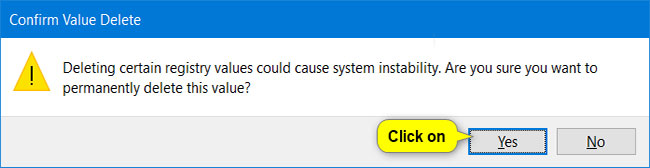
<p style="text-align: justify;">C) Nhấp vào&nbsp;<strong>Yes</strong>&nbsp;để xác nhận.</p>

<figure>
<div style="text-align: justify;"><img alt="Nhấp vào Yes để xác nhận" data-i="7" data-src="https://st.quantrimang.com/photos/image/2021/07/29/bat-tat-thong-bao-tu-ung-dung-va-nguoi-gui-8.jpg" data-was-processed="true" height="168" src="https://st.quantrimang.com/photos/image/2021/07/29/bat-tat-thong-bao-tu-ung-dung-va-nguoi-gui-8.jpg" width="650" /></div>

<figcaption>
<div style="text-align: justify;">Nhấp vào Yes để xác nhận</div>
</figcaption>
</figure>

<p style="text-align: justify;">D) Chuyển đến bước 7.</p>

<p style="text-align: justify;">7. Khi hoàn tất việc bật và tắt thông báo cho các ứng dụng cụ thể, bạn có thể đóng Registry Editor.</p>

<p style="text-align: justify;">Chúc bạn thực hiện thành công!</p>

<ul>
	<li>&nbsp;</li>
</ul>
		</div>
				<div id="author">
						<p>
				<strong>Nguồn tin:</strong>
				Quantrimang.com
			</p>
		</div>
	</div>
	<div id="footer" class="clearfix">
		<div id="url">
			<strong>URL của bản tin này: </strong><a href="https://www.nguoicodonvn2008.info/vi/news/savefile/kien-thuc-may-tinh/cach-bat-tat-thong-bao-tu-ung-dung-va-nguoi-gui-khac-trong-windows-10-4499.html" title="Cách bật&#x002F;tắt thông báo từ ứng dụng và người gửi khác trong Windows 10">https://www.nguoicodonvn2008.info/vi/news/savefile/kien-thuc-may-tinh/cach-bat-tat-thong-bao-tu-ung-dung-va-nguoi-gui-khac-trong-windows-10-4499.html</a>

		</div>
		<div class="clear"></div>
		<div class="copyright">
			&copy; .&#x3A; Nguoicodonvn2008.info - Cõi lòng người cô đơn &#x3A;.
		</div>
		<div id="contact">
			<a href="mailto:admin@nguoicodonvn2008.info">admin@nguoicodonvn2008.info</a>
		</div>
	</div>
</div>
        <div id="timeoutsess" class="chromeframe">
            Bạn đã không sử dụng Site, <a onclick="timeoutsesscancel();" href="https://www.nguoicodonvn2008.info/#">Bấm vào đây để duy trì trạng thái đăng nhập</a>. Thời gian chờ: <span id="secField"> 60 </span> giây
        </div>
        <div id="openidResult" class="nv-alert" style="display:none"></div>
        <div id="openidBt" data-result="" data-redirect=""></div>
		</script>
		<div class="car-top">
  <span><img src="https://www.nguoicodonvn2008.info/themes/default/images/car.png" alt=""></span>
</div>
<script src="https://www.nguoicodonvn2008.info/assets/js/jquery/jquery.min.js"></script>
<script>var nv_base_siteurl="/",nv_lang_data="vi",nv_lang_interface="vi",nv_name_variable="nv",nv_fc_variable="op",nv_lang_variable="language",nv_module_name="news",nv_func_name="savefile",nv_is_user=0, nv_my_ofs=-4,nv_my_abbr="EDT",nv_cookie_prefix="nv4c_e856T",nv_check_pass_mstime=1738000,nv_area_admin=0,nv_safemode=0,theme_responsive=0,nv_recaptcha_ver=2,nv_recaptcha_sitekey="",nv_recaptcha_type="image",XSSsanitize=1;</script>
<script src="https://www.nguoicodonvn2008.info/assets/js/language/vi.js"></script>
<script src="https://www.nguoicodonvn2008.info/assets/js/DOMPurify/purify3.js"></script>
<script src="https://www.nguoicodonvn2008.info/assets/js/global.js"></script>
<script src="https://www.nguoicodonvn2008.info/assets/js/site.js"></script>
<script src="https://www.nguoicodonvn2008.info/themes/default/js/news.js"></script>
<script src="https://www.nguoicodonvn2008.info/themes/default/js/main.js"></script>
<script src="https://www.nguoicodonvn2008.info/themes/default/js/custom.js"></script>
<script type="application/ld+json">
        {
            "@context": "https://schema.org",
            "@type": "Organization",
            "url": "https://www.nguoicodonvn2008.info",
            "logo": "https://www.nguoicodonvn2008.info/uploads/angel.gif"
        }
        </script>
<script src="https://www.nguoicodonvn2008.info/themes/default/js/bootstrap.min.js"></script>
<script type="text/javascript">
var $scrolltop = $('.car-top');
$scrolltop.on('click', function () {
    $('html,body').animate({
        scrollTop: 0
    }, 800);
    $(this).addClass("car-run");
    setTimeout(function(){ $scrolltop.removeClass('car-run');}, 1000);
    return false;
});
$(window).on('scroll', function ()
{ 
    if($(window).scrollTop() >= 200)
    {
        $scrolltop.addClass("show");
        $scrolltop.addClass("car-down");
    }
    else
    {
       $scrolltop.removeClass("show");
       setTimeout(function(){ $scrolltop.removeClass('car-down');}, 300);
    }
});
</script>
</body>
</html>