<!DOCTYPE html>
    <html lang="vi" xmlns="http://www.w3.org/1999/xhtml" prefix="og: http://ogp.me/ns#">
    <head>
<title>Cách bật&#x002F;tắt Sticky Keys</title>
<meta name="description" content="Cách bật&#x002F;tắt Sticky Keys - Savefile - Tin Tức - https&#x3A;&#x002F;&#x002F;www.nguoicodonvn2008.info&#x002F;vi&#x002F;news&#x002F;savefile&#x002F;kien-thuc-may-tinh&#x002F;cach-bat-tat-sticky-keys-3319.html">
<meta name="author" content=".: Nguoicodonvn2008.info - Cõi lòng người cô đơn :.">
<meta name="copyright" content=".: Nguoicodonvn2008.info - Cõi lòng người cô đơn :. [admin@nguoicodonvn2008.info]">
<meta name="robots" content="index, archive, follow, noodp">
<meta name="googlebot" content="index,archive,follow,noodp">
<meta name="msnbot" content="all,index,follow">
<meta name="generator" content="NukeViet v4.5">
<meta http-equiv="Content-Type" content="text/html; charset=utf-8">
<meta property="og:title" content="Cách bật&#x002F;tắt Sticky Keys">
<meta property="og:type" content="website">
<meta property="og:description" content="Savefile - Tin Tức - https&#x3A;&#x002F;&#x002F;www.nguoicodonvn2008.info&#x002F;vi&#x002F;news&#x002F;savefile&#x002F;kien-thuc-may-tinh&#x002F;cach-bat-tat-sticky-keys-3319.html">
<meta property="og:site_name" content=".&#x3A; Nguoicodonvn2008.info - Cõi lòng người cô đơn &#x3A;.">
<meta property="og:url" content="https://www.nguoicodonvn2008.info/vi/news/savefile/kien-thuc-may-tinh/cach-bat-tat-sticky-keys-3319.html">
<link rel="shortcut icon" href="https://www.nguoicodonvn2008.info/favicon.ico">
<link rel="canonical" href="https://www.nguoicodonvn2008.info/vi/news/savefile/kien-thuc-may-tinh/cach-bat-tat-sticky-keys-3319.html">
<link rel="alternate" href="https://www.nguoicodonvn2008.info/vi/news/rss/" title="Tin Tức" type="application/rss+xml">
<link rel="alternate" href="https://www.nguoicodonvn2008.info/vi/news/rss/karaoke-dual/" title="Tin Tức - Karaoke Dual" type="application/rss+xml">
<link rel="alternate" href="https://www.nguoicodonvn2008.info/vi/news/rss/nhac-tre/" title="Tin Tức - Nhạc trẻ" type="application/rss+xml">
<link rel="alternate" href="https://www.nguoicodonvn2008.info/vi/news/rss/tru-tinh/" title="Tin Tức - Trữ tình" type="application/rss+xml">
<link rel="alternate" href="https://www.nguoicodonvn2008.info/vi/news/rss/nuoc-ngoai/" title="Tin Tức - Nước ngoài" type="application/rss+xml">
<link rel="alternate" href="https://www.nguoicodonvn2008.info/vi/news/rss/remix/" title="Tin Tức - Remix" type="application/rss+xml">
<link rel="alternate" href="https://www.nguoicodonvn2008.info/vi/news/rss/tam-su-tinh-yeu/" title="Tin Tức - Tâm sự tình yêu" type="application/rss+xml">
<link rel="alternate" href="https://www.nguoicodonvn2008.info/vi/news/rss/tho-suu-tam/" title="Tin Tức - Thơ sưu tầm" type="application/rss+xml">
<link rel="alternate" href="https://www.nguoicodonvn2008.info/vi/news/rss/cuoc-song/" title="Tin Tức - Cuộc sống" type="application/rss+xml">
<link rel="alternate" href="https://www.nguoicodonvn2008.info/vi/news/rss/phan-mem/" title="Tin Tức - Phần mềm" type="application/rss+xml">
<link rel="alternate" href="https://www.nguoicodonvn2008.info/vi/news/rss/kien-thuc-may-tinh/" title="Tin Tức - Kiến thức máy tính" type="application/rss+xml">
<link rel="alternate" href="https://www.nguoicodonvn2008.info/vi/news/rss/hoc-tap/" title="Tin Tức - Học tập" type="application/rss+xml">
<link rel="alternate" href="https://www.nguoicodonvn2008.info/vi/news/rss/tai-lieu/" title="Tin Tức - Tài liệu" type="application/rss+xml">
<link rel="alternate" href="https://www.nguoicodonvn2008.info/vi/news/rss/de-thi/" title="Tin Tức - Đề thi" type="application/rss+xml">
<link rel="preload" as="style" href="https://www.nguoicodonvn2008.info/assets/css/font-awesome.min.css" type="text/css">
<link rel="preload" as="style" href="https://www.nguoicodonvn2008.info/themes/default/css/bootstrap.non-responsive.css" type="text/css">
<link rel="preload" as="style" href="https://www.nguoicodonvn2008.info/themes/default/css/style.css" type="text/css">
<link rel="preload" as="style" href="https://www.nguoicodonvn2008.info/themes/default/css/style.non-responsive.css" type="text/css">
<link rel="preload" as="style" href="https://www.nguoicodonvn2008.info/themes/default/css/news.css" type="text/css">
<link rel="preload" as="style" href="https://www.nguoicodonvn2008.info/themes/default/css/custom.css" type="text/css">
<link rel="preload" as="script" href="https://www.nguoicodonvn2008.info/assets/js/jquery/jquery.min.js" type="text/javascript">
<link rel="preload" as="script" href="https://www.nguoicodonvn2008.info/assets/js/language/vi.js" type="text/javascript">
<link rel="preload" as="script" href="https://www.nguoicodonvn2008.info/assets/js/DOMPurify/purify3.js" type="text/javascript">
<link rel="preload" as="script" href="https://www.nguoicodonvn2008.info/assets/js/global.js" type="text/javascript">
<link rel="preload" as="script" href="https://www.nguoicodonvn2008.info/assets/js/site.js" type="text/javascript">
<link rel="preload" as="script" href="https://www.nguoicodonvn2008.info/themes/default/js/news.js" type="text/javascript">
<link rel="preload" as="script" href="https://www.nguoicodonvn2008.info/themes/default/js/main.js" type="text/javascript">
<link rel="preload" as="script" href="https://www.nguoicodonvn2008.info/themes/default/js/custom.js" type="text/javascript">
<link rel="preload" as="script" href="https://www.nguoicodonvn2008.info/themes/default/js/bootstrap.min.js" type="text/javascript">
<link rel="stylesheet" href="https://www.nguoicodonvn2008.info/assets/css/font-awesome.min.css">
<link rel="stylesheet" href="https://www.nguoicodonvn2008.info/themes/default/css/bootstrap.non-responsive.css">
<link rel="stylesheet" href="https://www.nguoicodonvn2008.info/themes/default/css/style.css">
<link rel="stylesheet" href="https://www.nguoicodonvn2008.info/themes/default/css/style.non-responsive.css">
<link rel="StyleSheet" href="https://www.nguoicodonvn2008.info/themes/default/css/news.css">
<link rel="stylesheet" href="https://www.nguoicodonvn2008.info/themes/default/css/custom.css">
<style type="text/css">
	body{background: #fff;}
</style>
    </head>
    <body>
<div id="print">
	<div id="hd_print">
		<h2 class="pull-left">.&#x3A; Nguoicodonvn2008.info - Cõi lòng người cô đơn &#x3A;.</h2>
		<p class="pull-right"><a title=".&#x3A; Nguoicodonvn2008.info - Cõi lòng người cô đơn &#x3A;." href="https://www.nguoicodonvn2008.info/">https://www.nguoicodonvn2008.info</a></p>
	</div>
	<div class="clear"></div>
	<hr />
	<div id="content">
		<h1>Cách bật&#x002F;tắt Sticky Keys</h1>
		<ul class="list-inline">
			<li>Thứ sáu - 25/12/2020 23:52</li>
			<li class="hidden-print txtrequired"><em class="fa fa-print">&nbsp;</em><a title="In ra" href="javascript:;" onclick="window.print()">In ra</a></li>
			<li class="hidden-print txtrequired"><em class="fa fa-power-off">&nbsp;</em><a title="Đóng cửa sổ này" href="javascript:;" onclick="window.close()">Đóng cửa sổ này</a></li>
		</ul>
		<div class="clear"></div>
		<div id="hometext">
		</div>
				<div class="imghome">
			<img alt="Cách bật&#x002F;tắt Sticky Keys" src="https://st.quantrimang.com/photos/image/2020/12/25/sticky-keys-3.jpg" width="460" class="img-thumbnail" />
		</div>
		<div class="clear"></div>
		<div id="bodytext" class="clearfix">
			<p style="text-align: justify;">Nếu nhấn phím Shift đủ số lần nhất định (5 lần), bạn sẽ gặp phải cửa sổ pop-up Sticky Keys khó chịu, hỏi bạn có muốn bật nó không. Vậy làm thế nào để bạn tắt thông báo này đi?</p>

<p style="text-align: justify;">Hãy cùng khám phá lý do tại sao Sticky Keys tồn tại cũng như cách tắt Sticky Keys qua bài viế sau đây nhé!</p>

<h2 style="text-align: justify;">Sticky Keys là gì và tại sao chúng tồn tại?</h2>

<p style="text-align: justify;">Có vẻ như Sticky Keys chỉ được lập trình để làm phiền những người sử dụng phím Shift nhiều. Tuy nhiên, đó thực sự là một công cụ Ease of Access quan trọng, giúp ích cho những người bị suy giảm kỹ năng vận động.</p>

<p style="text-align: justify;">Có thể bạn sẽ không gặp vấn đề gì khi giữ một phím trong khi nhấn phím khác. Ví dụ, khi bạn nhập một ký tự viết hoa ở đầu câu, các ngón tay của bạn có thể nhấn đồng thời trên phím Shift và phím chữ cái.</p>

<div style="text-align: justify;">&nbsp;</div>

<p style="text-align: justify;">Tuy nhiên, đối với một số người, thao tác giữ phím Shift cộng với một chữ cái sẽ quá vất vả. Đối với những người này, Sticky Keys sẽ thực sự hữu ích.</p>

<p style="text-align: justify;">Khi bật Sticky Keys, bạn có thể yêu cầu PC giả vờ rằng bạn đang giữ phím (ngay cả khi bạn không làm như vậy). Đối với phím Shift, bạn có thể sử dụng các cài đặt khác nhau khi bật Sticky Keys. Bạn có thể biết nó đang ở chế độ nào bằng tiếng bíp mà bạn nghe thấy khi nhấn Shift.</p>

<p style="text-align: justify;">Có 3 cài đặt cho phím Shift. Nó có thể hoạt động như thể không được nhấn, được nhấn và giữ (để nhập chữ hoa hoặc nhiều ký hiệu trên hàng số) và chỉ được nhấn xuống cho lần nhấn phím đầu tiên (để thêm chữ hoa vào đầu câu).</p>

<h2 style="text-align: justify;">Cách bật/tắt Sticky Keys</h2>

<h3 style="text-align: justify;">Bật/tắt Sticky Keys bằng phím tắt</h3>

<p style="text-align: justify;">1. Nhấn phím&nbsp;<strong>Shift</strong>&nbsp;5 lần để bật hoặc tắt Sticky Keys.</p>

<p style="text-align: justify;">Phím tắt sẽ chỉ hoạt động nếu được bật trong tùy chọn 2 hoặc bước 5C của tùy chọn 3. Nó được bật theo mặc định.</p>

<div style="text-align: justify;">&nbsp;</div>

<p style="text-align: justify;">2. Theo mặc định, một âm thanh sẽ phát ra cho biết Sticky Keys đã được bật (âm độ cao) hoặc tắt (âm độ thấp).</p>

<p style="text-align: justify;">Âm thanh sẽ chỉ phát nếu được bật ở bước 5C của tùy chọn 3. Nó được bật theo mặc định.</p>

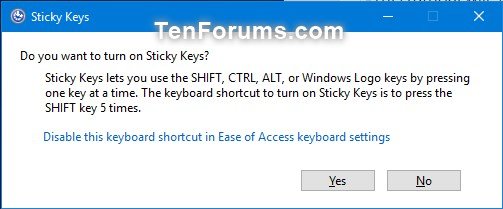
<p style="text-align: justify;">3. Nếu bạn muốn bật Sticky Keys, hãy nhấp vào&nbsp;<strong>Yes</strong>&nbsp;nếu được nhắc bởi cảnh báo bên dưới.</p>

<p style="text-align: justify;">Cảnh báo sẽ chỉ hiển thị nếu được bật ở bước 5C của tùy chọn 3. Nó được bật theo mặc định.</p>

<figure>
<div style="text-align: justify;"><img alt="Bật/tắt Sticky Keys bằng phím tắt" data-i="0" data-src="https://st.quantrimang.com/photos/image/2020/12/25/sticky-keys-1.jpg" data-was-processed="true" height="209" src="https://st.quantrimang.com/photos/image/2020/12/25/sticky-keys-1.jpg" width="503" /></div>

<figcaption>
<div style="text-align: justify;">Bật/tắt Sticky Keys bằng phím tắt</div>
</figcaption>
</figure>

<h3 style="text-align: justify;">Bật/tắt Sticky Keys và điều chỉnh cài đặt trong Settings</h3>

<p style="text-align: justify;">1.&nbsp;<a href="https://quantrimang.com/6-cach-truy-cap-nhanh-settings-tren-windows-10-130106" title="Tổng hợp một số cách truy cập nhanh ứng dụng Settings trên Windows 10">Mở&nbsp;<strong>Settings</strong></a>&nbsp;và nhấn vào biểu tượng&nbsp;<strong>Ease of Access</strong>.</p>

<p style="text-align: justify;">2. Thực hiện bước 3 (bật) hoặc bước 4 (tắt) bên dưới tùy thuộc vào những gì bạn muốn làm.</p>

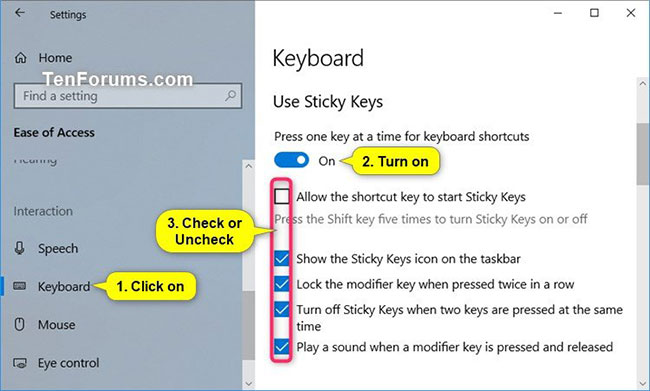
<p style="text-align: justify;">3. Để bật Sticky Keys và điều chỉnh cài đặt:</p>

<p style="text-align: justify;">A) Nhấp vào&nbsp;<strong>Keyboard</strong>&nbsp;ở phía bên trái và bật&nbsp;<strong>Press one key at a time for keyboard shortcuts</strong>&nbsp;trong&nbsp;<strong>Use Sticky Keys</strong>&nbsp;ở phía bên phải.</p>

<p style="text-align: justify;">B) Chọn (bật - mặc định) hoặc bỏ chọn (tắt)&nbsp;<strong>Allow the shortcut key to start Sticky Keys</strong>, tùy thuộc vào những gì bạn muốn.</p>

<div style="text-align: justify;">&nbsp;</div>

<p style="text-align: justify;">C) Chọn (bật - mặc định) hoặc bỏ chọn (tắt)&nbsp;<strong>Show the Sticky Keys icon on the taskbar</strong>, tùy thuộc vào những gì bạn muốn.</p>

<p style="text-align: justify;">D) Chọn (bật - mặc định) hoặc bỏ chọn (tắt)&nbsp;<strong>Lock the modifier key when pressed twice in a row</strong>&nbsp;tùy theo những gì bạn muốn.</p>

<p style="text-align: justify;">E) Chọn (bật - mặc định) hoặc bỏ chọn (tắt)&nbsp;<strong>Turn off Sticky Keys when two keys are pressed at the same time</strong>&nbsp;tùy theo những gì bạn muốn.</p>

<p style="text-align: justify;">F) Chọn (bật - mặc định) hoặc bỏ chọn (tắt)&nbsp;<strong>Play a sound when a modifier key is pressed and released</strong>, tùy theo những gì bạn muốn.</p>

<p style="text-align: justify;">G) Khi hoàn tất, hãy chuyển sang bước 5 bên dưới.</p>

<figure>
<div style="text-align: justify;"><img alt="Bật Sticky Keys và điều chỉnh cài đặt" data-i="1" data-src="https://st.quantrimang.com/photos/image/2020/12/25/sticky-keys-2.jpg" data-was-processed="true" height="391" src="https://st.quantrimang.com/photos/image/2020/12/25/sticky-keys-2.jpg" width="650" /></div>

<figcaption>
<div style="text-align: justify;">Bật Sticky Keys và điều chỉnh cài đặt</div>
</figcaption>
</figure>

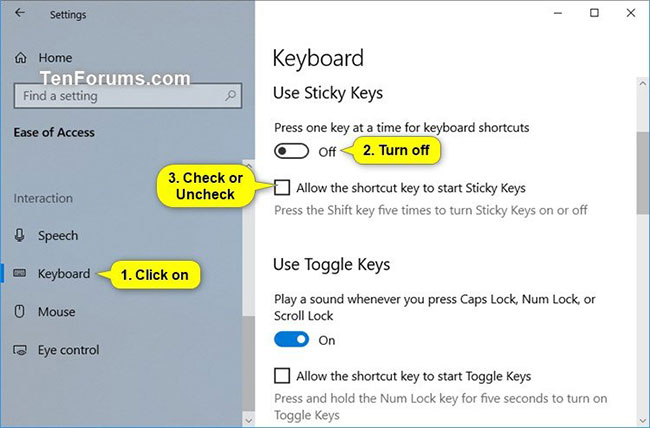
<p style="text-align: justify;">4. Để tắt Sticky Keys và điều chỉnh cài đặt:</p>

<p style="text-align: justify;">A) Nhấp vào&nbsp;<strong>Keyboard</strong>&nbsp;ở phía bên trái, tắt&nbsp;<strong>Press one key at a time for keyboard shortcuts trong Use Sticky Keys</strong>&nbsp;ở phía bên phải.</p>

<p style="text-align: justify;">B) Chọn (bật - mặc định) hoặc bỏ chọn (tắt)&nbsp;<strong>Allow the shortcut key to start Sticky Keys</strong>, tùy theo những gì bạn muốn.</p>

<p style="text-align: justify;">C) Khi hoàn tất, hãy chuyển sang bước 5 bên dưới.</p>

<figure>
<div style="text-align: justify;"><img alt="Tắt Sticky Keys và điều chỉnh cài đặt" data-i="2" data-src="https://st.quantrimang.com/photos/image/2020/12/25/sticky-keys-3.jpg" data-was-processed="true" height="428" src="https://st.quantrimang.com/photos/image/2020/12/25/sticky-keys-3.jpg" width="650" /></div>

<figcaption>
<div style="text-align: justify;">Tắt Sticky Keys và điều chỉnh cài đặt</div>
</figcaption>
</figure>

<p style="text-align: justify;">5. Khi hoàn tất, bạn có thể đóng&nbsp;<strong>Settings</strong>&nbsp;nếu muốn.</p>

<h3 style="text-align: justify;">Bật/tắt Sticky Keys và điều chỉnh cài đặt trong Control Panel</h3>

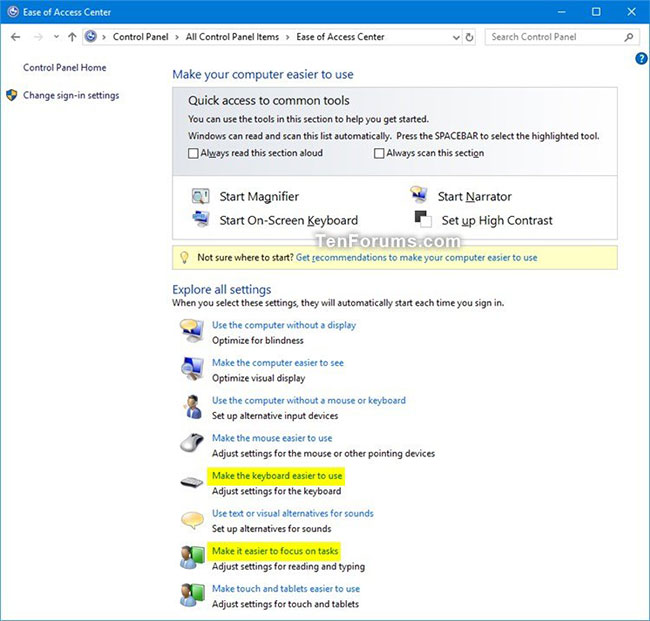
<p style="text-align: justify;">1.&nbsp;<a href="https://quantrimang.com/cach-mo-control-panel-tren-windows-10-8-7-vista-va-xp-152771" title="Cách mở Control Panel trên Windows 10, 8.1, 7">Mở&nbsp;<strong>Control Panel</strong></a>&nbsp;(chế độ xem biểu tượng) và nhấn vào biểu tượng&nbsp;<strong>Ease of Access Center</strong>.</p>

<p style="text-align: justify;">2. Nhấp vào liên kết cài đặt&nbsp;<strong>Make the keyboard easier to use</strong>&nbsp;hoặc<strong>&nbsp;Make it easier to focus on tasks</strong>.</p>

<figure>
<div style="text-align: justify;"><img alt="Nhấp vào liên kết cài đặt Make the keyboard easier to use hoặc Make it easier to focus on tasks" data-i="3" data-src="https://st.quantrimang.com/photos/image/2020/12/25/sticky-keys-4.jpg" data-was-processed="true" height="621" src="https://st.quantrimang.com/photos/image/2020/12/25/sticky-keys-4.jpg" width="650" /></div>

<figcaption>
<div style="text-align: justify;">Nhấp vào liên kết cài đặt Make the keyboard easier to use hoặc Make it easier to focus on tasks</div>
</figcaption>
</figure>

<p style="text-align: justify;">3. Thực hiện bước 4 (bật/tắt) hoặc bước 5 (cài đặt) bên dưới, tùy theo những gì bạn muốn làm.</p>

<p style="text-align: justify;">4. Để bật hoặc tắt Sticky Keys:</p>

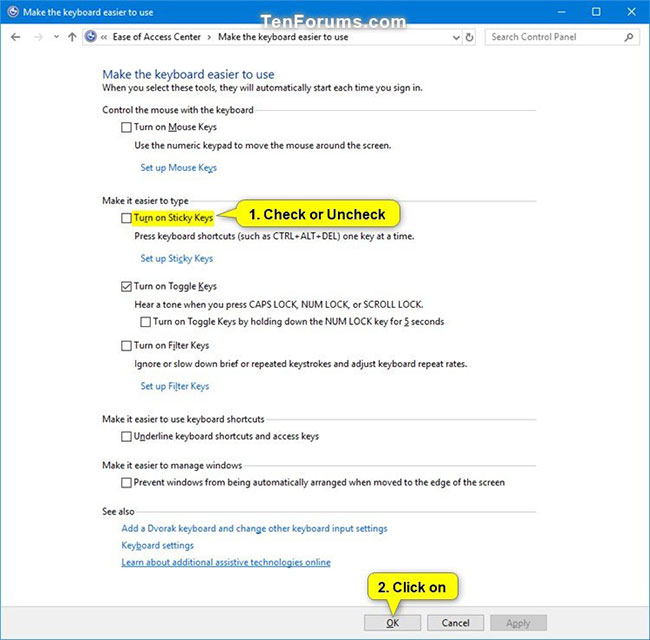
<p style="text-align: justify;">A) Chọn (bật) hoặc bỏ chọn (tắt - mặc định)&nbsp;<strong>Turn on Sticky Keys</strong>&nbsp;trong&nbsp;<strong>Make it easier to type</strong>&nbsp;tùy theo những gì bạn muốn.</p>

<p style="text-align: justify;">B) Nhấp&nbsp;<strong>OK</strong>&nbsp;và chuyển sang bước 6 bên dưới.</p>

<figure>
<div style="text-align: justify;"><img alt="Chọn (bật) hoặc bỏ chọn (tắt - mặc định) Turn on Sticky Keys" data-i="4" data-src="https://st.quantrimang.com/photos/image/2020/12/25/sticky-keys-5.jpg" data-was-processed="true" height="640" src="https://st.quantrimang.com/photos/image/2020/12/25/sticky-keys-5.jpg" width="650" /></div>

<figcaption>
<div style="text-align: justify;">Chọn (bật) hoặc bỏ chọn (tắt - mặc định) Turn on Sticky Keys</div>
</figcaption>
</figure>

<p style="text-align: justify;">5. Để điều chỉnh cài đặt cho Sticky Keys:</p>

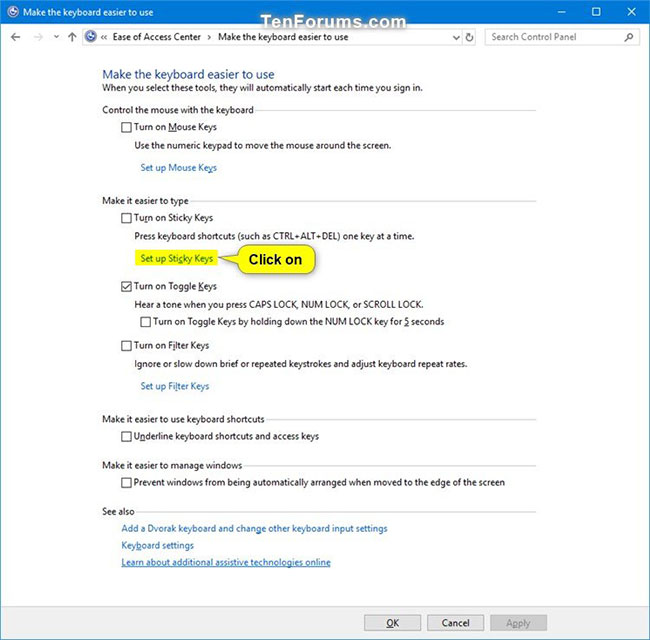
<p style="text-align: justify;">A) Nhấp vào liên kết&nbsp;<strong>Set up Sticky Keys</strong>&nbsp;trong&nbsp;<strong>Turn on Sticky Keys</strong>&nbsp;thuộc&nbsp;<strong>Make it easier to type</strong>.</p>

<figure>
<div style="text-align: justify;"><img alt="Nhấp vào liên kết Set up Sticky Keys" data-i="5" data-src="https://st.quantrimang.com/photos/image/2020/12/25/sticky-keys-6.jpg" data-was-processed="true" height="640" src="https://st.quantrimang.com/photos/image/2020/12/25/sticky-keys-6.jpg" width="650" /></div>

<figcaption>
<div style="text-align: justify;">Nhấp vào liên kết Set up Sticky Keys</div>
</figcaption>
</figure>

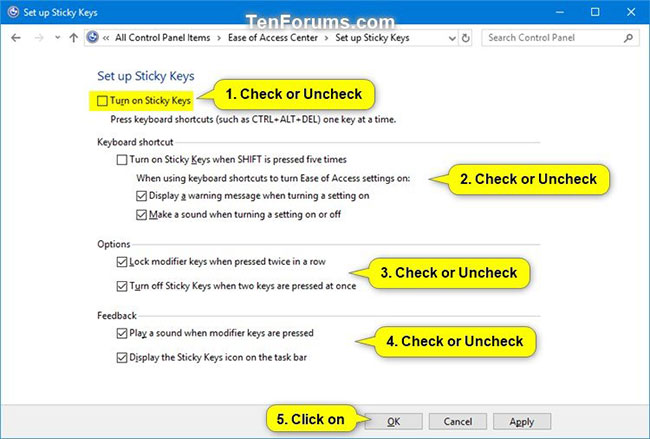
<p style="text-align: justify;">B) Chọn (bật) hoặc bỏ chọn (tắt - mặc định)&nbsp;<strong>Turn on Sticky Keys</strong>, tùy theo những gì bạn muốn.</p>

<p style="text-align: justify;">C) Trong&nbsp;<strong>Keyboard shortcut</strong>, chọn (bật - mặc định) hoặc bỏ chọn (tắt)&nbsp;<strong>Turn on Sticky Keys when SHIFT is pressed five times</strong>, tùy theo những gì bạn muốn.</p>

<div style="text-align: justify;">&nbsp;</div>

<p style="text-align: justify;">Chọn (bật - mặc định) hoặc bỏ chọn (tắt)&nbsp;<strong>Display a warning message when turning a setting on</strong>, tùy theo những gì bạn muốn.</p>

<p style="text-align: justify;">Chọn (bật - mặc định) hoặc bỏ chọn (tắt)&nbsp;<strong>Make a sound when turning a setting on or off</strong>, tùy theo những gì bạn muốn.</p>

<p style="text-align: justify;">D) Trong&nbsp;<strong>Options</strong>, chọn (bật - mặc định) hoặc bỏ chọn (tắt)&nbsp;<strong>Lock modifier keys when pressed twice in a row</strong>, tùy theo những gì bạn muốn.</p>

<p style="text-align: justify;">E) Trong&nbsp;<strong>Options</strong>, chọn (bật - mặc định) hoặc bỏ chọn (tắt)&nbsp;<strong>Turn off Sticky Keys when two keys are pressed at once</strong>, tùy theo những gì bạn muốn.</p>

<p style="text-align: justify;">F) Trong phần&nbsp;<strong>Feedback</strong>, chọn (bật - mặc định) hoặc bỏ chọn (tắt)&nbsp;<strong>Play a sound when modifier keys are pressed</strong>, tùy theo những gì bạn muốn.</p>

<p style="text-align: justify;">G) Trong phần&nbsp;<strong>Feedback</strong>, chọn (bật - mặc định) hoặc bỏ chọn (tắt)&nbsp;<strong>Display the Sticky Keys icon on the taskbar</strong>, tùy theo những gì bạn muốn.</p>

<p style="text-align: justify;">H) Khi hoàn tất, nhấp vào&nbsp;<strong>OK</strong>&nbsp;và chuyển sang bước 6 bên dưới.</p>

<figure>
<div style="text-align: justify;"><img alt="Nhấn OK" data-i="6" data-src="https://st.quantrimang.com/photos/image/2020/12/25/sticky-keys-7.jpg" data-was-processed="true" height="439" src="https://st.quantrimang.com/photos/image/2020/12/25/sticky-keys-7.jpg" width="650" /></div>

<figcaption>
<div style="text-align: justify;">Nhấn OK</div>
</figcaption>
</figure>

<p style="text-align: justify;">6. Khi hoàn tất, bạn có thể đóng&nbsp;<strong>Ease of Access Center</strong>&nbsp;nếu muốn.</p>
		</div>
				<div id="author">
						<p>
				<strong>Nguồn tin:</strong>
				Quantrimang.com
			</p>
		</div>
	</div>
	<div id="footer" class="clearfix">
		<div id="url">
			<strong>URL của bản tin này: </strong><a href="https://www.nguoicodonvn2008.info/vi/news/savefile/kien-thuc-may-tinh/cach-bat-tat-sticky-keys-3319.html" title="Cách bật&#x002F;tắt Sticky Keys">https://www.nguoicodonvn2008.info/vi/news/savefile/kien-thuc-may-tinh/cach-bat-tat-sticky-keys-3319.html</a>

		</div>
		<div class="clear"></div>
		<div class="copyright">
			&copy; .&#x3A; Nguoicodonvn2008.info - Cõi lòng người cô đơn &#x3A;.
		</div>
		<div id="contact">
			<a href="mailto:admin@nguoicodonvn2008.info">admin@nguoicodonvn2008.info</a>
		</div>
	</div>
</div>
        <div id="timeoutsess" class="chromeframe">
            Bạn đã không sử dụng Site, <a onclick="timeoutsesscancel();" href="https://www.nguoicodonvn2008.info/#">Bấm vào đây để duy trì trạng thái đăng nhập</a>. Thời gian chờ: <span id="secField"> 60 </span> giây
        </div>
        <div id="openidResult" class="nv-alert" style="display:none"></div>
        <div id="openidBt" data-result="" data-redirect=""></div>
		</script>
		<div class="car-top">
  <span><img src="https://www.nguoicodonvn2008.info/themes/default/images/car.png" alt=""></span>
</div>
<script src="https://www.nguoicodonvn2008.info/assets/js/jquery/jquery.min.js"></script>
<script>var nv_base_siteurl="/",nv_lang_data="vi",nv_lang_interface="vi",nv_name_variable="nv",nv_fc_variable="op",nv_lang_variable="language",nv_module_name="news",nv_func_name="savefile",nv_is_user=0, nv_my_ofs=-4,nv_my_abbr="EDT",nv_cookie_prefix="nv4c_e856T",nv_check_pass_mstime=1738000,nv_area_admin=0,nv_safemode=0,theme_responsive=0,nv_recaptcha_ver=2,nv_recaptcha_sitekey="",nv_recaptcha_type="image",XSSsanitize=1;</script>
<script src="https://www.nguoicodonvn2008.info/assets/js/language/vi.js"></script>
<script src="https://www.nguoicodonvn2008.info/assets/js/DOMPurify/purify3.js"></script>
<script src="https://www.nguoicodonvn2008.info/assets/js/global.js"></script>
<script src="https://www.nguoicodonvn2008.info/assets/js/site.js"></script>
<script src="https://www.nguoicodonvn2008.info/themes/default/js/news.js"></script>
<script src="https://www.nguoicodonvn2008.info/themes/default/js/main.js"></script>
<script src="https://www.nguoicodonvn2008.info/themes/default/js/custom.js"></script>
<script type="application/ld+json">
        {
            "@context": "https://schema.org",
            "@type": "Organization",
            "url": "https://www.nguoicodonvn2008.info",
            "logo": "https://www.nguoicodonvn2008.info/uploads/angel.gif"
        }
        </script>
<script src="https://www.nguoicodonvn2008.info/themes/default/js/bootstrap.min.js"></script>
<script type="text/javascript">
var $scrolltop = $('.car-top');
$scrolltop.on('click', function () {
    $('html,body').animate({
        scrollTop: 0
    }, 800);
    $(this).addClass("car-run");
    setTimeout(function(){ $scrolltop.removeClass('car-run');}, 1000);
    return false;
});
$(window).on('scroll', function ()
{ 
    if($(window).scrollTop() >= 200)
    {
        $scrolltop.addClass("show");
        $scrolltop.addClass("car-down");
    }
    else
    {
       $scrolltop.removeClass("show");
       setTimeout(function(){ $scrolltop.removeClass('car-down');}, 300);
    }
});
</script>
</body>
</html>