<!DOCTYPE html>
    <html lang="vi" xmlns="http://www.w3.org/1999/xhtml" prefix="og: http://ogp.me/ns#">
    <head>
<title>Cách bật, tắt macro trên Excel</title>
<meta name="description" content="Cách bật, tắt macro trên Excel - Savefile - Tin Tức - https&#x3A;&#x002F;&#x002F;www.nguoicodonvn2008.info&#x002F;vi&#x002F;news&#x002F;savefile&#x002F;kien-thuc-may-tinh&#x002F;cach-bat-tat-macro-tren-excel-2093.html">
<meta name="author" content=".: Nguoicodonvn2008.info - Cõi lòng người cô đơn :.">
<meta name="copyright" content=".: Nguoicodonvn2008.info - Cõi lòng người cô đơn :. [admin@nguoicodonvn2008.info]">
<meta name="robots" content="index, archive, follow, noodp">
<meta name="googlebot" content="index,archive,follow,noodp">
<meta name="msnbot" content="all,index,follow">
<meta name="generator" content="NukeViet v4.5">
<meta http-equiv="Content-Type" content="text/html; charset=utf-8">
<meta property="og:title" content="Cách bật, tắt macro trên Excel">
<meta property="og:type" content="website">
<meta property="og:description" content="Savefile - Tin Tức - https&#x3A;&#x002F;&#x002F;www.nguoicodonvn2008.info&#x002F;vi&#x002F;news&#x002F;savefile&#x002F;kien-thuc-may-tinh&#x002F;cach-bat-tat-macro-tren-excel-2093.html">
<meta property="og:site_name" content=".&#x3A; Nguoicodonvn2008.info - Cõi lòng người cô đơn &#x3A;.">
<meta property="og:url" content="https://www.nguoicodonvn2008.info/vi/news/savefile/kien-thuc-may-tinh/cach-bat-tat-macro-tren-excel-2093.html">
<link rel="shortcut icon" href="https://www.nguoicodonvn2008.info/favicon.ico">
<link rel="canonical" href="https://www.nguoicodonvn2008.info/vi/news/savefile/kien-thuc-may-tinh/cach-bat-tat-macro-tren-excel-2093.html">
<link rel="alternate" href="https://www.nguoicodonvn2008.info/vi/news/rss/" title="Tin Tức" type="application/rss+xml">
<link rel="alternate" href="https://www.nguoicodonvn2008.info/vi/news/rss/karaoke-dual/" title="Tin Tức - Karaoke Dual" type="application/rss+xml">
<link rel="alternate" href="https://www.nguoicodonvn2008.info/vi/news/rss/nhac-tre/" title="Tin Tức - Nhạc trẻ" type="application/rss+xml">
<link rel="alternate" href="https://www.nguoicodonvn2008.info/vi/news/rss/tru-tinh/" title="Tin Tức - Trữ tình" type="application/rss+xml">
<link rel="alternate" href="https://www.nguoicodonvn2008.info/vi/news/rss/nuoc-ngoai/" title="Tin Tức - Nước ngoài" type="application/rss+xml">
<link rel="alternate" href="https://www.nguoicodonvn2008.info/vi/news/rss/remix/" title="Tin Tức - Remix" type="application/rss+xml">
<link rel="alternate" href="https://www.nguoicodonvn2008.info/vi/news/rss/tam-su-tinh-yeu/" title="Tin Tức - Tâm sự tình yêu" type="application/rss+xml">
<link rel="alternate" href="https://www.nguoicodonvn2008.info/vi/news/rss/tho-suu-tam/" title="Tin Tức - Thơ sưu tầm" type="application/rss+xml">
<link rel="alternate" href="https://www.nguoicodonvn2008.info/vi/news/rss/cuoc-song/" title="Tin Tức - Cuộc sống" type="application/rss+xml">
<link rel="alternate" href="https://www.nguoicodonvn2008.info/vi/news/rss/phan-mem/" title="Tin Tức - Phần mềm" type="application/rss+xml">
<link rel="alternate" href="https://www.nguoicodonvn2008.info/vi/news/rss/kien-thuc-may-tinh/" title="Tin Tức - Kiến thức máy tính" type="application/rss+xml">
<link rel="alternate" href="https://www.nguoicodonvn2008.info/vi/news/rss/hoc-tap/" title="Tin Tức - Học tập" type="application/rss+xml">
<link rel="alternate" href="https://www.nguoicodonvn2008.info/vi/news/rss/tai-lieu/" title="Tin Tức - Tài liệu" type="application/rss+xml">
<link rel="alternate" href="https://www.nguoicodonvn2008.info/vi/news/rss/de-thi/" title="Tin Tức - Đề thi" type="application/rss+xml">
<link rel="preload" as="style" href="https://www.nguoicodonvn2008.info/assets/css/font-awesome.min.css" type="text/css">
<link rel="preload" as="style" href="https://www.nguoicodonvn2008.info/themes/default/css/bootstrap.non-responsive.css" type="text/css">
<link rel="preload" as="style" href="https://www.nguoicodonvn2008.info/themes/default/css/style.css" type="text/css">
<link rel="preload" as="style" href="https://www.nguoicodonvn2008.info/themes/default/css/style.non-responsive.css" type="text/css">
<link rel="preload" as="style" href="https://www.nguoicodonvn2008.info/themes/default/css/news.css" type="text/css">
<link rel="preload" as="style" href="https://www.nguoicodonvn2008.info/themes/default/css/custom.css" type="text/css">
<link rel="preload" as="script" href="https://www.nguoicodonvn2008.info/assets/js/jquery/jquery.min.js" type="text/javascript">
<link rel="preload" as="script" href="https://www.nguoicodonvn2008.info/assets/js/language/vi.js" type="text/javascript">
<link rel="preload" as="script" href="https://www.nguoicodonvn2008.info/assets/js/DOMPurify/purify3.js" type="text/javascript">
<link rel="preload" as="script" href="https://www.nguoicodonvn2008.info/assets/js/global.js" type="text/javascript">
<link rel="preload" as="script" href="https://www.nguoicodonvn2008.info/assets/js/site.js" type="text/javascript">
<link rel="preload" as="script" href="https://www.nguoicodonvn2008.info/themes/default/js/news.js" type="text/javascript">
<link rel="preload" as="script" href="https://www.nguoicodonvn2008.info/themes/default/js/main.js" type="text/javascript">
<link rel="preload" as="script" href="https://www.nguoicodonvn2008.info/themes/default/js/custom.js" type="text/javascript">
<link rel="preload" as="script" href="https://www.nguoicodonvn2008.info/themes/default/js/bootstrap.min.js" type="text/javascript">
<link rel="stylesheet" href="https://www.nguoicodonvn2008.info/assets/css/font-awesome.min.css">
<link rel="stylesheet" href="https://www.nguoicodonvn2008.info/themes/default/css/bootstrap.non-responsive.css">
<link rel="stylesheet" href="https://www.nguoicodonvn2008.info/themes/default/css/style.css">
<link rel="stylesheet" href="https://www.nguoicodonvn2008.info/themes/default/css/style.non-responsive.css">
<link rel="StyleSheet" href="https://www.nguoicodonvn2008.info/themes/default/css/news.css">
<link rel="stylesheet" href="https://www.nguoicodonvn2008.info/themes/default/css/custom.css">
<style type="text/css">
	body{background: #fff;}
</style>
    </head>
    <body>
<div id="print">
	<div id="hd_print">
		<h2 class="pull-left">.&#x3A; Nguoicodonvn2008.info - Cõi lòng người cô đơn &#x3A;.</h2>
		<p class="pull-right"><a title=".&#x3A; Nguoicodonvn2008.info - Cõi lòng người cô đơn &#x3A;." href="https://www.nguoicodonvn2008.info/">https://www.nguoicodonvn2008.info</a></p>
	</div>
	<div class="clear"></div>
	<hr />
	<div id="content">
		<h1>Cách bật, tắt macro trên Excel</h1>
		<ul class="list-inline">
			<li>Thứ hai - 25/05/2020 00:57</li>
			<li class="hidden-print txtrequired"><em class="fa fa-print">&nbsp;</em><a title="In ra" href="javascript:;" onclick="window.print()">In ra</a></li>
			<li class="hidden-print txtrequired"><em class="fa fa-power-off">&nbsp;</em><a title="Đóng cửa sổ này" href="javascript:;" onclick="window.close()">Đóng cửa sổ này</a></li>
		</ul>
		<div class="clear"></div>
		<div id="hometext">
		</div>
				<div class="imghome">
			<img alt="Cách bật, tắt macro trên Excel" src="https://st.quantrimang.com/photos/image/2020/05/25/macros-tren-excel-3.jpg" width="460" class="img-thumbnail" />
		</div>
		<div class="clear"></div>
		<div id="bodytext" class="clearfix">
			<p style="text-align: justify;">Bài viết sau đây sẽ hướng dẫn cho bạn đọc cách bật và tắt macro trong Excel 2007, 2010, 2013 và 2016.</p>

<h2 style="text-align: justify;">&nbsp;</h2>

<h2 id="mcetoc_1e94o99kj0" style="text-align: justify;">Kích hoạt macro trong Excel</h2>

<div style="text-align: justify;">&nbsp;</div>

<h3 id="mcetoc_1d1dd6udd0" style="text-align: justify;">Cách bật macro trong Excel 2013-2016</h3>

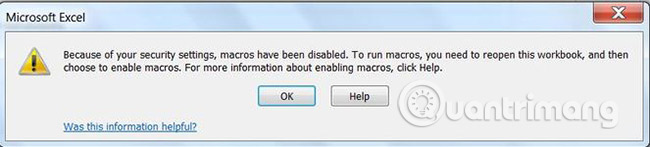
<p style="text-align: justify;"><img alt="Thông báo lỗi" data-i="0" data-src="https://st.quantrimang.com/photos/image/2019/01/17/bat-macros-1.jpg" data-was-processed="true" height="147" src="https://st.quantrimang.com/photos/image/2019/01/17/bat-macros-1.jpg" width="650" /></p>

<p style="text-align: justify;">Dưới đây là những việc cần làm, nếu thông báo lỗi ở trên hiển thị trong khi mở file hỗ trợ macro (XLS, XSLM, XLSB):</p>

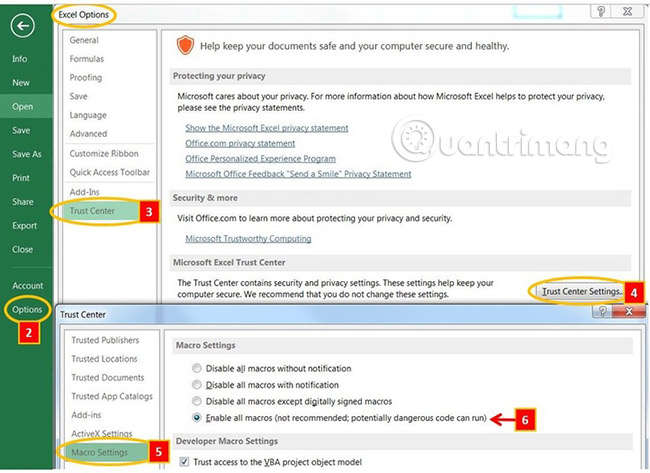
<p style="text-align: justify;">1. Bấm vào tab&nbsp;<strong>File</strong>&nbsp;(tab trên cùng bên trái trong cửa sổ Excel).</p>

<p style="text-align: justify;">2. Nhấp vào nút&nbsp;<strong>Excel Options.</strong></p>

<p style="text-align: justify;">3. Nhấp vào&nbsp;<strong>Trust Center</strong>&nbsp;trong menu bên trái.</p>

<p style="text-align: justify;">4. Nhấp vào&nbsp;<strong>Trust Center Settings</strong>&nbsp;trong cửa sổ bên phải.</p>

<p style="text-align: justify;">5. Trong cửa sổ mới mở, nhấp vào&nbsp;<strong>Macro Settings</strong>&nbsp;trong menu bên trái.</p>

<p style="text-align: justify;">6. Chọn&nbsp;<strong>Enable all macros</strong>.</p>

<p style="text-align: justify;">7. Nhấn vào&nbsp;<strong>OK.</strong></p>

<p style="text-align: justify;">8. Nhấn vào&nbsp;<strong>OK</strong>&nbsp;một lần nữa.</p>

<p style="text-align: justify;">9. Đóng tất cả các ứng dụng Office và khởi động lại Excel.</p>

<p style="text-align: justify;"><img alt="Bật macros trong Excel 2013-2016" data-i="1" data-src="https://st.quantrimang.com/photos/image/2019/01/17/bat-macros-2.jpg" data-was-processed="true" height="473" src="https://st.quantrimang.com/photos/image/2019/01/17/bat-macros-2.jpg" width="650" /></p>

<h3 id="mcetoc_1d1dd6udd1" style="text-align: justify;">Cách bật macro trong Excel 2010</h3>

<p style="text-align: justify;"><img alt="Bật Excel trong Excel 2010" data-i="2" data-src="https://st.quantrimang.com/photos/image/2019/01/17/bat-macros-9.jpg" data-was-processed="true" height="403" src="https://st.quantrimang.com/photos/image/2019/01/17/bat-macros-9.jpg" width="650" /></p>

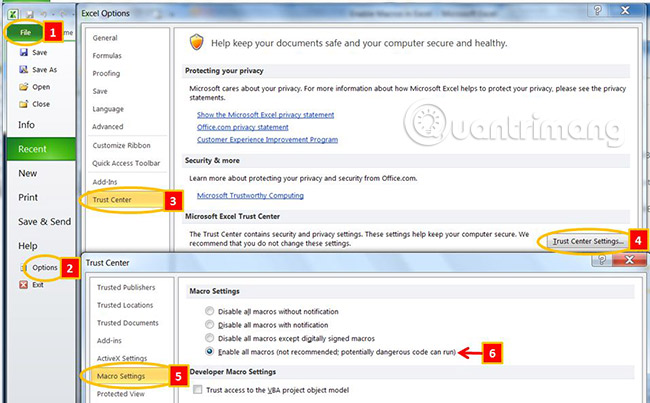
<p style="text-align: justify;">Để bật macro trong Excel 2010, hãy làm theo hướng dẫn sau:</p>

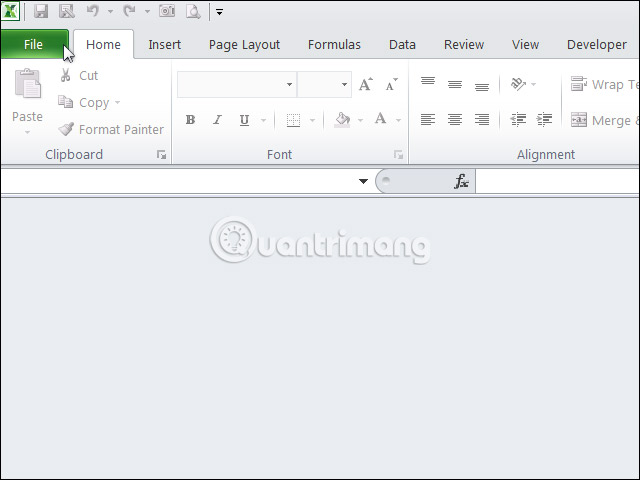
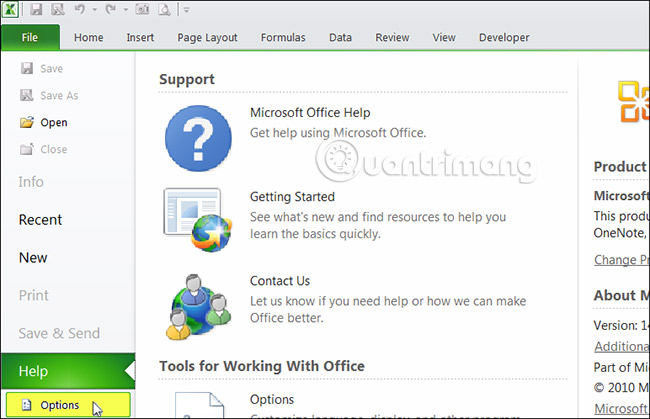
<p style="text-align: justify;">1. Bấm vào tab&nbsp;<strong>File</strong>&nbsp;(tab trên cùng bên trái trong cửa sổ).</p>

<p style="text-align: justify;"><img alt="Chọn File" data-i="3" data-src="https://st.quantrimang.com/photos/image/2019/01/17/bat-macros-3.jpg" data-was-processed="true" height="480" src="https://st.quantrimang.com/photos/image/2019/01/17/bat-macros-3.jpg" width="640" /></p>

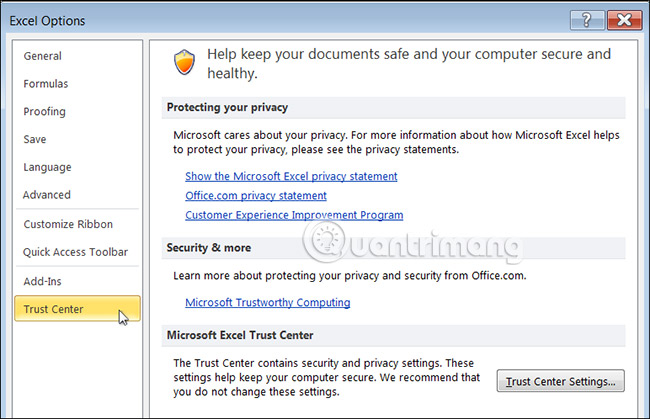
<p style="text-align: justify;">2. Nhấp vào nút&nbsp;<strong>Excel Options.</strong></p>

<p style="text-align: justify;"><strong><img alt="Excel Options" data-i="4" data-src="https://st.quantrimang.com/photos/image/2019/01/17/bat-macros-4.jpg" data-was-processed="true" height="419" src="https://st.quantrimang.com/photos/image/2019/01/17/bat-macros-4.jpg" width="650" /></strong></p>

<p style="text-align: justify;">3. Nhấp vào&nbsp;<strong>Trust Center</strong>&nbsp;trong menu bên trái.</p>

<p style="text-align: justify;"><img alt="Trust Center" data-i="5" data-src="https://st.quantrimang.com/photos/image/2019/01/17/bat-macros-5.jpg" data-was-processed="true" height="419" src="https://st.quantrimang.com/photos/image/2019/01/17/bat-macros-5.jpg" width="650" /></p>

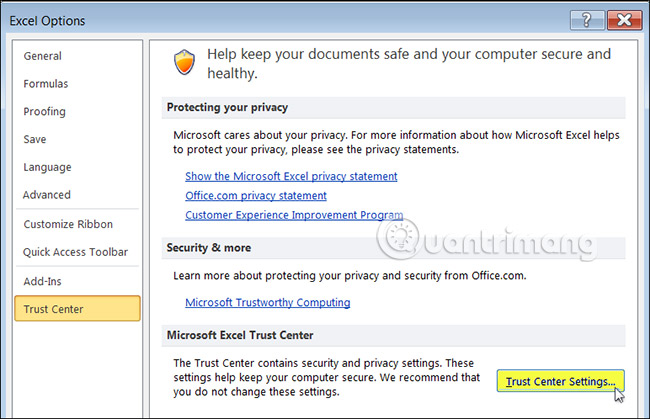
<p style="text-align: justify;">4. Nhấp vào&nbsp;<strong>Trust Center Settings</strong>&nbsp;trong cửa sổ bên phải.</p>

<p style="text-align: justify;"><img alt="Trust Center Settings" data-i="6" data-src="https://st.quantrimang.com/photos/image/2019/01/17/bat-macros-6.jpg" data-was-processed="true" height="419" src="https://st.quantrimang.com/photos/image/2019/01/17/bat-macros-6.jpg" width="650" /></p>

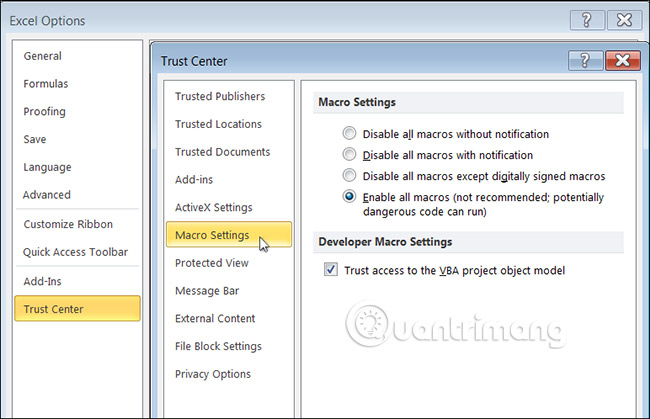
<p style="text-align: justify;">5. Trong cửa sổ mới mở, nhấp vào&nbsp;<strong>Macro Settings</strong>&nbsp;trong menu bên trái.</p>

<p style="text-align: justify;"><img alt="Macro Settings" data-i="7" data-src="https://st.quantrimang.com/photos/image/2019/01/17/bat-macros-7.jpg" data-was-processed="true" height="419" src="https://st.quantrimang.com/photos/image/2019/01/17/bat-macros-7.jpg" width="650" /></p>

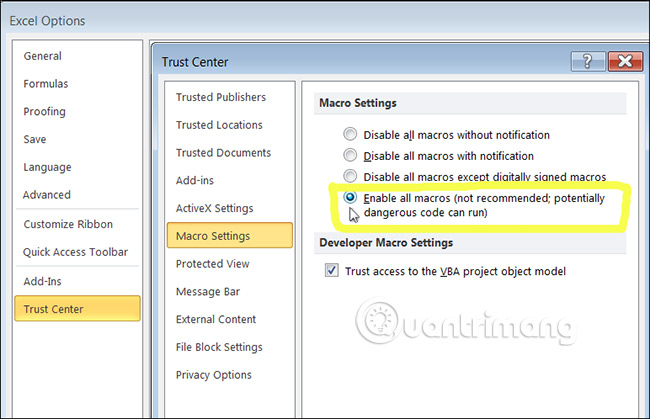
<p style="text-align: justify;">6. Tích vào tùy chọn&nbsp;<strong>Enable all macros (not recommended; potentially dangerous code can run)</strong>.</p>

<p style="text-align: justify;"><img alt="Enable all macros" data-i="8" data-src="https://st.quantrimang.com/photos/image/2019/01/17/bat-macros-8.jpg" data-was-processed="true" height="419" src="https://st.quantrimang.com/photos/image/2019/01/17/bat-macros-8.jpg" width="650" /></p>

<div style="text-align: justify;">&nbsp;</div>

<h3 id="mcetoc_1d1dd6udd2" style="text-align: justify;">Cách bật macro trong Excel 2007</h3>

<p style="text-align: justify;">Bấm vào nút&nbsp;<strong>Office</strong>&nbsp;(nút trên cùng bên trái trong cửa sổ) và làm theo quy trình tương tự như trên.</p>

<h2 id="mcetoc_1e94o99kj1" style="text-align: justify;">Vô hiệu hóa macro trong Excel</h2>

<h3 id="mcetoc_1e94o99kj2" style="text-align: justify;">1. Vô hiệu hóa tất cả các macro mà không cần thông báo</h3>

<p style="text-align: justify;">Giả sử bạn sẽ không bao giờ sử dụng bất kỳ macro nào và muốn vô hiệu hóa chúng, bạn có thể chọn tùy chọn này. Lần tới khi mở workbook Excel có hỗ trợ macro, bạn sẽ không thấy bất kỳ thông báo nào về macro cả.</p>

<p style="text-align: justify;">Tuy nhiên, bạn vẫn có thể mở trình soạn thảo Visual Basic và kiểm tra code. Nhưng các macro trong file đều ở chế độ Design.</p>

<figure>
<div style="text-align: justify;"><img alt="Các macro trong file đều ở chế độ Design" data-i="9" data-src="https://st.quantrimang.com/photos/image/2020/05/25/macros-tren-excel-1.jpg" data-was-processed="true" height="60" src="https://st.quantrimang.com/photos/image/2020/05/25/macros-tren-excel-1.jpg" width="535" /></div>

<figcaption>
<div style="text-align: justify;">Các macro trong file đều ở chế độ Design</div>
</figcaption>
</figure>

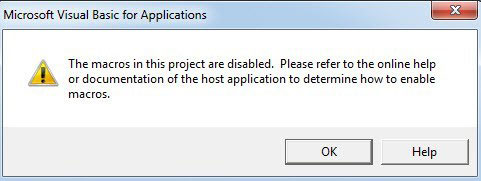
<p style="text-align: justify;">Khi nhấn nút&nbsp;<code>F5</code>&nbsp;trên bàn phím hoặc bấm vào nút&nbsp;<strong>Run Sub</strong>, trên thanh công cụ, bạn sẽ thấy thông tin giống như hình ảnh này.</p>

<figure>
<div style="text-align: justify;"><img alt="Thông báo khi nhấn F5 trên bàn phím hoặc bấm vào nút Run Sub" data-i="10" data-src="https://st.quantrimang.com/photos/image/2020/05/25/macros-tren-excel-2.jpg" data-was-processed="true" height="181" src="https://st.quantrimang.com/photos/image/2020/05/25/macros-tren-excel-2.jpg" width="481" /></div>

<figcaption>
<div style="text-align: justify;">Thông báo khi nhấn F5 trên bàn phím hoặc bấm vào nút Run Sub</div>
</figcaption>
</figure>

<p style="text-align: justify;">Các macro trong file này đều bị vô hiệu hóa và bạn không thể chạy bất kỳ macro nào trong số chúng. Đây là hiệu ứng của tùy chọn đầu tiên trong cài đặt macro.</p>

<div style="text-align: justify;">&nbsp;</div>

<h3 id="mcetoc_1e94o99kj3" style="text-align: justify;">2. Vô hiệu hóa tất cả các macro có thông báo</h3>

<p style="text-align: justify;">Theo mặc định, Excel sẽ chọn tùy chọn này cho cài đặt macro. Và sự khác biệt giữa tùy chọn này và tùy chọn trước đó là thông báo. Trong tùy chọn này, khi mở workbook hỗ trợ macro, bạn sẽ thấy cảnh báo bảo mật. Và cũng có một nút&nbsp;<strong>Enable Content</strong>.</p>

<figure>
<div style="text-align: justify;"><img alt="Nút Enable Content trong Security Warning" data-i="11" data-src="https://st.quantrimang.com/photos/image/2020/05/25/macros-tren-excel-3.jpg" data-was-processed="true" height="122" src="https://st.quantrimang.com/photos/image/2020/05/25/macros-tren-excel-3.jpg" width="650" /></div>

<figcaption>
<div style="text-align: justify;">Nút Enable Content trong Security Warning</div>
</figcaption>
</figure>

<p style="text-align: justify;">Nếu trực tiếp mở trình soạn thảo Visual Basic và chạy macro, bạn sẽ lại thấy thông tin cho thấy các macro bị tắt. Nhưng bây giờ bạn chắc chắn rằng macro này an toàn và có thể mở lại file. Sau đó nhấp vào nút&nbsp;<strong>Enable Content</strong>&nbsp;trong&nbsp;<strong>Security Warning.</strong>&nbsp;Do đó, các macro trong file hỗ trợ macro này đều có sẵn. Hơn nữa, vào lần tới khi mở file, bạn sẽ không thấy cảnh báo này nữa. Excel đủ thông minh để ghi lại thao tác của bạn và nó nhớ rằng file này an toàn.</p>

<h3 id="mcetoc_1e94o99kj4" style="text-align: justify;">3. Vô hiệu hóa tất cả macro, trừ các macro có chữ ký kỹ thuật số</h3>

<p style="text-align: justify;">Đây là tùy chọn thứ ba. Tùy chọn này rất dễ hiểu. Khi bạn chọn tùy chọn này, tất cả các macro sẽ bị vô hiệu hóa. Nhưng có tồn tại một số macro nhất định và chúng có chữ ký kỹ thuật số. Các macro này được coi là an toàn. Do đó, với tùy chọn này, bạn có thể chạy các macro có chữ ký kỹ thuật số trên máy tính của mình.</p>

<p style="text-align: justify;">Chúc bạn thành công!</p>
		</div>
				<div id="author">
						<p>
				<strong>Nguồn tin:</strong>
				Quantrimang.com
			</p>
		</div>
	</div>
	<div id="footer" class="clearfix">
		<div id="url">
			<strong>URL của bản tin này: </strong><a href="https://www.nguoicodonvn2008.info/vi/news/savefile/kien-thuc-may-tinh/cach-bat-tat-macro-tren-excel-2093.html" title="Cách bật, tắt macro trên Excel">https://www.nguoicodonvn2008.info/vi/news/savefile/kien-thuc-may-tinh/cach-bat-tat-macro-tren-excel-2093.html</a>

		</div>
		<div class="clear"></div>
		<div class="copyright">
			&copy; .&#x3A; Nguoicodonvn2008.info - Cõi lòng người cô đơn &#x3A;.
		</div>
		<div id="contact">
			<a href="mailto:admin@nguoicodonvn2008.info">admin@nguoicodonvn2008.info</a>
		</div>
	</div>
</div>
        <div id="timeoutsess" class="chromeframe">
            Bạn đã không sử dụng Site, <a onclick="timeoutsesscancel();" href="https://www.nguoicodonvn2008.info/#">Bấm vào đây để duy trì trạng thái đăng nhập</a>. Thời gian chờ: <span id="secField"> 60 </span> giây
        </div>
        <div id="openidResult" class="nv-alert" style="display:none"></div>
        <div id="openidBt" data-result="" data-redirect=""></div>
		</script>
		<div class="car-top">
  <span><img src="https://www.nguoicodonvn2008.info/themes/default/images/car.png" alt=""></span>
</div>
<script src="https://www.nguoicodonvn2008.info/assets/js/jquery/jquery.min.js"></script>
<script>var nv_base_siteurl="/",nv_lang_data="vi",nv_lang_interface="vi",nv_name_variable="nv",nv_fc_variable="op",nv_lang_variable="language",nv_module_name="news",nv_func_name="savefile",nv_is_user=0, nv_my_ofs=-4,nv_my_abbr="EDT",nv_cookie_prefix="nv4c_e856T",nv_check_pass_mstime=1738000,nv_area_admin=0,nv_safemode=0,theme_responsive=0,nv_recaptcha_ver=2,nv_recaptcha_sitekey="",nv_recaptcha_type="image",XSSsanitize=1;</script>
<script src="https://www.nguoicodonvn2008.info/assets/js/language/vi.js"></script>
<script src="https://www.nguoicodonvn2008.info/assets/js/DOMPurify/purify3.js"></script>
<script src="https://www.nguoicodonvn2008.info/assets/js/global.js"></script>
<script src="https://www.nguoicodonvn2008.info/assets/js/site.js"></script>
<script src="https://www.nguoicodonvn2008.info/themes/default/js/news.js"></script>
<script src="https://www.nguoicodonvn2008.info/themes/default/js/main.js"></script>
<script src="https://www.nguoicodonvn2008.info/themes/default/js/custom.js"></script>
<script type="application/ld+json">
        {
            "@context": "https://schema.org",
            "@type": "Organization",
            "url": "https://www.nguoicodonvn2008.info",
            "logo": "https://www.nguoicodonvn2008.info/uploads/angel.gif"
        }
        </script>
<script src="https://www.nguoicodonvn2008.info/themes/default/js/bootstrap.min.js"></script>
<script type="text/javascript">
var $scrolltop = $('.car-top');
$scrolltop.on('click', function () {
    $('html,body').animate({
        scrollTop: 0
    }, 800);
    $(this).addClass("car-run");
    setTimeout(function(){ $scrolltop.removeClass('car-run');}, 1000);
    return false;
});
$(window).on('scroll', function ()
{ 
    if($(window).scrollTop() >= 200)
    {
        $scrolltop.addClass("show");
        $scrolltop.addClass("car-down");
    }
    else
    {
       $scrolltop.removeClass("show");
       setTimeout(function(){ $scrolltop.removeClass('car-down');}, 300);
    }
});
</script>
</body>
</html>