<!DOCTYPE html>
    <html lang="vi" xmlns="http://www.w3.org/1999/xhtml" prefix="og: http://ogp.me/ns#">
    <head>
<title>Cách bật&#x002F;tắt Inline AutoComplete trong thanh địa chỉ File Explorer trên Windows 11</title>
<meta name="description" content="Cách bật&#x002F;tắt Inline AutoComplete trong thanh địa chỉ File Explorer trên Windows 11 - Savefile - Tin Tức -...">
<meta name="author" content=".: Nguoicodonvn2008.info - Cõi lòng người cô đơn :.">
<meta name="copyright" content=".: Nguoicodonvn2008.info - Cõi lòng người cô đơn :. [admin@nguoicodonvn2008.info]">
<meta name="robots" content="index, archive, follow, noodp">
<meta name="googlebot" content="index,archive,follow,noodp">
<meta name="msnbot" content="all,index,follow">
<meta name="generator" content="NukeViet v4.5">
<meta http-equiv="Content-Type" content="text/html; charset=utf-8">
<meta property="og:title" content="Cách bật&#x002F;tắt Inline AutoComplete trong thanh địa chỉ File Explorer trên Windows 11">
<meta property="og:type" content="website">
<meta property="og:description" content="Savefile - Tin Tức -...">
<meta property="og:site_name" content=".&#x3A; Nguoicodonvn2008.info - Cõi lòng người cô đơn &#x3A;.">
<meta property="og:url" content="https://www.nguoicodonvn2008.info/vi/news/savefile/kien-thuc-may-tinh/cach-bat-tat-inline-autocomplete-trong-thanh-dia-chi-file-explorer-tren-windows-11-7616.html">
<link rel="shortcut icon" href="https://www.nguoicodonvn2008.info/favicon.ico">
<link rel="canonical" href="https://www.nguoicodonvn2008.info/vi/news/savefile/kien-thuc-may-tinh/cach-bat-tat-inline-autocomplete-trong-thanh-dia-chi-file-explorer-tren-windows-11-7616.html">
<link rel="alternate" href="https://www.nguoicodonvn2008.info/vi/news/rss/" title="Tin Tức" type="application/rss+xml">
<link rel="alternate" href="https://www.nguoicodonvn2008.info/vi/news/rss/karaoke-dual/" title="Tin Tức - Karaoke Dual" type="application/rss+xml">
<link rel="alternate" href="https://www.nguoicodonvn2008.info/vi/news/rss/nhac-tre/" title="Tin Tức - Nhạc trẻ" type="application/rss+xml">
<link rel="alternate" href="https://www.nguoicodonvn2008.info/vi/news/rss/tru-tinh/" title="Tin Tức - Trữ tình" type="application/rss+xml">
<link rel="alternate" href="https://www.nguoicodonvn2008.info/vi/news/rss/nuoc-ngoai/" title="Tin Tức - Nước ngoài" type="application/rss+xml">
<link rel="alternate" href="https://www.nguoicodonvn2008.info/vi/news/rss/remix/" title="Tin Tức - Remix" type="application/rss+xml">
<link rel="alternate" href="https://www.nguoicodonvn2008.info/vi/news/rss/tam-su-tinh-yeu/" title="Tin Tức - Tâm sự tình yêu" type="application/rss+xml">
<link rel="alternate" href="https://www.nguoicodonvn2008.info/vi/news/rss/tho-suu-tam/" title="Tin Tức - Thơ sưu tầm" type="application/rss+xml">
<link rel="alternate" href="https://www.nguoicodonvn2008.info/vi/news/rss/cuoc-song/" title="Tin Tức - Cuộc sống" type="application/rss+xml">
<link rel="alternate" href="https://www.nguoicodonvn2008.info/vi/news/rss/phan-mem/" title="Tin Tức - Phần mềm" type="application/rss+xml">
<link rel="alternate" href="https://www.nguoicodonvn2008.info/vi/news/rss/kien-thuc-may-tinh/" title="Tin Tức - Kiến thức máy tính" type="application/rss+xml">
<link rel="alternate" href="https://www.nguoicodonvn2008.info/vi/news/rss/hoc-tap/" title="Tin Tức - Học tập" type="application/rss+xml">
<link rel="alternate" href="https://www.nguoicodonvn2008.info/vi/news/rss/tai-lieu/" title="Tin Tức - Tài liệu" type="application/rss+xml">
<link rel="alternate" href="https://www.nguoicodonvn2008.info/vi/news/rss/de-thi/" title="Tin Tức - Đề thi" type="application/rss+xml">
<link rel="preload" as="style" href="https://www.nguoicodonvn2008.info/assets/css/font-awesome.min.css" type="text/css">
<link rel="preload" as="style" href="https://www.nguoicodonvn2008.info/themes/default/css/bootstrap.non-responsive.css" type="text/css">
<link rel="preload" as="style" href="https://www.nguoicodonvn2008.info/themes/default/css/style.css" type="text/css">
<link rel="preload" as="style" href="https://www.nguoicodonvn2008.info/themes/default/css/style.non-responsive.css" type="text/css">
<link rel="preload" as="style" href="https://www.nguoicodonvn2008.info/themes/default/css/news.css" type="text/css">
<link rel="preload" as="style" href="https://www.nguoicodonvn2008.info/themes/default/css/custom.css" type="text/css">
<link rel="preload" as="script" href="https://www.nguoicodonvn2008.info/assets/js/jquery/jquery.min.js" type="text/javascript">
<link rel="preload" as="script" href="https://www.nguoicodonvn2008.info/assets/js/language/vi.js" type="text/javascript">
<link rel="preload" as="script" href="https://www.nguoicodonvn2008.info/assets/js/DOMPurify/purify3.js" type="text/javascript">
<link rel="preload" as="script" href="https://www.nguoicodonvn2008.info/assets/js/global.js" type="text/javascript">
<link rel="preload" as="script" href="https://www.nguoicodonvn2008.info/assets/js/site.js" type="text/javascript">
<link rel="preload" as="script" href="https://www.nguoicodonvn2008.info/themes/default/js/news.js" type="text/javascript">
<link rel="preload" as="script" href="https://www.nguoicodonvn2008.info/themes/default/js/main.js" type="text/javascript">
<link rel="preload" as="script" href="https://www.nguoicodonvn2008.info/themes/default/js/custom.js" type="text/javascript">
<link rel="preload" as="script" href="https://www.nguoicodonvn2008.info/themes/default/js/bootstrap.min.js" type="text/javascript">
<link rel="stylesheet" href="https://www.nguoicodonvn2008.info/assets/css/font-awesome.min.css">
<link rel="stylesheet" href="https://www.nguoicodonvn2008.info/themes/default/css/bootstrap.non-responsive.css">
<link rel="stylesheet" href="https://www.nguoicodonvn2008.info/themes/default/css/style.css">
<link rel="stylesheet" href="https://www.nguoicodonvn2008.info/themes/default/css/style.non-responsive.css">
<link rel="StyleSheet" href="https://www.nguoicodonvn2008.info/themes/default/css/news.css">
<link rel="stylesheet" href="https://www.nguoicodonvn2008.info/themes/default/css/custom.css">
<style type="text/css">
	body{background: #fff;}
</style>
    </head>
    <body>
<div id="print">
	<div id="hd_print">
		<h2 class="pull-left">.&#x3A; Nguoicodonvn2008.info - Cõi lòng người cô đơn &#x3A;.</h2>
		<p class="pull-right"><a title=".&#x3A; Nguoicodonvn2008.info - Cõi lòng người cô đơn &#x3A;." href="https://www.nguoicodonvn2008.info/">https://www.nguoicodonvn2008.info</a></p>
	</div>
	<div class="clear"></div>
	<hr />
	<div id="content">
		<h1>Cách bật&#x002F;tắt Inline AutoComplete trong thanh địa chỉ File Explorer trên Windows 11</h1>
		<ul class="list-inline">
			<li>Thứ hai - 09/10/2023 09:52</li>
			<li class="hidden-print txtrequired"><em class="fa fa-print">&nbsp;</em><a title="In ra" href="javascript:;" onclick="window.print()">In ra</a></li>
			<li class="hidden-print txtrequired"><em class="fa fa-power-off">&nbsp;</em><a title="Đóng cửa sổ này" href="javascript:;" onclick="window.close()">Đóng cửa sổ này</a></li>
		</ul>
		<div class="clear"></div>
		<div id="hometext">
		</div>
				<div class="imghome">
			<img alt="Cách bật&#x002F;tắt Inline AutoComplete trong thanh địa chỉ File Explorer trên Windows 11" src="https://st.quantrimang.com/photos/image/2023/09/27/inline-autocomplete-trong-thanh-dia-chi-file-explorer-windows-11-1.jpg" width="460" class="img-thumbnail" />
		</div>
		<div class="clear"></div>
		<div id="bodytext" class="clearfix">
			<p>Hướng dẫn này sẽ chỉ cho bạn cách bật hoặc tắt Inline AutoComplete cho thanh địa chỉ Run và File Explorer cho tài khoản của bạn trong Windows 11.</p>

<p>Khi bạn nhập vào thanh địa chỉ của File Explorer (<strong>Win + E</strong>) hoặc Run (<strong>Win + R</strong>), Inline AutoComplete sẽ thêm các đề xuất dựa trên lịch sử thanh địa chỉ của bạn và những gì bạn hiện đang nhập bằng cách tự động hoàn thành những gì bạn nhập nội tuyến với kết quả gần nhất được highlight. Nếu trùng khớp, bạn chỉ cần nhấn phím mũi tên phải hoặc phím Enter để tự động hoàn thành nội dung bạn đang nhập thay vì phải nhập toàn bộ theo cách thủ công.</p>

<p>Tính năng Inline AutoComplete bị tắt theo mặc định nhưng bạn có thể bật tính năng này nếu muốn. Việc tắt tính năng Inline AutoComplete sẽ không xóa lịch sử thanh địa chỉ của bạn.</p>

<p><strong>Lưu ý:</strong></p>

<ul>
	<li>Tính năng AutoComplete trên thanh địa chỉ của File Explorer mới không còn hoạt động.</li>
	<li>AutoComplete vẫn hoạt động trong Run (Win + R).</li>
</ul>

<h2>Bật/tắt Inline AutoComplete trong thanh địa chỉ File Explorer và Run qua Internet Properties</h2>

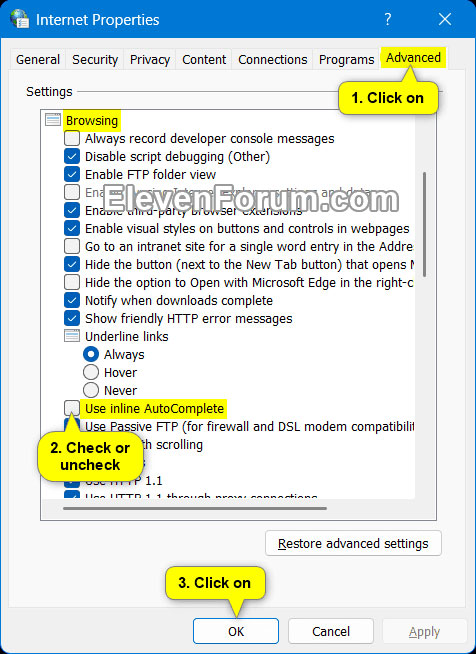
<p>1.&nbsp;Mở Control Panel&nbsp;(chế độ xem biểu tượng) và nhấp vào biểu tượng&nbsp;<strong>Internet Options</strong>.</p>

<p>2. Nhấp vào tab&nbsp;<strong>Advanced</strong>&nbsp;trong&nbsp;<strong>Internet Properties</strong>.</p>

<p>3. Trong phần&nbsp;<strong>Browsing</strong>, chọn (bật) hoặc bỏ chọn (tắt - mặc định)&nbsp;<strong>Use inline AutoComplete</strong>&nbsp;tùy theo những gì bạn muốn.</p>

<p>4. Nhấn vào&nbsp;<strong>OK.</strong></p>

<figure><img alt="Bật/tắt Inline AutoComplete trong thanh địa chỉ File Explorer và Run qua Internet Properties" data-i="0" data-src="https://st.quantrimang.com/photos/image/2023/09/27/inline-autocomplete-trong-thanh-dia-chi-file-explorer-windows-11-1.jpg" data-was-processed="true" height="654" src="https://st.quantrimang.com/photos/image/2023/09/27/inline-autocomplete-trong-thanh-dia-chi-file-explorer-windows-11-1.jpg" width="476" />
<figcaption>Bật/tắt Inline AutoComplete trong thanh địa chỉ File Explorer và Run qua Internet Properties</figcaption>
</figure>

<h2>Bật/tắt Inline AutoComplete trong thanh địa chỉ File Explorer và Run bằng file REG</h2>

<p>1. Thực hiện bước 2 (bật) hoặc bước 3 (tắt) bên dưới theo ý muốn của bạn.</p>

<p>2. Kích hoạt tính năng Inline AutoComplete trong thanh địa chỉ File Explorer và Run:</p>

<p>A) Tải xuống file REG bên dưới và chuyển sang bước 4.​</p>

<p><strong><span style="color:rgb(192, 57, 43);">Enable_inline_AutoComplete_for_Run_and_File_Explorer_address_bar.reg​<br />
https://www.elevenforum.com/attachments/enable_inline_autocomplete_for_run_and_file_explorer_address_bar-reg.60585/?hash=fa6c95189d9ab9dff920c4e213548911</span></strong></p>

<p>Nội dung file REG mang tính chất tham khảo:</p>

<pre id="pre0">
<code>Code:
Windows Registry Editor Version 5.00

&#91;HKEY_CURRENT_USER\Software\Microsoft\Windows\CurrentVersion\Explorer\AutoComplete&#93;
&quot;Append Completion&quot;=&quot;yes&quot;</code></pre>

<p>3. Tắt tính năng Inline AutoComplete trong thanh địa chỉ File Explorer và Run:</p>

<p><strong>Lưu ý</strong>: Đây là thiết lập mặc định.</p>

<p>A) Tải xuống file REG bên dưới và chuyển sang bước 4.​</p>

<p>Disable_inline_AutoComplete_for_Run_and_File_Explorer_address_bar.reg<br />
<span style="color:rgb(192, 57, 43);"><strong>https://www.elevenforum.com/attachments/disable_inline_autocomplete_for_run_and_file_explorer_address_bar-reg.60584/?hash=fa6c95189d9ab9dff920c4e213548911</strong></span></p>

<p>Nội dung file REG mang tính chất tham khảo:</p>

<pre id="pre1">
<code>Code:
Windows Registry Editor Version 5.00

&#91;HKEY_CURRENT_USER\Software\Microsoft\Windows\CurrentVersion\Explorer\AutoComplete&#93;
&quot;Append Completion&quot;=&quot;no&quot;</code></pre>

<p>4. Lưu file .reg vào desktop.</p>

<p>5. Nhấp đúp vào file .reg đã tải xuống để hợp nhất nó.</p>

<p>6. Khi được nhắc, hãy nhấp vào&nbsp;<strong>Run</strong>&nbsp;&gt;&nbsp;<strong>Yes</strong>&nbsp;(<strong>UAC</strong>) &gt;&nbsp;<strong>Yes</strong>&nbsp;&gt;&nbsp;<strong>OK</strong>&nbsp;để phê duyệt việc hợp nhất.</p>

<p>7. Nếu File Explorer hoặc Run hiện đang mở, hãy đóng và mở lại để áp dụng.</p>

<p>8. Bây giờ, bạn có thể xóa file .reg đã tải xuống nếu muốn.</p>
		</div>
				<div id="author">
						<p>
				<strong>Nguồn tin:</strong>
				Quantrimang.com
			</p>
		</div>
	</div>
	<div id="footer" class="clearfix">
		<div id="url">
			<strong>URL của bản tin này: </strong><a href="https://www.nguoicodonvn2008.info/vi/news/savefile/kien-thuc-may-tinh/cach-bat-tat-inline-autocomplete-trong-thanh-dia-chi-file-explorer-tren-windows-11-7616.html" title="Cách bật&#x002F;tắt Inline AutoComplete trong thanh địa chỉ File Explorer trên Windows 11">https://www.nguoicodonvn2008.info/vi/news/savefile/kien-thuc-may-tinh/cach-bat-tat-inline-autocomplete-trong-thanh-dia-chi-file-explorer-tren-windows-11-7616.html</a>

		</div>
		<div class="clear"></div>
		<div class="copyright">
			&copy; .&#x3A; Nguoicodonvn2008.info - Cõi lòng người cô đơn &#x3A;.
		</div>
		<div id="contact">
			<a href="mailto:admin@nguoicodonvn2008.info">admin@nguoicodonvn2008.info</a>
		</div>
	</div>
</div>
        <div id="timeoutsess" class="chromeframe">
            Bạn đã không sử dụng Site, <a onclick="timeoutsesscancel();" href="https://www.nguoicodonvn2008.info/#">Bấm vào đây để duy trì trạng thái đăng nhập</a>. Thời gian chờ: <span id="secField"> 60 </span> giây
        </div>
        <div id="openidResult" class="nv-alert" style="display:none"></div>
        <div id="openidBt" data-result="" data-redirect=""></div>
		</script>
		<div class="car-top">
  <span><img src="https://www.nguoicodonvn2008.info/themes/default/images/car.png" alt=""></span>
</div>
<div id="run_cronjobs" style="visibility:hidden;display:none;"><img alt="cron" src="/index.php?second=cronjobs&amp;p=s53VMfVO" width="1" height="1" /></div>
<script src="https://www.nguoicodonvn2008.info/assets/js/jquery/jquery.min.js"></script>
<script>var nv_base_siteurl="/",nv_lang_data="vi",nv_lang_interface="vi",nv_name_variable="nv",nv_fc_variable="op",nv_lang_variable="language",nv_module_name="news",nv_func_name="savefile",nv_is_user=0, nv_my_ofs=-4,nv_my_abbr="EDT",nv_cookie_prefix="nv4c_e856T",nv_check_pass_mstime=1738000,nv_area_admin=0,nv_safemode=0,theme_responsive=0,nv_recaptcha_ver=2,nv_recaptcha_sitekey="",nv_recaptcha_type="image",XSSsanitize=1;</script>
<script src="https://www.nguoicodonvn2008.info/assets/js/language/vi.js"></script>
<script src="https://www.nguoicodonvn2008.info/assets/js/DOMPurify/purify3.js"></script>
<script src="https://www.nguoicodonvn2008.info/assets/js/global.js"></script>
<script src="https://www.nguoicodonvn2008.info/assets/js/site.js"></script>
<script src="https://www.nguoicodonvn2008.info/themes/default/js/news.js"></script>
<script src="https://www.nguoicodonvn2008.info/themes/default/js/main.js"></script>
<script src="https://www.nguoicodonvn2008.info/themes/default/js/custom.js"></script>
<script type="application/ld+json">
        {
            "@context": "https://schema.org",
            "@type": "Organization",
            "url": "https://www.nguoicodonvn2008.info",
            "logo": "https://www.nguoicodonvn2008.info/uploads/angel.gif"
        }
        </script>
<script src="https://www.nguoicodonvn2008.info/themes/default/js/bootstrap.min.js"></script>
<script type="text/javascript">
var $scrolltop = $('.car-top');
$scrolltop.on('click', function () {
    $('html,body').animate({
        scrollTop: 0
    }, 800);
    $(this).addClass("car-run");
    setTimeout(function(){ $scrolltop.removeClass('car-run');}, 1000);
    return false;
});
$(window).on('scroll', function ()
{ 
    if($(window).scrollTop() >= 200)
    {
        $scrolltop.addClass("show");
        $scrolltop.addClass("car-down");
    }
    else
    {
       $scrolltop.removeClass("show");
       setTimeout(function(){ $scrolltop.removeClass('car-down');}, 300);
    }
});
</script>
</body>
</html>