<!DOCTYPE html>
    <html lang="vi" xmlns="http://www.w3.org/1999/xhtml" prefix="og: http://ogp.me/ns#">
    <head>
<title>Cách bật hoặc tắt tính năng File History trong Windows 10</title>
<meta name="description" content="Cách bật hoặc tắt tính năng File History trong Windows 10 - Savefile - Tin Tức -...">
<meta name="author" content=".: Nguoicodonvn2008.info - Cõi lòng người cô đơn :.">
<meta name="copyright" content=".: Nguoicodonvn2008.info - Cõi lòng người cô đơn :. [admin@nguoicodonvn2008.info]">
<meta name="robots" content="index, archive, follow, noodp">
<meta name="googlebot" content="index,archive,follow,noodp">
<meta name="msnbot" content="all,index,follow">
<meta name="generator" content="NukeViet v4.5">
<meta http-equiv="Content-Type" content="text/html; charset=utf-8">
<meta property="og:title" content="Cách bật hoặc tắt tính năng File History trong Windows 10">
<meta property="og:type" content="website">
<meta property="og:description" content="Savefile - Tin Tức - https&#x3A;&#x002F;&#x002F;www.nguoicodonvn2008.info&#x002F;vi&#x002F;news&#x002F;savefile&#x002F;kien-thuc-may-tinh&#x002F;cach-bat-hoac-tat-tinh-nang-file-history-trong-windows-10-172.html">
<meta property="og:site_name" content=".&#x3A; Nguoicodonvn2008.info - Cõi lòng người cô đơn &#x3A;.">
<meta property="og:url" content="https://www.nguoicodonvn2008.info/vi/news/savefile/kien-thuc-may-tinh/cach-bat-hoac-tat-tinh-nang-file-history-trong-windows-10-172.html">
<link rel="shortcut icon" href="https://www.nguoicodonvn2008.info/favicon.ico">
<link rel="canonical" href="https://www.nguoicodonvn2008.info/vi/news/savefile/kien-thuc-may-tinh/cach-bat-hoac-tat-tinh-nang-file-history-trong-windows-10-172.html">
<link rel="alternate" href="https://www.nguoicodonvn2008.info/vi/news/rss/" title="Tin Tức" type="application/rss+xml">
<link rel="alternate" href="https://www.nguoicodonvn2008.info/vi/news/rss/karaoke-dual/" title="Tin Tức - Karaoke Dual" type="application/rss+xml">
<link rel="alternate" href="https://www.nguoicodonvn2008.info/vi/news/rss/nhac-tre/" title="Tin Tức - Nhạc trẻ" type="application/rss+xml">
<link rel="alternate" href="https://www.nguoicodonvn2008.info/vi/news/rss/tru-tinh/" title="Tin Tức - Trữ tình" type="application/rss+xml">
<link rel="alternate" href="https://www.nguoicodonvn2008.info/vi/news/rss/nuoc-ngoai/" title="Tin Tức - Nước ngoài" type="application/rss+xml">
<link rel="alternate" href="https://www.nguoicodonvn2008.info/vi/news/rss/remix/" title="Tin Tức - Remix" type="application/rss+xml">
<link rel="alternate" href="https://www.nguoicodonvn2008.info/vi/news/rss/tam-su-tinh-yeu/" title="Tin Tức - Tâm sự tình yêu" type="application/rss+xml">
<link rel="alternate" href="https://www.nguoicodonvn2008.info/vi/news/rss/tho-suu-tam/" title="Tin Tức - Thơ sưu tầm" type="application/rss+xml">
<link rel="alternate" href="https://www.nguoicodonvn2008.info/vi/news/rss/cuoc-song/" title="Tin Tức - Cuộc sống" type="application/rss+xml">
<link rel="alternate" href="https://www.nguoicodonvn2008.info/vi/news/rss/phan-mem/" title="Tin Tức - Phần mềm" type="application/rss+xml">
<link rel="alternate" href="https://www.nguoicodonvn2008.info/vi/news/rss/kien-thuc-may-tinh/" title="Tin Tức - Kiến thức máy tính" type="application/rss+xml">
<link rel="alternate" href="https://www.nguoicodonvn2008.info/vi/news/rss/hoc-tap/" title="Tin Tức - Học tập" type="application/rss+xml">
<link rel="alternate" href="https://www.nguoicodonvn2008.info/vi/news/rss/tai-lieu/" title="Tin Tức - Tài liệu" type="application/rss+xml">
<link rel="alternate" href="https://www.nguoicodonvn2008.info/vi/news/rss/de-thi/" title="Tin Tức - Đề thi" type="application/rss+xml">
<link rel="preload" as="style" href="https://www.nguoicodonvn2008.info/assets/css/font-awesome.min.css" type="text/css">
<link rel="preload" as="style" href="https://www.nguoicodonvn2008.info/themes/default/css/bootstrap.non-responsive.css" type="text/css">
<link rel="preload" as="style" href="https://www.nguoicodonvn2008.info/themes/default/css/style.css" type="text/css">
<link rel="preload" as="style" href="https://www.nguoicodonvn2008.info/themes/default/css/style.non-responsive.css" type="text/css">
<link rel="preload" as="style" href="https://www.nguoicodonvn2008.info/themes/default/css/news.css" type="text/css">
<link rel="preload" as="style" href="https://www.nguoicodonvn2008.info/themes/default/css/custom.css" type="text/css">
<link rel="preload" as="script" href="https://www.nguoicodonvn2008.info/assets/js/jquery/jquery.min.js" type="text/javascript">
<link rel="preload" as="script" href="https://www.nguoicodonvn2008.info/assets/js/language/vi.js" type="text/javascript">
<link rel="preload" as="script" href="https://www.nguoicodonvn2008.info/assets/js/DOMPurify/purify3.js" type="text/javascript">
<link rel="preload" as="script" href="https://www.nguoicodonvn2008.info/assets/js/global.js" type="text/javascript">
<link rel="preload" as="script" href="https://www.nguoicodonvn2008.info/assets/js/site.js" type="text/javascript">
<link rel="preload" as="script" href="https://www.nguoicodonvn2008.info/themes/default/js/news.js" type="text/javascript">
<link rel="preload" as="script" href="https://www.nguoicodonvn2008.info/themes/default/js/main.js" type="text/javascript">
<link rel="preload" as="script" href="https://www.nguoicodonvn2008.info/themes/default/js/custom.js" type="text/javascript">
<link rel="preload" as="script" href="https://www.nguoicodonvn2008.info/themes/default/js/bootstrap.min.js" type="text/javascript">
<link rel="stylesheet" href="https://www.nguoicodonvn2008.info/assets/css/font-awesome.min.css">
<link rel="stylesheet" href="https://www.nguoicodonvn2008.info/themes/default/css/bootstrap.non-responsive.css">
<link rel="stylesheet" href="https://www.nguoicodonvn2008.info/themes/default/css/style.css">
<link rel="stylesheet" href="https://www.nguoicodonvn2008.info/themes/default/css/style.non-responsive.css">
<link rel="StyleSheet" href="https://www.nguoicodonvn2008.info/themes/default/css/news.css">
<link rel="stylesheet" href="https://www.nguoicodonvn2008.info/themes/default/css/custom.css">
<style type="text/css">
	body{background: #fff;}
</style>
    </head>
    <body>
<div id="print">
	<div id="hd_print">
		<h2 class="pull-left">.&#x3A; Nguoicodonvn2008.info - Cõi lòng người cô đơn &#x3A;.</h2>
		<p class="pull-right"><a title=".&#x3A; Nguoicodonvn2008.info - Cõi lòng người cô đơn &#x3A;." href="https://www.nguoicodonvn2008.info/">https://www.nguoicodonvn2008.info</a></p>
	</div>
	<div class="clear"></div>
	<hr />
	<div id="content">
		<h1>Cách bật hoặc tắt tính năng File History trong Windows 10</h1>
		<ul class="list-inline">
			<li>Thứ bảy - 22/06/2019 01:07</li>
			<li class="hidden-print txtrequired"><em class="fa fa-print">&nbsp;</em><a title="In ra" href="javascript:;" onclick="window.print()">In ra</a></li>
			<li class="hidden-print txtrequired"><em class="fa fa-power-off">&nbsp;</em><a title="Đóng cửa sổ này" href="javascript:;" onclick="window.close()">Đóng cửa sổ này</a></li>
		</ul>
		<div class="clear"></div>
		<div id="hometext">
		</div>
				<div class="imghome">
			<img alt="Cách bật hoặc tắt tính năng File History trong Windows 10" src="https://st.quantrimang.com/photos/image/2019/06/22/bat-tat-file-histrory-9.png" width="460" class="img-thumbnail" />
		</div>
		<div class="clear"></div>
		<div id="bodytext" class="clearfix">
			&nbsp;
<p>File History&nbsp;lần đầu được giới thiệu trong Windows 8 và được cải thiện trong Windows 10.</p>

<p>Người dùng sử dụng File History để tự động sao lưu các phiên bản file theo lịch vào vị trí chọn lưu. Bạn có thể chọn lưu các bản sao vào ổ cứng trong, ổ đĩa được kết nối ngoài (ví dụ ổ USB) hoặc có thể sao lưu trên mạng network. Ngoài ra bạn có thể thêm, xóa hoặc bỏ thư mục được sao lưu trong File History.</p>

<p>Qua một thời gian, File History sẽ chứa đầy đủ các phiên bản file. Nếu bản gốc bị mất, hỏng hoặc bị xóa, bạn có thể khôi phục chúng với các phiên bản khác nhau của file.</p>

<p>File History tận dụng một tính năng tích hợp trong hệ thống file NTFS được gọi là Change journal (Nhật ký thay đổi) để theo dõi các thay đổi trong tập tin. Về cơ bản, khi thực hiện thay đổi trên một file hoặc thư mục trên&nbsp;<a href="https://quantrimang.com/o-cung-la-gi-hien-co-may-loai-140736" title="Ổ cứng là gì? Hiện có mấy loại?">ổ cứng</a>, nhật ký thay đổi sẽ cập nhật với một mô tả thay đổi và tên của file và thư mục đó. Do đó, để quyết định file nào cần sao lưu, File History đơn giản chỉ cần tham khảo nhật ký thay đổi NTFS. Sử dụng nhật ký thay đổi nhanh và hiệu quả và không sử dụng nhiều tài nguyên hệ thống như chạy sao lưu thông thường.</p>

<p>Nếu ổ đĩa được chọn làm vị trí sao lưu không khả dụng chẳng hạn như cáp USB bị ngắt kết nối hoặc mạng bảo trì, File History sẽ tiếp tục công việc của nó bằng cách lưu bản sao vào bộ nhớ trên ổ đĩa cục bộ. Khi vị trí sao lưu xuất hiện trở lại, nội dung được lưu trong bộ nhớ sẽ được chuyển sang vị trí đó và xóa khỏi ổ đĩa cục bộ.</p>

<p>Bài viết này sẽ hướng dẫn các bạn cách bật và tắt File History trong Windows 10.<br  />
1. Cách bật hoặc tắt File History trong Settings</p>

<p><strong>Bước 1</strong>. Mở&nbsp;<strong>Settings</strong>&nbsp;và click vào icon&nbsp;<strong>Update &amp; security</strong>.</p>

<p><strong>Bước 2</strong>.</p>

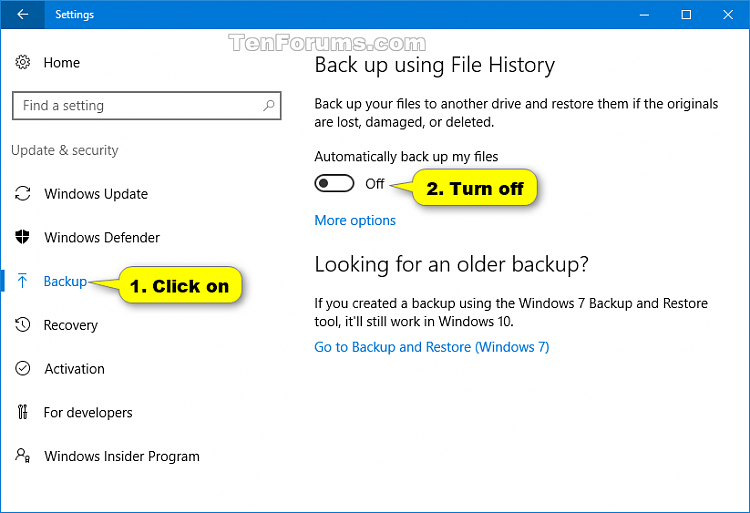
<p>Để tắt File History click vào&nbsp;<strong>Backup</strong>&nbsp;ở bên trái và tắt&nbsp;<strong>Automatically back up my files</strong>&nbsp;ở bên phải.</p>

<p><strong>Lưu ý</strong>: Cài đặt này là mặc định.</p>

<p><img alt="Tắt Automatically back up my files" data-i="0" data-src="https://st.quantrimang.com/photos/image/2019/06/22/bat-tat-file-histrory-1.png" data-was-processed="true" height="438" src="https://st.quantrimang.com/photos/image/2019/06/22/bat-tat-file-histrory-1.png" width="640" /></p>

<p><strong>Lưu ý:</strong>&nbsp;Nếu thấy<strong>&nbsp;Add a drive</strong>, có nghĩa là File History đã được tắt mà không có ổ đĩa được chọn.</p>

<p>Bạn có thể đóng Settings nếu muốn.</p>

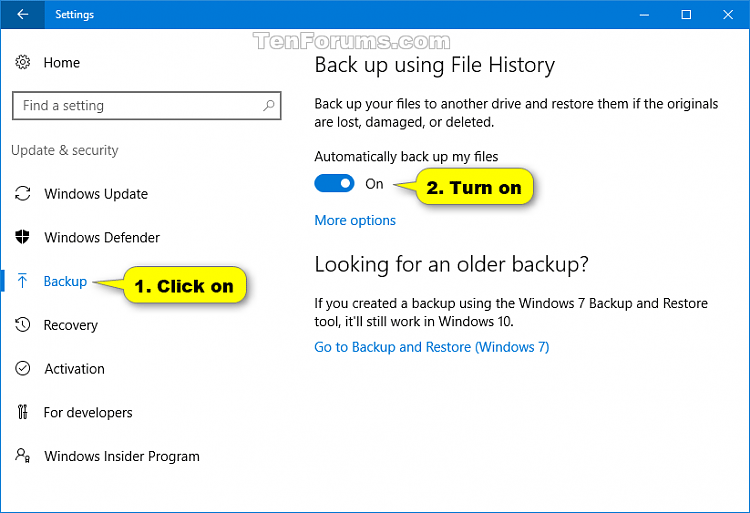
<p>Để bật File History click vào&nbsp;<strong>Backup</strong>&nbsp;ở bên trái và bật&nbsp;<strong>Automatically back up my files</strong>&nbsp;ở bên tay phải.</p>

<p><strong>Lưu ý</strong>: Nếu thấy&nbsp;<strong>Add a drive</strong>, bạn cần chọn ổ đĩa để sao lưu File History. File History sẽ tự động bật sau đó.</p>

<p><img alt="Bật Automatically back up my files" data-i="1" data-src="https://st.quantrimang.com/photos/image/2019/06/22/bat-tat-file-histrory-2.png" data-was-processed="true" height="438" src="https://st.quantrimang.com/photos/image/2019/06/22/bat-tat-file-histrory-2.png" width="640" /></p>

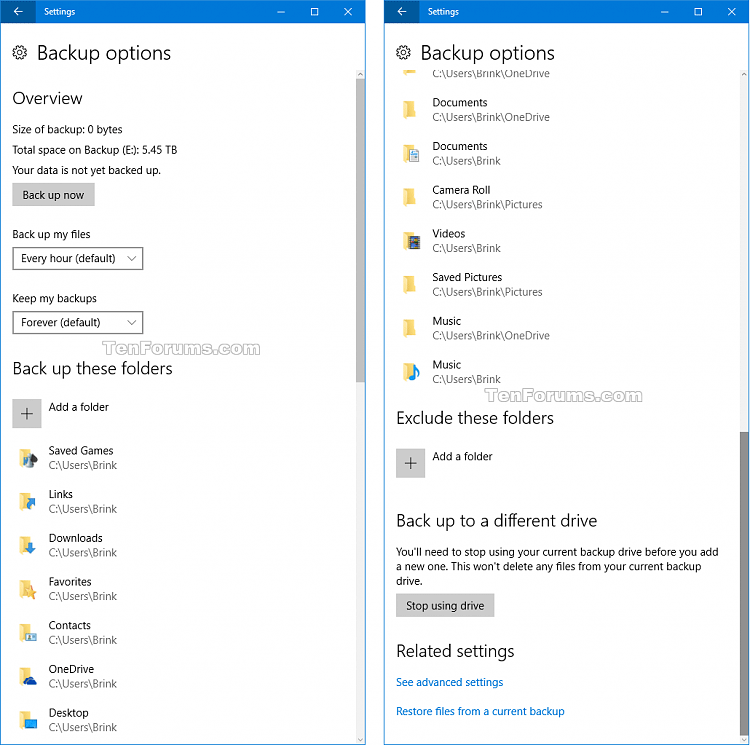
<p>File History đã được bật. Nếu muốn, bạn có thể click vào&nbsp;<strong>More options</strong>&nbsp;và thực hiện thay đổi tùy chọn sao lưu. Ở đây bạn có thể thay đổi tần suất lưu bản sao của file, thay đổi thời gian lưu các phiên bản file, thêm thư mục sao lưu, loại bỏ thư mục không sao lưu, chọn ổ đĩa File History.</p>

<p><img alt="Thay đổi các tùy chọn sao lưu " data-i="2" data-src="https://st.quantrimang.com/photos/image/2019/06/22/bat-tat-file-histrory-3.png" data-was-processed="true" height="636" src="https://st.quantrimang.com/photos/image/2019/06/22/bat-tat-file-histrory-3.png" width="640" /></p>
<iframe allowfullscreen="true" allowtransparency="true" frameborder="0" height="193" hspace="0" id="aswift_2" marginheight="0" marginwidth="0" name="aswift_2" scrolling="no" vspace="0" width="770"></iframe>

<h2>2. Bật hoặc tắt File History trong Control Panel</h2>

<p><strong>Bước 1</strong>.&nbsp;<a href="https://quantrimang.com/cach-mo-control-panel-tren-windows-10-8-7-vista-va-xp-152771" title="Cách mở Control Panel trên Windows 10, 8.1, 7">Mở Control Panel</a>&nbsp;và click vào icon File History.</p>

<p><strong>Bước 2.</strong></p>

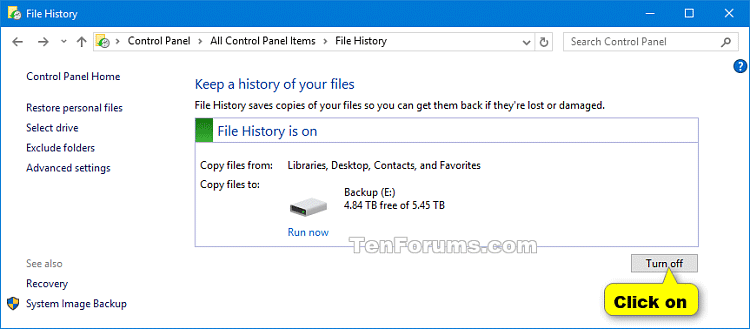
<p>Để tắt File History, click vào nút&nbsp;<strong>Turn off</strong>. Sau đó bạn có thể đóng Control Panel nếu muốn.&nbsp;</p>

<p><strong>Lưu ý:</strong>&nbsp;Cài đặt này là mặc định.&nbsp;</p>

<p><img alt="Click vào nút Turn off" data-i="3" data-src="https://st.quantrimang.com/photos/image/2019/06/22/bat-tat-file-histrory-4.png" data-was-processed="true" height="281" src="https://st.quantrimang.com/photos/image/2019/06/22/bat-tat-file-histrory-4.png" width="640" /></p>

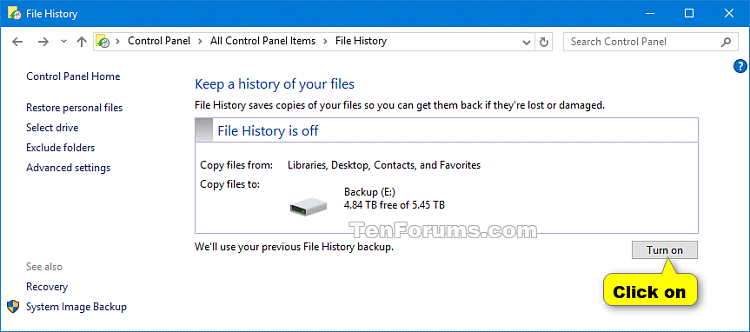
<p>Để bật File History, click vào nút&nbsp;<strong>Turn on</strong>.</p>

<p><img alt="Click vào nút Turn on" data-i="4" data-src="https://st.quantrimang.com/photos/image/2019/06/22/bat-tat-file-histrory-5.png" data-was-processed="true" height="283" src="https://st.quantrimang.com/photos/image/2019/06/22/bat-tat-file-histrory-5.png" width="640" /></p>

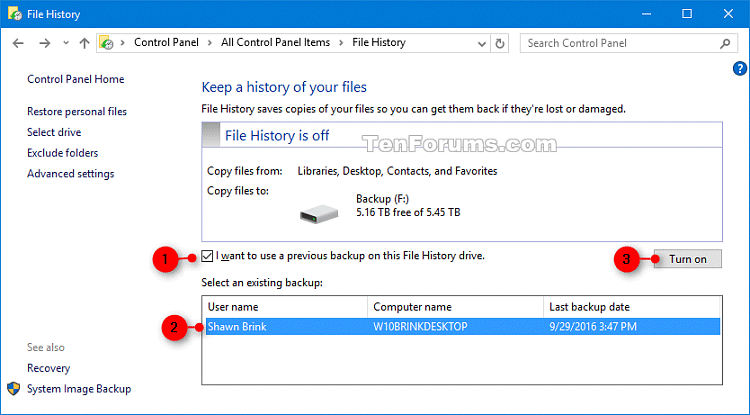
<p><strong>Lưu ý</strong>: Nếu không muốn sử dụng ổ đĩa hiện tại để sao lưu, bạn cần chọn ổ đĩa File History khác. File History sẽ tự động bật sau đó. Nếu có bản sao lưu trước đó trên ổ File History này, bạn có thể chọn sử dụng nó.</p>

<p><img alt="Sử dụng bản sao lưu trước " data-i="5" data-src="https://st.quantrimang.com/photos/image/2019/06/22/bat-tat-file-histrory-6.png" data-was-processed="true" height="354" src="https://st.quantrimang.com/photos/image/2019/06/22/bat-tat-file-histrory-6.png" width="640" /></p>

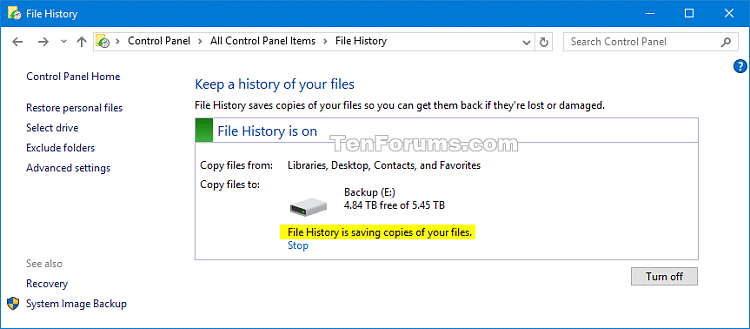
<p>File History giờ đã được bật, bạn có thể thực hiện thay đổi tùy chọn sao lưu nếu muốn.</p>

<p><img alt="Chọn ổ sao lưu " data-i="6" data-src="https://st.quantrimang.com/photos/image/2019/06/22/bat-tat-file-histrory-7.png" data-was-processed="true" height="281" src="https://st.quantrimang.com/photos/image/2019/06/22/bat-tat-file-histrory-7.png" width="640" /></p>

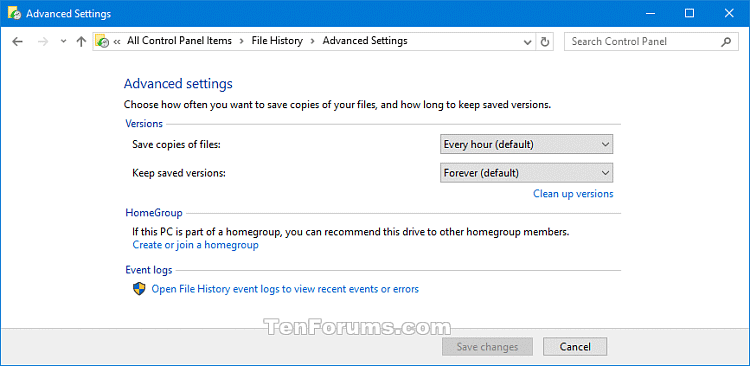
<p>Bạn có thể chọn tần suất sao lưu file và thời gian giữ phiên bản đã được lưu.&nbsp;</p>

<p><img alt="Chọn tần suất sao lưu" data-i="7" data-src="https://st.quantrimang.com/photos/image/2019/06/22/bat-tat-file-histrory-8.png" data-was-processed="true" height="312" src="https://st.quantrimang.com/photos/image/2019/06/22/bat-tat-file-histrory-8.png" width="640" /></p>

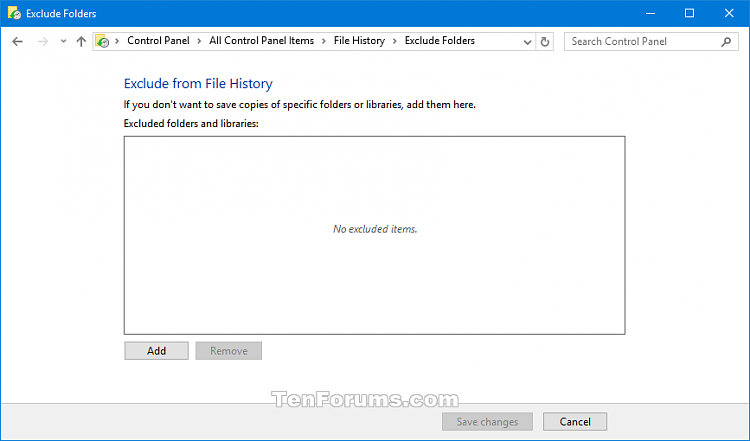
<p>Và cũng có thể chọn thư mục hoặc thư viện không sao lưu.&nbsp;</p>

<p><img alt="Bỏ thư mục không sao lưu" data-i="8" data-src="https://st.quantrimang.com/photos/image/2019/06/22/bat-tat-file-histrory-9.png" data-was-processed="true" height="376" src="https://st.quantrimang.com/photos/image/2019/06/22/bat-tat-file-histrory-9.png" width="640" /></p>

<p>Chúc các bạn thực hiện thành công!&nbsp;</p>
		</div>
				<div id="author">
						<p>
				<strong>Nguồn tin:</strong>
				Quantrimang.com
			</p>
		</div>
	</div>
	<div id="footer" class="clearfix">
		<div id="url">
			<strong>URL của bản tin này: </strong><a href="https://www.nguoicodonvn2008.info/vi/news/savefile/kien-thuc-may-tinh/cach-bat-hoac-tat-tinh-nang-file-history-trong-windows-10-172.html" title="Cách bật hoặc tắt tính năng File History trong Windows 10">https://www.nguoicodonvn2008.info/vi/news/savefile/kien-thuc-may-tinh/cach-bat-hoac-tat-tinh-nang-file-history-trong-windows-10-172.html</a>

		</div>
		<div class="clear"></div>
		<div class="copyright">
			&copy; .&#x3A; Nguoicodonvn2008.info - Cõi lòng người cô đơn &#x3A;.
		</div>
		<div id="contact">
			<a href="mailto:admin@nguoicodonvn2008.info">admin@nguoicodonvn2008.info</a>
		</div>
	</div>
</div>
        <div id="timeoutsess" class="chromeframe">
            Bạn đã không sử dụng Site, <a onclick="timeoutsesscancel();" href="https://www.nguoicodonvn2008.info/#">Bấm vào đây để duy trì trạng thái đăng nhập</a>. Thời gian chờ: <span id="secField"> 60 </span> giây
        </div>
        <div id="openidResult" class="nv-alert" style="display:none"></div>
        <div id="openidBt" data-result="" data-redirect=""></div>
		</script>
		<div class="car-top">
  <span><img src="https://www.nguoicodonvn2008.info/themes/default/images/car.png" alt=""></span>
</div>
<script src="https://www.nguoicodonvn2008.info/assets/js/jquery/jquery.min.js"></script>
<script>var nv_base_siteurl="/",nv_lang_data="vi",nv_lang_interface="vi",nv_name_variable="nv",nv_fc_variable="op",nv_lang_variable="language",nv_module_name="news",nv_func_name="savefile",nv_is_user=0, nv_my_ofs=-4,nv_my_abbr="EDT",nv_cookie_prefix="nv4c_e856T",nv_check_pass_mstime=1738000,nv_area_admin=0,nv_safemode=0,theme_responsive=0,nv_recaptcha_ver=2,nv_recaptcha_sitekey="",nv_recaptcha_type="image",XSSsanitize=1;</script>
<script src="https://www.nguoicodonvn2008.info/assets/js/language/vi.js"></script>
<script src="https://www.nguoicodonvn2008.info/assets/js/DOMPurify/purify3.js"></script>
<script src="https://www.nguoicodonvn2008.info/assets/js/global.js"></script>
<script src="https://www.nguoicodonvn2008.info/assets/js/site.js"></script>
<script src="https://www.nguoicodonvn2008.info/themes/default/js/news.js"></script>
<script src="https://www.nguoicodonvn2008.info/themes/default/js/main.js"></script>
<script src="https://www.nguoicodonvn2008.info/themes/default/js/custom.js"></script>
<script type="application/ld+json">
        {
            "@context": "https://schema.org",
            "@type": "Organization",
            "url": "https://www.nguoicodonvn2008.info",
            "logo": "https://www.nguoicodonvn2008.info/uploads/angel.gif"
        }
        </script>
<script src="https://www.nguoicodonvn2008.info/themes/default/js/bootstrap.min.js"></script>
<script type="text/javascript">
var $scrolltop = $('.car-top');
$scrolltop.on('click', function () {
    $('html,body').animate({
        scrollTop: 0
    }, 800);
    $(this).addClass("car-run");
    setTimeout(function(){ $scrolltop.removeClass('car-run');}, 1000);
    return false;
});
$(window).on('scroll', function ()
{ 
    if($(window).scrollTop() >= 200)
    {
        $scrolltop.addClass("show");
        $scrolltop.addClass("car-down");
    }
    else
    {
       $scrolltop.removeClass("show");
       setTimeout(function(){ $scrolltop.removeClass('car-down');}, 300);
    }
});
</script>
</body>
</html>