<!DOCTYPE html>
    <html lang="vi" xmlns="http://www.w3.org/1999/xhtml" prefix="og: http://ogp.me/ns#">
    <head>
<title>Cách bật hoặc tắt mã hóa file NTFS trong Windows</title>
<meta name="description" content="Cách bật hoặc tắt mã hóa file NTFS trong Windows - Savefile - Tin Tức -...">
<meta name="author" content=".: Nguoicodonvn2008.info - Cõi lòng người cô đơn :.">
<meta name="copyright" content=".: Nguoicodonvn2008.info - Cõi lòng người cô đơn :. [admin@nguoicodonvn2008.info]">
<meta name="robots" content="index, archive, follow, noodp">
<meta name="googlebot" content="index,archive,follow,noodp">
<meta name="msnbot" content="all,index,follow">
<meta name="generator" content="NukeViet v4.5">
<meta http-equiv="Content-Type" content="text/html; charset=utf-8">
<meta property="og:title" content="Cách bật hoặc tắt mã hóa file NTFS trong Windows">
<meta property="og:type" content="website">
<meta property="og:description" content="Savefile - Tin Tức - https&#x3A;&#x002F;&#x002F;www.nguoicodonvn2008.info&#x002F;vi&#x002F;news&#x002F;savefile&#x002F;kien-thuc-may-tinh&#x002F;cach-bat-hoac-tat-ma-hoa-file-ntfs-trong-windows-6703.html">
<meta property="og:site_name" content=".&#x3A; Nguoicodonvn2008.info - Cõi lòng người cô đơn &#x3A;.">
<meta property="og:url" content="https://www.nguoicodonvn2008.info/vi/news/savefile/kien-thuc-may-tinh/cach-bat-hoac-tat-ma-hoa-file-ntfs-trong-windows-6703.html">
<link rel="shortcut icon" href="https://www.nguoicodonvn2008.info/favicon.ico">
<link rel="canonical" href="https://www.nguoicodonvn2008.info/vi/news/savefile/kien-thuc-may-tinh/cach-bat-hoac-tat-ma-hoa-file-ntfs-trong-windows-6703.html">
<link rel="alternate" href="https://www.nguoicodonvn2008.info/vi/news/rss/" title="Tin Tức" type="application/rss+xml">
<link rel="alternate" href="https://www.nguoicodonvn2008.info/vi/news/rss/karaoke-dual/" title="Tin Tức - Karaoke Dual" type="application/rss+xml">
<link rel="alternate" href="https://www.nguoicodonvn2008.info/vi/news/rss/nhac-tre/" title="Tin Tức - Nhạc trẻ" type="application/rss+xml">
<link rel="alternate" href="https://www.nguoicodonvn2008.info/vi/news/rss/tru-tinh/" title="Tin Tức - Trữ tình" type="application/rss+xml">
<link rel="alternate" href="https://www.nguoicodonvn2008.info/vi/news/rss/nuoc-ngoai/" title="Tin Tức - Nước ngoài" type="application/rss+xml">
<link rel="alternate" href="https://www.nguoicodonvn2008.info/vi/news/rss/remix/" title="Tin Tức - Remix" type="application/rss+xml">
<link rel="alternate" href="https://www.nguoicodonvn2008.info/vi/news/rss/tam-su-tinh-yeu/" title="Tin Tức - Tâm sự tình yêu" type="application/rss+xml">
<link rel="alternate" href="https://www.nguoicodonvn2008.info/vi/news/rss/tho-suu-tam/" title="Tin Tức - Thơ sưu tầm" type="application/rss+xml">
<link rel="alternate" href="https://www.nguoicodonvn2008.info/vi/news/rss/cuoc-song/" title="Tin Tức - Cuộc sống" type="application/rss+xml">
<link rel="alternate" href="https://www.nguoicodonvn2008.info/vi/news/rss/phan-mem/" title="Tin Tức - Phần mềm" type="application/rss+xml">
<link rel="alternate" href="https://www.nguoicodonvn2008.info/vi/news/rss/kien-thuc-may-tinh/" title="Tin Tức - Kiến thức máy tính" type="application/rss+xml">
<link rel="alternate" href="https://www.nguoicodonvn2008.info/vi/news/rss/hoc-tap/" title="Tin Tức - Học tập" type="application/rss+xml">
<link rel="alternate" href="https://www.nguoicodonvn2008.info/vi/news/rss/tai-lieu/" title="Tin Tức - Tài liệu" type="application/rss+xml">
<link rel="alternate" href="https://www.nguoicodonvn2008.info/vi/news/rss/de-thi/" title="Tin Tức - Đề thi" type="application/rss+xml">
<link rel="preload" as="style" href="https://www.nguoicodonvn2008.info/assets/css/font-awesome.min.css" type="text/css">
<link rel="preload" as="style" href="https://www.nguoicodonvn2008.info/themes/default/css/bootstrap.non-responsive.css" type="text/css">
<link rel="preload" as="style" href="https://www.nguoicodonvn2008.info/themes/default/css/style.css" type="text/css">
<link rel="preload" as="style" href="https://www.nguoicodonvn2008.info/themes/default/css/style.non-responsive.css" type="text/css">
<link rel="preload" as="style" href="https://www.nguoicodonvn2008.info/themes/default/css/news.css" type="text/css">
<link rel="preload" as="style" href="https://www.nguoicodonvn2008.info/themes/default/css/custom.css" type="text/css">
<link rel="preload" as="script" href="https://www.nguoicodonvn2008.info/assets/js/jquery/jquery.min.js" type="text/javascript">
<link rel="preload" as="script" href="https://www.nguoicodonvn2008.info/assets/js/language/vi.js" type="text/javascript">
<link rel="preload" as="script" href="https://www.nguoicodonvn2008.info/assets/js/DOMPurify/purify3.js" type="text/javascript">
<link rel="preload" as="script" href="https://www.nguoicodonvn2008.info/assets/js/global.js" type="text/javascript">
<link rel="preload" as="script" href="https://www.nguoicodonvn2008.info/assets/js/site.js" type="text/javascript">
<link rel="preload" as="script" href="https://www.nguoicodonvn2008.info/themes/default/js/news.js" type="text/javascript">
<link rel="preload" as="script" href="https://www.nguoicodonvn2008.info/themes/default/js/main.js" type="text/javascript">
<link rel="preload" as="script" href="https://www.nguoicodonvn2008.info/themes/default/js/custom.js" type="text/javascript">
<link rel="preload" as="script" href="https://www.nguoicodonvn2008.info/themes/default/js/bootstrap.min.js" type="text/javascript">
<link rel="stylesheet" href="https://www.nguoicodonvn2008.info/assets/css/font-awesome.min.css">
<link rel="stylesheet" href="https://www.nguoicodonvn2008.info/themes/default/css/bootstrap.non-responsive.css">
<link rel="stylesheet" href="https://www.nguoicodonvn2008.info/themes/default/css/style.css">
<link rel="stylesheet" href="https://www.nguoicodonvn2008.info/themes/default/css/style.non-responsive.css">
<link rel="StyleSheet" href="https://www.nguoicodonvn2008.info/themes/default/css/news.css">
<link rel="stylesheet" href="https://www.nguoicodonvn2008.info/themes/default/css/custom.css">
<style type="text/css">
	body{background: #fff;}
</style>
    </head>
    <body>
<div id="print">
	<div id="hd_print">
		<h2 class="pull-left">.&#x3A; Nguoicodonvn2008.info - Cõi lòng người cô đơn &#x3A;.</h2>
		<p class="pull-right"><a title=".&#x3A; Nguoicodonvn2008.info - Cõi lòng người cô đơn &#x3A;." href="https://www.nguoicodonvn2008.info/">https://www.nguoicodonvn2008.info</a></p>
	</div>
	<div class="clear"></div>
	<hr />
	<div id="content">
		<h1>Cách bật hoặc tắt mã hóa file NTFS trong Windows</h1>
		<ul class="list-inline">
			<li>Thứ năm - 09/02/2023 23:47</li>
			<li class="hidden-print txtrequired"><em class="fa fa-print">&nbsp;</em><a title="In ra" href="javascript:;" onclick="window.print()">In ra</a></li>
			<li class="hidden-print txtrequired"><em class="fa fa-power-off">&nbsp;</em><a title="Đóng cửa sổ này" href="javascript:;" onclick="window.close()">Đóng cửa sổ này</a></li>
		</ul>
		<div class="clear"></div>
		<div id="hometext">
		</div>
				<div class="imghome">
			<img alt="Cách bật hoặc tắt mã hóa file NTFS trong Windows" src="https://st.quantrimang.com/photos/image/2023/02/09/ma-hoa-file-ntfs-trong-windows-1.jpg" width="460" class="img-thumbnail" />
		</div>
		<div class="clear"></div>
		<div id="bodytext" class="clearfix">
			<p style="text-align: justify;">Encrypting File System (EFS)&nbsp;là&nbsp;công cụ mã hóa&nbsp;tích hợp trong Windows dùng để mã hóa tập tin và thư mục trên ổ đĩa&nbsp;NTFS&nbsp;với mục đích bảo vệ chúng khỏi những truy cập không mong muốn. EFS cho phép mã hóa và giải mã các tập tin minh bạch cho tài khoản người dùng bằng cách sử dụng các&nbsp;thuật toán mã hóa&nbsp;tiêu chuẩn, tiên tiến. Bất kỳ cá nhân hoặc ứng dụng nào không có key mã hóa file thích hợp đều không thể mở bất kỳ file và thư mục được mã hóa nào. Mã hóa là sự bảo vệ mạnh mẽ nhất mà Windows cung cấp cho giúp người dùng để bảo mật các file và thư mục của mình.</p>

<div style="text-align: justify;">&nbsp;</div>

<p style="text-align: justify;">Bạn cần phải đăng nhập với tư cách quản trị viên để kích hoạt hoặc vô hiệu hóa mã hóa file NTFS.</p>

<p style="text-align: justify;"><strong>Lưu ý:</strong>&nbsp;Nếu vô hiệu hóa mã hóa file NTFS, các file được mã hóa gần đây vẫn được mã hóa.</p>

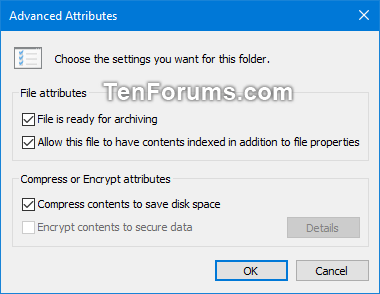
<p style="text-align: justify;"><img alt="Vô hiệu hóa mã hóa file NTFS" data-i="0" data-src="https://st.quantrimang.com/photos/image/2019/06/26/bat-tat-ma-hoa-file-ntfs-1.png" data-was-processed="true" height="294" src="https://st.quantrimang.com/photos/image/2019/06/26/bat-tat-ma-hoa-file-ntfs-1.png" width="380" /></p>

<h2 style="text-align: justify;">&nbsp;</h2>

<h2 id="mcetoc_1goqg6qrh7ao" style="text-align: justify;">Cách bật/tắt mã hóa file NTFS trong Windows 11</h2>

<p style="text-align: justify;">Hãy xem một số cách để kích hoạt tính năng nén file NTFS trong Windows 11.</p>

<h3 id="mcetoc_1goqg6qrh7ap" style="text-align: justify;">1. Kích hoạt tính năng nén file NTFS thông qua File Explorer</h3>

<p style="text-align: justify;">Cách nhanh nhất để kích hoạt tính năng nén file NTFS là thông qua File Explorer. Dưới đây là các bước để nén một thư mục:</p>

<p style="text-align: justify;">1.&nbsp;Mở File Explorer&nbsp;và đi tới thư mục bạn muốn nén.</p>

<p style="text-align: justify;">2. Nhấp chuột phải vào thư mục đích và chọn&nbsp;<strong>Properties</strong>&nbsp;từ menu ngữ cảnh.</p>

<p style="text-align: justify;">3. Trong tab&nbsp;<strong>General</strong>, chọn tùy chọn&nbsp;<strong>Advanced.</strong></p>

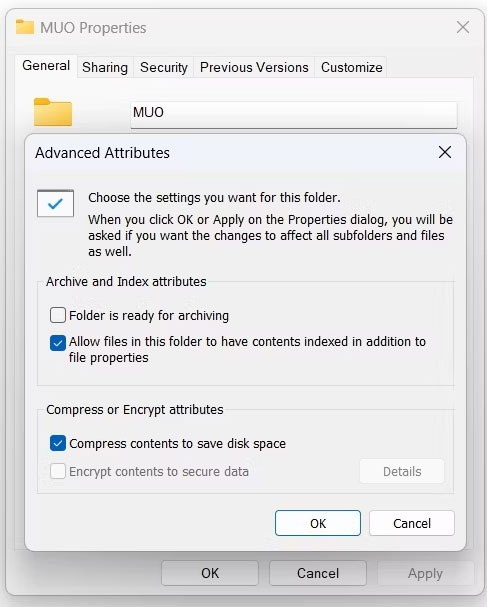
<p style="text-align: justify;">4. Trong phần&nbsp;<strong>Compress or Encrypt attributes</strong>, hãy chọn hộp&nbsp;<strong>Compress contents to save disk space</strong>&nbsp;và nhấp vào&nbsp;<strong>OK.</strong></p>

<figure>
<div style="text-align: justify;"><img alt="Tùy chọn Compress contents to save disk space trong Folder properties" data-i="1" data-src="https://st.quantrimang.com/photos/image/2023/02/09/ma-hoa-file-ntfs-trong-windows-1.jpg" data-was-processed="true" height="607" src="https://st.quantrimang.com/photos/image/2023/02/09/ma-hoa-file-ntfs-trong-windows-1.jpg" width="487" /></div>

<figcaption>
<div style="text-align: justify;">Tùy chọn Compress contents to save disk space trong Folder properties</div>
</figcaption>
</figure>

<p style="text-align: justify;">5. Nhấp vào&nbsp;<strong>Apply &gt; OK&nbsp;</strong>để lưu các thay đổi.</p>

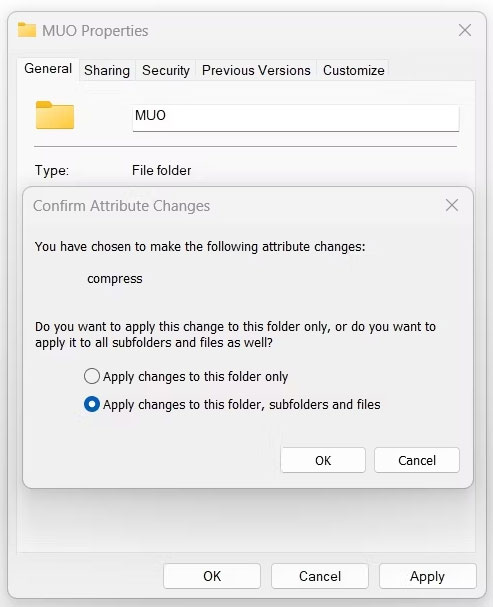
<p style="text-align: justify;">6. Trong hộp thoại xác nhận xuất hiện, hãy chọn tùy chọn&nbsp;<strong>Apply changes to this folder, subfolders, and files option</strong>.</p>

<figure>
<div style="text-align: justify;"><img alt="Áp dụng tùy chọn thay đổi trong thuộc tính thư mục" data-i="2" data-src="https://st.quantrimang.com/photos/image/2023/02/09/ma-hoa-file-ntfs-trong-windows-2.jpg" data-was-processed="true" height="607" src="https://st.quantrimang.com/photos/image/2023/02/09/ma-hoa-file-ntfs-trong-windows-2.jpg" width="493" /></div>

<figcaption>
<div style="text-align: justify;">Áp dụng tùy chọn thay đổi trong thuộc tính thư mục</div>
</figcaption>
</figure>

<p style="text-align: justify;">7. Nhấp vào&nbsp;<strong>OK.</strong></p>

<p style="text-align: justify;">Vậy là xong, thư mục đã được nén. Bạn có thể xác nhận điều này bằng cách so sánh kích thước thư mục hiện tại với kích thước trước đó.</p>

<p style="text-align: justify;">Từ giờ trở đi, mọi file hoặc thư mục mà bạn sẽ di chuyển bên trong thư mục nén sẽ được nén tự động. Để tắt tính năng nén, hãy bỏ chọn hộp&nbsp;<strong>Compress contents to save disk space</strong>&nbsp;và lưu các thay đổi.</p>

<p style="text-align: justify;">Tương tự, bạn có thể nén toàn bộ ổ như sau:</p>

<p style="text-align: justify;">1. Mở File Explorer và nhấp chuột phải vào ổ bạn muốn nén.</p>

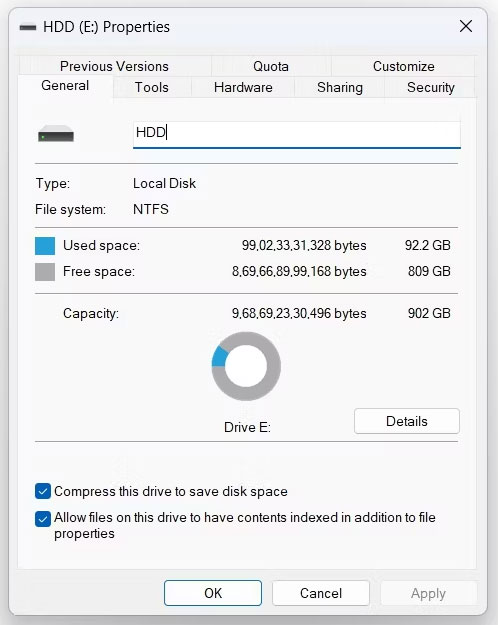
<p style="text-align: justify;">2. Trong tab&nbsp;<strong>General</strong>, hãy chọn hộp&nbsp;<strong>Compress this drive to save disk space</strong>.</p>

<figure>
<div style="text-align: justify;"><img alt="Thuộc tính ổ trong File Explorer" data-i="3" data-src="https://st.quantrimang.com/photos/image/2023/02/09/ma-hoa-file-ntfs-trong-windows-3.jpg" data-was-processed="true" height="625" src="https://st.quantrimang.com/photos/image/2023/02/09/ma-hoa-file-ntfs-trong-windows-3.jpg" width="498" /></div>

<figcaption>
<div style="text-align: justify;">Thuộc tính ổ trong File Explorer</div>
</figcaption>
</figure>

<p style="text-align: justify;">3. Nhấp vào&nbsp;<strong>Apply &gt; OK</strong>&nbsp;trên hộp xác nhận xuất hiện.</p>

<h3 id="mcetoc_1goqg6qrh7aq" style="text-align: justify;">2. Kích hoạt tính năng nén file NTFS bằng Command Prompt</h3>

<p style="text-align: justify;">Nếu là người dùng thành thạo, bạn có thể sử dụng Command Prompt để bật tính năng nén file trên Windows 11. Dưới đây là các bước để thực hiện:</p>

<p style="text-align: justify;">1. Nhấn&nbsp;<strong>Win + S</strong>&nbsp;để mở Windows Search.</p>

<p style="text-align: justify;">2. Trong thanh tìm kiếm, nhập&nbsp;<strong>Command Prompt</strong>&nbsp;và chọn&nbsp;<strong>Run as administrator</strong>&nbsp;từ ngăn bên phải. Nếu phương pháp này không hoạt động, bạn có thể sử dụng bất kỳ cách nào khác để&nbsp;<a href="https://quantrimang.com/cong-nghe/huong-dan-mo-command-prompt-duoi-quyen-admin-tren-windows-8-va-10-119884" title="Cách mở và chạy cmd với quyền Admin trên Windows">mở CMD với quyền admin</a>.</p>

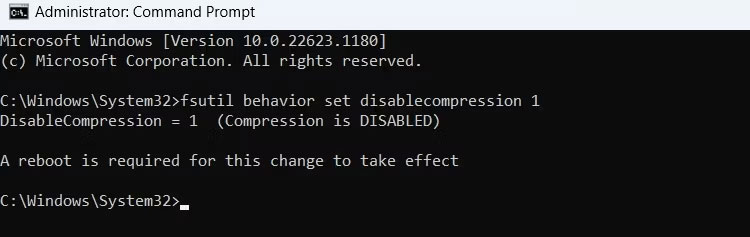
<p style="text-align: justify;">3. Nhập lệnh sau và nhấn&nbsp;<strong>Enter</strong>&nbsp;để kích hoạt tính năng nén file.</p>

<pre id="pre0">
<code>fsutil behavior set disablecompression 0</code></pre>

<figure>
<div style="text-align: justify;"><img alt="Lệnh nén file trong Command Prompt" data-i="4" data-src="https://st.quantrimang.com/photos/image/2023/02/09/ma-hoa-file-ntfs-trong-windows-4.jpg" data-was-processed="true" height="237" src="https://st.quantrimang.com/photos/image/2023/02/09/ma-hoa-file-ntfs-trong-windows-4.jpg" width="750" /></div>

<figcaption>
<div style="text-align: justify;">Lệnh nén file trong Command Prompt</div>
</figcaption>
</figure>

<p style="text-align: justify;">Bạn sẽ thấy thông báo<strong>&nbsp;&quot;A reboot is required for this change to take effect&quot;&nbsp;</strong>trên bảng điều khiển. Vì vậy, hãy khởi động lại máy tính để áp dụng các thay đổi.</p>

<p style="text-align: justify;">Nếu bạn muốn tắt File Compression, hãy thực thi lệnh sau trong cửa sổ CMD với quyền admin, sau đó khởi động lại hệ thống.</p>

<pre id="pre1">
<code>fsutil behavior set disablecompression 1</code></pre>

<h3 id="mcetoc_1goqg6qrh7ar" style="text-align: justify;">3. Kích hoạt tính năng nén file NTFS bằng Registry Editor</h3>

<p style="text-align: justify;">Một cách nhanh chóng khác để kích hoạt tính năng nén là thông qua Registry Editor. Thực hiện theo các bước dưới đây để làm điều đó:</p>

<p style="text-align: justify;">1.&nbsp;Mở hộp thoại Run&nbsp;bằng cách nhấn&nbsp;<strong>Win + R</strong>.</p>

<p style="text-align: justify;">2. Nhập&nbsp;<strong>regedit</strong>&nbsp;vào trường văn bản và nhấp vào&nbsp;<strong>OK.</strong></p>

<p style="text-align: justify;">3. Trong Registry Editor, điều hướng đến vị trí bên dưới:</p>

<pre id="pre2">
<code>Computer\HKEY_LOCAL_MACHINE\SYSTEM\CurrentControlSet\Policies</code></pre>

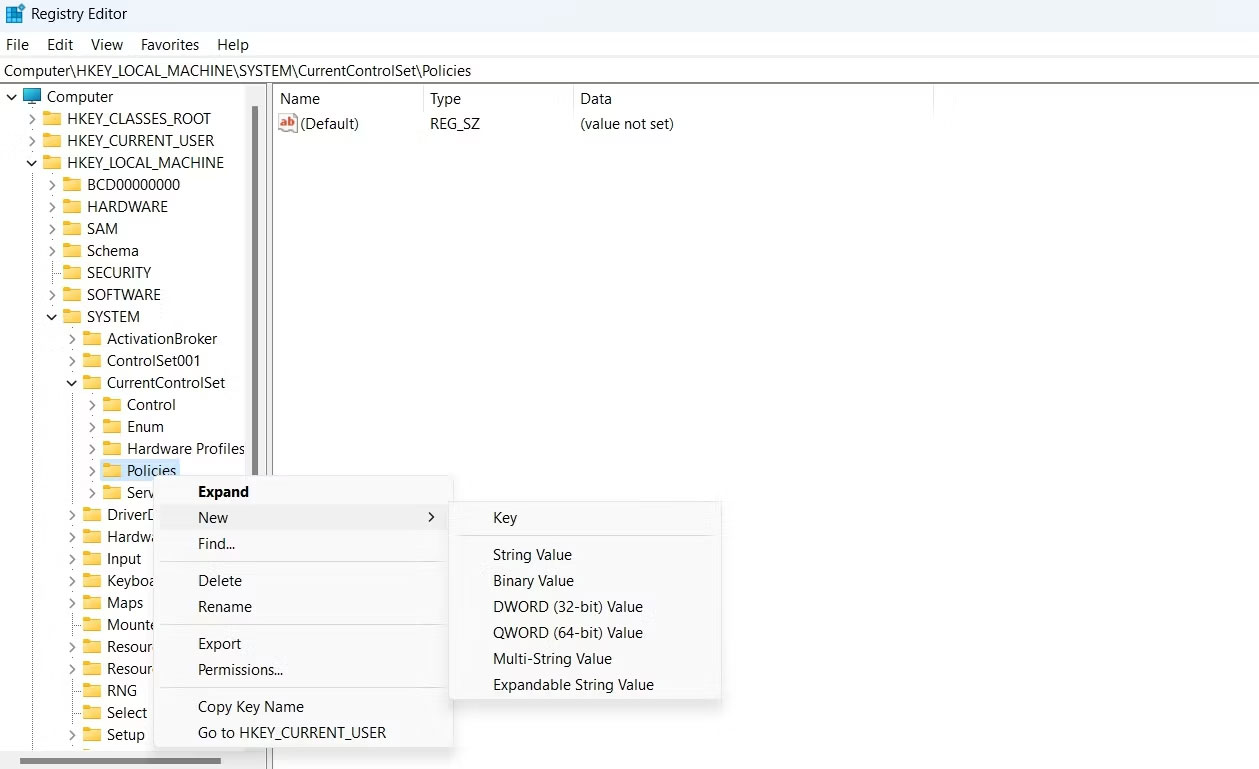
<p style="text-align: justify;">4. Nhấp chuột phải vào thư mục&nbsp;<strong>Policies</strong>&nbsp;ở thanh bên trái, di con trỏ đến&nbsp;<strong>New</strong>&nbsp;và chọn&nbsp;<strong>DWORD (32-bit) Value</strong>&nbsp;từ menu ngữ cảnh.</p>

<figure>
<div style="text-align: justify;"><img alt="Chọn DWORD trong Registry Editor" data-i="5" data-src="https://st.quantrimang.com/photos/image/2023/02/09/ma-hoa-file-ntfs-trong-windows-5.jpg" data-was-processed="true" height="769" src="https://st.quantrimang.com/photos/image/2023/02/09/ma-hoa-file-ntfs-trong-windows-5.jpg" width="1259" /></div>

<figcaption>
<div style="text-align: justify;">Chọn DWORD trong Registry Editor</div>
</figcaption>
</figure>

<p style="text-align: justify;">5. Nhấp chuột phải vào giá trị mới được tạo và chọn&nbsp;<strong>Rename.</strong></p>

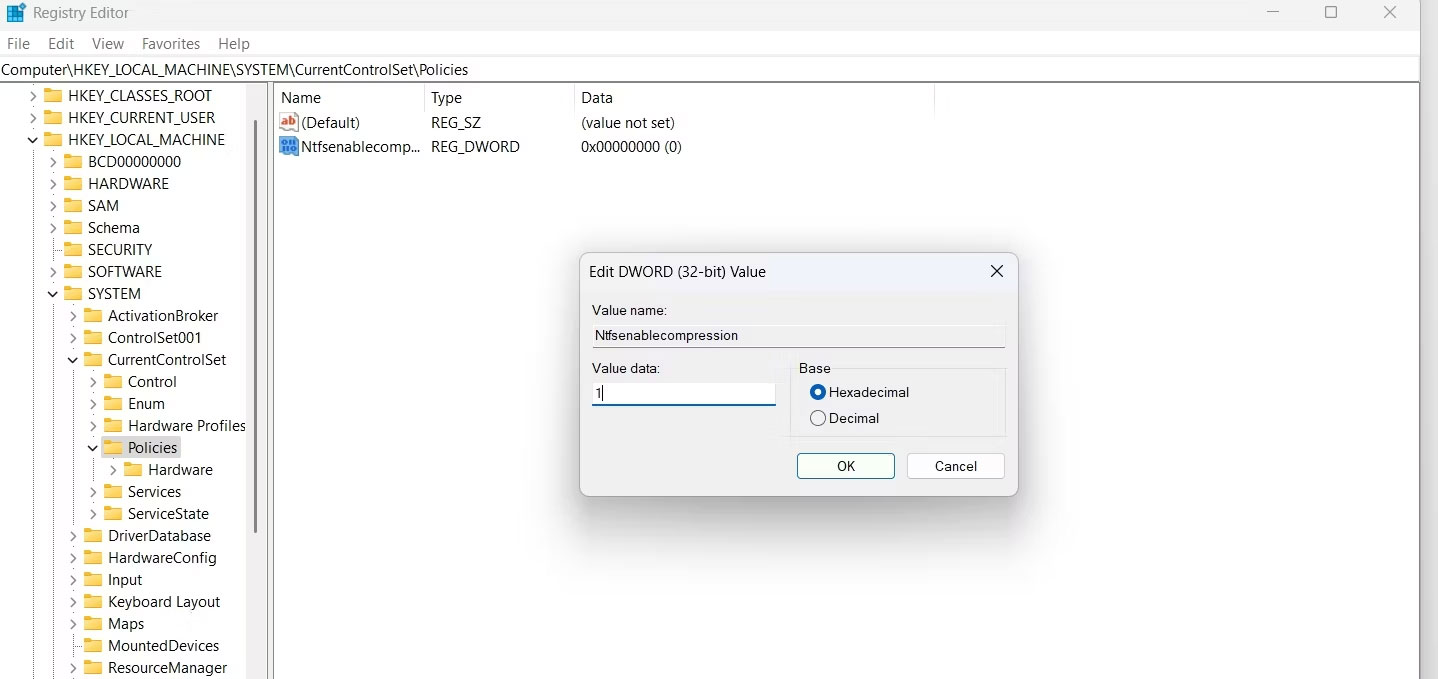
<p style="text-align: justify;">6. Nhập&nbsp;<strong>Ntfsenablecompression</strong>&nbsp;vào trường văn bản.</p>

<p style="text-align: justify;">7. Chọn và nhấp chuột phải vào&nbsp;<strong>Ntfsenablecompression</strong>&nbsp;một lần nữa và chọn&nbsp;<strong>Modify.</strong></p>

<p style="text-align: justify;">8. Nhập<strong>&nbsp;1</strong>&nbsp;vào&nbsp;<strong>Value data</strong>.</p>

<figure>
<div style="text-align: justify;"><img alt="Chỉnh sửa Ntfsenablecompression trong Registry Editor" data-i="6" data-src="https://st.quantrimang.com/photos/image/2023/02/09/ma-hoa-file-ntfs-trong-windows-6.jpg" data-was-processed="true" height="679" src="https://st.quantrimang.com/photos/image/2023/02/09/ma-hoa-file-ntfs-trong-windows-6.jpg" width="1438" /></div>

<figcaption>
<div style="text-align: justify;">Chỉnh sửa Ntfsenablecompression trong Registry Editor</div>
</figcaption>
</figure>

<p style="text-align: justify;">9. Nhấn&nbsp;<strong>OK</strong>&nbsp;để lưu các thay đổi.</p>

<p style="text-align: justify;">Tính năng nén file hiện đã được bật trên máy tính của bạn. Nếu bạn muốn tắt nó, hãy nhập&nbsp;<strong>0</strong>&nbsp;vào&nbsp;<strong>Value data</strong>&nbsp;và lưu các thay đổi.</p>

<h3 id="mcetoc_1goqg6qrh7as" style="text-align: justify;">4. Kích hoạt tính năng nén file NTFS bằng Local Group Policy Editor</h3>

<p style="text-align: justify;">Local Group Policy Editor là nơi thích hợp để cấu hình các policy quan trọng của Windows. Để sử dụng Local Group Policy Editor kích hoạt tính năng nén file, hãy làm theo các hướng dẫn bên dưới:</p>

<p style="text-align: justify;">1. Trong hộp thoại&nbsp;<strong>Run</strong>, nhập&nbsp;<strong>gpedit.msc</strong>&nbsp;và bấm&nbsp;<strong>OK.</strong></p>

<p style="text-align: justify;">2. Đi tới vị trí sau trong Local Group Policy Editor:</p>

<pre id="pre3">
<code>Computer Configuration\Administrative Templates\System\Filesystem\NTFS</code></pre>

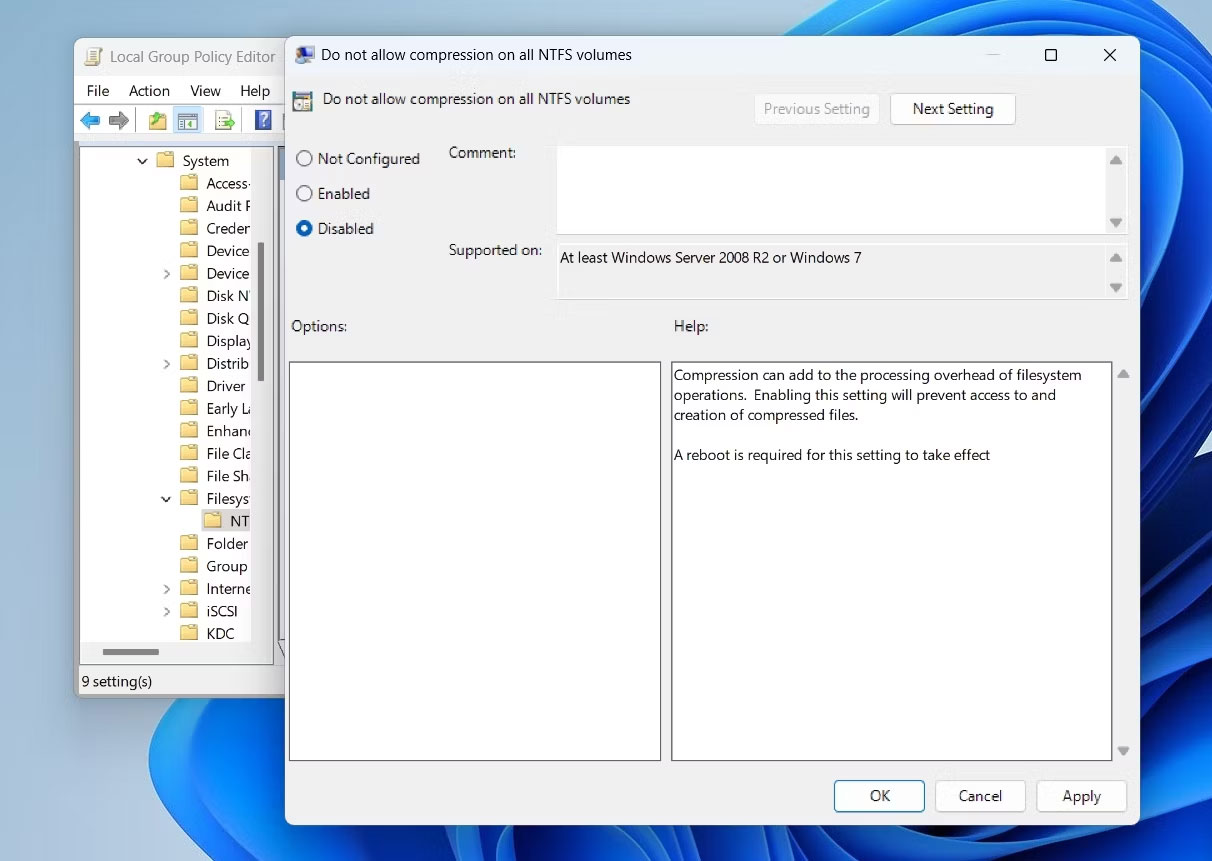
<p style="text-align: justify;">3. Nhấp đúp vào&nbsp;<strong>Do not allow compression on all NTFS volumes policy</strong>&nbsp;để mở cửa sổ thuộc tính của nó.</p>

<p style="text-align: justify;">4. Chọn tùy chọn&nbsp;<strong>Disabled.</strong></p>

<figure>
<div style="text-align: justify;"><img alt="Vô hiệu hóa policy trong LGPE" data-i="7" data-src="https://st.quantrimang.com/photos/image/2023/02/09/ma-hoa-file-ntfs-trong-windows-7.jpg" data-was-processed="true" height="861" src="https://st.quantrimang.com/photos/image/2023/02/09/ma-hoa-file-ntfs-trong-windows-7.jpg" width="1212" /></div>

<figcaption>
<div style="text-align: justify;">Vô hiệu hóa policy trong LGPE</div>
</figcaption>
</figure>

<p style="text-align: justify;">5. Nhấp vào&nbsp;<strong>Apply &gt; OK</strong>&nbsp;để kích hoạt tính năng nén file.</p>

<p style="text-align: justify;">Bạn có thể tắt tính năng nén file bằng cách chọn tùy chọn&nbsp;<strong>Enabled</strong>&nbsp;trong cửa sổ thuộc tính&nbsp;<strong>Do not allow compression on all NTFS volumes policy</strong>.</p>

<h2 id="mcetoc_1goqg6qrh7at" style="text-align: justify;">Cách bật/tắt mã hóa file NTFS trong Windows 10/8/7</h2>

<p style="text-align: justify;">Phần này sẽ hướng dẫn các bạn cách kích hoạt hoặc vô hiệu hóa mã hóa file NTFS cho tất cả người dùng trong Windows 7, Windows 8 và Windows 10.</p>

<h3 id="mcetoc_1goqg6qrh7au" style="text-align: justify;">Cách 1: Kích hoạt hoặc vô hiệu hóa mã hóa file NTFS trong Local Group Policy Editor</h3>

<p style="text-align: justify;"><strong>Lưu ý:</strong>&nbsp;Local Group Policy Editor chỉ có trên Windows 7/8/10 Pro, Windows 7/8/10 Enterprise và Windows 10 Education editions.</p>

<p style="text-align: justify;">Tất cả các phiên bản khác có thể sử dụng cách thứ hai bên dưới.</p>

<p style="text-align: justify;"><strong>Bước 1</strong>.&nbsp;Mở Local Group Policy Editor.</p>

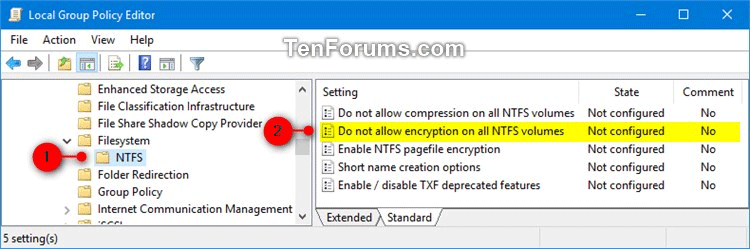
<p style="text-align: justify;"><strong>Bước 2</strong>. Trong khung bên trái của Local Group Policy Editor, điều hướng đến vị trí bên dưới.</p>

<pre id="pre4" style="text-align: justify;">
Computer Configuration\Administrative Templates\System\Filesystem\NTFS</pre>

<p style="text-align: justify;"><img alt="Mở thư mục NTFS" data-i="8" data-src="https://st.quantrimang.com/photos/image/2019/06/26/bat-tat-ma-hoa-file-ntfs-2.png" data-was-processed="true" height="212" src="https://st.quantrimang.com/photos/image/2019/06/26/bat-tat-ma-hoa-file-ntfs-2.png" width="640" /></p>

<p style="text-align: justify;"><strong>Bước 3</strong>. Ở khung bên phải của NTFS trong Local Group Policy Editor, click đúp vào chính sách&nbsp;<strong>Do not allow encryption on all NTFS volumes</strong>&nbsp;để chỉnh sửa nó.</p>

<p style="text-align: justify;"><strong>Bước 4.</strong></p>

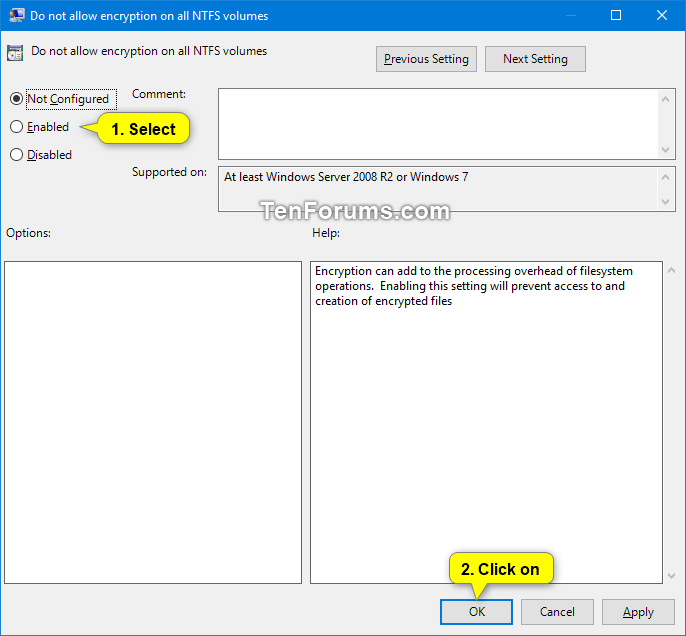
<p style="text-align: justify;">Để kích hoạt mã hóa file NTFS, chọn&nbsp;<strong>Not Configured</strong>&nbsp;hoặc&nbsp;<strong>Disabled</strong>, sau đó click vào&nbsp;<strong>OK</strong>.</p>

<p style="text-align: justify;"><strong>Lưu ý</strong>:&nbsp;<strong>Not Configured</strong>&nbsp;là cài đặt mặc định.</p>

<p style="text-align: justify;">Để vô hiệu hóa mã hóa file NTFS, chọn&nbsp;<strong>Enabled</strong>&nbsp;và click vào&nbsp;<strong>OK</strong>.</p>

<p style="text-align: justify;"><img alt="Chọn Enabled" data-i="9" data-src="https://st.quantrimang.com/photos/image/2019/06/26/bat-tat-ma-hoa-file-ntfs-3.png" data-was-processed="true" height="593" src="https://st.quantrimang.com/photos/image/2019/06/26/bat-tat-ma-hoa-file-ntfs-3.png" width="640" /></p>

<p style="text-align: justify;"><strong>Bước 5</strong>. Khi kết thúc, đóng Local Group Policy Editor.</p>

<p style="text-align: justify;"><strong>Bước 6</strong>.&nbsp;Khởi động lại máy tính&nbsp;để áp dụng thay đổi.</p>

<h3 id="mcetoc_1goqg6qrh7av" style="text-align: justify;">Cách 2: Kích hoạt hoặc vô hiệu hóa mã hóa file NTFS sử dụng file REG</h3>

<p style="text-align: justify;"><strong>Lưu ý</strong>:&nbsp;File .reg&nbsp;bên dưới sẽ thêm và chỉnh sửa giá trị DWORD trong key registry bên dưới:<br />
<span style="color:rgb(192, 57, 43);"><strong>quantrimang.com/cong-nghe/cach-mo-file-reg-tren-windows-145777</strong></span></p>

<p style="text-align: justify;">HKEY_LOCAL_MACHINE\SYSTEM\CurrentControlSet\Policies</p>

<p style="text-align: justify;">NtfsDisableEncryption DWORD</p>

<p style="text-align: justify;">(delete)= Kích hoạt</p>

<p style="text-align: justify;"><strong>1</strong>&nbsp;= Vô hiệu hóa</p>

<p style="text-align: justify;"><strong>Bước 1</strong>. Để kích hoạt mã hóa file NTFS, tải file theo liên kết bên dưới.</p>

<pre id="pre5" style="text-align: justify;">
https://www.tenforums.com/attachments/tutorials/163380d1510424051-enable-disable-ntfs-file-encryption-windows-enable_ntfs_file_encryption.reg</pre>

<p style="text-align: justify;"><strong>Lưu ý:</strong>&nbsp;Đây là cài đặt mặc định.</p>

<p style="text-align: justify;">Để vô hiệu hóa mã hóa file NTFS, tải file theo liên kết bên dưới.</p>

<pre id="pre6" style="text-align: justify;">
https://www.tenforums.com/attachments/tutorials/163381d1510424051-enable-disable-ntfs-file-encryption-windows-disable_ntfs_file_encryption.reg</pre>

<p style="text-align: justify;"><strong>Bước 2</strong>. Lưu file .reg trên desktop.</p>

<p style="text-align: justify;"><strong>Bước 3</strong>. Click đúp vào file .reg để hợp nhất nó.</p>

<p style="text-align: justify;"><strong>Bước 4</strong>. Khi được thông báo, click vào&nbsp;<strong>Run, Yes (UAC), Yes</strong>&nbsp;và&nbsp;<strong>OK</strong>&nbsp;để chấp nhận hợp nhất.</p>

<p style="text-align: justify;"><strong>Bước 5</strong>. Khởi động lại máy tính để áp dụng thay đổi.</p>

<p style="text-align: justify;"><strong>Bước 6</strong>. Bạn có thể xóa file .reg nếu muốn.</p>

<p style="text-align: justify;">Chúc các bạn thực hiện thành công!</p>

<div style="text-align: justify;">&nbsp;</div>
		</div>
				<div id="author">
						<p>
				<strong>Nguồn tin:</strong>
				Quantrimang.com
			</p>
		</div>
	</div>
	<div id="footer" class="clearfix">
		<div id="url">
			<strong>URL của bản tin này: </strong><a href="https://www.nguoicodonvn2008.info/vi/news/savefile/kien-thuc-may-tinh/cach-bat-hoac-tat-ma-hoa-file-ntfs-trong-windows-6703.html" title="Cách bật hoặc tắt mã hóa file NTFS trong Windows">https://www.nguoicodonvn2008.info/vi/news/savefile/kien-thuc-may-tinh/cach-bat-hoac-tat-ma-hoa-file-ntfs-trong-windows-6703.html</a>

		</div>
		<div class="clear"></div>
		<div class="copyright">
			&copy; .&#x3A; Nguoicodonvn2008.info - Cõi lòng người cô đơn &#x3A;.
		</div>
		<div id="contact">
			<a href="mailto:admin@nguoicodonvn2008.info">admin@nguoicodonvn2008.info</a>
		</div>
	</div>
</div>
        <div id="timeoutsess" class="chromeframe">
            Bạn đã không sử dụng Site, <a onclick="timeoutsesscancel();" href="https://www.nguoicodonvn2008.info/#">Bấm vào đây để duy trì trạng thái đăng nhập</a>. Thời gian chờ: <span id="secField"> 60 </span> giây
        </div>
        <div id="openidResult" class="nv-alert" style="display:none"></div>
        <div id="openidBt" data-result="" data-redirect=""></div>
		</script>
		<div class="car-top">
  <span><img src="https://www.nguoicodonvn2008.info/themes/default/images/car.png" alt=""></span>
</div>
<script src="https://www.nguoicodonvn2008.info/assets/js/jquery/jquery.min.js"></script>
<script>var nv_base_siteurl="/",nv_lang_data="vi",nv_lang_interface="vi",nv_name_variable="nv",nv_fc_variable="op",nv_lang_variable="language",nv_module_name="news",nv_func_name="savefile",nv_is_user=0, nv_my_ofs=-4,nv_my_abbr="EDT",nv_cookie_prefix="nv4c_e856T",nv_check_pass_mstime=1738000,nv_area_admin=0,nv_safemode=0,theme_responsive=0,nv_recaptcha_ver=2,nv_recaptcha_sitekey="",nv_recaptcha_type="image",XSSsanitize=1;</script>
<script src="https://www.nguoicodonvn2008.info/assets/js/language/vi.js"></script>
<script src="https://www.nguoicodonvn2008.info/assets/js/DOMPurify/purify3.js"></script>
<script src="https://www.nguoicodonvn2008.info/assets/js/global.js"></script>
<script src="https://www.nguoicodonvn2008.info/assets/js/site.js"></script>
<script src="https://www.nguoicodonvn2008.info/themes/default/js/news.js"></script>
<script src="https://www.nguoicodonvn2008.info/themes/default/js/main.js"></script>
<script src="https://www.nguoicodonvn2008.info/themes/default/js/custom.js"></script>
<script type="application/ld+json">
        {
            "@context": "https://schema.org",
            "@type": "Organization",
            "url": "https://www.nguoicodonvn2008.info",
            "logo": "https://www.nguoicodonvn2008.info/uploads/angel.gif"
        }
        </script>
<script src="https://www.nguoicodonvn2008.info/themes/default/js/bootstrap.min.js"></script>
<script type="text/javascript">
var $scrolltop = $('.car-top');
$scrolltop.on('click', function () {
    $('html,body').animate({
        scrollTop: 0
    }, 800);
    $(this).addClass("car-run");
    setTimeout(function(){ $scrolltop.removeClass('car-run');}, 1000);
    return false;
});
$(window).on('scroll', function ()
{ 
    if($(window).scrollTop() >= 200)
    {
        $scrolltop.addClass("show");
        $scrolltop.addClass("car-down");
    }
    else
    {
       $scrolltop.removeClass("show");
       setTimeout(function(){ $scrolltop.removeClass('car-down');}, 300);
    }
});
</script>
</body>
</html>