<!DOCTYPE html>
    <html lang="vi" xmlns="http://www.w3.org/1999/xhtml" prefix="og: http://ogp.me/ns#">
    <head>
<title>Cách bật DNS over HTTPS cho tất cả ứng dụng trong Windows 11</title>
<meta name="description" content="Cách bật DNS over HTTPS cho tất cả ứng dụng trong Windows 11 - Savefile - Tin Tức -...">
<meta name="author" content=".: Nguoicodonvn2008.info - Cõi lòng người cô đơn :.">
<meta name="copyright" content=".: Nguoicodonvn2008.info - Cõi lòng người cô đơn :. [admin@nguoicodonvn2008.info]">
<meta name="robots" content="index, archive, follow, noodp">
<meta name="googlebot" content="index,archive,follow,noodp">
<meta name="msnbot" content="all,index,follow">
<meta name="generator" content="NukeViet v4.5">
<meta http-equiv="Content-Type" content="text/html; charset=utf-8">
<meta property="og:title" content="Cách bật DNS over HTTPS cho tất cả ứng dụng trong Windows 11">
<meta property="og:type" content="website">
<meta property="og:description" content="Savefile - Tin Tức - https&#x3A;&#x002F;&#x002F;www.nguoicodonvn2008.info&#x002F;vi&#x002F;news&#x002F;savefile&#x002F;kien-thuc-may-tinh&#x002F;cach-bat-dns-over-https-cho-tat-ca-ung-dung-trong-windows-11-4344.html">
<meta property="og:site_name" content=".&#x3A; Nguoicodonvn2008.info - Cõi lòng người cô đơn &#x3A;.">
<meta property="og:url" content="https://www.nguoicodonvn2008.info/vi/news/savefile/kien-thuc-may-tinh/cach-bat-dns-over-https-cho-tat-ca-ung-dung-trong-windows-11-4344.html">
<link rel="shortcut icon" href="https://www.nguoicodonvn2008.info/favicon.ico">
<link rel="canonical" href="https://www.nguoicodonvn2008.info/vi/news/savefile/kien-thuc-may-tinh/cach-bat-dns-over-https-cho-tat-ca-ung-dung-trong-windows-11-4344.html">
<link rel="alternate" href="https://www.nguoicodonvn2008.info/vi/news/rss/" title="Tin Tức" type="application/rss+xml">
<link rel="alternate" href="https://www.nguoicodonvn2008.info/vi/news/rss/karaoke-dual/" title="Tin Tức - Karaoke Dual" type="application/rss+xml">
<link rel="alternate" href="https://www.nguoicodonvn2008.info/vi/news/rss/nhac-tre/" title="Tin Tức - Nhạc trẻ" type="application/rss+xml">
<link rel="alternate" href="https://www.nguoicodonvn2008.info/vi/news/rss/tru-tinh/" title="Tin Tức - Trữ tình" type="application/rss+xml">
<link rel="alternate" href="https://www.nguoicodonvn2008.info/vi/news/rss/nuoc-ngoai/" title="Tin Tức - Nước ngoài" type="application/rss+xml">
<link rel="alternate" href="https://www.nguoicodonvn2008.info/vi/news/rss/remix/" title="Tin Tức - Remix" type="application/rss+xml">
<link rel="alternate" href="https://www.nguoicodonvn2008.info/vi/news/rss/tam-su-tinh-yeu/" title="Tin Tức - Tâm sự tình yêu" type="application/rss+xml">
<link rel="alternate" href="https://www.nguoicodonvn2008.info/vi/news/rss/tho-suu-tam/" title="Tin Tức - Thơ sưu tầm" type="application/rss+xml">
<link rel="alternate" href="https://www.nguoicodonvn2008.info/vi/news/rss/cuoc-song/" title="Tin Tức - Cuộc sống" type="application/rss+xml">
<link rel="alternate" href="https://www.nguoicodonvn2008.info/vi/news/rss/phan-mem/" title="Tin Tức - Phần mềm" type="application/rss+xml">
<link rel="alternate" href="https://www.nguoicodonvn2008.info/vi/news/rss/kien-thuc-may-tinh/" title="Tin Tức - Kiến thức máy tính" type="application/rss+xml">
<link rel="alternate" href="https://www.nguoicodonvn2008.info/vi/news/rss/hoc-tap/" title="Tin Tức - Học tập" type="application/rss+xml">
<link rel="alternate" href="https://www.nguoicodonvn2008.info/vi/news/rss/tai-lieu/" title="Tin Tức - Tài liệu" type="application/rss+xml">
<link rel="alternate" href="https://www.nguoicodonvn2008.info/vi/news/rss/de-thi/" title="Tin Tức - Đề thi" type="application/rss+xml">
<link rel="preload" as="style" href="https://www.nguoicodonvn2008.info/assets/css/font-awesome.min.css" type="text/css">
<link rel="preload" as="style" href="https://www.nguoicodonvn2008.info/themes/default/css/bootstrap.non-responsive.css" type="text/css">
<link rel="preload" as="style" href="https://www.nguoicodonvn2008.info/themes/default/css/style.css" type="text/css">
<link rel="preload" as="style" href="https://www.nguoicodonvn2008.info/themes/default/css/style.non-responsive.css" type="text/css">
<link rel="preload" as="style" href="https://www.nguoicodonvn2008.info/themes/default/css/news.css" type="text/css">
<link rel="preload" as="style" href="https://www.nguoicodonvn2008.info/themes/default/css/custom.css" type="text/css">
<link rel="preload" as="script" href="https://www.nguoicodonvn2008.info/assets/js/jquery/jquery.min.js" type="text/javascript">
<link rel="preload" as="script" href="https://www.nguoicodonvn2008.info/assets/js/language/vi.js" type="text/javascript">
<link rel="preload" as="script" href="https://www.nguoicodonvn2008.info/assets/js/DOMPurify/purify3.js" type="text/javascript">
<link rel="preload" as="script" href="https://www.nguoicodonvn2008.info/assets/js/global.js" type="text/javascript">
<link rel="preload" as="script" href="https://www.nguoicodonvn2008.info/assets/js/site.js" type="text/javascript">
<link rel="preload" as="script" href="https://www.nguoicodonvn2008.info/themes/default/js/news.js" type="text/javascript">
<link rel="preload" as="script" href="https://www.nguoicodonvn2008.info/themes/default/js/main.js" type="text/javascript">
<link rel="preload" as="script" href="https://www.nguoicodonvn2008.info/themes/default/js/custom.js" type="text/javascript">
<link rel="preload" as="script" href="https://www.nguoicodonvn2008.info/themes/default/js/bootstrap.min.js" type="text/javascript">
<link rel="stylesheet" href="https://www.nguoicodonvn2008.info/assets/css/font-awesome.min.css">
<link rel="stylesheet" href="https://www.nguoicodonvn2008.info/themes/default/css/bootstrap.non-responsive.css">
<link rel="stylesheet" href="https://www.nguoicodonvn2008.info/themes/default/css/style.css">
<link rel="stylesheet" href="https://www.nguoicodonvn2008.info/themes/default/css/style.non-responsive.css">
<link rel="StyleSheet" href="https://www.nguoicodonvn2008.info/themes/default/css/news.css">
<link rel="stylesheet" href="https://www.nguoicodonvn2008.info/themes/default/css/custom.css">
<style type="text/css">
	body{background: #fff;}
</style>
    </head>
    <body>
<div id="print">
	<div id="hd_print">
		<h2 class="pull-left">.&#x3A; Nguoicodonvn2008.info - Cõi lòng người cô đơn &#x3A;.</h2>
		<p class="pull-right"><a title=".&#x3A; Nguoicodonvn2008.info - Cõi lòng người cô đơn &#x3A;." href="https://www.nguoicodonvn2008.info/">https://www.nguoicodonvn2008.info</a></p>
	</div>
	<div class="clear"></div>
	<hr />
	<div id="content">
		<h1>Cách bật DNS over HTTPS cho tất cả ứng dụng trong Windows 11</h1>
		<ul class="list-inline">
			<li>Thứ tư - 30/06/2021 07:44</li>
			<li class="hidden-print txtrequired"><em class="fa fa-print">&nbsp;</em><a title="In ra" href="javascript:;" onclick="window.print()">In ra</a></li>
			<li class="hidden-print txtrequired"><em class="fa fa-power-off">&nbsp;</em><a title="Đóng cửa sổ này" href="javascript:;" onclick="window.close()">Đóng cửa sổ này</a></li>
		</ul>
		<div class="clear"></div>
		<div id="hometext">
		</div>
				<div class="imghome">
			<img alt="Cách bật DNS over HTTPS cho tất cả ứng dụng trong Windows 11" src="https://st.quantrimang.com/photos/image/2020/08/18/bat-dns-over-https-1.jpg" width="460" class="img-thumbnail" />
		</div>
		<div class="clear"></div>
		<div id="bodytext" class="clearfix">
			<p style="text-align: justify;">Microsoft đã thêm tính năng DNS over HTTPS (DoH) để tăng cường bảo mật, riêng tư trên Windows 11. Với tính năng mới này, người dùng Windows 11 sẽ không bị theo dõi các hoạt động trên internet.</p>

<p style="text-align: justify;">Khi bạn kết nối với một trang web hoặc máy chủ trên internet, máy tính của bạn phải truy vấn vào một máy chủ hệ thống tên miền (domain name system - DNS) cho địa chỉ IP được liên kết với hostname.</p>

<p style="text-align: justify;">DoH cho phép máy tính của bạn thực hiện các tra cứu DNS này qua kết nối HTTPS được mã hóa thy vì thông qua tra cứu DNS bằng văn bản bình thường. Nhờ vậy, nhà cung cấp internet (ISP) và cơ quan theo dõi không thể nắm được thông tin của bạn.</p>

<p style="text-align: justify;">Thậm chí, DoH còn giúp người dùng truy cập các trang web bị chặn bằng cách giám sát lưu lượng truy cập DNS.</p>

<div style="text-align: justify;">&nbsp;</div>

<p style="text-align: justify;">Microsoft đã từng tung ra DoH qua bản dựng Windows 10 20185 dành cho người dùng tham gia Windows Insider Program với mục đích thử nghiệm. Tuy nhiên, họ đã loại bỏ nó sau vài bản build tiếp theo.</p>

<p style="text-align: justify;">Bây giờ, trên Windows 11 Microsoft đã bật lại DoH và người dùng có thể trải nghiệm nó ngay trên bản Windows 11 Insider Preview.</p>

<figure>
<div style="text-align: justify;"><br />
<img alt="Sử dụng DNS over HTTPS (DoH) có thể giúp việc duyệt web bảo mật hơn" data-i="0" data-inimage-loaded="true" data-src="https://st.quantrimang.com/photos/image/2020/08/18/bat-dns-over-https-1.jpg" data-was-processed="true" height="339" src="https://st.quantrimang.com/photos/image/2020/08/18/bat-dns-over-https-1.jpg" width="650" /></div>

<figcaption>
<div style="text-align: justify;">Sử dụng DNS over HTTPS (DoH) có thể giúp việc duyệt web bảo mật hơn</div>
</figcaption>
</figure>

<div style="text-align: justify;">&nbsp;</div>

<h2 style="text-align: justify;">Cách bật DNS over HTTPS Windows 11</h2>

<p style="text-align: justify;">Trước tiên, để trải nghiệm DoH trên Windows 11 thì bạn phải cài Windows 11 Insider Preview trước đã. Bạn có thể tham khảo cách tham gia Windows Insider Program để trải nghiệm Windows 11 Insider Preview trong bài viết dưới đây:</p>

<div style="text-align: justify;">&nbsp;</div>

<p style="text-align: justify;">Sau đó, bạn kích họa DoH trên Win 11 theo các bước sau:</p>

<ul>
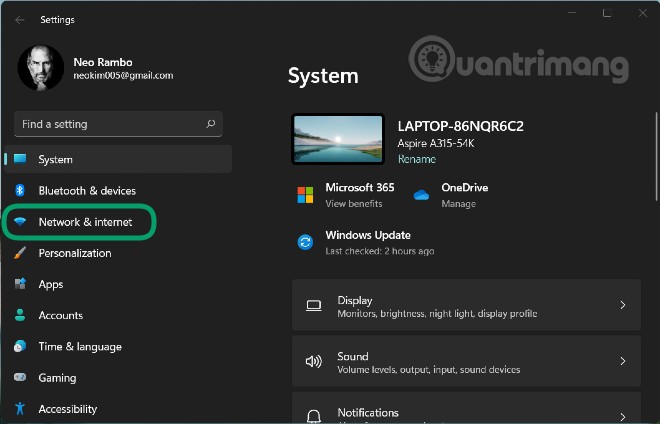
	<li style="text-align: justify;">Truy cập Settings bằng cách nhấn&nbsp;<strong>Windows + I</strong>&nbsp;hoặc nhấn&nbsp;<strong>Start</strong>&nbsp;sau đó nhấn&nbsp;<strong>Settings</strong></li>
</ul>

<p style="text-align: justify;"><strong><img alt="" data-i="1" data-src="https://st.quantrimang.com/photos/image/2021/06/30/bat-dns-over-https-windows-11.jpg" data-was-processed="true" height="424" src="https://st.quantrimang.com/photos/image/2021/06/30/bat-dns-over-https-windows-11.jpg" width="660" /></strong></p>

<ul>
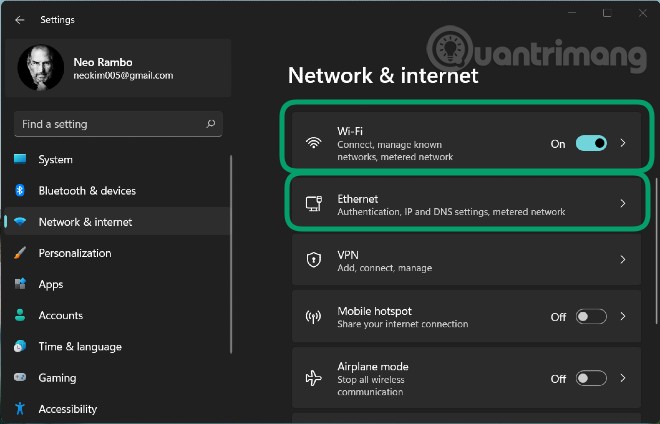
	<li style="text-align: justify;">Bạn tìm đến cài đặt&nbsp;<strong>Network &amp; Internet</strong></li>
</ul>

<div style="text-align: justify;">&nbsp;</div>

<p style="text-align: justify;"><strong><img alt="" data-i="2" data-src="https://st.quantrimang.com/photos/image/2021/06/30/bat-dns-over-https-windows-11-1.jpg" data-was-processed="true" height="424" src="https://st.quantrimang.com/photos/image/2021/06/30/bat-dns-over-https-windows-11-1.jpg" width="660" /></strong></p>

<ul>
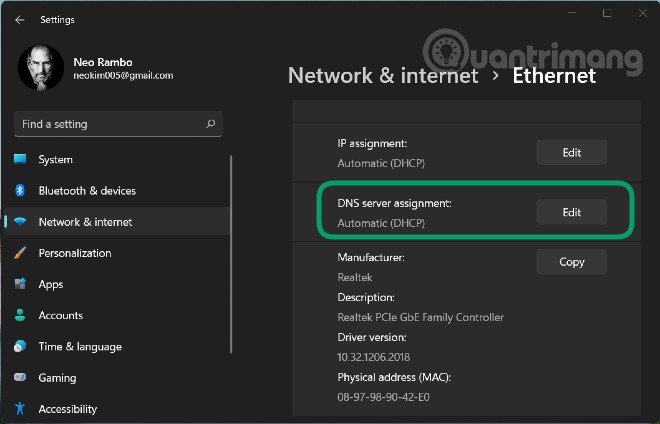
	<li style="text-align: justify;">Tại đây, bạn nhấn vào&nbsp;<strong>WiFi</strong>&nbsp;hoặc&nbsp;<strong>Ethernet</strong>&nbsp;tùy theo nhu cầu sau đó chọn&nbsp;<strong>Edit</strong>&nbsp;ở phần&nbsp;<strong>DNS sever assignment</strong>. Với mạng WiFi có thể bạn sẽ tìm thấy&nbsp;<strong>DNS sever assignment</strong>&nbsp;trong phần&nbsp;<strong>Hardware properties</strong></li>
</ul>

<p style="text-align: justify;"><strong><img alt="" data-i="3" data-src="https://st.quantrimang.com/photos/image/2021/06/30/bat-dns-over-https-windows-11-2.jpg" data-was-processed="true" height="424" src="https://st.quantrimang.com/photos/image/2021/06/30/bat-dns-over-https-windows-11-2.jpg" width="660" /></strong></p>

<ul>
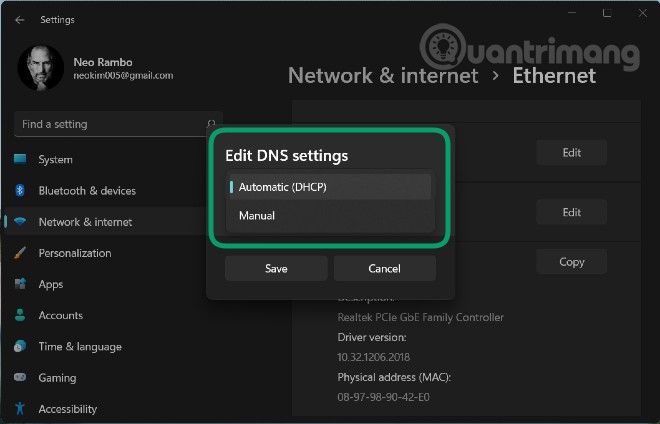
	<li style="text-align: justify;">Trên cửa sổ mới, bạn nhấn vào menu thả xuống bên dưới&nbsp;<strong>Edit DNS settings</strong>&nbsp;rồi chọn&nbsp;<strong>Manual</strong></li>
</ul>

<div style="text-align: justify;">&nbsp;</div>

<p style="text-align: justify;"><strong><img alt="" data-i="4" data-src="https://st.quantrimang.com/photos/image/2021/06/30/bat-dns-over-https-windows-11-3.jpg" data-was-processed="true" height="424" src="https://st.quantrimang.com/photos/image/2021/06/30/bat-dns-over-https-windows-11-3.jpg" width="660" /></strong></p>

<ul>
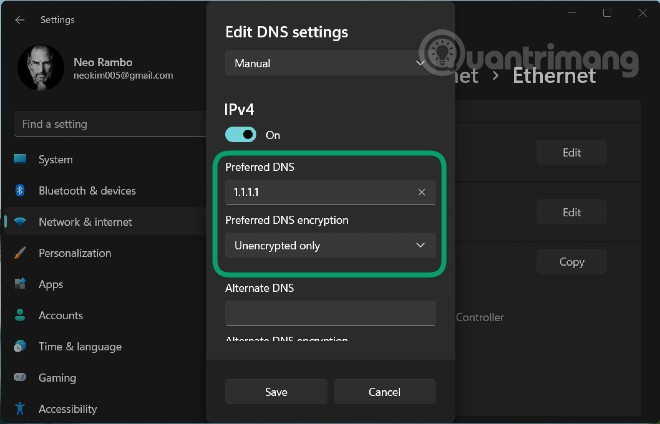
	<li style="text-align: justify;">Bạn gạt nút ở&nbsp;<strong>IPv4</strong>&nbsp;từ&nbsp;<strong>Off</strong>&nbsp;sang&nbsp;<strong>On</strong>&nbsp;sau đó điền một DNS mà bạn thích vào ô&nbsp;<strong>Preferred DNS&nbsp;</strong>(ví dụ 1.1.1.1)</li>
</ul>

<p style="text-align: justify;"><img alt="" data-i="5" data-src="https://st.quantrimang.com/photos/image/2021/06/30/bat-dns-over-https-windows-11-4.jpg" data-was-processed="true" height="424" src="https://st.quantrimang.com/photos/image/2021/06/30/bat-dns-over-https-windows-11-4.jpg" width="660" /></p>

<ul>
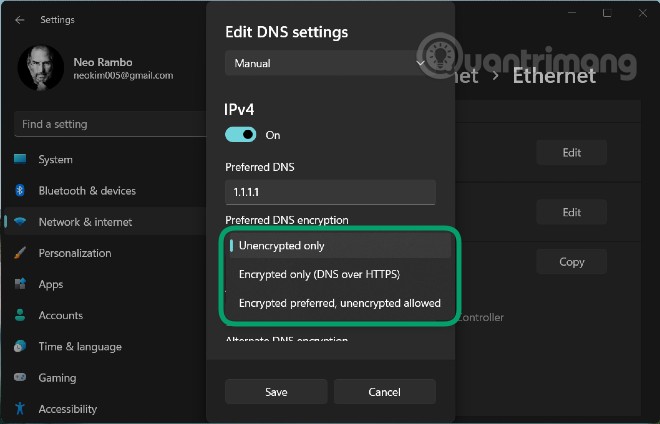
	<li style="text-align: justify;">Sau khi bạn điền xong, ô&nbsp;<strong>Preferred DNS encryption</strong>&nbsp;bên dưới sẽ được kích hoạt để bạn chọn phương thức mã hóa mà bạn muốn. Chúng bao gồm:

	<ul>
		<li><strong>Unencrypted only</strong>&nbsp;- Sử dụng DNS không mã hóa tiêu chuẩn</li>
		<li><strong>Encrypted only (DNS over HTTPS)</strong>&nbsp;- Chỉ sử dụng các máy chủ DoH</li>
		<li><strong>Encrypted preferred, unencrypted allowed</strong>&nbsp;- Cố gắng sử dụng máy chủ DoH nhưng nếu không có sẽ quay lại sử dụng mã hóa DNS không bảo mật tiêu chuẩn</li>
	</ul>
	</li>
</ul>

<p style="text-align: justify;"><img alt="" data-i="6" data-src="https://st.quantrimang.com/photos/image/2021/06/30/bat-dns-over-https-windows-11-5.jpg" data-was-processed="true" height="424" src="https://st.quantrimang.com/photos/image/2021/06/30/bat-dns-over-https-windows-11-5.jpg" width="660" /></p>

<div style="text-align: justify;">&nbsp;</div>

<ul>
	<li style="text-align: justify;">Bạn chọn cho mình một phương thức bảo mật DNS sau đó nhấn&nbsp;<strong>Save</strong></li>
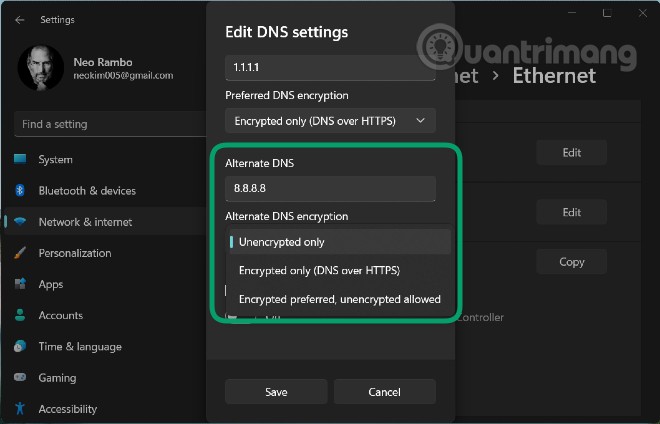
	<li style="text-align: justify;">Ngoài ra, bạn còn có thể điền thêm một DNS dự phòng vào phần&nbsp;<strong>Alternate DNS encryption</strong>. Đương nhiên là bạn cũng có thể chọn phương thức bảo mật cho DNS dự phòng.</li>
</ul>

<p style="text-align: justify;"><img alt="" data-i="7" data-src="https://st.quantrimang.com/photos/image/2021/06/30/bat-dns-over-https-windows-11-6.jpg" data-was-processed="true" height="424" src="https://st.quantrimang.com/photos/image/2021/06/30/bat-dns-over-https-windows-11-6.jpg" width="660" /></p>

<h2 style="text-align: justify;">Các máy chủ DNS có hỗ trợ DoH trên Windows 11</h2>

<p style="text-align: justify;">Tại thời điểm này, Microsoft cho biết các máy chủ DNS sau có hỗ trợ DoH và có thể được sử dụng tự động bởi tính năng DNS over HTTPS của Windows 11:</p>

<ul>
	<li style="text-align: justify;">Cloudflare: 1.1.1.1 và 1.0.0.1</li>
	<li style="text-align: justify;">Google: 8.8.8.8 và 8.8.8.4</li>
	<li style="text-align: justify;">Quad9: 9.9.9.9 và 149.112.112.112</li>
</ul>

<h2 style="text-align: justify;">Cách kiểm tra xem DNS over HTTPS đã được cấu hình trên Windows 11 hay chưa</h2>

<p style="text-align: justify;">Để kiểm tra xem DNS over HTTPS đã được cấu hình trên Windows 11 của mình hay chưa bạn có thể dùng các câu lệnh sau:</p>

<p style="text-align: justify;">Với netsh:</p>

<pre id="pre0">
<code>netsh dns show encryption</code></pre>

<p style="text-align: justify;">Với PowerShell:</p>

<pre id="pre1">
<code>Get-DnsClientDohServerAddress</code></pre>

<p style="text-align: justify;">Microsoft cũng cho phép quản trị viên tạo ra máy chủ DoH của riêng họ bằng các câu lệnh sau:</p>

<p style="text-align: justify;">Với netsh:</p>

<pre id="pre2">
<code>netsh dns add encryption server=&#91;resolver-IP-address&#93; dohtemplate=&#91;resolver-DoH-template&#93; autoupgrade=yes udpfallback=no</code></pre>

<p style="text-align: justify;">Với PowerShell:</p>

<pre id="pre3">
<code>Add-DnsClientDohServerAddress -ServerAddress &#039;&#91;resolver-IP-address&#93;&#039; -DohTemplate &#039;&#91;resolver-DoH-template&#93;&#039; -AllowFallbackToUdp $False -AutoUpgrade $True</code></pre>

<h2 style="text-align: justify;">Quản lý DoH qua Group policies</h2>

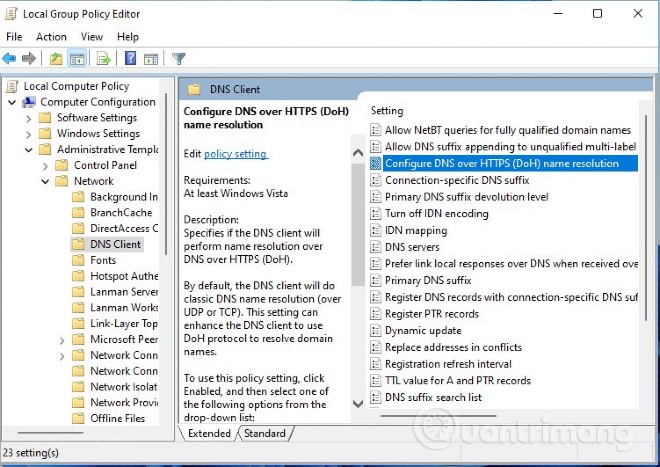
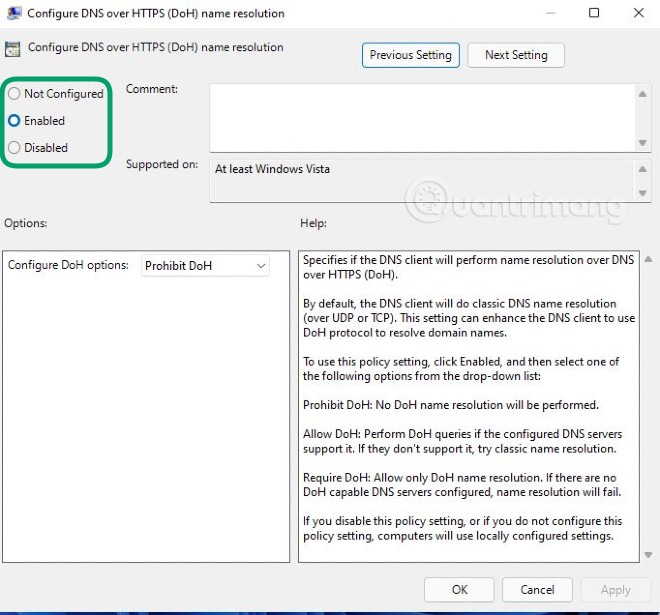
<p style="text-align: justify;">Microsoft cũng bổ sung khả năng quản lý các thiết lập DNS over HTTPS của Windows 11 qua Group policies. Microsoft đã thêm vào một chính sách mang tên &quot;Configure DNS over HTTPS (DoH) name resolution&quot; bên trong Computer Configuration &gt; Administrative Templates &gt; Network &gt; DNS Client.</p>

<ul>
	<li style="text-align: justify;">Đầu tiên bạn mở Group policies bằng cách nhấn Start rồi gõ&nbsp;<strong>gpedit.msc</strong>&nbsp;sau đó nhấn&nbsp;<strong>Enter.</strong>&nbsp;Lưu ý, Group policies không hỗ trợ phiên bản Windows 11 Home</li>
	<li style="text-align: justify;">Sau đó bạn truy cập&nbsp;<strong>Computer Configuration &gt; Administrative Templates &gt; Network &gt; DNS Client</strong></li>
</ul>

<p style="text-align: justify;"><strong><img alt="" data-i="8" data-src="https://st.quantrimang.com/photos/image/2021/06/30/bat-dns-over-https-windows-11-7.jpg" data-was-processed="true" height="467" src="https://st.quantrimang.com/photos/image/2021/06/30/bat-dns-over-https-windows-11-7.jpg" width="660" /></strong></p>

<div style="text-align: justify;">&nbsp;</div>

<ul>
	<li style="text-align: justify;">Tìm&nbsp;<strong>Configure DNS over HTTPS (DoH) name resolution</strong>&nbsp;ở ô bên phải rồi nhấn đúp vào nó</li>
	<li style="text-align: justify;">Tại đây, bạn có thể bật/tắt hoặc cấu hình cho DoH</li>
</ul>

<p style="text-align: justify;"><img alt="" data-i="9" data-src="https://st.quantrimang.com/photos/image/2021/06/30/Capturebat-dns-over-https-windows-11.jpg" data-was-processed="true" height="615" src="https://st.quantrimang.com/photos/image/2021/06/30/Capturebat-dns-over-https-windows-11.jpg" width="660" /></p>

<p style="text-align: justify;">Chúc các bạn thành công!</p>
		</div>
				<div id="author">
						<p>
				<strong>Nguồn tin:</strong>
				Quantrimang.com
			</p>
		</div>
	</div>
	<div id="footer" class="clearfix">
		<div id="url">
			<strong>URL của bản tin này: </strong><a href="https://www.nguoicodonvn2008.info/vi/news/savefile/kien-thuc-may-tinh/cach-bat-dns-over-https-cho-tat-ca-ung-dung-trong-windows-11-4344.html" title="Cách bật DNS over HTTPS cho tất cả ứng dụng trong Windows 11">https://www.nguoicodonvn2008.info/vi/news/savefile/kien-thuc-may-tinh/cach-bat-dns-over-https-cho-tat-ca-ung-dung-trong-windows-11-4344.html</a>

		</div>
		<div class="clear"></div>
		<div class="copyright">
			&copy; .&#x3A; Nguoicodonvn2008.info - Cõi lòng người cô đơn &#x3A;.
		</div>
		<div id="contact">
			<a href="mailto:admin@nguoicodonvn2008.info">admin@nguoicodonvn2008.info</a>
		</div>
	</div>
</div>
        <div id="timeoutsess" class="chromeframe">
            Bạn đã không sử dụng Site, <a onclick="timeoutsesscancel();" href="https://www.nguoicodonvn2008.info/#">Bấm vào đây để duy trì trạng thái đăng nhập</a>. Thời gian chờ: <span id="secField"> 60 </span> giây
        </div>
        <div id="openidResult" class="nv-alert" style="display:none"></div>
        <div id="openidBt" data-result="" data-redirect=""></div>
		</script>
		<div class="car-top">
  <span><img src="https://www.nguoicodonvn2008.info/themes/default/images/car.png" alt=""></span>
</div>
<script src="https://www.nguoicodonvn2008.info/assets/js/jquery/jquery.min.js"></script>
<script>var nv_base_siteurl="/",nv_lang_data="vi",nv_lang_interface="vi",nv_name_variable="nv",nv_fc_variable="op",nv_lang_variable="language",nv_module_name="news",nv_func_name="savefile",nv_is_user=0, nv_my_ofs=-4,nv_my_abbr="EDT",nv_cookie_prefix="nv4c_e856T",nv_check_pass_mstime=1738000,nv_area_admin=0,nv_safemode=0,theme_responsive=0,nv_recaptcha_ver=2,nv_recaptcha_sitekey="",nv_recaptcha_type="image",XSSsanitize=1;</script>
<script src="https://www.nguoicodonvn2008.info/assets/js/language/vi.js"></script>
<script src="https://www.nguoicodonvn2008.info/assets/js/DOMPurify/purify3.js"></script>
<script src="https://www.nguoicodonvn2008.info/assets/js/global.js"></script>
<script src="https://www.nguoicodonvn2008.info/assets/js/site.js"></script>
<script src="https://www.nguoicodonvn2008.info/themes/default/js/news.js"></script>
<script src="https://www.nguoicodonvn2008.info/themes/default/js/main.js"></script>
<script src="https://www.nguoicodonvn2008.info/themes/default/js/custom.js"></script>
<script type="application/ld+json">
        {
            "@context": "https://schema.org",
            "@type": "Organization",
            "url": "https://www.nguoicodonvn2008.info",
            "logo": "https://www.nguoicodonvn2008.info/uploads/angel.gif"
        }
        </script>
<script src="https://www.nguoicodonvn2008.info/themes/default/js/bootstrap.min.js"></script>
<script type="text/javascript">
var $scrolltop = $('.car-top');
$scrolltop.on('click', function () {
    $('html,body').animate({
        scrollTop: 0
    }, 800);
    $(this).addClass("car-run");
    setTimeout(function(){ $scrolltop.removeClass('car-run');}, 1000);
    return false;
});
$(window).on('scroll', function ()
{ 
    if($(window).scrollTop() >= 200)
    {
        $scrolltop.addClass("show");
        $scrolltop.addClass("car-down");
    }
    else
    {
       $scrolltop.removeClass("show");
       setTimeout(function(){ $scrolltop.removeClass('car-down');}, 300);
    }
});
</script>
</body>
</html>