<!DOCTYPE html>
    <html lang="vi" xmlns="http://www.w3.org/1999/xhtml" prefix="og: http://ogp.me/ns#">
    <head>
<title>Cách bật Bluetooth trên Mac</title>
<meta name="description" content="Cách bật Bluetooth trên Mac - Savefile - Tin Tức - https&#x3A;&#x002F;&#x002F;www.nguoicodonvn2008.info&#x002F;vi&#x002F;news&#x002F;savefile&#x002F;kien-thuc-may-tinh&#x002F;cach-bat-bluetooth-tren-mac-814.html">
<meta name="author" content=".: Nguoicodonvn2008.info - Cõi lòng người cô đơn :.">
<meta name="copyright" content=".: Nguoicodonvn2008.info - Cõi lòng người cô đơn :. [admin@nguoicodonvn2008.info]">
<meta name="robots" content="index, archive, follow, noodp">
<meta name="googlebot" content="index,archive,follow,noodp">
<meta name="msnbot" content="all,index,follow">
<meta name="generator" content="NukeViet v4.5">
<meta http-equiv="Content-Type" content="text/html; charset=utf-8">
<meta property="og:title" content="Cách bật Bluetooth trên Mac">
<meta property="og:type" content="website">
<meta property="og:description" content="Savefile - Tin Tức - https&#x3A;&#x002F;&#x002F;www.nguoicodonvn2008.info&#x002F;vi&#x002F;news&#x002F;savefile&#x002F;kien-thuc-may-tinh&#x002F;cach-bat-bluetooth-tren-mac-814.html">
<meta property="og:site_name" content=".&#x3A; Nguoicodonvn2008.info - Cõi lòng người cô đơn &#x3A;.">
<meta property="og:url" content="https://www.nguoicodonvn2008.info/vi/news/savefile/kien-thuc-may-tinh/cach-bat-bluetooth-tren-mac-814.html">
<link rel="shortcut icon" href="https://www.nguoicodonvn2008.info/favicon.ico">
<link rel="canonical" href="https://www.nguoicodonvn2008.info/vi/news/savefile/kien-thuc-may-tinh/cach-bat-bluetooth-tren-mac-814.html">
<link rel="alternate" href="https://www.nguoicodonvn2008.info/vi/news/rss/" title="Tin Tức" type="application/rss+xml">
<link rel="alternate" href="https://www.nguoicodonvn2008.info/vi/news/rss/karaoke-dual/" title="Tin Tức - Karaoke Dual" type="application/rss+xml">
<link rel="alternate" href="https://www.nguoicodonvn2008.info/vi/news/rss/nhac-tre/" title="Tin Tức - Nhạc trẻ" type="application/rss+xml">
<link rel="alternate" href="https://www.nguoicodonvn2008.info/vi/news/rss/tru-tinh/" title="Tin Tức - Trữ tình" type="application/rss+xml">
<link rel="alternate" href="https://www.nguoicodonvn2008.info/vi/news/rss/nuoc-ngoai/" title="Tin Tức - Nước ngoài" type="application/rss+xml">
<link rel="alternate" href="https://www.nguoicodonvn2008.info/vi/news/rss/remix/" title="Tin Tức - Remix" type="application/rss+xml">
<link rel="alternate" href="https://www.nguoicodonvn2008.info/vi/news/rss/tam-su-tinh-yeu/" title="Tin Tức - Tâm sự tình yêu" type="application/rss+xml">
<link rel="alternate" href="https://www.nguoicodonvn2008.info/vi/news/rss/tho-suu-tam/" title="Tin Tức - Thơ sưu tầm" type="application/rss+xml">
<link rel="alternate" href="https://www.nguoicodonvn2008.info/vi/news/rss/cuoc-song/" title="Tin Tức - Cuộc sống" type="application/rss+xml">
<link rel="alternate" href="https://www.nguoicodonvn2008.info/vi/news/rss/phan-mem/" title="Tin Tức - Phần mềm" type="application/rss+xml">
<link rel="alternate" href="https://www.nguoicodonvn2008.info/vi/news/rss/kien-thuc-may-tinh/" title="Tin Tức - Kiến thức máy tính" type="application/rss+xml">
<link rel="alternate" href="https://www.nguoicodonvn2008.info/vi/news/rss/hoc-tap/" title="Tin Tức - Học tập" type="application/rss+xml">
<link rel="alternate" href="https://www.nguoicodonvn2008.info/vi/news/rss/tai-lieu/" title="Tin Tức - Tài liệu" type="application/rss+xml">
<link rel="alternate" href="https://www.nguoicodonvn2008.info/vi/news/rss/de-thi/" title="Tin Tức - Đề thi" type="application/rss+xml">
<link rel="preload" as="style" href="https://www.nguoicodonvn2008.info/assets/css/font-awesome.min.css" type="text/css">
<link rel="preload" as="style" href="https://www.nguoicodonvn2008.info/themes/default/css/bootstrap.non-responsive.css" type="text/css">
<link rel="preload" as="style" href="https://www.nguoicodonvn2008.info/themes/default/css/style.css" type="text/css">
<link rel="preload" as="style" href="https://www.nguoicodonvn2008.info/themes/default/css/style.non-responsive.css" type="text/css">
<link rel="preload" as="style" href="https://www.nguoicodonvn2008.info/themes/default/css/news.css" type="text/css">
<link rel="preload" as="style" href="https://www.nguoicodonvn2008.info/themes/default/css/custom.css" type="text/css">
<link rel="preload" as="script" href="https://www.nguoicodonvn2008.info/assets/js/jquery/jquery.min.js" type="text/javascript">
<link rel="preload" as="script" href="https://www.nguoicodonvn2008.info/assets/js/language/vi.js" type="text/javascript">
<link rel="preload" as="script" href="https://www.nguoicodonvn2008.info/assets/js/DOMPurify/purify3.js" type="text/javascript">
<link rel="preload" as="script" href="https://www.nguoicodonvn2008.info/assets/js/global.js" type="text/javascript">
<link rel="preload" as="script" href="https://www.nguoicodonvn2008.info/assets/js/site.js" type="text/javascript">
<link rel="preload" as="script" href="https://www.nguoicodonvn2008.info/themes/default/js/news.js" type="text/javascript">
<link rel="preload" as="script" href="https://www.nguoicodonvn2008.info/themes/default/js/main.js" type="text/javascript">
<link rel="preload" as="script" href="https://www.nguoicodonvn2008.info/themes/default/js/custom.js" type="text/javascript">
<link rel="preload" as="script" href="https://www.nguoicodonvn2008.info/themes/default/js/bootstrap.min.js" type="text/javascript">
<link rel="stylesheet" href="https://www.nguoicodonvn2008.info/assets/css/font-awesome.min.css">
<link rel="stylesheet" href="https://www.nguoicodonvn2008.info/themes/default/css/bootstrap.non-responsive.css">
<link rel="stylesheet" href="https://www.nguoicodonvn2008.info/themes/default/css/style.css">
<link rel="stylesheet" href="https://www.nguoicodonvn2008.info/themes/default/css/style.non-responsive.css">
<link rel="StyleSheet" href="https://www.nguoicodonvn2008.info/themes/default/css/news.css">
<link rel="stylesheet" href="https://www.nguoicodonvn2008.info/themes/default/css/custom.css">
<style type="text/css">
	body{background: #fff;}
</style>
    </head>
    <body>
<div id="print">
	<div id="hd_print">
		<h2 class="pull-left">.&#x3A; Nguoicodonvn2008.info - Cõi lòng người cô đơn &#x3A;.</h2>
		<p class="pull-right"><a title=".&#x3A; Nguoicodonvn2008.info - Cõi lòng người cô đơn &#x3A;." href="https://www.nguoicodonvn2008.info/">https://www.nguoicodonvn2008.info</a></p>
	</div>
	<div class="clear"></div>
	<hr />
	<div id="content">
		<h1>Cách bật Bluetooth trên Mac</h1>
		<ul class="list-inline">
			<li>Thứ sáu - 23/08/2019 01:55</li>
			<li class="hidden-print txtrequired"><em class="fa fa-print">&nbsp;</em><a title="In ra" href="javascript:;" onclick="window.print()">In ra</a></li>
			<li class="hidden-print txtrequired"><em class="fa fa-power-off">&nbsp;</em><a title="Đóng cửa sổ này" href="javascript:;" onclick="window.close()">Đóng cửa sổ này</a></li>
		</ul>
		<div class="clear"></div>
		<div id="hometext">
		</div>
				<div class="imghome">
			<img alt="Cách bật Bluetooth trên Mac" src="https://st.quantrimang.com/photos/image/2019/08/23/bat-bluetooth-tren-mac-7.png" width="460" class="img-thumbnail" />
		</div>
		<div class="clear"></div>
		<div id="bodytext" class="clearfix">
			<p style="text-align: justify;">Ngày này, hầu hết mọi người đều có ít nhất một thiết bị&nbsp;Bluetooth. Chuẩn giao tiếp tầm ngắn tiện dụng này cho phép kết nối tất cả các loại thiết bị có khả năng này với nhau.&nbsp;Bài viết này sẽ hướng dẫn các bạn cách bật Bluetooth trên Mac.</p>

<div style="text-align: justify;">&nbsp;</div>

<h2 style="text-align: justify;">Cách kiểm tra Mac hỗ trợ Bluetooth</h2>

<p style="text-align: justify;">Tất cả các máy tính Mac hiện đại đều có hỗ trợ Bluetooth tích hợp. Bạn không cần mua bất cứ gì để sử dụng Bluetooth trên MacBook Pro, MacBook Air hoặc iMac.</p>

<p style="text-align: justify;">Chỉ cần thực hiện theo các bước dưới đây để kích hoạt Bluetooth trên Mac. Nếu không thấy các tùy chọn Bluetooth liên quan trong System Preferences, có thể bạn đang sử dụng máy Mac cũ không có Bluetooth.</p>

<p style="text-align: justify;">Trong trường hợp này, bạn cần mua adapter để hỗ trợ Bluetooth cho máy tính. Tuy nhiên, hầu hết adapter này được thiết kế cho Windows, do đó cần đảm bảo mua đúng loại tương thích với macOS.</p>

<h2 style="text-align: justify;">Cách bật Bluetooth trên máy Mac</h2>

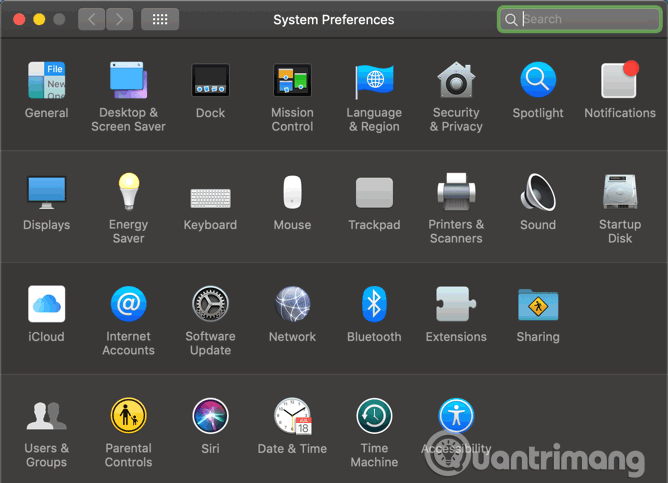
<p style="text-align: justify;">Sử dụng Bluetooth trên Mac rất dễ dàng. Để bật nó, mở menu Apple ở góc trên bên trái màn hình và chọn&nbsp;<strong>System Preferences</strong>. Trong cửa sổ kết quả, chọn&nbsp;<strong>Bluetooth</strong>.</p>

<p style="text-align: justify;"><img alt="Chọn Bluetooth" data-i="0" data-src="https://st.quantrimang.com/photos/image/2019/08/23/bat-bluetooth-tren-mac-1.png" data-was-processed="true" height="463" src="https://st.quantrimang.com/photos/image/2019/08/23/bat-bluetooth-tren-mac-1.png" width="640" /></p>

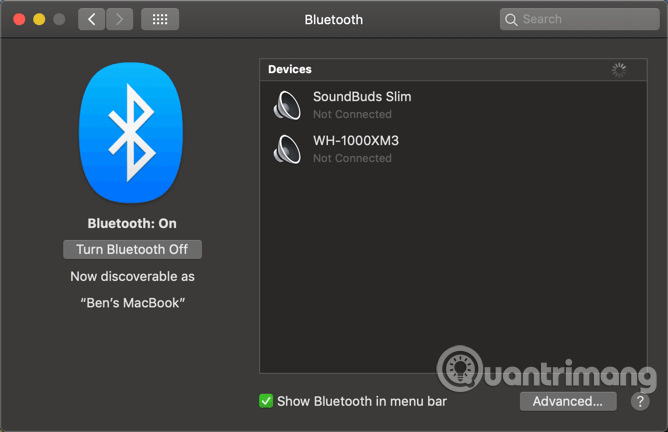
<p style="text-align: justify;">Ở bên trái bảng điều khiển Bluetooth, bạn sẽ thấy icon Bluetooth với tình trạng bên dưới. Nếu thấy&nbsp;<strong>Bluetooth: Off</strong>, click vào nút&nbsp;<strong>Turn Bluetooth On</strong>&nbsp;để kích hoạt nó.</p>

<p style="text-align: justify;">Bạn cũng nên tích vào hộp&nbsp;<strong>Show Bluetooth in menu bar</strong>&nbsp;để icon Bluetooth xuất hiện ở trên đầu màn hình, giúp truy cập dễ dàng kết nối Bluetooth mà không cần phải vào đây mỗi lần.</p>

<p style="text-align: justify;"><img alt="Click vào nút Turn Bluetooth On" data-i="1" data-src="https://st.quantrimang.com/photos/image/2019/08/23/bat-bluetooth-tren-mac-2.png" data-was-processed="true" height="414" src="https://st.quantrimang.com/photos/image/2019/08/23/bat-bluetooth-tren-mac-2.png" width="640" /></p>

<h2 style="text-align: justify;">Cách kết nối thiết bị Bluetooth với máy Mac</h2>

<p style="text-align: justify;">Bây giờ Bluetooth đã được bật và sẵn sàng kết nối với thiết bị khác.</p>

<p style="text-align: justify;">Trước khi sử dụng thiết bị Bluetooth với Mac lần đầu, bạn cần ghép nối nó. Nếu đã sử dụng Bluetooth trên các thiết bị khác trước đây, hẳn bạn sẽ không còn xa lại với khái niệm&nbsp;<strong>discoverability</strong>. Vì thông thường nhiều thiết bị Bluetooth xuất hiện trong cùng một khu vực, do đó cần phải ghép nối thiết bị thủ công để đảm bảo an toàn. Và chỉ thực hiện khi thiết bị được phát hiện (còn được gọi là chế độ ghép nối).</p>

<h3 style="text-align: justify;">Ghép nối thiết bị mới</h3>

<p style="text-align: justify;">Hướng dẫn cụ thể cho quá trình này phụ thuộc vào thiết bị muốn ghép nối.</p>

<p style="text-align: justify;">Giống như macOS, hầu hết các hệ điều hành khác (bao gồm Windows 10, Android và iOS) tự thiết lập là có thể được phát hiện khi mở tùy chọn Bluetooth. Đối với các thiết bị như bàn phím, chuột, mic và&nbsp;tai nghe Bluetooth, v.v… phương pháp chính xác để truy cập vào chế độ ghép nối phụ thuộc vào thiết bị. Bạn nên kiểm tra hướng dẫn sử dụng để biết thông tin chi tiết.</p>

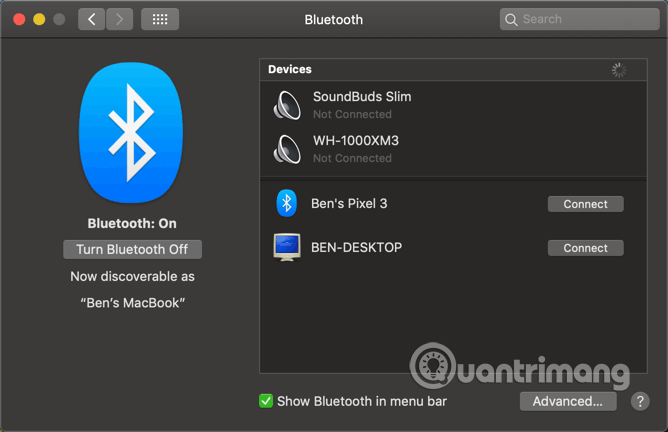
<p style="text-align: justify;">Khi các thiết bị khác ở chế độ ghép nối, bạn sẽ thấy tên của thiết bị xuất hiện trong&nbsp;<strong>Devices</strong>&nbsp;trong cài đặt Bluetooth của Mac. Click vào&nbsp;<strong>Connect</strong>&nbsp;cạnh thiết bị muốn thêm.</p>

<p style="text-align: justify;"><img alt="Click vào Connect" data-i="2" data-src="https://st.quantrimang.com/photos/image/2019/08/23/bat-bluetooth-tren-mac-3.png" data-was-processed="true" height="414" src="https://st.quantrimang.com/photos/image/2019/08/23/bat-bluetooth-tren-mac-3.png" width="640" /></p>

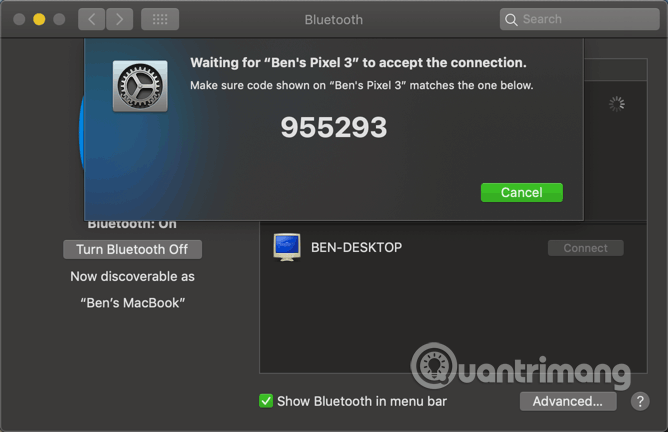
<p style="text-align: justify;">Đối với nhiều thiết bị Bluetooth, bạn cần xác nhận mã PIN được cấp phù hợp trên cả hai thiết bị. Đảm bảo mã PIN đúng đặc biệt khi đang ở khu vực nhiều thiết bị. Nếu nhập PIN thủ công (thường trên các thiết bị cũ), nó có thể là 0000, 1111 hoặc 1234.</p>

<p style="text-align: justify;"><img alt="Nhập mã PIN" data-i="3" data-src="https://st.quantrimang.com/photos/image/2019/08/23/bat-bluetooth-tren-mac-4.png" data-was-processed="true" height="414" src="https://st.quantrimang.com/photos/image/2019/08/23/bat-bluetooth-tren-mac-4.png" width="640" /></p>

<p style="text-align: justify;">Vậy là bạn đã kết nối thành công máy Mac và thiết bị khác qua Bluetooth. Khi cả hai thiết bị này được bật và trong phạm vi của nhau (khoảng hơn 9m) chúng sẽ tự động kết nối.</p>

<p style="text-align: justify;">Trong trường hợp, thiết bị không tự động kết nối, bạn có thể thực hiện thủ công. Trong bảng điều khiển cài đặt Bluetooth (cũng như icon trên thanh menu), bạn sẽ thấy các thiết bị đã được ghép nối trước đó hiển thị trong&nbsp;<strong>Devices</strong>. Đảm bảo thiết bị đã được bật, sau đó click đúp vào tên của nó để kết nối. Nếu không hoạt động, ngắt kết nối với máy tính đã được ghép nối đầu tiên.</p>

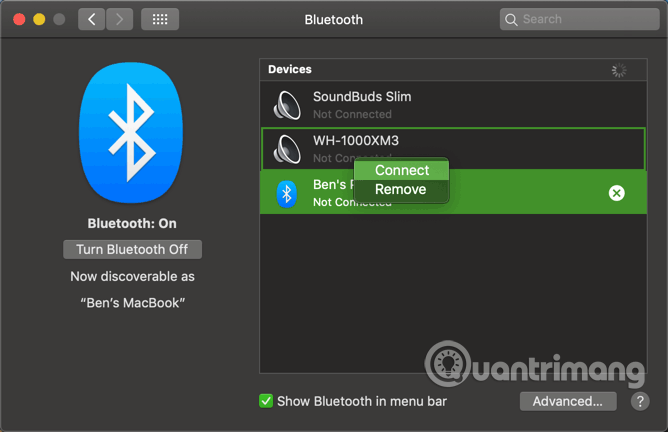
<p style="text-align: justify;"><img alt="Chọn Remove" data-i="4" data-src="https://st.quantrimang.com/photos/image/2019/08/23/bat-bluetooth-tren-mac-5.png" data-was-processed="true" height="432" src="https://st.quantrimang.com/photos/image/2019/08/23/bat-bluetooth-tren-mac-5.png" width="668" /></p>

<p style="text-align: justify;">Để xóa thiết bị, click chuột phải vào nó trong danh sách thiết bị và chọn&nbsp;<strong>Remove</strong>&nbsp;để thiết bị không còn được kết nối tự động và bạn phải ghép nối lại nếu muốn sử dụng sau đó.</p>

<div style="text-align: justify;">&nbsp;</div>

<h2 style="text-align: justify;">Tìm hiểu icon Bluetooth trên máy Mac</h2>

<p style="text-align: justify;"><img alt="Icon Bluetooth trên Mac" data-i="5" data-src="https://st.quantrimang.com/photos/image/2019/08/23/bat-bluetooth-tren-mac-6.png" data-was-processed="true" height="408" src="https://st.quantrimang.com/photos/image/2019/08/23/bat-bluetooth-tren-mac-6.png" width="640" /></p>

<p style="text-align: justify;">Nếu đã bật icon Bluetooth trên thanh menu như đã đề cập trước đó, bạn sẽ thấy logo Bluetooth ở đó. Click vào nó để nhanh chóng bật/tắt Bluetooth, kết nối thiết bị hoặc mở bảng tùy chọn đầy đủ.</p>

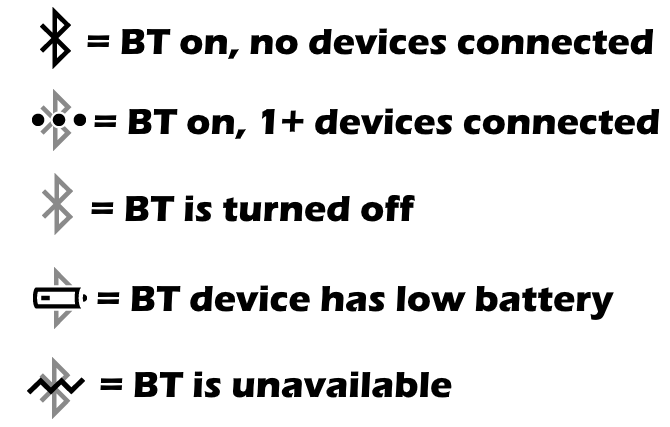
<p style="text-align: justify;">Icon Bluetooth cũng thay đổi để hiển thị thông tin:</p>

<ul>
	<li style="text-align: justify;">Icon Bluetooth đậm chỉ Bluetooth đã được bật, nhưng không có thiết bị nào kết nối với Mac.</li>
	<li style="text-align: justify;">Icon với ba chấm ngang trên đó cho biết Bluetooth đã bật và có một hoặc nhiều thiết bị kết nối với Mac.</li>
	<li style="text-align: justify;">Icon màu xám nghĩa là Bluetoot đã tắt.</li>
	<li style="text-align: justify;">Nếu thấy icon với biểu tượng pin yếu, nghĩa là có ít nhất một thiết bị kết nối sắp hết pin.</li>
	<li style="text-align: justify;">Cuối cùng, icon với đường zigzag trên đó chỉ Bluetooth không khả dụng. Hãy khởi động lại mac để sửa lỗi này. Nếu không được, tháo hết các thiết bị USB và khởi động lại một lần nữa.</li>
</ul>

<h2 style="text-align: justify;">Bật Bluetooth mà không cần chuột hoặc bàn phím</h2>

<p style="text-align: justify;">Nhiều người sử dụng chuột và/hoặc&nbsp;bàn phím Bluetooth&nbsp;trên máy tính để bàn Mac. Tuy nhiên, nếu đột nhiên Bluetooth bị tắt có thể gây ra vấn đề ở đây, vì bạn cần những thiết bị này để truy cập menu Bluetooth.</p>

<p style="text-align: justify;">May thay, đối với máy Mac không có bàn di chuột, macOS sẽ không tắt Bluetooth trừ khi bạn kết nối với chuột USB. Nhưng trong trường hợp vẫn xảy ra lỗi, bạn có thể bật lại Bluetooth trên Mac với chuột hoặc bàn phím.</p>

<p style="text-align: justify;">MacBook có bàn phím và bàn di chuột tích hợp nhưng trên iMac bạn cần kết nối bàn phím hoặc chuột USB để thực hiện.</p>

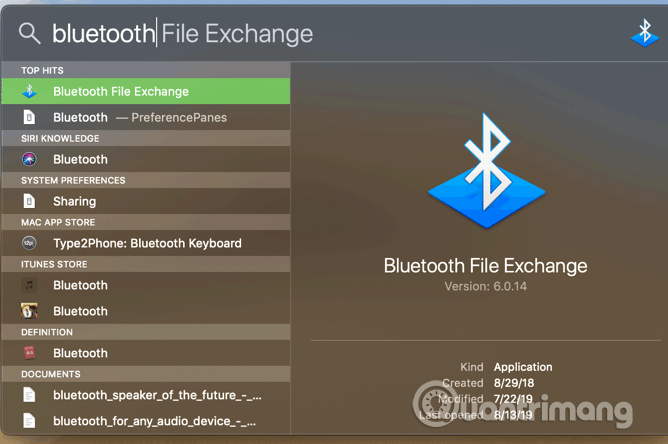
<p style="text-align: justify;">Để bật Bluetooth không cần chuột, nhấn&nbsp;<code>Cmd</code>+<code>Space</code>&nbsp;để mở tìm kiếm Spotlight. Tìm kiếm&nbsp;<strong>Bluetooth File Exchange</strong>&nbsp;và nhấn&nbsp;<strong>Return</strong>&nbsp;để khởi động tiện ích. Sau khi ứng dụng được khởi chạy, nó sẽ hiển thị cửa sổ cho biết Bluetooth đã bị tắt.</p>

<p style="text-align: justify;">Nhấn&nbsp;<strong>Return</strong>&nbsp;một lần nữa để bật Bluetooth. Nếu cần mở bảng điều khiển Bluetooth, mở Spotlight một lần nữa và gõ&nbsp;<strong>Bluetooth</strong>.</p>

<p style="text-align: justify;"><img alt="Tìm kiếm Bluetooth File Exchange" data-i="6" data-src="https://st.quantrimang.com/photos/image/2019/08/23/bat-bluetooth-tren-mac-7.png" data-was-processed="true" height="425" src="https://st.quantrimang.com/photos/image/2019/08/23/bat-bluetooth-tren-mac-7.png" width="640" /></p>

<p style="text-align: justify;">Nếu không có bàn phím, chỉ cần sử dụng chuột để truy cập vào icon Bluetooth trên thanh menu hoặc bảng điều khiển System Preferences.</p>

<p style="text-align: justify;">Nếu không có bất kỳ thiết bị USB nào, hãy thử bỏ tất cả các thiết bị kết nối với máy Mac trừ dây nguồn. Tiếp theo tắt máy sử dụng nút ở phía sau. Đảm bảo các thiết bị Bluetooth được sạc và bật, sau đó khởi động lại Mac. Nó sẽ kích hoạt trình hướng dẫn thiết lập Bluetooth và kết nối với thiết bị.</p>

<h2 style="text-align: justify;">Cài đặt Bluetooth nâng cao cho Mac</h2>

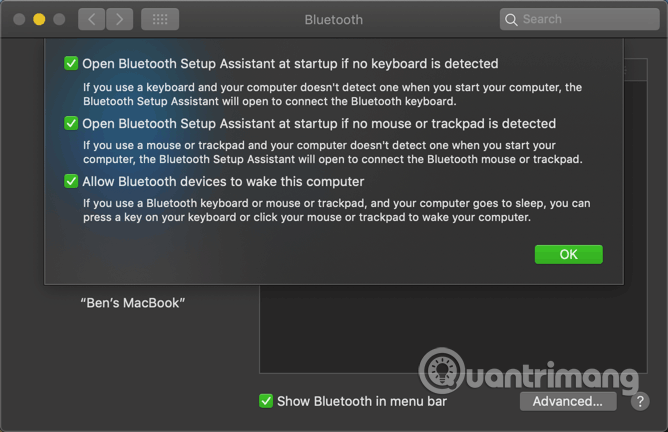
<p style="text-align: justify;">Một vài cài đặt Bluetooth nâng cao có thể giúp ích khi cần. Tìm cài đặt nâng cao trong nút&nbsp;<strong>Advanced</strong>&nbsp;trong bảng điều khiển Bluetooth System Preferences.</p>

<p style="text-align: justify;"><img alt="Cài đặt Bluetooth nâng cao" data-i="7" data-src="https://st.quantrimang.com/photos/image/2019/08/23/bat-bluetooth-tren-mac-8.png" data-was-processed="true" height="414" src="https://st.quantrimang.com/photos/image/2019/08/23/bat-bluetooth-tren-mac-8.png" width="640" /></p>

<p style="text-align: justify;">Hai tùy chọn đầu tiên giúp ghép nối thuận tiện. Như đã đề cập ở trên, Mac tự động mở bảng điều khiển Bluetooth Setup nếu bật máy tính mà không có bàn phím, chuột hoặc trackpad được kết nối để bạn có thể dễ dàng ghép nối thiết bị Bluetooth và kết nối nó.</p>

<p style="text-align: justify;">Bật tùy chọn thứ ba nếu muốn thiết bị Bluetooth đánh thức máy tính. Khi bật nó lên, nhấn một phím trên bàn phím hoặc click vào nút chuột trên thiết bị Bluetooth được kết nối để&nbsp;đánh thức máy tính khỏi chế độ ngủ.</p>

<h2 style="text-align: justify;">Khắc phục sự cố Bluetooth trên máy Mac</h2>

<p style="text-align: justify;">Gặp sự cố Bluetooth trên máy Mac? Một điều bạn cần lưu ý là giới hạn số lượng thiết bị được kết nối với máy tính. Nếu kết nối với nhiều hơn ba hoặc bốn thiết bị cùng một lúc, hiệu suất sẽ giảm và không thể thêm các thiết bị khác. Bạn chỉ nên ghép các thiết bị thường xuyên sử dụng.</p>

<p style="text-align: justify;">Và Bluetooth cũng có giới hạn khoảng cách, thường là khoảng hơn 9m nhưng độ chính xác tùy thuộc vào thiết bị bạn sử dụng. Nhiễu từ do các thiết bị không dây khác hoặc vật cản cũng ảnh hưởng đến khoảng cách.</p>

<p style="text-align: justify;">Nếu thấy icon không khả dụng trong thanh menu hoặc gặp phải vấn đề khác khi sử dụng Bluetooth trên Mac, hệ thống có thể gặp phải vấn đề phần cứng.</p>

<div style="text-align: justify;">&nbsp;</div>

<p style="text-align: justify;">Bây giờ bạn đã biết cách bật Bluetooth trên máy Mac và cách sử dụng nó. Trong hầu hết các trường hợp, sau khi ghép nối một thiết bị, nó sẽ hoạt động mà không vấn đề gì. Sự tiện lợi của việc sử dụng các thiết bị không dây và hỗ trợ gần như phổ quát làm cho Bluetooth trở thành một tiện ích hấp dẫn.</p>

<p style="text-align: justify;">Chúc các bạn thực hiện thành công!</p>
		</div>
				<div id="author">
						<p>
				<strong>Nguồn tin:</strong>
				Quantrimang.com
			</p>
		</div>
	</div>
	<div id="footer" class="clearfix">
		<div id="url">
			<strong>URL của bản tin này: </strong><a href="https://www.nguoicodonvn2008.info/vi/news/savefile/kien-thuc-may-tinh/cach-bat-bluetooth-tren-mac-814.html" title="Cách bật Bluetooth trên Mac">https://www.nguoicodonvn2008.info/vi/news/savefile/kien-thuc-may-tinh/cach-bat-bluetooth-tren-mac-814.html</a>

		</div>
		<div class="clear"></div>
		<div class="copyright">
			&copy; .&#x3A; Nguoicodonvn2008.info - Cõi lòng người cô đơn &#x3A;.
		</div>
		<div id="contact">
			<a href="mailto:admin@nguoicodonvn2008.info">admin@nguoicodonvn2008.info</a>
		</div>
	</div>
</div>
        <div id="timeoutsess" class="chromeframe">
            Bạn đã không sử dụng Site, <a onclick="timeoutsesscancel();" href="https://www.nguoicodonvn2008.info/#">Bấm vào đây để duy trì trạng thái đăng nhập</a>. Thời gian chờ: <span id="secField"> 60 </span> giây
        </div>
        <div id="openidResult" class="nv-alert" style="display:none"></div>
        <div id="openidBt" data-result="" data-redirect=""></div>
		</script>
		<div class="car-top">
  <span><img src="https://www.nguoicodonvn2008.info/themes/default/images/car.png" alt=""></span>
</div>
<script src="https://www.nguoicodonvn2008.info/assets/js/jquery/jquery.min.js"></script>
<script>var nv_base_siteurl="/",nv_lang_data="vi",nv_lang_interface="vi",nv_name_variable="nv",nv_fc_variable="op",nv_lang_variable="language",nv_module_name="news",nv_func_name="savefile",nv_is_user=0, nv_my_ofs=-4,nv_my_abbr="EDT",nv_cookie_prefix="nv4c_e856T",nv_check_pass_mstime=1738000,nv_area_admin=0,nv_safemode=0,theme_responsive=0,nv_recaptcha_ver=2,nv_recaptcha_sitekey="",nv_recaptcha_type="image",XSSsanitize=1;</script>
<script src="https://www.nguoicodonvn2008.info/assets/js/language/vi.js"></script>
<script src="https://www.nguoicodonvn2008.info/assets/js/DOMPurify/purify3.js"></script>
<script src="https://www.nguoicodonvn2008.info/assets/js/global.js"></script>
<script src="https://www.nguoicodonvn2008.info/assets/js/site.js"></script>
<script src="https://www.nguoicodonvn2008.info/themes/default/js/news.js"></script>
<script src="https://www.nguoicodonvn2008.info/themes/default/js/main.js"></script>
<script src="https://www.nguoicodonvn2008.info/themes/default/js/custom.js"></script>
<script type="application/ld+json">
        {
            "@context": "https://schema.org",
            "@type": "Organization",
            "url": "https://www.nguoicodonvn2008.info",
            "logo": "https://www.nguoicodonvn2008.info/uploads/angel.gif"
        }
        </script>
<script src="https://www.nguoicodonvn2008.info/themes/default/js/bootstrap.min.js"></script>
<script type="text/javascript">
var $scrolltop = $('.car-top');
$scrolltop.on('click', function () {
    $('html,body').animate({
        scrollTop: 0
    }, 800);
    $(this).addClass("car-run");
    setTimeout(function(){ $scrolltop.removeClass('car-run');}, 1000);
    return false;
});
$(window).on('scroll', function ()
{ 
    if($(window).scrollTop() >= 200)
    {
        $scrolltop.addClass("show");
        $scrolltop.addClass("car-down");
    }
    else
    {
       $scrolltop.removeClass("show");
       setTimeout(function(){ $scrolltop.removeClass('car-down');}, 300);
    }
});
</script>
</body>
</html>