<!DOCTYPE html>
    <html lang="vi" xmlns="http://www.w3.org/1999/xhtml" prefix="og: http://ogp.me/ns#">
    <head>
<title>Cách ánh xạ lại phím với PowerToys trong Windows 10</title>
<meta name="description" content="Cách ánh xạ lại phím với PowerToys trong Windows 10 - Savefile - Tin Tức -...">
<meta name="author" content=".: Nguoicodonvn2008.info - Cõi lòng người cô đơn :.">
<meta name="copyright" content=".: Nguoicodonvn2008.info - Cõi lòng người cô đơn :. [admin@nguoicodonvn2008.info]">
<meta name="robots" content="index, archive, follow, noodp">
<meta name="googlebot" content="index,archive,follow,noodp">
<meta name="msnbot" content="all,index,follow">
<meta name="generator" content="NukeViet v4.5">
<meta http-equiv="Content-Type" content="text/html; charset=utf-8">
<meta property="og:title" content="Cách ánh xạ lại phím với PowerToys trong Windows 10">
<meta property="og:type" content="website">
<meta property="og:description" content="Savefile - Tin Tức - https&#x3A;&#x002F;&#x002F;www.nguoicodonvn2008.info&#x002F;vi&#x002F;news&#x002F;savefile&#x002F;kien-thuc-may-tinh&#x002F;cach-anh-xa-lai-phim-voi-powertoys-trong-windows-10-2999.html">
<meta property="og:site_name" content=".&#x3A; Nguoicodonvn2008.info - Cõi lòng người cô đơn &#x3A;.">
<meta property="og:url" content="https://www.nguoicodonvn2008.info/vi/news/savefile/kien-thuc-may-tinh/cach-anh-xa-lai-phim-voi-powertoys-trong-windows-10-2999.html">
<link rel="shortcut icon" href="https://www.nguoicodonvn2008.info/favicon.ico">
<link rel="canonical" href="https://www.nguoicodonvn2008.info/vi/news/savefile/kien-thuc-may-tinh/cach-anh-xa-lai-phim-voi-powertoys-trong-windows-10-2999.html">
<link rel="alternate" href="https://www.nguoicodonvn2008.info/vi/news/rss/" title="Tin Tức" type="application/rss+xml">
<link rel="alternate" href="https://www.nguoicodonvn2008.info/vi/news/rss/karaoke-dual/" title="Tin Tức - Karaoke Dual" type="application/rss+xml">
<link rel="alternate" href="https://www.nguoicodonvn2008.info/vi/news/rss/nhac-tre/" title="Tin Tức - Nhạc trẻ" type="application/rss+xml">
<link rel="alternate" href="https://www.nguoicodonvn2008.info/vi/news/rss/tru-tinh/" title="Tin Tức - Trữ tình" type="application/rss+xml">
<link rel="alternate" href="https://www.nguoicodonvn2008.info/vi/news/rss/nuoc-ngoai/" title="Tin Tức - Nước ngoài" type="application/rss+xml">
<link rel="alternate" href="https://www.nguoicodonvn2008.info/vi/news/rss/remix/" title="Tin Tức - Remix" type="application/rss+xml">
<link rel="alternate" href="https://www.nguoicodonvn2008.info/vi/news/rss/tam-su-tinh-yeu/" title="Tin Tức - Tâm sự tình yêu" type="application/rss+xml">
<link rel="alternate" href="https://www.nguoicodonvn2008.info/vi/news/rss/tho-suu-tam/" title="Tin Tức - Thơ sưu tầm" type="application/rss+xml">
<link rel="alternate" href="https://www.nguoicodonvn2008.info/vi/news/rss/cuoc-song/" title="Tin Tức - Cuộc sống" type="application/rss+xml">
<link rel="alternate" href="https://www.nguoicodonvn2008.info/vi/news/rss/phan-mem/" title="Tin Tức - Phần mềm" type="application/rss+xml">
<link rel="alternate" href="https://www.nguoicodonvn2008.info/vi/news/rss/kien-thuc-may-tinh/" title="Tin Tức - Kiến thức máy tính" type="application/rss+xml">
<link rel="alternate" href="https://www.nguoicodonvn2008.info/vi/news/rss/hoc-tap/" title="Tin Tức - Học tập" type="application/rss+xml">
<link rel="alternate" href="https://www.nguoicodonvn2008.info/vi/news/rss/tai-lieu/" title="Tin Tức - Tài liệu" type="application/rss+xml">
<link rel="alternate" href="https://www.nguoicodonvn2008.info/vi/news/rss/de-thi/" title="Tin Tức - Đề thi" type="application/rss+xml">
<link rel="preload" as="style" href="https://www.nguoicodonvn2008.info/assets/css/font-awesome.min.css" type="text/css">
<link rel="preload" as="style" href="https://www.nguoicodonvn2008.info/themes/default/css/bootstrap.non-responsive.css" type="text/css">
<link rel="preload" as="style" href="https://www.nguoicodonvn2008.info/themes/default/css/style.css" type="text/css">
<link rel="preload" as="style" href="https://www.nguoicodonvn2008.info/themes/default/css/style.non-responsive.css" type="text/css">
<link rel="preload" as="style" href="https://www.nguoicodonvn2008.info/themes/default/css/news.css" type="text/css">
<link rel="preload" as="style" href="https://www.nguoicodonvn2008.info/themes/default/css/custom.css" type="text/css">
<link rel="preload" as="script" href="https://www.nguoicodonvn2008.info/assets/js/jquery/jquery.min.js" type="text/javascript">
<link rel="preload" as="script" href="https://www.nguoicodonvn2008.info/assets/js/language/vi.js" type="text/javascript">
<link rel="preload" as="script" href="https://www.nguoicodonvn2008.info/assets/js/DOMPurify/purify3.js" type="text/javascript">
<link rel="preload" as="script" href="https://www.nguoicodonvn2008.info/assets/js/global.js" type="text/javascript">
<link rel="preload" as="script" href="https://www.nguoicodonvn2008.info/assets/js/site.js" type="text/javascript">
<link rel="preload" as="script" href="https://www.nguoicodonvn2008.info/themes/default/js/news.js" type="text/javascript">
<link rel="preload" as="script" href="https://www.nguoicodonvn2008.info/themes/default/js/main.js" type="text/javascript">
<link rel="preload" as="script" href="https://www.nguoicodonvn2008.info/themes/default/js/custom.js" type="text/javascript">
<link rel="preload" as="script" href="https://www.nguoicodonvn2008.info/themes/default/js/bootstrap.min.js" type="text/javascript">
<link rel="stylesheet" href="https://www.nguoicodonvn2008.info/assets/css/font-awesome.min.css">
<link rel="stylesheet" href="https://www.nguoicodonvn2008.info/themes/default/css/bootstrap.non-responsive.css">
<link rel="stylesheet" href="https://www.nguoicodonvn2008.info/themes/default/css/style.css">
<link rel="stylesheet" href="https://www.nguoicodonvn2008.info/themes/default/css/style.non-responsive.css">
<link rel="StyleSheet" href="https://www.nguoicodonvn2008.info/themes/default/css/news.css">
<link rel="stylesheet" href="https://www.nguoicodonvn2008.info/themes/default/css/custom.css">
<style type="text/css">
	body{background: #fff;}
</style>
    </head>
    <body>
<div id="print">
	<div id="hd_print">
		<h2 class="pull-left">.&#x3A; Nguoicodonvn2008.info - Cõi lòng người cô đơn &#x3A;.</h2>
		<p class="pull-right"><a title=".&#x3A; Nguoicodonvn2008.info - Cõi lòng người cô đơn &#x3A;." href="https://www.nguoicodonvn2008.info/">https://www.nguoicodonvn2008.info</a></p>
	</div>
	<div class="clear"></div>
	<hr />
	<div id="content">
		<h1>Cách ánh xạ lại phím với PowerToys trong Windows 10</h1>
		<ul class="list-inline">
			<li>Thứ bảy - 31/10/2020 21:43</li>
			<li class="hidden-print txtrequired"><em class="fa fa-print">&nbsp;</em><a title="In ra" href="javascript:;" onclick="window.print()">In ra</a></li>
			<li class="hidden-print txtrequired"><em class="fa fa-power-off">&nbsp;</em><a title="Đóng cửa sổ này" href="javascript:;" onclick="window.close()">Đóng cửa sổ này</a></li>
		</ul>
		<div class="clear"></div>
		<div id="hometext">
		</div>
				<div class="imghome">
			<img alt="Cách ánh xạ lại phím với PowerToys trong Windows 10" src="https://st.quantrimang.com/photos/image/2020/10/31/anh-xa-lai-phim-voi-powertoys-6.jpg" width="460" class="img-thumbnail" />
		</div>
		<div class="clear"></div>
		<div id="bodytext" class="clearfix">
			<p style="text-align: justify;">Với&nbsp;PowerToys, bạn có thể ánh xạ lại các phím thành các tùy chọn hoặc phím tắt khác trong Windows 10. Dưới đây là các bước để ánh xạ lại các phím với PowerToys.</p>

<h2 style="text-align: justify;">Đôi điều về công cụ PowerToys</h2>

<p style="text-align: justify;">Microsoft gần đây đã phát hành một công cụ mã nguồn mở và miễn phí tuyệt vời được gọi là PowerToys cho Windows 10. Trong trường hợp bạn chưa biết, PowerToys là một công cụ với một bộ sưu tập các tiện ích được tích hợp sẵn. Một số tiện ích đó bao gồm trình chọn màu, thay đổi hình ảnh, chạy &amp; tìm kiếm, đổi tên hàng loạt, trình quản lý bàn phím, v.v... Mỗi tiện ích trong PowerToys có thể được bật hoặc tắt riêng lẻ. Nếu chỉ muốn sử dụng công cụ ánh xạ lại phím, bạn có thể bật tùy chọn này và tắt những cái khác. Nói một cách đơn giản, PowerToys là một công cụ cực kỳ mạnh mẽ mà mọi người dùng Windows nên có.</p>

<p style="text-align: justify;">Một trong những tiện ích hữu ích nhất của công cụ PowerToys là trình quản lý bàn phím. Nó cho phép người dùng hoán đổi các phím trên bàn phím thành bất kỳ phím hoặc phím tắt nào khác. Ngoài ra, bạn có thể gán một phím tắt cụ thể cho bất kỳ phím nào trên bàn phím của mình. Ánh xạ lại phím đặc biệt hữu ích nếu bạn có thêm các phím trên bàn phím. Để ánh xạ lại các phím bằng PowerToys, tất cả những gì bạn phải làm là gán chúng trong phần&nbsp;<strong>Keyboard Manager.</strong></p>

<p style="text-align: justify;">Trong hướng dẫn nhanh chóng và đơn giản này, hãy để&nbsp;<strong>Quantrimang</strong>&nbsp;chỉ ra các bước để ánh xạ lại các phím bằng công cụ PowerToys trong Windows 10.</p>

<div style="text-align: justify;">&nbsp;</div>

<h2 style="text-align: justify;">Các bước ánh xạ lại các phím bằng công cụ PowerToys</h2>

<p style="text-align: justify;">Sau khi cài đặt PowerToys, hãy làm theo các bước được liệt kê bên dưới để ánh xạ lại các phím bằng công cụ PowerToys.</p>

<p style="text-align: justify;">1. Đầu tiên, hãy mở&nbsp;<strong>PowerToys</strong>&nbsp;trong Windows 10. Bạn có thể thực hiện việc này bằng cách tìm kiếm nó trong menu Start.</p>

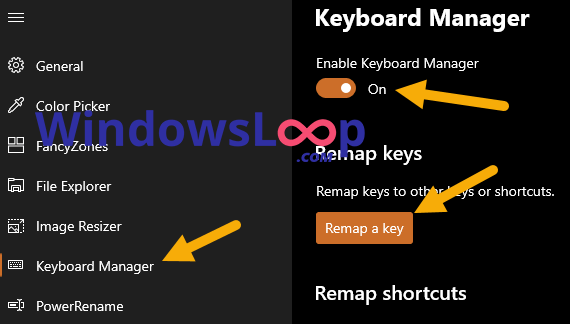
<p style="text-align: justify;">2. Sau khi mở PowerToys, chọn tab&nbsp;<strong>&quot;Keyboard Manager&quot;</strong>&nbsp;trên bảng điều khiển bên trái.</p>

<p style="text-align: justify;">3. Bây giờ, hãy bật tùy chọn&nbsp;<strong>&quot;Enable Keyboard Manager&quot;</strong>.</p>

<p style="text-align: justify;">4. Tiếp theo, nhấp vào nút&nbsp;<strong>&quot;Remap a key&quot;</strong>.</p>

<figure data-inimage-loaded="true">
<div style="text-align: justify;"><br />
<img alt="Nhấp vào nút &#039;Remap a key&#039;" data-i="0" data-src="https://st.quantrimang.com/photos/image/2020/10/31/anh-xa-lai-phim-voi-powertoys-1.png" data-was-processed="true" height="324" src="https://st.quantrimang.com/photos/image/2020/10/31/anh-xa-lai-phim-voi-powertoys-1.png" width="570" /></div>

<figcaption>
<div style="text-align: justify;">Nhấp vào nút &quot;Remap a key&quot;</div>
</figcaption>
</figure>

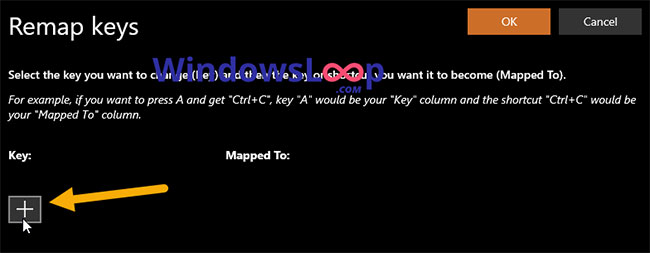
<p style="text-align: justify;">5. Nhấp vào nút&nbsp;<strong>&quot;+&quot;.</strong></p>

<figure>
<div style="text-align: justify;"><img alt="Nhấp vào nút &#039;+&#039;" data-i="1" data-src="https://st.quantrimang.com/photos/image/2020/10/31/anh-xa-lai-phim-voi-powertoys-2.jpg" data-was-processed="true" height="253" src="https://st.quantrimang.com/photos/image/2020/10/31/anh-xa-lai-phim-voi-powertoys-2.jpg" width="650" /></div>

<figcaption>
<div style="text-align: justify;">Nhấp vào nút &quot;+&quot;</div>
</figcaption>
</figure>

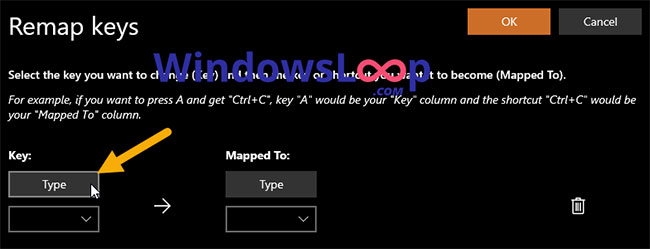
<p style="text-align: justify;">6. Nhấp vào&nbsp;<strong>Type</strong>&nbsp;trong phần&nbsp;<strong>Key.</strong></p>

<figure>
<div style="text-align: justify;"><img alt="Nhấp vào Type trong phần Key" data-i="2" data-src="https://st.quantrimang.com/photos/image/2020/10/31/anh-xa-lai-phim-voi-powertoys-3.jpg" data-was-processed="true" height="249" src="https://st.quantrimang.com/photos/image/2020/10/31/anh-xa-lai-phim-voi-powertoys-3.jpg" width="650" /></div>

<figcaption>
<div style="text-align: justify;">Nhấp vào Type trong phần Key</div>
</figcaption>
</figure>

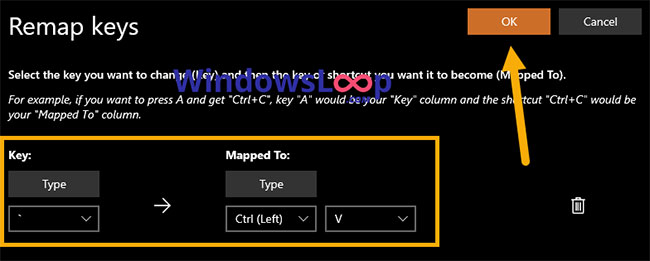
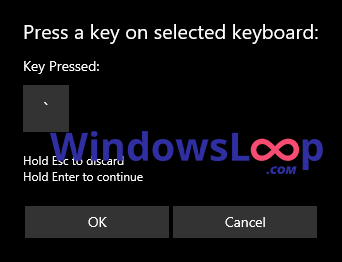
<p style="text-align: justify;">7. Bấm một phím mà bạn muốn sử dụng làm phím được ánh xạ lại. Ví dụ chọn&nbsp;<strong>&quot;`&quot;</strong>&nbsp;vì tác giả bài viết muốn sử dụng nó để nhập một ký tự hoặc phím tắt khác khi nhấn.</p>

<figure>
<div style="text-align: justify;"><img alt="Bấm một phím mà bạn muốn sử dụng làm phím được ánh xạ lại" data-i="3" data-src="https://st.quantrimang.com/photos/image/2020/10/31/anh-xa-lai-phim-voi-powertoys-4.png" data-was-processed="true" height="262" src="https://st.quantrimang.com/photos/image/2020/10/31/anh-xa-lai-phim-voi-powertoys-4.png" width="342" /></div>

<figcaption>
<div style="text-align: justify;">Bấm một phím mà bạn muốn sử dụng làm phím được ánh xạ lại</div>
</figcaption>
</figure>

<p style="text-align: justify;">8. Nhấp vào&nbsp;<strong>OK.</strong></p>

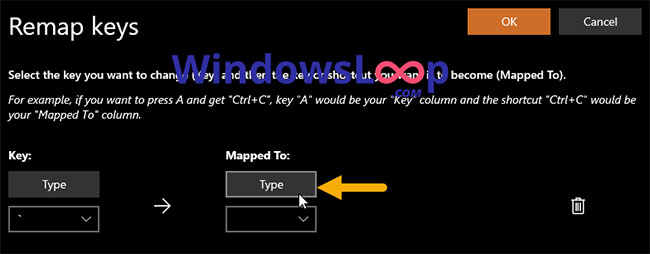
<p style="text-align: justify;">9. Bây giờ, hãy nhấp vào&nbsp;<strong>Type</strong>&nbsp;trong phần&nbsp;<strong>Mapped to.</strong></p>

<figure>
<div style="text-align: justify;"><img alt="Nhấp vào Type trong phần Mapped to" data-i="4" data-src="https://st.quantrimang.com/photos/image/2020/10/31/anh-xa-lai-phim-voi-powertoys-5.jpg" data-was-processed="true" height="254" src="https://st.quantrimang.com/photos/image/2020/10/31/anh-xa-lai-phim-voi-powertoys-5.jpg" width="650" /></div>

<figcaption>
<div style="text-align: justify;">Nhấp vào Type trong phần Mapped to</div>
</figcaption>
</figure>

<p style="text-align: justify;">10. Tiếp theo, nhấn một phím mà bạn muốn ánh xạ lại. Trong trường hợp này, tác giả muốn nhập&nbsp;<strong>&quot;A&quot;</strong>&nbsp;bất cứ khi nào nhấn&nbsp;<strong>&quot;`&quot;.</strong>&nbsp;Nếu bạn không thể nhấn phím, hãy chọn phím từ menu drop-down trong phần&nbsp;<strong>&quot;Mapped to&quot;.</strong></p>

<p style="text-align: justify;">11. Ngoài ra, bạn cũng có thể ánh xạ phím để thực hiện một phím tắt. Trong trường hợp này, tác giả muốn thực hiện phím tắt&nbsp;<strong>Ctrl + V</strong>&nbsp;khi nhấn phím&nbsp;<strong>&quot;`&quot;.</strong></p>

<p style="text-align: justify;">12. Nhấp&nbsp;<strong>OK.</strong></p>

<p style="text-align: justify;">13. Đây là giao diện khi bạn ánh xạ lại các phím bằng PowerToys. Trong trường hợp này, mỗi khi nhấn&nbsp;<strong>&quot;`&quot;</strong>, nó sẽ thực hiện phím tắt&nbsp;<strong>Ctrl + V</strong>.</p>

<p style="text-align: justify;">14. Nhấp vào&nbsp;<strong>OK</strong>&nbsp;trong cửa sổ cấu hình&nbsp;<strong>Remap Keys.</strong></p>

<figure>
<div style="text-align: justify;"><img alt="Nhấp vào OK trong cửa sổ cấu hình Remap Keys" data-i="5" data-src="https://st.quantrimang.com/photos/image/2020/10/31/anh-xa-lai-phim-voi-powertoys-6.jpg" data-was-processed="true" height="261" src="https://st.quantrimang.com/photos/image/2020/10/31/anh-xa-lai-phim-voi-powertoys-6.jpg" width="650" /></div>

<figcaption>
<div style="text-align: justify;">Nhấp vào OK trong cửa sổ cấu hình Remap Keys</div>
</figcaption>
</figure>

<p style="text-align: justify;">15. Nếu bạn thấy cảnh báo, hãy nhấp vào nút&nbsp;<strong>Continue Anyway.</strong></p>

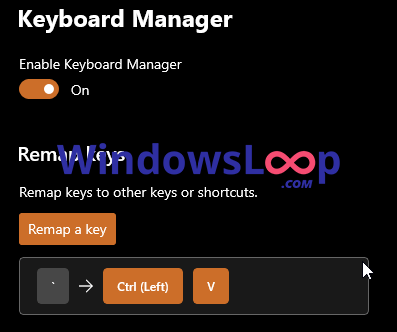
<p style="text-align: justify;">16. Ngay sau khi bạn làm điều đó, hướng dẫn ánh xạ lại sẽ được thêm vào danh sách của trình quản lý bàn phím PowerToys.</p>

<figure>
<div style="text-align: justify;"><img alt="Hướng dẫn ánh xạ lại sẽ được thêm vào danh sách của trình quản lý bàn phím PowerToys" data-i="6" data-src="https://st.quantrimang.com/photos/image/2020/10/31/anh-xa-lai-phim-voi-powertoys-7.png" data-was-processed="true" height="332" src="https://st.quantrimang.com/photos/image/2020/10/31/anh-xa-lai-phim-voi-powertoys-7.png" width="397" /></div>

<figcaption>
<div style="text-align: justify;">Hướng dẫn ánh xạ lại sẽ được thêm vào danh sách của trình quản lý bàn phím PowerToys</div>
</figcaption>
</figure>

<p style="text-align: justify;">Đó là tất cả những gì cần làm! Thật đơn giản để ánh xạ lại các phím bằng PowerToys trong Windows 10.</p>
		</div>
				<div id="author">
						<p>
				<strong>Nguồn tin:</strong>
				Quantrimang.com
			</p>
		</div>
	</div>
	<div id="footer" class="clearfix">
		<div id="url">
			<strong>URL của bản tin này: </strong><a href="https://www.nguoicodonvn2008.info/vi/news/savefile/kien-thuc-may-tinh/cach-anh-xa-lai-phim-voi-powertoys-trong-windows-10-2999.html" title="Cách ánh xạ lại phím với PowerToys trong Windows 10">https://www.nguoicodonvn2008.info/vi/news/savefile/kien-thuc-may-tinh/cach-anh-xa-lai-phim-voi-powertoys-trong-windows-10-2999.html</a>

		</div>
		<div class="clear"></div>
		<div class="copyright">
			&copy; .&#x3A; Nguoicodonvn2008.info - Cõi lòng người cô đơn &#x3A;.
		</div>
		<div id="contact">
			<a href="mailto:admin@nguoicodonvn2008.info">admin@nguoicodonvn2008.info</a>
		</div>
	</div>
</div>
        <div id="timeoutsess" class="chromeframe">
            Bạn đã không sử dụng Site, <a onclick="timeoutsesscancel();" href="https://www.nguoicodonvn2008.info/#">Bấm vào đây để duy trì trạng thái đăng nhập</a>. Thời gian chờ: <span id="secField"> 60 </span> giây
        </div>
        <div id="openidResult" class="nv-alert" style="display:none"></div>
        <div id="openidBt" data-result="" data-redirect=""></div>
		</script>
		<div class="car-top">
  <span><img src="https://www.nguoicodonvn2008.info/themes/default/images/car.png" alt=""></span>
</div>
<div id="run_cronjobs" style="visibility:hidden;display:none;"><img alt="cron" src="/index.php?second=cronjobs&amp;p=e95M9Q5H" width="1" height="1" /></div>
<script src="https://www.nguoicodonvn2008.info/assets/js/jquery/jquery.min.js"></script>
<script>var nv_base_siteurl="/",nv_lang_data="vi",nv_lang_interface="vi",nv_name_variable="nv",nv_fc_variable="op",nv_lang_variable="language",nv_module_name="news",nv_func_name="savefile",nv_is_user=0, nv_my_ofs=-4,nv_my_abbr="EDT",nv_cookie_prefix="nv4c_e856T",nv_check_pass_mstime=1738000,nv_area_admin=0,nv_safemode=0,theme_responsive=0,nv_recaptcha_ver=2,nv_recaptcha_sitekey="",nv_recaptcha_type="image",XSSsanitize=1;</script>
<script src="https://www.nguoicodonvn2008.info/assets/js/language/vi.js"></script>
<script src="https://www.nguoicodonvn2008.info/assets/js/DOMPurify/purify3.js"></script>
<script src="https://www.nguoicodonvn2008.info/assets/js/global.js"></script>
<script src="https://www.nguoicodonvn2008.info/assets/js/site.js"></script>
<script src="https://www.nguoicodonvn2008.info/themes/default/js/news.js"></script>
<script src="https://www.nguoicodonvn2008.info/themes/default/js/main.js"></script>
<script src="https://www.nguoicodonvn2008.info/themes/default/js/custom.js"></script>
<script type="application/ld+json">
        {
            "@context": "https://schema.org",
            "@type": "Organization",
            "url": "https://www.nguoicodonvn2008.info",
            "logo": "https://www.nguoicodonvn2008.info/uploads/angel.gif"
        }
        </script>
<script src="https://www.nguoicodonvn2008.info/themes/default/js/bootstrap.min.js"></script>
<script type="text/javascript">
var $scrolltop = $('.car-top');
$scrolltop.on('click', function () {
    $('html,body').animate({
        scrollTop: 0
    }, 800);
    $(this).addClass("car-run");
    setTimeout(function(){ $scrolltop.removeClass('car-run');}, 1000);
    return false;
});
$(window).on('scroll', function ()
{ 
    if($(window).scrollTop() >= 200)
    {
        $scrolltop.addClass("show");
        $scrolltop.addClass("car-down");
    }
    else
    {
       $scrolltop.removeClass("show");
       setTimeout(function(){ $scrolltop.removeClass('car-down');}, 300);
    }
});
</script>
</body>
</html>