<!DOCTYPE html>
    <html lang="vi" xmlns="http://www.w3.org/1999/xhtml" prefix="og: http://ogp.me/ns#">
    <head>
<title>9 cách khắc phục lỗi tài liệu Microsoft Word không in đúng cách</title>
<meta name="description" content="9 cách khắc phục lỗi tài liệu Microsoft Word không in đúng cách - Savefile - Tin Tức -...">
<meta name="author" content=".: Nguoicodonvn2008.info - Cõi lòng người cô đơn :.">
<meta name="copyright" content=".: Nguoicodonvn2008.info - Cõi lòng người cô đơn :. [admin@nguoicodonvn2008.info]">
<meta name="robots" content="index, archive, follow, noodp">
<meta name="googlebot" content="index,archive,follow,noodp">
<meta name="msnbot" content="all,index,follow">
<meta name="generator" content="NukeViet v4.5">
<meta http-equiv="Content-Type" content="text/html; charset=utf-8">
<meta property="og:title" content="9 cách khắc phục lỗi tài liệu Microsoft Word không in đúng cách">
<meta property="og:type" content="website">
<meta property="og:description" content="Savefile - Tin Tức - https&#x3A;&#x002F;&#x002F;www.nguoicodonvn2008.info&#x002F;vi&#x002F;news&#x002F;savefile&#x002F;kien-thuc-may-tinh&#x002F;9-cach-khac-phuc-loi-tai-lieu-microsoft-word-khong-in-dung-cach-9592.html">
<meta property="og:site_name" content=".&#x3A; Nguoicodonvn2008.info - Cõi lòng người cô đơn &#x3A;.">
<meta property="og:url" content="https://www.nguoicodonvn2008.info/vi/news/savefile/kien-thuc-may-tinh/9-cach-khac-phuc-loi-tai-lieu-microsoft-word-khong-in-dung-cach-9592.html">
<link rel="shortcut icon" href="https://www.nguoicodonvn2008.info/favicon.ico">
<link rel="canonical" href="https://www.nguoicodonvn2008.info/vi/news/savefile/kien-thuc-may-tinh/9-cach-khac-phuc-loi-tai-lieu-microsoft-word-khong-in-dung-cach-9592.html">
<link rel="alternate" href="https://www.nguoicodonvn2008.info/vi/news/rss/" title="Tin Tức" type="application/rss+xml">
<link rel="alternate" href="https://www.nguoicodonvn2008.info/vi/news/rss/karaoke-dual/" title="Tin Tức - Karaoke Dual" type="application/rss+xml">
<link rel="alternate" href="https://www.nguoicodonvn2008.info/vi/news/rss/nhac-tre/" title="Tin Tức - Nhạc trẻ" type="application/rss+xml">
<link rel="alternate" href="https://www.nguoicodonvn2008.info/vi/news/rss/tru-tinh/" title="Tin Tức - Trữ tình" type="application/rss+xml">
<link rel="alternate" href="https://www.nguoicodonvn2008.info/vi/news/rss/nuoc-ngoai/" title="Tin Tức - Nước ngoài" type="application/rss+xml">
<link rel="alternate" href="https://www.nguoicodonvn2008.info/vi/news/rss/remix/" title="Tin Tức - Remix" type="application/rss+xml">
<link rel="alternate" href="https://www.nguoicodonvn2008.info/vi/news/rss/tam-su-tinh-yeu/" title="Tin Tức - Tâm sự tình yêu" type="application/rss+xml">
<link rel="alternate" href="https://www.nguoicodonvn2008.info/vi/news/rss/tho-suu-tam/" title="Tin Tức - Thơ sưu tầm" type="application/rss+xml">
<link rel="alternate" href="https://www.nguoicodonvn2008.info/vi/news/rss/cuoc-song/" title="Tin Tức - Cuộc sống" type="application/rss+xml">
<link rel="alternate" href="https://www.nguoicodonvn2008.info/vi/news/rss/phan-mem/" title="Tin Tức - Phần mềm" type="application/rss+xml">
<link rel="alternate" href="https://www.nguoicodonvn2008.info/vi/news/rss/kien-thuc-may-tinh/" title="Tin Tức - Kiến thức máy tính" type="application/rss+xml">
<link rel="alternate" href="https://www.nguoicodonvn2008.info/vi/news/rss/hoc-tap/" title="Tin Tức - Học tập" type="application/rss+xml">
<link rel="alternate" href="https://www.nguoicodonvn2008.info/vi/news/rss/tai-lieu/" title="Tin Tức - Tài liệu" type="application/rss+xml">
<link rel="alternate" href="https://www.nguoicodonvn2008.info/vi/news/rss/de-thi/" title="Tin Tức - Đề thi" type="application/rss+xml">
<link rel="preload" as="style" href="https://www.nguoicodonvn2008.info/assets/css/font-awesome.min.css" type="text/css">
<link rel="preload" as="style" href="https://www.nguoicodonvn2008.info/themes/default/css/bootstrap.non-responsive.css" type="text/css">
<link rel="preload" as="style" href="https://www.nguoicodonvn2008.info/themes/default/css/style.css" type="text/css">
<link rel="preload" as="style" href="https://www.nguoicodonvn2008.info/themes/default/css/style.non-responsive.css" type="text/css">
<link rel="preload" as="style" href="https://www.nguoicodonvn2008.info/themes/default/css/news.css" type="text/css">
<link rel="preload" as="style" href="https://www.nguoicodonvn2008.info/themes/default/css/custom.css" type="text/css">
<link rel="preload" as="script" href="https://www.nguoicodonvn2008.info/assets/js/jquery/jquery.min.js" type="text/javascript">
<link rel="preload" as="script" href="https://www.nguoicodonvn2008.info/assets/js/language/vi.js" type="text/javascript">
<link rel="preload" as="script" href="https://www.nguoicodonvn2008.info/assets/js/DOMPurify/purify3.js" type="text/javascript">
<link rel="preload" as="script" href="https://www.nguoicodonvn2008.info/assets/js/global.js" type="text/javascript">
<link rel="preload" as="script" href="https://www.nguoicodonvn2008.info/assets/js/site.js" type="text/javascript">
<link rel="preload" as="script" href="https://www.nguoicodonvn2008.info/themes/default/js/news.js" type="text/javascript">
<link rel="preload" as="script" href="https://www.nguoicodonvn2008.info/themes/default/js/main.js" type="text/javascript">
<link rel="preload" as="script" href="https://www.nguoicodonvn2008.info/themes/default/js/custom.js" type="text/javascript">
<link rel="preload" as="script" href="https://www.nguoicodonvn2008.info/themes/default/js/bootstrap.min.js" type="text/javascript">
<link rel="stylesheet" href="https://www.nguoicodonvn2008.info/assets/css/font-awesome.min.css">
<link rel="stylesheet" href="https://www.nguoicodonvn2008.info/themes/default/css/bootstrap.non-responsive.css">
<link rel="stylesheet" href="https://www.nguoicodonvn2008.info/themes/default/css/style.css">
<link rel="stylesheet" href="https://www.nguoicodonvn2008.info/themes/default/css/style.non-responsive.css">
<link rel="StyleSheet" href="https://www.nguoicodonvn2008.info/themes/default/css/news.css">
<link rel="stylesheet" href="https://www.nguoicodonvn2008.info/themes/default/css/custom.css">
<style type="text/css">
	body{background: #fff;}
</style>
    </head>
    <body>
<div id="print">
	<div id="hd_print">
		<h2 class="pull-left">.&#x3A; Nguoicodonvn2008.info - Cõi lòng người cô đơn &#x3A;.</h2>
		<p class="pull-right"><a title=".&#x3A; Nguoicodonvn2008.info - Cõi lòng người cô đơn &#x3A;." href="https://www.nguoicodonvn2008.info/">https://www.nguoicodonvn2008.info</a></p>
	</div>
	<div class="clear"></div>
	<hr />
	<div id="content">
		<h1>9 cách khắc phục lỗi tài liệu Microsoft Word không in đúng cách</h1>
		<ul class="list-inline">
			<li>Thứ sáu - 27/12/2024 22:51</li>
			<li class="hidden-print txtrequired"><em class="fa fa-print">&nbsp;</em><a title="In ra" href="javascript:;" onclick="window.print()">In ra</a></li>
			<li class="hidden-print txtrequired"><em class="fa fa-power-off">&nbsp;</em><a title="Đóng cửa sổ này" href="javascript:;" onclick="window.close()">Đóng cửa sổ này</a></li>
		</ul>
		<div class="clear"></div>
		<div id="hometext">
		</div>
				<div class="imghome">
			<img alt="9 cách khắc phục lỗi tài liệu Microsoft Word không in đúng cách" src="https://st.quantrimang.com/photos/image/2024/12/28/sua-loi-tai-lieu-word-khong-in-dung-cach-9.jpg" width="460" class="img-thumbnail" />
		</div>
		<div class="clear"></div>
		<div id="bodytext" class="clearfix">
			<p style="text-align: justify;">Việc in trong Word có thể diễn ra liền mạch, nhưng đôi khi vẫn có thể phát sinh sự cố. Văn bản bị thiếu, lề không thẳng hàng hoặc toàn bộ trang không in có thể làm gián đoạn công việc của bạn. May mắn thay, hầu hết các sự cố này đều có giải pháp dễ dàng.</p>

<h2 style="text-align: justify;">&nbsp;</h2>

<h2 id="mcetoc_1ig5iqvmd2g3" style="text-align: justify;">1. Đảm bảo máy in đang hoạt động</h2>

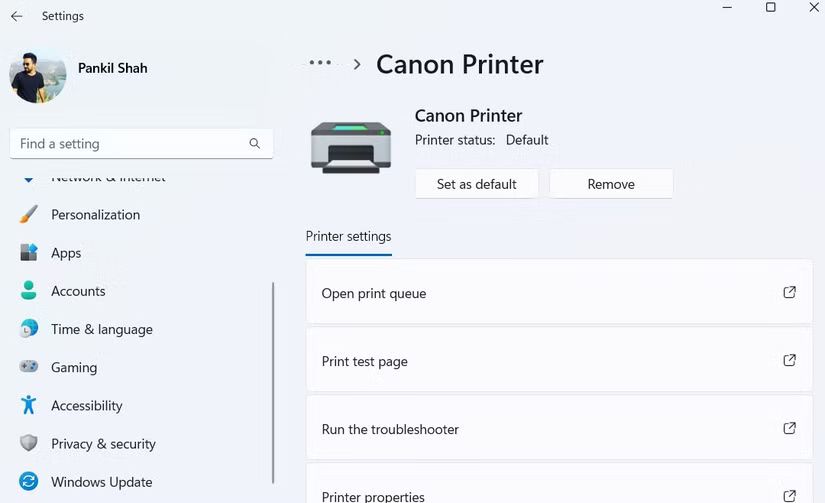
<p style="text-align: justify;">Điều này có vẻ hiển nhiên, nhưng việc bắt đầu chẩn đoán đúng cách luôn là cách tốt nhất. Trước khi tìm hiểu bất kỳ cách khắc phục nào, tốt nhất là bạn nên loại trừ mọi sự cố với máy in trước. Để thực hiện, bạn có thể in trang thử nghiệm trên PC bằng các bước sau:</p>

<ul>
	<li style="text-align: justify;">Nhấn<strong>&nbsp;Win + I</strong>&nbsp;để&nbsp;mở ứng dụng Settings.</li>
	<li style="text-align: justify;">Đi tới&nbsp;<strong>Bluetooth &amp; devices &gt; Printers &amp; scanners</strong>.</li>
	<li style="text-align: justify;">Chọn máy in bạn đang sử dụng và nhấp vào nút&nbsp;<strong>Print Test Page</strong>.</li>
</ul>

<figure>
<div style="text-align: justify;"><img alt="Tùy chọn in trang thử nghiệm trong ứng dụng Settings Windows 11" data-i="0" data-src="https://st.quantrimang.com/photos/image/2024/12/28/sua-loi-tai-lieu-word-khong-in-dung-cach-1.jpg" data-was-processed="true" height="503" src="https://st.quantrimang.com/photos/image/2024/12/28/sua-loi-tai-lieu-word-khong-in-dung-cach-1.jpg" width="825" /></div>

<figcaption>
<div style="text-align: justify;">Tùy chọn in trang thử nghiệm trong ứng dụng Settings Windows 11</div>
</figcaption>
</figure>

<p style="text-align: justify;">Nếu máy in của bạn gặp sự cố, hãy tham khảo hướng dẫn về&nbsp;những việc cần làm khi máy in không hoạt động. Tuy nhiên, nếu trang thử nghiệm được in đúng cách, hãy tiếp tục thực hiện các cách khắc phục sau để xử lý sự cố.</p>

<h2 id="mcetoc_1ig5iqvmd2g4" style="text-align: justify;">2. In các tài liệu Microsoft Word khác</h2>

<p style="text-align: justify;">Đôi khi, sự cố với tài liệu có thể khiến Word không in đúng cách. Rất may, Word có một tính năng tiện dụng cho phép bạn dễ dàng sửa chữa tài liệu của mình.</p>

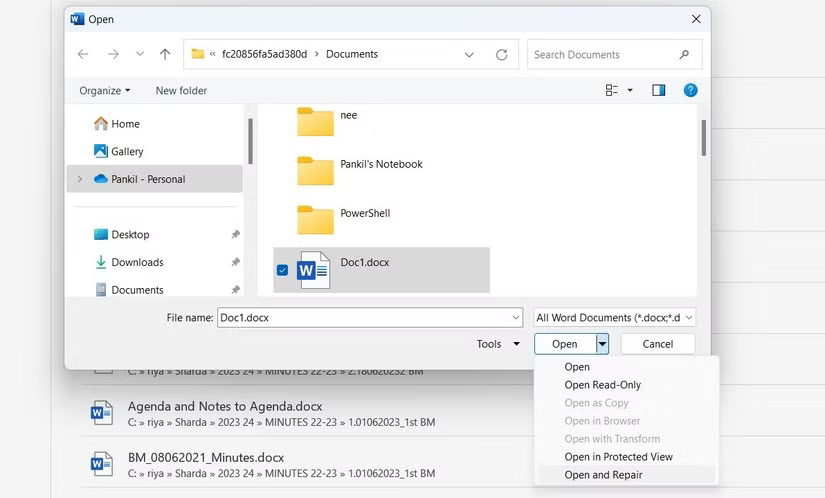
<p style="text-align: justify;">Để sử dụng tính năng này, hãy vào&nbsp;<strong>File &gt; Open &gt; Browse</strong>&nbsp;và chọn file Word không in đúng cách. Sau đó, nhấp vào mũi tên nhỏ bên cạnh nút&nbsp;<strong>Open</strong>&nbsp;và chọn&nbsp;<strong>Open and Repair</strong>. Đợi Word sửa chữa và mở file, sau đó thử in lại.</p>

<figure>
<div style="text-align: justify;"><img alt="Tùy chọn Open and Repair cho tài liệu Word" data-adbro-processed="true" data-i="1" data-src="https://st.quantrimang.com/photos/image/2024/12/28/sua-loi-tai-lieu-word-khong-in-dung-cach-2.jpg" data-was-processed="true" height="498" src="https://st.quantrimang.com/photos/image/2024/12/28/sua-loi-tai-lieu-word-khong-in-dung-cach-2.jpg" width="825" /></div>

<figcaption>
<div style="text-align: justify;">Tùy chọn Open and Repair cho tài liệu Word</div>
</figcaption>
</figure>

<p style="text-align: justify;">Ngoài ra, bạn có thể tạo một tài liệu Word mới và sao chép toàn bộ nội dung từ file gốc vào đó. Nếu điều này giải quyết được sự cố, nghĩa là lỗi in đã được cô lập trong tài liệu gốc.</p>

<h2 id="mcetoc_1ig5iqvmd2g5" style="text-align: justify;">3. In tài liệu ở các định dạng khác</h2>

<p style="text-align: justify;">Đây là giải pháp tạm thời, nhưng có thể hữu ích nếu bạn đang vội và không có thời gian để kiểm tra nguyên nhân gây ra sự cố. Chỉ cần lưu tài liệu Word dưới dạng PDF rồi in. PDF giữ nguyên định dạng và bố cục của tài liệu, đảm bảo tài liệu sẽ hiển thị chính xác như mong muốn khi xem hoặc in.</p>

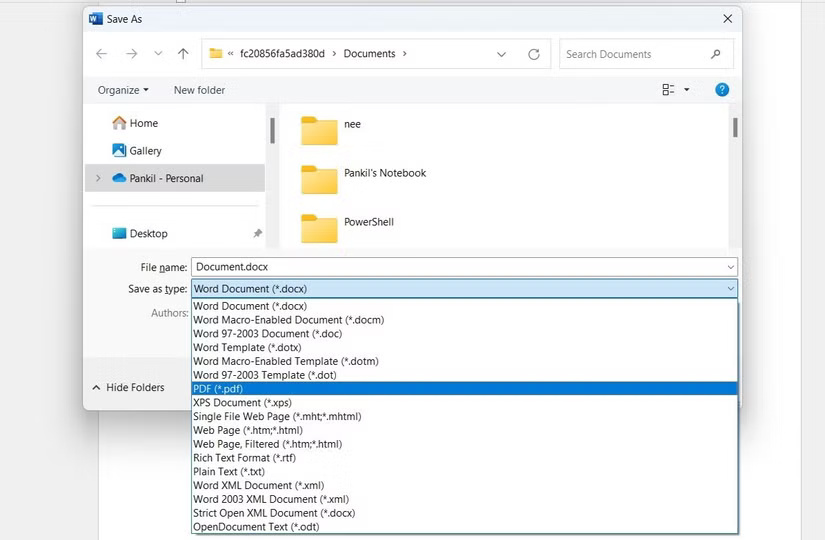
<p style="text-align: justify;">Để chuyển đổi file Word sang PDF, hãy nhấn&nbsp;<strong>F12</strong>&nbsp;để mở hộp thoại&nbsp;<strong>Save As</strong>. Trong menu drop-down&nbsp;<strong>Save as type</strong>, chọn&nbsp;<strong>PDF</strong>&nbsp;và nhấp vào&nbsp;<strong>Save.</strong>&nbsp;Tài liệu của bạn sẽ được lưu dưới dạng file PDF và sẽ tự động mở sau khi lưu. Sau đó, hãy thử in lại và xem nó có hoạt động không.</p>

<figure>
<div style="text-align: justify;"><img alt="Hộp thoại Save As hiển thị tùy chọn PDF được highlight" data-i="2" data-src="https://st.quantrimang.com/photos/image/2024/12/28/sua-loi-tai-lieu-word-khong-in-dung-cach-3.jpg" data-was-processed="true" height="540" src="https://st.quantrimang.com/photos/image/2024/12/28/sua-loi-tai-lieu-word-khong-in-dung-cach-3.jpg" width="825" /></div>

<figcaption>
<div style="text-align: justify;">Hộp thoại Save As hiển thị tùy chọn PDF được highlight</div>
</figcaption>
</figure>

<h2 id="mcetoc_1ig5iqvmd2g6" style="text-align: justify;">4. Kiểm tra sự cố với Windows</h2>

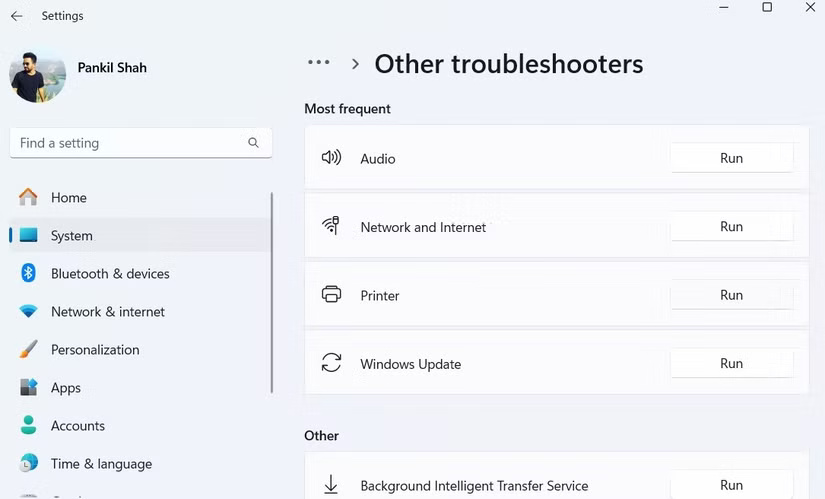
<p style="text-align: justify;">Cả Windows 10 và 11 đều có công cụ khắc phục sự cố máy in có thể tự động tìm và khắc phục các sự cố phổ biến. Do đó, bạn nên chạy công cụ này nếu vẫn gặp sự cố với bản in Word. Sau đây là các bước cần thực hiện:</p>

<ul>
	<li style="text-align: justify;">Nhấn&nbsp;<strong>Win + I</strong>&nbsp;để mở ứng dụng Settings.</li>
	<li style="text-align: justify;">Vào&nbsp;<strong>System &gt; Troubleshoot &gt; Other troubleshooters</strong>.</li>
	<li style="text-align: justify;">Nhấp vào nút&nbsp;<strong>Run</strong>&nbsp;bên cạnh&nbsp;<strong>Printer</strong>&nbsp;và làm theo các lời nhắc trên màn hình.</li>
</ul>

<figure>
<div style="text-align: justify;"><img alt="Tùy chọn trình khắc phục sự cố máy in trong ứng dụng Settings Windows 11" data-i="3" data-src="https://st.quantrimang.com/photos/image/2024/12/28/sua-loi-tai-lieu-word-khong-in-dung-cach-4.jpg" data-was-processed="true" height="499" src="https://st.quantrimang.com/photos/image/2024/12/28/sua-loi-tai-lieu-word-khong-in-dung-cach-4.jpg" width="825" /></div>

<figcaption>
<div style="text-align: justify;">Tùy chọn trình khắc phục sự cố máy in trong ứng dụng Settings Windows 11</div>
</figcaption>
</figure>

<p style="text-align: justify;">Nếu sự cố vẫn tiếp diễn sau khi chạy trình khắc phục sự cố máy in, sự cố có thể liên quan đến driver máy in trên PC.</p>

<h2 id="mcetoc_1ig5iqvmd2g7" style="text-align: justify;">5. Sự cố tỷ lệ trang in</h2>

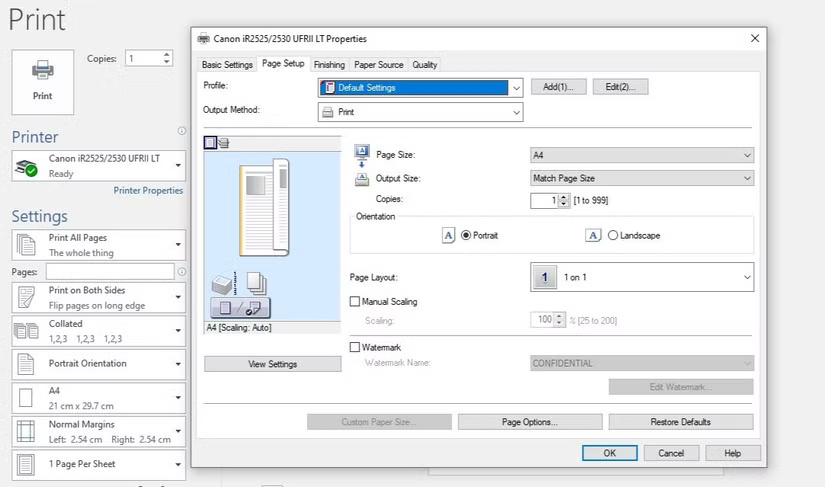
<p style="text-align: justify;">Một sự cố in ít phổ biến hơn nhưng gây khó chịu trong Word là khi các trang in ra chỉ bằng một phần nhỏ kích thước thực tế của chúng. Điều này thường xảy ra do các hệ số tỷ lệ được thiết lập không đúng trong cài đặt in. Sau đây là những gì bạn có thể làm để khắc phục điều đó.</p>

<ul>
	<li style="text-align: justify;">Trong Word, nhấn&nbsp;<strong>Ctrl + P</strong>&nbsp;để mở trang<strong>&nbsp;Print</strong>.</li>
	<li style="text-align: justify;">Nhấp vào tùy chọn&nbsp;<strong>Printer Properties</strong>&nbsp;bên dưới máy in.</li>
	<li style="text-align: justify;">Trong tab&nbsp;<strong>Page Setup</strong>, hãy đánh dấu vào tùy chọn&nbsp;<strong>Manual Scaling</strong>&nbsp;và điều chỉnh Scaling thành&nbsp;<strong>100%</strong>.</li>
	<li style="text-align: justify;">Nhấp vào&nbsp;<strong>OK</strong>&nbsp;để lưu các thay đổi.</li>
</ul>

<figure>
<div style="text-align: justify;"><img alt="Hộp thoại Printer Properties bật trong Word" data-i="4" data-src="https://st.quantrimang.com/photos/image/2024/12/28/sua-loi-tai-lieu-word-khong-in-dung-cach-5.jpg" data-was-processed="true" height="487" src="https://st.quantrimang.com/photos/image/2024/12/28/sua-loi-tai-lieu-word-khong-in-dung-cach-5.jpg" width="825" /></div>

<figcaption>
<div style="text-align: justify;">Hộp thoại Printer Properties bật trong Word</div>
</figcaption>
</figure>

<p style="text-align: justify;">Điều này sẽ làm cho các trang in ở kích thước đầy đủ, với văn bản và bất kỳ đồ họa nào lấp đầy toàn bộ trang.</p>

<h2 id="mcetoc_1ig5iqvmd2g8" style="text-align: justify;">6. Kiểm tra văn bản ẩn</h2>

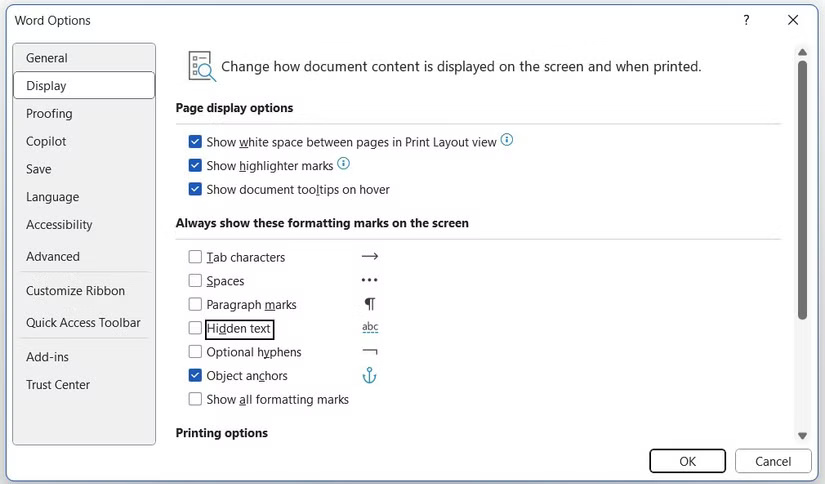
<p style="text-align: justify;">Microsoft Word&nbsp;cung cấp tùy chọn ẩn văn bản trong tài liệu. Văn bản ẩn này hoạt động tương tự như các dấu định dạng, chẳng hạn như khoảng trắng, ngắt dòng và ký tự tab - nó chiếm không gian trên trang nhưng không xuất hiện khi in hoặc xem trên màn hình. Đôi khi, văn bản ẩn có thể là lý do khiến một số phần nhất định trong tài liệu bị thiếu khi in, mặc dù chúng hiển thị trong bản mềm.</p>

<p style="text-align: justify;">Nếu bạn nghi ngờ văn bản ẩn có thể gây ra sự cố in, sau đây là cách kiểm tra và hiển thị bất kỳ nội dung ẩn nào trong tài liệu Microsoft Word:</p>

<ul>
	<li style="text-align: justify;">Trong Word, hãy vào&nbsp;<strong>File &gt; Options</strong>.</li>
	<li style="text-align: justify;">Chọn tab&nbsp;<strong>Display</strong>&nbsp;và bỏ chọn tùy chọn&nbsp;<strong>Hidden text</strong>.</li>
	<li style="text-align: justify;">Nhấp vào&nbsp;<strong>OK</strong>&nbsp;và in lại tài liệu.</li>
</ul>

<figure>
<div style="text-align: justify;"><img alt="Cửa sổ Word Options với tab Display được chọn" data-i="5" data-src="https://st.quantrimang.com/photos/image/2024/12/28/sua-loi-tai-lieu-word-khong-in-dung-cach-6.jpg" data-was-processed="true" height="484" src="https://st.quantrimang.com/photos/image/2024/12/28/sua-loi-tai-lieu-word-khong-in-dung-cach-6.jpg" width="825" /></div>

<figcaption>
<div style="text-align: justify;">Cửa sổ Word Options với tab Display được chọn</div>
</figcaption>
</figure>

<h2 id="mcetoc_1ig5iqvmd2g9" style="text-align: justify;">7. Kiểm tra tùy chọn in dữ liệu biểu mẫu</h2>

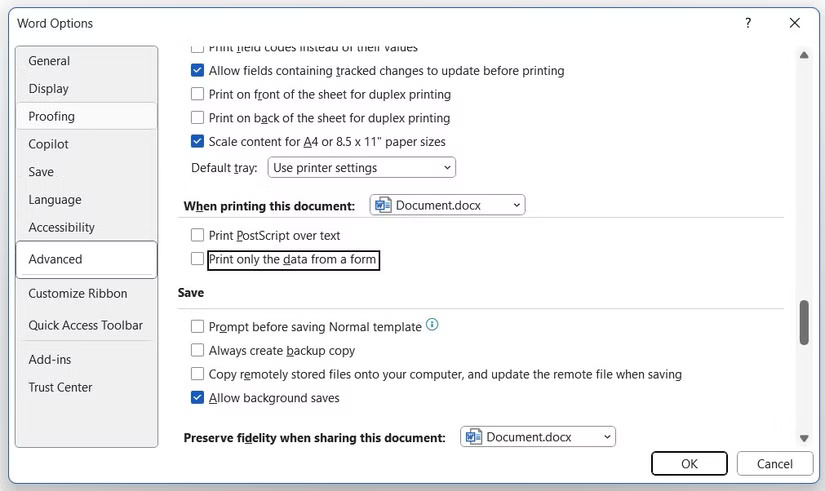
<p style="text-align: justify;">Một sự cố in phổ biến khác trong Word xảy ra khi đường viền bảng hoặc các thành phần khác trong tài liệu không xuất hiện trong phiên bản in, mặc dù chúng hiển thị trên màn hình. Sau đây là cách khắc phục sự cố đó.</p>

<ul>
	<li style="text-align: justify;">Trong tài liệu Word, hãy vào&nbsp;<strong>File &gt; Options</strong>.</li>
	<li style="text-align: justify;">Chuyển sang tab&nbsp;<strong>Advanced</strong>.</li>
	<li style="text-align: justify;">Cuộn xuống và bỏ chọn tùy chọn&nbsp;<strong>Print only the data from a form</strong>. Sau đó, nhấp vào&nbsp;<strong>OK</strong>.</li>
</ul>

<figure>
<div style="text-align: justify;"><img alt="Cửa sổ Word Options với tab Advanced được chọn" data-i="6" data-src="https://st.quantrimang.com/photos/image/2024/12/28/sua-loi-tai-lieu-word-khong-in-dung-cach-7.jpg" data-was-processed="true" height="491" src="https://st.quantrimang.com/photos/image/2024/12/28/sua-loi-tai-lieu-word-khong-in-dung-cach-7.jpg" width="825" /></div>

<figcaption>
<div style="text-align: justify;">Cửa sổ Word Options với tab Advanced được chọn</div>
</figcaption>
</figure>

<h2 id="mcetoc_1ig5iqvmd2ga" style="text-align: justify;">8. In trực tiếp đến máy in</h2>

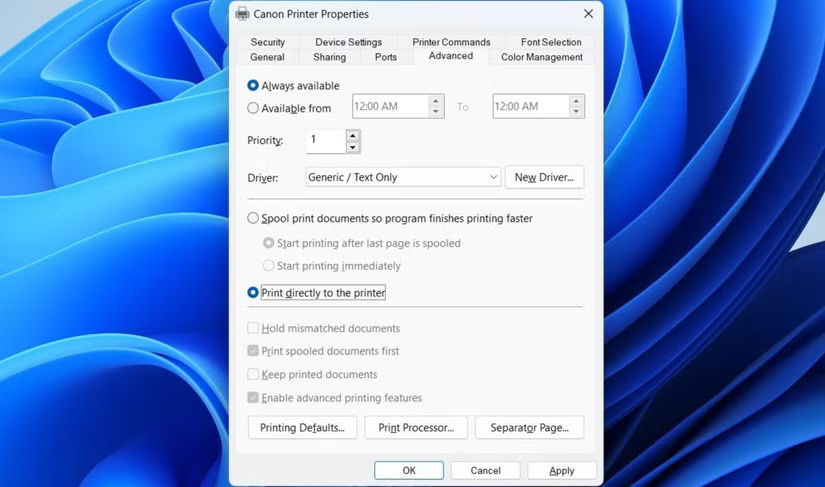
<p style="text-align: justify;">Khi bạn in trực tiếp đến máy in, Word sẽ bỏ qua print spooler và gửi tài liệu thẳng đến máy in. Điều này có thể giúp giải quyết các sự cố như chậm trễ khi in, thiếu trang hoặc định dạng không chính xác có thể xảy ra khi tài liệu được &nbsp;spooler xử lý trước.</p>

<p style="text-align: justify;">Để in trực tiếp đến máy in trong Word:</p>

<ul>
	<li style="text-align: justify;">Mở&nbsp;<strong>Control Panel</strong>&nbsp;bằng menu tìm kiếm.</li>
	<li style="text-align: justify;">Nhấp vào&nbsp;<strong>Devices and Printers</strong>.</li>
	<li style="text-align: justify;">Nhấp chuột phải vào máy in và chọn&nbsp;<strong>Printer properties</strong>.</li>
	<li style="text-align: justify;">Đi đến tab&nbsp;<strong>Advanced</strong>&nbsp;và tích vào tùy chọn&nbsp;<strong>Print directly to the printer</strong>.</li>
	<li style="text-align: justify;">Nhấp vào&nbsp;<strong>OK</strong>.</li>
	<li style="text-align: justify;">Hãy thử in tài liệu Word thêm một lần nữa.</li>
</ul>

<figure>
<div style="text-align: justify;"><img alt="Hộp thoại Thuộc tính máy in trên Windows" data-i="7" data-src="https://st.quantrimang.com/photos/image/2024/12/28/sua-loi-tai-lieu-word-khong-in-dung-cach-8.jpg" data-was-processed="true" height="487" src="https://st.quantrimang.com/photos/image/2024/12/28/sua-loi-tai-lieu-word-khong-in-dung-cach-8.jpg" width="825" /></div>

<figcaption>
<div style="text-align: justify;">Hộp thoại Thuộc tính máy in trên Windows</div>
</figcaption>
</figure>

<h2 id="mcetoc_1ig5iqvmd2gb" style="text-align: justify;">9. Sửa chữa bộ Microsoft Office</h2>

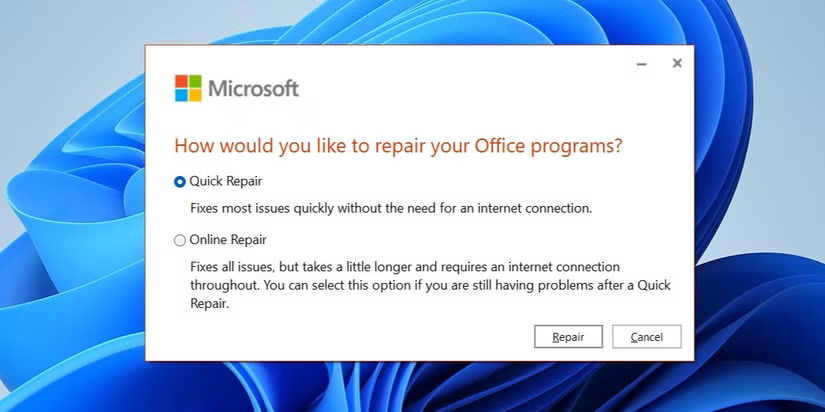
<p style="text-align: justify;">Nếu bạn đã thử tất cả các bản sửa lỗi trên và sự cố vẫn tiếp diễn hoặc nếu gặp sự cố tương tự với các ứng dụng Office khác, bạn có thể thử sử dụng công cụ sửa chữa Office. Công cụ này sẽ quét tất cả các ứng dụng Office, bao gồm cả Word, để tìm các sự cố tiềm ẩn và tự động sửa chữa chúng. Sau đây là cách chạy nó.</p>

<ul>
	<li style="text-align: justify;">Nhấn&nbsp;<strong>Win + R</strong>&nbsp;để&nbsp;mở hộp thoại Run.</li>
	<li style="text-align: justify;">Gõ&nbsp;<strong>appwiz.cpl</strong>&nbsp;vào hộp văn bản và nhấn&nbsp;<strong>Enter</strong>.</li>
	<li style="text-align: justify;">Tìm bộ Microsoft Office, nhấp chuột phải vào đó và chọn&nbsp;<strong>Change</strong>.</li>
	<li style="text-align: justify;">Chọn tùy chọn&nbsp;<strong>Online Repair</strong>&nbsp;và nhấp vào&nbsp;<strong>Repair.</strong></li>
</ul>

<figure>
<div style="text-align: justify;"><img alt="Sửa chữa Microsoft Office" data-i="8" data-src="https://st.quantrimang.com/photos/image/2024/12/28/sua-loi-tai-lieu-word-khong-in-dung-cach-9.jpg" data-was-processed="true" height="412" src="https://st.quantrimang.com/photos/image/2024/12/28/sua-loi-tai-lieu-word-khong-in-dung-cach-9.jpg" width="825" /></div>

<figcaption>
<div style="text-align: justify;">Sửa chữa Microsoft Office</div>
</figcaption>
</figure>

<p style="text-align: justify;">Đợi công cụ sửa chữa chạy rồi thử in lại từ Word.</p>

<p style="text-align: justify;">Khi đã dành nhiều giờ làm việc trên một tài liệu, bạn có thể cảm thấy bực bội khi Word không in đúng cách. Hy vọng rằng tình trạng đó sẽ không còn nữa và một trong những mẹo trên sẽ giúp bạn giải quyết được sự cố in ấn trong Word.</p>

<div style="text-align: justify;">&nbsp;</div>
		</div>
				<div id="author">
						<p>
				<strong>Nguồn tin:</strong>
				Quantrimang.com:
			</p>
		</div>
	</div>
	<div id="footer" class="clearfix">
		<div id="url">
			<strong>URL của bản tin này: </strong><a href="https://www.nguoicodonvn2008.info/vi/news/savefile/kien-thuc-may-tinh/9-cach-khac-phuc-loi-tai-lieu-microsoft-word-khong-in-dung-cach-9592.html" title="9 cách khắc phục lỗi tài liệu Microsoft Word không in đúng cách">https://www.nguoicodonvn2008.info/vi/news/savefile/kien-thuc-may-tinh/9-cach-khac-phuc-loi-tai-lieu-microsoft-word-khong-in-dung-cach-9592.html</a>

		</div>
		<div class="clear"></div>
		<div class="copyright">
			&copy; .&#x3A; Nguoicodonvn2008.info - Cõi lòng người cô đơn &#x3A;.
		</div>
		<div id="contact">
			<a href="mailto:admin@nguoicodonvn2008.info">admin@nguoicodonvn2008.info</a>
		</div>
	</div>
</div>
        <div id="timeoutsess" class="chromeframe">
            Bạn đã không sử dụng Site, <a onclick="timeoutsesscancel();" href="https://www.nguoicodonvn2008.info/#">Bấm vào đây để duy trì trạng thái đăng nhập</a>. Thời gian chờ: <span id="secField"> 60 </span> giây
        </div>
        <div id="openidResult" class="nv-alert" style="display:none"></div>
        <div id="openidBt" data-result="" data-redirect=""></div>
		</script>
		<div class="car-top">
  <span><img src="https://www.nguoicodonvn2008.info/themes/default/images/car.png" alt=""></span>
</div>
<div id="run_cronjobs" style="visibility:hidden;display:none;"><img alt="cron" src="/index.php?second=cronjobs&amp;p=d1C7Ej7n" width="1" height="1" /></div>
<script src="https://www.nguoicodonvn2008.info/assets/js/jquery/jquery.min.js"></script>
<script>var nv_base_siteurl="/",nv_lang_data="vi",nv_lang_interface="vi",nv_name_variable="nv",nv_fc_variable="op",nv_lang_variable="language",nv_module_name="news",nv_func_name="savefile",nv_is_user=0, nv_my_ofs=-4,nv_my_abbr="EDT",nv_cookie_prefix="nv4c_e856T",nv_check_pass_mstime=1738000,nv_area_admin=0,nv_safemode=0,theme_responsive=0,nv_recaptcha_ver=2,nv_recaptcha_sitekey="",nv_recaptcha_type="image",XSSsanitize=1;</script>
<script src="https://www.nguoicodonvn2008.info/assets/js/language/vi.js"></script>
<script src="https://www.nguoicodonvn2008.info/assets/js/DOMPurify/purify3.js"></script>
<script src="https://www.nguoicodonvn2008.info/assets/js/global.js"></script>
<script src="https://www.nguoicodonvn2008.info/assets/js/site.js"></script>
<script src="https://www.nguoicodonvn2008.info/themes/default/js/news.js"></script>
<script src="https://www.nguoicodonvn2008.info/themes/default/js/main.js"></script>
<script src="https://www.nguoicodonvn2008.info/themes/default/js/custom.js"></script>
<script type="application/ld+json">
        {
            "@context": "https://schema.org",
            "@type": "Organization",
            "url": "https://www.nguoicodonvn2008.info",
            "logo": "https://www.nguoicodonvn2008.info/uploads/angel.gif"
        }
        </script>
<script src="https://www.nguoicodonvn2008.info/themes/default/js/bootstrap.min.js"></script>
<script type="text/javascript">
var $scrolltop = $('.car-top');
$scrolltop.on('click', function () {
    $('html,body').animate({
        scrollTop: 0
    }, 800);
    $(this).addClass("car-run");
    setTimeout(function(){ $scrolltop.removeClass('car-run');}, 1000);
    return false;
});
$(window).on('scroll', function ()
{ 
    if($(window).scrollTop() >= 200)
    {
        $scrolltop.addClass("show");
        $scrolltop.addClass("car-down");
    }
    else
    {
       $scrolltop.removeClass("show");
       setTimeout(function(){ $scrolltop.removeClass('car-down');}, 300);
    }
});
</script>
</body>
</html>