<!DOCTYPE html>
    <html lang="vi" xmlns="http://www.w3.org/1999/xhtml" prefix="og: http://ogp.me/ns#">
    <head>
<title>8 cách mở công cụ Programs and Features trên Windows</title>
<meta name="description" content="8 cách mở công cụ Programs and Features trên Windows - Savefile - Tin Tức -...">
<meta name="author" content=".: Nguoicodonvn2008.info - Cõi lòng người cô đơn :.">
<meta name="copyright" content=".: Nguoicodonvn2008.info - Cõi lòng người cô đơn :. [admin@nguoicodonvn2008.info]">
<meta name="robots" content="index, archive, follow, noodp">
<meta name="googlebot" content="index,archive,follow,noodp">
<meta name="msnbot" content="all,index,follow">
<meta name="generator" content="NukeViet v4.5">
<meta http-equiv="Content-Type" content="text/html; charset=utf-8">
<meta property="og:title" content="8 cách mở công cụ Programs and Features trên Windows">
<meta property="og:type" content="website">
<meta property="og:description" content="Savefile - Tin Tức - https&#x3A;&#x002F;&#x002F;www.nguoicodonvn2008.info&#x002F;vi&#x002F;news&#x002F;savefile&#x002F;kien-thuc-may-tinh&#x002F;8-cach-mo-cong-cu-programs-and-features-tren-windows-6079.html">
<meta property="og:site_name" content=".&#x3A; Nguoicodonvn2008.info - Cõi lòng người cô đơn &#x3A;.">
<meta property="og:url" content="https://www.nguoicodonvn2008.info/vi/news/savefile/kien-thuc-may-tinh/8-cach-mo-cong-cu-programs-and-features-tren-windows-6079.html">
<link rel="shortcut icon" href="https://www.nguoicodonvn2008.info/favicon.ico">
<link rel="canonical" href="https://www.nguoicodonvn2008.info/vi/news/savefile/kien-thuc-may-tinh/8-cach-mo-cong-cu-programs-and-features-tren-windows-6079.html">
<link rel="alternate" href="https://www.nguoicodonvn2008.info/vi/news/rss/" title="Tin Tức" type="application/rss+xml">
<link rel="alternate" href="https://www.nguoicodonvn2008.info/vi/news/rss/karaoke-dual/" title="Tin Tức - Karaoke Dual" type="application/rss+xml">
<link rel="alternate" href="https://www.nguoicodonvn2008.info/vi/news/rss/nhac-tre/" title="Tin Tức - Nhạc trẻ" type="application/rss+xml">
<link rel="alternate" href="https://www.nguoicodonvn2008.info/vi/news/rss/tru-tinh/" title="Tin Tức - Trữ tình" type="application/rss+xml">
<link rel="alternate" href="https://www.nguoicodonvn2008.info/vi/news/rss/nuoc-ngoai/" title="Tin Tức - Nước ngoài" type="application/rss+xml">
<link rel="alternate" href="https://www.nguoicodonvn2008.info/vi/news/rss/remix/" title="Tin Tức - Remix" type="application/rss+xml">
<link rel="alternate" href="https://www.nguoicodonvn2008.info/vi/news/rss/tam-su-tinh-yeu/" title="Tin Tức - Tâm sự tình yêu" type="application/rss+xml">
<link rel="alternate" href="https://www.nguoicodonvn2008.info/vi/news/rss/tho-suu-tam/" title="Tin Tức - Thơ sưu tầm" type="application/rss+xml">
<link rel="alternate" href="https://www.nguoicodonvn2008.info/vi/news/rss/cuoc-song/" title="Tin Tức - Cuộc sống" type="application/rss+xml">
<link rel="alternate" href="https://www.nguoicodonvn2008.info/vi/news/rss/phan-mem/" title="Tin Tức - Phần mềm" type="application/rss+xml">
<link rel="alternate" href="https://www.nguoicodonvn2008.info/vi/news/rss/kien-thuc-may-tinh/" title="Tin Tức - Kiến thức máy tính" type="application/rss+xml">
<link rel="alternate" href="https://www.nguoicodonvn2008.info/vi/news/rss/hoc-tap/" title="Tin Tức - Học tập" type="application/rss+xml">
<link rel="alternate" href="https://www.nguoicodonvn2008.info/vi/news/rss/tai-lieu/" title="Tin Tức - Tài liệu" type="application/rss+xml">
<link rel="alternate" href="https://www.nguoicodonvn2008.info/vi/news/rss/de-thi/" title="Tin Tức - Đề thi" type="application/rss+xml">
<link rel="preload" as="style" href="https://www.nguoicodonvn2008.info/assets/css/font-awesome.min.css" type="text/css">
<link rel="preload" as="style" href="https://www.nguoicodonvn2008.info/themes/default/css/bootstrap.non-responsive.css" type="text/css">
<link rel="preload" as="style" href="https://www.nguoicodonvn2008.info/themes/default/css/style.css" type="text/css">
<link rel="preload" as="style" href="https://www.nguoicodonvn2008.info/themes/default/css/style.non-responsive.css" type="text/css">
<link rel="preload" as="style" href="https://www.nguoicodonvn2008.info/themes/default/css/news.css" type="text/css">
<link rel="preload" as="style" href="https://www.nguoicodonvn2008.info/themes/default/css/custom.css" type="text/css">
<link rel="preload" as="script" href="https://www.nguoicodonvn2008.info/assets/js/jquery/jquery.min.js" type="text/javascript">
<link rel="preload" as="script" href="https://www.nguoicodonvn2008.info/assets/js/language/vi.js" type="text/javascript">
<link rel="preload" as="script" href="https://www.nguoicodonvn2008.info/assets/js/DOMPurify/purify3.js" type="text/javascript">
<link rel="preload" as="script" href="https://www.nguoicodonvn2008.info/assets/js/global.js" type="text/javascript">
<link rel="preload" as="script" href="https://www.nguoicodonvn2008.info/assets/js/site.js" type="text/javascript">
<link rel="preload" as="script" href="https://www.nguoicodonvn2008.info/themes/default/js/news.js" type="text/javascript">
<link rel="preload" as="script" href="https://www.nguoicodonvn2008.info/themes/default/js/main.js" type="text/javascript">
<link rel="preload" as="script" href="https://www.nguoicodonvn2008.info/themes/default/js/custom.js" type="text/javascript">
<link rel="preload" as="script" href="https://www.nguoicodonvn2008.info/themes/default/js/bootstrap.min.js" type="text/javascript">
<link rel="stylesheet" href="https://www.nguoicodonvn2008.info/assets/css/font-awesome.min.css">
<link rel="stylesheet" href="https://www.nguoicodonvn2008.info/themes/default/css/bootstrap.non-responsive.css">
<link rel="stylesheet" href="https://www.nguoicodonvn2008.info/themes/default/css/style.css">
<link rel="stylesheet" href="https://www.nguoicodonvn2008.info/themes/default/css/style.non-responsive.css">
<link rel="StyleSheet" href="https://www.nguoicodonvn2008.info/themes/default/css/news.css">
<link rel="stylesheet" href="https://www.nguoicodonvn2008.info/themes/default/css/custom.css">
<style type="text/css">
	body{background: #fff;}
</style>
    </head>
    <body>
<div id="print">
	<div id="hd_print">
		<h2 class="pull-left">.&#x3A; Nguoicodonvn2008.info - Cõi lòng người cô đơn &#x3A;.</h2>
		<p class="pull-right"><a title=".&#x3A; Nguoicodonvn2008.info - Cõi lòng người cô đơn &#x3A;." href="https://www.nguoicodonvn2008.info/">https://www.nguoicodonvn2008.info</a></p>
	</div>
	<div class="clear"></div>
	<hr />
	<div id="content">
		<h1>8 cách mở công cụ Programs and Features trên Windows</h1>
		<ul class="list-inline">
			<li>Thứ sáu - 16/09/2022 00:53</li>
			<li class="hidden-print txtrequired"><em class="fa fa-print">&nbsp;</em><a title="In ra" href="javascript:;" onclick="window.print()">In ra</a></li>
			<li class="hidden-print txtrequired"><em class="fa fa-power-off">&nbsp;</em><a title="Đóng cửa sổ này" href="javascript:;" onclick="window.close()">Đóng cửa sổ này</a></li>
		</ul>
		<div class="clear"></div>
		<div id="hometext">
		</div>
				<div class="imghome">
			<img alt="8 cách mở công cụ Programs and Features trên Windows" src="https://st.quantrimang.com/photos/image/2022/09/12/mo-cong-cu-programs-and-features-3.jpg" width="460" class="img-thumbnail" />
		</div>
		<div class="clear"></div>
		<div id="bodytext" class="clearfix">
			<p style="text-align: justify;">Công cụ Programs and Features hiển thị cho bạn danh sách đầy đủ các ứng dụng được cài đặt trên PC của bạn. Nó giúp bạn thay đổi, sửa chữa hoặc gỡ cài đặt các chương trình phần mềm chỉ trong một vài cú nhấp chuột đơn giản. Nhưng một số cách để truy cập nhanh chóng và dễ dàng tính năng tiện dụng này là gì?</p>

<p style="text-align: justify;">Để trả lời điều đó, bài viết sau đây sẽ đề cập đến các phương pháp khác nhau để mở công cụ Programs and Features của Windows.</p>

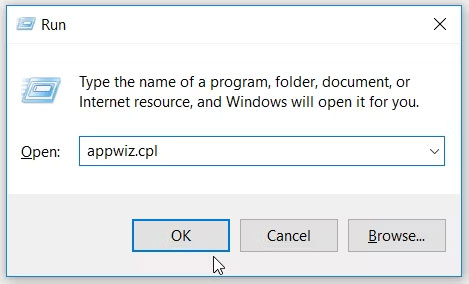
<h2 style="text-align: justify;">1. Sử dụng hộp thoại lệnh Run</h2>

<p style="text-align: justify;">Bạn có thể truy cập nhiều chương trình Windows bằng cách sử dụng hộp thoại lệnh Run. Tất cả những gì bạn cần làm là nhập các lệnh chính xác và bạn đã sẵn sàng.</p>

<p style="text-align: justify;">Bây giờ, đây là cách bạn có thể mở cửa sổ Programs and Features bằng hộp thoại lệnh Run:</p>

<ul>
	<li style="text-align: justify;">Nhấn&nbsp;<strong>Win + R</strong>&nbsp;để&nbsp;khởi chạy hộp thoại lệnh Run.</li>
	<li style="text-align: justify;">Nhập&nbsp;<strong>appwiz.cpl</strong>&nbsp;và nhấp&nbsp;<strong>OK</strong>&nbsp;để mở công cụ Programs and Features.</li>
</ul>

<figure>
<div style="text-align: justify;"><img alt="Mở Công cụ Programs and Features của Windows bằng hộp thoại lệnh Run" data-i="0" data-src="https://st.quantrimang.com/photos/image/2022/09/12/mo-cong-cu-programs-and-features-1.jpg" data-was-processed="true" height="284" src="https://st.quantrimang.com/photos/image/2022/09/12/mo-cong-cu-programs-and-features-1.jpg" width="469" /></div>

<figcaption>
<div style="text-align: justify;">Mở Công cụ Programs and Features của Windows bằng hộp thoại lệnh Run</div>
</figcaption>
</figure>

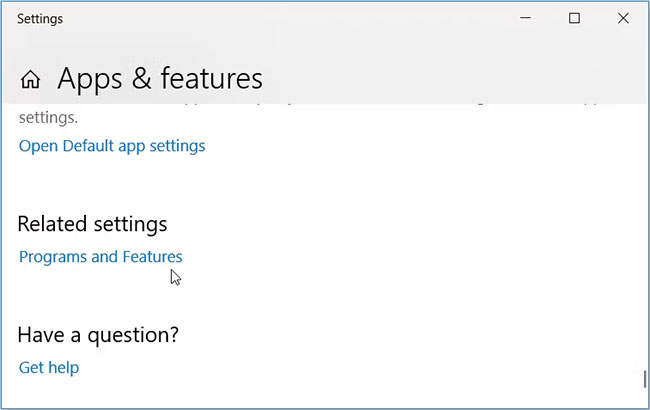
<h2 style="text-align: justify;">2. Sử dụng menu Quick Access</h2>

<p style="text-align: justify;">Menu Quick Access của Windows giúp bạn dễ dàng truy cập hầu hết các ứng dụng quan trọng trên thiết bị của mình. Dưới đây là cách menu này có thể giúp bạn mở công cụ Programs and Features:</p>

<ul>
	<li style="text-align: justify;">Nhấn&nbsp;<strong>Win + X&nbsp;</strong>để mở menu Quick Access.</li>
	<li style="text-align: justify;">Trong cửa sổ tiếp theo, chọn&nbsp;<strong>Apps and Features</strong>.</li>
	<li style="text-align: justify;">Cuối cùng, chọn tùy chọn&nbsp;<strong>Programs and Features&nbsp;</strong>trong&nbsp;<strong>Related settings.</strong></li>
</ul>

<figure>
<div style="text-align: justify;"><img alt="Mở Công cụ Programs and Features của Windows bằng menu Quick Access" data-i="1" data-src="https://st.quantrimang.com/photos/image/2022/09/12/mo-cong-cu-programs-and-features-2.jpg" data-was-processed="true" height="410" src="https://st.quantrimang.com/photos/image/2022/09/12/mo-cong-cu-programs-and-features-2.jpg" width="650" /></div>

<figcaption>
<div style="text-align: justify;">Mở Công cụ Programs and Features của Windows bằng menu Quick Access</div>
</figcaption>
</figure>

<h2 style="text-align: justify;">3. Sử dụng thanh tìm kiếm của Windows</h2>

<p style="text-align: justify;">Thanh tìm kiếm của Windows giúp bạn dễ dàng tìm thấy bất kỳ thứ gì trên thiết bị Windows của mình. Đây là cách bạn có thể sử dụng nó để mở công cụ Programs and Features:</p>

<ul>
	<li style="text-align: justify;">Bấm vào thanh tìm kiếm của menu Start và nhập&nbsp;<strong>Programs and Features</strong>.</li>
	<li style="text-align: justify;">Chọn tùy chọn&nbsp;<strong>Programs and Features</strong>&nbsp;trong số những kết quả phù hợp nhất.</li>
</ul>

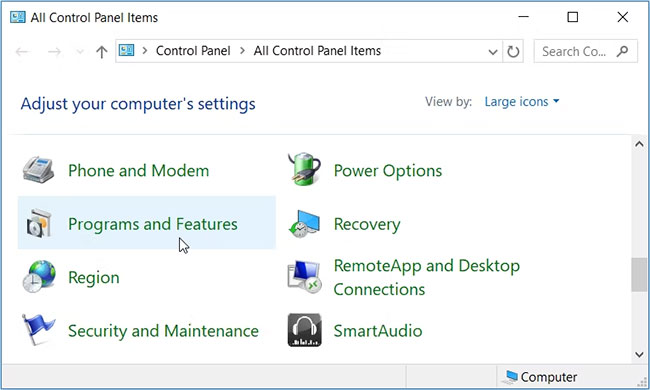
<h2 style="text-align: justify;">4. Sử dụng Control Panel</h2>

<p style="text-align: justify;">Nếu bạn muốn dễ dàng mở công cụ Programs and Features, hãy thử sử dụng Control Panel. Đây là các bước đơn giản để thực hiện:</p>

<ul>
	<li style="text-align: justify;">Nhấn&nbsp;<strong>Win + R</strong>&nbsp;để mở hộp thoại lệnh Run.</li>
	<li style="text-align: justify;">Gõ&nbsp;<strong>Control Panel</strong>&nbsp;và nhấn&nbsp;<strong>Enter.</strong></li>
	<li style="text-align: justify;">Nhấp vào menu drop-down&nbsp;<strong>View by</strong>&nbsp;và chọn&nbsp;<strong>Large icons.</strong></li>
	<li style="text-align: justify;">Cuộn xuống và nhấp vào tùy chọn&nbsp;<strong>Programs and Features</strong>.</li>
</ul>

<figure>
<div style="text-align: justify;"><img alt="Mở Công cụ Programs and Features của Windows bằng Control Panel" data-i="2" data-src="https://st.quantrimang.com/photos/image/2022/09/12/mo-cong-cu-programs-and-features-3.jpg" data-was-processed="true" height="390" src="https://st.quantrimang.com/photos/image/2022/09/12/mo-cong-cu-programs-and-features-3.jpg" width="650" /></div>

<figcaption>
<div style="text-align: justify;">Mở Công cụ Programs and Features của Windows bằng Control Panel</div>
</figcaption>
</figure>

<h2 style="text-align: justify;">5. Sử dụng Command Prompt hoặc PowerShell</h2>

<p style="text-align: justify;">Command Prompt&nbsp;và&nbsp;PowerShell&nbsp;có thể hữu ích trong một số trường hợp, chẳng hạn như khắc phục sự cố hệ thống. Những công cụ này cũng có thể giúp bạn mở các chương trình khác nhau trên thiết bị Windows của mình.</p>

<p style="text-align: justify;">Hãy cùng khám phá cách bạn có thể mở cửa sổ Programs and Features bằng Command Prompt hoặc PowerShell. Để bắt đầu, hãy xem Command Prompt có thể trợ giúp như thế nào:</p>

<ul>
	<li style="text-align: justify;">Nhấn&nbsp;<strong>Win + R</strong>&nbsp;để mở hộp thoại lệnh Run.</li>
	<li style="text-align: justify;">Nhập&nbsp;<strong>CMD</strong>&nbsp;và nhấn&nbsp;<strong>Ctrl + Shift + Enter</strong>&nbsp;để&nbsp;mở Command Prompt với quyền admin.</li>
	<li style="text-align: justify;">Nhập&nbsp;<strong>appwiz.cpl</strong>&nbsp;và nhấn&nbsp;<strong>Enter</strong>&nbsp;để mở cửa sổ Programs and Features.</li>
</ul>

<p style="text-align: justify;">Ngoài ra, hãy thử sử dụng PowerShell bằng cách làm theo các bước sau:</p>

<ul>
	<li style="text-align: justify;">Nhấn&nbsp;<strong>Win + R</strong>&nbsp;để mở hộp thoại lệnh Run.</li>
	<li style="text-align: justify;">Nhập&nbsp;<strong>PowerShell</strong>&nbsp;và nhấn&nbsp;<strong>Ctrl + Shift + Enter</strong>&nbsp;để&nbsp;mở cửa sổ PowerShell với quyền admin.</li>
	<li style="text-align: justify;">Nhập&nbsp;<strong>appwiz.cpl</strong>&nbsp;và nhấn&nbsp;<strong>Enter</strong>&nbsp;để mở cửa sổ Programs and Features.</li>
</ul>

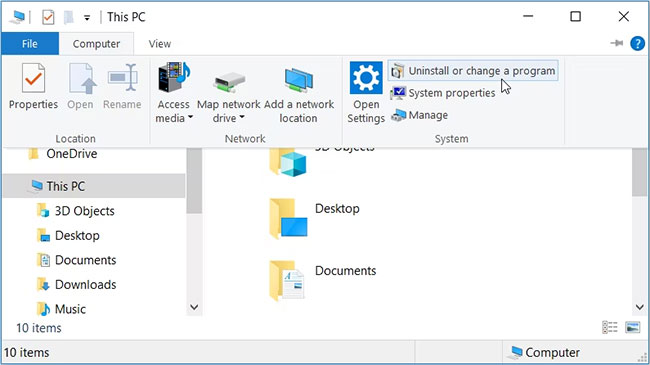
<h2 style="text-align: justify;">6. Sử dụng File Explorer</h2>

<p style="text-align: justify;">Bạn cũng có thể truy cập công cụ Programs and Features bằng File Explorer. Đây là cách thực hiện:</p>

<ul>
	<li style="text-align: justify;">Nhấn&nbsp;<strong>Win + E</strong>&nbsp;để&nbsp;mở File Explorer.</li>
	<li style="text-align: justify;">Nhấp vào&nbsp;<strong>This PC</strong>&nbsp;trên ngăn bên trái.</li>
	<li style="text-align: justify;">Nhấp vào tab&nbsp;<strong>Computer</strong>&nbsp;về phía góc trên bên trái của màn hình.</li>
	<li style="text-align: justify;">Chọn&nbsp;<strong>Uninstall or change a program</strong>&nbsp;từ các tùy chọn.</li>
</ul>

<figure>
<div style="text-align: justify;"><img alt="Mở công cụ Programs and Features của Windows bằng File Explorer" data-i="3" data-src="https://st.quantrimang.com/photos/image/2022/09/12/mo-cong-cu-programs-and-features-4.jpg" data-was-processed="true" height="365" src="https://st.quantrimang.com/photos/image/2022/09/12/mo-cong-cu-programs-and-features-4.jpg" width="650" /></div>

<figcaption>
<div style="text-align: justify;">Mở công cụ Programs and Features của Windows bằng File Explorer</div>
</figcaption>
</figure>

<h2 style="text-align: justify;">7. Mở qua System Settings</h2>

<p style="text-align: justify;">Cài đặt hệ thống luôn có ích khi bạn gặp một số vấn đề liên quan đến hệ thống. Nhưng trong trường hợp này, bài viết sẽ chỉ cho bạn cách những cài đặt này có thể giúp bạn mở công cụ Programs and Features.</p>

<ul>
	<li style="text-align: justify;">Để bắt đầu, hãy nhấn&nbsp;<strong>Win + I</strong>&nbsp;để&nbsp;mở cửa sổ Settings.</li>
	<li style="text-align: justify;">Điều hướng đến&nbsp;<strong>Apps &gt; Apps &amp; features</strong>.</li>
	<li style="text-align: justify;">Cuối cùng, nhấp vào tùy chọn&nbsp;<strong>Programs and Features</strong>&nbsp;ở phía bên tay phải.</li>
</ul>

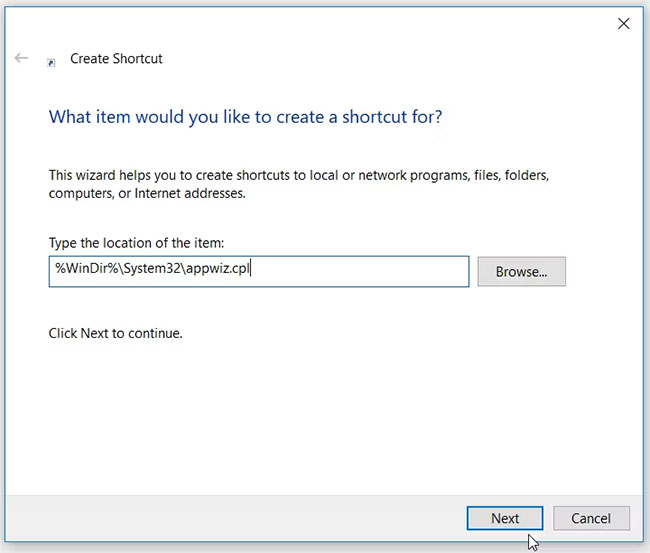
<h2 style="text-align: justify;">8. Tạo shortcut cho Programs and Features</h2>

<p style="text-align: justify;">Bạn cũng có thể tạo shortcut giúp bạn nhanh chóng truy cập vào công cụ Programs and Features. Để bắt đầu, hãy làm theo các bước đơn giản sau:</p>

<ul>
	<li style="text-align: justify;">Nhấp chuột phải vào khoảng trống trên màn hình và chọn&nbsp;<strong>New &gt; Shortcut</strong>.</li>
	<li style="text-align: justify;">Nhập&nbsp;<strong>%WinDir%\System32\appwiz.cpl</strong>&nbsp;vào hộp vị trí rồi bấm&nbsp;<strong>Next.</strong></li>
</ul>

<figure>
<div style="text-align: justify;"><img alt="Tạo shortcut cho Programs and Features" data-i="4" data-src="https://st.quantrimang.com/photos/image/2022/09/12/mo-cong-cu-programs-and-features-5.jpg" data-was-processed="true" height="553" src="https://st.quantrimang.com/photos/image/2022/09/12/mo-cong-cu-programs-and-features-5.jpg" width="650" /></div>

<figcaption>
<div style="text-align: justify;">Tạo shortcut cho Programs and Features</div>
</figcaption>
</figure>

<ul>
	<li style="text-align: justify;">Đặt tên cho shortcut là&nbsp;<strong>Programs and Features</strong>&nbsp;hoặc bất kỳ thứ gì tương tự, rồi nhấn&nbsp;<strong>Finish.</strong></li>
	<li style="text-align: justify;">Để dễ dàng truy cập công cụ Programs and Features, hãy điều hướng đến&nbsp;<strong>Desktop</strong>&nbsp;và nhấp đúp vào shortcut bạn vừa tạo.</li>
</ul>

<p style="text-align: justify;">Bạn muốn một cách đơn giản để hiển thị danh sách đầy đủ các ứng dụng trên thiết bị Windows của mình? Hay bạn cần một trong những phương pháp đơn giản nhất để xóa các chương trình không mong muốn trên Windows? Nếu vậy, hãy thử sử dụng công cụ Programs and Features.</p>

<p style="text-align: justify;">Và nếu bạn đang băn khoăn về cách mở công cụ này, hãy thử bất kỳ mẹo nào mà bài viết đã đề cập ở trên.</p>
		</div>
				<div id="author">
						<p>
				<strong>Nguồn tin:</strong>
				Quantrimang.com
			</p>
		</div>
	</div>
	<div id="footer" class="clearfix">
		<div id="url">
			<strong>URL của bản tin này: </strong><a href="https://www.nguoicodonvn2008.info/vi/news/savefile/kien-thuc-may-tinh/8-cach-mo-cong-cu-programs-and-features-tren-windows-6079.html" title="8 cách mở công cụ Programs and Features trên Windows">https://www.nguoicodonvn2008.info/vi/news/savefile/kien-thuc-may-tinh/8-cach-mo-cong-cu-programs-and-features-tren-windows-6079.html</a>

		</div>
		<div class="clear"></div>
		<div class="copyright">
			&copy; .&#x3A; Nguoicodonvn2008.info - Cõi lòng người cô đơn &#x3A;.
		</div>
		<div id="contact">
			<a href="mailto:admin@nguoicodonvn2008.info">admin@nguoicodonvn2008.info</a>
		</div>
	</div>
</div>
        <div id="timeoutsess" class="chromeframe">
            Bạn đã không sử dụng Site, <a onclick="timeoutsesscancel();" href="https://www.nguoicodonvn2008.info/#">Bấm vào đây để duy trì trạng thái đăng nhập</a>. Thời gian chờ: <span id="secField"> 60 </span> giây
        </div>
        <div id="openidResult" class="nv-alert" style="display:none"></div>
        <div id="openidBt" data-result="" data-redirect=""></div>
		</script>
		<div class="car-top">
  <span><img src="https://www.nguoicodonvn2008.info/themes/default/images/car.png" alt=""></span>
</div>
<div id="run_cronjobs" style="visibility:hidden;display:none;"><img alt="cron" src="/index.php?second=cronjobs&amp;p=r380WmJd" width="1" height="1" /></div>
<script src="https://www.nguoicodonvn2008.info/assets/js/jquery/jquery.min.js"></script>
<script>var nv_base_siteurl="/",nv_lang_data="vi",nv_lang_interface="vi",nv_name_variable="nv",nv_fc_variable="op",nv_lang_variable="language",nv_module_name="news",nv_func_name="savefile",nv_is_user=0, nv_my_ofs=-4,nv_my_abbr="EDT",nv_cookie_prefix="nv4c_e856T",nv_check_pass_mstime=1738000,nv_area_admin=0,nv_safemode=0,theme_responsive=0,nv_recaptcha_ver=2,nv_recaptcha_sitekey="",nv_recaptcha_type="image",XSSsanitize=1;</script>
<script src="https://www.nguoicodonvn2008.info/assets/js/language/vi.js"></script>
<script src="https://www.nguoicodonvn2008.info/assets/js/DOMPurify/purify3.js"></script>
<script src="https://www.nguoicodonvn2008.info/assets/js/global.js"></script>
<script src="https://www.nguoicodonvn2008.info/assets/js/site.js"></script>
<script src="https://www.nguoicodonvn2008.info/themes/default/js/news.js"></script>
<script src="https://www.nguoicodonvn2008.info/themes/default/js/main.js"></script>
<script src="https://www.nguoicodonvn2008.info/themes/default/js/custom.js"></script>
<script type="application/ld+json">
        {
            "@context": "https://schema.org",
            "@type": "Organization",
            "url": "https://www.nguoicodonvn2008.info",
            "logo": "https://www.nguoicodonvn2008.info/uploads/angel.gif"
        }
        </script>
<script src="https://www.nguoicodonvn2008.info/themes/default/js/bootstrap.min.js"></script>
<script type="text/javascript">
var $scrolltop = $('.car-top');
$scrolltop.on('click', function () {
    $('html,body').animate({
        scrollTop: 0
    }, 800);
    $(this).addClass("car-run");
    setTimeout(function(){ $scrolltop.removeClass('car-run');}, 1000);
    return false;
});
$(window).on('scroll', function ()
{ 
    if($(window).scrollTop() >= 200)
    {
        $scrolltop.addClass("show");
        $scrolltop.addClass("car-down");
    }
    else
    {
       $scrolltop.removeClass("show");
       setTimeout(function(){ $scrolltop.removeClass('car-down');}, 300);
    }
});
</script>
</body>
</html>