<!DOCTYPE html>
    <html lang="vi" xmlns="http://www.w3.org/1999/xhtml" prefix="og: http://ogp.me/ns#">
    <head>
<title>7 vấn đề phổ biến nhất trên Internet Explorer</title>
<meta name="description" content="7 vấn đề phổ biến nhất trên Internet Explorer - Savefile - Tin Tức -...">
<meta name="author" content=".: Nguoicodonvn2008.info - Cõi lòng người cô đơn :.">
<meta name="copyright" content=".: Nguoicodonvn2008.info - Cõi lòng người cô đơn :. [admin@nguoicodonvn2008.info]">
<meta name="robots" content="index, archive, follow, noodp">
<meta name="googlebot" content="index,archive,follow,noodp">
<meta name="msnbot" content="all,index,follow">
<meta name="generator" content="NukeViet v4.5">
<meta http-equiv="Content-Type" content="text/html; charset=utf-8">
<meta property="og:title" content="7 vấn đề phổ biến nhất trên Internet Explorer">
<meta property="og:type" content="website">
<meta property="og:description" content="Savefile - Tin Tức - https&#x3A;&#x002F;&#x002F;www.nguoicodonvn2008.info&#x002F;vi&#x002F;news&#x002F;savefile&#x002F;kien-thuc-may-tinh&#x002F;7-van-de-pho-bien-nhat-tren-internet-explorer-2103.html">
<meta property="og:site_name" content=".&#x3A; Nguoicodonvn2008.info - Cõi lòng người cô đơn &#x3A;.">
<meta property="og:url" content="https://www.nguoicodonvn2008.info/vi/news/savefile/kien-thuc-may-tinh/7-van-de-pho-bien-nhat-tren-internet-explorer-2103.html">
<link rel="shortcut icon" href="https://www.nguoicodonvn2008.info/favicon.ico">
<link rel="canonical" href="https://www.nguoicodonvn2008.info/vi/news/savefile/kien-thuc-may-tinh/7-van-de-pho-bien-nhat-tren-internet-explorer-2103.html">
<link rel="alternate" href="https://www.nguoicodonvn2008.info/vi/news/rss/" title="Tin Tức" type="application/rss+xml">
<link rel="alternate" href="https://www.nguoicodonvn2008.info/vi/news/rss/karaoke-dual/" title="Tin Tức - Karaoke Dual" type="application/rss+xml">
<link rel="alternate" href="https://www.nguoicodonvn2008.info/vi/news/rss/nhac-tre/" title="Tin Tức - Nhạc trẻ" type="application/rss+xml">
<link rel="alternate" href="https://www.nguoicodonvn2008.info/vi/news/rss/tru-tinh/" title="Tin Tức - Trữ tình" type="application/rss+xml">
<link rel="alternate" href="https://www.nguoicodonvn2008.info/vi/news/rss/nuoc-ngoai/" title="Tin Tức - Nước ngoài" type="application/rss+xml">
<link rel="alternate" href="https://www.nguoicodonvn2008.info/vi/news/rss/remix/" title="Tin Tức - Remix" type="application/rss+xml">
<link rel="alternate" href="https://www.nguoicodonvn2008.info/vi/news/rss/tam-su-tinh-yeu/" title="Tin Tức - Tâm sự tình yêu" type="application/rss+xml">
<link rel="alternate" href="https://www.nguoicodonvn2008.info/vi/news/rss/tho-suu-tam/" title="Tin Tức - Thơ sưu tầm" type="application/rss+xml">
<link rel="alternate" href="https://www.nguoicodonvn2008.info/vi/news/rss/cuoc-song/" title="Tin Tức - Cuộc sống" type="application/rss+xml">
<link rel="alternate" href="https://www.nguoicodonvn2008.info/vi/news/rss/phan-mem/" title="Tin Tức - Phần mềm" type="application/rss+xml">
<link rel="alternate" href="https://www.nguoicodonvn2008.info/vi/news/rss/kien-thuc-may-tinh/" title="Tin Tức - Kiến thức máy tính" type="application/rss+xml">
<link rel="alternate" href="https://www.nguoicodonvn2008.info/vi/news/rss/hoc-tap/" title="Tin Tức - Học tập" type="application/rss+xml">
<link rel="alternate" href="https://www.nguoicodonvn2008.info/vi/news/rss/tai-lieu/" title="Tin Tức - Tài liệu" type="application/rss+xml">
<link rel="alternate" href="https://www.nguoicodonvn2008.info/vi/news/rss/de-thi/" title="Tin Tức - Đề thi" type="application/rss+xml">
<link rel="preload" as="style" href="https://www.nguoicodonvn2008.info/assets/css/font-awesome.min.css" type="text/css">
<link rel="preload" as="style" href="https://www.nguoicodonvn2008.info/themes/default/css/bootstrap.non-responsive.css" type="text/css">
<link rel="preload" as="style" href="https://www.nguoicodonvn2008.info/themes/default/css/style.css" type="text/css">
<link rel="preload" as="style" href="https://www.nguoicodonvn2008.info/themes/default/css/style.non-responsive.css" type="text/css">
<link rel="preload" as="style" href="https://www.nguoicodonvn2008.info/themes/default/css/news.css" type="text/css">
<link rel="preload" as="style" href="https://www.nguoicodonvn2008.info/themes/default/css/custom.css" type="text/css">
<link rel="preload" as="script" href="https://www.nguoicodonvn2008.info/assets/js/jquery/jquery.min.js" type="text/javascript">
<link rel="preload" as="script" href="https://www.nguoicodonvn2008.info/assets/js/language/vi.js" type="text/javascript">
<link rel="preload" as="script" href="https://www.nguoicodonvn2008.info/assets/js/DOMPurify/purify3.js" type="text/javascript">
<link rel="preload" as="script" href="https://www.nguoicodonvn2008.info/assets/js/global.js" type="text/javascript">
<link rel="preload" as="script" href="https://www.nguoicodonvn2008.info/assets/js/site.js" type="text/javascript">
<link rel="preload" as="script" href="https://www.nguoicodonvn2008.info/themes/default/js/news.js" type="text/javascript">
<link rel="preload" as="script" href="https://www.nguoicodonvn2008.info/themes/default/js/main.js" type="text/javascript">
<link rel="preload" as="script" href="https://www.nguoicodonvn2008.info/themes/default/js/custom.js" type="text/javascript">
<link rel="preload" as="script" href="https://www.nguoicodonvn2008.info/themes/default/js/bootstrap.min.js" type="text/javascript">
<link rel="stylesheet" href="https://www.nguoicodonvn2008.info/assets/css/font-awesome.min.css">
<link rel="stylesheet" href="https://www.nguoicodonvn2008.info/themes/default/css/bootstrap.non-responsive.css">
<link rel="stylesheet" href="https://www.nguoicodonvn2008.info/themes/default/css/style.css">
<link rel="stylesheet" href="https://www.nguoicodonvn2008.info/themes/default/css/style.non-responsive.css">
<link rel="StyleSheet" href="https://www.nguoicodonvn2008.info/themes/default/css/news.css">
<link rel="stylesheet" href="https://www.nguoicodonvn2008.info/themes/default/css/custom.css">
<style type="text/css">
	body{background: #fff;}
</style>
    </head>
    <body>
<div id="print">
	<div id="hd_print">
		<h2 class="pull-left">.&#x3A; Nguoicodonvn2008.info - Cõi lòng người cô đơn &#x3A;.</h2>
		<p class="pull-right"><a title=".&#x3A; Nguoicodonvn2008.info - Cõi lòng người cô đơn &#x3A;." href="https://www.nguoicodonvn2008.info/">https://www.nguoicodonvn2008.info</a></p>
	</div>
	<div class="clear"></div>
	<hr />
	<div id="content">
		<h1>7 vấn đề phổ biến nhất trên Internet Explorer</h1>
		<ul class="list-inline">
			<li>Thứ tư - 27/05/2020 00:52</li>
			<li class="hidden-print txtrequired"><em class="fa fa-print">&nbsp;</em><a title="In ra" href="javascript:;" onclick="window.print()">In ra</a></li>
			<li class="hidden-print txtrequired"><em class="fa fa-power-off">&nbsp;</em><a title="Đóng cửa sổ này" href="javascript:;" onclick="window.close()">Đóng cửa sổ này</a></li>
		</ul>
		<div class="clear"></div>
		<div id="hometext">
		</div>
				<div class="imghome">
			<img alt="7 vấn đề phổ biến nhất trên Internet Explorer" src="https://st.quantrimang.com/photos/image/2020/05/27/van-de-pho-bien-nhat-tren-internet-explorer-5.jpg" width="460" class="img-thumbnail" />
		</div>
		<div class="clear"></div>
		<div id="bodytext" class="clearfix">
			<p style="text-align: justify;">Sau khi trở thành chủ đề bàn tán trong nhiều năm qua, Internet Explorer gần như đã bị lãng quên. Tuy nhiên, Microsoft vẫn bao gồm&nbsp;Internet Explorer 11&nbsp;(phiên bản cuối cùng) với Windows 10, vì lý do tương thích.</p>

<p style="text-align: justify;">Tuy nhiên, đôi khi bạn có thể thấy mình rơi vào các tình huống buộc phải sử dụng Internet Explorer. Hãy cùng xem xét các bản sửa lỗi nhanh cho những sự cố Internet Explorer phổ biến để bạn không gặp rắc rối khi trải nghiệm với trình duyệt cũ này.</p>

<p style="text-align: justify;"><strong>Lưu ý</strong>: Internet Explorer không được tích cực phát triển nữa</p>

<p style="text-align: justify;">Trước khi bắt tay vào giải quyết các sự cố và sửa lỗi cụ thể cho Internet Explorer, cần làm rõ thực tế rằng, mặc dù Microsoft vẫn duy trì IE trên các phiên bản Windows được hỗ trợ, nhưng Internet Explorer là một trình duyệt cũ mà hãng này không còn tích cực phát triển nữa. Do thiếu các tính năng hiện đại và cấu hình cũ, Internet Explorer 11 ngày càng không đủ dùng cho việc duyệt web ngày nay.</p>

<h2 style="text-align: justify;">&nbsp;</h2>

<h2 id="mcetoc_1e9a2e4j10" style="text-align: justify;">1. Xử lý sự cố IE cơ bản: Những bản cập nhật chưa được cài đặt</h2>

<figure>
<div style="text-align: justify;"><img alt="Kiểm tra bản cập nhật Internet Explorer" data-i="0" data-src="https://st.quantrimang.com/photos/image/2020/05/27/van-de-pho-bien-nhat-tren-internet-explorer-1.jpg" data-was-processed="true" height="259" src="https://st.quantrimang.com/photos/image/2020/05/27/van-de-pho-bien-nhat-tren-internet-explorer-1.jpg" width="361" /></div>

<figcaption>
<div style="text-align: justify;">Kiểm tra bản cập nhật Internet Explorer</div>
</figcaption>
</figure>

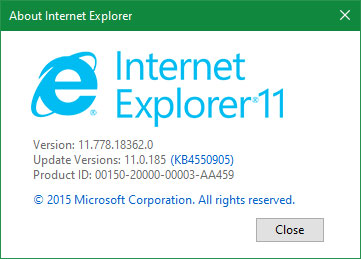
<p style="text-align: justify;">Như đã đề cập, Internet Explorer không nhận được cập nhật thường xuyên. Tuy nhiên, trong trường hợp Microsoft có thể khắc phục sự cố đã biết với Internet Explorer gần đây, bạn nên kiểm tra các bản cập nhật trước khi bắt đầu khắc phục sự cố.</p>

<p style="text-align: justify;">Trên Windows 10, trình duyệt nhận được các bản cập nhật thông qua&nbsp;Windows Update, vì nó là một thành phần của hệ điều hành. Đi tới&nbsp;<strong>Settings &gt; Update &amp; Security &gt; Windows Update</strong>&nbsp;để kiểm tra các bản cập nhật mới nhất và áp dụng bất kỳ bản cập nhật nào xuất hiện tại đây.</p>

<div style="text-align: justify;">&nbsp;</div>

<h2 id="mcetoc_1e9a2e4j11" style="text-align: justify;">2. Không thể tìm thấy Internet Explorer</h2>

<p style="text-align: justify;">Internet Explorer đi kèm với Windows 10 theo mặc định. Để mở nó, chỉ cần tìm kiếm Internet Explorer trên menu Start. Nếu nó không xuất hiện ở đó, hãy nhấn&nbsp;<code>Win</code>+<code>R</code>&nbsp;để mở hộp&nbsp;<strong>Run</strong>&nbsp;và gõ&nbsp;<strong>iexplore.exe.</strong></p>

<p style="text-align: justify;">Nếu bạn thấy thông báo lỗi hoặc Internet Explorer không load được, thì có khả năng là bạn (hoặc một quản trị viên khác trên máy tính) đã vô hiệu hóa nó. Có lẽ họ không muốn bất cứ ai sử dụng trình duyệt cũ một cách không cần thiết.</p>

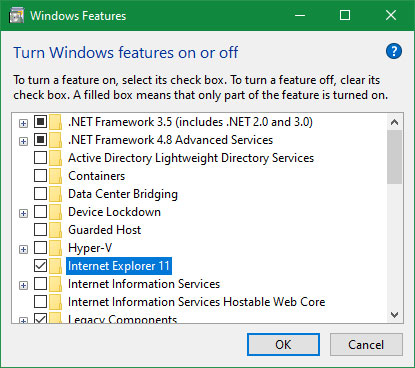
<p style="text-align: justify;">Để kích hoạt lại Internet Explorer, nhập&nbsp;<strong>Windows features</strong>&nbsp;vào menu Start và chọn&nbsp;<strong>Turn Windows features on or off</strong>. Trong danh sách xuất hiện, cuộn xuống và kiểm tra Internet Explorer 11 đã được tích chưa. Nhấp vào&nbsp;<strong>OK</strong>, đợi quá trình hoàn tất, sau đó khởi động lại PC.</p>

<figure>
<div style="text-align: justify;"><img alt="Không thể tìm thấy Internet Explorer" data-i="1" data-src="https://st.quantrimang.com/photos/image/2020/05/27/van-de-pho-bien-nhat-tren-internet-explorer-2.jpg" data-was-processed="true" height="368" src="https://st.quantrimang.com/photos/image/2020/05/27/van-de-pho-bien-nhat-tren-internet-explorer-2.jpg" width="415" /></div>

<figcaption>
<div style="text-align: justify;">Không thể tìm thấy Internet Explorer</div>
</figcaption>
</figure>

<h2 id="mcetoc_1e9a2e4j12" style="text-align: justify;">3. Lỗi 404 trong Internet Explorer</h2>

<p style="text-align: justify;">Lỗi 404 có nghĩa là trang mà bạn đang cố truy cập không tồn tại. Thông thường, điều này xảy ra do bạn nhập sai URL hoặc nhấp vào liên kết dẫn đến trang “chết”. Đây là một vấn đề hiếm gặp với IE.</p>

<p style="text-align: justify;">Khi điều này xảy ra, nhấn&nbsp;<code>F5</code>&nbsp;để refresh trang và đảm bảo rằng đó không phải là vấn đề tạm thời. Nếu bạn nhập URL theo cách thủ công, hãy kiểm tra kỹ để xác nhận bạn đã không mắc lỗi nào. Sau khi kiểm tra chúng, hãy thử tìm kiếm trang bằng Google.</p>

<p style="text-align: justify;">Nếu nó không xuất hiện khi tìm kiếm, rất có thể trang đó không còn tồn tại. Hãy thử truy cập nó từ một trình duyệt hoặc thiết bị khác như điện thoại. Nếu nó hoạt động, hãy thử&nbsp;xóa bộ nhớ cache của trình duyệt&nbsp;trong IE.</p>

<div style="text-align: justify;">&nbsp;</div>

<h2 id="mcetoc_1e9a2e4j13" style="text-align: justify;">4. Internet Explorer gặp sự cố, đóng băng hoặc treo</h2>

<p style="text-align: justify;">Rất nhiều sự cố Internet Explorer phát sinh do hiệu năng kém. Để giải quyết những vấn đề này, trước tiên bạn nên chạy trình khắc phục sự cố&nbsp;<strong>Internet Explorer Performance</strong>.</p>

<p style="text-align: justify;">Để truy cập, tìm kiếm&nbsp;<strong>control panel</strong>&nbsp;trong menu Start. Nếu bạn thấy&nbsp;<strong>Category</strong>&nbsp;ở trên cùng bên phải, nhấp vào đây để thay đổi nó thành&nbsp;<strong>Small icons</strong>. Tiếp theo, chọn&nbsp;<strong>Troubleshooting &gt; View all</strong>&nbsp;ở góc trên bên trái.</p>

<p style="text-align: justify;">Trong menu kết quả, bấm đúp vào&nbsp;<strong>Internet Explorer Performance</strong>. Trước khi bắt đầu, hãy nhấp vào liên kết&nbsp;<strong>Advanced</strong>&nbsp;và chọn&nbsp;<strong>Run as administrator</strong>&nbsp;để có kết quả tốt nhất.</p>

<p style="text-align: justify;">Khi trình khắc phục sự cố hoàn tất, nó sẽ hiển thị cho bạn mọi hành động đã hoàn thành. Hy vọng, những điều này sẽ giải quyết vấn đề với Internet Explorer của bạn.</p>

<p style="text-align: justify;">Thay đổi tính năng tăng tốc phần cứng cũng có thể giúp ích cho những vấn đề này. Tùy chọn này sử dụng card đồ họa PC (thay vì CPU) để xử lý các tác vụ chuyên sâu về đồ họa, chẳng hạn như truyền phát video.</p>

<p style="text-align: justify;">Trong hầu hết mọi trường hợp, tốt nhất nên giữ cho tính năng này được kích hoạt, nhưng bạn có thể thử chuyển đổi để xem có tạo ra sự khác biệt không.</p>

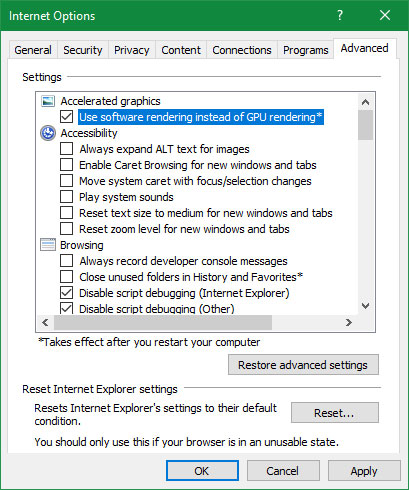
<p style="text-align: justify;">Để chuyển đổi, hãy nhấp vào biểu tượng bánh răng ở phía trên bên phải của Internet Explorer (đại diện cho menu&nbsp;<strong>Tools</strong>), rồi chọn&nbsp;<strong>Internet options</strong>. Chọn tab&nbsp;<strong>Advanced</strong>&nbsp;ở trên cùng, sau đó tích vào hộp&nbsp;<strong>Use software rendering instead of GPU rendering</strong>. Nhấp&nbsp;<strong>OK</strong>, sau đó bạn sẽ cần khởi động lại PC để thay đổi có hiệu lực.</p>

<figure>
<div style="text-align: justify;"><img alt="Tích vào Use software rendering instead of GPU rendering" data-i="2" data-src="https://st.quantrimang.com/photos/image/2020/05/27/van-de-pho-bien-nhat-tren-internet-explorer-3.jpg" data-was-processed="true" height="490" src="https://st.quantrimang.com/photos/image/2020/05/27/van-de-pho-bien-nhat-tren-internet-explorer-3.jpg" width="409" /></div>

<figcaption>
<div style="text-align: justify;">Tích vào Use software rendering instead of GPU rendering</div>
</figcaption>
</figure>

<h3 id="mcetoc_1e9a2e4j14" style="text-align: justify;">Khắc phục sự cố hiệu suất</h3>

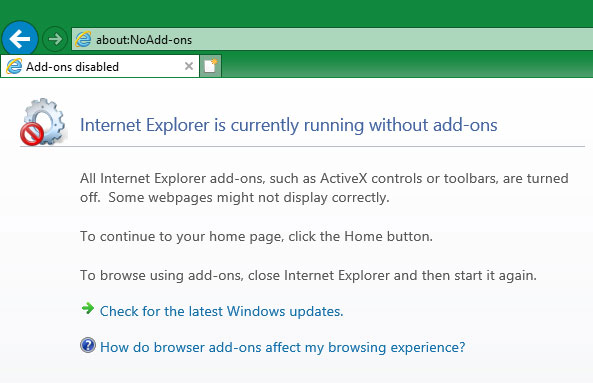
<p style="text-align: justify;">Add-on trình duyệt thường có thể can thiệp vào hiệu suất. Nhấp vào biểu tượng bánh răng và chọn&nbsp;<strong>Manage add-ons</strong>&nbsp;để xem lại những add-on bạn đã bật và thử tắt bất kỳ add-on nào bạn không cần. Ngoài ra, bạn cũng có thể chạy Internet Explorer mà không cần bất kỳ tiện ích bổ sung nào, để xem điều đó có cải thiện được gì không.</p>

<p style="text-align: justify;">Để làm điều này, hãy đóng tất cả các cửa sổ Internet Explorer trước. Sau đó nhấn&nbsp;<code>Win</code>+<code>R</code>&nbsp;để mở hộp thoại&nbsp;<strong>Run</strong>, nhập&nbsp;<strong>iexplore.exe -extoff</strong>&nbsp;và nhấn&nbsp;<code>Enter</code>. Xem xem IE có hoạt động tốt hơn khi không có tiện ích mở rộng không.</p>

<figure>
<div style="text-align: justify;"><img alt="Khắc phục sự cố hiệu suất với add-on" data-i="3" data-src="https://st.quantrimang.com/photos/image/2020/05/27/van-de-pho-bien-nhat-tren-internet-explorer-4.jpg" data-was-processed="true" height="383" src="https://st.quantrimang.com/photos/image/2020/05/27/van-de-pho-bien-nhat-tren-internet-explorer-4.jpg" width="593" /></div>

<figcaption>
<div style="text-align: justify;">Khắc phục sự cố hiệu suất với add-on</div>
</figcaption>
</figure>

<p style="text-align: justify;">Nếu vẫn thất bại, bạn nên thử reset lại hoàn toàn Internet Explorer. Điều này đặt mọi thứ trở về trạng thái mặc định. Trước khi tiếp tục, bạn nên lưu mọi thứ muốn giữ từ Internet Explorer, chẳng hạn như sao lưu bookmark.</p>

<p style="text-align: justify;">Để reset IE, hãy chuyển đến&nbsp;<strong>Tools &gt; Internet options &gt; Advanced</strong>&nbsp;và nhấp vào nút&nbsp;<strong>Reset</strong>&nbsp;ở dưới cùng. Quá trình sẽ reset lại tất cả các cài đặt của bạn, nhưng không xóa nội dung cá nhân như trang chủ, lịch sử và dữ liệu biểu mẫu đã lưu.</p>

<p style="text-align: justify;">Chọn hộp&nbsp;<strong>Delete personal settings</strong>&nbsp;nếu bạn cũng muốn xóa những nội dung này.</p>

<p style="text-align: justify;">Sau khi bạn nhấp vào&nbsp;<strong>Reset</strong>, bạn sẽ cần khởi động lại máy tính để các thay đổi có hiệu lực.</p>

<h2 id="mcetoc_1e9a2e4j15" style="text-align: justify;">5. Các vấn đề hiển thị trên Internet Explorer</h2>

<p style="text-align: justify;">Nếu một trang web hiển thị không giống như bạn mong đợi, chẳng hạn như là trang trống, hình ảnh không xuất hiện, văn bản bị lỗi hoặc lộn xộn, menu bị thiếu, có thể có một số vấn đề tương thích giữa IE và trang web.</p>

<p style="text-align: justify;">Điều này thường có thể xảy ra do&nbsp;<strong>Compatibility View</strong>, một tính năng được thiết kế để giúp hiển thị các trang web được xây dựng cho các phiên bản IE cũ. Để kiểm tra, bấm vào&nbsp;<strong>Compatibility View settings</strong>&nbsp;từ menu&nbsp;<strong>Tools.</strong>&nbsp;Trang web hiện tại sẽ hiển thị trong hộp&nbsp;<strong>Add this website</strong>; nhấp vào&nbsp;<strong>Add</strong>&nbsp;để hiển thị nó bằng&nbsp;<strong>Compatibility View.</strong></p>

<p style="text-align: justify;">Nếu trang web có vấn đề về việc hiển thị và nằm trong danh sách&nbsp;<strong>Compatibility View</strong>, hãy nhấp vào đó và chọn&nbsp;<strong>Remove.</strong>&nbsp;Bạn không bao giờ cần phải sử dụng Compatibility View trừ khi một trang web được xây dựng riêng cho IE 8 trở về trước (điều này hiện nay rất hiếm).</p>

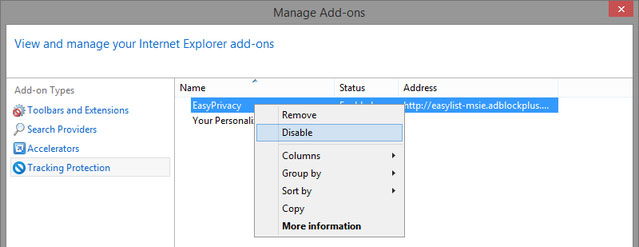
<p style="text-align: justify;">Tính năng&nbsp;<strong>Tracking Protection</strong>&nbsp;của Internet Explorer, giúp giảm việc theo dõi trang web vì quyền riêng tư, cũng có thể can thiệp vào nội dung. Để tắt&nbsp;<strong>Tracking Protection</strong>, chọn&nbsp;<strong>Manage add-ons</strong>&nbsp;từ menu&nbsp;<strong>Tools</strong>. Chọn&nbsp;<strong>Tracking Protection</strong>&nbsp;từ thanh bên trái, sau đó nhấp chuột phải vào từng mục trong danh sách và chọn&nbsp;<strong>Disable.</strong></p>

<figure>
<div style="text-align: justify;"><img alt="Tắt tính năng Tracking Protection" data-i="4" data-src="https://st.quantrimang.com/photos/image/2020/05/27/van-de-pho-bien-nhat-tren-internet-explorer-5.jpg" data-was-processed="true" height="247" src="https://st.quantrimang.com/photos/image/2020/05/27/van-de-pho-bien-nhat-tren-internet-explorer-5.jpg" width="639" /></div>

<figcaption>
<div style="text-align: justify;">Tắt tính năng Tracking Protection</div>
</figcaption>
</figure>

<p style="text-align: justify;">Bạn cũng có thể thử xóa bộ nhớ cache của trình duyệt, như đã đề cập ở trên. Vấn đề hiển thị cũng có thể được gây ra bởi việc tăng tốc phần cứng như đã nói trước đó. Hãy thử bật cài đặt đó nếu bạn chưa thực hiện.</p>

<div style="text-align: justify;">&nbsp;</div>

<h2 id="mcetoc_1e9a2e4j16" style="text-align: justify;">6. Video không phát trong Internet Explorer</h2>

<p style="text-align: justify;">Nếu bạn không thể làm một video phát trong IE, hãy thử sử dụng một trình duyệt khác. Hầu hết các video hiện nay sử dụng&nbsp;HTML5, hoạt động trong mọi trình duyệt hiện đại. Khi một video cụ thể không mở, có thể nó dựa vào một tính năng mà IE thiếu.</p>

<p style="text-align: justify;">Nếu bạn thực sự cần xem nó trong IE, hãy kiểm tra các add-on để xem có xung đột không, như được mô tả ở trên.</p>

<h2 id="mcetoc_1e9a2e4j17" style="text-align: justify;">7. Không thể xem bất kỳ hình ảnh nào trong Internet Explorer</h2>

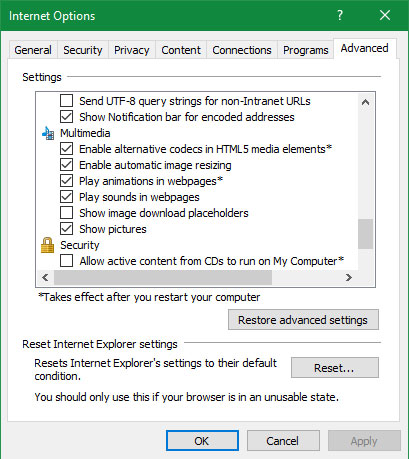
<p style="text-align: justify;">Bạn có thể thử tất cả các giải pháp được đề cập trước đây để khắc phục vấn đề này, chẳng hạn như Compatibility View, tắt Tracking Protection và xóa các file Internet tạm thời. Tuy nhiên, thực sự có một cài đặt vô hiệu hóa tất cả các hình ảnh trong Internet Explorer. Đây là một sửa chữa đơn giản nếu bạn đã gặp phải vấn đề này.</p>

<p style="text-align: justify;">Duyệt đến&nbsp;<strong>Tools &gt; Internet options &gt; Advanced</strong>. Cuộn xuống tiêu đề&nbsp;<strong>Multimedia</strong>&nbsp;và đảm bảo rằng&nbsp;<strong>Show pictures</strong>&nbsp;được chọn.</p>

<figure>
<div style="text-align: justify;"><img alt="Đảm bảo rằng Show pictures được chọn" data-i="5" data-src="https://st.quantrimang.com/photos/image/2020/05/27/van-de-pho-bien-nhat-tren-internet-explorer-6.jpg" data-was-processed="true" height="459" src="https://st.quantrimang.com/photos/image/2020/05/27/van-de-pho-bien-nhat-tren-internet-explorer-6.jpg" width="409" /></div>

<figcaption>
<div style="text-align: justify;">Đảm bảo rằng Show pictures được chọn</div>
</figcaption>
</figure>

<p style="text-align: justify;">Nếu tùy chọn này đã được chọn, bạn có thể muốn reset lại cài đặt bảo mật Internet Explorer. Khi ở trong&nbsp;<strong>Internet options</strong>, hãy nhấp vào tab&nbsp;<strong>Security</strong>&nbsp;và bạn sẽ thấy một số “khu vực” khác ở trên (hầu hết các trang web đều rơi vào khu vực Internet). Chỉ cần nhấp vào&nbsp;<strong>Reset all zones to default level</strong>&nbsp;và khởi động lại PC để đưa mọi thứ trở lại bình thường.</p>

<p style="text-align: justify;">Nếu tất cả những điều này không thành công, hãy reset lại IE về cài đặt mặc định như đã giải thích ở trên.</p>
		</div>
				<div id="author">
						<p>
				<strong>Nguồn tin:</strong>
				Quantrimang.com
			</p>
		</div>
	</div>
	<div id="footer" class="clearfix">
		<div id="url">
			<strong>URL của bản tin này: </strong><a href="https://www.nguoicodonvn2008.info/vi/news/savefile/kien-thuc-may-tinh/7-van-de-pho-bien-nhat-tren-internet-explorer-2103.html" title="7 vấn đề phổ biến nhất trên Internet Explorer">https://www.nguoicodonvn2008.info/vi/news/savefile/kien-thuc-may-tinh/7-van-de-pho-bien-nhat-tren-internet-explorer-2103.html</a>

		</div>
		<div class="clear"></div>
		<div class="copyright">
			&copy; .&#x3A; Nguoicodonvn2008.info - Cõi lòng người cô đơn &#x3A;.
		</div>
		<div id="contact">
			<a href="mailto:admin@nguoicodonvn2008.info">admin@nguoicodonvn2008.info</a>
		</div>
	</div>
</div>
        <div id="timeoutsess" class="chromeframe">
            Bạn đã không sử dụng Site, <a onclick="timeoutsesscancel();" href="https://www.nguoicodonvn2008.info/#">Bấm vào đây để duy trì trạng thái đăng nhập</a>. Thời gian chờ: <span id="secField"> 60 </span> giây
        </div>
        <div id="openidResult" class="nv-alert" style="display:none"></div>
        <div id="openidBt" data-result="" data-redirect=""></div>
		</script>
		<div class="car-top">
  <span><img src="https://www.nguoicodonvn2008.info/themes/default/images/car.png" alt=""></span>
</div>
<script src="https://www.nguoicodonvn2008.info/assets/js/jquery/jquery.min.js"></script>
<script>var nv_base_siteurl="/",nv_lang_data="vi",nv_lang_interface="vi",nv_name_variable="nv",nv_fc_variable="op",nv_lang_variable="language",nv_module_name="news",nv_func_name="savefile",nv_is_user=0, nv_my_ofs=-4,nv_my_abbr="EDT",nv_cookie_prefix="nv4c_e856T",nv_check_pass_mstime=1738000,nv_area_admin=0,nv_safemode=0,theme_responsive=0,nv_recaptcha_ver=2,nv_recaptcha_sitekey="",nv_recaptcha_type="image",XSSsanitize=1;</script>
<script src="https://www.nguoicodonvn2008.info/assets/js/language/vi.js"></script>
<script src="https://www.nguoicodonvn2008.info/assets/js/DOMPurify/purify3.js"></script>
<script src="https://www.nguoicodonvn2008.info/assets/js/global.js"></script>
<script src="https://www.nguoicodonvn2008.info/assets/js/site.js"></script>
<script src="https://www.nguoicodonvn2008.info/themes/default/js/news.js"></script>
<script src="https://www.nguoicodonvn2008.info/themes/default/js/main.js"></script>
<script src="https://www.nguoicodonvn2008.info/themes/default/js/custom.js"></script>
<script type="application/ld+json">
        {
            "@context": "https://schema.org",
            "@type": "Organization",
            "url": "https://www.nguoicodonvn2008.info",
            "logo": "https://www.nguoicodonvn2008.info/uploads/angel.gif"
        }
        </script>
<script src="https://www.nguoicodonvn2008.info/themes/default/js/bootstrap.min.js"></script>
<script type="text/javascript">
var $scrolltop = $('.car-top');
$scrolltop.on('click', function () {
    $('html,body').animate({
        scrollTop: 0
    }, 800);
    $(this).addClass("car-run");
    setTimeout(function(){ $scrolltop.removeClass('car-run');}, 1000);
    return false;
});
$(window).on('scroll', function ()
{ 
    if($(window).scrollTop() >= 200)
    {
        $scrolltop.addClass("show");
        $scrolltop.addClass("car-down");
    }
    else
    {
       $scrolltop.removeClass("show");
       setTimeout(function(){ $scrolltop.removeClass('car-down');}, 300);
    }
});
</script>
</body>
</html>