<!DOCTYPE html>
    <html lang="vi" xmlns="http://www.w3.org/1999/xhtml" prefix="og: http://ogp.me/ns#">
    <head>
<title>7 mẹo tìm kiếm file tốt hơn trên Google Drive</title>
<meta name="description" content="7 mẹo tìm kiếm file tốt hơn trên Google Drive - Savefile - Tin Tức -...">
<meta name="author" content=".: Nguoicodonvn2008.info - Cõi lòng người cô đơn :.">
<meta name="copyright" content=".: Nguoicodonvn2008.info - Cõi lòng người cô đơn :. [admin@nguoicodonvn2008.info]">
<meta name="robots" content="index, archive, follow, noodp">
<meta name="googlebot" content="index,archive,follow,noodp">
<meta name="msnbot" content="all,index,follow">
<meta name="generator" content="NukeViet v4.5">
<meta http-equiv="Content-Type" content="text/html; charset=utf-8">
<meta property="og:title" content="7 mẹo tìm kiếm file tốt hơn trên Google Drive">
<meta property="og:type" content="website">
<meta property="og:description" content="Savefile - Tin Tức - https&#x3A;&#x002F;&#x002F;www.nguoicodonvn2008.info&#x002F;vi&#x002F;news&#x002F;savefile&#x002F;kien-thuc-may-tinh&#x002F;7-meo-tim-kiem-file-tot-hon-tren-google-drive-11070.html">
<meta property="og:site_name" content=".&#x3A; Nguoicodonvn2008.info - Cõi lòng người cô đơn &#x3A;.">
<meta property="og:url" content="https://www.nguoicodonvn2008.info/vi/news/savefile/kien-thuc-may-tinh/7-meo-tim-kiem-file-tot-hon-tren-google-drive-11070.html">
<link rel="shortcut icon" href="https://www.nguoicodonvn2008.info/favicon.ico">
<link rel="canonical" href="https://www.nguoicodonvn2008.info/vi/news/savefile/kien-thuc-may-tinh/7-meo-tim-kiem-file-tot-hon-tren-google-drive-11070.html">
<link rel="alternate" href="https://www.nguoicodonvn2008.info/vi/news/rss/" title="Tin Tức" type="application/rss+xml">
<link rel="alternate" href="https://www.nguoicodonvn2008.info/vi/news/rss/karaoke-dual/" title="Tin Tức - Karaoke Dual" type="application/rss+xml">
<link rel="alternate" href="https://www.nguoicodonvn2008.info/vi/news/rss/nhac-tre/" title="Tin Tức - Nhạc trẻ" type="application/rss+xml">
<link rel="alternate" href="https://www.nguoicodonvn2008.info/vi/news/rss/tru-tinh/" title="Tin Tức - Trữ tình" type="application/rss+xml">
<link rel="alternate" href="https://www.nguoicodonvn2008.info/vi/news/rss/nuoc-ngoai/" title="Tin Tức - Nước ngoài" type="application/rss+xml">
<link rel="alternate" href="https://www.nguoicodonvn2008.info/vi/news/rss/remix/" title="Tin Tức - Remix" type="application/rss+xml">
<link rel="alternate" href="https://www.nguoicodonvn2008.info/vi/news/rss/tam-su-tinh-yeu/" title="Tin Tức - Tâm sự tình yêu" type="application/rss+xml">
<link rel="alternate" href="https://www.nguoicodonvn2008.info/vi/news/rss/tho-suu-tam/" title="Tin Tức - Thơ sưu tầm" type="application/rss+xml">
<link rel="alternate" href="https://www.nguoicodonvn2008.info/vi/news/rss/cuoc-song/" title="Tin Tức - Cuộc sống" type="application/rss+xml">
<link rel="alternate" href="https://www.nguoicodonvn2008.info/vi/news/rss/phan-mem/" title="Tin Tức - Phần mềm" type="application/rss+xml">
<link rel="alternate" href="https://www.nguoicodonvn2008.info/vi/news/rss/kien-thuc-may-tinh/" title="Tin Tức - Kiến thức máy tính" type="application/rss+xml">
<link rel="alternate" href="https://www.nguoicodonvn2008.info/vi/news/rss/hoc-tap/" title="Tin Tức - Học tập" type="application/rss+xml">
<link rel="alternate" href="https://www.nguoicodonvn2008.info/vi/news/rss/tai-lieu/" title="Tin Tức - Tài liệu" type="application/rss+xml">
<link rel="alternate" href="https://www.nguoicodonvn2008.info/vi/news/rss/de-thi/" title="Tin Tức - Đề thi" type="application/rss+xml">
<link rel="preload" as="style" href="https://www.nguoicodonvn2008.info/assets/css/font-awesome.min.css" type="text/css">
<link rel="preload" as="style" href="https://www.nguoicodonvn2008.info/themes/default/css/bootstrap.non-responsive.css" type="text/css">
<link rel="preload" as="style" href="https://www.nguoicodonvn2008.info/themes/default/css/style.css" type="text/css">
<link rel="preload" as="style" href="https://www.nguoicodonvn2008.info/themes/default/css/style.non-responsive.css" type="text/css">
<link rel="preload" as="style" href="https://www.nguoicodonvn2008.info/themes/default/css/news.css" type="text/css">
<link rel="preload" as="style" href="https://www.nguoicodonvn2008.info/themes/default/css/custom.css" type="text/css">
<link rel="preload" as="script" href="https://www.nguoicodonvn2008.info/assets/js/jquery/jquery.min.js" type="text/javascript">
<link rel="preload" as="script" href="https://www.nguoicodonvn2008.info/assets/js/language/vi.js" type="text/javascript">
<link rel="preload" as="script" href="https://www.nguoicodonvn2008.info/assets/js/DOMPurify/purify3.js" type="text/javascript">
<link rel="preload" as="script" href="https://www.nguoicodonvn2008.info/assets/js/global.js" type="text/javascript">
<link rel="preload" as="script" href="https://www.nguoicodonvn2008.info/assets/js/site.js" type="text/javascript">
<link rel="preload" as="script" href="https://www.nguoicodonvn2008.info/themes/default/js/news.js" type="text/javascript">
<link rel="preload" as="script" href="https://www.nguoicodonvn2008.info/themes/default/js/main.js" type="text/javascript">
<link rel="preload" as="script" href="https://www.nguoicodonvn2008.info/themes/default/js/custom.js" type="text/javascript">
<link rel="preload" as="script" href="https://www.nguoicodonvn2008.info/themes/default/js/bootstrap.min.js" type="text/javascript">
<link rel="stylesheet" href="https://www.nguoicodonvn2008.info/assets/css/font-awesome.min.css">
<link rel="stylesheet" href="https://www.nguoicodonvn2008.info/themes/default/css/bootstrap.non-responsive.css">
<link rel="stylesheet" href="https://www.nguoicodonvn2008.info/themes/default/css/style.css">
<link rel="stylesheet" href="https://www.nguoicodonvn2008.info/themes/default/css/style.non-responsive.css">
<link rel="StyleSheet" href="https://www.nguoicodonvn2008.info/themes/default/css/news.css">
<link rel="stylesheet" href="https://www.nguoicodonvn2008.info/themes/default/css/custom.css">
<style type="text/css">
	body{background: #fff;}
</style>
    </head>
    <body>
<div id="print">
	<div id="hd_print">
		<h2 class="pull-left">.&#x3A; Nguoicodonvn2008.info - Cõi lòng người cô đơn &#x3A;.</h2>
		<p class="pull-right"><a title=".&#x3A; Nguoicodonvn2008.info - Cõi lòng người cô đơn &#x3A;." href="https://www.nguoicodonvn2008.info/">https://www.nguoicodonvn2008.info</a></p>
	</div>
	<div class="clear"></div>
	<hr />
	<div id="content">
		<h1>7 mẹo tìm kiếm file tốt hơn trên Google Drive</h1>
		<ul class="list-inline">
			<li>Thứ sáu - 05/09/2025 00:15</li>
			<li class="hidden-print txtrequired"><em class="fa fa-print">&nbsp;</em><a title="In ra" href="javascript:;" onclick="window.print()">In ra</a></li>
			<li class="hidden-print txtrequired"><em class="fa fa-power-off">&nbsp;</em><a title="Đóng cửa sổ này" href="javascript:;" onclick="window.close()">Đóng cửa sổ này</a></li>
		</ul>
		<div class="clear"></div>
		<div id="hometext">
		</div>
				<div class="imghome">
			<img alt="7 mẹo tìm kiếm file tốt hơn trên Google Drive" src="https://st.quantrimang.com/photos/image/2025/09/04/thu-thuat-tim-kiem-nhanh-moi-thong-tin-tren-google-drive-7.jpg" width="460" class="img-thumbnail" />
		</div>
		<div class="clear"></div>
		<div id="bodytext" class="clearfix">
			<p style="text-align: justify;">Google Drive&nbsp;là công cụ tuyệt vời để lưu trữ và chia sẻ file, nhưng việc tìm kiếm file bạn cần đôi khi có thể là một thách thức, đặc biệt là khi bạn không nhớ tên file. May mắn thay, có những cách thông minh hơn để tìm kiếm, lọc và điều hướng Drive, giúp bạn nhanh chóng tìm thấy chính xác những gì mình cần.</p>

<div style="text-align: justify;">&nbsp;</div>

<h2 style="text-align: justify;">7. Lọc file theo loại để tìm kiếm nhanh chóng</h2>

<h3 style="text-align: justify;">Tìm kiếm PDF, tài liệu, trang tính trong tích tắc</h3>

<figure>
<div style="text-align: justify;"><img alt="Tùy chọn tìm kiếm theo loại file trên Google Drive" data-adbro-processed="true" data-i="0" data-src="https://st.quantrimang.com/photos/image/2025/09/04/thu-thuat-tim-kiem-nhanh-moi-thong-tin-tren-google-drive-1.jpg" data-was-processed="true" height="487" src="https://st.quantrimang.com/photos/image/2025/09/04/thu-thuat-tim-kiem-nhanh-moi-thong-tin-tren-google-drive-1.jpg" width="825" /></div>

<figcaption>
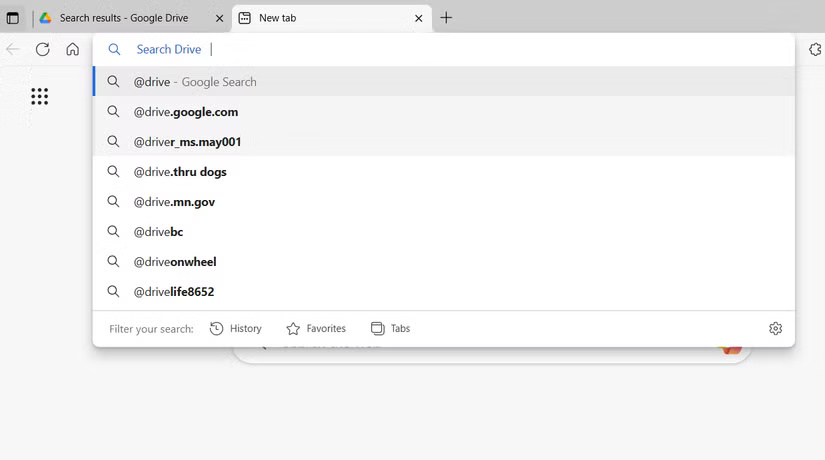
<div style="text-align: justify;">Tùy chọn tìm kiếm theo loại file trên Google Drive</div>
</figcaption>
</figure>

<p style="text-align: justify;">Một cách đơn giản nhưng hiệu quả để thu hẹp kết quả tìm kiếm trong Google Drive là tìm kiếm theo loại file. Thay vì phải cuộn qua một danh sách dài kết quả, bạn có thể yêu cầu Google Drive tập trung vào loại file bạn thực sự đang tìm kiếm.</p>

<p style="text-align: justify;">Google Drive cho phép bạn lọc theo tài liệu, bảng tính, bài thuyết trình,&nbsp;PDF, hình ảnh, video và thậm chí cả thư mục.</p>

<h2 style="text-align: justify;">6. Tìm file theo chủ sở hữu hoặc ngày sửa đổi gần nhất</h2>

<h3 style="text-align: justify;">Theo dõi file theo ngày, không phải theo trí nhớ</h3>

<figure>
<div style="text-align: justify;"><img alt="Tìm file Google Drive theo người dùng" data-i="1" data-src="https://st.quantrimang.com/photos/image/2025/09/04/thu-thuat-tim-kiem-nhanh-moi-thong-tin-tren-google-drive-2.jpg" data-was-processed="true" height="460" src="https://st.quantrimang.com/photos/image/2025/09/04/thu-thuat-tim-kiem-nhanh-moi-thong-tin-tren-google-drive-2.jpg" width="825" /></div>

<figcaption>
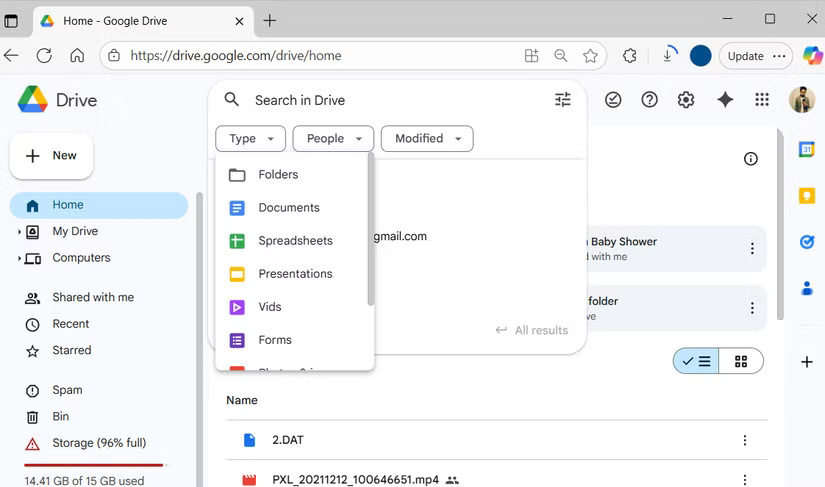
<div style="text-align: justify;">Tìm file Google Drive theo người dùng</div>
</figcaption>
</figure>

<p style="text-align: justify;">Đôi khi, chỉ lọc theo loại file là không đủ, đặc biệt là khi Google Drive của bạn chứa đầy các file tương tự. Đó là lúc tìm kiếm theo người dùng hoặc ngày sửa đổi gần nhất có thể hữu ích.</p>

<p style="text-align: justify;">Nếu bạn nhớ ai đã tạo hoặc chia sẻ file, menu&nbsp; drop-down&nbsp;<strong>People</strong>&nbsp;sẽ là lựa chọn tốt nhất. Nhập tên người đó, di chuột qua tên và chọn các tùy chọn như&nbsp;<strong>All</strong>,&nbsp;<strong>Owner</strong>,&nbsp;<strong>Creator</strong>,&nbsp;<strong>Shared by</strong>&nbsp;hoặc&nbsp;<strong>Shared with</strong>.</p>

<h2 style="text-align: justify;">5. Tìm kiếm bên trong file để tìm chính xác những gì bạn đang tìm kiếm</h2>

<h3 style="text-align: justify;">Không chỉ dừng lại ở tên file</h3>

<figure>
<div style="text-align: justify;"><img alt="Google Drive hiển thị kết quả tìm kiếm" data-i="2" data-src="https://st.quantrimang.com/photos/image/2025/09/04/thu-thuat-tim-kiem-nhanh-moi-thong-tin-tren-google-drive-3.jpg" data-was-processed="true" height="466" src="https://st.quantrimang.com/photos/image/2025/09/04/thu-thuat-tim-kiem-nhanh-moi-thong-tin-tren-google-drive-3.jpg" width="825" /></div>

<figcaption>
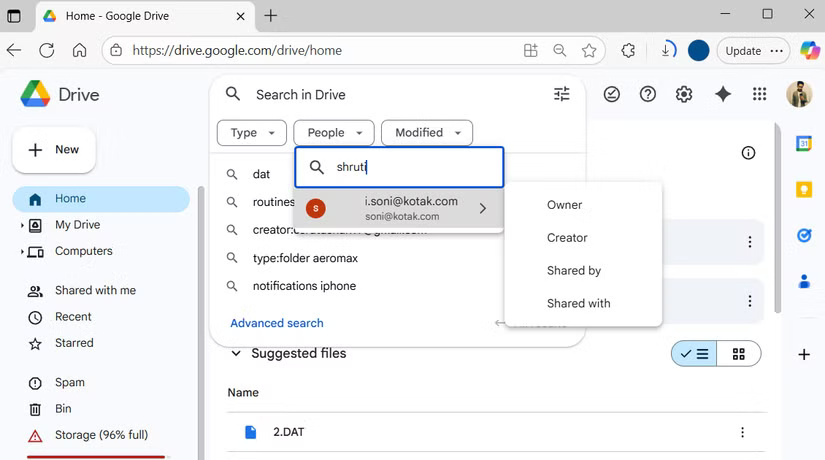
<div style="text-align: justify;">Google Drive hiển thị kết quả tìm kiếm</div>
</figcaption>
</figure>

<p style="text-align: justify;">Ngay cả khi gặp khó khăn trong việc nhớ tên file, bạn vẫn có thể nhớ một từ hoặc cụm từ trong đó. Tin tốt là thanh tìm kiếm của Google Drive có thể giúp bạn tìm file dựa trên thông tin đó. Nó có thể quét nội dung tài liệu, bảng tính và bài thuyết trình của bạn để tìm các từ hoặc cụm từ bạn nhớ.</p>

<p style="text-align: justify;">Bạn có thể kết hợp tính năng này với các bộ lọc khác như loại file, người dùng hoặc ngày sửa đổi gần nhất. Việc tìm kiếm tập tin khó nắm bắt không còn giống như mò kim đáy bể nữa mà giống như lật thẳng đến đúng trang trong một tập hồ sơ được sắp xếp gọn gàng.</p>

<h2 style="text-align: justify;">4. Làm chủ công cụ Advanced Search của Google Drive</h2>

<h3 style="text-align: justify;">Advanced Search không hề đáng sợ</h3>

<figure>
<div style="text-align: justify;"><img alt="Menu Advanced Search của Google Drive" data-i="3" data-src="https://st.quantrimang.com/photos/image/2025/09/04/thu-thuat-tim-kiem-nhanh-moi-thong-tin-tren-google-drive-4.jpg" data-was-processed="true" height="478" src="https://st.quantrimang.com/photos/image/2025/09/04/thu-thuat-tim-kiem-nhanh-moi-thong-tin-tren-google-drive-4.jpg" width="825" /></div>

<figcaption>
<div style="text-align: justify;">Menu Advanced Search của Google Drive</div>
</figcaption>
</figure>

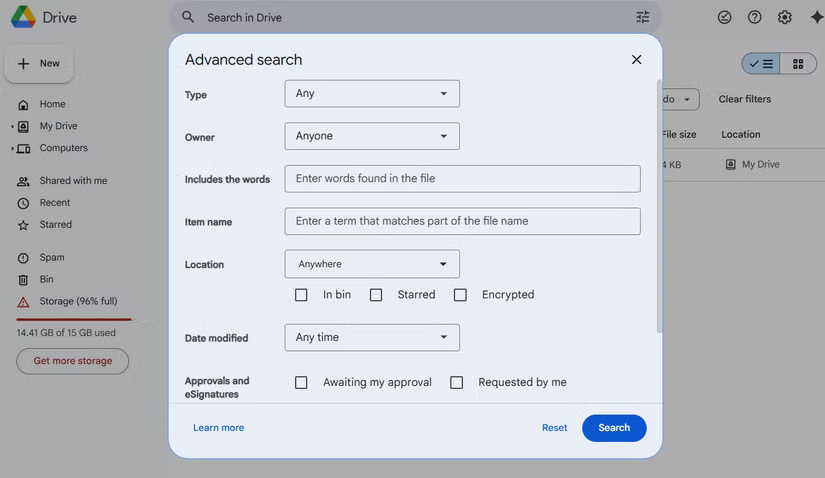
<p style="text-align: justify;">Hầu hết, các bộ lọc tìm kiếm cơ bản là đủ để tìm thấy những gì bạn cần. Nhưng khi không đủ, Advanced Search của Google Drive sẽ giúp bạn. Nhấp vào biểu tượng Advanced Search bên cạnh thanh tìm kiếm và bạn sẽ có thể kết hợp tất cả các bộ lọc vào một nơi.</p>

<p style="text-align: justify;">Từ menu này, bạn có thể thu hẹp tìm kiếm theo loại file, chủ sở hữu, vị trí, ngày sửa đổi và thậm chí cả từ khóa bên trong file. Tính năng này hoàn hảo cho những trường hợp bạn nhớ một số chi tiết về file nhưng không nhớ chính xác tên của file.</p>

<h2 style="text-align: justify;">3. Sử dụng toán tử tìm kiếm</h2>

<h3 style="text-align: justify;">Biến từ khóa thành siêu năng lực tìm kiếm</h3>

<figure>
<div style="text-align: justify;"><img alt="Sử dụng toán tử tìm kiếm trong Google Drive" data-i="4" data-src="https://st.quantrimang.com/photos/image/2025/09/04/thu-thuat-tim-kiem-nhanh-moi-thong-tin-tren-google-drive-5.jpg" data-was-processed="true" height="433" src="https://st.quantrimang.com/photos/image/2025/09/04/thu-thuat-tim-kiem-nhanh-moi-thong-tin-tren-google-drive-5.jpg" width="825" /></div>

<figcaption>
<div style="text-align: justify;">Sử dụng toán tử tìm kiếm trong Google Drive</div>
</figcaption>
</figure>

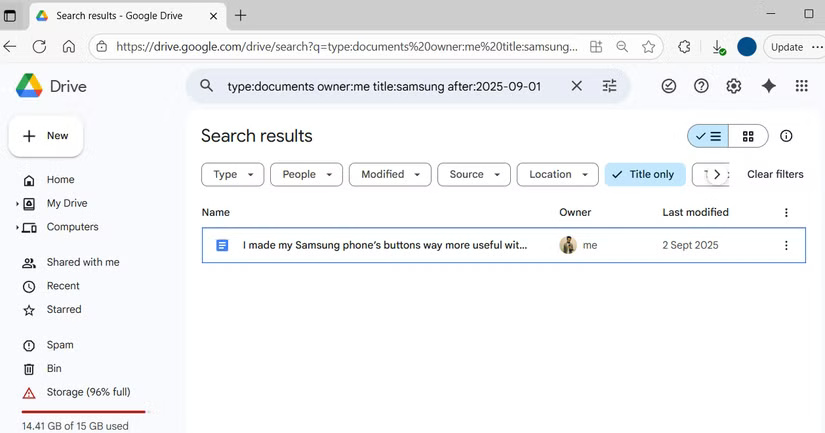
<p style="text-align: justify;">Giống như&nbsp;Gmail, Google Drive cũng hỗ trợ toán tử Boolean. Nếu không muốn nhấp qua menu, bạn có thể nhập các từ khóa cụ thể vào thanh tìm kiếm để có kết quả chính xác cao.</p>

<p style="text-align: justify;">Ví dụ,&nbsp;<strong>type:pdf</strong>&nbsp;sẽ chỉ hiển thị các file PDF, trong khi&nbsp;<strong>owner:me</strong>&nbsp;sẽ giới hạn kết quả trong các file bạn sở hữu. Nếu bạn nhớ thông tin gì đó từ tiêu đề, hãy sử dụng&nbsp;<strong>title:</strong>&nbsp;theo sau là từ khóa của bạn. Bạn cũng có thể tìm kiếm theo từ bên trong file bằng toán tử&nbsp;<strong>content:</strong>. Điều kỳ diệu thực sự xảy ra khi bạn kết hợp các toán tử này, ví dụ:<strong>&nbsp;type:docx owner:me content:routine</strong>&nbsp;để tìm các tài liệu Word bạn đã tạo có chứa từ &quot;routine&quot;.</p>

<h2 style="text-align: justify;">2. Truy cập file qua thư mục gần đây và đã gắn dấu sao</h2>

<h3 style="text-align: justify;">Lối tắt đến các file bạn sử dụng nhiều nhất</h3>

<figure>
<div style="text-align: justify;"><img alt="Tab Recent trên Google Drive" data-i="5" data-src="https://st.quantrimang.com/photos/image/2025/09/04/thu-thuat-tim-kiem-nhanh-moi-thong-tin-tren-google-drive-6.jpg" data-was-processed="true" height="485" src="https://st.quantrimang.com/photos/image/2025/09/04/thu-thuat-tim-kiem-nhanh-moi-thong-tin-tren-google-drive-6.jpg" width="825" /></div>

<figcaption>
<div style="text-align: justify;">Tab Recent trên Google Drive</div>
</figcaption>
</figure>

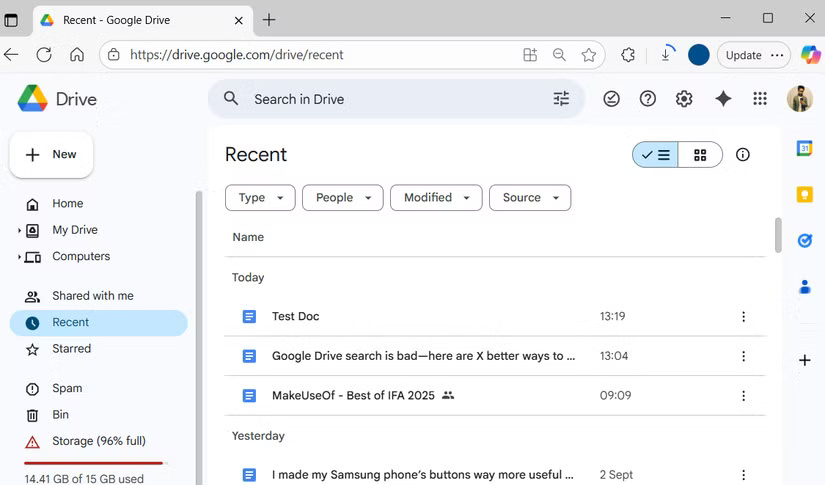
<p style="text-align: justify;">Đôi khi, cách nhanh nhất để tìm file không phải là tìm kiếm. Cả thư mục Recent và Starred đều dễ bị bỏ qua, nhưng chúng có thể giúp bạn tiết kiệm rất nhiều thời gian.</p>

<p style="text-align: justify;">Thư mục Recent của Google Drive liệt kê các file bạn đã mở hoặc chỉnh sửa gần đây nhất, rất lý tưởng khi bạn đang làm việc trên những dự án mới và không thể nhớ chính xác tên file.</p>

<p style="text-align: justify;">Một tính năng tiện dụng khác là thư mục Starred. Nếu có những file bạn thường xuyên cần đến - như báo cáo hàng tháng, bài thuyết trình nhóm hoặc tài liệu tham khảo - bạn có thể gắn dấu sao cho chúng để dễ dàng truy cập. Ngoài ra, tất nhiên, bạn cũng có thể tạo thư mục và sử dụng mã màu để sắp xếp các file Google Drive của mình.</p>

<h2 style="text-align: justify;">1. Tìm kiếm trực tiếp từ thanh địa chỉ của trình duyệt</h2>

<h3 style="text-align: justify;">Bỏ qua các lần nhấp chuột bổ sung</h3>

<figure>
<div style="text-align: justify;"><img alt="Tìm kiếm Google Drive từ thanh địa chỉ" data-i="6" data-src="https://st.quantrimang.com/photos/image/2025/09/04/thu-thuat-tim-kiem-nhanh-moi-thong-tin-tren-google-drive-7.jpg" data-was-processed="true" height="460" src="https://st.quantrimang.com/photos/image/2025/09/04/thu-thuat-tim-kiem-nhanh-moi-thong-tin-tren-google-drive-7.jpg" width="825" /></div>

<figcaption>
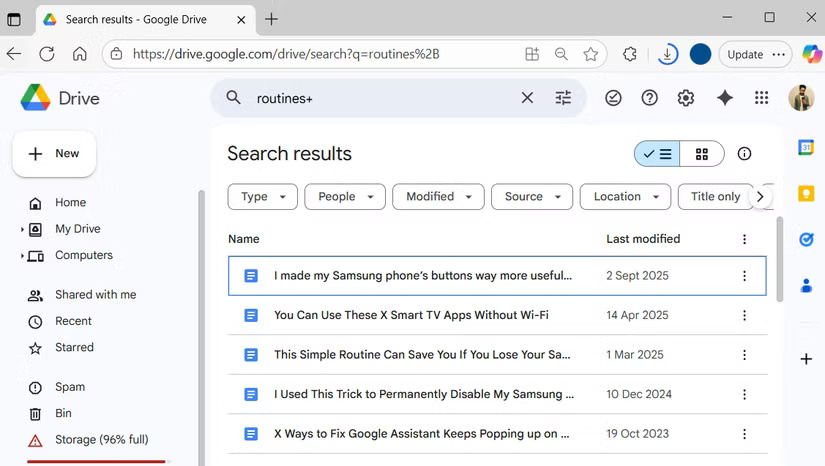
<div style="text-align: justify;">Tìm kiếm Google Drive từ thanh địa chỉ</div>
</figcaption>
</figure>

<p style="text-align: justify;">Bạn không phải lúc nào cũng cần mở Google Drive để bắt đầu tìm kiếm. Hầu hết các trình duyệt cho phép bạn tìm kiếm Drive trực tiếp từ thanh địa chỉ. Bằng cách này, bạn có thể mở một tab mới, nhập&nbsp;<strong>@Drive</strong>&nbsp;theo sau là tên file hoặc từ khóa vào thanh địa chỉ và chuyển thẳng đến kết quả.</p>

<p style="text-align: justify;">Trong Chrome, bạn có thể thiết lập tính năng này bằng cách vào&nbsp;<strong>Settings &gt; Search engine &gt; Manage search engine and site search</strong>. Trong phần&nbsp;<strong>Site search</strong>, nhấp vào&nbsp;<strong>Add</strong>. Nhập&nbsp;<strong>Google Drive</strong>&nbsp;làm tên công cụ tìm kiếm,&nbsp;<strong>@Drive</strong>&nbsp;làm shortcut và dán địa chỉ sau vào trường URL.</p>

<pre id="pre0">
<code>https://drive.google.com/drive/search?q=%s</code></pre>

<p style="text-align: justify;">Cuối cùng, nhấp vào lưu và bạn đã sẵn sàng để tìm kiếm ngay lập tức. Thủ thuật này cũng hoạt động trong Edge và hầu hết các trình duyệt khác.</p>

<div style="text-align: justify;">&nbsp;</div>
		</div>
				<div id="author">
						<p>
				<strong>Nguồn tin:</strong>
				Quantrimang.com:
			</p>
		</div>
	</div>
	<div id="footer" class="clearfix">
		<div id="url">
			<strong>URL của bản tin này: </strong><a href="https://www.nguoicodonvn2008.info/vi/news/savefile/kien-thuc-may-tinh/7-meo-tim-kiem-file-tot-hon-tren-google-drive-11070.html" title="7 mẹo tìm kiếm file tốt hơn trên Google Drive">https://www.nguoicodonvn2008.info/vi/news/savefile/kien-thuc-may-tinh/7-meo-tim-kiem-file-tot-hon-tren-google-drive-11070.html</a>

		</div>
		<div class="clear"></div>
		<div class="copyright">
			&copy; .&#x3A; Nguoicodonvn2008.info - Cõi lòng người cô đơn &#x3A;.
		</div>
		<div id="contact">
			<a href="mailto:admin@nguoicodonvn2008.info">admin@nguoicodonvn2008.info</a>
		</div>
	</div>
</div>
        <div id="timeoutsess" class="chromeframe">
            Bạn đã không sử dụng Site, <a onclick="timeoutsesscancel();" href="https://www.nguoicodonvn2008.info/#">Bấm vào đây để duy trì trạng thái đăng nhập</a>. Thời gian chờ: <span id="secField"> 60 </span> giây
        </div>
        <div id="openidResult" class="nv-alert" style="display:none"></div>
        <div id="openidBt" data-result="" data-redirect=""></div>
		</script>
		<div class="car-top">
  <span><img src="https://www.nguoicodonvn2008.info/themes/default/images/car.png" alt=""></span>
</div>
<script src="https://www.nguoicodonvn2008.info/assets/js/jquery/jquery.min.js"></script>
<script>var nv_base_siteurl="/",nv_lang_data="vi",nv_lang_interface="vi",nv_name_variable="nv",nv_fc_variable="op",nv_lang_variable="language",nv_module_name="news",nv_func_name="savefile",nv_is_user=0, nv_my_ofs=-4,nv_my_abbr="EDT",nv_cookie_prefix="nv4c_e856T",nv_check_pass_mstime=1738000,nv_area_admin=0,nv_safemode=0,theme_responsive=0,nv_recaptcha_ver=2,nv_recaptcha_sitekey="",nv_recaptcha_type="image",XSSsanitize=1;</script>
<script src="https://www.nguoicodonvn2008.info/assets/js/language/vi.js"></script>
<script src="https://www.nguoicodonvn2008.info/assets/js/DOMPurify/purify3.js"></script>
<script src="https://www.nguoicodonvn2008.info/assets/js/global.js"></script>
<script src="https://www.nguoicodonvn2008.info/assets/js/site.js"></script>
<script src="https://www.nguoicodonvn2008.info/themes/default/js/news.js"></script>
<script src="https://www.nguoicodonvn2008.info/themes/default/js/main.js"></script>
<script src="https://www.nguoicodonvn2008.info/themes/default/js/custom.js"></script>
<script type="application/ld+json">
        {
            "@context": "https://schema.org",
            "@type": "Organization",
            "url": "https://www.nguoicodonvn2008.info",
            "logo": "https://www.nguoicodonvn2008.info/uploads/angel.gif"
        }
        </script>
<script src="https://www.nguoicodonvn2008.info/themes/default/js/bootstrap.min.js"></script>
<script type="text/javascript">
var $scrolltop = $('.car-top');
$scrolltop.on('click', function () {
    $('html,body').animate({
        scrollTop: 0
    }, 800);
    $(this).addClass("car-run");
    setTimeout(function(){ $scrolltop.removeClass('car-run');}, 1000);
    return false;
});
$(window).on('scroll', function ()
{ 
    if($(window).scrollTop() >= 200)
    {
        $scrolltop.addClass("show");
        $scrolltop.addClass("car-down");
    }
    else
    {
       $scrolltop.removeClass("show");
       setTimeout(function(){ $scrolltop.removeClass('car-down');}, 300);
    }
});
</script>
</body>
</html>