<!DOCTYPE html>
    <html lang="vi" xmlns="http://www.w3.org/1999/xhtml" prefix="og: http://ogp.me/ns#">
    <head>
<title>6 mẹo sử dụng ổ cứng ngoài trên máy Mac</title>
<meta name="description" content="6 mẹo sử dụng ổ cứng ngoài trên máy Mac - Savefile - Tin Tức -...">
<meta name="author" content=".: Nguoicodonvn2008.info - Cõi lòng người cô đơn :.">
<meta name="copyright" content=".: Nguoicodonvn2008.info - Cõi lòng người cô đơn :. [admin@nguoicodonvn2008.info]">
<meta name="robots" content="index, archive, follow, noodp">
<meta name="googlebot" content="index,archive,follow,noodp">
<meta name="msnbot" content="all,index,follow">
<meta name="generator" content="NukeViet v4.5">
<meta http-equiv="Content-Type" content="text/html; charset=utf-8">
<meta property="og:title" content="6 mẹo sử dụng ổ cứng ngoài trên máy Mac">
<meta property="og:type" content="website">
<meta property="og:description" content="Savefile - Tin Tức - https&#x3A;&#x002F;&#x002F;www.nguoicodonvn2008.info&#x002F;vi&#x002F;news&#x002F;savefile&#x002F;kien-thuc-may-tinh&#x002F;6-meo-su-dung-o-cung-ngoai-tren-may-mac-9829.html">
<meta property="og:site_name" content=".&#x3A; Nguoicodonvn2008.info - Cõi lòng người cô đơn &#x3A;.">
<meta property="og:url" content="https://www.nguoicodonvn2008.info/vi/news/savefile/kien-thuc-may-tinh/6-meo-su-dung-o-cung-ngoai-tren-may-mac-9829.html">
<link rel="shortcut icon" href="https://www.nguoicodonvn2008.info/favicon.ico">
<link rel="canonical" href="https://www.nguoicodonvn2008.info/vi/news/savefile/kien-thuc-may-tinh/6-meo-su-dung-o-cung-ngoai-tren-may-mac-9829.html">
<link rel="alternate" href="https://www.nguoicodonvn2008.info/vi/news/rss/" title="Tin Tức" type="application/rss+xml">
<link rel="alternate" href="https://www.nguoicodonvn2008.info/vi/news/rss/karaoke-dual/" title="Tin Tức - Karaoke Dual" type="application/rss+xml">
<link rel="alternate" href="https://www.nguoicodonvn2008.info/vi/news/rss/nhac-tre/" title="Tin Tức - Nhạc trẻ" type="application/rss+xml">
<link rel="alternate" href="https://www.nguoicodonvn2008.info/vi/news/rss/tru-tinh/" title="Tin Tức - Trữ tình" type="application/rss+xml">
<link rel="alternate" href="https://www.nguoicodonvn2008.info/vi/news/rss/nuoc-ngoai/" title="Tin Tức - Nước ngoài" type="application/rss+xml">
<link rel="alternate" href="https://www.nguoicodonvn2008.info/vi/news/rss/remix/" title="Tin Tức - Remix" type="application/rss+xml">
<link rel="alternate" href="https://www.nguoicodonvn2008.info/vi/news/rss/tam-su-tinh-yeu/" title="Tin Tức - Tâm sự tình yêu" type="application/rss+xml">
<link rel="alternate" href="https://www.nguoicodonvn2008.info/vi/news/rss/tho-suu-tam/" title="Tin Tức - Thơ sưu tầm" type="application/rss+xml">
<link rel="alternate" href="https://www.nguoicodonvn2008.info/vi/news/rss/cuoc-song/" title="Tin Tức - Cuộc sống" type="application/rss+xml">
<link rel="alternate" href="https://www.nguoicodonvn2008.info/vi/news/rss/phan-mem/" title="Tin Tức - Phần mềm" type="application/rss+xml">
<link rel="alternate" href="https://www.nguoicodonvn2008.info/vi/news/rss/kien-thuc-may-tinh/" title="Tin Tức - Kiến thức máy tính" type="application/rss+xml">
<link rel="alternate" href="https://www.nguoicodonvn2008.info/vi/news/rss/hoc-tap/" title="Tin Tức - Học tập" type="application/rss+xml">
<link rel="alternate" href="https://www.nguoicodonvn2008.info/vi/news/rss/tai-lieu/" title="Tin Tức - Tài liệu" type="application/rss+xml">
<link rel="alternate" href="https://www.nguoicodonvn2008.info/vi/news/rss/de-thi/" title="Tin Tức - Đề thi" type="application/rss+xml">
<link rel="preload" as="style" href="https://www.nguoicodonvn2008.info/assets/css/font-awesome.min.css" type="text/css">
<link rel="preload" as="style" href="https://www.nguoicodonvn2008.info/themes/default/css/bootstrap.non-responsive.css" type="text/css">
<link rel="preload" as="style" href="https://www.nguoicodonvn2008.info/themes/default/css/style.css" type="text/css">
<link rel="preload" as="style" href="https://www.nguoicodonvn2008.info/themes/default/css/style.non-responsive.css" type="text/css">
<link rel="preload" as="style" href="https://www.nguoicodonvn2008.info/themes/default/css/news.css" type="text/css">
<link rel="preload" as="style" href="https://www.nguoicodonvn2008.info/themes/default/css/custom.css" type="text/css">
<link rel="preload" as="script" href="https://www.nguoicodonvn2008.info/assets/js/jquery/jquery.min.js" type="text/javascript">
<link rel="preload" as="script" href="https://www.nguoicodonvn2008.info/assets/js/language/vi.js" type="text/javascript">
<link rel="preload" as="script" href="https://www.nguoicodonvn2008.info/assets/js/DOMPurify/purify3.js" type="text/javascript">
<link rel="preload" as="script" href="https://www.nguoicodonvn2008.info/assets/js/global.js" type="text/javascript">
<link rel="preload" as="script" href="https://www.nguoicodonvn2008.info/assets/js/site.js" type="text/javascript">
<link rel="preload" as="script" href="https://www.nguoicodonvn2008.info/themes/default/js/news.js" type="text/javascript">
<link rel="preload" as="script" href="https://www.nguoicodonvn2008.info/themes/default/js/main.js" type="text/javascript">
<link rel="preload" as="script" href="https://www.nguoicodonvn2008.info/themes/default/js/custom.js" type="text/javascript">
<link rel="preload" as="script" href="https://www.nguoicodonvn2008.info/themes/default/js/bootstrap.min.js" type="text/javascript">
<link rel="stylesheet" href="https://www.nguoicodonvn2008.info/assets/css/font-awesome.min.css">
<link rel="stylesheet" href="https://www.nguoicodonvn2008.info/themes/default/css/bootstrap.non-responsive.css">
<link rel="stylesheet" href="https://www.nguoicodonvn2008.info/themes/default/css/style.css">
<link rel="stylesheet" href="https://www.nguoicodonvn2008.info/themes/default/css/style.non-responsive.css">
<link rel="StyleSheet" href="https://www.nguoicodonvn2008.info/themes/default/css/news.css">
<link rel="stylesheet" href="https://www.nguoicodonvn2008.info/themes/default/css/custom.css">
<style type="text/css">
	body{background: #fff;}
</style>
    </head>
    <body>
<div id="print">
	<div id="hd_print">
		<h2 class="pull-left">.&#x3A; Nguoicodonvn2008.info - Cõi lòng người cô đơn &#x3A;.</h2>
		<p class="pull-right"><a title=".&#x3A; Nguoicodonvn2008.info - Cõi lòng người cô đơn &#x3A;." href="https://www.nguoicodonvn2008.info/">https://www.nguoicodonvn2008.info</a></p>
	</div>
	<div class="clear"></div>
	<hr />
	<div id="content">
		<h1>6 mẹo sử dụng ổ cứng ngoài trên máy Mac</h1>
		<ul class="list-inline">
			<li>Chủ nhật - 16/02/2025 22:01</li>
			<li class="hidden-print txtrequired"><em class="fa fa-print">&nbsp;</em><a title="In ra" href="javascript:;" onclick="window.print()">In ra</a></li>
			<li class="hidden-print txtrequired"><em class="fa fa-power-off">&nbsp;</em><a title="Đóng cửa sổ này" href="javascript:;" onclick="window.close()">Đóng cửa sổ này</a></li>
		</ul>
		<div class="clear"></div>
		<div id="hometext">
		</div>
				<div class="imghome">
			<img alt="6 mẹo sử dụng ổ cứng ngoài trên máy Mac" src="https://st.quantrimang.com/photos/image/2025/02/13/meo-su-dung-o-cung-ngoai-tren-may-mac-15.jpg" width="460" class="img-thumbnail" />
		</div>
		<div class="clear"></div>
		<div id="bodytext" class="clearfix">
			<p style="text-align: justify;">Apple tính phí cao cho bộ nhớ tích hợp, vì vậy, đầu tư vào ổ cứng ngoài giá cả phải chăng có thể giúp giải quyết các vấn đề về bộ nhớ của bạn mà không tốn kém. Sau đây là một số mẹo để đảm bảo bạn tận dụng tối đa các ổ cứng ngoài trên máy Mac của mình.</p>

<h2 style="text-align: justify;">&nbsp;</h2>

<h2 id="mcetoc_1ijvbjc521a" style="text-align: justify;">6. Chọn đúng định dạng hệ thống file</h2>

<p style="text-align: justify;">Máy Mac của bạn tương thích với một số hệ thống file, bao gồm FAT32, exFAT, APFS và HFS+. Việc chọn đúng định dạng cho ổ cứng ngoài của bạn phụ thuộc vào cách bạn định sử dụng nó. APFS phù hợp với các ổ được thiết kế để sử dụng trên máy Mac và tương thích với Time Machine. Mặt khác, ExFAT và FAT32 là các tùy chọn tốt hơn về khả năng tương thích với Windows và Linux.</p>

<p style="text-align: justify;"><strong>Lưu ý</strong>: Những lợi ích chính của APFS so với Hierarchical File System Plus (HFS+), còn được gọi là Mac OS Extended, là độ tin cậy và tính toàn vẹn của dữ liệu được tăng cường, mã hóa tích hợp, ảnh chụp nhanh, sao chép, file sparse, chia sẻ không gian và kích thước thư mục nhanh. HFS+ phù hợp nhất với ổ cứng cơ học hoặc ổ được sử dụng với các phiên bản macOS cũ hơn.</p>

<h2 id="mcetoc_1ijvbjc521b" style="text-align: justify;">5. Tạo một volume Time Machine chuyên dụng</h2>

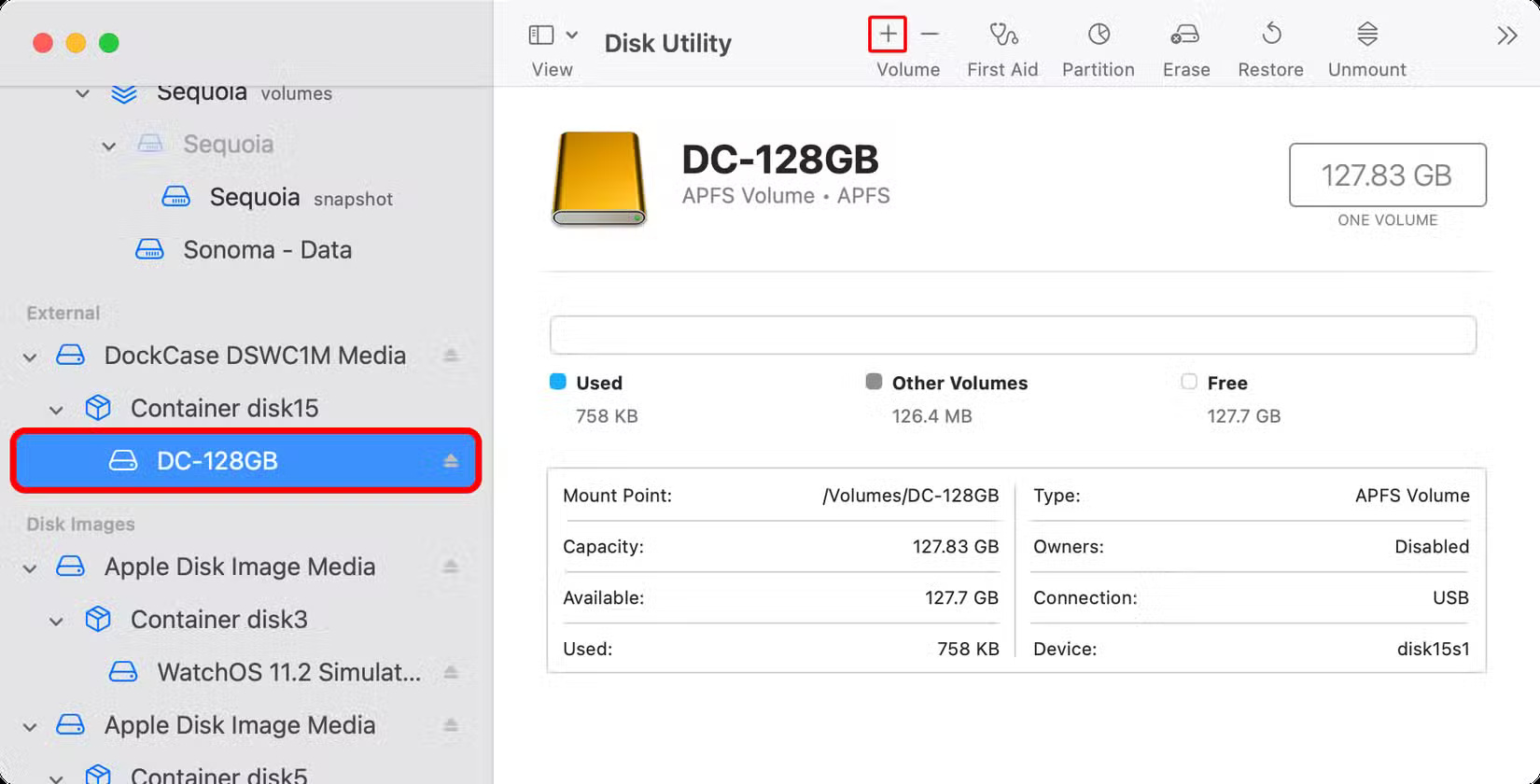
<p style="text-align: justify;">Để lưu trữ cả file và bản sao lưu Time Machine trên một ổ duy nhất, bạn phải tạo một volume APFS chuyên dụng cho Time Machine. Trước tiên, xóa ổ đĩa trong Disk Utility bằng hệ thống file APFS như đã giải thích ở phần trước. Thứ hai, thêm một volume APFS chỉ dành cho Time Machine bằng cách chọn volume APFS vừa tạo trong thanh bên Disk Utility và nhấp vào biểu tượng + (dấu cộng) trên thanh công cụ.</p>

<figure>
<div style="text-align: justify;"><img alt="" data-i="0" data-src="https://st.quantrimang.com/photos/image/2025/02/13/meo-su-dung-o-cung-ngoai-tren-may-mac-1.jpg" data-was-processed="true" height="840" src="https://st.quantrimang.com/photos/image/2025/02/13/meo-su-dung-o-cung-ngoai-tren-may-mac-1.jpg" width="1650" /></div>
</figure>

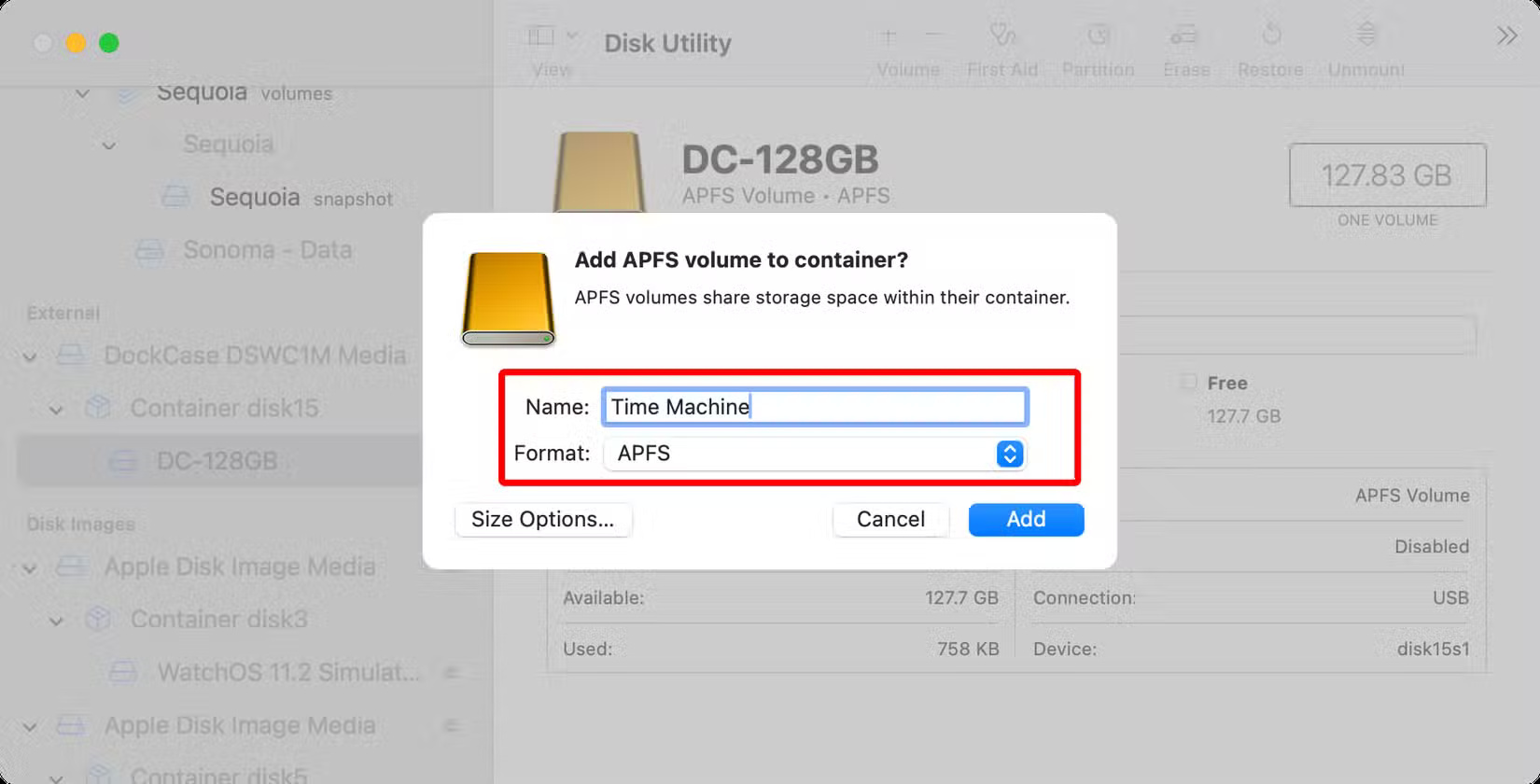
<p style="text-align: justify;">Đặt tên cho ổ là “Time Machine” hoặc tương tự và chọn “APFS” trong menu Format.</p>

<figure>
<div style="text-align: justify;"><img alt="" data-adbro-processed="true" data-i="1" data-src="https://st.quantrimang.com/photos/image/2025/02/13/meo-su-dung-o-cung-ngoai-tren-may-mac-2.jpg" data-was-processed="true" height="840" src="https://st.quantrimang.com/photos/image/2025/02/13/meo-su-dung-o-cung-ngoai-tren-may-mac-2.jpg" width="1650" /></div>
</figure>

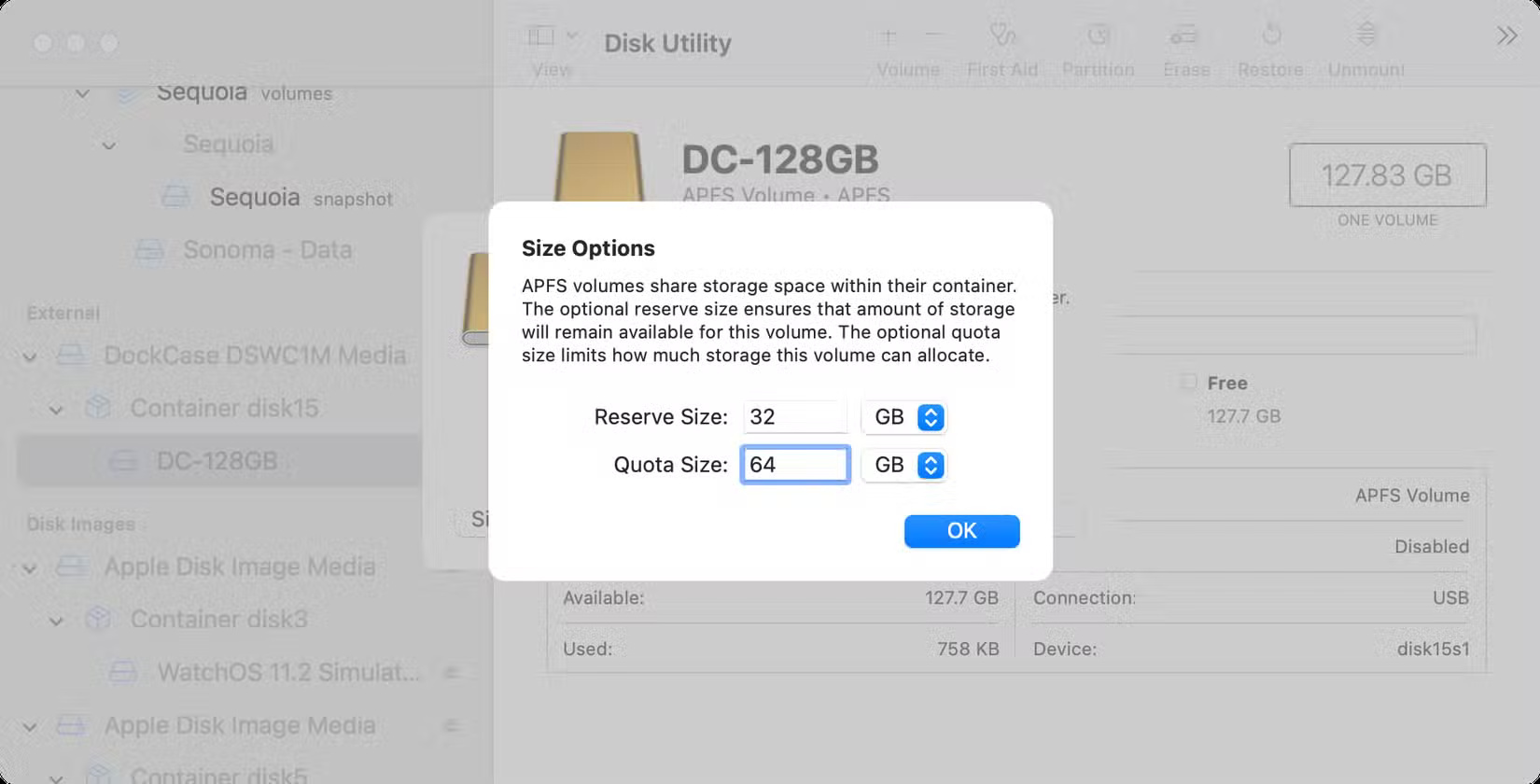
<p style="text-align: justify;">Nhấp vào nút Size Options để cấp phát dung lượng tối thiểu và tối đa cho volume. Khi đã sẵn sàng, hãy nhấp vào&nbsp;<strong>OK</strong>, sau đó chọn&nbsp;<strong>Add</strong>&nbsp;để tạo volume mới dựa trên các thông số này.</p>

<figure>
<div style="text-align: justify;"><img alt="" data-i="2" data-src="https://st.quantrimang.com/photos/image/2025/02/13/meo-su-dung-o-cung-ngoai-tren-may-mac-3.jpg" data-was-processed="true" height="840" src="https://st.quantrimang.com/photos/image/2025/02/13/meo-su-dung-o-cung-ngoai-tren-may-mac-3.jpg" width="1650" /></div>
</figure>

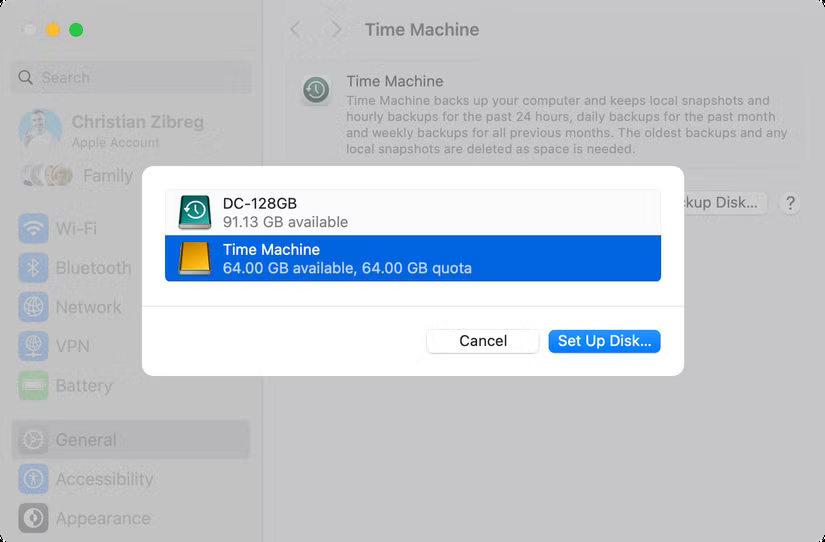
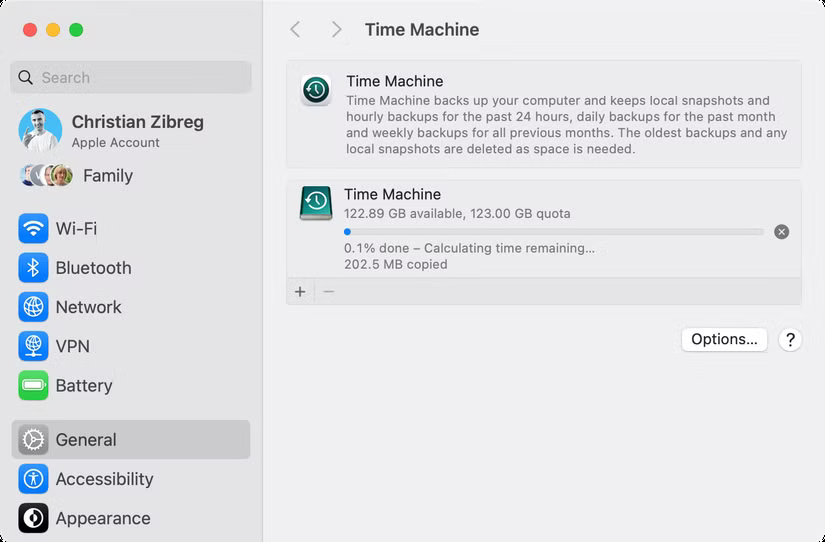
<p style="text-align: justify;">Để đặt volume APS của bạn làm đích Time Machine, hãy vào&nbsp;<strong>System Settings &gt; General &gt; Time Machine</strong>. Nhấp vào biểu tượng&nbsp;<strong>+&nbsp;</strong>hoặc nút&nbsp;<strong>Add Backup Disk</strong>, chọn ổ đĩa sao lưu, nhấp vào Set Up Disk và làm theo hướng dẫn.</p>

<figure>
<div style="text-align: justify;"><img alt="" data-i="3" data-src="https://st.quantrimang.com/photos/image/2025/02/13/meo-su-dung-o-cung-ngoai-tren-may-mac-4.jpg" data-was-processed="true" height="542" src="https://st.quantrimang.com/photos/image/2025/02/13/meo-su-dung-o-cung-ngoai-tren-may-mac-4.jpg" width="825" /></div>
</figure>

<p style="text-align: justify;">Time Machine hiện sẽ sao lưu máy Mac của bạn vào phân vùng chuyên dụng trên ổ, có thể mất một chút thời gian ban đầu. Bạn có thể sử dụng bản sao lưu Time Machine để khôi phục máy Mac của mình từ đầu, khôi phục các phiên bản file trước đó mà không cần ổ đĩa sao lưu được đính kèm và nhiều hơn nữa.</p>

<figure>
<div style="text-align: justify;"><img alt="" data-i="4" data-src="https://st.quantrimang.com/photos/image/2025/02/13/meo-su-dung-o-cung-ngoai-tren-may-mac-5.jpg" data-was-processed="true" height="542" src="https://st.quantrimang.com/photos/image/2025/02/13/meo-su-dung-o-cung-ngoai-tren-may-mac-5.jpg" width="825" /></div>
</figure>

<h2 id="mcetoc_1ijvbjc521c" style="text-align: justify;">4. Tạo thư mục để sắp xếp file</h2>

<p style="text-align: justify;">Thư mục là cách dễ nhất để sắp xếp file xung quanh các dự án. macOS cung cấp các thư mục người dùng tích hợp như Documents, Movies, Music, Pictures và Downloads mà bạn có thể truy cập từ thanh bên của Finder. Bạn cũng có thể tạo thư mục của riêng mình để lưu trữ một bộ sưu tập file.</p>

<figure>
<div style="text-align: justify;"><img alt="" data-i="5" data-src="https://st.quantrimang.com/photos/image/2025/02/13/meo-su-dung-o-cung-ngoai-tren-may-mac-6.jpg" data-was-processed="true" height="928" src="https://st.quantrimang.com/photos/image/2025/02/13/meo-su-dung-o-cung-ngoai-tren-may-mac-6.jpg" width="1650" /></div>
</figure>

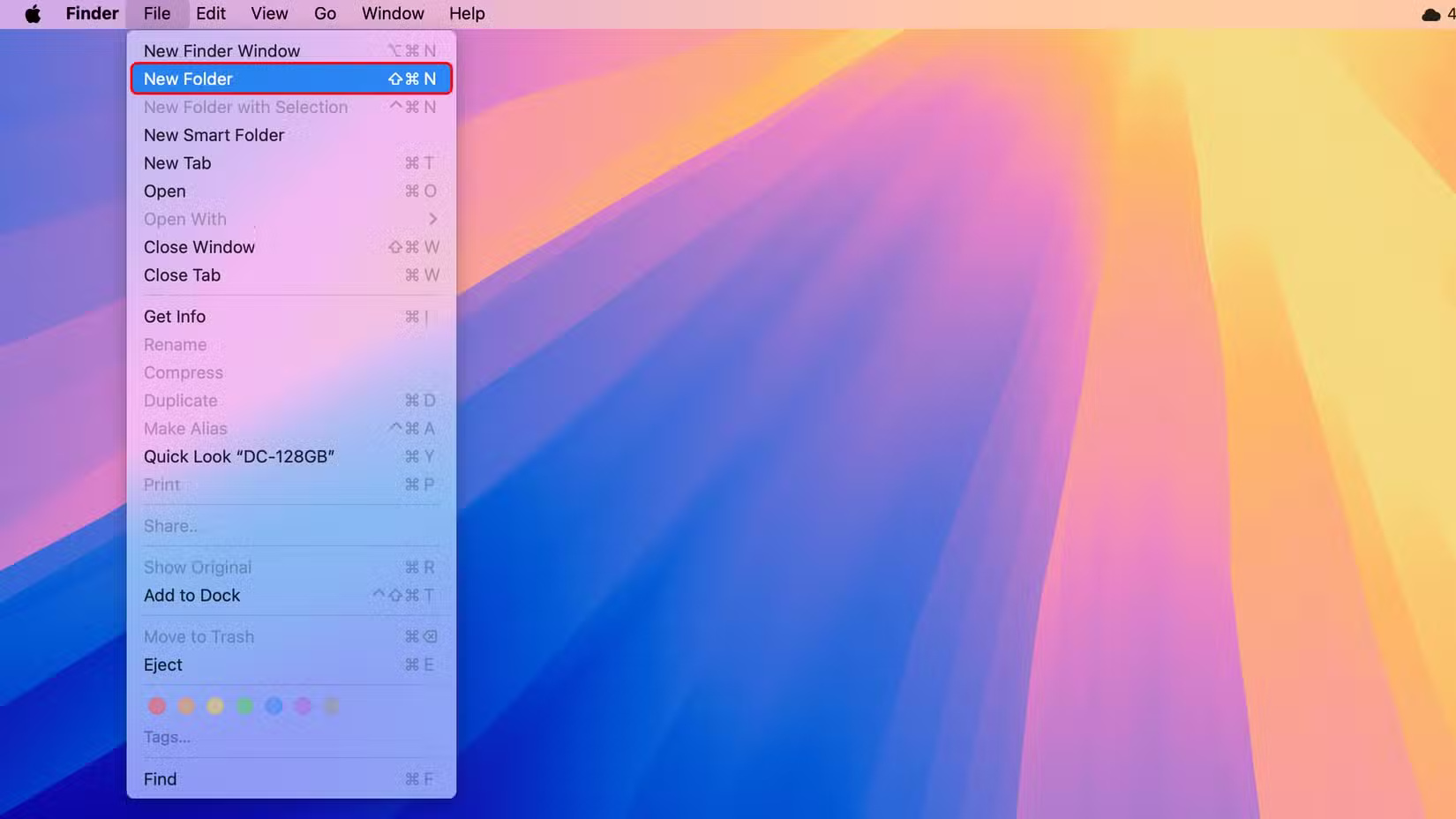
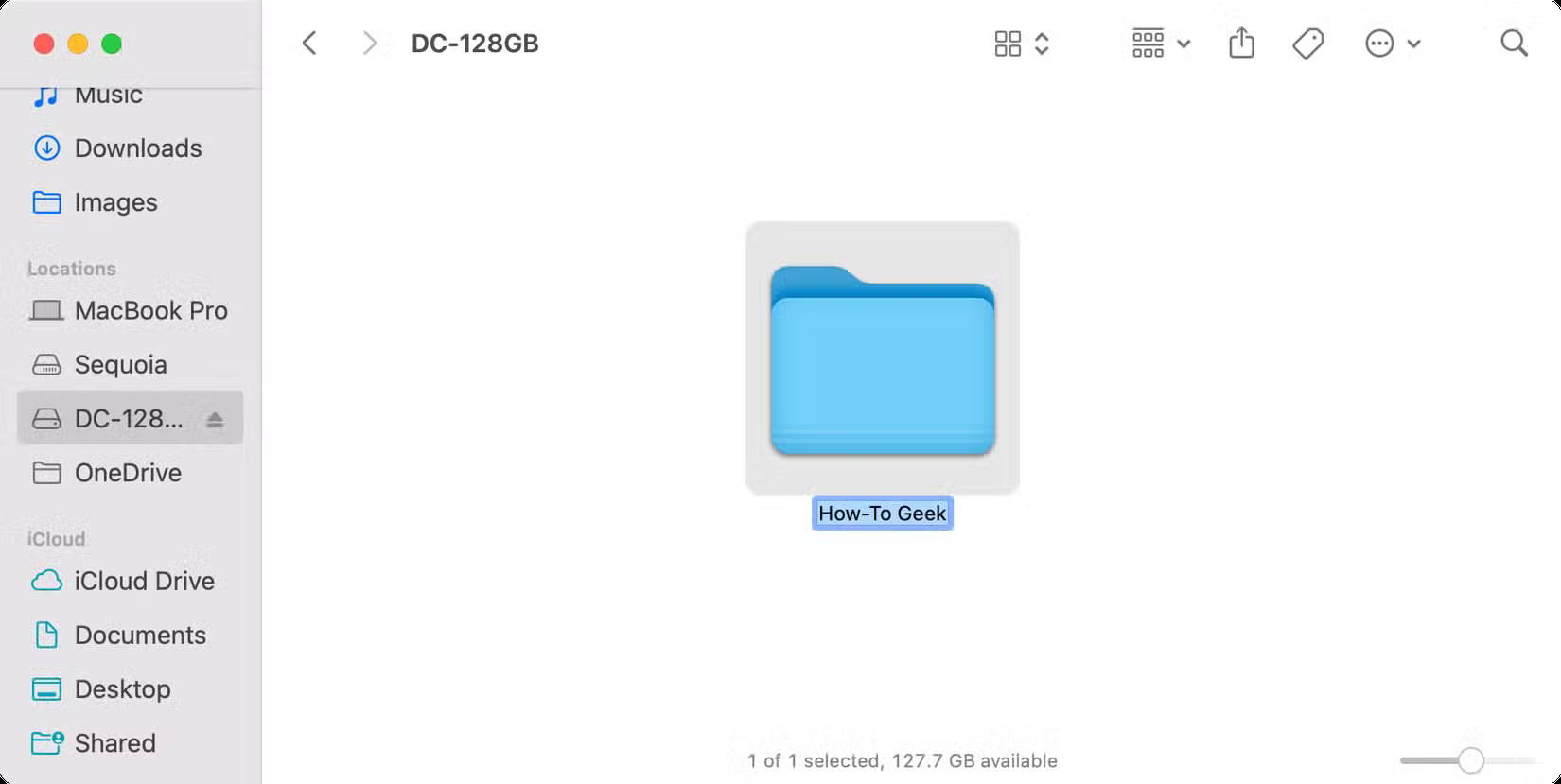
<p style="text-align: justify;">Điều hướng đến vị trí mong muốn trên ổ cứng ngoài, sau đó nhấp vào&nbsp;<strong>File &gt; New Folder&nbsp;</strong>trên thanh menu hoặc nhấn phím&nbsp;<strong>Shift + Command + N</strong>&nbsp;trên bàn phím, đặt tên cho thư mục và nhấn&nbsp;<strong>Return</strong>.</p>

<figure>
<div style="text-align: justify;"><img alt="" data-i="6" data-src="https://st.quantrimang.com/photos/image/2025/02/13/meo-su-dung-o-cung-ngoai-tren-may-mac-7.jpg" data-was-processed="true" height="829" src="https://st.quantrimang.com/photos/image/2025/02/13/meo-su-dung-o-cung-ngoai-tren-may-mac-7.jpg" width="1650" /></div>
</figure>

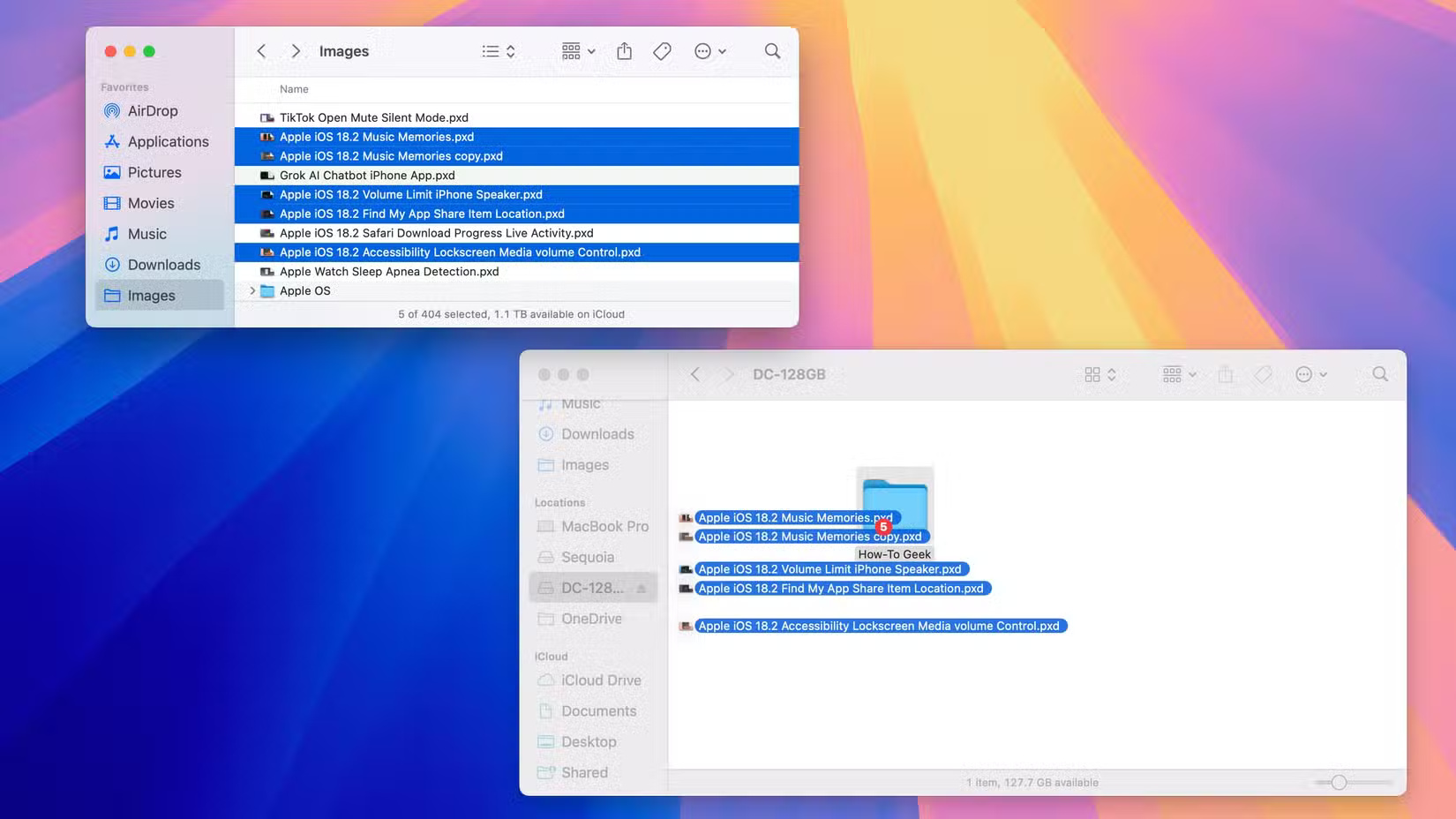
<p style="text-align: justify;">Để di chuyển nội dung vào thư mục của bạn, hãy chọn file và kéo chúng vào thư mục.</p>

<figure>
<div style="text-align: justify;"><img alt="" data-i="7" data-src="https://st.quantrimang.com/photos/image/2025/02/13/meo-su-dung-o-cung-ngoai-tren-may-mac-8.jpg" data-was-processed="true" height="928" src="https://st.quantrimang.com/photos/image/2025/02/13/meo-su-dung-o-cung-ngoai-tren-may-mac-8.jpg" width="1650" /></div>
</figure>

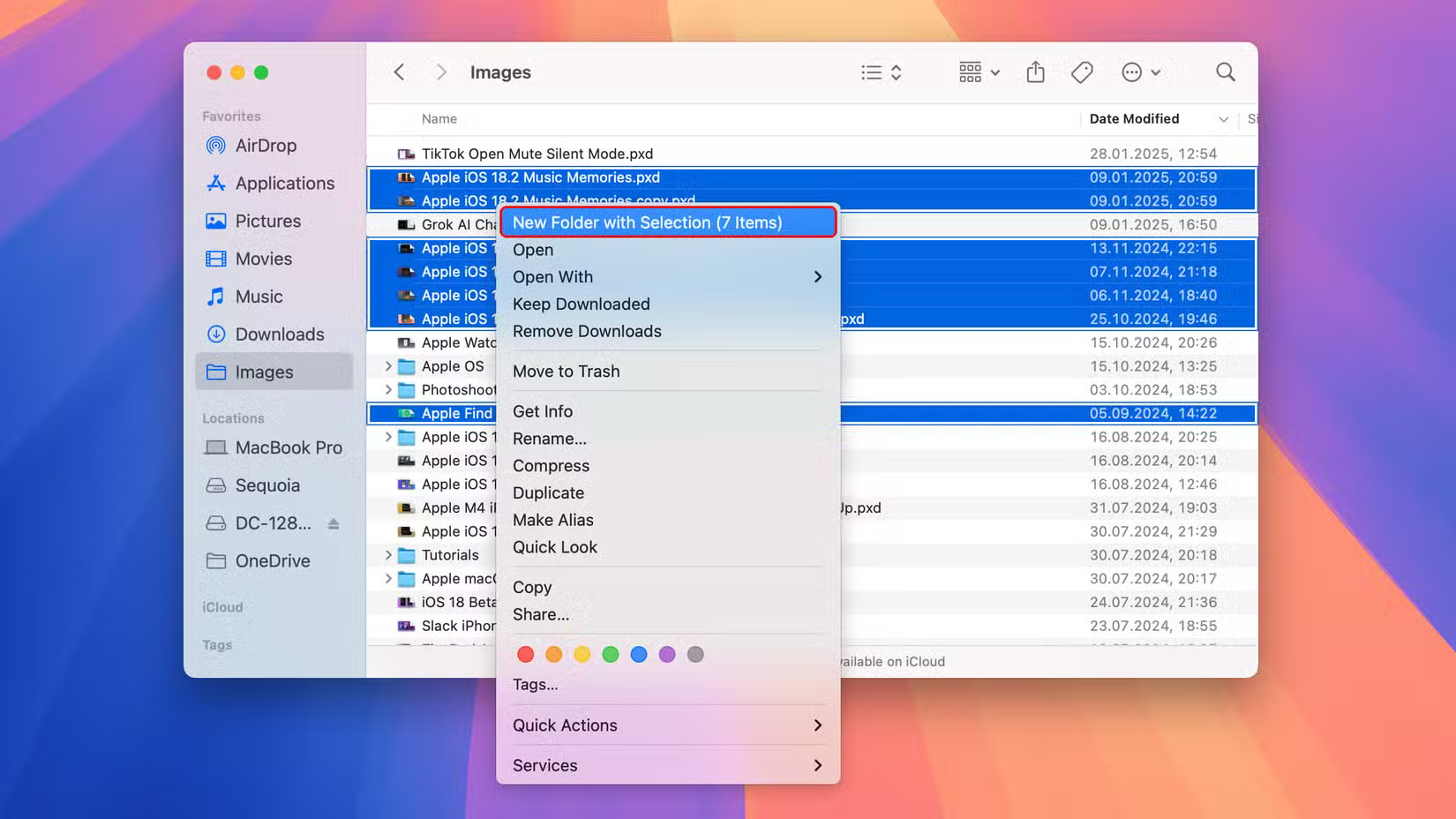
<p style="text-align: justify;">Để tạo thư mục mới từ một loạt file, hãy chọn chúng trong Finder, nhấp chuột phải (control+click) vào lựa chọn và chọn&nbsp;<strong>New Folder with Selection</strong>&nbsp;từ menu.</p>

<figure>
<div style="text-align: justify;"><img alt="" data-i="8" data-src="https://st.quantrimang.com/photos/image/2025/02/13/meo-su-dung-o-cung-ngoai-tren-may-mac-9.jpg" data-was-processed="true" height="928" src="https://st.quantrimang.com/photos/image/2025/02/13/meo-su-dung-o-cung-ngoai-tren-may-mac-9.jpg" width="1650" /></div>
</figure>

<h2 id="mcetoc_1ijvbjc521d" style="text-align: justify;">3. Có cần mã hóa ổ không?</h2>

<p style="text-align: justify;">Mã hóa ổ đĩa đảm bảo file của bạn vẫn an toàn nếu bị đánh cắp hoặc bị mất. Không ai có thể mount ổ đĩa vào máy tính khác nếu không có mật khẩu mã hóa. Bạn có thể mã hóa ổ trong Disk Utility, tiện ích này sẽ xóa ổ hoặc từ Finder nếu bạn đã có file trên đó.</p>

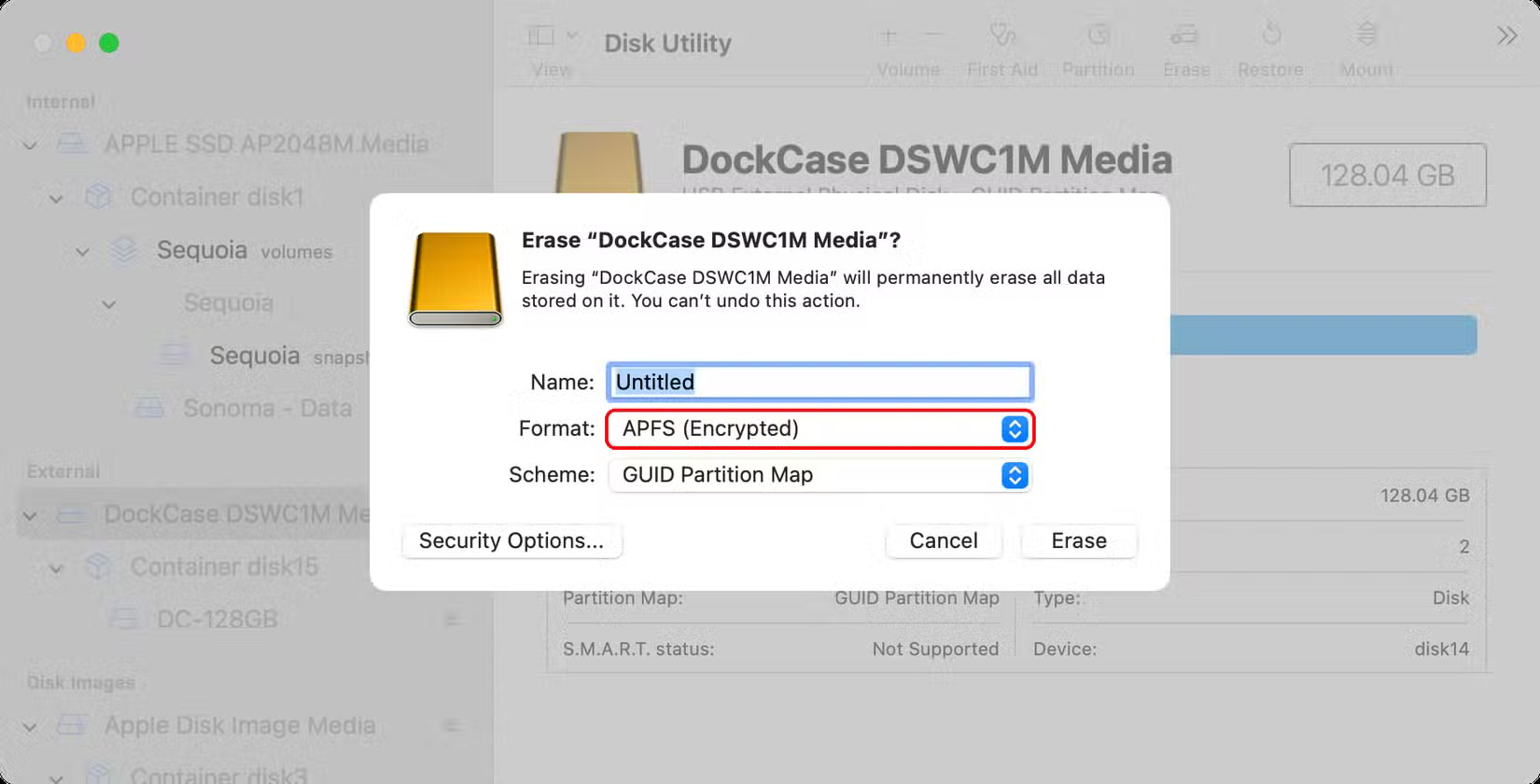
<p style="text-align: justify;">Chọn ổ đĩa trong thanh bên Disk Utility và nhấp vào&nbsp;<strong>Erase</strong>&nbsp;trên thanh công cụ, chọn&nbsp;<strong>GUID Partition Map</strong>&nbsp;trong menu Scheme và đảm bảo chọn&nbsp;<strong>APFS (Encrypted)</strong>&nbsp;trong menu Format. Nhập và xác minh mật khẩu mã hóa và nhấp vào&nbsp;<strong>Choose</strong>, sau đó là&nbsp;<strong>Erase &gt; Done</strong>. Làm như vậy sẽ xóa, định dạng và mã hóa ổ trong một lần.</p>

<figure>
<div style="text-align: justify;"><img alt="" data-i="9" data-src="https://st.quantrimang.com/photos/image/2025/02/13/meo-su-dung-o-cung-ngoai-tren-may-mac-10.jpg" data-was-processed="true" height="840" src="https://st.quantrimang.com/photos/image/2025/02/13/meo-su-dung-o-cung-ngoai-tren-may-mac-10.jpg" width="1650" /></div>
</figure>

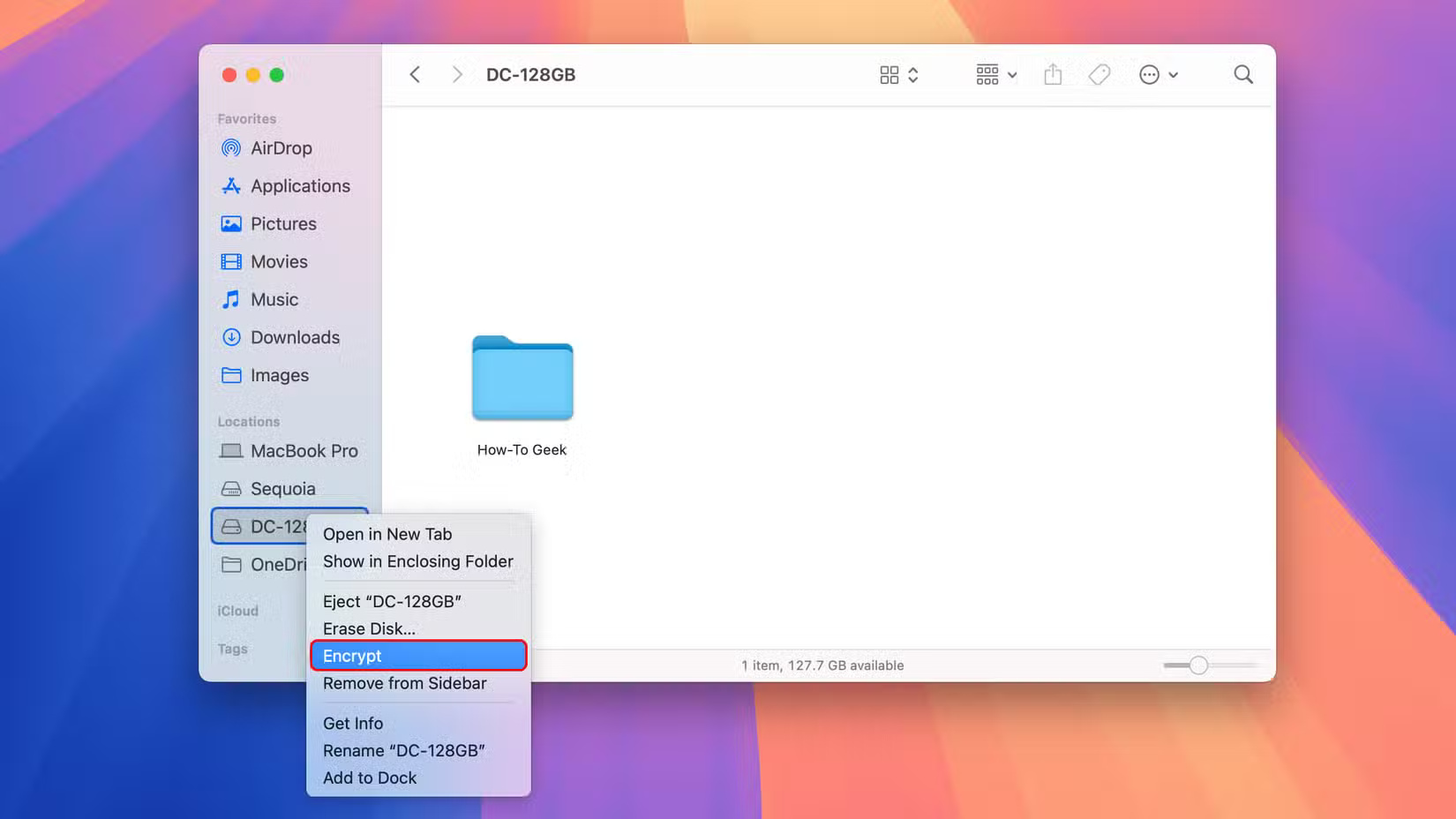
<p style="text-align: justify;">Để bật mã hóa mà không xóa ổ, hãy nhấp chuột phải (control+click) vào ổ trong thanh bên của Finder, chọn lệnh&nbsp;<strong>Encrypt</strong>&nbsp;từ menu, đặt mật khẩu và nhấp vào&nbsp;<strong>Encrypt Disk.</strong></p>

<figure>
<div style="text-align: justify;"><img alt="" data-i="10" data-src="https://st.quantrimang.com/photos/image/2025/02/13/meo-su-dung-o-cung-ngoai-tren-may-mac-11.jpg" data-was-processed="true" height="928" src="https://st.quantrimang.com/photos/image/2025/02/13/meo-su-dung-o-cung-ngoai-tren-may-mac-11.jpg" width="1650" /></div>
</figure>

<p style="text-align: justify;"><strong>Lưu ý</strong>: Ghi lại mật khẩu mã hóa và giữ ở nơi an toàn vì bạn sẽ không thể truy cập dữ liệu trên ổ đĩa nếu không có mật khẩu.</p>

<h2 id="mcetoc_1ijvbjc521e" style="text-align: justify;">2. Tháo ổ an toàn</h2>

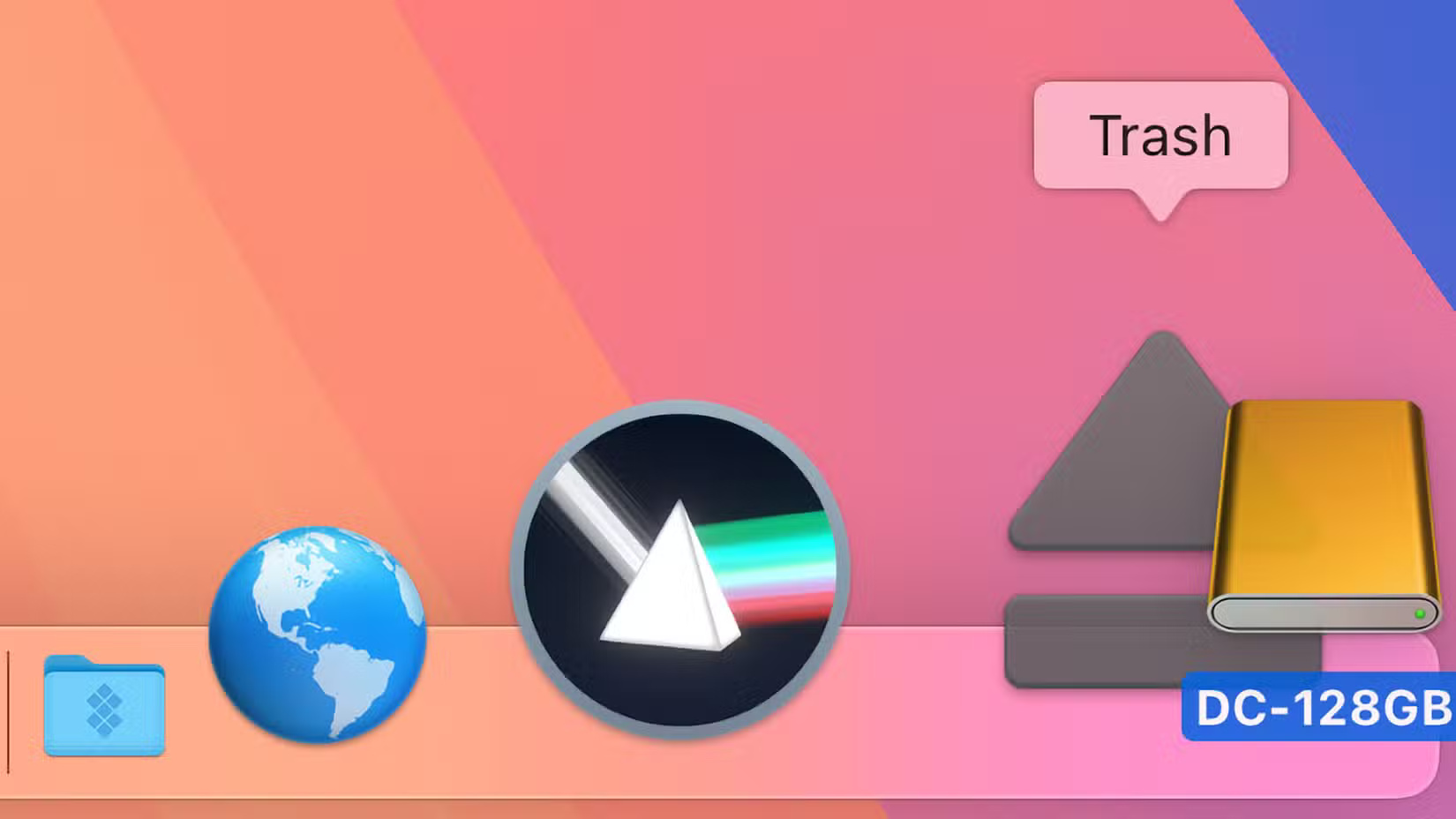
<p style="text-align: justify;">Hãy luôn tháo ổ di động trước khi rút phích cắm để tránh mất dữ liệu. Bạn có thể tháo ổ đĩa trong macOS theo nhiều cách, chẳng hạn như chọn ổ đĩa trên desktop và nhấn vào&nbsp;<strong>Eject</strong>&nbsp;từ menu File của Finder, nhấn&nbsp;<strong>Command + E</strong>&nbsp;hoặc kéo biểu tượng ổ đĩa vào Trash.</p>

<figure>
<div style="text-align: justify;"><img alt="" data-i="11" data-src="https://st.quantrimang.com/photos/image/2025/02/13/meo-su-dung-o-cung-ngoai-tren-may-mac-12.jpg" data-was-processed="true" height="928" src="https://st.quantrimang.com/photos/image/2025/02/13/meo-su-dung-o-cung-ngoai-tren-may-mac-12.jpg" width="1650" /></div>
</figure>

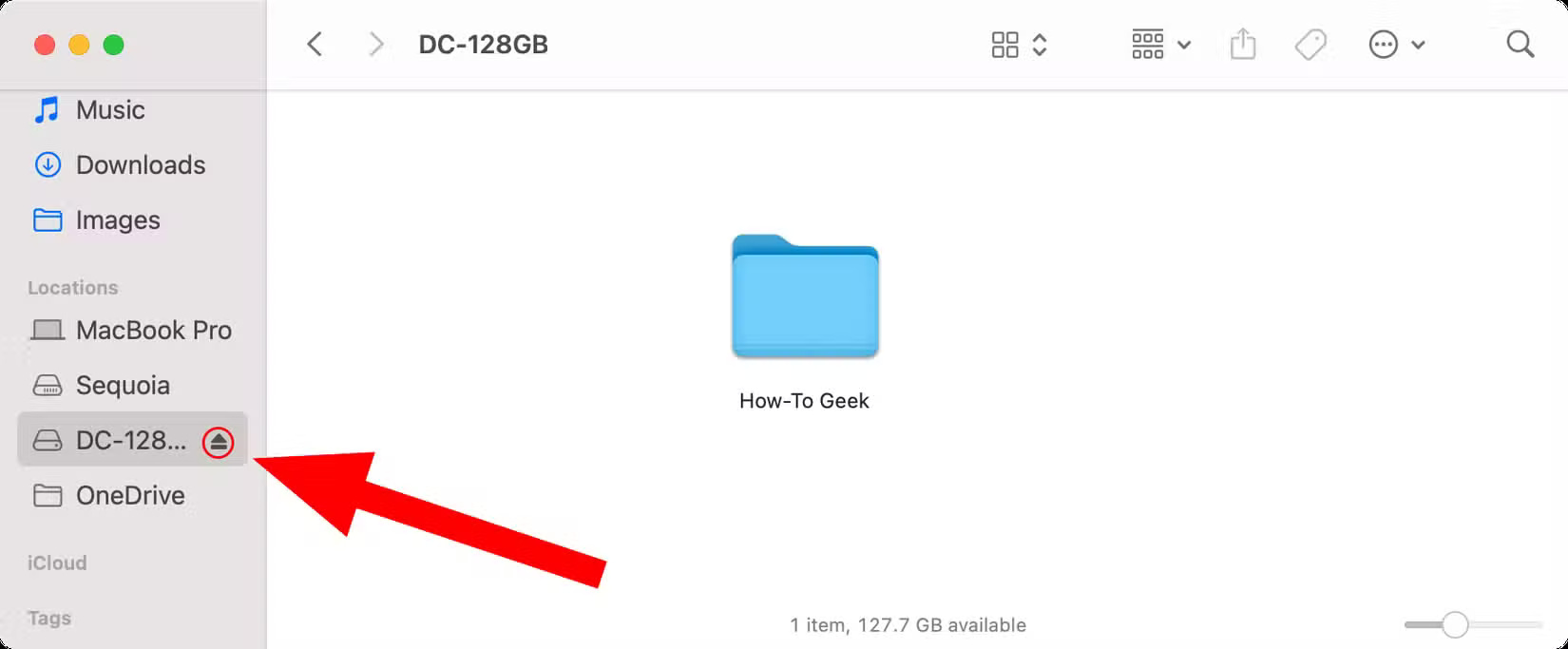
<p style="text-align: justify;">Bạn cũng có thể giữ Command và nhấp vào ổ để truy cập tùy chọn này, nhấp vào biểu tượng Eject của ổ đĩa trong thanh bên Finder hoặc chọn ổ&nbsp; trong Disk Utility và nhấp vào&nbsp;<strong>File &gt; Eject</strong>.</p>

<figure>
<div style="text-align: justify;"><img alt="" data-i="12" data-src="https://st.quantrimang.com/photos/image/2025/02/13/meo-su-dung-o-cung-ngoai-tren-may-mac-13.jpg" data-was-processed="true" height="683" src="https://st.quantrimang.com/photos/image/2025/02/13/meo-su-dung-o-cung-ngoai-tren-may-mac-13.jpg" width="1650" /></div>
</figure>

<p style="text-align: justify;"><strong>Mẹo</strong>: Nếu ổ cứng ngoài không hiển thị trên desktop, hãy nhấp vào menu Finder và chọn&nbsp;<strong>Settings</strong>, sau đó chọn tab&nbsp;<strong>General</strong>&nbsp;và đánh dấu vào hộp&nbsp;<strong>External Disks</strong>.</p>

<p style="text-align: justify;">Nếu ổ đĩa không đẩy ra, hãy đảm bảo lưu và đóng các tài liệu đang mở trên ổ, buộc thoát mọi ứng dụng, đăng xuất khỏi các tài khoản macOS yêu cầu ổ và khởi động lại nếu cần. Nếu không được, hãy mở Terminal từ thư mục&nbsp;<strong>Applications/Utilities</strong>, dán lệnh này và nhấn&nbsp;<strong>Enter</strong>:</p>

<pre id="pre0">
<code>diskutil list external</code></pre>

<p style="text-align: justify;">Ghi lại tên ổ đĩa của bạn, chẳng hạn như &quot;Disk1&quot;, ​​sau đó nhập lệnh này vào Terminal và nhấn&nbsp;<strong>Return</strong>.</p>

<pre id="pre1">
<code>diskutil eject disk1</code></pre>

<p style="text-align: justify;">Nếu cách này không hiệu quả và xảy ra mất dữ liệu, hãy sử dụng First Aid trong Disk Utility để sửa chữa ổ.</p>

<h2 id="mcetoc_1ijvbjc521f" style="text-align: justify;">1. Cài đặt ứng dụng trên ổ cứng ngoài</h2>

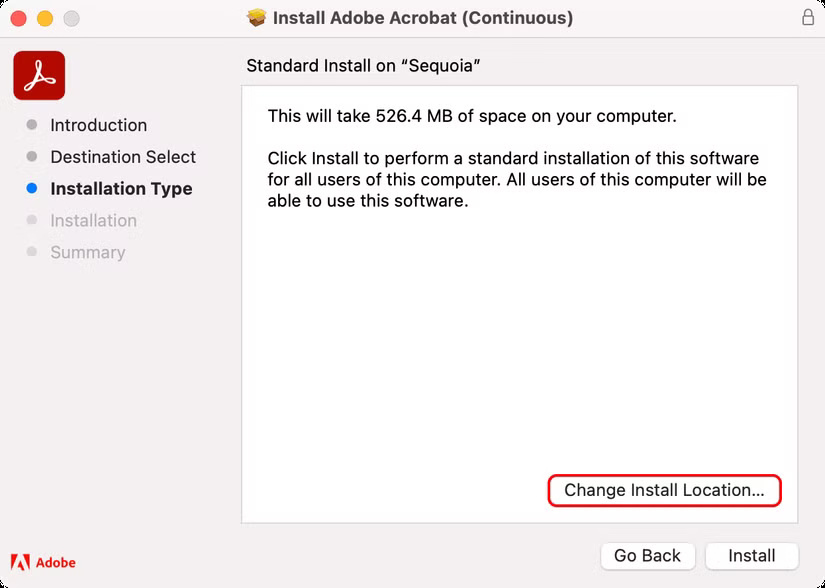
<p style="text-align: justify;">Các ứng dụng được tải xuống từ Mac App Store sẽ cài đặt các file nhị phân và file liên quan của chúng trong một thư mục con thuộc Applications, một số nội dung được lưu trong thư mục Library. Đối với các ứng dụng được tải xuống từ các nguồn khác như trang web của nhà phát triển, trình cài đặt macOS tiêu chuẩn cho phép bạn chỉ định một đường dẫn tùy chỉnh như thư mục trên ổ cứng ngoài của mình.</p>

<figure>
<div style="text-align: justify;"><img alt="" data-i="13" data-src="https://st.quantrimang.com/photos/image/2025/02/13/meo-su-dung-o-cung-ngoai-tren-may-mac-14.jpg" data-was-processed="true" height="588" src="https://st.quantrimang.com/photos/image/2025/02/13/meo-su-dung-o-cung-ngoai-tren-may-mac-14.jpg" width="825" /></div>
</figure>

<p style="text-align: justify;">Để cài đặt ứng dụng từ Mac App Store trên ổ cứng ngoài được định dạng APFS, hãy mở App Store bằng cách nhấp vào biểu tượng của ứng dụng trong Dock, sau đó nhấp vào&nbsp;<strong>App Store &gt; Settings</strong>, đánh dấu vào ô&nbsp;<strong>Download and install large apps to a separate disk</strong>&nbsp;và chọn ổ của bạn từ menu.</p>

<figure>
<div style="text-align: justify;"><img alt="" data-i="14" data-src="https://st.quantrimang.com/photos/image/2025/02/13/meo-su-dung-o-cung-ngoai-tren-may-mac-15.jpg" data-was-processed="true" height="923" src="https://st.quantrimang.com/photos/image/2025/02/13/meo-su-dung-o-cung-ngoai-tren-may-mac-15.jpg" width="750" /></div>
</figure>

<p style="text-align: justify;">Bất kỳ ứng dụng hoặc game nào được tải xuống từ Mac App Store lớn hơn một gigabyte sẽ được tải xuống và cài đặt vào ổ cứng ngoài, giúp tiết kiệm dung lượng quý giá trên ổ boot.</p>

<p style="text-align: justify;"><strong>Mẹo</strong>: Bạn nên cài đặt ứng dụng trên ổ boot để tránh việc chia các file nhị phân giữa ổ cứng ngoài và thư mục Library, thư mục này phải nằm trên ổ khởi động.</p>

<p style="text-align: justify;">Hãy nhớ rằng bạn phải mở trực tiếp các ứng dụng như vậy từ ổ cứng ngoài vì chúng không hiển thị trong Launchpad. Bạn cũng có thể di chuyển các ứng dụng chiếm nhiều dung lượng hiện có như iMovie vào ổ cứng ngoài và chạy chúng từ đó; chỉ cần kéo chúng vào ổ cứng ngoài, xóa các bản sao khỏi thư mục Applications và làm trống Trash để giải phóng dung lượng trên ổ khởi động.</p>

<p style="text-align: justify;">Cho dù bạn đang sử dụng ổ đĩa cơ hay ổ cứng truyền thống, những mẹo này sẽ giúp bạn tận dụng tối đa các ổ cứng ngoài của mình. Mặc dù ổ đĩa cứng có giá cả phải chăng hơn ổ flash, bạn nên chọn&nbsp;ổ SSD&nbsp;nếu ngân sách cho phép để tránh các vấn đề về độ trễ và độ tin cậy.</p>
		</div>
				<div id="author">
						<p>
				<strong>Nguồn tin:</strong>
				Quantrimang.com:
			</p>
		</div>
	</div>
	<div id="footer" class="clearfix">
		<div id="url">
			<strong>URL của bản tin này: </strong><a href="https://www.nguoicodonvn2008.info/vi/news/savefile/kien-thuc-may-tinh/6-meo-su-dung-o-cung-ngoai-tren-may-mac-9829.html" title="6 mẹo sử dụng ổ cứng ngoài trên máy Mac">https://www.nguoicodonvn2008.info/vi/news/savefile/kien-thuc-may-tinh/6-meo-su-dung-o-cung-ngoai-tren-may-mac-9829.html</a>

		</div>
		<div class="clear"></div>
		<div class="copyright">
			&copy; .&#x3A; Nguoicodonvn2008.info - Cõi lòng người cô đơn &#x3A;.
		</div>
		<div id="contact">
			<a href="mailto:admin@nguoicodonvn2008.info">admin@nguoicodonvn2008.info</a>
		</div>
	</div>
</div>
        <div id="timeoutsess" class="chromeframe">
            Bạn đã không sử dụng Site, <a onclick="timeoutsesscancel();" href="https://www.nguoicodonvn2008.info/#">Bấm vào đây để duy trì trạng thái đăng nhập</a>. Thời gian chờ: <span id="secField"> 60 </span> giây
        </div>
        <div id="openidResult" class="nv-alert" style="display:none"></div>
        <div id="openidBt" data-result="" data-redirect=""></div>
		</script>
		<div class="car-top">
  <span><img src="https://www.nguoicodonvn2008.info/themes/default/images/car.png" alt=""></span>
</div>
<div id="run_cronjobs" style="visibility:hidden;display:none;"><img alt="cron" src="/index.php?second=cronjobs&amp;p=q910N79B" width="1" height="1" /></div>
<script src="https://www.nguoicodonvn2008.info/assets/js/jquery/jquery.min.js"></script>
<script>var nv_base_siteurl="/",nv_lang_data="vi",nv_lang_interface="vi",nv_name_variable="nv",nv_fc_variable="op",nv_lang_variable="language",nv_module_name="news",nv_func_name="savefile",nv_is_user=0, nv_my_ofs=-4,nv_my_abbr="EDT",nv_cookie_prefix="nv4c_e856T",nv_check_pass_mstime=1738000,nv_area_admin=0,nv_safemode=0,theme_responsive=0,nv_recaptcha_ver=2,nv_recaptcha_sitekey="",nv_recaptcha_type="image",XSSsanitize=1;</script>
<script src="https://www.nguoicodonvn2008.info/assets/js/language/vi.js"></script>
<script src="https://www.nguoicodonvn2008.info/assets/js/DOMPurify/purify3.js"></script>
<script src="https://www.nguoicodonvn2008.info/assets/js/global.js"></script>
<script src="https://www.nguoicodonvn2008.info/assets/js/site.js"></script>
<script src="https://www.nguoicodonvn2008.info/themes/default/js/news.js"></script>
<script src="https://www.nguoicodonvn2008.info/themes/default/js/main.js"></script>
<script src="https://www.nguoicodonvn2008.info/themes/default/js/custom.js"></script>
<script type="application/ld+json">
        {
            "@context": "https://schema.org",
            "@type": "Organization",
            "url": "https://www.nguoicodonvn2008.info",
            "logo": "https://www.nguoicodonvn2008.info/uploads/angel.gif"
        }
        </script>
<script src="https://www.nguoicodonvn2008.info/themes/default/js/bootstrap.min.js"></script>
<script type="text/javascript">
var $scrolltop = $('.car-top');
$scrolltop.on('click', function () {
    $('html,body').animate({
        scrollTop: 0
    }, 800);
    $(this).addClass("car-run");
    setTimeout(function(){ $scrolltop.removeClass('car-run');}, 1000);
    return false;
});
$(window).on('scroll', function ()
{ 
    if($(window).scrollTop() >= 200)
    {
        $scrolltop.addClass("show");
        $scrolltop.addClass("car-down");
    }
    else
    {
       $scrolltop.removeClass("show");
       setTimeout(function(){ $scrolltop.removeClass('car-down');}, 300);
    }
});
</script>
</body>
</html>