<!DOCTYPE html>
    <html lang="vi" xmlns="http://www.w3.org/1999/xhtml" prefix="og: http://ogp.me/ns#">
    <head>
<title>6 hàm Excel để tìm dữ liệu nhanh chóng</title>
<meta name="description" content="6 hàm Excel để tìm dữ liệu nhanh chóng - Savefile - Tin Tức -...">
<meta name="author" content=".: Nguoicodonvn2008.info - Cõi lòng người cô đơn :.">
<meta name="copyright" content=".: Nguoicodonvn2008.info - Cõi lòng người cô đơn :. [admin@nguoicodonvn2008.info]">
<meta name="robots" content="index, archive, follow, noodp">
<meta name="googlebot" content="index,archive,follow,noodp">
<meta name="msnbot" content="all,index,follow">
<meta name="generator" content="NukeViet v4.5">
<meta http-equiv="Content-Type" content="text/html; charset=utf-8">
<meta property="og:title" content="6 hàm Excel để tìm dữ liệu nhanh chóng">
<meta property="og:type" content="website">
<meta property="og:description" content="Savefile - Tin Tức - https&#x3A;&#x002F;&#x002F;www.nguoicodonvn2008.info&#x002F;vi&#x002F;news&#x002F;savefile&#x002F;kien-thuc-may-tinh&#x002F;6-ham-excel-de-tim-du-lieu-nhanh-chong-9339.html">
<meta property="og:site_name" content=".&#x3A; Nguoicodonvn2008.info - Cõi lòng người cô đơn &#x3A;.">
<meta property="og:url" content="https://www.nguoicodonvn2008.info/vi/news/savefile/kien-thuc-may-tinh/6-ham-excel-de-tim-du-lieu-nhanh-chong-9339.html">
<link rel="shortcut icon" href="https://www.nguoicodonvn2008.info/favicon.ico">
<link rel="canonical" href="https://www.nguoicodonvn2008.info/vi/news/savefile/kien-thuc-may-tinh/6-ham-excel-de-tim-du-lieu-nhanh-chong-9339.html">
<link rel="alternate" href="https://www.nguoicodonvn2008.info/vi/news/rss/" title="Tin Tức" type="application/rss+xml">
<link rel="alternate" href="https://www.nguoicodonvn2008.info/vi/news/rss/karaoke-dual/" title="Tin Tức - Karaoke Dual" type="application/rss+xml">
<link rel="alternate" href="https://www.nguoicodonvn2008.info/vi/news/rss/nhac-tre/" title="Tin Tức - Nhạc trẻ" type="application/rss+xml">
<link rel="alternate" href="https://www.nguoicodonvn2008.info/vi/news/rss/tru-tinh/" title="Tin Tức - Trữ tình" type="application/rss+xml">
<link rel="alternate" href="https://www.nguoicodonvn2008.info/vi/news/rss/nuoc-ngoai/" title="Tin Tức - Nước ngoài" type="application/rss+xml">
<link rel="alternate" href="https://www.nguoicodonvn2008.info/vi/news/rss/remix/" title="Tin Tức - Remix" type="application/rss+xml">
<link rel="alternate" href="https://www.nguoicodonvn2008.info/vi/news/rss/tam-su-tinh-yeu/" title="Tin Tức - Tâm sự tình yêu" type="application/rss+xml">
<link rel="alternate" href="https://www.nguoicodonvn2008.info/vi/news/rss/tho-suu-tam/" title="Tin Tức - Thơ sưu tầm" type="application/rss+xml">
<link rel="alternate" href="https://www.nguoicodonvn2008.info/vi/news/rss/cuoc-song/" title="Tin Tức - Cuộc sống" type="application/rss+xml">
<link rel="alternate" href="https://www.nguoicodonvn2008.info/vi/news/rss/phan-mem/" title="Tin Tức - Phần mềm" type="application/rss+xml">
<link rel="alternate" href="https://www.nguoicodonvn2008.info/vi/news/rss/kien-thuc-may-tinh/" title="Tin Tức - Kiến thức máy tính" type="application/rss+xml">
<link rel="alternate" href="https://www.nguoicodonvn2008.info/vi/news/rss/hoc-tap/" title="Tin Tức - Học tập" type="application/rss+xml">
<link rel="alternate" href="https://www.nguoicodonvn2008.info/vi/news/rss/tai-lieu/" title="Tin Tức - Tài liệu" type="application/rss+xml">
<link rel="alternate" href="https://www.nguoicodonvn2008.info/vi/news/rss/de-thi/" title="Tin Tức - Đề thi" type="application/rss+xml">
<link rel="preload" as="style" href="https://www.nguoicodonvn2008.info/assets/css/font-awesome.min.css" type="text/css">
<link rel="preload" as="style" href="https://www.nguoicodonvn2008.info/themes/default/css/bootstrap.non-responsive.css" type="text/css">
<link rel="preload" as="style" href="https://www.nguoicodonvn2008.info/themes/default/css/style.css" type="text/css">
<link rel="preload" as="style" href="https://www.nguoicodonvn2008.info/themes/default/css/style.non-responsive.css" type="text/css">
<link rel="preload" as="style" href="https://www.nguoicodonvn2008.info/themes/default/css/news.css" type="text/css">
<link rel="preload" as="style" href="https://www.nguoicodonvn2008.info/themes/default/css/custom.css" type="text/css">
<link rel="preload" as="script" href="https://www.nguoicodonvn2008.info/assets/js/jquery/jquery.min.js" type="text/javascript">
<link rel="preload" as="script" href="https://www.nguoicodonvn2008.info/assets/js/language/vi.js" type="text/javascript">
<link rel="preload" as="script" href="https://www.nguoicodonvn2008.info/assets/js/DOMPurify/purify3.js" type="text/javascript">
<link rel="preload" as="script" href="https://www.nguoicodonvn2008.info/assets/js/global.js" type="text/javascript">
<link rel="preload" as="script" href="https://www.nguoicodonvn2008.info/assets/js/site.js" type="text/javascript">
<link rel="preload" as="script" href="https://www.nguoicodonvn2008.info/themes/default/js/news.js" type="text/javascript">
<link rel="preload" as="script" href="https://www.nguoicodonvn2008.info/themes/default/js/main.js" type="text/javascript">
<link rel="preload" as="script" href="https://www.nguoicodonvn2008.info/themes/default/js/custom.js" type="text/javascript">
<link rel="preload" as="script" href="https://www.nguoicodonvn2008.info/themes/default/js/bootstrap.min.js" type="text/javascript">
<link rel="stylesheet" href="https://www.nguoicodonvn2008.info/assets/css/font-awesome.min.css">
<link rel="stylesheet" href="https://www.nguoicodonvn2008.info/themes/default/css/bootstrap.non-responsive.css">
<link rel="stylesheet" href="https://www.nguoicodonvn2008.info/themes/default/css/style.css">
<link rel="stylesheet" href="https://www.nguoicodonvn2008.info/themes/default/css/style.non-responsive.css">
<link rel="StyleSheet" href="https://www.nguoicodonvn2008.info/themes/default/css/news.css">
<link rel="stylesheet" href="https://www.nguoicodonvn2008.info/themes/default/css/custom.css">
<style type="text/css">
	body{background: #fff;}
</style>
    </head>
    <body>
<div id="print">
	<div id="hd_print">
		<h2 class="pull-left">.&#x3A; Nguoicodonvn2008.info - Cõi lòng người cô đơn &#x3A;.</h2>
		<p class="pull-right"><a title=".&#x3A; Nguoicodonvn2008.info - Cõi lòng người cô đơn &#x3A;." href="https://www.nguoicodonvn2008.info/">https://www.nguoicodonvn2008.info</a></p>
	</div>
	<div class="clear"></div>
	<hr />
	<div id="content">
		<h1>6 hàm Excel để tìm dữ liệu nhanh chóng</h1>
		<ul class="list-inline">
			<li>Thứ hai - 11/11/2024 22:07</li>
			<li class="hidden-print txtrequired"><em class="fa fa-print">&nbsp;</em><a title="In ra" href="javascript:;" onclick="window.print()">In ra</a></li>
			<li class="hidden-print txtrequired"><em class="fa fa-power-off">&nbsp;</em><a title="Đóng cửa sổ này" href="javascript:;" onclick="window.close()">Đóng cửa sổ này</a></li>
		</ul>
		<div class="clear"></div>
		<div id="hometext">
		</div>
				<div class="imghome">
			<img alt="6 hàm Excel để tìm dữ liệu nhanh chóng" src="https://st.quantrimang.com/photos/image/2024/11/11/ham-excel-tim-du-lieu-nhanh-10.jpg" width="460" class="img-thumbnail" />
		</div>
		<div class="clear"></div>
		<div id="bodytext" class="clearfix">
			<p style="text-align: justify;">Để làm việc với một tập dữ liệu lớn, bạn phải biết cách nhanh chóng tìm thấy những gì mình cần. May mắn thay,&nbsp;Microsoft Excel&nbsp;có một số hàm có thể giúp ích cho việc này.</p>

<h2 style="text-align: justify;">1. Hàm FIND</h2>

<p style="text-align: justify;">Hàm FIND trong Excel&nbsp;trả về vị trí số của một ký tự hoặc chuỗi đã chỉ định (chuỗi ký tự) trong một chuỗi lớn hơn. Hàm này hữu ích cho việc trích xuất văn bản chính xác, thao tác và định dạng có điều kiện.</p>

<p style="text-align: justify;">Cú pháp của hàm FIND là:</p>

<pre id="pre0">
<code>FIND(search_text, text_to_search_in, &#91;start_position&#93;)</code></pre>

<p style="text-align: justify;">Ở đây,&nbsp;<em>search_text</em>&nbsp;là ký tự hoặc chuỗi con bạn muốn định vị và&nbsp;<em>text_to_search_in</em>&nbsp;là chuỗi văn bản lớn hơn bạn muốn tìm kiếm. Tham số&nbsp;<em>start_position</em>&nbsp;chỉ định vị trí bạn muốn hàm bắt đầu tìm kiếm trong chuỗi.</p>

<p style="text-align: justify;"><strong>Lưu ý</strong>: Bất kỳ tham số nào trong dấu ngoặc vuông đều là tùy chọn.</p>

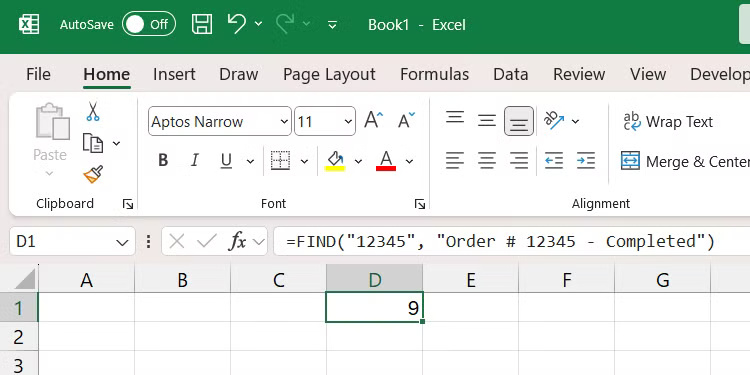
<p style="text-align: justify;">Sau đây là ví dụ về cách hàm FIND hoạt động:</p>

<pre id="pre1">
<code>=FIND(&quot;12345&quot;, &quot;Order # 12345 - Completed&quot;)</code></pre>

<p style="text-align: justify;">Công thức trên sẽ trả về 9, vì chuỗi con 12345 bắt đầu ở vị trí đó.</p>

<figure>
<div style="text-align: justify;"><img alt="Kết quả của hàm FIND trong Excel trên Windows." data-i="0" data-src="https://st.quantrimang.com/photos/image/2024/11/11/ham-excel-tim-du-lieu-nhanh-1.jpg" data-was-processed="true" height="375" src="https://st.quantrimang.com/photos/image/2024/11/11/ham-excel-tim-du-lieu-nhanh-1.jpg" width="750" /></div>

<figcaption>
<div style="text-align: justify;">Kết quả của hàm FIND trong Excel trên Windows.</div>
</figcaption>
</figure>

<p style="text-align: justify;">Hàm FIND phân biệt chữ hoa và chữ thường. Ví dụ, nếu bạn tìm kiếm chữ A trong chuỗi con apple, bạn sẽ nhận được lỗi.</p>

<div style="text-align: justify;">&nbsp;</div>

<p style="text-align: justify;">Nếu bạn muốn tìm thứ gì đó mà không phân biệt chữ hoa chữ thường, hãy&nbsp;sử dụng hàm SEARCH&nbsp;thay thế. Hàm này có cú pháp tương tự như hàm FIND.</p>

<pre id="pre2">
<code>=SEARCH(search_text, text_to_search_in, &#91;start_position&#93;)</code></pre>

<h2 style="text-align: justify;">2. Hàm SORT</h2>

<p style="text-align: justify;">Hàm SORT&nbsp;có thể giúp bạn sắp xếp dữ liệu trong một phạm vi theo thứ tự tăng dần hoặc giảm dần để dễ tìm dữ liệu cụ thể trong bảng tính Excel của mình hơn.</p>

<p style="text-align: justify;">Cú pháp của hàm SORT là:</p>

<pre id="pre3">
<code>SORT(range_to_sort, &#91;sort_index&#93;, &#91;sort_order&#93;, &#91;sort_by&#93;)</code></pre>

<p style="text-align: justify;">Tham số&nbsp;<em>range_to_sort</em>&nbsp;là phạm vi bạn muốn sắp xếp. Sử dụng tham số&nbsp;<em>sort_index</em>&nbsp;để chỉ định số cột hoặc số hàng nào để sắp xếp trong phạm vi (mặc định là 1).</p>

<p style="text-align: justify;">Tham số&nbsp;<em>sort_order</em>&nbsp;chỉ định thứ tự sắp xếp danh sách, trong đó&nbsp;<strong>1</strong>&nbsp;là tăng dần và&nbsp;<strong>-1</strong>&nbsp;là giảm dần (mặc định là tăng dần). Và&nbsp;<em>sort_by</em>&nbsp;chỉ định sắp xếp theo hàng&nbsp;<strong>(FALSE)</strong>, mặc định là vậy, hay theo cột<strong>&nbsp;(TRUE)</strong>.</p>

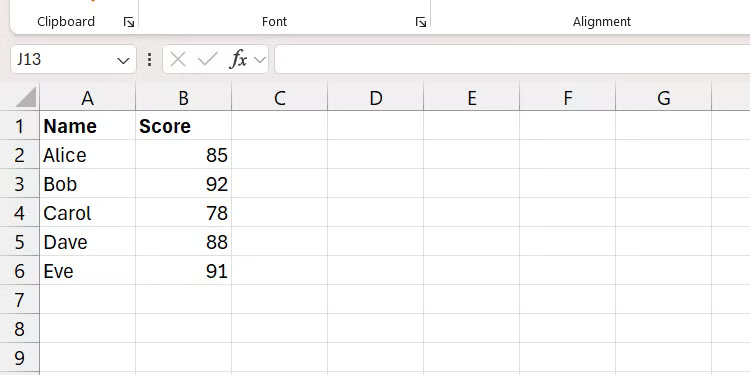
<p style="text-align: justify;">Chúng ta sẽ sắp xếp phạm vi trong ảnh chụp màn hình bên dưới dựa trên cột thứ hai và theo thứ tự giảm dần.</p>

<figure>
<div style="text-align: justify;"><img alt="Phạm vi trong Excel hiển thị tên và điểm kiểm tra." data-adbro-processed="true" data-i="1" data-src="https://st.quantrimang.com/photos/image/2024/11/11/ham-excel-tim-du-lieu-nhanh-2.jpg" data-was-processed="true" height="375" src="https://st.quantrimang.com/photos/image/2024/11/11/ham-excel-tim-du-lieu-nhanh-2.jpg" width="750" /></div>

<figcaption>
<div style="text-align: justify;">Phạm vi trong Excel hiển thị tên và điểm kiểm tra.</div>
</figcaption>
</figure>

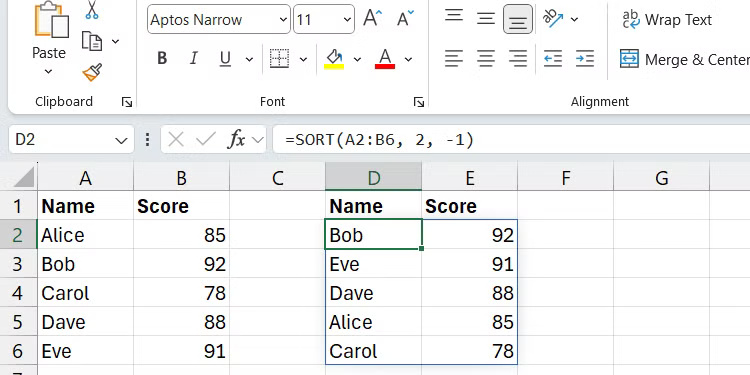
<p style="text-align: justify;">Sau đây là cách công thức sẽ hiển thị trong Excel:</p>

<pre id="pre4">
<code>=SORT(A2:B6, 2, -1)</code></pre>

<p style="text-align: justify;">Phạm vi bây giờ sẽ được sắp xếp theo thứ tự giảm dần.</p>

<figure>
<div style="text-align: justify;"><img alt="Kết quả của hàm SORT trong Excel trên Windows." data-i="2" data-src="https://st.quantrimang.com/photos/image/2024/11/11/ham-excel-tim-du-lieu-nhanh-3.jpg" data-was-processed="true" height="375" src="https://st.quantrimang.com/photos/image/2024/11/11/ham-excel-tim-du-lieu-nhanh-3.jpg" width="750" /></div>

<figcaption>
<div style="text-align: justify;">Kết quả của hàm SORT trong Excel trên Windows.</div>
</figcaption>
</figure>

<div style="text-align: justify;">&nbsp;</div>

<h2 style="text-align: justify;">3. Hàm FILTER</h2>

<p style="text-align: justify;">Hàm FILTER đánh giá một phạm vi dữ liệu dựa trên một điều kiện và chỉ trả về các hàng và cột đáp ứng điều kiện.</p>

<p style="text-align: justify;">Cú pháp của hàm FILTER là:</p>

<pre id="pre5">
<code>FILTER(range_to_filter, condition, &#91;value_if_empty&#93;)</code></pre>

<p style="text-align: justify;">Tham số&nbsp;<em>range_to_filter</em>&nbsp;là mảng hoặc phạm vi ô bạn muốn lọc. Tham số&nbsp;<em>condition</em>&nbsp;là tiêu chí xác định nội dung nào sẽ được trả về trong kết quả đã lọc. Tham số&nbsp;<em>value_if_empty</em>&nbsp;chỉ định nội dung nào sẽ được trả về nếu không có nội dung nào đáp ứng điều kiện.</p>

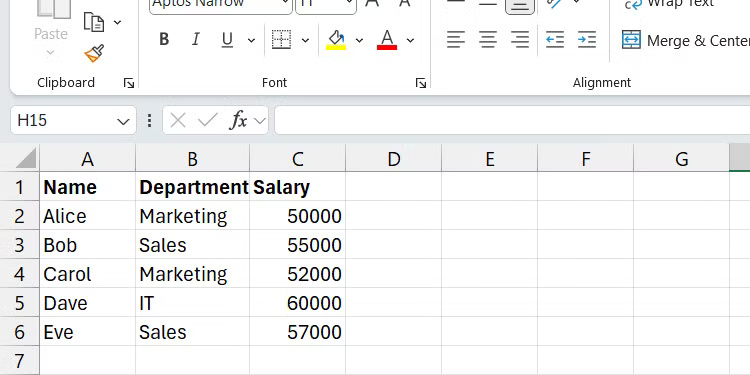
<p style="text-align: justify;">Chúng ta sẽ lọc phạm vi trong ảnh chụp màn hình bên dưới để chỉ hiển thị nhân viên trong phòng&nbsp;<strong>Sales</strong>.</p>

<figure>
<div style="text-align: justify;"><img alt="Phạm vi trong Excel hiển thị tên nhân viên, phòng ban họ làm việc và mức lương của họ." data-i="3" data-src="https://st.quantrimang.com/photos/image/2024/11/11/ham-excel-tim-du-lieu-nhanh-4.jpg" data-was-processed="true" height="375" src="https://st.quantrimang.com/photos/image/2024/11/11/ham-excel-tim-du-lieu-nhanh-4.jpg" width="750" /></div>

<figcaption>
<div style="text-align: justify;">Phạm vi trong Excel hiển thị tên nhân viên, phòng ban họ làm việc và mức lương của họ.</div>
</figcaption>
</figure>

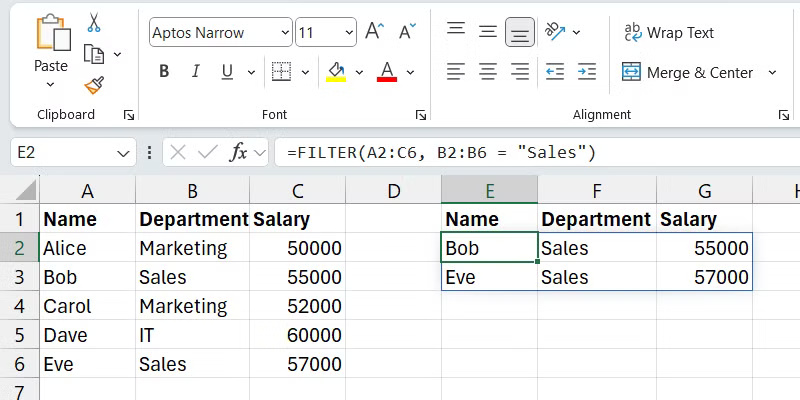
<p style="text-align: justify;">Sau đây là hình ảnh công thức khi hoạt động:</p>

<pre id="pre6">
<code>=FILTER(A2:C6, B2:B6 = &quot;Sales&quot;)</code></pre>

<p style="text-align: justify;">Bây giờ, bạn chỉ nên thấy các hàng và cột đáp ứng các tiêu chí đã chỉ định.</p>

<figure>
<div style="text-align: justify;"><img alt="Kết quả của hàm FILTER trong Excel trên Windows." data-i="4" data-src="https://st.quantrimang.com/photos/image/2024/11/11/ham-excel-tim-du-lieu-nhanh-5.jpg" data-was-processed="true" height="400" src="https://st.quantrimang.com/photos/image/2024/11/11/ham-excel-tim-du-lieu-nhanh-5.jpg" width="800" /></div>

<figcaption>
<div style="text-align: justify;">Kết quả của hàm FILTER trong Excel trên Windows.</div>
</figcaption>
</figure>

<h2 style="text-align: justify;">4. Hàm INDEX</h2>

<p style="text-align: justify;">Nếu muốn lấy giá trị của một ô cụ thể trong phạm vi dữ liệu, bạn có thể&nbsp;sử dụng hàm INDEX. Bạn chỉ cần chỉ định hàng và cột mà giá trị sẽ nằm tại đó.</p>

<p style="text-align: justify;">Cú pháp của hàm INDEX là:</p>

<pre id="pre7">
<code>INDEX(range_to_search, row_to_search_in, &#91;column_to_search_in&#93;)</code></pre>

<p style="text-align: justify;">Tham số&nbsp;<em>range_to_search</em>&nbsp;là phạm vi mà bạn sẽ lấy giá trị.&nbsp;<em>row_to_search_in</em>&nbsp;và&nbsp;<em>column_to_search_in</em>&nbsp;là số hàng và cột mà giá trị nằm trong phạm vi (hãy coi chúng như tọa độ).</p>

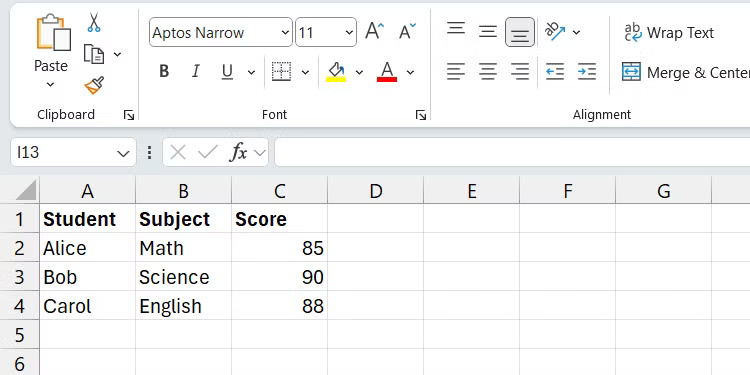
<p style="text-align: justify;">Ví dụ, trong ảnh chụp màn hình bên dưới, chúng ta sẽ lấy&nbsp;<strong>Score</strong>&nbsp;(<strong>C4</strong>) mà Alice đạt được trong bài kiểm tra tiếng Anh của cô ấy.</p>

<div style="text-align: justify;">&nbsp;</div>

<p style="text-align: justify;">Phạm vi trong Excel hiển thị điểm kiểm tra của học sinh ở nhiều môn học khác nhau.<br />
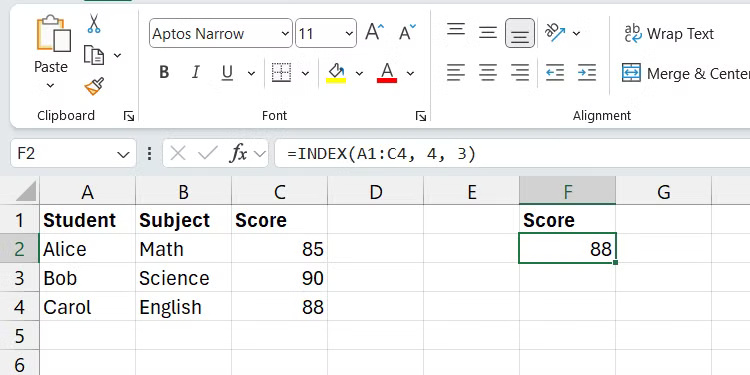
Công thức trông như thế này:</p>

<pre id="pre8">
<code>=INDEX(A1:C4, 4, 3)</code></pre>

<p style="text-align: justify;">Công thức này sẽ trả về&nbsp;<strong>88</strong>&nbsp;vì đó là điểm mà Alice đạt được trong bài kiểm tra tiếng Anh của cô ấy.</p>

<figure>
<div style="text-align: justify;"><img alt="Kết quả của hàm INDEX trong Excel trên Windows." data-i="5" data-src="https://st.quantrimang.com/photos/image/2024/11/11/ham-excel-tim-du-lieu-nhanh-6.jpg" data-was-processed="true" height="375" src="https://st.quantrimang.com/photos/image/2024/11/11/ham-excel-tim-du-lieu-nhanh-6.jpg" width="750" /></div>

<figcaption>
<div style="text-align: justify;">Kết quả của hàm INDEX trong Excel trên Windows.</div>
</figcaption>
</figure>

<h2 style="text-align: justify;">5. Hàm MATCH</h2>

<p style="text-align: justify;">Hàm MATCH trong Excel&nbsp;tìm kiếm một phạm vi dữ liệu cho một giá trị được chỉ định và sau đó trả về vị trí tương đối của nó. Sau đó, bạn có thể sử dụng giá trị được trả về với các hàm như INDEX để truy xuất và thao tác dữ liệu một cách động.</p>

<p style="text-align: justify;">Cú pháp của hàm MATCH là:</p>

<pre id="pre9">
<code>MATCH(value_to_search, range_to_search_in, &#91;match_type&#93;)</code></pre>

<p style="text-align: justify;">Ở đây,&nbsp;<em>value_to_search</em>&nbsp;là giá trị bạn muốn tìm và&nbsp;<em>range_to_search_in</em>&nbsp;là phạm vi mà bạn đang tìm kiếm giá trị đó.</p>

<p style="text-align: justify;">Tham số&nbsp;<em>match_type</em>&nbsp;chỉ định loại kết quả khớp cần sử dụng. Sau đây là các loại bạn có thể sử dụng:</p>

<table align="" border="1" summary="">
		<tr>
			<th>
			<p style="text-align: justify;">Loại kết quả khớp</p>
			</th>
			<th>
			<p style="text-align: justify;">Mô tả</p>
			</th>
		</tr>
	<tbody>
		<tr>
			<td>
			<p style="text-align: justify;">1 (mặc định)</p>
			</td>
			<td>
			<p style="text-align: justify;">Trả về giá trị lớn nhất nhỏ hơn hoặc bằng&nbsp;<strong>value_to_search</strong></p>
			</td>
		</tr>
		<tr>
			<td>
			<p style="text-align: justify;">0</p>
			</td>
			<td>
			<p style="text-align: justify;">Trả về kết quả khớp chính xác</p>
			</td>
		</tr>
		<tr>
			<td>
			<p style="text-align: justify;">-1</p>
			</td>
			<td>
			<p style="text-align: justify;">Trả về giá trị nhỏ nhất lớn hơn hoặc bằng&nbsp;<strong>value_to_search</strong></p>
			</td>
		</tr>
	</tbody>
</table>

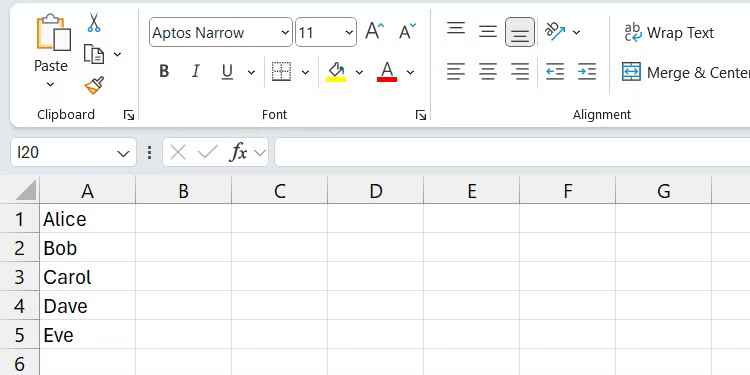
<p style="text-align: justify;">Trong ví dụ, chúng ta sẽ sử dụng hàm MATCH để tìm vị trí của Carol trong phạm vi, với yêu câu nó là một kết quả khớp chính xác.</p>

<figure>
<div style="text-align: justify;"><img alt="Một phạm vi tên trong Excel." data-i="6" data-src="https://st.quantrimang.com/photos/image/2024/11/11/ham-excel-tim-du-lieu-nhanh-7.jpg" data-was-processed="true" height="375" src="https://st.quantrimang.com/photos/image/2024/11/11/ham-excel-tim-du-lieu-nhanh-7.jpg" width="750" /></div>

<figcaption>
<div style="text-align: justify;">Một phạm vi tên trong Excel.</div>
</figcaption>
</figure>

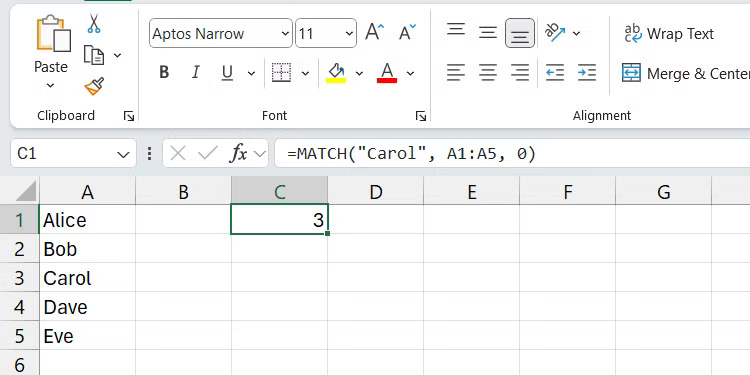
<p style="text-align: justify;">Sau đây là hình ảnh hàm sẽ trông như thế nào trong Excel:</p>

<pre id="pre10">
<code>=MATCH(&quot;Carol&quot;, A2:A6, 0)</code></pre>

<p style="text-align: justify;">Sau khi chạy công thức trên, hàm sẽ trả về&nbsp;<strong>3</strong>&nbsp;vì kết quả khớp chính xác của Carol là mục thứ ba trong phạm vi.</p>

<figure>
<div style="text-align: justify;"><img alt="Kết quả của hàm MATCH trong Excel trên Windows." data-i="7" data-src="https://st.quantrimang.com/photos/image/2024/11/11/ham-excel-tim-du-lieu-nhanh-8.jpg" data-was-processed="true" height="375" src="https://st.quantrimang.com/photos/image/2024/11/11/ham-excel-tim-du-lieu-nhanh-8.jpg" width="750" /></div>

<figcaption>
<div style="text-align: justify;">Kết quả của hàm MATCH trong Excel trên Windows.</div>
</figcaption>
</figure>

<h2 style="text-align: justify;">6. Tìm XLOOKUP</h2>

<p style="text-align: justify;">Với&nbsp;hàm XLOOKUP, bạn chỉ định một giá trị để tìm kiếm trong một phạm vi rồi trích xuất giá trị tương ứng từ một phạm vi khác. Không giống như&nbsp;hàm HLOOKUP&nbsp;và&nbsp;hàm VLOOKUP, XLOOKUP cho phép bạn tìm kiếm theo bất kỳ hướng nào, giúp việc tra cứu dữ liệu trong trang tính linh hoạt hơn.</p>

<div style="text-align: justify;">&nbsp;</div>

<p style="text-align: justify;">Cú pháp của hàm XLOOKUP là:</p>

<pre id="pre11">
<code>XLOOKUP(value_to_look_up, range_to_check, range_to_return, &#91;if_value_not_found&#93;, &#91;match_type&#93;, &#91;search_mode&#93;)</code></pre>

<p style="text-align: justify;">Trong cú pháp này,&nbsp;<em>value_to_look_up</em>&nbsp;là giá trị bạn đang tìm kiếm,&nbsp;<em>range_to_check</em>&nbsp;là phạm vi mà giá trị bạn muốn sẽ được trích xuất và&nbsp;<em>range_to_return</em>&nbsp;là nơi giá trị tương ứng của giá trị tra cứu sẽ đến từ đó. Bạn chỉ cần chỉ định 3 tham số này để hàm hoạt động, vì vậy đây là những tham số duy nhất chúng ta sẽ tập trung vào.</p>

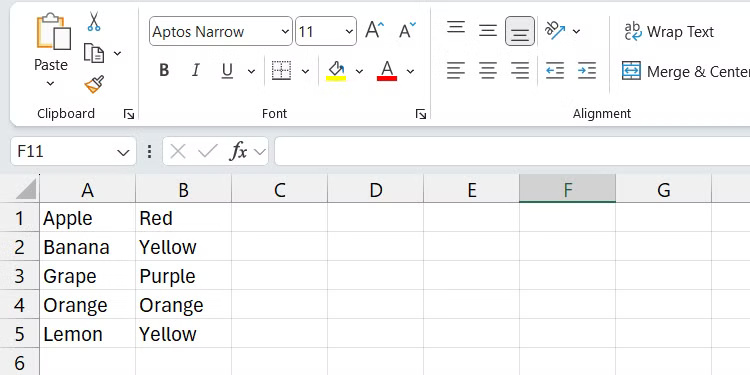
<p style="text-align: justify;">Hãy làm rõ điều này bằng một ví dụ dựa trên ảnh chụp màn hình bên dưới. Ví dụ muốn tìm kiếm&nbsp;<strong>Banana (A2)</strong>&nbsp;và trả về màu của nó từ cột tương ứng&nbsp;<strong>(B)</strong>.</p>

<figure>
<div style="text-align: justify;"><img alt="Một phạm vi trong Excel hiển thị các loại trái cây và màu sắc của chúng." data-i="8" data-src="https://st.quantrimang.com/photos/image/2024/11/11/ham-excel-tim-du-lieu-nhanh-9.jpg" data-was-processed="true" height="375" src="https://st.quantrimang.com/photos/image/2024/11/11/ham-excel-tim-du-lieu-nhanh-9.jpg" width="750" /></div>

<figcaption>
<div style="text-align: justify;">Một phạm vi trong Excel hiển thị các loại trái cây và màu sắc của chúng.</div>
</figcaption>
</figure>

<p style="text-align: justify;">Sau đây là cách công thức sẽ trông như thế nào trong Excel:</p>

<pre id="pre12">
<code>=XLOOKUP(&quot;Banana&quot;, A:A, B:B)</code></pre>

<p style="text-align: justify;">Chạy công thức này sẽ trả về&nbsp;<strong>Yellow (B2)</strong>, giá trị tương ứng dựa trên việc tra cứu giá trị&nbsp;<strong>Banana.</strong></p>

<figure>
<div style="text-align: justify;"><img alt="Kết quả của hàm XLOOKUP trong Excel trên Windows." data-i="9" data-src="https://st.quantrimang.com/photos/image/2024/11/11/ham-excel-tim-du-lieu-nhanh-10.jpg" data-was-processed="true" height="375" src="https://st.quantrimang.com/photos/image/2024/11/11/ham-excel-tim-du-lieu-nhanh-10.jpg" width="750" /></div>

<figcaption>
<div style="text-align: justify;">Kết quả của hàm XLOOKUP trong Excel trên Windows.</div>
</figcaption>
</figure>

<p style="text-align: justify;">Thành thạo 6 hàm Excel này - FIND, SORT, FILTER, INDEX, MATCH và XLOOKUP - sẽ giúp bạn nhanh chóng định vị, sắp xếp và trích xuất thông tin từ các tập dữ liệu lớn. Điều này có thể cải thiện đáng kể năng suất Excel và khả năng phân tích dữ liệu hiệu quả của bạn.</p>

<div style="text-align: justify;">&nbsp;</div>
		</div>
				<div id="author">
						<p>
				<strong>Nguồn tin:</strong>
				Quantrimang.com:
			</p>
		</div>
	</div>
	<div id="footer" class="clearfix">
		<div id="url">
			<strong>URL của bản tin này: </strong><a href="https://www.nguoicodonvn2008.info/vi/news/savefile/kien-thuc-may-tinh/6-ham-excel-de-tim-du-lieu-nhanh-chong-9339.html" title="6 hàm Excel để tìm dữ liệu nhanh chóng">https://www.nguoicodonvn2008.info/vi/news/savefile/kien-thuc-may-tinh/6-ham-excel-de-tim-du-lieu-nhanh-chong-9339.html</a>

		</div>
		<div class="clear"></div>
		<div class="copyright">
			&copy; .&#x3A; Nguoicodonvn2008.info - Cõi lòng người cô đơn &#x3A;.
		</div>
		<div id="contact">
			<a href="mailto:admin@nguoicodonvn2008.info">admin@nguoicodonvn2008.info</a>
		</div>
	</div>
</div>
        <div id="timeoutsess" class="chromeframe">
            Bạn đã không sử dụng Site, <a onclick="timeoutsesscancel();" href="https://www.nguoicodonvn2008.info/#">Bấm vào đây để duy trì trạng thái đăng nhập</a>. Thời gian chờ: <span id="secField"> 60 </span> giây
        </div>
        <div id="openidResult" class="nv-alert" style="display:none"></div>
        <div id="openidBt" data-result="" data-redirect=""></div>
		</script>
		<div class="car-top">
  <span><img src="https://www.nguoicodonvn2008.info/themes/default/images/car.png" alt=""></span>
</div>
<script src="https://www.nguoicodonvn2008.info/assets/js/jquery/jquery.min.js"></script>
<script>var nv_base_siteurl="/",nv_lang_data="vi",nv_lang_interface="vi",nv_name_variable="nv",nv_fc_variable="op",nv_lang_variable="language",nv_module_name="news",nv_func_name="savefile",nv_is_user=0, nv_my_ofs=-4,nv_my_abbr="EDT",nv_cookie_prefix="nv4c_e856T",nv_check_pass_mstime=1738000,nv_area_admin=0,nv_safemode=0,theme_responsive=0,nv_recaptcha_ver=2,nv_recaptcha_sitekey="",nv_recaptcha_type="image",XSSsanitize=1;</script>
<script src="https://www.nguoicodonvn2008.info/assets/js/language/vi.js"></script>
<script src="https://www.nguoicodonvn2008.info/assets/js/DOMPurify/purify3.js"></script>
<script src="https://www.nguoicodonvn2008.info/assets/js/global.js"></script>
<script src="https://www.nguoicodonvn2008.info/assets/js/site.js"></script>
<script src="https://www.nguoicodonvn2008.info/themes/default/js/news.js"></script>
<script src="https://www.nguoicodonvn2008.info/themes/default/js/main.js"></script>
<script src="https://www.nguoicodonvn2008.info/themes/default/js/custom.js"></script>
<script type="application/ld+json">
        {
            "@context": "https://schema.org",
            "@type": "Organization",
            "url": "https://www.nguoicodonvn2008.info",
            "logo": "https://www.nguoicodonvn2008.info/uploads/angel.gif"
        }
        </script>
<script src="https://www.nguoicodonvn2008.info/themes/default/js/bootstrap.min.js"></script>
<script type="text/javascript">
var $scrolltop = $('.car-top');
$scrolltop.on('click', function () {
    $('html,body').animate({
        scrollTop: 0
    }, 800);
    $(this).addClass("car-run");
    setTimeout(function(){ $scrolltop.removeClass('car-run');}, 1000);
    return false;
});
$(window).on('scroll', function ()
{ 
    if($(window).scrollTop() >= 200)
    {
        $scrolltop.addClass("show");
        $scrolltop.addClass("car-down");
    }
    else
    {
       $scrolltop.removeClass("show");
       setTimeout(function(){ $scrolltop.removeClass('car-down');}, 300);
    }
});
</script>
</body>
</html>