<!DOCTYPE html>
    <html lang="vi" xmlns="http://www.w3.org/1999/xhtml" prefix="og: http://ogp.me/ns#">
    <head>
<title>6 cách vô hiệu hóa Remote Desktop trên Windows 11</title>
<meta name="description" content="6 cách vô hiệu hóa Remote Desktop trên Windows 11 - Savefile - Tin Tức -...">
<meta name="author" content=".: Nguoicodonvn2008.info - Cõi lòng người cô đơn :.">
<meta name="copyright" content=".: Nguoicodonvn2008.info - Cõi lòng người cô đơn :. [admin@nguoicodonvn2008.info]">
<meta name="robots" content="index, archive, follow, noodp">
<meta name="googlebot" content="index,archive,follow,noodp">
<meta name="msnbot" content="all,index,follow">
<meta name="generator" content="NukeViet v4.5">
<meta http-equiv="Content-Type" content="text/html; charset=utf-8">
<meta property="og:title" content="6 cách vô hiệu hóa Remote Desktop trên Windows 11">
<meta property="og:type" content="website">
<meta property="og:description" content="Savefile - Tin Tức - https&#x3A;&#x002F;&#x002F;www.nguoicodonvn2008.info&#x002F;vi&#x002F;news&#x002F;savefile&#x002F;kien-thuc-may-tinh&#x002F;6-cach-vo-hieu-hoa-remote-desktop-tren-windows-11-6844.html">
<meta property="og:site_name" content=".&#x3A; Nguoicodonvn2008.info - Cõi lòng người cô đơn &#x3A;.">
<meta property="og:url" content="https://www.nguoicodonvn2008.info/vi/news/savefile/kien-thuc-may-tinh/6-cach-vo-hieu-hoa-remote-desktop-tren-windows-11-6844.html">
<link rel="shortcut icon" href="https://www.nguoicodonvn2008.info/favicon.ico">
<link rel="canonical" href="https://www.nguoicodonvn2008.info/vi/news/savefile/kien-thuc-may-tinh/6-cach-vo-hieu-hoa-remote-desktop-tren-windows-11-6844.html">
<link rel="alternate" href="https://www.nguoicodonvn2008.info/vi/news/rss/" title="Tin Tức" type="application/rss+xml">
<link rel="alternate" href="https://www.nguoicodonvn2008.info/vi/news/rss/karaoke-dual/" title="Tin Tức - Karaoke Dual" type="application/rss+xml">
<link rel="alternate" href="https://www.nguoicodonvn2008.info/vi/news/rss/nhac-tre/" title="Tin Tức - Nhạc trẻ" type="application/rss+xml">
<link rel="alternate" href="https://www.nguoicodonvn2008.info/vi/news/rss/tru-tinh/" title="Tin Tức - Trữ tình" type="application/rss+xml">
<link rel="alternate" href="https://www.nguoicodonvn2008.info/vi/news/rss/nuoc-ngoai/" title="Tin Tức - Nước ngoài" type="application/rss+xml">
<link rel="alternate" href="https://www.nguoicodonvn2008.info/vi/news/rss/remix/" title="Tin Tức - Remix" type="application/rss+xml">
<link rel="alternate" href="https://www.nguoicodonvn2008.info/vi/news/rss/tam-su-tinh-yeu/" title="Tin Tức - Tâm sự tình yêu" type="application/rss+xml">
<link rel="alternate" href="https://www.nguoicodonvn2008.info/vi/news/rss/tho-suu-tam/" title="Tin Tức - Thơ sưu tầm" type="application/rss+xml">
<link rel="alternate" href="https://www.nguoicodonvn2008.info/vi/news/rss/cuoc-song/" title="Tin Tức - Cuộc sống" type="application/rss+xml">
<link rel="alternate" href="https://www.nguoicodonvn2008.info/vi/news/rss/phan-mem/" title="Tin Tức - Phần mềm" type="application/rss+xml">
<link rel="alternate" href="https://www.nguoicodonvn2008.info/vi/news/rss/kien-thuc-may-tinh/" title="Tin Tức - Kiến thức máy tính" type="application/rss+xml">
<link rel="alternate" href="https://www.nguoicodonvn2008.info/vi/news/rss/hoc-tap/" title="Tin Tức - Học tập" type="application/rss+xml">
<link rel="alternate" href="https://www.nguoicodonvn2008.info/vi/news/rss/tai-lieu/" title="Tin Tức - Tài liệu" type="application/rss+xml">
<link rel="alternate" href="https://www.nguoicodonvn2008.info/vi/news/rss/de-thi/" title="Tin Tức - Đề thi" type="application/rss+xml">
<link rel="preload" as="style" href="https://www.nguoicodonvn2008.info/assets/css/font-awesome.min.css" type="text/css">
<link rel="preload" as="style" href="https://www.nguoicodonvn2008.info/themes/default/css/bootstrap.non-responsive.css" type="text/css">
<link rel="preload" as="style" href="https://www.nguoicodonvn2008.info/themes/default/css/style.css" type="text/css">
<link rel="preload" as="style" href="https://www.nguoicodonvn2008.info/themes/default/css/style.non-responsive.css" type="text/css">
<link rel="preload" as="style" href="https://www.nguoicodonvn2008.info/themes/default/css/news.css" type="text/css">
<link rel="preload" as="style" href="https://www.nguoicodonvn2008.info/themes/default/css/custom.css" type="text/css">
<link rel="preload" as="script" href="https://www.nguoicodonvn2008.info/assets/js/jquery/jquery.min.js" type="text/javascript">
<link rel="preload" as="script" href="https://www.nguoicodonvn2008.info/assets/js/language/vi.js" type="text/javascript">
<link rel="preload" as="script" href="https://www.nguoicodonvn2008.info/assets/js/DOMPurify/purify3.js" type="text/javascript">
<link rel="preload" as="script" href="https://www.nguoicodonvn2008.info/assets/js/global.js" type="text/javascript">
<link rel="preload" as="script" href="https://www.nguoicodonvn2008.info/assets/js/site.js" type="text/javascript">
<link rel="preload" as="script" href="https://www.nguoicodonvn2008.info/themes/default/js/news.js" type="text/javascript">
<link rel="preload" as="script" href="https://www.nguoicodonvn2008.info/themes/default/js/main.js" type="text/javascript">
<link rel="preload" as="script" href="https://www.nguoicodonvn2008.info/themes/default/js/custom.js" type="text/javascript">
<link rel="preload" as="script" href="https://www.nguoicodonvn2008.info/themes/default/js/bootstrap.min.js" type="text/javascript">
<link rel="stylesheet" href="https://www.nguoicodonvn2008.info/assets/css/font-awesome.min.css">
<link rel="stylesheet" href="https://www.nguoicodonvn2008.info/themes/default/css/bootstrap.non-responsive.css">
<link rel="stylesheet" href="https://www.nguoicodonvn2008.info/themes/default/css/style.css">
<link rel="stylesheet" href="https://www.nguoicodonvn2008.info/themes/default/css/style.non-responsive.css">
<link rel="StyleSheet" href="https://www.nguoicodonvn2008.info/themes/default/css/news.css">
<link rel="stylesheet" href="https://www.nguoicodonvn2008.info/themes/default/css/custom.css">
<style type="text/css">
	body{background: #fff;}
</style>
    </head>
    <body>
<div id="print">
	<div id="hd_print">
		<h2 class="pull-left">.&#x3A; Nguoicodonvn2008.info - Cõi lòng người cô đơn &#x3A;.</h2>
		<p class="pull-right"><a title=".&#x3A; Nguoicodonvn2008.info - Cõi lòng người cô đơn &#x3A;." href="https://www.nguoicodonvn2008.info/">https://www.nguoicodonvn2008.info</a></p>
	</div>
	<div class="clear"></div>
	<hr />
	<div id="content">
		<h1>6 cách vô hiệu hóa Remote Desktop trên Windows 11</h1>
		<ul class="list-inline">
			<li>Chủ nhật - 05/03/2023 23:57</li>
			<li class="hidden-print txtrequired"><em class="fa fa-print">&nbsp;</em><a title="In ra" href="javascript:;" onclick="window.print()">In ra</a></li>
			<li class="hidden-print txtrequired"><em class="fa fa-power-off">&nbsp;</em><a title="Đóng cửa sổ này" href="javascript:;" onclick="window.close()">Đóng cửa sổ này</a></li>
		</ul>
		<div class="clear"></div>
		<div id="hometext">
		</div>
				<div class="imghome">
			<img alt="6 cách vô hiệu hóa Remote Desktop trên Windows 11" src="https://st.quantrimang.com/photos/image/2023/03/06/vo-hieu-hoa-remote-desktop-tren-windows-11-6.jpg" width="460" class="img-thumbnail" />
		</div>
		<div class="clear"></div>
		<div id="bodytext" class="clearfix">
			<p style="text-align: justify;">Windows Remote Desktop là một tính năng hữu ích nếu bạn cần truy cập vào máy tính của mình nhưng không thể tiếp cận theo cách vật lý. Trên thực tế, nhu cầu này đã dẫn tới sự ra đời của nhiều ứng dụng remote desktop. Các ứng dụng như&nbsp;AnyDesk&nbsp;và&nbsp;TeamViewer&nbsp;hỗ trợ kết nối remote desktop tương tự với trải nghiệm người dùng trực quan hơn.</p>

<p style="text-align: justify;">Tuy nhiên, nếu bạn không thường xuyên sử dụng tính năng Windows Remote Desktop để kết nối với máy tính của mình, tốt nhất bạn nên tắt tính năng này. Hướng dẫn này sẽ liệt kê tất cả các phương pháp để tắt tính năng Remote Desktop trên máy tính Windows 11.</p>

<h2 style="text-align: justify;">Cách vô hiệu hóa Remote Desktop trên Windows 11</h2>

<p style="text-align: justify;">Bạn có thể tắt Remote Desktop từ Control Panel, ứng dụng Settings, sử dụng Command Prompt hoặc Registry Editor. Hơn nữa, bạn thậm chí có thể tạo một file batch và chạy nó trực tiếp từ desktop.</p>

<h3 style="text-align: justify;">1. Sử dụng ứng dụng Settings</h3>

<p style="text-align: justify;">Bạn có thể tắt nhanh tính năng Remote Desktop trên hệ thống của mình bằng ứng dụng Settings. Đây là cách thực hiện:</p>

<p style="text-align: justify;">1. Nhấn&nbsp;<strong>Win + I</strong>&nbsp;để khởi chạy ứng dụng Settings.</p>

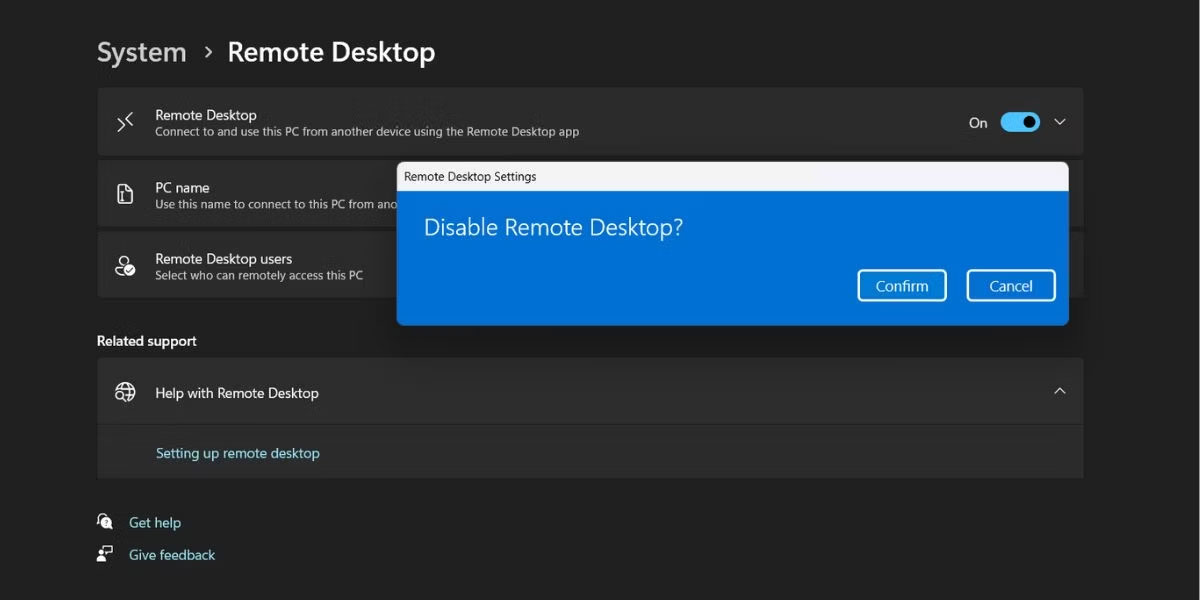
<p style="text-align: justify;">2. Trong phần&nbsp;<strong>System</strong>, cuộn xuống và nhấp vào tùy chọn&nbsp;<strong>Remote Desktop</strong>.</p>

<p style="text-align: justify;">3. Sau đó, nhấp vào nút chuyển đổi bên cạnh tùy chọn&nbsp;<strong>Remote Desktop</strong>&nbsp;để tắt nó đi.</p>

<figure>
<div style="text-align: justify;"><img alt="Vô hiệu hóa máy tính từ xa bằng ứng dụng Settings" data-i="0" data-src="https://st.quantrimang.com/photos/image/2023/03/06/vo-hieu-hoa-remote-desktop-tren-windows-11-1.jpg" data-was-processed="true" height="600" src="https://st.quantrimang.com/photos/image/2023/03/06/vo-hieu-hoa-remote-desktop-tren-windows-11-1.jpg" width="1200" /></div>

<figcaption>
<div style="text-align: justify;">Vô hiệu hóa máy tính từ xa bằng ứng dụng Settings</div>
</figcaption>
</figure>

<p style="text-align: justify;">4. Windows sẽ nhắc bạn xác nhận quyết định của mình. Nhấp vào nút&nbsp;<strong>Disable</strong>&nbsp;và thoát khỏi ứng dụng Settings.</p>

<h3 style="text-align: justify;">2. Sử dụng Control Panel</h3>

<p style="text-align: justify;">Mặc dù Microsoft đang cố gắng chuyển hầu hết các tùy chọn của Control Panel sang ứng dụng Settings nhưng quá trình chuyển đổi vẫn chưa hoàn tất. Vì vậy, bạn vẫn có thể tắt tính năng Remote Desktop bằng Control Panel. Làm theo các bước sau:</p>

<p style="text-align: justify;">1. Nhấn&nbsp;<strong>Win + R</strong>&nbsp;để&nbsp;khởi chạy hộp lệnh Run. Nhập control và nhấn phím&nbsp;<strong>Enter.</strong></p>

<p style="text-align: justify;">2.&nbsp;Control Panel&nbsp;sẽ khởi chạy. Nhấp vào tùy chọn&nbsp;<strong>System and Security</strong>.</p>

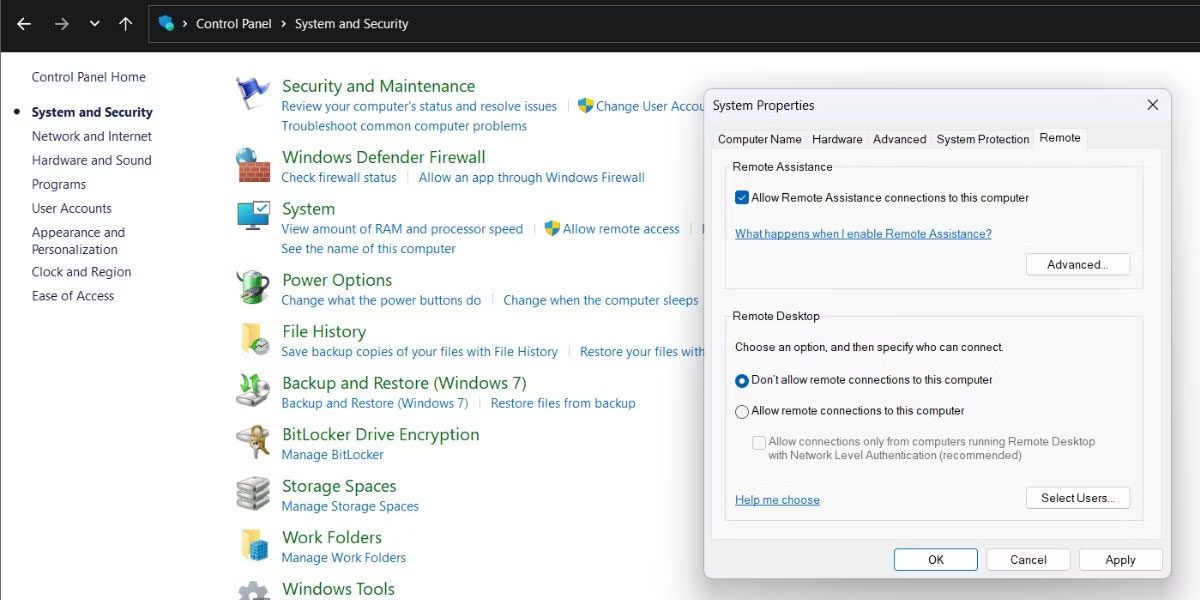
<p style="text-align: justify;">3. Điều hướng đến phần&nbsp;<strong>System</strong>&nbsp;và nhấp vào tùy chọn&nbsp;<strong>Allow remote access</strong>.</p>

<p style="text-align: justify;">4. Sau đó, chọn&nbsp;<strong>Don&#039;t allow remote desktop connections to this computer</strong>&nbsp;và nhấp vào nút&nbsp;<strong>Apply</strong>.</p>

<figure>
<div style="text-align: justify;"><img alt="Vô hiệu hóa Remote Desktop bằng Control Panel" data-i="1" data-src="https://st.quantrimang.com/photos/image/2023/03/06/vo-hieu-hoa-remote-desktop-tren-windows-11-2.jpg" data-was-processed="true" height="600" src="https://st.quantrimang.com/photos/image/2023/03/06/vo-hieu-hoa-remote-desktop-tren-windows-11-2.jpg" width="1200" /></div>

<figcaption>
<div style="text-align: justify;">Vô hiệu hóa Remote Desktop bằng Control Panel</div>
</figcaption>
</figure>

<p style="text-align: justify;">5. Cuối cùng, nhấp vào nút&nbsp;<strong>OK</strong>&nbsp;để hoàn tất các thay đổi và đóng công cụ Remote Desktop.</p>

<h3 style="text-align: justify;">3. Sử dụng Registry Editor</h3>

<p style="text-align: justify;">Bạn có thể tạo registry key theo cách thủ công để tắt tính năng Remote Desktop trên hệ thống của mình. Tuy nhiên, việc tinh chỉnh Registry là một việc mạo hiểm và bạn phải luôn nhớ tạo bản sao lưu Registry trước khi thực hiện bất kỳ thay đổi nào. Ngay cả khi mọi thứ rơi vào tình huống xấu nhất, bạn luôn có thể nhập bản sao lưu và làm cho hệ thống hoạt động bình thường trở lại.</p>

<p style="text-align: justify;">Làm theo các bước sau để tắt Remote Desktop bằng Registry Editor::</p>

<p style="text-align: justify;">1. Nhấn&nbsp;<strong>Win + R</strong>&nbsp;để khởi chạy hộp lệnh Run. Nhập&nbsp;<strong>Regedit</strong>&nbsp;vào vùng nhập văn bản và nhấn phím Enter để khởi chạy tiện ích.</p>

<p style="text-align: justify;">2. Bây giờ, hãy chuyển đến thanh địa chỉ trên đầu cửa sổ Registry Editor, dán đường dẫn sau và nhấn phím Enter:</p>

<pre id="pre0">
<code>HKEY_LOCAL_MACHINE\SYSTEM\CurrentControlSet\Control\Terminal Server</code></pre>

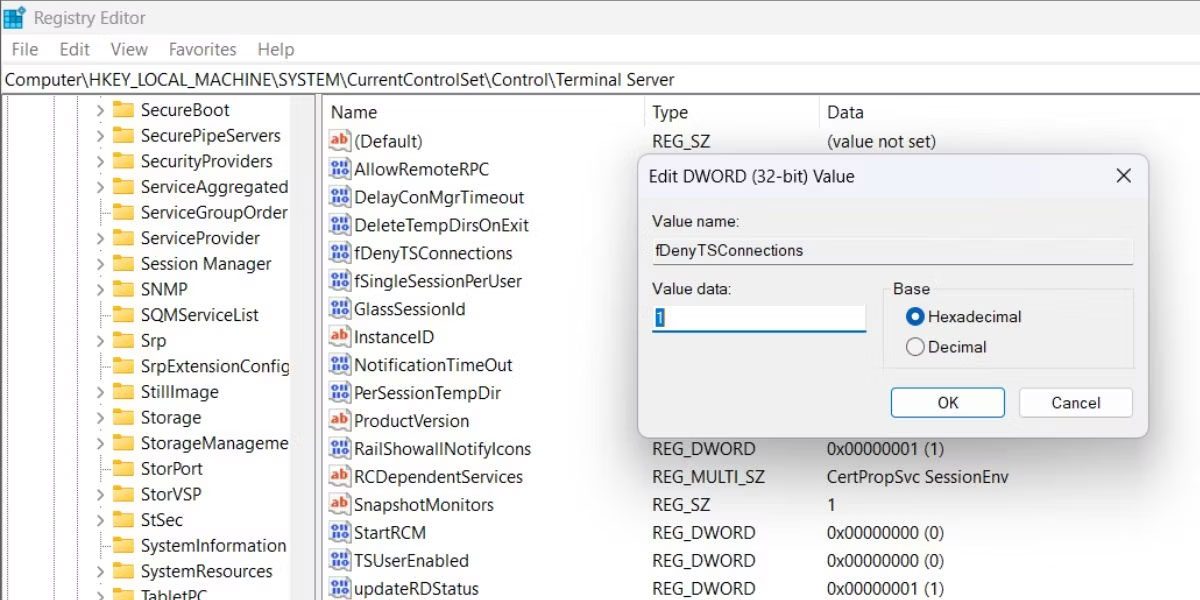
<p style="text-align: justify;">3. Khi bạn đang ở trong key Terminal Server, hãy tìm giá trị DWORD&nbsp;<strong>fDenyTSConnections.</strong>&nbsp;Nếu không có, nhấp chuột phải và chọn&nbsp;<strong>New &gt; DWORD (32-bit) Value</strong>.</p>

<p style="text-align: justify;">4. Đặt tên cho key mới tạo là&nbsp;<strong>fDenyTSConnections</strong>&nbsp;và không viết hoa.</p>

<p style="text-align: justify;">5. Nhấp đúp vào giá trị DWORD fDenyTSConnections và thay đổi&nbsp;<strong>Value Data</strong>&nbsp;thành&nbsp;<strong>1</strong>. Giữ nguyên&nbsp;<strong>Base</strong>&nbsp;là&nbsp;<strong>Hexadecimal</strong>.</p>

<figure>
<div style="text-align: justify;"><img alt="Vô hiệu hóa Remote Desktop bằng Registry Editor" data-i="2" data-src="https://st.quantrimang.com/photos/image/2023/03/06/vo-hieu-hoa-remote-desktop-tren-windows-11-3.jpg" data-was-processed="true" height="600" src="https://st.quantrimang.com/photos/image/2023/03/06/vo-hieu-hoa-remote-desktop-tren-windows-11-3.jpg" width="1200" /></div>

<figcaption>
<div style="text-align: justify;">Vô hiệu hóa Remote Desktop bằng Registry Editor</div>
</figcaption>
</figure>

<p style="text-align: justify;">6. Cuối cùng, nhấp vào nút&nbsp;<strong>OK</strong>&nbsp;và thoát khỏi Registry Editor.</p>

<p style="text-align: justify;">7. Khởi động lại hệ thống để cho phép các thay đổi có hiệu lực.</p>

<h3 style="text-align: justify;">4. Sử dụng&nbsp;Windows Firewall</h3>

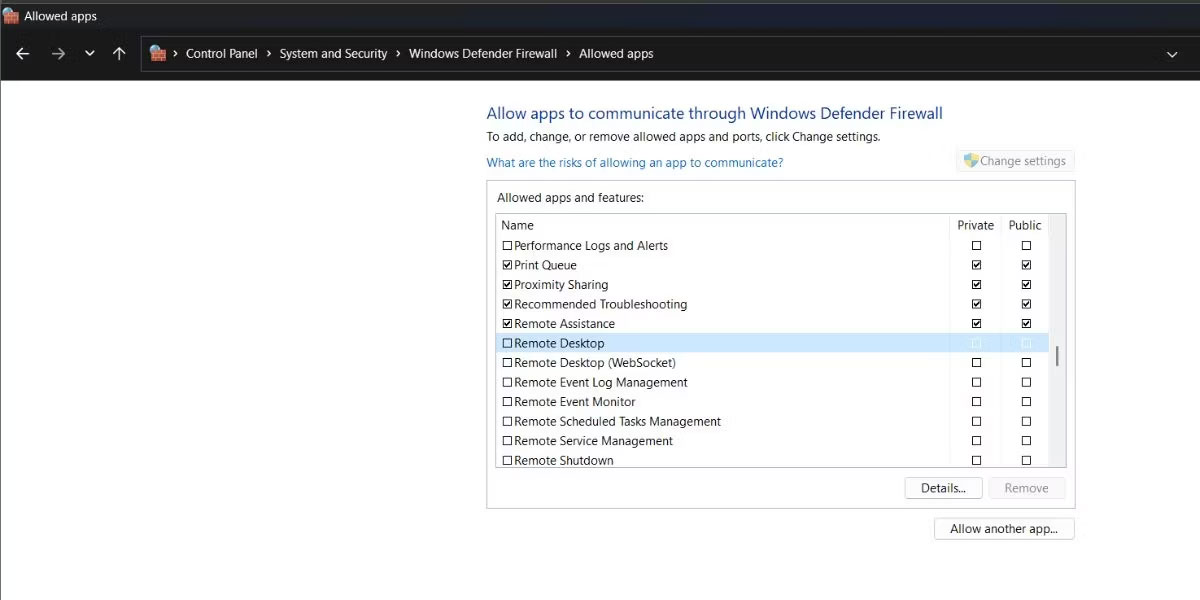
<p style="text-align: justify;">Bạn có thể chặn Remote Desktop khỏi danh sách các ứng dụng được phép trong Windows Firewall. Sau đó, ngay cả khi tính năng này đang hoạt động trên hệ thống của bạn, sẽ không có máy tính nào khác có thể kết nối với nó. Đây là cách thực hiện:</p>

<p style="text-align: justify;">1. Nhấn&nbsp;<strong>Win + R</strong>&nbsp;để khởi chạy hộp lệnh Run. Nhập&nbsp;<strong>control firewall.cpl</strong>&nbsp;vào hộp văn bản và nhấn phím&nbsp;<strong>Enter.</strong></p>

<p style="text-align: justify;">2. Trên trang &nbsp;Windows Defender Firewall, nhấp vào tùy chọn&nbsp;<strong>Allow an app or feature through the Windows Defender Firewall</strong>.</p>

<p style="text-align: justify;">3. Nhấp vào nút&nbsp;<strong>Change settings</strong>. Cuộn xuống và bỏ chọn tùy chọn&nbsp;<strong>Remote Desktop</strong>&nbsp;và&nbsp;<strong>Remote Desktop (WebSocket)</strong>&nbsp;trong danh sách.</p>

<figure>
<div style="text-align: justify;"><img alt="Vô hiệu hóa Remote Desktop bằng Windows Firewall" data-i="3" data-src="https://st.quantrimang.com/photos/image/2023/03/06/vo-hieu-hoa-remote-desktop-tren-windows-11-4.jpg" data-was-processed="true" height="600" src="https://st.quantrimang.com/photos/image/2023/03/06/vo-hieu-hoa-remote-desktop-tren-windows-11-4.jpg" width="1200" /></div>

<figcaption>
<div style="text-align: justify;">Vô hiệu hóa Remote Desktop bằng Windows Firewall</div>
</figcaption>
</figure>

<p style="text-align: justify;">4. Bấm vào nút&nbsp;<strong>OK</strong>&nbsp;và thoát khỏi cửa sổ Control Panel.</p>

<h3 style="text-align: justify;">5. Sử dụng Command Prompt</h3>

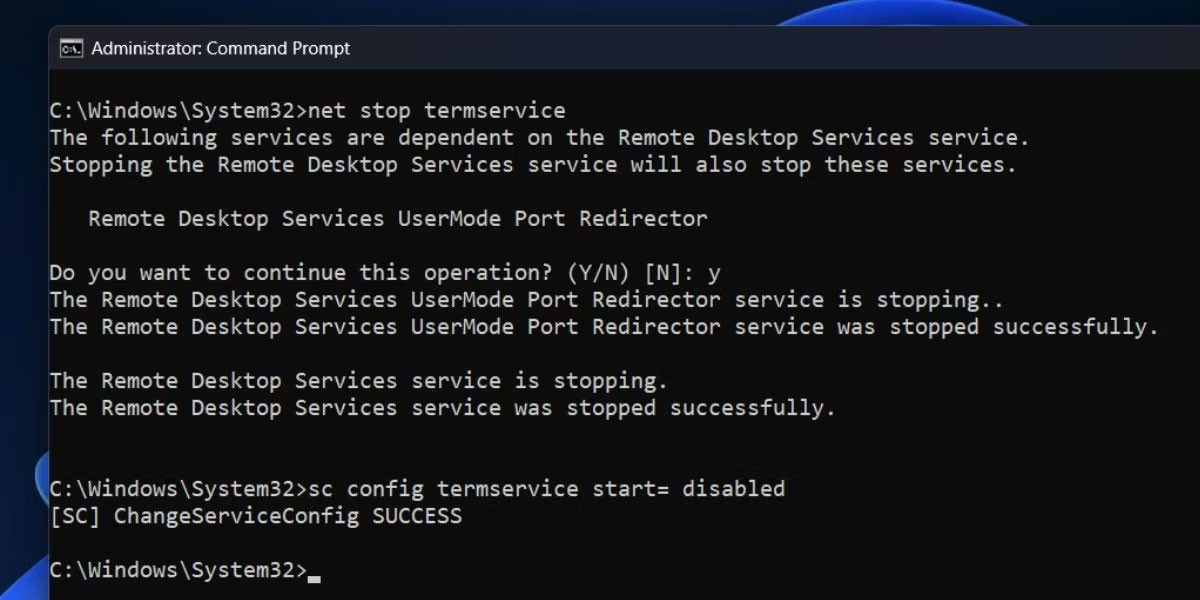
<p style="text-align: justify;">Bạn có thể sử dụng Command Prompt để tắt Remote Desktop mà không cần điều hướng đến Control Panel hoặc ứng dụng Settings. Làm theo các bước sau:</p>

<p style="text-align: justify;">1. Nhấn&nbsp;<strong>Win + X</strong>&nbsp;để&nbsp;mở Power User Menu. Tìm tùy chọn&nbsp;<strong>Terminal (Admin)</strong>&nbsp;từ danh sách và nhấp vào nó.</p>

<p style="text-align: justify;">2. Trong cửa sổ Command Prompt, gõ lệnh sau và nhấn phím&nbsp;<strong>Enter</strong>:</p>

<pre id="pre1">
<code>net stop termservice</code></pre>

<p style="text-align: justify;">3. Nhập&nbsp;<strong>Y</strong>&nbsp;và nhấn&nbsp;<strong>Enter</strong>&nbsp;để dừng Remote Desktop và các service liên quan của nó.</p>

<p style="text-align: justify;">4. Sau đó, gõ lệnh sau và nhấn phím&nbsp;<strong>Enter.</strong></p>

<pre id="pre2">
<code>sc config termservice start= disabled</code></pre>

<figure>
<div style="text-align: justify;"><img alt="Vô hiệu hóa Remote Desktop bằng CMD" data-i="4" data-src="https://st.quantrimang.com/photos/image/2023/03/06/vo-hieu-hoa-remote-desktop-tren-windows-11-5.jpg" data-was-processed="true" height="600" src="https://st.quantrimang.com/photos/image/2023/03/06/vo-hieu-hoa-remote-desktop-tren-windows-11-5.jpg" width="1200" /></div>

<figcaption>
<div style="text-align: justify;">Vô hiệu hóa Remote Desktop bằng CMD</div>
</figcaption>
</figure>

<p style="text-align: justify;">5. Sau khi lệnh thực thi thành công, gõ&nbsp;<strong>exit</strong>&nbsp;để đóng cửa sổ Command Prompt.</p>

<h3 style="text-align: justify;">6. Sử dụng file batch</h3>

<p style="text-align: justify;">File batch là một cách dễ dàng hơn để bật hoặc tắt Remote Desktop. Bạn có thể lưu nó trên desktop và chạy nó khi không cần tính năng này hoạt động trên hệ thống của mình nữa. Đây là cách thực hiện:</p>

<p style="text-align: justify;">1. Nhấn&nbsp;<strong>Win + D</strong>&nbsp;để chuyển sang desktop.</p>

<p style="text-align: justify;">2. Nhấp chuột phải vào Desktop và chọn&nbsp;<strong>New &gt; Text Document</strong>.</p>

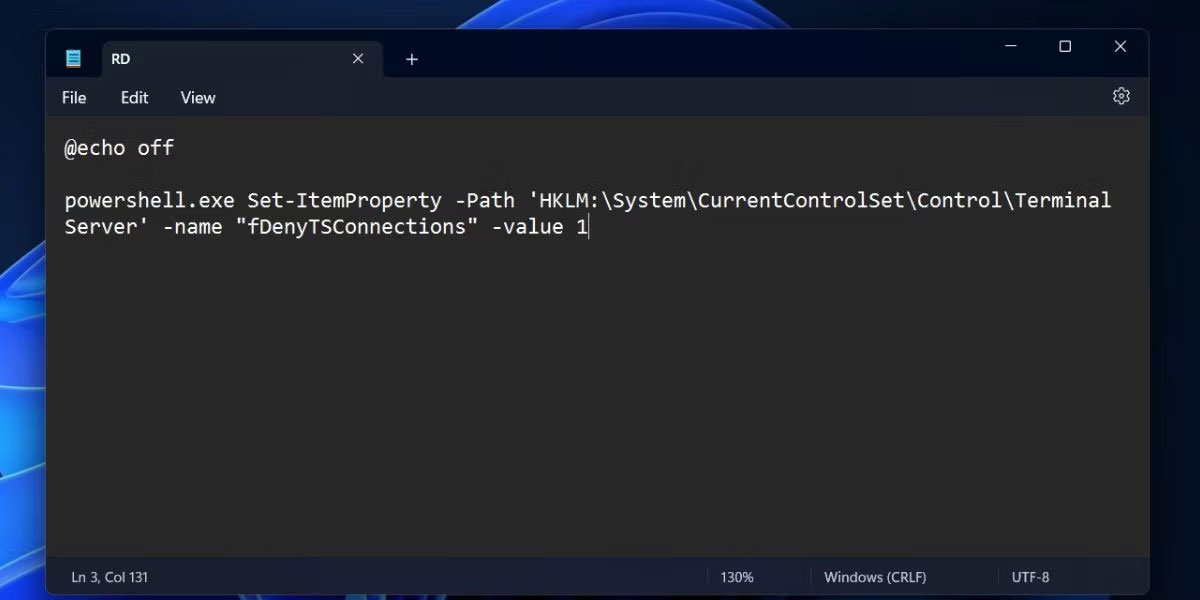
<p style="text-align: justify;">3. Mở file văn bản trống và dán đoạn code sau:</p>

<pre id="pre3">
<code>@echo off powershell.exe Set-ItemProperty -Path &#039;HKLM:\System\CurrentControlSet\Control\Terminal Server&#039; -name &quot;fDenyTSConnections&quot; -value 1</code></pre>

<figure>
<div style="text-align: justify;"><img alt="Vô hiệu hóa Remote Desktop bằng file batch" data-i="5" data-src="https://st.quantrimang.com/photos/image/2023/03/06/vo-hieu-hoa-remote-desktop-tren-windows-11-6.jpg" data-was-processed="true" height="600" src="https://st.quantrimang.com/photos/image/2023/03/06/vo-hieu-hoa-remote-desktop-tren-windows-11-6.jpg" width="1200" /></div>

<figcaption>
<div style="text-align: justify;">Vô hiệu hóa Remote Desktop bằng file batch</div>
</figcaption>
</figure>

<p style="text-align: justify;">4. Nhấn&nbsp;<strong>Ctrl + Shift + S</strong>&nbsp;để mở tùy chọn&nbsp;<strong>Save as</strong>. Đặt tên file là&nbsp;<strong>RD.bat</strong>&nbsp;và giữ nguyên&nbsp;<strong>File Type</strong>&nbsp;là&nbsp;<strong>All Files</strong>. Bây giờ, nhấp vào nút&nbsp;<strong>Save</strong>.</p>

<p style="text-align: justify;">5. Nhấn&nbsp;<strong>Win + D</strong>&nbsp;để chuyển sang desktop và nhấp chuột phải vào file RD.bat. Chọn tùy chọn&nbsp;<strong>Run as administrator</strong>&nbsp;từ menu ngữ cảnh.</p>

<p style="text-align: justify;">6. File batch sẽ khởi chạy PowerShell, thực thi lệnh vô hiệu hóa và tự động đóng. Bạn không cần phải can thiệp.</p>

<p style="text-align: justify;">Remote Desktop chỉ nên hoạt động khi bạn cần tính năng này. Bạn có thể sử dụng ứng dụng Settings hoặc Control Panel để tắt tính năng này. Ngoài ra, bạn có thể chỉnh sửa các giá trị registry hoặc vô hiệu hóa ứng dụng khỏi Windows Firewall. Cuối cùng, bạn có thể tạo và chạy một file batch nếu muốn tắt tính năng này chỉ bằng một cú nhấp chuột.</p>
		</div>
				<div id="author">
						<p>
				<strong>Nguồn tin:</strong>
				Quantrimang.com
			</p>
		</div>
	</div>
	<div id="footer" class="clearfix">
		<div id="url">
			<strong>URL của bản tin này: </strong><a href="https://www.nguoicodonvn2008.info/vi/news/savefile/kien-thuc-may-tinh/6-cach-vo-hieu-hoa-remote-desktop-tren-windows-11-6844.html" title="6 cách vô hiệu hóa Remote Desktop trên Windows 11">https://www.nguoicodonvn2008.info/vi/news/savefile/kien-thuc-may-tinh/6-cach-vo-hieu-hoa-remote-desktop-tren-windows-11-6844.html</a>

		</div>
		<div class="clear"></div>
		<div class="copyright">
			&copy; .&#x3A; Nguoicodonvn2008.info - Cõi lòng người cô đơn &#x3A;.
		</div>
		<div id="contact">
			<a href="mailto:admin@nguoicodonvn2008.info">admin@nguoicodonvn2008.info</a>
		</div>
	</div>
</div>
        <div id="timeoutsess" class="chromeframe">
            Bạn đã không sử dụng Site, <a onclick="timeoutsesscancel();" href="https://www.nguoicodonvn2008.info/#">Bấm vào đây để duy trì trạng thái đăng nhập</a>. Thời gian chờ: <span id="secField"> 60 </span> giây
        </div>
        <div id="openidResult" class="nv-alert" style="display:none"></div>
        <div id="openidBt" data-result="" data-redirect=""></div>
		</script>
		<div class="car-top">
  <span><img src="https://www.nguoicodonvn2008.info/themes/default/images/car.png" alt=""></span>
</div>
<script src="https://www.nguoicodonvn2008.info/assets/js/jquery/jquery.min.js"></script>
<script>var nv_base_siteurl="/",nv_lang_data="vi",nv_lang_interface="vi",nv_name_variable="nv",nv_fc_variable="op",nv_lang_variable="language",nv_module_name="news",nv_func_name="savefile",nv_is_user=0, nv_my_ofs=-4,nv_my_abbr="EDT",nv_cookie_prefix="nv4c_e856T",nv_check_pass_mstime=1738000,nv_area_admin=0,nv_safemode=0,theme_responsive=0,nv_recaptcha_ver=2,nv_recaptcha_sitekey="",nv_recaptcha_type="image",XSSsanitize=1;</script>
<script src="https://www.nguoicodonvn2008.info/assets/js/language/vi.js"></script>
<script src="https://www.nguoicodonvn2008.info/assets/js/DOMPurify/purify3.js"></script>
<script src="https://www.nguoicodonvn2008.info/assets/js/global.js"></script>
<script src="https://www.nguoicodonvn2008.info/assets/js/site.js"></script>
<script src="https://www.nguoicodonvn2008.info/themes/default/js/news.js"></script>
<script src="https://www.nguoicodonvn2008.info/themes/default/js/main.js"></script>
<script src="https://www.nguoicodonvn2008.info/themes/default/js/custom.js"></script>
<script type="application/ld+json">
        {
            "@context": "https://schema.org",
            "@type": "Organization",
            "url": "https://www.nguoicodonvn2008.info",
            "logo": "https://www.nguoicodonvn2008.info/uploads/angel.gif"
        }
        </script>
<script src="https://www.nguoicodonvn2008.info/themes/default/js/bootstrap.min.js"></script>
<script type="text/javascript">
var $scrolltop = $('.car-top');
$scrolltop.on('click', function () {
    $('html,body').animate({
        scrollTop: 0
    }, 800);
    $(this).addClass("car-run");
    setTimeout(function(){ $scrolltop.removeClass('car-run');}, 1000);
    return false;
});
$(window).on('scroll', function ()
{ 
    if($(window).scrollTop() >= 200)
    {
        $scrolltop.addClass("show");
        $scrolltop.addClass("car-down");
    }
    else
    {
       $scrolltop.removeClass("show");
       setTimeout(function(){ $scrolltop.removeClass('car-down');}, 300);
    }
});
</script>
</body>
</html>