<!DOCTYPE html>
    <html lang="vi" xmlns="http://www.w3.org/1999/xhtml" prefix="og: http://ogp.me/ns#">
    <head>
<title>6 cách sửa lỗi giao diện Dark Theme của File Explorer bị lỗi</title>
<meta name="description" content="6 cách sửa lỗi giao diện Dark Theme của File Explorer bị lỗi - Savefile - Tin Tức -...">
<meta name="author" content=".: Nguoicodonvn2008.info - Cõi lòng người cô đơn :.">
<meta name="copyright" content=".: Nguoicodonvn2008.info - Cõi lòng người cô đơn :. [admin@nguoicodonvn2008.info]">
<meta name="robots" content="index, archive, follow, noodp">
<meta name="googlebot" content="index,archive,follow,noodp">
<meta name="msnbot" content="all,index,follow">
<meta name="generator" content="NukeViet v4.5">
<meta http-equiv="Content-Type" content="text/html; charset=utf-8">
<meta property="og:title" content="6 cách sửa lỗi giao diện Dark Theme của File Explorer bị lỗi">
<meta property="og:type" content="website">
<meta property="og:description" content="Savefile - Tin Tức - https&#x3A;&#x002F;&#x002F;www.nguoicodonvn2008.info&#x002F;vi&#x002F;news&#x002F;savefile&#x002F;kien-thuc-may-tinh&#x002F;6-cach-sua-loi-giao-dien-dark-theme-cua-file-explorer-bi-loi-4023.html">
<meta property="og:site_name" content=".&#x3A; Nguoicodonvn2008.info - Cõi lòng người cô đơn &#x3A;.">
<meta property="og:url" content="https://www.nguoicodonvn2008.info/vi/news/savefile/kien-thuc-may-tinh/6-cach-sua-loi-giao-dien-dark-theme-cua-file-explorer-bi-loi-4023.html">
<link rel="shortcut icon" href="https://www.nguoicodonvn2008.info/favicon.ico">
<link rel="canonical" href="https://www.nguoicodonvn2008.info/vi/news/savefile/kien-thuc-may-tinh/6-cach-sua-loi-giao-dien-dark-theme-cua-file-explorer-bi-loi-4023.html">
<link rel="alternate" href="https://www.nguoicodonvn2008.info/vi/news/rss/" title="Tin Tức" type="application/rss+xml">
<link rel="alternate" href="https://www.nguoicodonvn2008.info/vi/news/rss/karaoke-dual/" title="Tin Tức - Karaoke Dual" type="application/rss+xml">
<link rel="alternate" href="https://www.nguoicodonvn2008.info/vi/news/rss/nhac-tre/" title="Tin Tức - Nhạc trẻ" type="application/rss+xml">
<link rel="alternate" href="https://www.nguoicodonvn2008.info/vi/news/rss/tru-tinh/" title="Tin Tức - Trữ tình" type="application/rss+xml">
<link rel="alternate" href="https://www.nguoicodonvn2008.info/vi/news/rss/nuoc-ngoai/" title="Tin Tức - Nước ngoài" type="application/rss+xml">
<link rel="alternate" href="https://www.nguoicodonvn2008.info/vi/news/rss/remix/" title="Tin Tức - Remix" type="application/rss+xml">
<link rel="alternate" href="https://www.nguoicodonvn2008.info/vi/news/rss/tam-su-tinh-yeu/" title="Tin Tức - Tâm sự tình yêu" type="application/rss+xml">
<link rel="alternate" href="https://www.nguoicodonvn2008.info/vi/news/rss/tho-suu-tam/" title="Tin Tức - Thơ sưu tầm" type="application/rss+xml">
<link rel="alternate" href="https://www.nguoicodonvn2008.info/vi/news/rss/cuoc-song/" title="Tin Tức - Cuộc sống" type="application/rss+xml">
<link rel="alternate" href="https://www.nguoicodonvn2008.info/vi/news/rss/phan-mem/" title="Tin Tức - Phần mềm" type="application/rss+xml">
<link rel="alternate" href="https://www.nguoicodonvn2008.info/vi/news/rss/kien-thuc-may-tinh/" title="Tin Tức - Kiến thức máy tính" type="application/rss+xml">
<link rel="alternate" href="https://www.nguoicodonvn2008.info/vi/news/rss/hoc-tap/" title="Tin Tức - Học tập" type="application/rss+xml">
<link rel="alternate" href="https://www.nguoicodonvn2008.info/vi/news/rss/tai-lieu/" title="Tin Tức - Tài liệu" type="application/rss+xml">
<link rel="alternate" href="https://www.nguoicodonvn2008.info/vi/news/rss/de-thi/" title="Tin Tức - Đề thi" type="application/rss+xml">
<link rel="preload" as="style" href="https://www.nguoicodonvn2008.info/assets/css/font-awesome.min.css" type="text/css">
<link rel="preload" as="style" href="https://www.nguoicodonvn2008.info/themes/default/css/bootstrap.non-responsive.css" type="text/css">
<link rel="preload" as="style" href="https://www.nguoicodonvn2008.info/themes/default/css/style.css" type="text/css">
<link rel="preload" as="style" href="https://www.nguoicodonvn2008.info/themes/default/css/style.non-responsive.css" type="text/css">
<link rel="preload" as="style" href="https://www.nguoicodonvn2008.info/themes/default/css/news.css" type="text/css">
<link rel="preload" as="style" href="https://www.nguoicodonvn2008.info/themes/default/css/custom.css" type="text/css">
<link rel="preload" as="script" href="https://www.nguoicodonvn2008.info/assets/js/jquery/jquery.min.js" type="text/javascript">
<link rel="preload" as="script" href="https://www.nguoicodonvn2008.info/assets/js/language/vi.js" type="text/javascript">
<link rel="preload" as="script" href="https://www.nguoicodonvn2008.info/assets/js/DOMPurify/purify3.js" type="text/javascript">
<link rel="preload" as="script" href="https://www.nguoicodonvn2008.info/assets/js/global.js" type="text/javascript">
<link rel="preload" as="script" href="https://www.nguoicodonvn2008.info/assets/js/site.js" type="text/javascript">
<link rel="preload" as="script" href="https://www.nguoicodonvn2008.info/themes/default/js/news.js" type="text/javascript">
<link rel="preload" as="script" href="https://www.nguoicodonvn2008.info/themes/default/js/main.js" type="text/javascript">
<link rel="preload" as="script" href="https://www.nguoicodonvn2008.info/themes/default/js/custom.js" type="text/javascript">
<link rel="preload" as="script" href="https://www.nguoicodonvn2008.info/themes/default/js/bootstrap.min.js" type="text/javascript">
<link rel="stylesheet" href="https://www.nguoicodonvn2008.info/assets/css/font-awesome.min.css">
<link rel="stylesheet" href="https://www.nguoicodonvn2008.info/themes/default/css/bootstrap.non-responsive.css">
<link rel="stylesheet" href="https://www.nguoicodonvn2008.info/themes/default/css/style.css">
<link rel="stylesheet" href="https://www.nguoicodonvn2008.info/themes/default/css/style.non-responsive.css">
<link rel="StyleSheet" href="https://www.nguoicodonvn2008.info/themes/default/css/news.css">
<link rel="stylesheet" href="https://www.nguoicodonvn2008.info/themes/default/css/custom.css">
<style type="text/css">
	body{background: #fff;}
</style>
    </head>
    <body>
<div id="print">
	<div id="hd_print">
		<h2 class="pull-left">.&#x3A; Nguoicodonvn2008.info - Cõi lòng người cô đơn &#x3A;.</h2>
		<p class="pull-right"><a title=".&#x3A; Nguoicodonvn2008.info - Cõi lòng người cô đơn &#x3A;." href="https://www.nguoicodonvn2008.info/">https://www.nguoicodonvn2008.info</a></p>
	</div>
	<div class="clear"></div>
	<hr />
	<div id="content">
		<h1>6 cách sửa lỗi giao diện Dark Theme của File Explorer bị lỗi</h1>
		<ul class="list-inline">
			<li>Thứ hai - 03/05/2021 00:57</li>
			<li class="hidden-print txtrequired"><em class="fa fa-print">&nbsp;</em><a title="In ra" href="javascript:;" onclick="window.print()">In ra</a></li>
			<li class="hidden-print txtrequired"><em class="fa fa-power-off">&nbsp;</em><a title="Đóng cửa sổ này" href="javascript:;" onclick="window.close()">Đóng cửa sổ này</a></li>
		</ul>
		<div class="clear"></div>
		<div id="hometext">
		</div>
				<div class="imghome">
			<img alt="6 cách sửa lỗi giao diện Dark Theme của File Explorer bị lỗi" src="https://st.quantrimang.com/photos/image/2021/04/24/dark-theme-file-explorer-bi-loi-1.jpg" width="460" class="img-thumbnail" />
		</div>
		<div class="clear"></div>
		<div id="bodytext" class="clearfix">
			<p style="text-align: justify;">Microsoft lần đầu tiên giới thiệu Dark Theme cho File Explorer trong bản cập nhật Windows 10 October 2018 Update và đây là một tin tốt cho những ai hay làm việc muộn.</p>

<p style="text-align: justify;">Nếu bạn đã&nbsp;bật Dark Theme cho File Explorer&nbsp;để giảm mỏi mắt hoặc đơn giản vì bạn nghĩ rằng nó trông đẹp hơn, thì chắc chắn sẽ rất bất tiện khi nó ngừng hoạt động.</p>

<div style="text-align: justify;">&nbsp;</div>

<p style="text-align: justify;">Hãy đọc danh sách các bản sửa lỗi sau đây để làm cho Dark Theme cho File Explorer trên Windows 10 hoạt động trở lại nhé!</p>

<h2 style="text-align: justify;">1. Tắt và bật lại</h2>

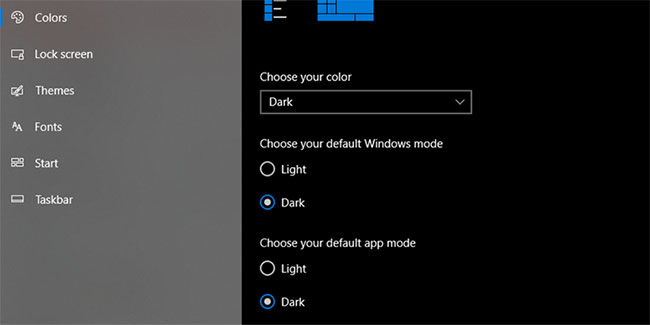
<p style="text-align: justify;">Phương pháp này có thể đủ để sửa lỗi chế độ Dark Mode trong File Explorer. Đây là cách làm:</p>

<p style="text-align: justify;"><strong>B1:</strong>&nbsp;Nhấp chuột phải vào menu&nbsp;<strong>Start.</strong></p>

<p style="text-align: justify;"><strong>B2:</strong>&nbsp;Nhấp vào&nbsp;<strong>Settings.</strong></p>

<p style="text-align: justify;"><strong>B3:</strong>&nbsp;Từ menu&nbsp;<strong>Settings</strong>, nhấp vào&nbsp;<strong>Personalization.</strong></p>

<p style="text-align: justify;"><strong>B4:</strong>&nbsp;Chọn menu&nbsp;<strong>Colors.</strong></p>

<p style="text-align: justify;"><strong>B5:</strong>&nbsp;Bên dưới&nbsp;<strong>Choose your default Windows mode</strong>, hãy chọn&nbsp;<strong>Light.</strong></p>

<p style="text-align: justify;"><strong>B6:</strong>&nbsp;Khởi động lại PC/laptop của bạn.</p>

<p style="text-align: justify;"><strong>B7:</strong>&nbsp;Thực hiện lại các bước và ở bước 5, chọn&nbsp;<strong>Dark.</strong></p>

<figure>
<div style="text-align: justify;"><img alt="Tắt và bật lại Dark Theme trong File Explorer" data-i="0" data-src="https://st.quantrimang.com/photos/image/2021/04/24/dark-theme-file-explorer-bi-loi-1.jpg" data-was-processed="true" height="325" src="https://st.quantrimang.com/photos/image/2021/04/24/dark-theme-file-explorer-bi-loi-1.jpg" width="650" /></div>

<figcaption>
<div style="text-align: justify;">Tắt và bật lại Dark Theme trong File Explorer</div>
</figcaption>
</figure>

<h2 style="text-align: justify;">2. Khởi động lại Windows Explorer</h2>

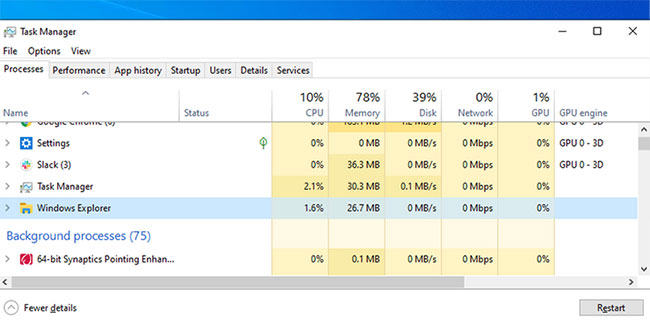
<p style="text-align: justify;">Hệ thống trục trặc nhỏ có thể khiến giao diện Dark Theme của Windows 10 ngừng hoạt động. Nếu đúng như vậy, đây là cách bạn có thể khắc phục:</p>

<p style="text-align: justify;"><strong>B1:</strong>&nbsp;Mở Task Manager&nbsp;bằng cách nhấn&nbsp;<strong>Ctrl + Shift + Esc</strong>.</p>

<p style="text-align: justify;"><strong>B2:</strong>&nbsp;Chọn&nbsp;<strong>Windows Explorer.</strong></p>

<p style="text-align: justify;"><strong>B3:</strong>&nbsp;Nhấp vào&nbsp;<strong>Restart.</strong></p>

<figure>
<div style="text-align: justify;"><img alt="Khởi động lại Windows Explorer" data-i="1" data-src="https://st.quantrimang.com/photos/image/2021/04/24/dark-theme-file-explorer-bi-loi-2.jpg" data-was-processed="true" height="325" src="https://st.quantrimang.com/photos/image/2021/04/24/dark-theme-file-explorer-bi-loi-2.jpg" width="650" /></div>

<figcaption>
<div style="text-align: justify;">Khởi động lại Windows Explorer</div>
</figcaption>
</figure>

<p style="text-align: justify;">Sau khi bạn đã khởi động lại Windows Explorer, hãy kích hoạt lại chế độ nền tối.</p>

<h2 style="text-align: justify;">3. Đăng xuất và đăng nhập lại vào tài khoản</h2>

<p style="text-align: justify;">Nếu Dark Theme của File Explorer ngừng hoạt động do trục trặc hệ thống, bạn có thể thử giải pháp này.</p>

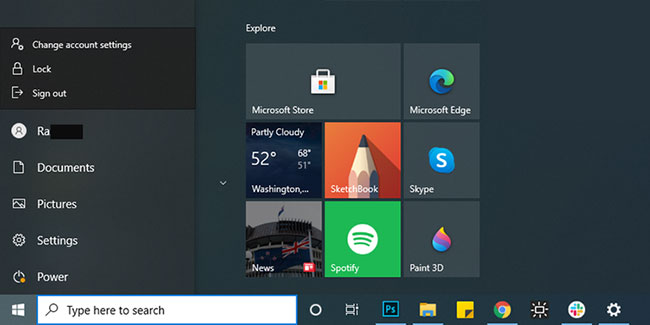
<p style="text-align: justify;"><strong>B1:</strong>&nbsp;Mở menu&nbsp;<strong>Start.</strong></p>

<p style="text-align: justify;"><strong>B2:</strong>&nbsp;Nhấp chuột phải vào biểu tượng profile của bạn.</p>

<p style="text-align: justify;"><strong>B3:</strong>&nbsp;Chọn&nbsp;<strong>Sign out.</strong></p>

<p style="text-align: justify;"><strong>B4:</strong>&nbsp;Đăng nhập lại bằng thông tin đăng nhập của bạn.</p>

<p style="text-align: justify;"><strong>B5:</strong>&nbsp;Đi tới&nbsp;<strong>Settings</strong>&nbsp;và bật lại chế độ nền tối.</p>

<figure>
<div style="text-align: justify;"><img alt="Đăng xuất và đăng nhập lại vào tài khoản" data-i="2" data-src="https://st.quantrimang.com/photos/image/2021/04/24/dark-theme-file-explorer-bi-loi-3.jpg" data-was-processed="true" height="325" src="https://st.quantrimang.com/photos/image/2021/04/24/dark-theme-file-explorer-bi-loi-3.jpg" width="650" /></div>

<figcaption>
<div style="text-align: justify;">Đăng xuất và đăng nhập lại vào tài khoản</div>
</figcaption>
</figure>

<p style="text-align: justify;">Nếu cách này không khắc phục lỗi với chế độ nền tối, tài khoản người dùng bị hỏng có thể là lý do cho sự cố của bạn. Để khắc phục, bạn phải&nbsp;tạo một tài khoản người dùng mới.</p>

<h2 style="text-align: justify;">4. Chuyển về theme mặc định của Windows 10</h2>

<p style="text-align: justify;">Mặc dù Windows 10 rất tốt cho các tùy chọn tùy chỉnh, nhưng điều này cũng có thể khiến chế độ nền tối của File Explorer ngừng hoạt động. Đây là cách bạn có thể hoàn nguyên về theme mặc định của Windows 10:</p>

<p style="text-align: justify;"><strong>B1:</strong>&nbsp;Nhấp chuột phải vào&nbsp;<strong>Start.</strong></p>

<p style="text-align: justify;"><strong>B2:</strong>&nbsp;Nhấp vào&nbsp;<strong>Settings.</strong></p>

<p style="text-align: justify;"><strong>B3:</strong>&nbsp;Chọn&nbsp;<strong>Personalization.</strong></p>

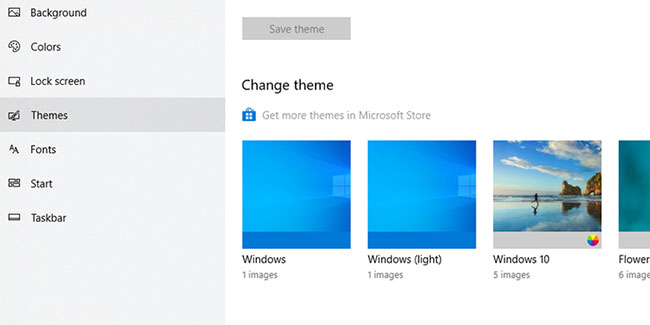
<p style="text-align: justify;"><strong>B4:</strong>&nbsp;Mở menu&nbsp;<strong>Themes.</strong></p>

<p style="text-align: justify;"><strong>B5:</strong>&nbsp;Từ các theme có sẵn, hãy chọn&nbsp;<strong>Windows.</strong></p>

<figure>
<div style="text-align: justify;"><img alt="Chuyển về theme mặc định của Windows 10" data-i="3" data-src="https://st.quantrimang.com/photos/image/2021/04/24/dark-theme-file-explorer-bi-loi-4.jpg" data-was-processed="true" height="325" src="https://st.quantrimang.com/photos/image/2021/04/24/dark-theme-file-explorer-bi-loi-4.jpg" width="650" /></div>

<figcaption>
<div style="text-align: justify;">Chuyển về theme mặc định của Windows 10</div>
</figcaption>
</figure>

<h2 style="text-align: justify;">5. Xóa các ứng dụng tùy chỉnh</h2>

<p style="text-align: justify;">Có nhiều ứng dụng của bên thứ ba được thiết kế để áp dụng theme cho Windows 10 hoặc thay đổi màu biểu tượng thư mục. Mặc dù các ứng dụng này giúp bạn tạo giao diện người dùng phù hợp với sở thích của mình, nhưng chúng có thể ngăn File Explorer hiển thị đúng cách chế độ nền tối.</p>

<p style="text-align: justify;">Nếu bạn đã cài đặt các ứng dụng tùy chỉnh, hãy tắt hoặc xóa chúng để tránh các sự cố trong tương lai. Có thể bạn đã cài đặt một ứng dụng tùy chỉnh cách đây rất lâu và quên mất nó, nhưng nó đã quay trở lại gây ra sự cố.</p>

<div style="text-align: justify;">&nbsp;</div>

<p style="text-align: justify;">Bạn có thể truy cập danh sách đầy đủ các ứng dụng được cài đặt trên thiết bị của mình và bắt đầu tìm hiểu nguyên nhân gây ra sự cố. Trong thanh tìm kiếm của menu Start, hãy tìm kiếm ứng dụng và tính năng và chọn tùy chọn phù hợp nhất. Kiểm tra bất kỳ công cụ tùy chỉnh cũ nào và xóa chúng.</p>

<div style="text-align: justify;">&nbsp;</div>

<h2 style="text-align: justify;">6. Tìm kiếm các file bị hỏng</h2>

<p style="text-align: justify;">Chế độ nền tối của File Explorer có thể không load hoặc hiển thị tương ứng do file bị hỏng. Nếu đúng như vậy, bạn nên&nbsp;chạy quét System File Checker. Quá trình quét sẽ không mất quá 20 phút và rất đơn giản.</p>

<p style="text-align: justify;"><strong>B1:</strong>&nbsp;Trong thanh tìm kiếm của menu Start, hãy tìm kiếm&nbsp;<strong>command prompt</strong>. Nhấp chuột phải vào kết quả phù hợp nhất và chọn&nbsp;<strong>Run as administrator</strong>.</p>

<p style="text-align: justify;"><strong>B2:</strong>&nbsp;Trong cửa sổ&nbsp;Command Prompt, nhập&nbsp;<strong>sfc /scannow</strong>.</p>

<p style="text-align: justify;"><strong>B3:</strong>&nbsp;Nhấn nút&nbsp;<strong>Enter.</strong></p>

<p style="text-align: justify;">Lệnh system file checker sẽ tìm kiếm và thay thế các file bị hỏng. Nếu bạn nhận được thông báo Windows Resource Protection đã tìm thấy các file bị hỏng và sửa chữa chúng thành công thì quá trình quét đã hoàn thành.</p>

<p style="text-align: justify;">Bây giờ, bạn có thể đóng cửa sổ Command Prompt và khởi động lại thiết bị của mình. Nếu sự cố là do một file bị hỏng, thì chế độ nền tối của File Explorer sẽ hoạt động lại bình thường.</p>

<p style="text-align: justify;">Chúc bạn thực hiện thành công!</p>
		</div>
				<div id="author">
						<p>
				<strong>Nguồn tin:</strong>
				Quantrimang.com
			</p>
		</div>
	</div>
	<div id="footer" class="clearfix">
		<div id="url">
			<strong>URL của bản tin này: </strong><a href="https://www.nguoicodonvn2008.info/vi/news/savefile/kien-thuc-may-tinh/6-cach-sua-loi-giao-dien-dark-theme-cua-file-explorer-bi-loi-4023.html" title="6 cách sửa lỗi giao diện Dark Theme của File Explorer bị lỗi">https://www.nguoicodonvn2008.info/vi/news/savefile/kien-thuc-may-tinh/6-cach-sua-loi-giao-dien-dark-theme-cua-file-explorer-bi-loi-4023.html</a>

		</div>
		<div class="clear"></div>
		<div class="copyright">
			&copy; .&#x3A; Nguoicodonvn2008.info - Cõi lòng người cô đơn &#x3A;.
		</div>
		<div id="contact">
			<a href="mailto:admin@nguoicodonvn2008.info">admin@nguoicodonvn2008.info</a>
		</div>
	</div>
</div>
        <div id="timeoutsess" class="chromeframe">
            Bạn đã không sử dụng Site, <a onclick="timeoutsesscancel();" href="https://www.nguoicodonvn2008.info/#">Bấm vào đây để duy trì trạng thái đăng nhập</a>. Thời gian chờ: <span id="secField"> 60 </span> giây
        </div>
        <div id="openidResult" class="nv-alert" style="display:none"></div>
        <div id="openidBt" data-result="" data-redirect=""></div>
		</script>
		<div class="car-top">
  <span><img src="https://www.nguoicodonvn2008.info/themes/default/images/car.png" alt=""></span>
</div>
<script src="https://www.nguoicodonvn2008.info/assets/js/jquery/jquery.min.js"></script>
<script>var nv_base_siteurl="/",nv_lang_data="vi",nv_lang_interface="vi",nv_name_variable="nv",nv_fc_variable="op",nv_lang_variable="language",nv_module_name="news",nv_func_name="savefile",nv_is_user=0, nv_my_ofs=-4,nv_my_abbr="EDT",nv_cookie_prefix="nv4c_e856T",nv_check_pass_mstime=1738000,nv_area_admin=0,nv_safemode=0,theme_responsive=0,nv_recaptcha_ver=2,nv_recaptcha_sitekey="",nv_recaptcha_type="image",XSSsanitize=1;</script>
<script src="https://www.nguoicodonvn2008.info/assets/js/language/vi.js"></script>
<script src="https://www.nguoicodonvn2008.info/assets/js/DOMPurify/purify3.js"></script>
<script src="https://www.nguoicodonvn2008.info/assets/js/global.js"></script>
<script src="https://www.nguoicodonvn2008.info/assets/js/site.js"></script>
<script src="https://www.nguoicodonvn2008.info/themes/default/js/news.js"></script>
<script src="https://www.nguoicodonvn2008.info/themes/default/js/main.js"></script>
<script src="https://www.nguoicodonvn2008.info/themes/default/js/custom.js"></script>
<script type="application/ld+json">
        {
            "@context": "https://schema.org",
            "@type": "Organization",
            "url": "https://www.nguoicodonvn2008.info",
            "logo": "https://www.nguoicodonvn2008.info/uploads/angel.gif"
        }
        </script>
<script src="https://www.nguoicodonvn2008.info/themes/default/js/bootstrap.min.js"></script>
<script type="text/javascript">
var $scrolltop = $('.car-top');
$scrolltop.on('click', function () {
    $('html,body').animate({
        scrollTop: 0
    }, 800);
    $(this).addClass("car-run");
    setTimeout(function(){ $scrolltop.removeClass('car-run');}, 1000);
    return false;
});
$(window).on('scroll', function ()
{ 
    if($(window).scrollTop() >= 200)
    {
        $scrolltop.addClass("show");
        $scrolltop.addClass("car-down");
    }
    else
    {
       $scrolltop.removeClass("show");
       setTimeout(function(){ $scrolltop.removeClass('car-down');}, 300);
    }
});
</script>
</body>
</html>