<!DOCTYPE html>
    <html lang="vi" xmlns="http://www.w3.org/1999/xhtml" prefix="og: http://ogp.me/ns#">
    <head>
<title>5 cách biến giao diện Windows thành giao diện macOS</title>
<meta name="description" content="5 cách biến giao diện Windows thành giao diện macOS - Savefile - Tin Tức -...">
<meta name="author" content=".: Nguoicodonvn2008.info - Cõi lòng người cô đơn :.">
<meta name="copyright" content=".: Nguoicodonvn2008.info - Cõi lòng người cô đơn :. [admin@nguoicodonvn2008.info]">
<meta name="robots" content="index, archive, follow, noodp">
<meta name="googlebot" content="index,archive,follow,noodp">
<meta name="msnbot" content="all,index,follow">
<meta name="generator" content="NukeViet v4.5">
<meta http-equiv="Content-Type" content="text/html; charset=utf-8">
<meta property="og:title" content="5 cách biến giao diện Windows thành giao diện macOS">
<meta property="og:type" content="website">
<meta property="og:description" content="Savefile - Tin Tức - https&#x3A;&#x002F;&#x002F;www.nguoicodonvn2008.info&#x002F;vi&#x002F;news&#x002F;savefile&#x002F;kien-thuc-may-tinh&#x002F;5-cach-bien-giao-dien-windows-thanh-giao-dien-macos-6743.html">
<meta property="og:site_name" content=".&#x3A; Nguoicodonvn2008.info - Cõi lòng người cô đơn &#x3A;.">
<meta property="og:url" content="https://www.nguoicodonvn2008.info/vi/news/savefile/kien-thuc-may-tinh/5-cach-bien-giao-dien-windows-thanh-giao-dien-macos-6743.html">
<link rel="shortcut icon" href="https://www.nguoicodonvn2008.info/favicon.ico">
<link rel="canonical" href="https://www.nguoicodonvn2008.info/vi/news/savefile/kien-thuc-may-tinh/5-cach-bien-giao-dien-windows-thanh-giao-dien-macos-6743.html">
<link rel="alternate" href="https://www.nguoicodonvn2008.info/vi/news/rss/" title="Tin Tức" type="application/rss+xml">
<link rel="alternate" href="https://www.nguoicodonvn2008.info/vi/news/rss/karaoke-dual/" title="Tin Tức - Karaoke Dual" type="application/rss+xml">
<link rel="alternate" href="https://www.nguoicodonvn2008.info/vi/news/rss/nhac-tre/" title="Tin Tức - Nhạc trẻ" type="application/rss+xml">
<link rel="alternate" href="https://www.nguoicodonvn2008.info/vi/news/rss/tru-tinh/" title="Tin Tức - Trữ tình" type="application/rss+xml">
<link rel="alternate" href="https://www.nguoicodonvn2008.info/vi/news/rss/nuoc-ngoai/" title="Tin Tức - Nước ngoài" type="application/rss+xml">
<link rel="alternate" href="https://www.nguoicodonvn2008.info/vi/news/rss/remix/" title="Tin Tức - Remix" type="application/rss+xml">
<link rel="alternate" href="https://www.nguoicodonvn2008.info/vi/news/rss/tam-su-tinh-yeu/" title="Tin Tức - Tâm sự tình yêu" type="application/rss+xml">
<link rel="alternate" href="https://www.nguoicodonvn2008.info/vi/news/rss/tho-suu-tam/" title="Tin Tức - Thơ sưu tầm" type="application/rss+xml">
<link rel="alternate" href="https://www.nguoicodonvn2008.info/vi/news/rss/cuoc-song/" title="Tin Tức - Cuộc sống" type="application/rss+xml">
<link rel="alternate" href="https://www.nguoicodonvn2008.info/vi/news/rss/phan-mem/" title="Tin Tức - Phần mềm" type="application/rss+xml">
<link rel="alternate" href="https://www.nguoicodonvn2008.info/vi/news/rss/kien-thuc-may-tinh/" title="Tin Tức - Kiến thức máy tính" type="application/rss+xml">
<link rel="alternate" href="https://www.nguoicodonvn2008.info/vi/news/rss/hoc-tap/" title="Tin Tức - Học tập" type="application/rss+xml">
<link rel="alternate" href="https://www.nguoicodonvn2008.info/vi/news/rss/tai-lieu/" title="Tin Tức - Tài liệu" type="application/rss+xml">
<link rel="alternate" href="https://www.nguoicodonvn2008.info/vi/news/rss/de-thi/" title="Tin Tức - Đề thi" type="application/rss+xml">
<link rel="preload" as="style" href="https://www.nguoicodonvn2008.info/assets/css/font-awesome.min.css" type="text/css">
<link rel="preload" as="style" href="https://www.nguoicodonvn2008.info/themes/default/css/bootstrap.non-responsive.css" type="text/css">
<link rel="preload" as="style" href="https://www.nguoicodonvn2008.info/themes/default/css/style.css" type="text/css">
<link rel="preload" as="style" href="https://www.nguoicodonvn2008.info/themes/default/css/style.non-responsive.css" type="text/css">
<link rel="preload" as="style" href="https://www.nguoicodonvn2008.info/themes/default/css/news.css" type="text/css">
<link rel="preload" as="style" href="https://www.nguoicodonvn2008.info/themes/default/css/custom.css" type="text/css">
<link rel="preload" as="script" href="https://www.nguoicodonvn2008.info/assets/js/jquery/jquery.min.js" type="text/javascript">
<link rel="preload" as="script" href="https://www.nguoicodonvn2008.info/assets/js/language/vi.js" type="text/javascript">
<link rel="preload" as="script" href="https://www.nguoicodonvn2008.info/assets/js/DOMPurify/purify3.js" type="text/javascript">
<link rel="preload" as="script" href="https://www.nguoicodonvn2008.info/assets/js/global.js" type="text/javascript">
<link rel="preload" as="script" href="https://www.nguoicodonvn2008.info/assets/js/site.js" type="text/javascript">
<link rel="preload" as="script" href="https://www.nguoicodonvn2008.info/themes/default/js/news.js" type="text/javascript">
<link rel="preload" as="script" href="https://www.nguoicodonvn2008.info/themes/default/js/main.js" type="text/javascript">
<link rel="preload" as="script" href="https://www.nguoicodonvn2008.info/themes/default/js/custom.js" type="text/javascript">
<link rel="preload" as="script" href="https://www.nguoicodonvn2008.info/themes/default/js/bootstrap.min.js" type="text/javascript">
<link rel="stylesheet" href="https://www.nguoicodonvn2008.info/assets/css/font-awesome.min.css">
<link rel="stylesheet" href="https://www.nguoicodonvn2008.info/themes/default/css/bootstrap.non-responsive.css">
<link rel="stylesheet" href="https://www.nguoicodonvn2008.info/themes/default/css/style.css">
<link rel="stylesheet" href="https://www.nguoicodonvn2008.info/themes/default/css/style.non-responsive.css">
<link rel="StyleSheet" href="https://www.nguoicodonvn2008.info/themes/default/css/news.css">
<link rel="stylesheet" href="https://www.nguoicodonvn2008.info/themes/default/css/custom.css">
<style type="text/css">
	body{background: #fff;}
</style>
    </head>
    <body>
<div id="print">
	<div id="hd_print">
		<h2 class="pull-left">.&#x3A; Nguoicodonvn2008.info - Cõi lòng người cô đơn &#x3A;.</h2>
		<p class="pull-right"><a title=".&#x3A; Nguoicodonvn2008.info - Cõi lòng người cô đơn &#x3A;." href="https://www.nguoicodonvn2008.info/">https://www.nguoicodonvn2008.info</a></p>
	</div>
	<div class="clear"></div>
	<hr />
	<div id="content">
		<h1>5 cách biến giao diện Windows thành giao diện macOS</h1>
		<ul class="list-inline">
			<li>Thứ năm - 16/02/2023 23:59</li>
			<li class="hidden-print txtrequired"><em class="fa fa-print">&nbsp;</em><a title="In ra" href="javascript:;" onclick="window.print()">In ra</a></li>
			<li class="hidden-print txtrequired"><em class="fa fa-power-off">&nbsp;</em><a title="Đóng cửa sổ này" href="javascript:;" onclick="window.close()">Đóng cửa sổ này</a></li>
		</ul>
		<div class="clear"></div>
		<div id="hometext">
		</div>
				<div class="imghome">
			<img alt="5 cách biến giao diện Windows thành giao diện macOS" src="https://st.quantrimang.com/photos/image/2023/02/16/bien-giao-dien-windows-thanh-mac-os-x-12.jpg" width="460" class="img-thumbnail" />
		</div>
		<div class="clear"></div>
		<div id="bodytext" class="clearfix">
			<p style="text-align: justify;">Chúng ta đều biết giao diện macOS trông hấp dẫn như thế nào. Không có gì đáng ngạc nhiên khi nhiều người dùng Windows ghen tị và muốn bắt chước yếu tố thẩm mỹ của macOS từ Apple. Và tin tốt là bạn không cần phải mua một chiếc máy Mac hoàn toàn mới để có được giao diện tương tự.</p>

<p style="text-align: justify;">May mắn thay, có thể tạo trải nghiệm hình ảnh tương tự trên Windows bằng cách sử dụng một số chương trình của bên thứ ba và vài chỉnh sửa dễ dàng.</p>

<h2 style="text-align: justify;">1. Sử dụng hình nền desktop theo chủ đề macOS</h2>

<p style="text-align: justify;">Trước khi chuyển sang các bước thực tế để tùy chỉnh giao diện Windows, trước tiên, bạn phải thay đổi hình nền hiện tại của PC Windows.</p>

<p style="text-align: justify;">Nhiều trang web cung cấp nhiều hình nền macOS, chẳng hạn như WallpapersHome, WallpaperAccess và WallpaperCave. Chỉ cần tìm kiếm &quot;macOS wallpaper&quot; và bạn sẽ tìm thấy nhiều lựa chọn hình ảnh.</p>

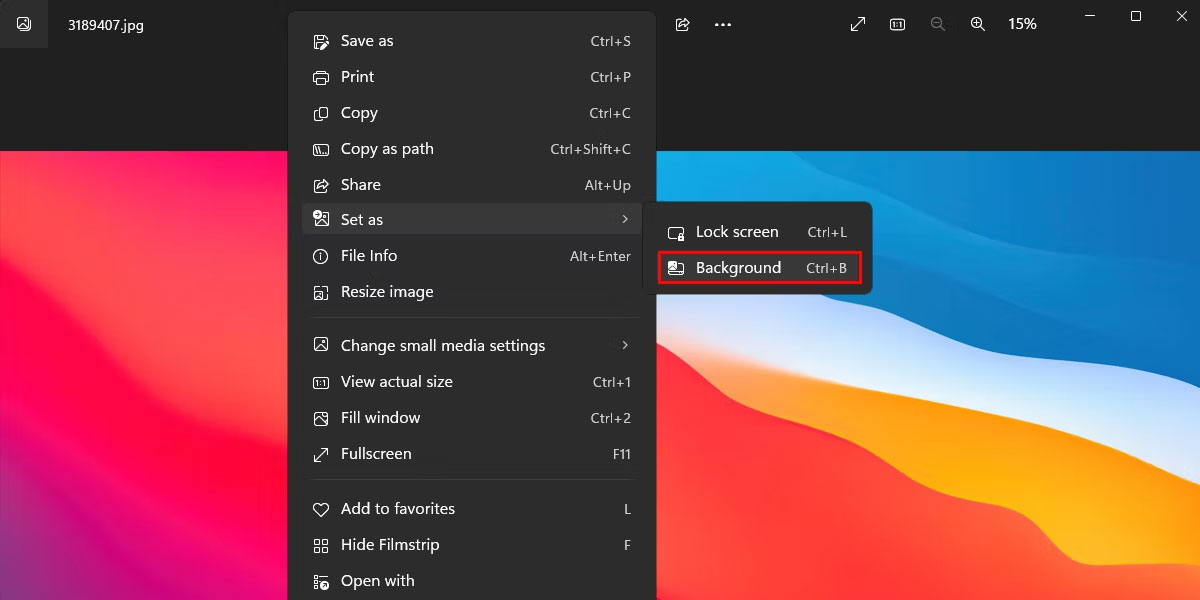
<p style="text-align: justify;">Khi bạn đã tìm thấy hình ảnh ưng ý, hãy tải xuống và mở hình ảnh đó. Nhấp chuột phải vào bất kỳ đâu trên hình ảnh và chọn&nbsp;<strong>Set as &gt; Background</strong>&nbsp;để áp dụng nó cho màn hình desktop của bạn.</p>

<figure>
<div style="text-align: justify;"><img alt="Trình xem ảnh trên Windows" data-i="0" data-src="https://st.quantrimang.com/photos/image/2023/02/16/bien-giao-dien-windows-thanh-mac-os-x-1.jpg" data-was-processed="true" height="600" src="https://st.quantrimang.com/photos/image/2023/02/16/bien-giao-dien-windows-thanh-mac-os-x-1.jpg" width="1200" /></div>

<figcaption>
<div style="text-align: justify;">Trình xem ảnh trên Windows</div>
</figcaption>
</figure>

<h3 style="text-align: justify;">Cài đặt WinDynamicDesktop</h3>

<p style="text-align: justify;">Nếu cảm thấy khó tải xuống hình nền macOS trên web, bạn có thể cài đặt WinDynamicDesktop để có quyền truy cập vào nhiều loại hình nền macOS.</p>

<p style="text-align: justify;">Làm theo các bước dưới đây để bắt đầu với WinDynamicDesktop:</p>

<p style="text-align: justify;">1.&nbsp;Tải WinDynamicDesktop từ Microsoft Store.<br />
<span style="color:rgb(192, 57, 43);"><strong>https://apps.microsoft.com/store/detail/windynamicdesktop/9NM8N7DQ3Z5F</strong></span></p>

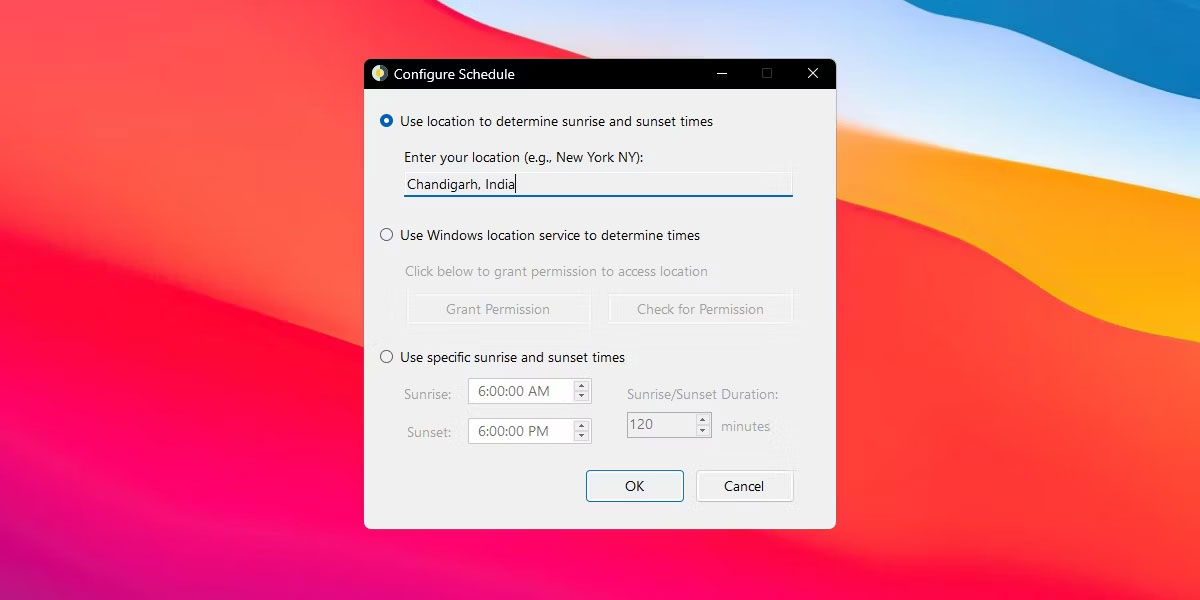
<p style="text-align: justify;">2. Mở ứng dụng, nhập vị trí của bạn trong thiết lập ban đầu và nhấp vào&nbsp;<strong>OK.</strong></p>

<figure>
<div style="text-align: justify;"><img alt="Thiết lập desktop" data-i="1" data-src="https://st.quantrimang.com/photos/image/2023/02/16/bien-giao-dien-windows-thanh-mac-os-x-2.jpg" data-was-processed="true" height="600" src="https://st.quantrimang.com/photos/image/2023/02/16/bien-giao-dien-windows-thanh-mac-os-x-2.jpg" width="1200" /></div>

<figcaption>
<div style="text-align: justify;">Thiết lập desktop</div>
</figcaption>
</figure>

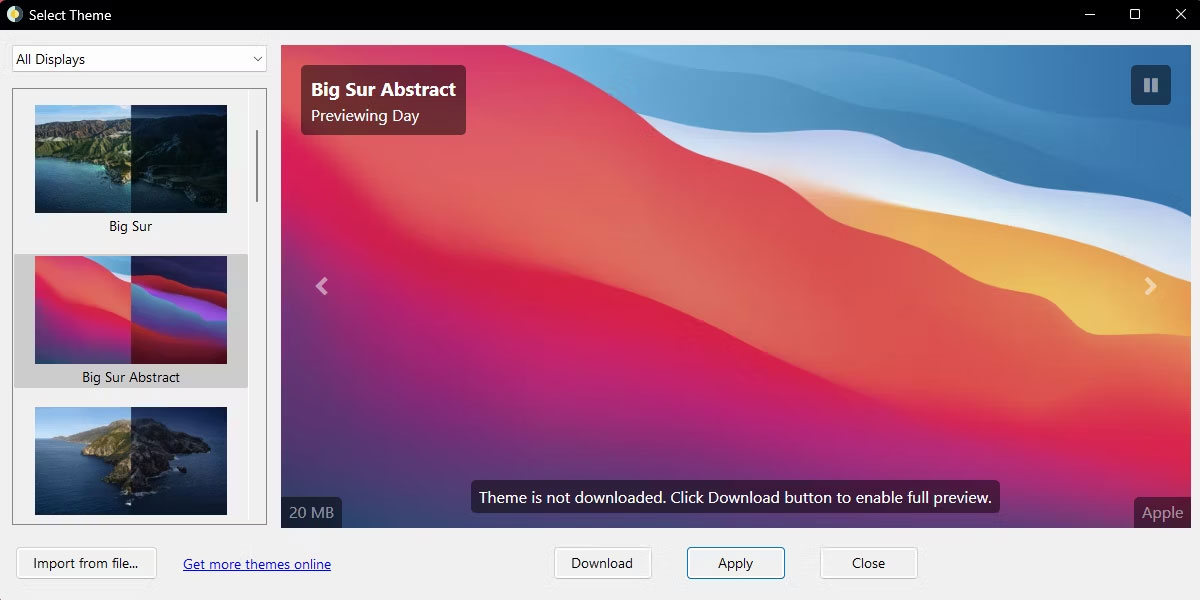
<p style="text-align: justify;">3. WinDynamicDesktop sẽ cung cấp cho bạn rất nhiều hình nền để lựa chọn. Chọn hình nền phù hợp nhất với sở thích của bạn và nhấp vào nút&nbsp;<strong>Apply.</strong></p>

<figure>
<div style="text-align: justify;"><img alt="Lựa chọn hình nền máy tính" data-i="2" data-src="https://st.quantrimang.com/photos/image/2023/02/16/bien-giao-dien-windows-thanh-mac-os-x-3.jpg" data-was-processed="true" height="600" src="https://st.quantrimang.com/photos/image/2023/02/16/bien-giao-dien-windows-thanh-mac-os-x-3.jpg" width="1200" /></div>

<figcaption>
<div style="text-align: justify;">Lựa chọn hình nền máy tính</div>
</figcaption>
</figure>

<p style="text-align: justify;">WinDynamicDesktop sẽ tự động tải xuống hình nền đã chọn và áp dụng nó cho màn hình của bạn.</p>

<p style="text-align: justify;">Ưu điểm lớn nhất của WinDynamicDesktop là nó tải xuống hai phiên bản hình nền khác nhau. Một phiên bản của hình nền được tối ưu hóa cho chế độ sáng và phiên bản còn lại được tối ưu hóa cho chế độ tối. Điều tốt là nó sẽ tự động chuyển đổi hình nền tùy thuộc vào thời gian trong ngày.</p>

<h2 style="text-align: justify;">2. Cài đặt con trỏ kiểu macOS</h2>

<p style="text-align: justify;">Con trỏ Windows mặc định khá cơ bản và không mang lại mức độ thẩm mỹ như macOS. Rất may, có một cách để tùy chỉnh con trỏ Windows và làm cho nó trông giống con trỏ macOS.</p>

<p style="text-align: justify;">Để làm cho con trỏ của bạn trông giống con trỏ macOS, bạn có thể sử dụng theme con trỏ macOS, có sẵn miễn phí trên DeviantArt.</p>

<p style="text-align: justify;">Đây là cách cài đặt theme con trỏ kiểu macOS trên Windows:</p>

<p style="text-align: justify;">1.&nbsp;Tải xuống theme con trỏ macOS từ DeviantArt&nbsp;: <span style="color:rgb(192, 57, 43);"><strong>https://www.deviantart.com/antiden/art/macOS-cursors-for-Windows-701736062</strong></span>&nbsp; và giải nén file đã tải xuống.</p>

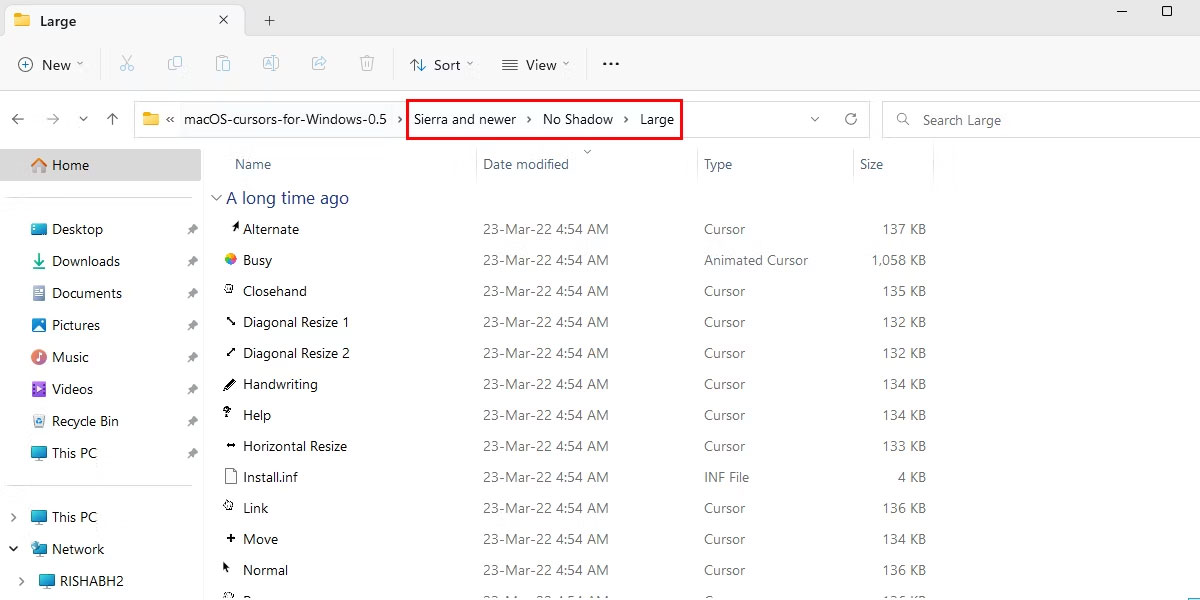
<p style="text-align: justify;">2. Điều hướng đến thư mục đã giải nén và nhập thư mục có tên&nbsp;<strong>Sierra and newer &gt; No Shadow &gt; Large</strong>. Đối với hướng dẫn này, bài viết sẽ cài đặt theme con trỏ&nbsp;<strong>large</strong>&nbsp;và&nbsp;<strong>no-shadow.</strong>&nbsp;Bạn có thể chọn biến thể nào bạn muốn cài đặt bằng cách điều hướng đến thư mục mong muốn.</p>

<figure>
<div style="text-align: justify;"><img alt="Thư mục con trỏ macOS" data-i="3" data-src="https://st.quantrimang.com/photos/image/2023/02/16/bien-giao-dien-windows-thanh-mac-os-x-4.jpg" data-was-processed="true" height="600" src="https://st.quantrimang.com/photos/image/2023/02/16/bien-giao-dien-windows-thanh-mac-os-x-4.jpg" width="1200" /></div>

<figcaption>
<div style="text-align: justify;">Thư mục con trỏ macOS</div>
</figcaption>
</figure>

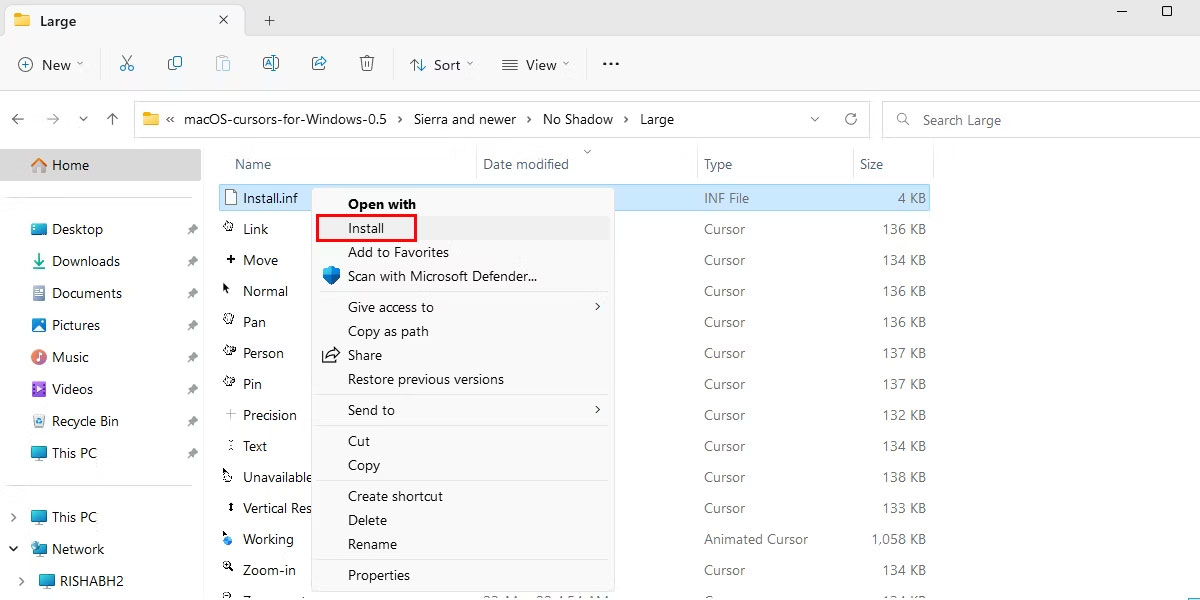
<p style="text-align: justify;">3. Nhấp chuột phải vào file&nbsp;<strong>Install.inf</strong>&nbsp;và chọn&nbsp;<strong>Install</strong>&nbsp;từ menu ngữ cảnh.</p>

<figure>
<div style="text-align: justify;"><img alt="Chọn Install từ menu ngữ cảnh" data-i="4" data-src="https://st.quantrimang.com/photos/image/2023/02/16/bien-giao-dien-windows-thanh-mac-os-x-5.jpg" data-was-processed="true" height="600" src="https://st.quantrimang.com/photos/image/2023/02/16/bien-giao-dien-windows-thanh-mac-os-x-5.jpg" width="1200" /></div>

<figcaption>
<div style="text-align: justify;">Chọn Install từ menu ngữ cảnh</div>
</figcaption>
</figure>

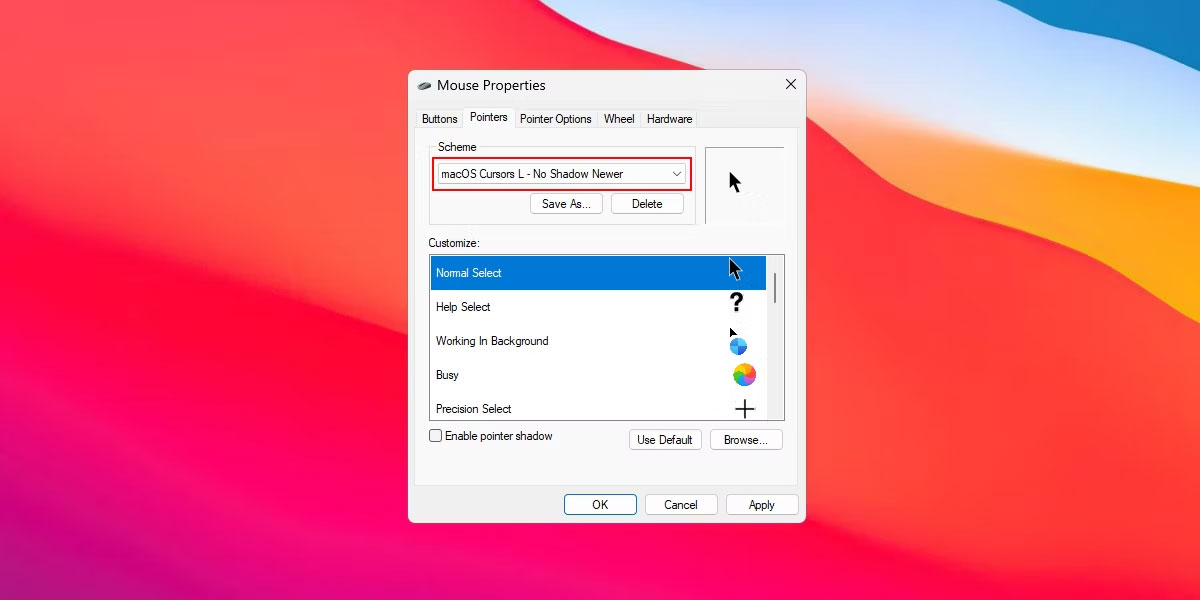
<p style="text-align: justify;">4. Chọn thiết kế con trỏ macOS và nhấp vào nút&nbsp;<strong>Apply</strong>&nbsp;trong cửa sổ&nbsp;<strong>Mouse Properties.</strong></p>

<figure>
<div style="text-align: justify;"><img alt="Cửa sổ Mouse Properties" data-i="5" data-src="https://st.quantrimang.com/photos/image/2023/02/16/bien-giao-dien-windows-thanh-mac-os-x-6.jpg" data-was-processed="true" height="600" src="https://st.quantrimang.com/photos/image/2023/02/16/bien-giao-dien-windows-thanh-mac-os-x-6.jpg" width="1200" /></div>

<figcaption>
<div style="text-align: justify;">Cửa sổ Mouse Properties</div>
</figcaption>
</figure>

<p style="text-align: justify;">5. Nhấp vào&nbsp;<strong>Yes</strong>&nbsp;để thay thế theme con trỏ Windows mặc định bằng theme con trỏ macOS.</p>

<p style="text-align: justify;">Mọi thứ đã hoàn tất và bây giờ bạn có thể tận hưởng theme con trỏ macOS trên desktop Windows của mình.</p>

<p style="text-align: justify;">Nếu chưa từng sử dụng macOS trước đây, bạn có thể không thích thiết kế bình thường của con trỏ macOS. Vì vậy, nếu bạn muốn thay đổi nó, hãy vào bên trong thư mục&nbsp;<strong>No Shadow &gt; XtraLarge</strong>&nbsp;và thực hiện các bước tương tự đã đề cập ở trên.</p>

<h2 style="text-align: justify;">3. Tạo mockup macOS Dock bằng MyDockFinder</h2>

<figure>
<div style="text-align: justify;"><img alt="Tổng quan về MyDock Downloader" data-i="6" data-src="https://st.quantrimang.com/photos/image/2023/02/16/bien-giao-dien-windows-thanh-mac-os-x-7.jpg" data-was-processed="true" height="600" src="https://st.quantrimang.com/photos/image/2023/02/16/bien-giao-dien-windows-thanh-mac-os-x-7.jpg" width="1200" /></div>

<figcaption>
<div style="text-align: justify;">Tổng quan về MyDock Downloader</div>
</figcaption>
</figure>

<p style="text-align: justify;">Một trong những điểm khác biệt rõ ràng nhất giữa Windows và macOS là thanh dock. Trên macOS, Dock tương tự như thanh tác vụ trên Windows, thanh này luôn hiển thị ở cuối màn hình.</p>

<p style="text-align: justify;">Nếu muốn sao chép Dock macOS trên Windows, bạn có thể sử dụng chương trình của bên thứ ba như MyDockFinder. MyDockFinder là ứng dụng trả phí cho phép bạn thêm thanh công cụ kiểu macOS vào đesktop Windows của mình.</p>

<p style="text-align: justify;">Nó cung cấp nhiều tùy chọn tùy chỉnh, bao gồm khả năng thay đổi màu sắc, kích thước và vị trí của dock. Nó là một lựa chọn thay thế tốt cho những ai muốn có một dock mạnh mẽ và có thể tùy chỉnh nhiều hơn so với các lựa chọn thay thế miễn phí.</p>

<p style="text-align: justify;">Ưu điểm lớn nhất là nó cung cấp giao diện người dùng đơn giản, giúp bạn dễ dàng tùy chỉnh thanh công cụ chỉ bằng một vài cú nhấp chuột. Ngoài ra, nó còn cung cấp tính năng kéo và thả trực quan cho phép bạn nhanh chóng sắp xếp lại các ứng dụng trên thanh công cụ của mình.</p>

<p style="text-align: justify;">Nếu bạn đang tìm kiếm một giải pháp thay thế miễn phí cho MyDockFinder, hãy xem bài viết về&nbsp;cách thêm dock kiểu Mac bằng các công cụ miễn phí trên Windows.</p>

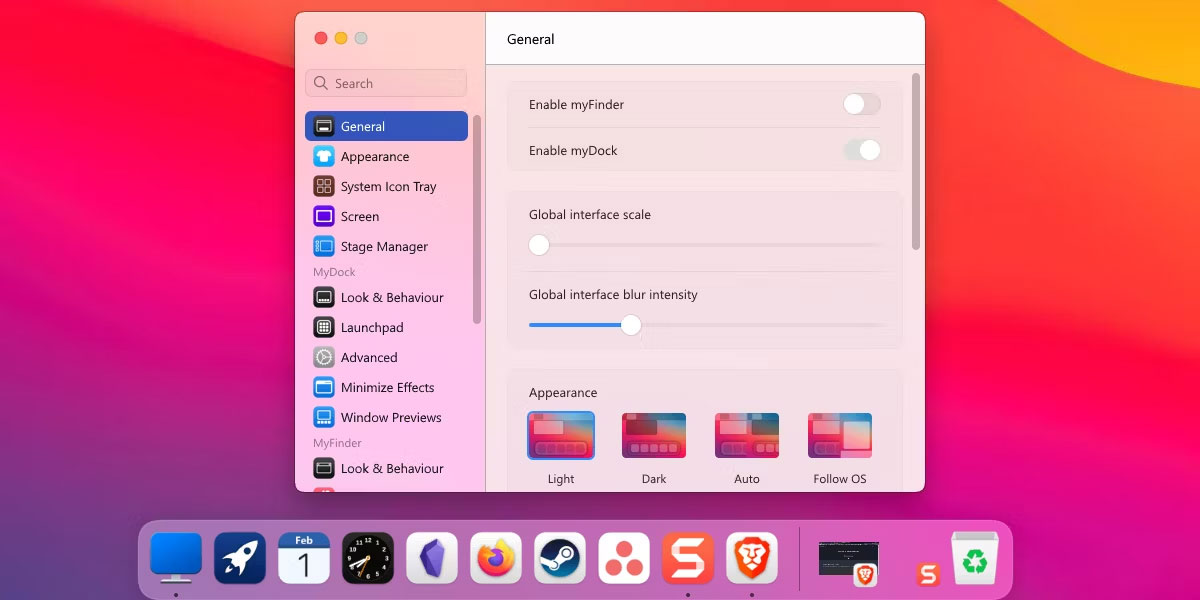
<p style="text-align: justify;">Để bắt đầu, bạn phải mua nó từ Steam với giá $4,99. Sau khi bạn tải xuống, nó sẽ tự động hiển thị một thanh công cụ trên màn hình. Nếu bạn muốn tùy chỉnh thêm, hãy nhấp chuột phải vào bất kỳ đâu trên thanh công cụ và chọn&nbsp;<strong>Preferences.</strong></p>

<ul>
	<li style="text-align: justify;">Tải MyDock Downloader ($4,99):&nbsp;<span style="color:rgb(192, 57, 43);"><strong>https://store.steampowered.com/app/1787090/MyDockFinder/</strong></span></li>
</ul>

<h2 style="text-align: justify;">4. Sao chép thanh menu macOS bằng Droptop 4</h2>

<p style="text-align: justify;">Droptop 4 là giao diện Rainmeter miễn phí có thêm thanh menu kiểu macOS vào desktop Windows. Thanh menu là một thanh ngang ở đầu màn hình hiển thị danh sách các menu và tùy chọn, chẳng hạn như menu ứng dụng, danh sách thông báo, điều khiển độ sáng và điều khiển âm lượng, v.v...</p>

<p style="text-align: justify;">Phần thú vị là bạn hoàn toàn kiểm soát thanh menu bằng Droptop 4. Nó cho phép bạn thêm các thư mục khác nhau theo ý thích của mình, ghim các shortcut khác nhau vào ứng dụng, cài đặt ứng dụng cộng đồng Droptop, v.v...</p>

<p style="text-align: justify;">Thực hiện theo các bước dưới đây để tùy chỉnh thanh menu với Droptop 4:</p>

<p style="text-align: justify;">1.&nbsp;Tải xuống và cài đặt Rainmeter từ Rainmeter.net:<span style="color:rgb(192, 57, 43);"><strong>&nbsp;https://www.rainmeter.net/</strong></span></p>

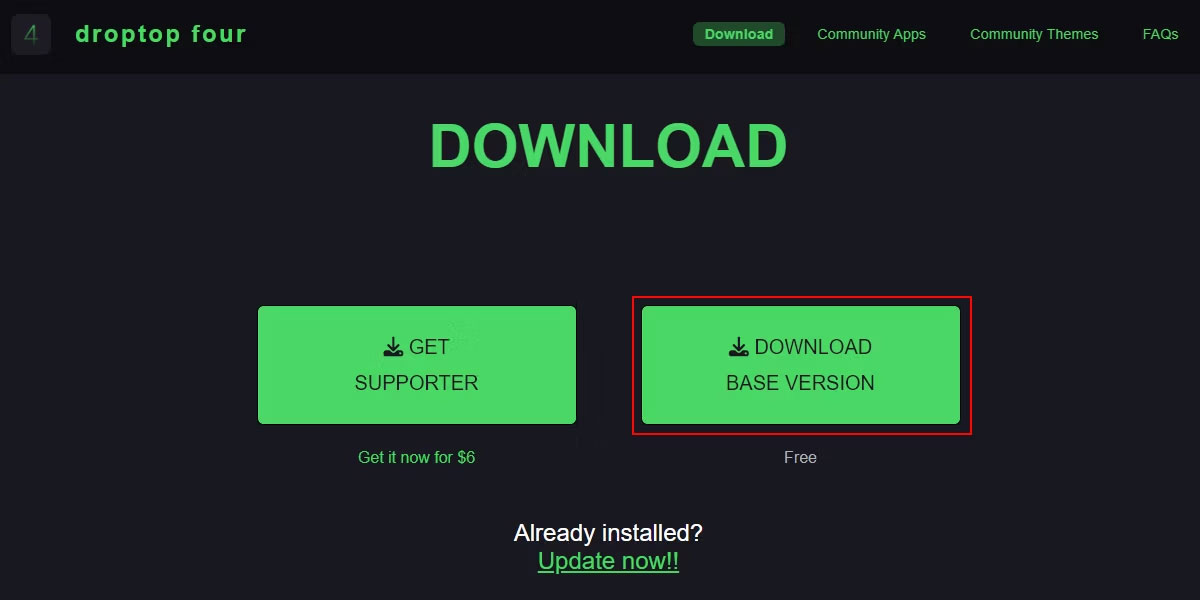
<p style="text-align: justify;">2. Thực hiện theo các hướng dẫn trên màn hình trong quá trình cài đặt để thiết lập Rainmeter. Sau khi hoàn tất, hãy&nbsp;tải xuống phiên bản Droptop 4 Base từ Droptopfour.com.:<span style="color:rgb(192, 57, 43);"><strong>&nbsp;https://www.droptopfour.com/download/</strong></span></p>

<figure>
<div style="text-align: justify;"><img alt="Tổng quan trang web DroptopFour" data-i="7" data-src="https://st.quantrimang.com/photos/image/2023/02/16/bien-giao-dien-windows-thanh-mac-os-x-8.jpg" data-was-processed="true" height="600" src="https://st.quantrimang.com/photos/image/2023/02/16/bien-giao-dien-windows-thanh-mac-os-x-8.jpg" width="1200" /></div>

<figcaption>
<div style="text-align: justify;">Tổng quan trang web DroptopFour</div>
</figcaption>
</figure>

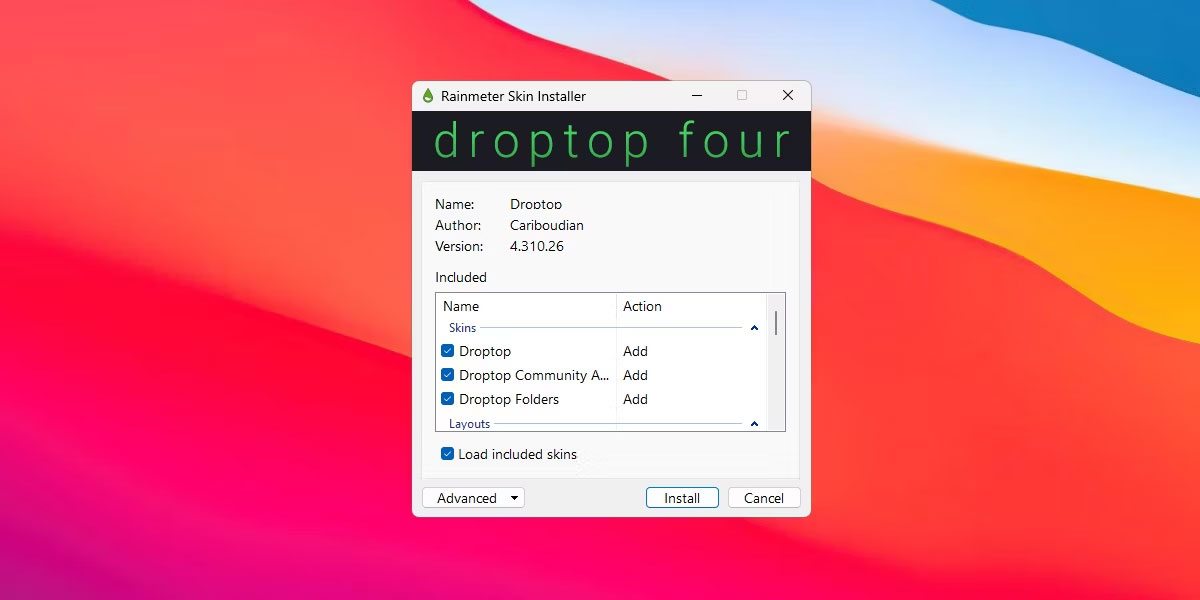
<p style="text-align: justify;">3. Mở thư mục tải xuống và nhấp đúp vào file&nbsp;<strong>.rmskin.</strong>&nbsp;Rainmeter Skin Installer sẽ mở. Nhấp vào&nbsp;<strong>Install</strong>&nbsp;để Rainmeter áp dụng giao diện Droptop 4 và kích hoạt thanh menu.</p>

<figure>
<div style="text-align: justify;"><img alt="Trình cài đặt DroptopFour trên Windows" data-i="8" data-src="https://st.quantrimang.com/photos/image/2023/02/16/bien-giao-dien-windows-thanh-mac-os-x-9.jpg" data-was-processed="true" height="600" src="https://st.quantrimang.com/photos/image/2023/02/16/bien-giao-dien-windows-thanh-mac-os-x-9.jpg" width="1200" /></div>

<figcaption>
<div style="text-align: justify;">Trình cài đặt DroptopFour trên Windows</div>
</figcaption>
</figure>

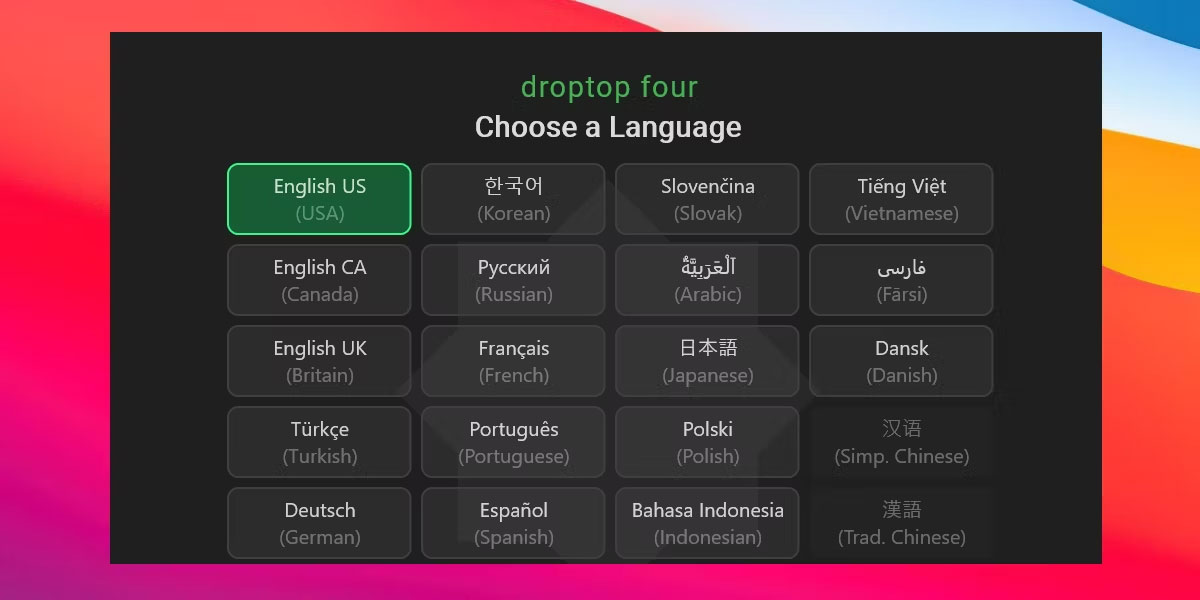
<p style="text-align: justify;">4. Nhấp vào&nbsp;<strong>Continue</strong>&nbsp;để bắt đầu thiết lập Droptop 4. Chọn ngôn ngữ của bạn và làm theo hướng dẫn trên màn hình.</p>

<figure>
<div style="text-align: justify;"><img alt="Tổng quan về thiết lập DroptopFour" data-i="9" data-src="https://st.quantrimang.com/photos/image/2023/02/16/bien-giao-dien-windows-thanh-mac-os-x-10.jpg" data-was-processed="true" height="600" src="https://st.quantrimang.com/photos/image/2023/02/16/bien-giao-dien-windows-thanh-mac-os-x-10.jpg" width="1200" /></div>

<figcaption>
<div style="text-align: justify;">Tổng quan về thiết lập DroptopFour</div>
</figcaption>
</figure>

<p style="text-align: justify;">Sau khi bạn hoàn tất quá trình thiết lập, Rainmeter sẽ tự động áp dụng giao diện Droptop 4 cho desktop của bạn và thanh menu sẽ hiển thị ở đầu màn hình.</p>

<p style="text-align: justify;"><strong>Lưu ý</strong>: Nếu đã cài đặt MyDockFinder trước đó, trước tiên bạn cần tắt thanh menu của nó. Để làm điều đó, hãy chuyển đến tùy chọn&nbsp;<strong>MyDockFinder</strong>&nbsp;và tắt tùy chọn&nbsp;<strong>Enable myFinder.</strong></p>

<p style="text-align: justify;">Bạn thậm chí có thể kéo và thả các ứng dụng yêu thích của mình vào thanh menu để nhanh chóng truy cập chúng bất cứ lúc nào. Ngoài ra, Droptop 4 cho phép người dùng dễ dàng truy cập các thư mục và file, với khả năng ẩn các mục cụ thể khỏi chế độ xem.</p>

<h2 style="text-align: justify;">5. Cài đặt widget macOS bằng Rainmeter</h2>

<p style="text-align: justify;">Mặc dù các tinh chỉnh trước đó sẽ cung cấp cho hệ điều hành Windows của bạn giao diện giống như macOS, nhưng bạn có thể tiến thêm một bước bằng cách thêm những widget kiểu macOS vào Windows. Với mục đích này, DeviantArt.com là một trang web tuyệt vời vì nó cho phép bạn truy cập bộ sưu tập các widget macOS được tạo sẵn cho desktop của bạn.</p>

<p style="text-align: justify;">Lưu ý rằng các widget sẽ thêm đều dựa trên Rainmeter. Rainmeter là phần mềm miễn phí cho phép bạn tùy chỉnh và cá nhân hóa giao diện desktop của mình. Nó giúp bạn áp dụng các widget và giao diện (theme) tùy chỉnh cho Windows.</p>

<p style="text-align: justify;"><strong>Lưu ý</strong>: Bạn nên&nbsp;tạo một điểm khôi phục&nbsp;trước khi tiến xa hơn. Nó sẽ giúp bạn khôi phục PC về trạng thái trước đó trong trường hợp cài đặt theme không thành công.</p>

<p style="text-align: justify;">Đây là cách cài đặt các widget macOS trên Windows:</p>

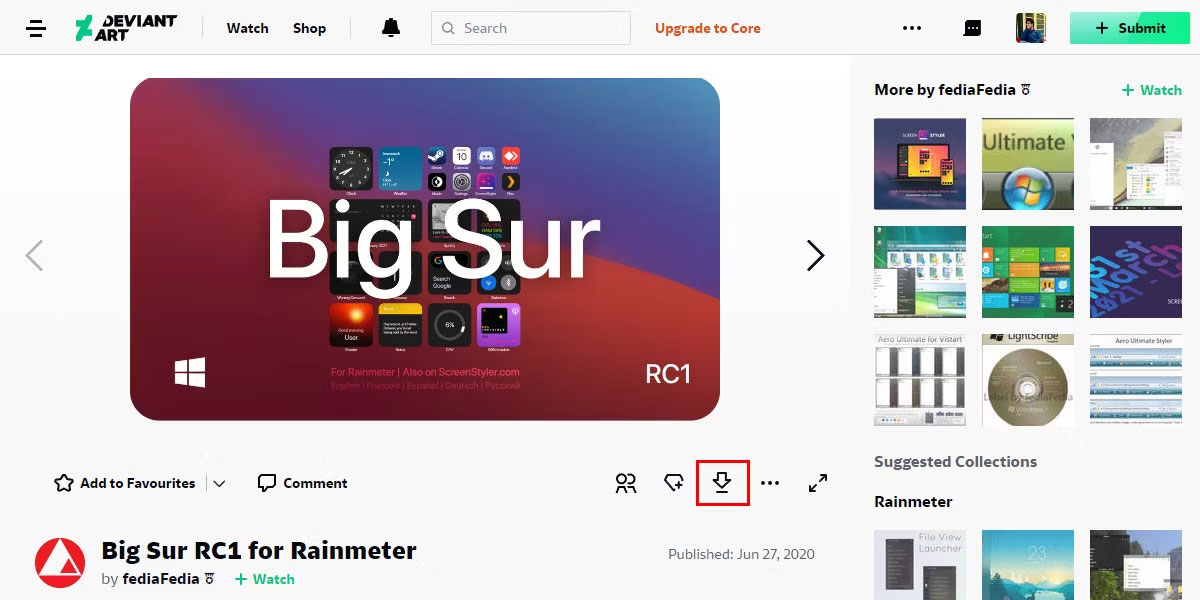
<p style="text-align: justify;">1.&nbsp;Tải xuống giao diện widget Big Sur for Rainmeter từ DeviantArt:&nbsp;<span style="color:rgb(192, 57, 43);"><strong>https://www.deviantart.com/fediafedia/art/Big-Sur-RC1-for-Rainmeter-846882462&nbsp;</strong></span>bằng cách nhấp vào biểu tượng tải xuống.</p>

<figure>
<div style="text-align: justify;"><img alt="Deviantart BigSur for Rainmeter " data-i="10" data-src="https://st.quantrimang.com/photos/image/2023/02/16/bien-giao-dien-windows-thanh-mac-os-x-11.jpg" data-was-processed="true" height="600" src="https://st.quantrimang.com/photos/image/2023/02/16/bien-giao-dien-windows-thanh-mac-os-x-11.jpg" width="1200" /></div>

<figcaption>
<div style="text-align: justify;">Deviantart BigSur for Rainmeter</div>
</figcaption>
</figure>

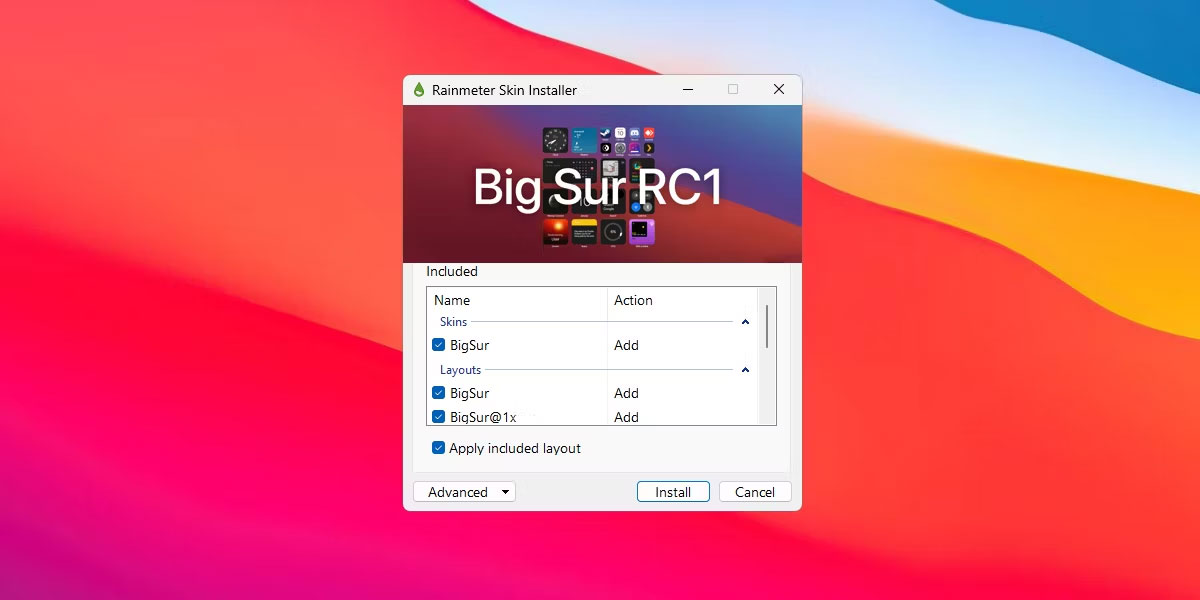
<p style="text-align: justify;">2. Giải nén file zip đã tải xuống và trong thư mục đã giải nén, nhấp đúp vào file&nbsp;<strong>BigSur.rmskin</strong>&nbsp;để mở.</p>

<p style="text-align: justify;">3. Rainmeter sẽ tự động phát hiện file và khởi chạy Rainmeter Skin Installer. Nhấp vào&nbsp;<strong>Install</strong>&nbsp;để áp dụng giao diện widget macOS.</p>

<figure>
<div style="text-align: justify;"><img alt="Trình cài đặt widget BigSur" data-i="11" data-src="https://st.quantrimang.com/photos/image/2023/02/16/bien-giao-dien-windows-thanh-mac-os-x-12.jpg" data-was-processed="true" height="600" src="https://st.quantrimang.com/photos/image/2023/02/16/bien-giao-dien-windows-thanh-mac-os-x-12.jpg" width="1200" /></div>

<figcaption>
<div style="text-align: justify;">Trình cài đặt widget BigSur</div>
</figcaption>
</figure>

<p style="text-align: justify;">Sau đó, bạn có thể tùy chỉnh theme bằng cài đặt và tùy chọn của Rainmeter. Nếu bạn muốn tùy chỉnh một widget, hãy nhấp chuột phải vào widget đó và chọn&nbsp;<strong>Settings.</strong></p>

<p style="text-align: justify;">Tương tự, bạn có thể tìm kiếm trên DeviantArt để biết thêm các widget hoặc thậm chí những gói biểu tượng trên màn hình để cá nhân hóa thêm desktop cho giống với macOS.</p>
		</div>
				<div id="author">
						<p>
				<strong>Nguồn tin:</strong>
				Quantrimang.com
			</p>
		</div>
	</div>
	<div id="footer" class="clearfix">
		<div id="url">
			<strong>URL của bản tin này: </strong><a href="https://www.nguoicodonvn2008.info/vi/news/savefile/kien-thuc-may-tinh/5-cach-bien-giao-dien-windows-thanh-giao-dien-macos-6743.html" title="5 cách biến giao diện Windows thành giao diện macOS">https://www.nguoicodonvn2008.info/vi/news/savefile/kien-thuc-may-tinh/5-cach-bien-giao-dien-windows-thanh-giao-dien-macos-6743.html</a>

		</div>
		<div class="clear"></div>
		<div class="copyright">
			&copy; .&#x3A; Nguoicodonvn2008.info - Cõi lòng người cô đơn &#x3A;.
		</div>
		<div id="contact">
			<a href="mailto:admin@nguoicodonvn2008.info">admin@nguoicodonvn2008.info</a>
		</div>
	</div>
</div>
        <div id="timeoutsess" class="chromeframe">
            Bạn đã không sử dụng Site, <a onclick="timeoutsesscancel();" href="https://www.nguoicodonvn2008.info/#">Bấm vào đây để duy trì trạng thái đăng nhập</a>. Thời gian chờ: <span id="secField"> 60 </span> giây
        </div>
        <div id="openidResult" class="nv-alert" style="display:none"></div>
        <div id="openidBt" data-result="" data-redirect=""></div>
		</script>
		<div class="car-top">
  <span><img src="https://www.nguoicodonvn2008.info/themes/default/images/car.png" alt=""></span>
</div>
<script src="https://www.nguoicodonvn2008.info/assets/js/jquery/jquery.min.js"></script>
<script>var nv_base_siteurl="/",nv_lang_data="vi",nv_lang_interface="vi",nv_name_variable="nv",nv_fc_variable="op",nv_lang_variable="language",nv_module_name="news",nv_func_name="savefile",nv_is_user=0, nv_my_ofs=-4,nv_my_abbr="EDT",nv_cookie_prefix="nv4c_e856T",nv_check_pass_mstime=1738000,nv_area_admin=0,nv_safemode=0,theme_responsive=0,nv_recaptcha_ver=2,nv_recaptcha_sitekey="",nv_recaptcha_type="image",XSSsanitize=1;</script>
<script src="https://www.nguoicodonvn2008.info/assets/js/language/vi.js"></script>
<script src="https://www.nguoicodonvn2008.info/assets/js/DOMPurify/purify3.js"></script>
<script src="https://www.nguoicodonvn2008.info/assets/js/global.js"></script>
<script src="https://www.nguoicodonvn2008.info/assets/js/site.js"></script>
<script src="https://www.nguoicodonvn2008.info/themes/default/js/news.js"></script>
<script src="https://www.nguoicodonvn2008.info/themes/default/js/main.js"></script>
<script src="https://www.nguoicodonvn2008.info/themes/default/js/custom.js"></script>
<script type="application/ld+json">
        {
            "@context": "https://schema.org",
            "@type": "Organization",
            "url": "https://www.nguoicodonvn2008.info",
            "logo": "https://www.nguoicodonvn2008.info/uploads/angel.gif"
        }
        </script>
<script src="https://www.nguoicodonvn2008.info/themes/default/js/bootstrap.min.js"></script>
<script type="text/javascript">
var $scrolltop = $('.car-top');
$scrolltop.on('click', function () {
    $('html,body').animate({
        scrollTop: 0
    }, 800);
    $(this).addClass("car-run");
    setTimeout(function(){ $scrolltop.removeClass('car-run');}, 1000);
    return false;
});
$(window).on('scroll', function ()
{ 
    if($(window).scrollTop() >= 200)
    {
        $scrolltop.addClass("show");
        $scrolltop.addClass("car-down");
    }
    else
    {
       $scrolltop.removeClass("show");
       setTimeout(function(){ $scrolltop.removeClass('car-down');}, 300);
    }
});
</script>
</body>
</html>