<!DOCTYPE html>
    <html lang="vi" xmlns="http://www.w3.org/1999/xhtml" prefix="og: http://ogp.me/ns#">
    <head>
<title>4 cách xóa lịch sử bảo vệ của Microsoft Defender trên Windows 10&#x002F;11</title>
<meta name="description" content="4 cách xóa lịch sử bảo vệ của Microsoft Defender trên Windows 10&#x002F;11 - Savefile - Tin Tức -...">
<meta name="author" content=".: Nguoicodonvn2008.info - Cõi lòng người cô đơn :.">
<meta name="copyright" content=".: Nguoicodonvn2008.info - Cõi lòng người cô đơn :. [admin@nguoicodonvn2008.info]">
<meta name="robots" content="index, archive, follow, noodp">
<meta name="googlebot" content="index,archive,follow,noodp">
<meta name="msnbot" content="all,index,follow">
<meta name="generator" content="NukeViet v4.5">
<meta http-equiv="Content-Type" content="text/html; charset=utf-8">
<meta property="og:title" content="4 cách xóa lịch sử bảo vệ của Microsoft Defender trên Windows 10&#x002F;11">
<meta property="og:type" content="website">
<meta property="og:description" content="Savefile - Tin Tức - https&#x3A;&#x002F;&#x002F;www.nguoicodonvn2008.info&#x002F;vi&#x002F;news&#x002F;savefile&#x002F;kien-thuc-may-tinh&#x002F;4-cach-xoa-lich-su-bao-ve-cua-microsoft-defender-tren-windows-10-11-7107.html">
<meta property="og:site_name" content=".&#x3A; Nguoicodonvn2008.info - Cõi lòng người cô đơn &#x3A;.">
<meta property="og:url" content="https://www.nguoicodonvn2008.info/vi/news/savefile/kien-thuc-may-tinh/4-cach-xoa-lich-su-bao-ve-cua-microsoft-defender-tren-windows-10-11-7107.html">
<link rel="shortcut icon" href="https://www.nguoicodonvn2008.info/favicon.ico">
<link rel="canonical" href="https://www.nguoicodonvn2008.info/vi/news/savefile/kien-thuc-may-tinh/4-cach-xoa-lich-su-bao-ve-cua-microsoft-defender-tren-windows-10-11-7107.html">
<link rel="alternate" href="https://www.nguoicodonvn2008.info/vi/news/rss/" title="Tin Tức" type="application/rss+xml">
<link rel="alternate" href="https://www.nguoicodonvn2008.info/vi/news/rss/karaoke-dual/" title="Tin Tức - Karaoke Dual" type="application/rss+xml">
<link rel="alternate" href="https://www.nguoicodonvn2008.info/vi/news/rss/nhac-tre/" title="Tin Tức - Nhạc trẻ" type="application/rss+xml">
<link rel="alternate" href="https://www.nguoicodonvn2008.info/vi/news/rss/tru-tinh/" title="Tin Tức - Trữ tình" type="application/rss+xml">
<link rel="alternate" href="https://www.nguoicodonvn2008.info/vi/news/rss/nuoc-ngoai/" title="Tin Tức - Nước ngoài" type="application/rss+xml">
<link rel="alternate" href="https://www.nguoicodonvn2008.info/vi/news/rss/remix/" title="Tin Tức - Remix" type="application/rss+xml">
<link rel="alternate" href="https://www.nguoicodonvn2008.info/vi/news/rss/tam-su-tinh-yeu/" title="Tin Tức - Tâm sự tình yêu" type="application/rss+xml">
<link rel="alternate" href="https://www.nguoicodonvn2008.info/vi/news/rss/tho-suu-tam/" title="Tin Tức - Thơ sưu tầm" type="application/rss+xml">
<link rel="alternate" href="https://www.nguoicodonvn2008.info/vi/news/rss/cuoc-song/" title="Tin Tức - Cuộc sống" type="application/rss+xml">
<link rel="alternate" href="https://www.nguoicodonvn2008.info/vi/news/rss/phan-mem/" title="Tin Tức - Phần mềm" type="application/rss+xml">
<link rel="alternate" href="https://www.nguoicodonvn2008.info/vi/news/rss/kien-thuc-may-tinh/" title="Tin Tức - Kiến thức máy tính" type="application/rss+xml">
<link rel="alternate" href="https://www.nguoicodonvn2008.info/vi/news/rss/hoc-tap/" title="Tin Tức - Học tập" type="application/rss+xml">
<link rel="alternate" href="https://www.nguoicodonvn2008.info/vi/news/rss/tai-lieu/" title="Tin Tức - Tài liệu" type="application/rss+xml">
<link rel="alternate" href="https://www.nguoicodonvn2008.info/vi/news/rss/de-thi/" title="Tin Tức - Đề thi" type="application/rss+xml">
<link rel="preload" as="style" href="https://www.nguoicodonvn2008.info/assets/css/font-awesome.min.css" type="text/css">
<link rel="preload" as="style" href="https://www.nguoicodonvn2008.info/themes/default/css/bootstrap.non-responsive.css" type="text/css">
<link rel="preload" as="style" href="https://www.nguoicodonvn2008.info/themes/default/css/style.css" type="text/css">
<link rel="preload" as="style" href="https://www.nguoicodonvn2008.info/themes/default/css/style.non-responsive.css" type="text/css">
<link rel="preload" as="style" href="https://www.nguoicodonvn2008.info/themes/default/css/news.css" type="text/css">
<link rel="preload" as="style" href="https://www.nguoicodonvn2008.info/themes/default/css/custom.css" type="text/css">
<link rel="preload" as="script" href="https://www.nguoicodonvn2008.info/assets/js/jquery/jquery.min.js" type="text/javascript">
<link rel="preload" as="script" href="https://www.nguoicodonvn2008.info/assets/js/language/vi.js" type="text/javascript">
<link rel="preload" as="script" href="https://www.nguoicodonvn2008.info/assets/js/DOMPurify/purify3.js" type="text/javascript">
<link rel="preload" as="script" href="https://www.nguoicodonvn2008.info/assets/js/global.js" type="text/javascript">
<link rel="preload" as="script" href="https://www.nguoicodonvn2008.info/assets/js/site.js" type="text/javascript">
<link rel="preload" as="script" href="https://www.nguoicodonvn2008.info/themes/default/js/news.js" type="text/javascript">
<link rel="preload" as="script" href="https://www.nguoicodonvn2008.info/themes/default/js/main.js" type="text/javascript">
<link rel="preload" as="script" href="https://www.nguoicodonvn2008.info/themes/default/js/custom.js" type="text/javascript">
<link rel="preload" as="script" href="https://www.nguoicodonvn2008.info/themes/default/js/bootstrap.min.js" type="text/javascript">
<link rel="stylesheet" href="https://www.nguoicodonvn2008.info/assets/css/font-awesome.min.css">
<link rel="stylesheet" href="https://www.nguoicodonvn2008.info/themes/default/css/bootstrap.non-responsive.css">
<link rel="stylesheet" href="https://www.nguoicodonvn2008.info/themes/default/css/style.css">
<link rel="stylesheet" href="https://www.nguoicodonvn2008.info/themes/default/css/style.non-responsive.css">
<link rel="StyleSheet" href="https://www.nguoicodonvn2008.info/themes/default/css/news.css">
<link rel="stylesheet" href="https://www.nguoicodonvn2008.info/themes/default/css/custom.css">
<style type="text/css">
	body{background: #fff;}
</style>
    </head>
    <body>
<div id="print">
	<div id="hd_print">
		<h2 class="pull-left">.&#x3A; Nguoicodonvn2008.info - Cõi lòng người cô đơn &#x3A;.</h2>
		<p class="pull-right"><a title=".&#x3A; Nguoicodonvn2008.info - Cõi lòng người cô đơn &#x3A;." href="https://www.nguoicodonvn2008.info/">https://www.nguoicodonvn2008.info</a></p>
	</div>
	<div class="clear"></div>
	<hr />
	<div id="content">
		<h1>4 cách xóa lịch sử bảo vệ của Microsoft Defender trên Windows 10&#x002F;11</h1>
		<ul class="list-inline">
			<li>Thứ ba - 16/05/2023 00:59</li>
			<li class="hidden-print txtrequired"><em class="fa fa-print">&nbsp;</em><a title="In ra" href="javascript:;" onclick="window.print()">In ra</a></li>
			<li class="hidden-print txtrequired"><em class="fa fa-power-off">&nbsp;</em><a title="Đóng cửa sổ này" href="javascript:;" onclick="window.close()">Đóng cửa sổ này</a></li>
		</ul>
		<div class="clear"></div>
		<div id="hometext">
		</div>
				<div class="imghome">
			<img alt="4 cách xóa lịch sử bảo vệ của Microsoft Defender trên Windows 10&#x002F;11" src="https://st.quantrimang.com/photos/image/2023/05/15/xoa-lich-su-bao-ve-cua-microsoft-defender-14.jpg" width="460" class="img-thumbnail" />
		</div>
		<div class="clear"></div>
		<div id="bodytext" class="clearfix">
			<p style="text-align: justify;">Windows Defender là phần mềm diệt virus của Microsoft được tích hợp trong PC Windows để bảo vệ bạn khỏi virus, các mối đe dọa phần mềm độc hại và những cuộc tấn công. Nó duy trì một bản ghi các lần quét và hành động của nó trong thư mục Protection History.</p>

<p style="text-align: justify;">Mặc dù Protection History sẽ bị xóa sau một thời gian, nhưng bạn có thể muốn có nhiều quyền kiểm soát hơn bằng cách tự mình xóa nó. Vì vậy, hãy xem cách bạn có thể xóa Protection History.</p>

<h2 style="text-align: justify;">Lịch sử bảo vệ&nbsp;của Microsoft Defender là gì? Tại sao nên xóa nó?</h2>

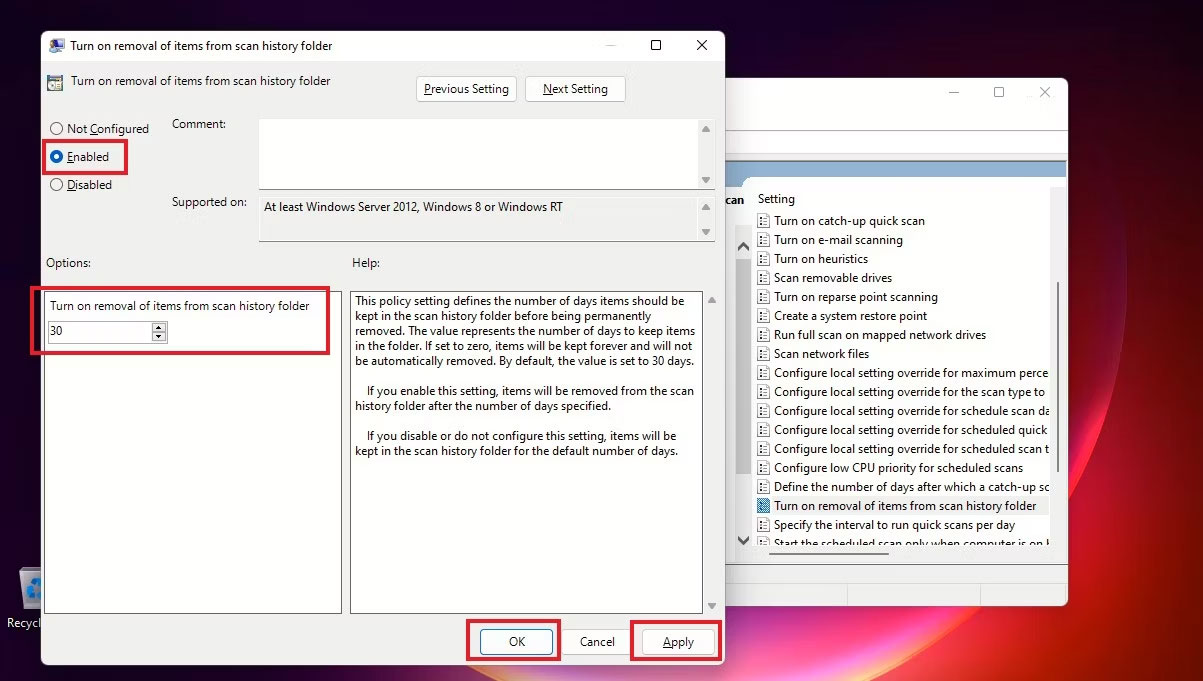
<p style="text-align: justify;">Một trong&nbsp;những phần mềm diệt virus tốt nhất&nbsp;cho PC của bạn, Windows Defender ngày càng tốt hơn với một số nâng cấp mạnh mẽ. Các phát hiện do Windows Defender thực hiện sẽ xuất hiện trên trang Protection History - nghĩa là bạn có thể xem các hành động mà Microsoft Defender Antivirus đã thực hiện thay cho bạn. Đây sẽ là những lần quét được thực hiện để xác định và chặn phần mềm độc hại cũng như các mối đe dọa khác và cả những đề xuất (được đánh dấu bằng màu đỏ hoặc vàng) cho các hành động bạn nên thực hiện.</p>

<p style="text-align: justify;">Bạn cũng có quyền truy cập vào tất cả thông tin này ở dạng rõ ràng và dễ hiểu, bao gồm cả Potentially Unwanted Apps đã bị xóa hoặc các service chính đã bị vô hiệu hóa. Protection History cũng sẽ hiển thị các phát hiện xuất hiện trong khi&nbsp;thực hiện quét ngoại tuyến của Windows Defender.</p>

<figure>
<div style="text-align: justify;"><img alt="Trang Protection History trong Windows Security" data-i="0" data-src="https://st.quantrimang.com/photos/image/2023/05/15/xoa-lich-su-bao-ve-cua-microsoft-defender-1.jpg" data-was-processed="true" height="699" src="https://st.quantrimang.com/photos/image/2023/05/15/xoa-lich-su-bao-ve-cua-microsoft-defender-1.jpg" width="1201" /></div>

<figcaption>
<div style="text-align: justify;">Trang Protection History trong Windows Security</div>
</figcaption>
</figure>

<p style="text-align: justify;">Mặc dù Windows Defender lưu giữ lịch sử phát hiện của nó trong 30 ngày, nhưng bạn có thể xóa nó trước thời điểm đó nếu cần - ví dụ, khi có nhiều nhật ký quét đã tích lũy. Xóa Protection History sẽ giúp bạn&nbsp;giải phóng dung lượng trên PC&nbsp;và giữ cho Defender chạy trơn tru. Hãy nhớ rằng bạn phải đăng nhập với quyền admin để xóa Protection History, vì vậy hãy kiểm tra xem bạn có quyền admin hay không.</p>

<p style="text-align: justify;">Bây giờ, hãy xem 4 cách dễ dàng để xóa Protection History trong Windows 10 và 11.</p>

<h2 style="text-align: justify;">4 cách xóa lịch sử bảo vệ của Microsoft Defender trên Windows 10/11</h2>

<h3 style="text-align: justify;">1. Cách xóa thư mục Protection History của Microsoft Defender</h3>

<p style="text-align: justify;">Bạn có thể xóa Protection History theo cách thủ công bằng cách xóa nội dung của thư mục&nbsp;<strong>Service</strong>&nbsp;trong thư mục Windows Defender bằng File Explorer. Đây là cách thực hiện:</p>

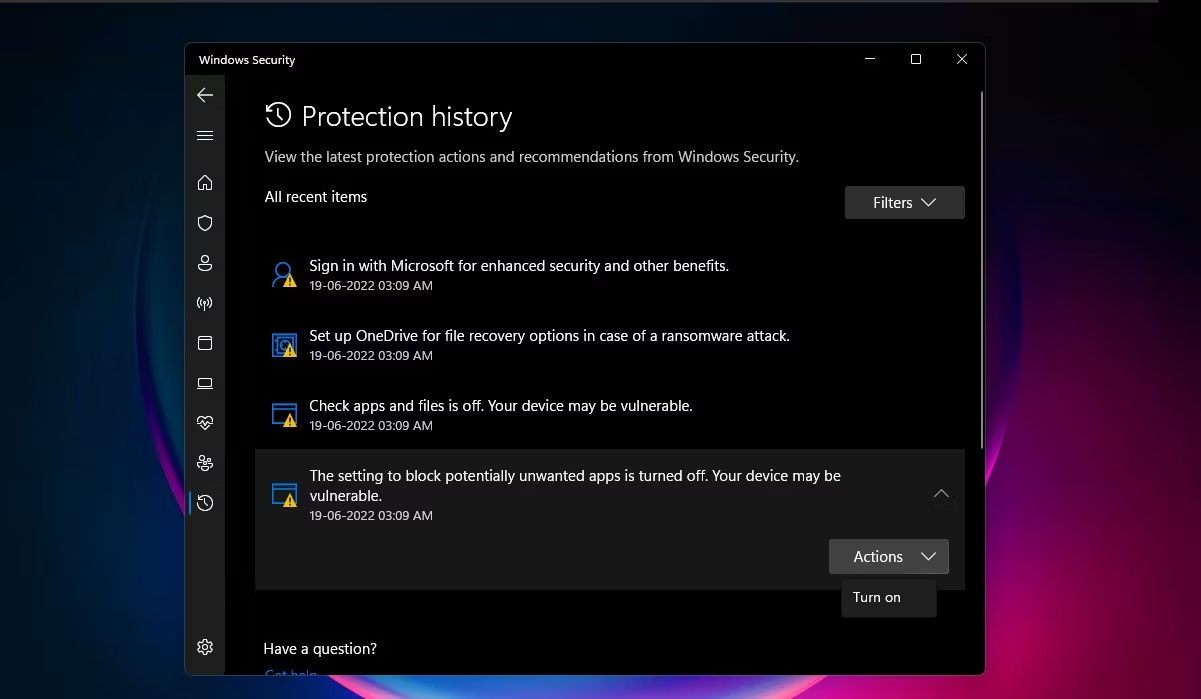
<p style="text-align: justify;">1. Nhấn các phím&nbsp;<strong>Windows + R</strong>&nbsp;để&nbsp;<a data-type="internal" href="https://quantrimang.com/cong-nghe/cach-mo-hop-thoai-run-trong-windows-187019" title="7 cách mở hộp thoại Run trong Windows">hiển thị hộp Run</a>.</p>

<p style="text-align: justify;">2. Sao chép và dán đường dẫn bên dưới và nhấp vào&nbsp;<strong>OK</strong>&nbsp;hoặc nhấn&nbsp;<strong>Enter</strong>:</p>

<pre id="pre0">
<code>C:\ProgramData\Microsoft\Windows Defender\Scans\History</code></pre>

<figure>
<div style="text-align: justify;"><img alt="Đường dẫn thư mục Protection History được nhập trong hộp Run" data-i="1" data-src="https://st.quantrimang.com/photos/image/2023/05/15/xoa-lich-su-bao-ve-cua-microsoft-defender-2.jpg" data-was-processed="true" height="313" src="https://st.quantrimang.com/photos/image/2023/05/15/xoa-lich-su-bao-ve-cua-microsoft-defender-2.jpg" width="980" /></div>

<figcaption>
<div style="text-align: justify;">Đường dẫn thư mục Protection History được nhập trong hộp Run</div>
</figcaption>
</figure>

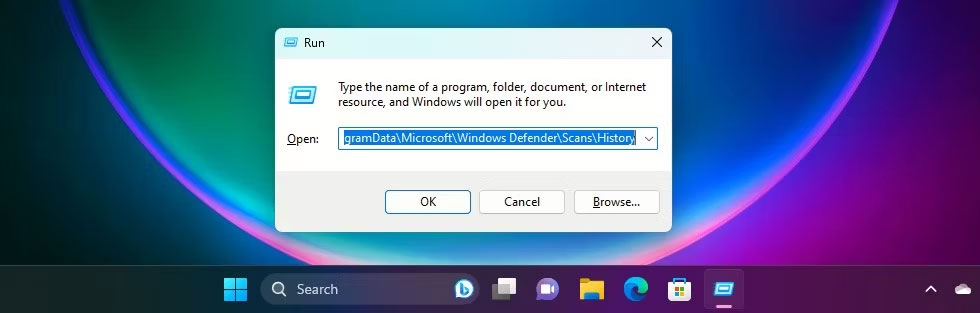
<p style="text-align: justify;">3. Bạn cũng có thể dán đường dẫn&nbsp;<strong>C:\ProgramData\Microsoft\Windows Defender\Scans\History</strong>&nbsp;vào thanh điều hướng File Explorer rồi nhấn&nbsp;<strong>Enter.</strong></p>

<figure>
<div style="text-align: justify;"><img alt="Đường dẫn thư mục Protection History trong thanh điều hướng File Explorer" data-i="2" data-src="https://st.quantrimang.com/photos/image/2023/05/15/xoa-lich-su-bao-ve-cua-microsoft-defender-3.jpg" data-was-processed="true" height="610" src="https://st.quantrimang.com/photos/image/2023/05/15/xoa-lich-su-bao-ve-cua-microsoft-defender-3.jpg" width="1119" /></div>

<figcaption>
<div style="text-align: justify;">Đường dẫn thư mục Protection History trong thanh điều hướng File Explorer</div>
</figcaption>
</figure>

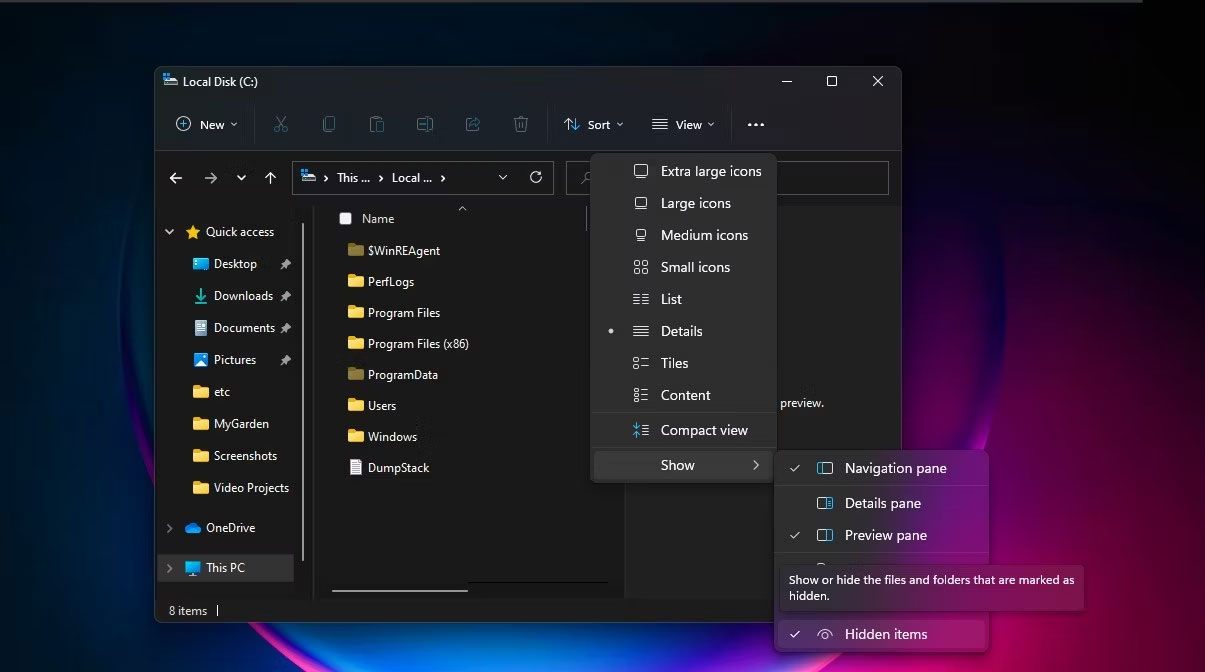
<p style="text-align: justify;">4. Ngoài ra, bạn có thể điều hướng đến thư mục&nbsp;<strong>Defender Protection History</strong>&nbsp;bằng đường dẫn trên trong File Explorer. Nếu bạn không thấy thư mục ProgramData khi mở Local Drive, hãy chọn&nbsp;<strong>View</strong>&nbsp;rồi đánh dấu vào ô bên cạnh&nbsp;<strong>Hidden items</strong>.</p>

<figure>
<div style="text-align: justify;"><img alt="Nhấp vào Hidden items trong Chế độ xem để xem thư mục ProgramData" data-i="3" data-src="https://st.quantrimang.com/photos/image/2023/05/15/xoa-lich-su-bao-ve-cua-microsoft-defender-4.jpg" data-was-processed="true" height="672" src="https://st.quantrimang.com/photos/image/2023/05/15/xoa-lich-su-bao-ve-cua-microsoft-defender-4.jpg" width="1205" /></div>

<figcaption>
<div style="text-align: justify;">Nhấp vào Hidden items trong Chế độ xem để xem thư mục ProgramData</div>
</figcaption>
</figure>

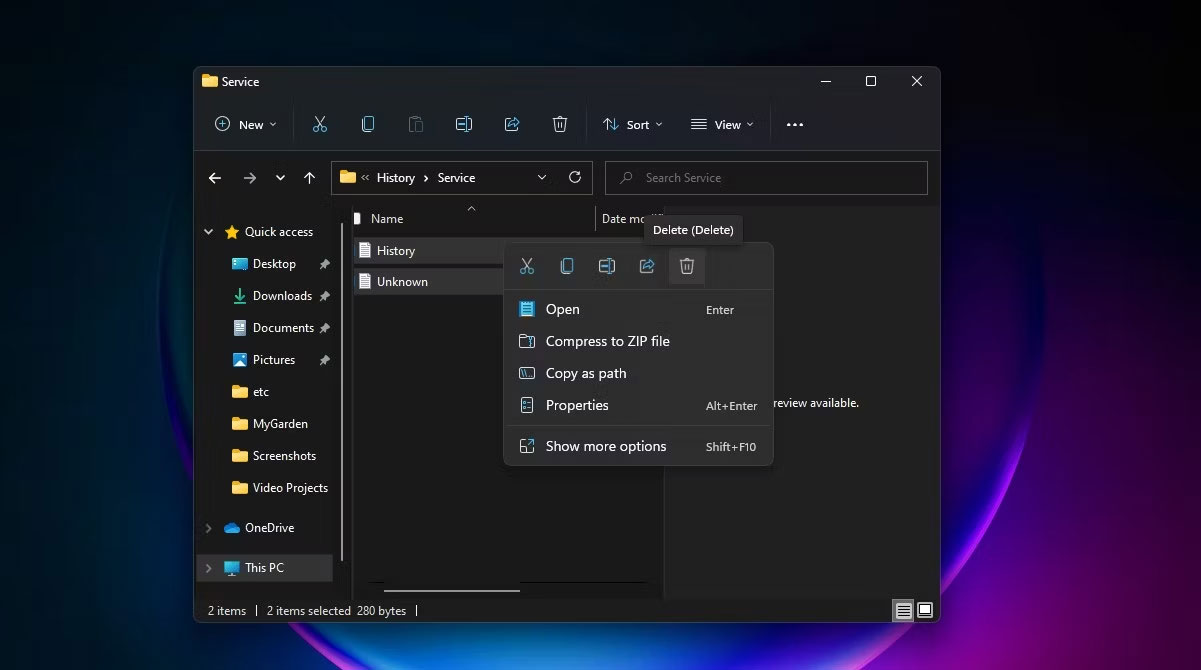
<p style="text-align: justify;">5. Mở thư mục&nbsp;<strong>Service</strong>&nbsp;và chọn tất cả các file bên trong nó. Nhấp chuột phải và chọn&nbsp;<strong>Delete&nbsp;</strong>để xóa tất cả các file. Sau đó thoát khỏi File Explorer.</p>

<figure>
<div style="text-align: justify;"><img alt="Chọn file trong thư mục lịch sử và xóa chúng" data-i="4" data-src="https://st.quantrimang.com/photos/image/2023/05/15/xoa-lich-su-bao-ve-cua-microsoft-defender-5.jpg" data-was-processed="true" height="670" src="https://st.quantrimang.com/photos/image/2023/05/15/xoa-lich-su-bao-ve-cua-microsoft-defender-5.jpg" width="1201" /></div>

<figcaption>
<div style="text-align: justify;">Chọn file trong thư mục lịch sử và xóa chúng</div>
</figcaption>
</figure>

<p style="text-align: justify;">6. Tiếp theo, tìm kiếm&nbsp;<strong>Windows Security</strong>&nbsp;và mở nó.</p>

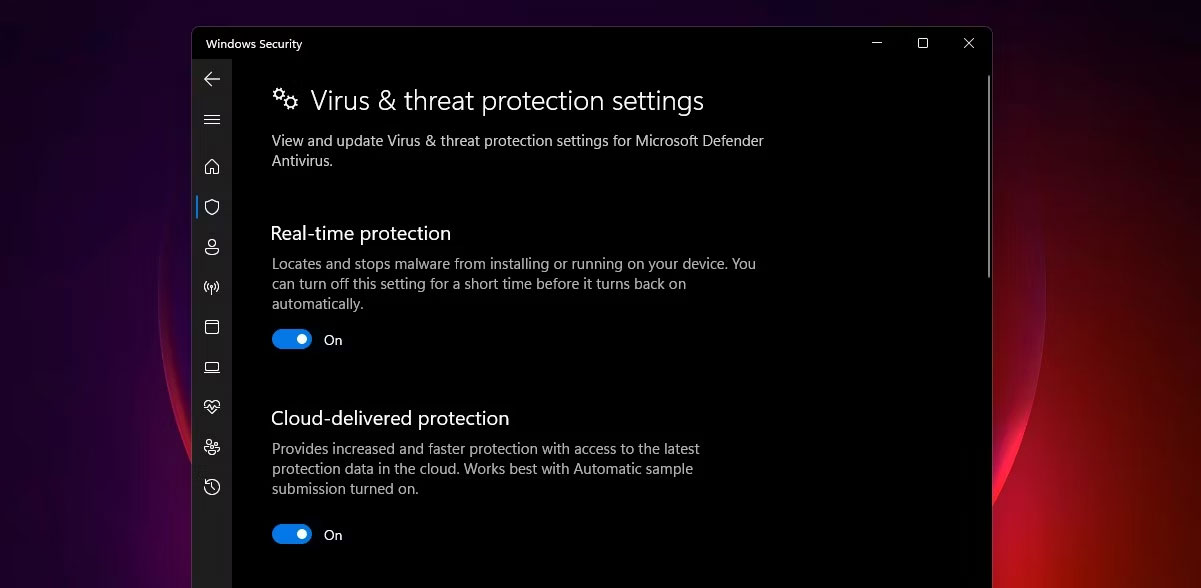
<p style="text-align: justify;">7. Trong&nbsp;<strong>Virus &amp; threat protection</strong>, nhấp vào&nbsp;<strong>Manage settings</strong>.</p>

<figure>
<div style="text-align: justify;"><img alt="Cài đặt bảo vệ diệt virus và mối đe dọa trong Windows Security" data-i="5" data-src="https://st.quantrimang.com/photos/image/2023/05/15/xoa-lich-su-bao-ve-cua-microsoft-defender-6.jpg" data-was-processed="true" height="588" src="https://st.quantrimang.com/photos/image/2023/05/15/xoa-lich-su-bao-ve-cua-microsoft-defender-6.jpg" width="1201" /></div>

<figcaption>
<div style="text-align: justify;">Cài đặt bảo vệ diệt virus và mối đe dọa trong Windows Security</div>
</figcaption>
</figure>

<p style="text-align: justify;">8. Cuối cùng, chuyển nút chuyển đổi cho&nbsp;<strong>Real-Time protection</strong>&nbsp;và&nbsp;<strong>Cloud-delivered protection&nbsp;</strong>sang&nbsp;<strong>Off</strong>&nbsp;rồi lại&nbsp;<strong>On</strong>.</p>

<h3 style="text-align: justify;">2. Cách xóa Protection History của Microsoft Defender bằng Event Viewer</h3>

<p style="text-align: justify;">Bạn cũng có thể xóa Protection History của Defender theo cách thủ công qua Event Viewer -một ứng dụng hữu ích để phân tích nhật ký sự kiện trên thiết bị của bạn. Đây là cách thực hiện:</p>

<p style="text-align: justify;">1. Đầu tiên, thực hiện tìm kiếm trên Windows cho Event Viewer và nhấp vào kết quả phù hợp nhất để&nbsp;<a data-type="internal" href="https://quantrimang.com/cong-nghe/truy-cap-event-viewer-174131" title="Cách truy cập Event Viewer trong Windows 10">mở Event Viewer</a>.</p>

<p style="text-align: justify;">2. Trong&nbsp;<strong>Event Viewer (Local)</strong>&nbsp;ở bên trái, hãy mở rộng&nbsp;<strong>Applications and Services Logs</strong>.</p>

<p style="text-align: justify;">3. Trong&nbsp;<strong>Applications and Services Logs</strong>, nhấp vào mũi tên xổ xuống bên cạnh thư mục&nbsp;<strong>Microsoft.</strong></p>

<p style="text-align: justify;">4. Nhấp vào&nbsp;<strong>Windows</strong>&nbsp;ở bên trái để mở danh sách các file Windows ở giữa.</p>

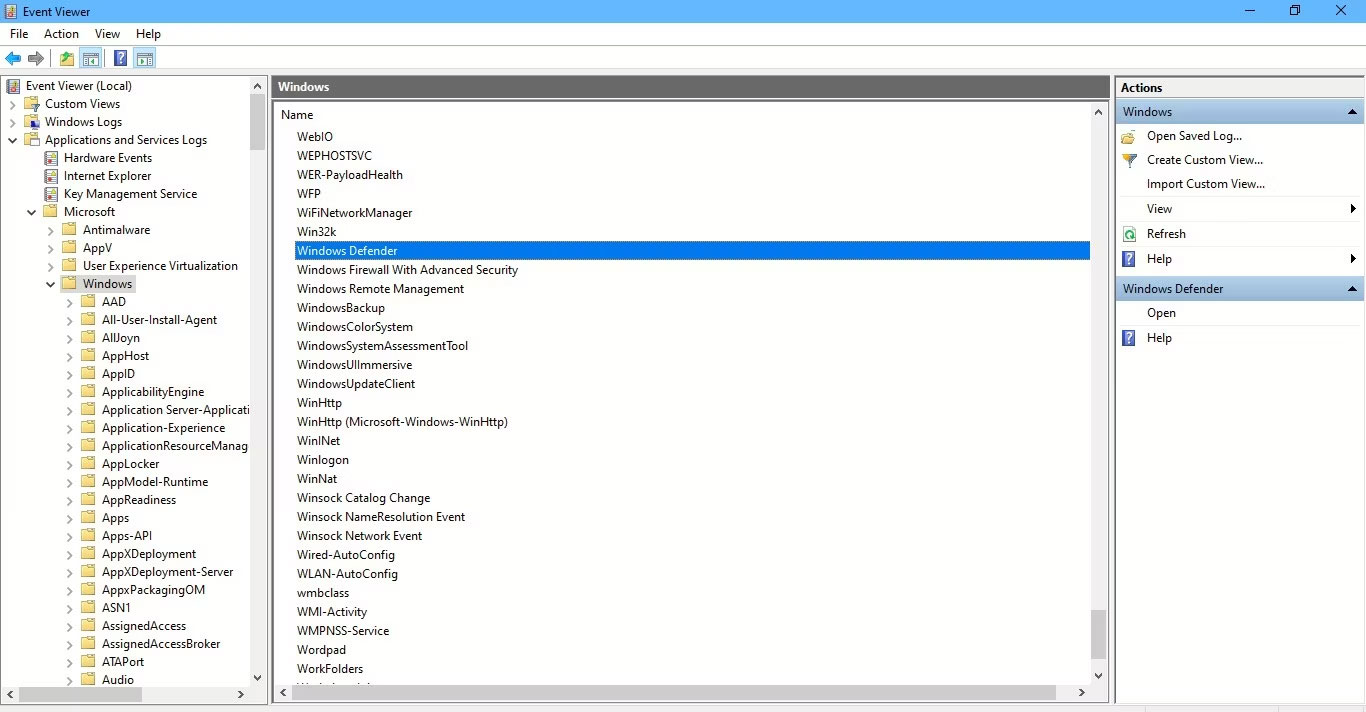
<p style="text-align: justify;">5. Cuộn xuống danh sách các file ở giữa để tìm&nbsp;<strong>Windows Defender</strong>.</p>

<figure>
<div style="text-align: justify;"><img alt="Windows Defender được chọn trong Event Viewer" data-i="6" data-src="https://st.quantrimang.com/photos/image/2023/05/15/xoa-lich-su-bao-ve-cua-microsoft-defender-7.jpg" data-was-processed="true" height="712" src="https://st.quantrimang.com/photos/image/2023/05/15/xoa-lich-su-bao-ve-cua-microsoft-defender-7.jpg" width="1366" /></div>

<figcaption>
<div style="text-align: justify;">Windows Defender được chọn trong Event Viewer</div>
</figcaption>
</figure>

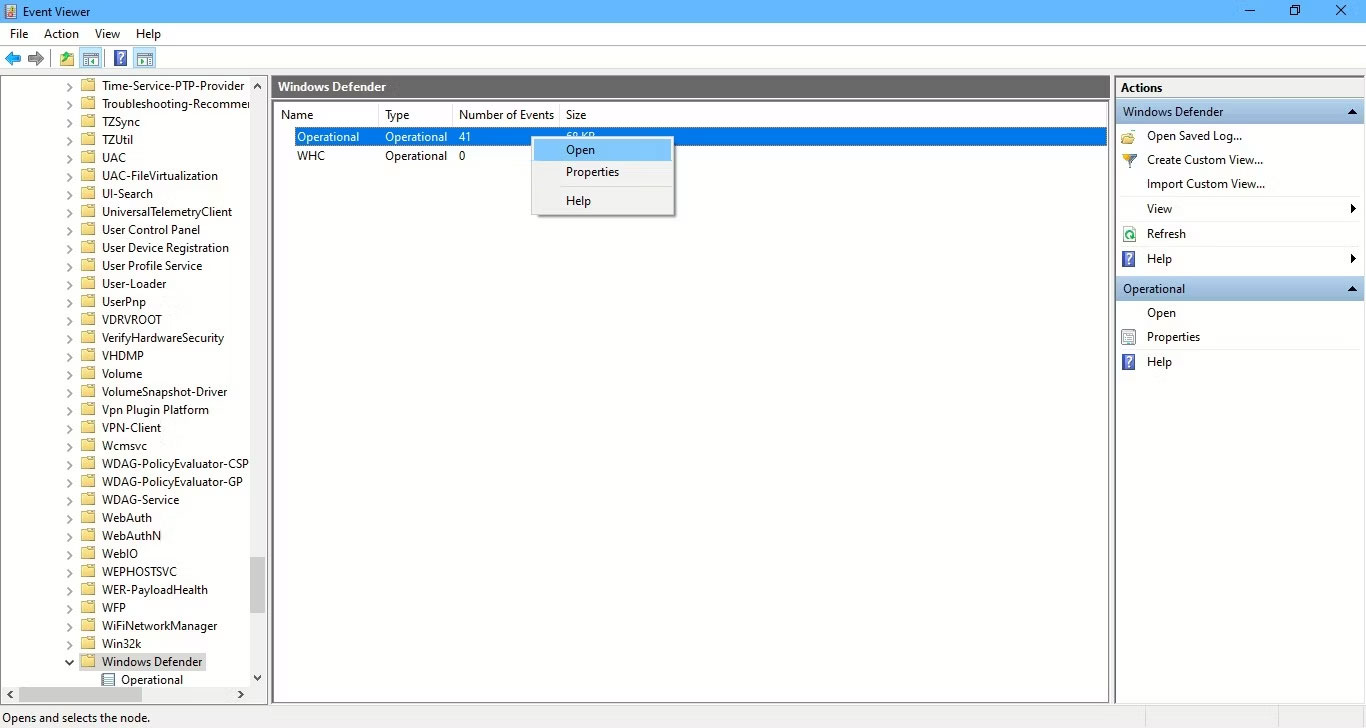
<p style="text-align: justify;">6. Nhấp đúp vào&nbsp;<strong>Windows Defender.</strong></p>

<p style="text-align: justify;">7. Sau đó nhấp chuột phải vào&nbsp;<strong>Operational</strong>&nbsp;và chọn&nbsp;<strong>Open</strong>&nbsp;để xem tất cả các nhật ký trước đây.</p>

<figure>
<div style="text-align: justify;"><img alt="Mở Operational để xem nhật ký Defender" data-i="7" data-src="https://st.quantrimang.com/photos/image/2023/05/15/xoa-lich-su-bao-ve-cua-microsoft-defender-8.jpg" data-was-processed="true" height="728" src="https://st.quantrimang.com/photos/image/2023/05/15/xoa-lich-su-bao-ve-cua-microsoft-defender-8.jpg" width="1366" /></div>

<figcaption>
<div style="text-align: justify;">Mở Operational để xem nhật ký Defender</div>
</figcaption>
</figure>

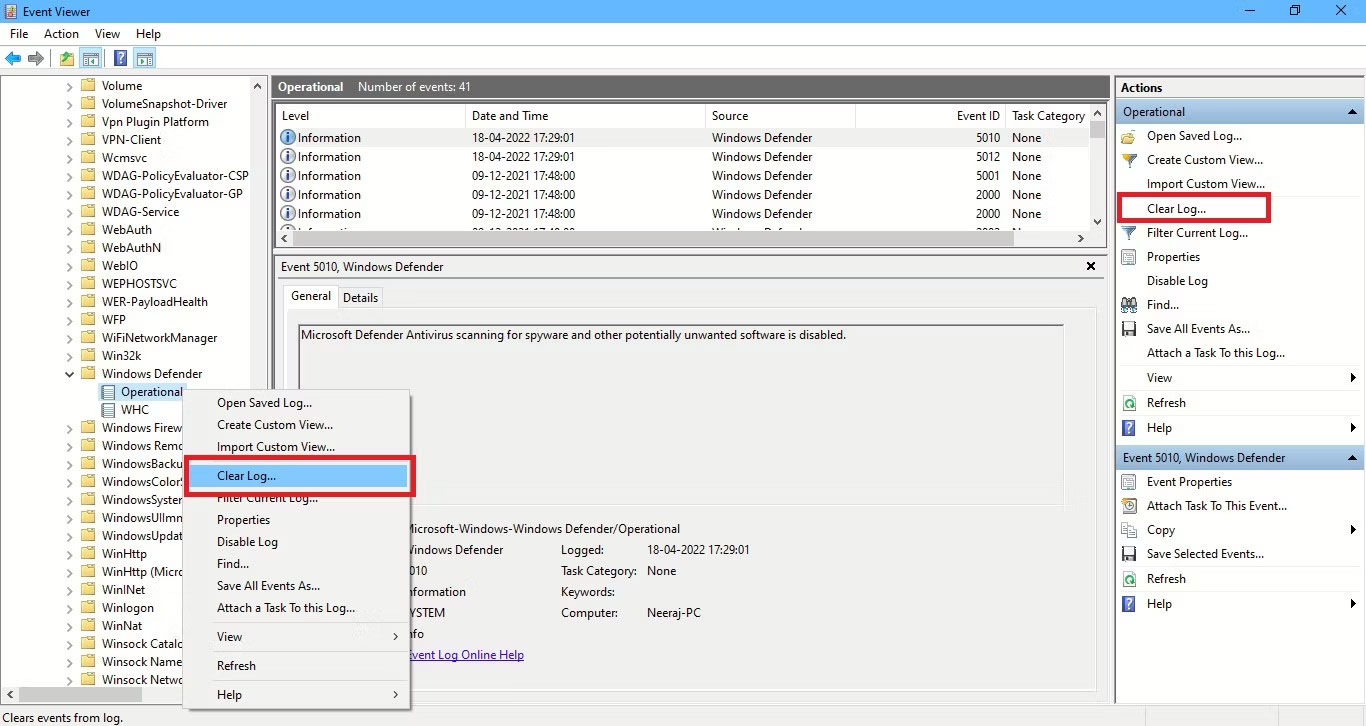
<p style="text-align: justify;">8. Bây giờ, bạn có thể nhấp chuột phải vào&nbsp;<strong>Operational</strong>&nbsp;ở bên trái và chọn&nbsp;<strong>Clear Log.</strong>&nbsp;Hoặc nhấp vào&nbsp;<strong>Clear Log</strong>&nbsp;ở bên phải dưới&nbsp;<strong>Actions</strong>.</p>

<figure>
<div style="text-align: justify;"><img alt="Các tùy chọn để xóa nhật ký " data-i="8" data-src="https://st.quantrimang.com/photos/image/2023/05/15/xoa-lich-su-bao-ve-cua-microsoft-defender-9.jpg" data-was-processed="true" height="726" src="https://st.quantrimang.com/photos/image/2023/05/15/xoa-lich-su-bao-ve-cua-microsoft-defender-9.jpg" width="1366" /></div>

<figcaption>
<div style="text-align: justify;">Các tùy chọn để xóa nhật ký</div>
</figcaption>
</figure>

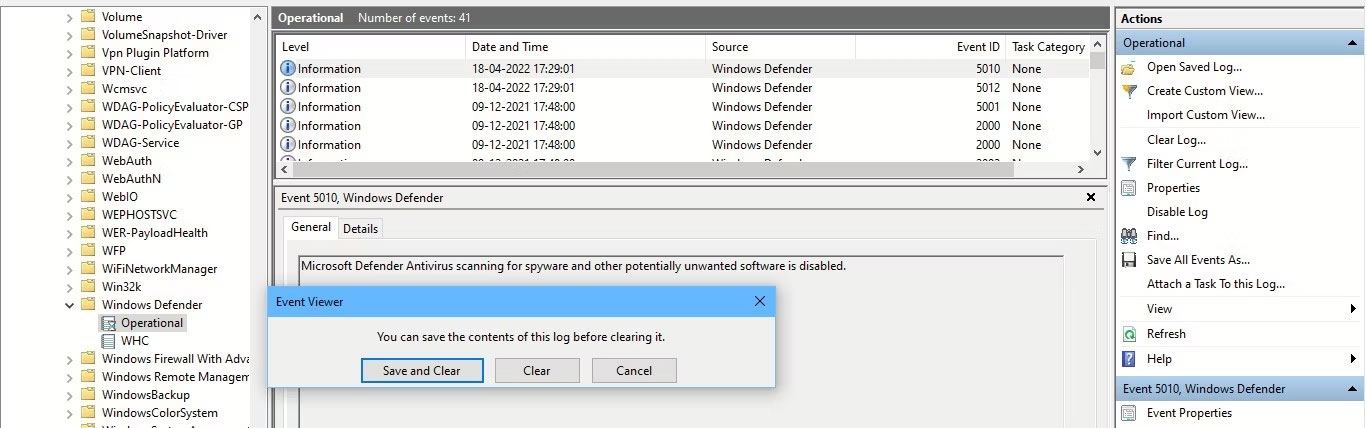
<p style="text-align: justify;">9. Chọn&nbsp;<strong>Clear</strong>&nbsp;để xóa Protection History. Nếu bạn muốn lưu nhật ký Protection History để tham khảo sau này trước khi xóa chúng, hãy chọn&nbsp;<strong>Save and Clear</strong>.</p>

<figure>
<div style="text-align: justify;"><img alt="Các tùy chọn để xóa nhật ký hoặc lưu và xóa nhật ký bảo vệ" data-i="9" data-src="https://st.quantrimang.com/photos/image/2023/05/15/xoa-lich-su-bao-ve-cua-microsoft-defender-10.jpg" data-was-processed="true" height="428" src="https://st.quantrimang.com/photos/image/2023/05/15/xoa-lich-su-bao-ve-cua-microsoft-defender-10.jpg" width="1366" /></div>

<figcaption>
<div style="text-align: justify;">Các tùy chọn để xóa nhật ký hoặc lưu và xóa nhật ký bảo vệ</div>
</figcaption>
</figure>

<h3 style="text-align: justify;">3. Cách xóa Protection History của Microsoft Defender qua PowerShell</h3>

<p style="text-align: justify;">Nếu bạn muốn Protection History tự động xóa sau một số ngày cụ thể thì sao? Bạn cũng có thể sử dụng lệnh PowerShell để làm điều đó.</p>

<p style="text-align: justify;">1. Nhập&nbsp;<strong>PowerShell</strong>&nbsp;vào thanh tìm kiếm. Nhấp chuột phải vào&nbsp;<strong>Windows PowerShell</strong>&nbsp;bên dưới kết quả phù hợp nhất và chọn&nbsp;<strong>Run as administrator</strong>. Hoặc chọn&nbsp;<strong>Run as administrator</strong>&nbsp;trên ngăn tìm kiếm bên phải.</p>

<p style="text-align: justify;">2. Nhấp vào&nbsp;<strong>Yes</strong>&nbsp;trên lời nhắc UAC xuất hiện.</p>

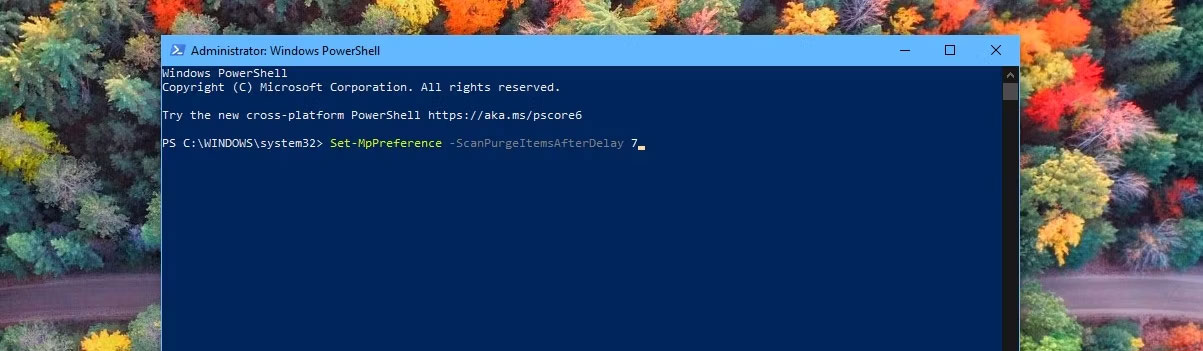
<p style="text-align: justify;">3. Cửa sổ&nbsp;<strong>Administrator: PowerShell&nbsp;</strong>sẽ mở ra. Nhập hoặc sao chép và dán lệnh sau rồi nhấn&nbsp;<strong>Enter</strong>:</p>

<pre id="pre1">
<code>Set-MpPreference -ScanPurgeItemsAfterDelay 7</code></pre>

<figure>
<div style="text-align: justify;"><img alt="Lệnh xóa Protection History trong PowerShell" data-i="10" data-src="https://st.quantrimang.com/photos/image/2023/05/15/xoa-lich-su-bao-ve-cua-microsoft-defender-11.jpg" data-was-processed="true" height="351" src="https://st.quantrimang.com/photos/image/2023/05/15/xoa-lich-su-bao-ve-cua-microsoft-defender-11.jpg" width="1203" /></div>

<figcaption>
<div style="text-align: justify;">Lệnh xóa Protection History trong PowerShell</div>
</figcaption>
</figure>

<p style="text-align: justify;">Số 7 ở cuối lệnh là số ngày sau đó nhật ký Protection History sẽ bị xóa. Chỉ cần thay đổi số đó để chỉ định thời điểm bạn muốn xóa Protection History. Và lịch sử sẽ được xóa tự động.</p>

<h3 style="text-align: justify;">4. Cách xóa Protection History của Microsoft Defender bằng&nbsp;Group Policy Editor</h3>

<p style="text-align: justify;">Nếu có PC chạy Windows 10 Pro, Windows 11 Pro hoặc phiên bản cao hơn, bạn cũng có thể sử dụng Group Policy Editor để tự động xóa Protection History của Defender. Mặc dù cũng có&nbsp;<a data-type="internal" href="https://quantrimang.com/cong-nghe/cach-cai-dat-group-policy-editor-gpedit-msc-tren-windows-10-home-edition-143433" title="Cách cài đặt Group Policy Editor (GPEdit.Msc) trên Windows 10 Home Edition">các giải pháp để truy cập Group Policy Editor trên Windows Home</a>. Nhưng hãy xem cách xóa Protection History thông qua Group Policy Editor trong Windows Pro và các phiên bản cao hơn:</p>

<p style="text-align: justify;">1. Nhấn phím&nbsp;<strong>Win + R</strong>&nbsp;để mở hộp Run. Nhập&nbsp;<strong>gpedit.msc</strong>&nbsp;để&nbsp;<a data-type="internal" href="https://quantrimang.com/cong-nghe/4-thu-thuat-don-gian-mo-local-group-policy-editor-tren-windows-881-119983" title="10 thủ thuật mở Local Group Policy Editor trên Windows">mở Local Group Policy Editor</a>. Hoặc chỉ cần nhập&nbsp;<strong>gpedit</strong>&nbsp;vào thanh tìm kiếm và nhấp vào&nbsp;<strong>Edit Group Policy</strong>&nbsp;bên dưới kết quả phù hợp nhất để mở.</p>

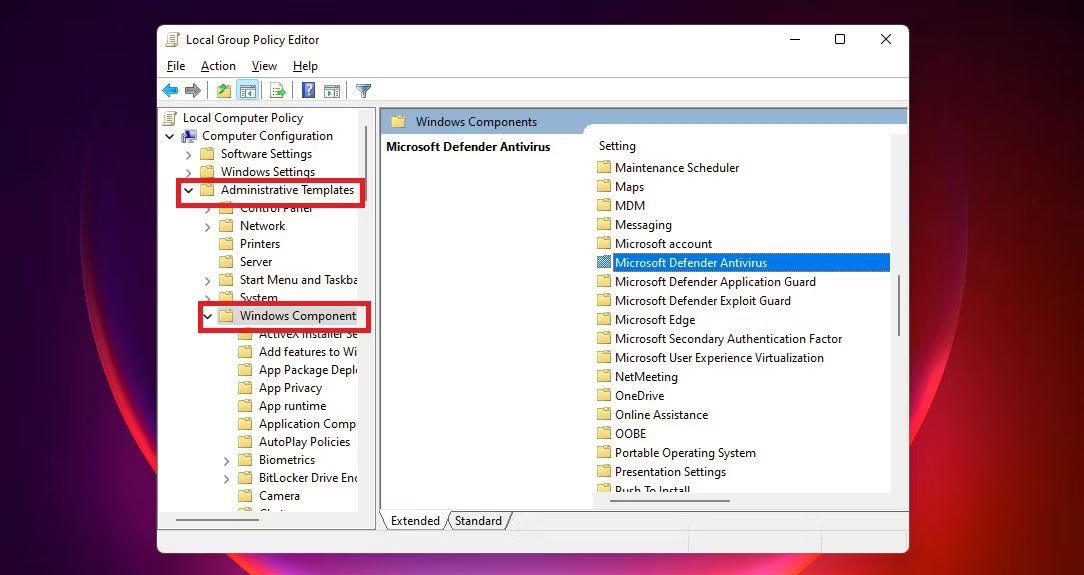
<p style="text-align: justify;">2. Trong Local Group Policy Editor, trên ngăn bên trái bên dưới&nbsp;<strong>Computer Configuration</strong>, hãy mở rộng&nbsp;<strong>Administrative Templates</strong>&nbsp;bằng cách nhấp vào mũi tên xổ xuống bên cạnh nó.</p>

<p style="text-align: justify;">3. Bên trong thư mục&nbsp;<strong>Administrative Templates</strong>, nhấp vào&nbsp;<strong>Windows Components</strong>&nbsp;và danh sách các thành phần của nó sẽ xuất hiện ở ngăn giữa của Group Policy Editor.</p>

<p style="text-align: justify;">4. Sau đó cuộn xuống để tìm&nbsp;<strong>Windows Defender Antivirus</strong>&nbsp;và nhấp đúp vào nó.</p>

<figure>
<div style="text-align: justify;"><img alt="Điều hướng đến Windows Defender Antivirus trong Group Policy Editor" data-i="11" data-src="https://st.quantrimang.com/photos/image/2023/05/15/xoa-lich-su-bao-ve-cua-microsoft-defender-12.jpg" data-was-processed="true" height="575" src="https://st.quantrimang.com/photos/image/2023/05/15/xoa-lich-su-bao-ve-cua-microsoft-defender-12.jpg" width="1084" /></div>

<figcaption>
<div style="text-align: justify;">Điều hướng đến Windows Defender Antivirus trong Group Policy Editor</div>
</figcaption>
</figure>

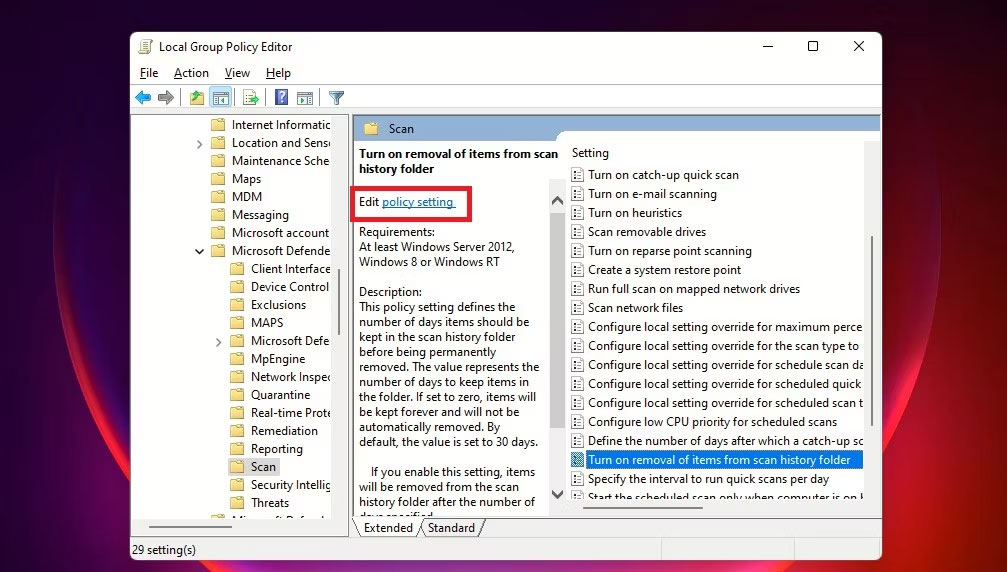
<p style="text-align: justify;">5. Trong danh sách các mục Windows Defender, nhấp đúp vào thư mục&nbsp;<strong>Scan.</strong></p>

<p style="text-align: justify;">6. Ở bên phải, nhấp đúp vào&nbsp;<strong>Turn on removal of items from scan history folder</strong>. Hoặc nhấp vào&nbsp;<strong>Edit policy setting</strong>&nbsp;ở ngăn giữa. Cài đặt policy này xác định số ngày các mục sẽ được lưu giữ trong thư mục lịch sử quét trước khi bị xóa vĩnh viễn.</p>

<figure>
<div style="text-align: justify;"><img alt="Bật chính sách xóa mục trong thư mục Scan của Defender" data-i="12" data-src="https://st.quantrimang.com/photos/image/2023/05/15/xoa-lich-su-bao-ve-cua-microsoft-defender-13.jpg" data-was-processed="true" height="572" src="https://st.quantrimang.com/photos/image/2023/05/15/xoa-lich-su-bao-ve-cua-microsoft-defender-13.jpg" width="1007" /></div>

<figcaption>
<div style="text-align: justify;">Bật chính sách xóa mục trong thư mục Scan của Defender</div>
</figcaption>
</figure>

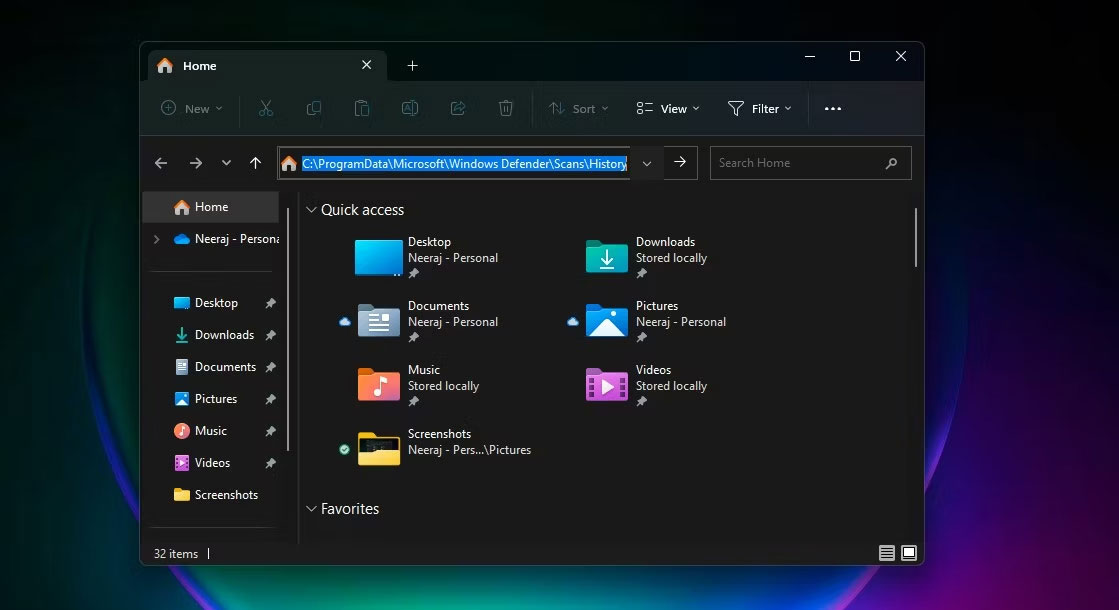
<p style="text-align: justify;">7. Tiếp theo, chọn&nbsp;<strong>Edit policy setting</strong>&nbsp;để mở cửa sổ policy Nó sẽ hiển thị&nbsp;<strong>Not Configured</strong>&nbsp;theo mặc định. Để đặt số ngày, hãy chọn nút bên cạnh&nbsp;<strong>Enabled</strong>. Sau đó, số ngày mặc định là 30 sẽ được đặt. Nếu bạn đặt số ngày thành 0, các mục sẽ được lưu giữ mãi mãi và không tự động bị xóa. Vì vậy, chỉ cần thay đổi ngày thành bất cứ khi nào bạn muốn xóa các mục. Cuối cùng, nhấp vào&nbsp;<strong>Apply &gt; OK.</strong></p>

<figure>
<div style="text-align: justify;"><img alt="Chỉ định số ngày để xóa mục quét trong Defender" data-i="13" data-src="https://st.quantrimang.com/photos/image/2023/05/15/xoa-lich-su-bao-ve-cua-microsoft-defender-14.jpg" data-was-processed="true" height="681" src="https://st.quantrimang.com/photos/image/2023/05/15/xoa-lich-su-bao-ve-cua-microsoft-defender-14.jpg" width="1203" /></div>

<figcaption>
<div style="text-align: justify;">Chỉ định số ngày để xóa mục quét trong Defender</div>
</figcaption>
</figure>

<p style="text-align: justify;">Giờ đây, bạn sẽ không cần phải xóa Protection History theo cách thủ công mỗi lần - các mục trong thư mục lịch sử quét sẽ tự động bị xóa sau những ngày bạn đã chỉ định.</p>
		</div>
				<div id="author">
						<p>
				<strong>Nguồn tin:</strong>
				Quantrimang.com
			</p>
		</div>
	</div>
	<div id="footer" class="clearfix">
		<div id="url">
			<strong>URL của bản tin này: </strong><a href="https://www.nguoicodonvn2008.info/vi/news/savefile/kien-thuc-may-tinh/4-cach-xoa-lich-su-bao-ve-cua-microsoft-defender-tren-windows-10-11-7107.html" title="4 cách xóa lịch sử bảo vệ của Microsoft Defender trên Windows 10&#x002F;11">https://www.nguoicodonvn2008.info/vi/news/savefile/kien-thuc-may-tinh/4-cach-xoa-lich-su-bao-ve-cua-microsoft-defender-tren-windows-10-11-7107.html</a>

		</div>
		<div class="clear"></div>
		<div class="copyright">
			&copy; .&#x3A; Nguoicodonvn2008.info - Cõi lòng người cô đơn &#x3A;.
		</div>
		<div id="contact">
			<a href="mailto:admin@nguoicodonvn2008.info">admin@nguoicodonvn2008.info</a>
		</div>
	</div>
</div>
        <div id="timeoutsess" class="chromeframe">
            Bạn đã không sử dụng Site, <a onclick="timeoutsesscancel();" href="https://www.nguoicodonvn2008.info/#">Bấm vào đây để duy trì trạng thái đăng nhập</a>. Thời gian chờ: <span id="secField"> 60 </span> giây
        </div>
        <div id="openidResult" class="nv-alert" style="display:none"></div>
        <div id="openidBt" data-result="" data-redirect=""></div>
		</script>
		<div class="car-top">
  <span><img src="https://www.nguoicodonvn2008.info/themes/default/images/car.png" alt=""></span>
</div>
<script src="https://www.nguoicodonvn2008.info/assets/js/jquery/jquery.min.js"></script>
<script>var nv_base_siteurl="/",nv_lang_data="vi",nv_lang_interface="vi",nv_name_variable="nv",nv_fc_variable="op",nv_lang_variable="language",nv_module_name="news",nv_func_name="savefile",nv_is_user=0, nv_my_ofs=-4,nv_my_abbr="EDT",nv_cookie_prefix="nv4c_e856T",nv_check_pass_mstime=1738000,nv_area_admin=0,nv_safemode=0,theme_responsive=0,nv_recaptcha_ver=2,nv_recaptcha_sitekey="",nv_recaptcha_type="image",XSSsanitize=1;</script>
<script src="https://www.nguoicodonvn2008.info/assets/js/language/vi.js"></script>
<script src="https://www.nguoicodonvn2008.info/assets/js/DOMPurify/purify3.js"></script>
<script src="https://www.nguoicodonvn2008.info/assets/js/global.js"></script>
<script src="https://www.nguoicodonvn2008.info/assets/js/site.js"></script>
<script src="https://www.nguoicodonvn2008.info/themes/default/js/news.js"></script>
<script src="https://www.nguoicodonvn2008.info/themes/default/js/main.js"></script>
<script src="https://www.nguoicodonvn2008.info/themes/default/js/custom.js"></script>
<script type="application/ld+json">
        {
            "@context": "https://schema.org",
            "@type": "Organization",
            "url": "https://www.nguoicodonvn2008.info",
            "logo": "https://www.nguoicodonvn2008.info/uploads/angel.gif"
        }
        </script>
<script src="https://www.nguoicodonvn2008.info/themes/default/js/bootstrap.min.js"></script>
<script type="text/javascript">
var $scrolltop = $('.car-top');
$scrolltop.on('click', function () {
    $('html,body').animate({
        scrollTop: 0
    }, 800);
    $(this).addClass("car-run");
    setTimeout(function(){ $scrolltop.removeClass('car-run');}, 1000);
    return false;
});
$(window).on('scroll', function ()
{ 
    if($(window).scrollTop() >= 200)
    {
        $scrolltop.addClass("show");
        $scrolltop.addClass("car-down");
    }
    else
    {
       $scrolltop.removeClass("show");
       setTimeout(function(){ $scrolltop.removeClass('car-down');}, 300);
    }
});
</script>
</body>
</html>