<!DOCTYPE html>
    <html lang="vi" xmlns="http://www.w3.org/1999/xhtml" prefix="og: http://ogp.me/ns#">
    <head>
<title>4 cách thay đổi phần mở rộng file trong Windows 11</title>
<meta name="description" content="4 cách thay đổi phần mở rộng file trong Windows 11 - Savefile - Tin Tức -...">
<meta name="author" content=".: Nguoicodonvn2008.info - Cõi lòng người cô đơn :.">
<meta name="copyright" content=".: Nguoicodonvn2008.info - Cõi lòng người cô đơn :. [admin@nguoicodonvn2008.info]">
<meta name="robots" content="index, archive, follow, noodp">
<meta name="googlebot" content="index,archive,follow,noodp">
<meta name="msnbot" content="all,index,follow">
<meta name="generator" content="NukeViet v4.5">
<meta http-equiv="Content-Type" content="text/html; charset=utf-8">
<meta property="og:title" content="4 cách thay đổi phần mở rộng file trong Windows 11">
<meta property="og:type" content="website">
<meta property="og:description" content="Savefile - Tin Tức - https&#x3A;&#x002F;&#x002F;www.nguoicodonvn2008.info&#x002F;vi&#x002F;news&#x002F;savefile&#x002F;kien-thuc-may-tinh&#x002F;4-cach-thay-doi-phan-mo-rong-file-trong-windows-11-10954.html">
<meta property="og:site_name" content=".&#x3A; Nguoicodonvn2008.info - Cõi lòng người cô đơn &#x3A;.">
<meta property="og:url" content="https://www.nguoicodonvn2008.info/vi/news/savefile/kien-thuc-may-tinh/4-cach-thay-doi-phan-mo-rong-file-trong-windows-11-10954.html">
<link rel="shortcut icon" href="https://www.nguoicodonvn2008.info/favicon.ico">
<link rel="canonical" href="https://www.nguoicodonvn2008.info/vi/news/savefile/kien-thuc-may-tinh/4-cach-thay-doi-phan-mo-rong-file-trong-windows-11-10954.html">
<link rel="alternate" href="https://www.nguoicodonvn2008.info/vi/news/rss/" title="Tin Tức" type="application/rss+xml">
<link rel="alternate" href="https://www.nguoicodonvn2008.info/vi/news/rss/karaoke-dual/" title="Tin Tức - Karaoke Dual" type="application/rss+xml">
<link rel="alternate" href="https://www.nguoicodonvn2008.info/vi/news/rss/nhac-tre/" title="Tin Tức - Nhạc trẻ" type="application/rss+xml">
<link rel="alternate" href="https://www.nguoicodonvn2008.info/vi/news/rss/tru-tinh/" title="Tin Tức - Trữ tình" type="application/rss+xml">
<link rel="alternate" href="https://www.nguoicodonvn2008.info/vi/news/rss/nuoc-ngoai/" title="Tin Tức - Nước ngoài" type="application/rss+xml">
<link rel="alternate" href="https://www.nguoicodonvn2008.info/vi/news/rss/remix/" title="Tin Tức - Remix" type="application/rss+xml">
<link rel="alternate" href="https://www.nguoicodonvn2008.info/vi/news/rss/tam-su-tinh-yeu/" title="Tin Tức - Tâm sự tình yêu" type="application/rss+xml">
<link rel="alternate" href="https://www.nguoicodonvn2008.info/vi/news/rss/tho-suu-tam/" title="Tin Tức - Thơ sưu tầm" type="application/rss+xml">
<link rel="alternate" href="https://www.nguoicodonvn2008.info/vi/news/rss/cuoc-song/" title="Tin Tức - Cuộc sống" type="application/rss+xml">
<link rel="alternate" href="https://www.nguoicodonvn2008.info/vi/news/rss/phan-mem/" title="Tin Tức - Phần mềm" type="application/rss+xml">
<link rel="alternate" href="https://www.nguoicodonvn2008.info/vi/news/rss/kien-thuc-may-tinh/" title="Tin Tức - Kiến thức máy tính" type="application/rss+xml">
<link rel="alternate" href="https://www.nguoicodonvn2008.info/vi/news/rss/hoc-tap/" title="Tin Tức - Học tập" type="application/rss+xml">
<link rel="alternate" href="https://www.nguoicodonvn2008.info/vi/news/rss/tai-lieu/" title="Tin Tức - Tài liệu" type="application/rss+xml">
<link rel="alternate" href="https://www.nguoicodonvn2008.info/vi/news/rss/de-thi/" title="Tin Tức - Đề thi" type="application/rss+xml">
<link rel="preload" as="style" href="https://www.nguoicodonvn2008.info/assets/css/font-awesome.min.css" type="text/css">
<link rel="preload" as="style" href="https://www.nguoicodonvn2008.info/themes/default/css/bootstrap.non-responsive.css" type="text/css">
<link rel="preload" as="style" href="https://www.nguoicodonvn2008.info/themes/default/css/style.css" type="text/css">
<link rel="preload" as="style" href="https://www.nguoicodonvn2008.info/themes/default/css/style.non-responsive.css" type="text/css">
<link rel="preload" as="style" href="https://www.nguoicodonvn2008.info/themes/default/css/news.css" type="text/css">
<link rel="preload" as="style" href="https://www.nguoicodonvn2008.info/themes/default/css/custom.css" type="text/css">
<link rel="preload" as="script" href="https://www.nguoicodonvn2008.info/assets/js/jquery/jquery.min.js" type="text/javascript">
<link rel="preload" as="script" href="https://www.nguoicodonvn2008.info/assets/js/language/vi.js" type="text/javascript">
<link rel="preload" as="script" href="https://www.nguoicodonvn2008.info/assets/js/DOMPurify/purify3.js" type="text/javascript">
<link rel="preload" as="script" href="https://www.nguoicodonvn2008.info/assets/js/global.js" type="text/javascript">
<link rel="preload" as="script" href="https://www.nguoicodonvn2008.info/assets/js/site.js" type="text/javascript">
<link rel="preload" as="script" href="https://www.nguoicodonvn2008.info/themes/default/js/news.js" type="text/javascript">
<link rel="preload" as="script" href="https://www.nguoicodonvn2008.info/themes/default/js/main.js" type="text/javascript">
<link rel="preload" as="script" href="https://www.nguoicodonvn2008.info/themes/default/js/custom.js" type="text/javascript">
<link rel="preload" as="script" href="https://www.nguoicodonvn2008.info/themes/default/js/bootstrap.min.js" type="text/javascript">
<link rel="stylesheet" href="https://www.nguoicodonvn2008.info/assets/css/font-awesome.min.css">
<link rel="stylesheet" href="https://www.nguoicodonvn2008.info/themes/default/css/bootstrap.non-responsive.css">
<link rel="stylesheet" href="https://www.nguoicodonvn2008.info/themes/default/css/style.css">
<link rel="stylesheet" href="https://www.nguoicodonvn2008.info/themes/default/css/style.non-responsive.css">
<link rel="StyleSheet" href="https://www.nguoicodonvn2008.info/themes/default/css/news.css">
<link rel="stylesheet" href="https://www.nguoicodonvn2008.info/themes/default/css/custom.css">
<style type="text/css">
	body{background: #fff;}
</style>
    </head>
    <body>
<div id="print">
	<div id="hd_print">
		<h2 class="pull-left">.&#x3A; Nguoicodonvn2008.info - Cõi lòng người cô đơn &#x3A;.</h2>
		<p class="pull-right"><a title=".&#x3A; Nguoicodonvn2008.info - Cõi lòng người cô đơn &#x3A;." href="https://www.nguoicodonvn2008.info/">https://www.nguoicodonvn2008.info</a></p>
	</div>
	<div class="clear"></div>
	<hr />
	<div id="content">
		<h1>4 cách thay đổi phần mở rộng file trong Windows 11</h1>
		<ul class="list-inline">
			<li>Thứ bảy - 09/08/2025 05:12</li>
			<li class="hidden-print txtrequired"><em class="fa fa-print">&nbsp;</em><a title="In ra" href="javascript:;" onclick="window.print()">In ra</a></li>
			<li class="hidden-print txtrequired"><em class="fa fa-power-off">&nbsp;</em><a title="Đóng cửa sổ này" href="javascript:;" onclick="window.close()">Đóng cửa sổ này</a></li>
		</ul>
		<div class="clear"></div>
		<div id="hometext">
		</div>
				<div class="imghome">
			<img alt="4 cách thay đổi phần mở rộng file trong Windows 11" src="https://st.quantrimang.com/photos/image/2025/05/07/thay-doi-phan-mo-rong-file-windows-11-1.jpg" width="460" class="img-thumbnail" />
		</div>
		<div class="clear"></div>
		<div id="bodytext" class="clearfix">
			<p style="text-align: justify;">Bài viết này giải thích cách thay đổi phần mở rộng file trong&nbsp;Windows 11, cũng như thảo luận về sự khác biệt giữa phần mở rộng file và loại file.</p>

<div style="text-align: justify;">&nbsp;</div>

<h2 id="mcetoc_1j240r6hb7j" style="text-align: justify;">Thay đổi phần mở rộng file theo cách dễ dàng</h2>

<p style="text-align: justify;">Đối với hầu hết mọi người, cách dễ nhất để thay đổi phần mở rộng file trong&nbsp;&nbsp;Windows 11&nbsp;là thực hiện từ cùng nơi bạn thay đổi tên file. Tuy nhiên,&nbsp;&nbsp;Windows&nbsp;không hiển thị phần mở rộng file theo mặc định, vì vậy trước tiên chúng ta phải thực hiện một thay đổi nhỏ đối với phần mở rộng đó trước khi được cung cấp tùy chọn chỉnh sửa phần mở rộng file.</p>

<p style="text-align: justify;">1.&nbsp;Mở File Explorer. Một phương pháp nhanh chóng là sử dụng phím tắt&nbsp;<strong>WIN + E</strong>.</p>

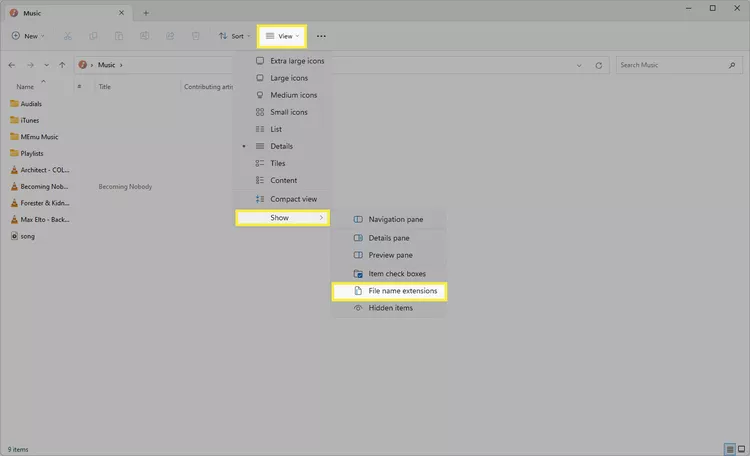
<p style="text-align: justify;">2. Chọn&nbsp;<strong>View</strong>&nbsp;ở đầu cửa sổ, sau đó chọn&nbsp;<strong>Show &gt; File name extensions</strong>.</p>

<figure>
<div style="text-align: justify;"><img alt="Vào View &gt; Show &gt; File Name Extensions trong File Explorer" data-i="0" data-src="https://st.quantrimang.com/photos/image/2025/05/07/thay-doi-phan-mo-rong-file-windows-11-1.jpg" data-was-processed="true" height="456" src="https://st.quantrimang.com/photos/image/2025/05/07/thay-doi-phan-mo-rong-file-windows-11-1.jpg" width="750" /></div>

<figcaption>
<div style="text-align: justify;">Vào View &gt; Show &gt; File Name Extensions trong File Explorer</div>
</figcaption>
</figure>

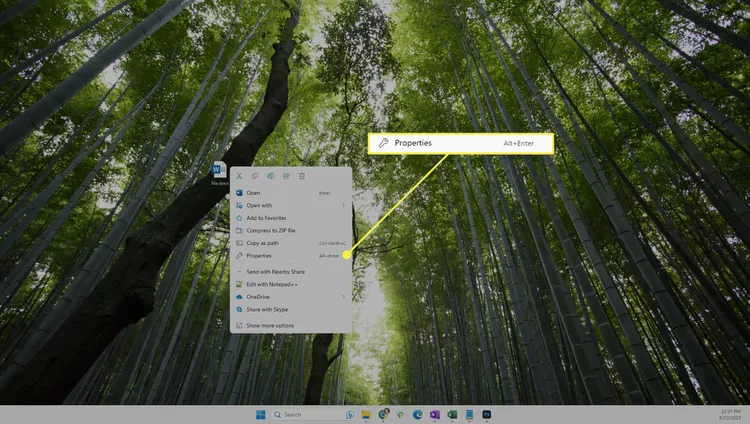
<p style="text-align: justify;">3. Bây giờ, Windows 11 hiển thị phần mở rộng file, hãy nhấp chuột phải vào file bạn muốn chỉnh sửa phần mở rộng và chọn&nbsp;<strong>Properties</strong>.</p>

<figure>
<div style="text-align: justify;"><img alt="Chọn Properties trong menu ngữ cảnh của file" data-adbro-processed="true" data-i="1" data-src="https://st.quantrimang.com/photos/image/2025/05/07/thay-doi-phan-mo-rong-file-windows-11-2.jpg" data-was-processed="true" height="424" src="https://st.quantrimang.com/photos/image/2025/05/07/thay-doi-phan-mo-rong-file-windows-11-2.jpg" width="750" /></div>

<figcaption>
<div style="text-align: justify;">Chọn Properties trong menu ngữ cảnh của file</div>
</figcaption>
</figure>

<p style="text-align: justify;"><strong>Mẹo</strong>: Nếu bạn đang vội, hãy nhấp chuột trái vào file một lần (không mở file), nhấn&nbsp;<strong>F2</strong>, chỉnh sửa phần mở rộng file, nhấn&nbsp;<strong>Enter</strong>, sau đó chọn&nbsp;<strong>Save</strong>.</p>

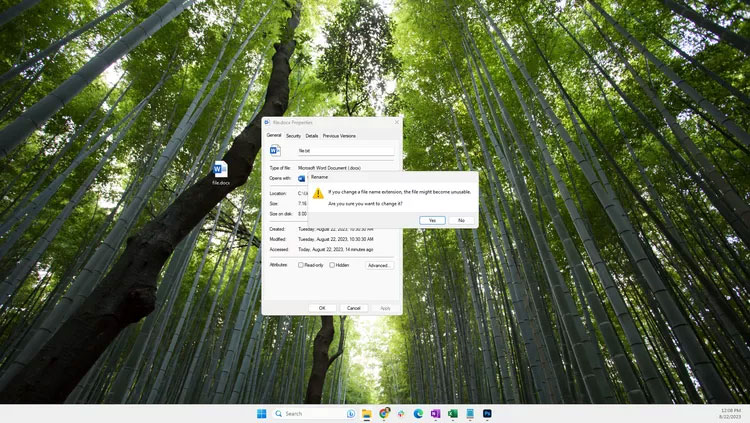
<p style="text-align: justify;">4. Trong tab&nbsp;<strong>General</strong>, hãy đổi tên các ký tự sau dấu chấm để thay đổi phần mở rộng file.</p>

<p style="text-align: justify;">5. Nhấn&nbsp;<strong>OK</strong>, rồi chọn&nbsp;<strong>Yes</strong>&nbsp;để lưu.</p>

<figure>
<div style="text-align: justify;"><img alt="Chọn nút Yes trong cửa sổ Properties của file" data-i="2" data-src="https://st.quantrimang.com/photos/image/2025/05/07/thay-doi-phan-mo-rong-file-windows-11-13.jpg" data-was-processed="true" height="423" src="https://st.quantrimang.com/photos/image/2025/05/07/thay-doi-phan-mo-rong-file-windows-11-13.jpg" width="750" /></div>

<figcaption>
<div style="text-align: justify;">Chọn nút Yes trong cửa sổ Properties của file</div>
</figcaption>
</figure>

<p style="text-align: justify;"><strong>Lưu ý</strong>: Việc thay đổi phần mở rộng file không thay đổi loại file. Xem phần cuối trang này để biết thêm thông tin về điều đó.</p>

<h2 id="mcetoc_1j240r6hb7k" style="text-align: justify;">Thay đổi phần mở rộng file từ Command Prompt</h2>

<p style="text-align: justify;">Nếu quen thuộc với&nbsp;<a data-type="internal" href="https://quantrimang.com/cong-nghe/thu-thuat-command-prompt-co-the-ban-chua-biet-137984" title="6 thủ thuật thú vị bạn có thể làm trong Windows Command Prompt">Command Prompt</a>, bạn có thể thích sử dụng lệnh rename/ren để thay đổi phần mở rộng file. Phương pháp này cho phép bạn bỏ qua việc phải chỉnh sửa các tùy chọn File Explorer (tức là bạn có thể ẩn phần mở rộng file và thao tác này vẫn có hiệu quả).</p>

<p style="text-align: justify;">1.&nbsp;Mở Command Prompt.</p>

<p style="text-align: justify;">2. Thay đổi đến thư mục chứa file của bạn.</p>

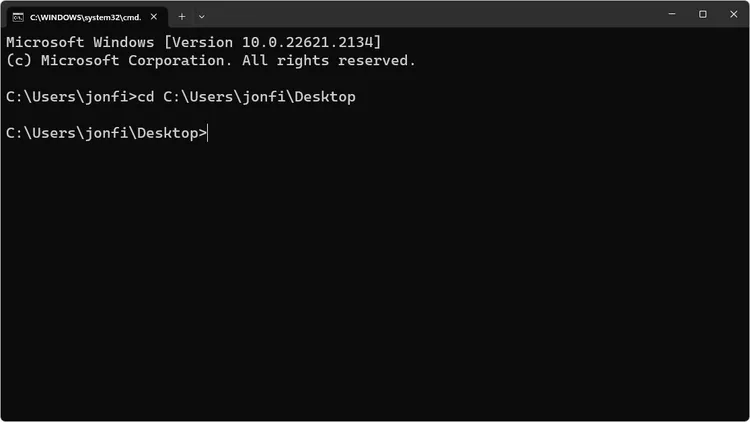
<p style="text-align: justify;">Ví dụ, nếu Command Prompt mở ra&nbsp;<strong>C:\Users\jonfi</strong>, nhưng file nằm trên desktop, hãy nhập lệnh này vào Command Prompt:</p>

<pre id="pre0">
<code>cd C:\Users\jonfi\Desktop</code></pre>

<figure>
<div style="text-align: justify;"><img alt="Ví dụ về lệnh CD trong Command Prompt của Windows 11" data-i="3" data-src="https://st.quantrimang.com/photos/image/2025/05/07/thay-doi-phan-mo-rong-file-windows-11-4.jpg" data-was-processed="true" height="422" src="https://st.quantrimang.com/photos/image/2025/05/07/thay-doi-phan-mo-rong-file-windows-11-4.jpg" width="750" /></div>

<figcaption>
<div style="text-align: justify;">Ví dụ về lệnh CD trong Command Prompt của Windows 11</div>
</figcaption>
</figure>

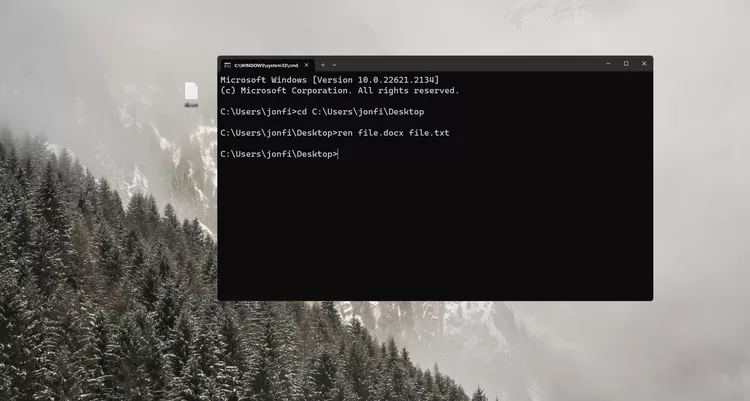
<p style="text-align: justify;">3. Nhập&nbsp;<strong>ren</strong>&nbsp;theo sau là file gốc và sau đó là tên mới cho file.</p>

<p style="text-align: justify;">Sau đây là ví dụ về việc thay đổi phần mở rộng file từ DOCX thành TXT:</p>

<pre id="pre1">
<code>ren file.docx file.txt</code></pre>

<p style="text-align: justify;">4. Nhấn&nbsp;<strong>Enter</strong>&nbsp;để thay đổi phần mở rộng file ngay lập tức.</p>

<figure>
<div style="text-align: justify;"><img alt="Sử dụng lệnh REN để thay đổi phần mở rộng file trong Windows 11" data-i="4" data-src="https://st.quantrimang.com/photos/image/2025/05/07/thay-doi-phan-mo-rong-file-windows-11-5.jpg" data-was-processed="true" height="401" src="https://st.quantrimang.com/photos/image/2025/05/07/thay-doi-phan-mo-rong-file-windows-11-5.jpg" width="750" /></div>

<figcaption>
<div style="text-align: justify;">Sử dụng lệnh REN để thay đổi phần mở rộng file trong Windows 11</div>
</figcaption>
</figure>

<h2 id="mcetoc_1j240r6hb7l" style="text-align: justify;">Cách thay đổi phần mở rộng file hàng loạt</h2>

<p style="text-align: justify;">Command Prompt cũng giúp bạn dễ dàng chỉnh sửa phần mở rộng file cho nhiều file cùng lúc, giả sử chúng nằm trong cùng một thư mục. Mẹo là sử dụng dấu hoa thị để bạn không phải gọi tên bất kỳ file cụ thể nào.</p>

<p style="text-align: justify;">1. Đặt tất cả các file bạn muốn chỉnh sửa vào thư mục riêng của chúng.</p>

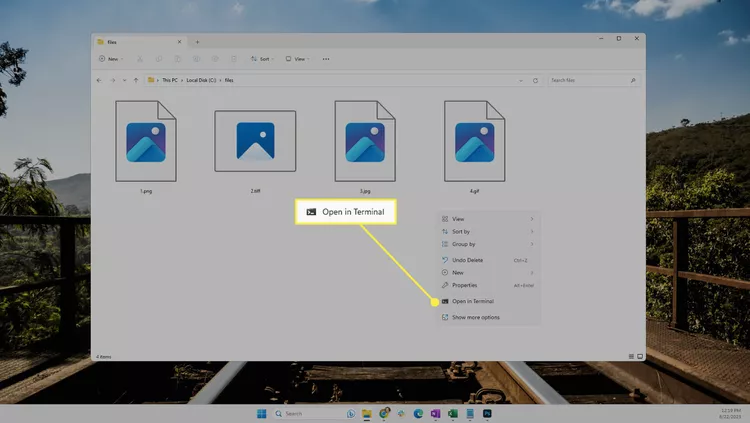
<p style="text-align: justify;">2. Nhấp chuột phải vào vùng trống bên cạnh các file và chọn&nbsp;<strong>Open in Terminal</strong>.</p>

<figure>
<div style="text-align: justify;"><img alt="Lệnh Open in Terminal trong menu ngữ cảnh của thư mục" data-i="5" data-src="https://st.quantrimang.com/photos/image/2025/05/07/thay-doi-phan-mo-rong-file-windows-11-6.jpg" data-was-processed="true" height="423" src="https://st.quantrimang.com/photos/image/2025/05/07/thay-doi-phan-mo-rong-file-windows-11-6.jpg" width="750" /></div>

<figcaption>
<div style="text-align: justify;">Lệnh Open in Terminal trong menu ngữ cảnh của thư mục</div>
</figcaption>
</figure>

<p style="text-align: justify;">3. Xác nhận rằng Command Prompt hiển thị đúng thư mục. Trong ví dụ, nó là&nbsp;<strong>C:\files&gt;.</strong></p>

<p style="text-align: justify;">Nếu&nbsp;PowerShell&nbsp;mở thay vào đó, hãy nhấn&nbsp;<strong>Ctrl + Shift + 2</strong>&nbsp;để đến Command Prompt. Tìm hiểu thêm về Terminal nếu bạn cần trợ giúp.</p>

<p style="text-align: justify;"><strong>Lưu ý quan trọng</strong>: Đừng bỏ qua bước này. Nếu bạn đang ở sai thư mục, không có cách dễ dàng nào để hoàn tác lệnh bạn sắp thực hiện.</p>

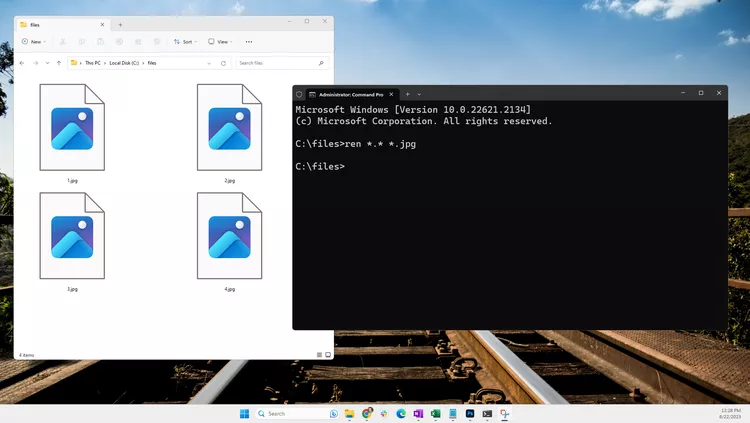
<p style="text-align: justify;">4. Nhập lệnh sau, nhưng hãy đổi&nbsp;<strong>*.jpg</strong>&nbsp;thành bất kỳ file nào bạn muốn:</p>

<pre id="pre2">
<code> ren *.* *.jpg</code></pre>

<p style="text-align: justify;"><strong>Cảnh báo</strong>: Lệnh này sẽ đổi tên mọi thứ trong thư mục này. Đảm bảo rằng bạn đang ở đúng thư mục và muốn thay đổi phần mở rộng file cho mọi file trong đó.</p>

<p style="text-align: justify;">Nếu chỉ cần đổi tên một nhóm các phần mở rộng file tương tự, bạn có thể sửa đổi lệnh một chút. Sau đây là những gì cần nhập nếu bạn muốn tất cả các&nbsp;file GIF&nbsp;có phần mở rộng&nbsp;file JPG&nbsp;(mọi thứ khác sẽ được giữ nguyên):</p>

<pre id="pre3">
<code>ren *.gif *.jpg</code></pre>

<p style="text-align: justify;">5. Nhấn&nbsp;<strong>Enter</strong>. Tất cả các phần mở rộng file sẽ tự động thay đổi.</p>

<figure>
<div style="text-align: justify;"><img alt="Một ví dụ về lệnh REN trong Command Prompt" data-i="6" data-src="https://st.quantrimang.com/photos/image/2025/05/07/thay-doi-phan-mo-rong-file-windows-11-7.jpg" data-was-processed="true" height="423" src="https://st.quantrimang.com/photos/image/2025/05/07/thay-doi-phan-mo-rong-file-windows-11-7.jpg" width="750" /></div>

<figcaption>
<div style="text-align: justify;">Một ví dụ về lệnh REN trong Command Prompt</div>
</figcaption>
</figure>

<h2 id="mcetoc_1j240r6hb7m" style="text-align: justify;">Chuyển đổi file để thay đổi loại file</h2>

<p style="text-align: justify;">Công cụ chuyển đổi file cũng có thể thay đổi phần mở rộng file. Lý do chính khiến bạn thực hiện thao tác này là nếu bạn muốn thay đổi định dạng file thực tế (tức là loại file), chẳng hạn như khi bạn cần file tương thích với một thiết bị hoặc chương trình phần mềm cụ thể.</p>

<p style="text-align: justify;">Sau đây là ví dụ về việc sử dụng trình chuyển đổi file&nbsp;Zamzar&nbsp;để thay đổi phần mở rộng file của file âm thanh từ MP3 sang WAV.</p>

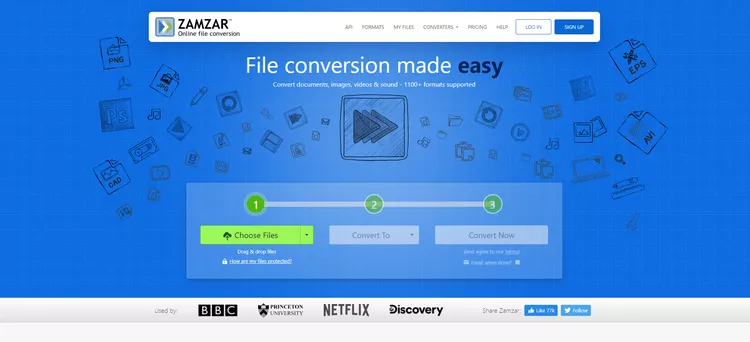
<p style="text-align: justify;">1.&nbsp;Truy cập Zamzar&nbsp;và chọn&nbsp;<strong>Choose Files</strong>.<br />
<strong>https://www.zamzar.com/</strong></p>

<figure>
<div style="text-align: justify;"><img alt="Chọn Choose Files trên trang web Zamzar" data-i="7" data-src="https://st.quantrimang.com/photos/image/2025/05/07/thay-doi-phan-mo-rong-file-windows-11-8.jpg" data-was-processed="true" height="342" src="https://st.quantrimang.com/photos/image/2025/05/07/thay-doi-phan-mo-rong-file-windows-11-8.jpg" width="750" /></div>

<figcaption>
<div style="text-align: justify;">Chọn Choose Files trên trang web Zamzar</div>
</figcaption>
</figure>

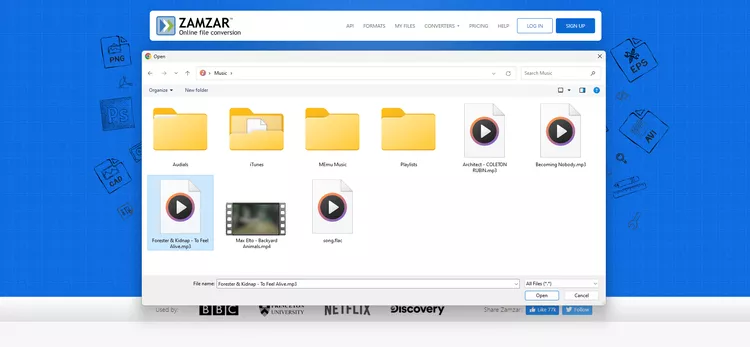
<p style="text-align: justify;">2. Chọn file MP3 bạn muốn đổi thành WAV, sau đó nhấn&nbsp;<strong>Open</strong>.</p>

<figure>
<div style="text-align: justify;"><img alt="Chọn file MP3 cần chuyển đổi trên trang web Zamzar" data-i="8" data-src="https://st.quantrimang.com/photos/image/2025/05/07/thay-doi-phan-mo-rong-file-windows-11-9.jpg" data-was-processed="true" height="347" src="https://st.quantrimang.com/photos/image/2025/05/07/thay-doi-phan-mo-rong-file-windows-11-9.jpg" width="750" /></div>

<figcaption>
<div style="text-align: justify;">Chọn file MP3 cần chuyển đổi trên trang web Zamzar</div>
</figcaption>
</figure>

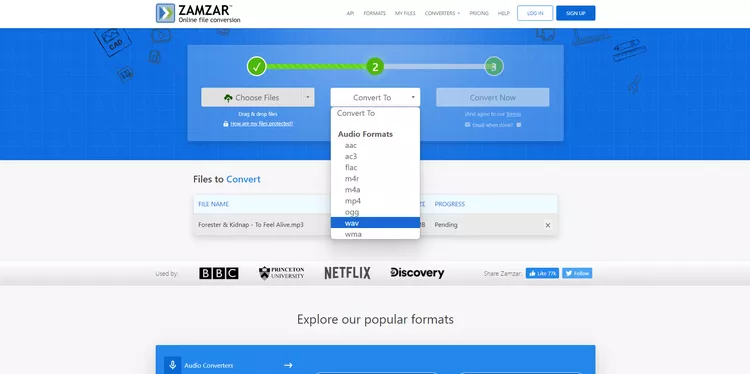
<p style="text-align: justify;">3. Chọn&nbsp;<strong>Convert To</strong>, sau đó chọn&nbsp;<strong>WAV</strong>&nbsp;từ danh sách.</p>

<figure>
<div style="text-align: justify;"><img alt="Chọn định dạng cần chuyển đổi sang" data-i="9" data-src="https://st.quantrimang.com/photos/image/2025/05/07/thay-doi-phan-mo-rong-file-windows-11-10.jpg" data-was-processed="true" height="374" src="https://st.quantrimang.com/photos/image/2025/05/07/thay-doi-phan-mo-rong-file-windows-11-10.jpg" width="750" /></div>

<figcaption>
<div style="text-align: justify;">Chọn định dạng cần chuyển đổi sang</div>
</figcaption>
</figure>

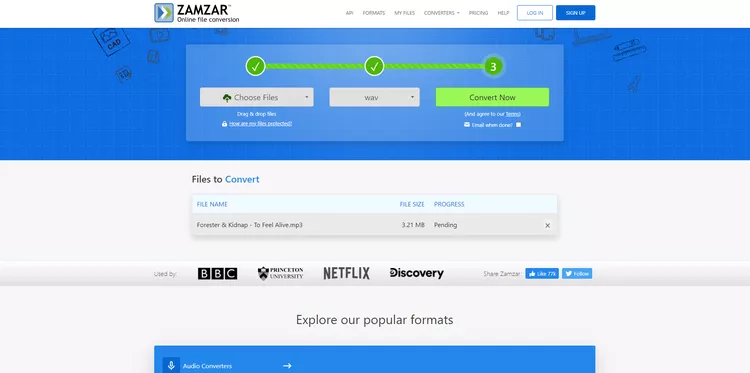
<p style="text-align: justify;">4. Chọn&nbsp;<strong>Convert Now</strong>&nbsp;để bắt đầu chuyển đổi file.</p>

<figure>
<div style="text-align: justify;"><img alt="Chuyển đổi file trên trang web Zamzar" data-i="10" data-src="https://st.quantrimang.com/photos/image/2025/05/07/thay-doi-phan-mo-rong-file-windows-11-11.jpg" data-was-processed="true" height="373" src="https://st.quantrimang.com/photos/image/2025/05/07/thay-doi-phan-mo-rong-file-windows-11-11.jpg" width="750" /></div>

<figcaption>
<div style="text-align: justify;">Chuyển đổi file trên trang web Zamzar</div>
</figcaption>
</figure>

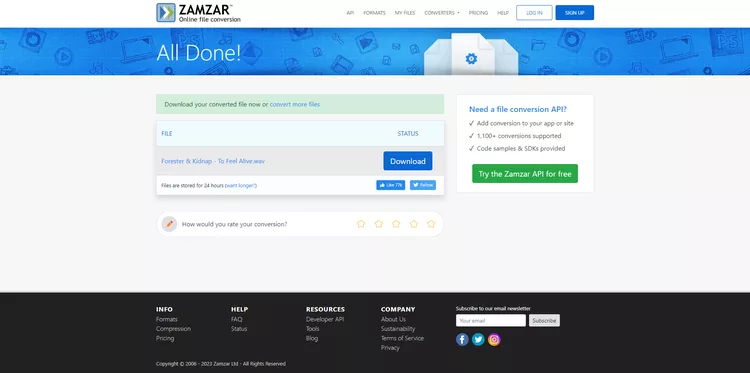
<p style="text-align: justify;">5. Chọn&nbsp;<strong>Download</strong>&nbsp;để lưu file vào thiết bị.</p>

<figure>
<div style="text-align: justify;"><img alt="Lưu file vào thiết bị" data-i="11" data-src="https://st.quantrimang.com/photos/image/2025/05/07/thay-doi-phan-mo-rong-file-windows-11-12.jpg" data-was-processed="true" height="373" src="https://st.quantrimang.com/photos/image/2025/05/07/thay-doi-phan-mo-rong-file-windows-11-12.jpg" width="750" /></div>

<figcaption>
<div style="text-align: justify;">Lưu file vào thiết bị</div>
</figcaption>
</figure>

<p style="text-align: justify;">Một số chương trình phần mềm có công cụ chuyển đổi file tích hợp. Trường hợp này thường xảy ra đối với các chương trình có thể mở nhiều loại file. Ví dụ,&nbsp;Adobe Photoshop&nbsp;có thể mở file PNG và chuyển đổi file đó sang hơn chục định dạng hình ảnh khác, sau đó thay đổi phần mở rộng file (thành JPG, GIF, TIFF, v.v...).</p>

<h2 id="mcetoc_1j240r6hb7n" style="text-align: justify;">Thay đổi phần mở rộng file có tác dụng gì?</h2>

<p style="text-align: justify;">Hệ điều hành&nbsp;&nbsp;Windows&nbsp;sử dụng phần mở rộng file để hiểu cách mở file. Ví dụ, khi bạn nhấp đúp để mở file TXT, Notepad có thể sẽ mở file đó. Điều này xảy ra vì Notepad được cấu hình để mở file TXT.</p>

<p style="text-align: justify;">Nếu thay đổi file TXT thành phần mở rộng file DOCX, Microsoft Word sẽ mở file đó thay vì&nbsp;<a data-google-interstitial="false" data-google-vignette="false" href="https://quantrimang.com/cong-nghe/thay-doi-phan-mo-rong-file-windows-11-208892#">&nbsp;PC</a>&nbsp;được cấu hình để sử dụng Word cho loại file đó.</p>

<p style="text-align: justify;">Xem&nbsp;cách thay đổi liên kết file trong Windows&nbsp;nếu bạn muốn một chương trình khác mở bất kỳ loại file cụ thể nào. Điều này cho phép bạn thay đổi ứng dụng phát MP3 hoặc chọn trình xem ảnh khác cho file GIF của mình.</p>

<h2 id="mcetoc_1j240r6hb7o" style="text-align: justify;">Lý do thay đổi phần mở rộng file</h2>

<p style="text-align: justify;">Một lý do để thay đổi phần mở rộng file là nếu phần mở rộng gốc được thêm vào file do nhầm lẫn. Điều này đôi khi xảy ra khi file được tải xuống từ một trang web. Ví dụ, nếu bạn được cho là nhận file PDF, nhưng dịch vụ web đã xuất file của mình sang thứ khác, bạn có thể thay đổi phần mở rộng file thành PDF để làm cho nó hoạt động chính xác với trình đọc PDF của mình.</p>

<p style="text-align: justify;">Một ví dụ khác là nếu bạn đang làm việc với file BAT. Việc xây dựng file dưới dạng tài liệu TXT có ý nghĩa hơn, vì vậy bạn có thể nhanh chóng nhấp đúp để mở file trong trình soạn thảo văn bản khi bạn cần thực hiện thay đổi. Nhưng khi hoàn tất, bạn phải đổi phần mở rộng file thành BAT để hoạt động như mong muốn.</p>

<p style="text-align: justify;">Bạn có thể nghĩ đến việc đổi phần mở rộng file để file hoạt động với chương trình hoặc thiết bị khác. Ví dụ, việc đổi phần mở rộng file có vẻ hữu ích nếu eReader của bạn hỗ trợ file PDF, nhưng sách của bạn là file FB2. Trên thực tế, bạn cần phải đổi loại file.</p>

<h2 id="mcetoc_1j240r6hb7p" style="text-align: justify;">&quot;Loại&quot; file khác nhau</h2>

<p style="text-align: justify;">Việc thay đổi phần mở rộng file không làm thay đổi loại file. Có thể có vẻ như vậy nếu biểu tượng thay đổi và một chương trình khác mở file khi nhấp đúp. Tuy nhiên, phần mở rộng file chỉ thông báo cho Windows về chương trình nào cần sử dụng khi mở file.</p>

<p style="text-align: justify;">Loại file đề cập đến định dạng mà file được lưu trữ. Ví dụ, file SVG là định dạng hình ảnh, khá khác so với JPG. Cả hai đều khác biệt đáng kể so với file ISO. Chúng đại diện cho 3 loại file riêng biệt.</p>

<p style="text-align: justify;">Phần mở rộng DAT là một ví dụ khác. Theo liên kết, bạn sẽ thấy một loại file DAT có thể là video, một loại khác là file văn bản và một loại khác nữa để lưu trữ dữ liệu sao lưu. Đó là ba loại file khác nhau sử dụng cùng một phần mở rộng.</p>

<p style="text-align: justify;">Để hiểu những khác biệt này, hãy cân nhắc việc thay đổi phần mở rộng file MP3 thành DOCX. MP3 dành cho âm thanh, trong khi DOCX dành cho tài liệu. Việc chỉ thay đổi phần mở rộng file sẽ không chuyển đổi lời bài hát MP3 thành tài liệu có thể đọc được trong Microsoft Word.</p>

<p style="text-align: justify;">Thay vào đó, hãy sử dụng trình chuyển đổi file để thay đổi loại file. Nếu bạn cần video MKV dưới dạng MP4, có lẽ để nó hoạt động với trình phát video yêu thích của mình chỉ chấp nhận MP4, thì một công cụ chuyển đổi file là lý tưởng. Điều này cũng áp dụng cho các loại file khác.</p>
		</div>
				<div id="author">
						<p>
				<strong>Nguồn tin:</strong>
				Quantrimang.com:
			</p>
		</div>
	</div>
	<div id="footer" class="clearfix">
		<div id="url">
			<strong>URL của bản tin này: </strong><a href="https://www.nguoicodonvn2008.info/vi/news/savefile/kien-thuc-may-tinh/4-cach-thay-doi-phan-mo-rong-file-trong-windows-11-10954.html" title="4 cách thay đổi phần mở rộng file trong Windows 11">https://www.nguoicodonvn2008.info/vi/news/savefile/kien-thuc-may-tinh/4-cach-thay-doi-phan-mo-rong-file-trong-windows-11-10954.html</a>

		</div>
		<div class="clear"></div>
		<div class="copyright">
			&copy; .&#x3A; Nguoicodonvn2008.info - Cõi lòng người cô đơn &#x3A;.
		</div>
		<div id="contact">
			<a href="mailto:admin@nguoicodonvn2008.info">admin@nguoicodonvn2008.info</a>
		</div>
	</div>
</div>
        <div id="timeoutsess" class="chromeframe">
            Bạn đã không sử dụng Site, <a onclick="timeoutsesscancel();" href="https://www.nguoicodonvn2008.info/#">Bấm vào đây để duy trì trạng thái đăng nhập</a>. Thời gian chờ: <span id="secField"> 60 </span> giây
        </div>
        <div id="openidResult" class="nv-alert" style="display:none"></div>
        <div id="openidBt" data-result="" data-redirect=""></div>
		</script>
		<div class="car-top">
  <span><img src="https://www.nguoicodonvn2008.info/themes/default/images/car.png" alt=""></span>
</div>
<script src="https://www.nguoicodonvn2008.info/assets/js/jquery/jquery.min.js"></script>
<script>var nv_base_siteurl="/",nv_lang_data="vi",nv_lang_interface="vi",nv_name_variable="nv",nv_fc_variable="op",nv_lang_variable="language",nv_module_name="news",nv_func_name="savefile",nv_is_user=0, nv_my_ofs=-4,nv_my_abbr="EDT",nv_cookie_prefix="nv4c_e856T",nv_check_pass_mstime=1738000,nv_area_admin=0,nv_safemode=0,theme_responsive=0,nv_recaptcha_ver=2,nv_recaptcha_sitekey="",nv_recaptcha_type="image",XSSsanitize=1;</script>
<script src="https://www.nguoicodonvn2008.info/assets/js/language/vi.js"></script>
<script src="https://www.nguoicodonvn2008.info/assets/js/DOMPurify/purify3.js"></script>
<script src="https://www.nguoicodonvn2008.info/assets/js/global.js"></script>
<script src="https://www.nguoicodonvn2008.info/assets/js/site.js"></script>
<script src="https://www.nguoicodonvn2008.info/themes/default/js/news.js"></script>
<script src="https://www.nguoicodonvn2008.info/themes/default/js/main.js"></script>
<script src="https://www.nguoicodonvn2008.info/themes/default/js/custom.js"></script>
<script type="application/ld+json">
        {
            "@context": "https://schema.org",
            "@type": "Organization",
            "url": "https://www.nguoicodonvn2008.info",
            "logo": "https://www.nguoicodonvn2008.info/uploads/angel.gif"
        }
        </script>
<script src="https://www.nguoicodonvn2008.info/themes/default/js/bootstrap.min.js"></script>
<script type="text/javascript">
var $scrolltop = $('.car-top');
$scrolltop.on('click', function () {
    $('html,body').animate({
        scrollTop: 0
    }, 800);
    $(this).addClass("car-run");
    setTimeout(function(){ $scrolltop.removeClass('car-run');}, 1000);
    return false;
});
$(window).on('scroll', function ()
{ 
    if($(window).scrollTop() >= 200)
    {
        $scrolltop.addClass("show");
        $scrolltop.addClass("car-down");
    }
    else
    {
       $scrolltop.removeClass("show");
       setTimeout(function(){ $scrolltop.removeClass('car-down');}, 300);
    }
});
</script>
</body>
</html>