<!DOCTYPE html>
    <html lang="vi" xmlns="http://www.w3.org/1999/xhtml" prefix="og: http://ogp.me/ns#">
    <head>
<title>4 cách chọn nhiều file trên máy Mac</title>
<meta name="description" content="4 cách chọn nhiều file trên máy Mac - Savefile - Tin Tức -...">
<meta name="author" content=".: Nguoicodonvn2008.info - Cõi lòng người cô đơn :.">
<meta name="copyright" content=".: Nguoicodonvn2008.info - Cõi lòng người cô đơn :. [admin@nguoicodonvn2008.info]">
<meta name="robots" content="index, archive, follow, noodp">
<meta name="googlebot" content="index,archive,follow,noodp">
<meta name="msnbot" content="all,index,follow">
<meta name="generator" content="NukeViet v4.5">
<meta http-equiv="Content-Type" content="text/html; charset=utf-8">
<meta property="og:title" content="4 cách chọn nhiều file trên máy Mac">
<meta property="og:type" content="website">
<meta property="og:description" content="Savefile - Tin Tức - https&#x3A;&#x002F;&#x002F;www.nguoicodonvn2008.info&#x002F;vi&#x002F;news&#x002F;savefile&#x002F;kien-thuc-may-tinh&#x002F;4-cach-chon-nhieu-file-tren-may-mac-8229.html">
<meta property="og:site_name" content=".&#x3A; Nguoicodonvn2008.info - Cõi lòng người cô đơn &#x3A;.">
<meta property="og:url" content="https://www.nguoicodonvn2008.info/vi/news/savefile/kien-thuc-may-tinh/4-cach-chon-nhieu-file-tren-may-mac-8229.html">
<link rel="shortcut icon" href="https://www.nguoicodonvn2008.info/favicon.ico">
<link rel="canonical" href="https://www.nguoicodonvn2008.info/vi/news/savefile/kien-thuc-may-tinh/4-cach-chon-nhieu-file-tren-may-mac-8229.html">
<link rel="alternate" href="https://www.nguoicodonvn2008.info/vi/news/rss/" title="Tin Tức" type="application/rss+xml">
<link rel="alternate" href="https://www.nguoicodonvn2008.info/vi/news/rss/karaoke-dual/" title="Tin Tức - Karaoke Dual" type="application/rss+xml">
<link rel="alternate" href="https://www.nguoicodonvn2008.info/vi/news/rss/nhac-tre/" title="Tin Tức - Nhạc trẻ" type="application/rss+xml">
<link rel="alternate" href="https://www.nguoicodonvn2008.info/vi/news/rss/tru-tinh/" title="Tin Tức - Trữ tình" type="application/rss+xml">
<link rel="alternate" href="https://www.nguoicodonvn2008.info/vi/news/rss/nuoc-ngoai/" title="Tin Tức - Nước ngoài" type="application/rss+xml">
<link rel="alternate" href="https://www.nguoicodonvn2008.info/vi/news/rss/remix/" title="Tin Tức - Remix" type="application/rss+xml">
<link rel="alternate" href="https://www.nguoicodonvn2008.info/vi/news/rss/tam-su-tinh-yeu/" title="Tin Tức - Tâm sự tình yêu" type="application/rss+xml">
<link rel="alternate" href="https://www.nguoicodonvn2008.info/vi/news/rss/tho-suu-tam/" title="Tin Tức - Thơ sưu tầm" type="application/rss+xml">
<link rel="alternate" href="https://www.nguoicodonvn2008.info/vi/news/rss/cuoc-song/" title="Tin Tức - Cuộc sống" type="application/rss+xml">
<link rel="alternate" href="https://www.nguoicodonvn2008.info/vi/news/rss/phan-mem/" title="Tin Tức - Phần mềm" type="application/rss+xml">
<link rel="alternate" href="https://www.nguoicodonvn2008.info/vi/news/rss/kien-thuc-may-tinh/" title="Tin Tức - Kiến thức máy tính" type="application/rss+xml">
<link rel="alternate" href="https://www.nguoicodonvn2008.info/vi/news/rss/hoc-tap/" title="Tin Tức - Học tập" type="application/rss+xml">
<link rel="alternate" href="https://www.nguoicodonvn2008.info/vi/news/rss/tai-lieu/" title="Tin Tức - Tài liệu" type="application/rss+xml">
<link rel="alternate" href="https://www.nguoicodonvn2008.info/vi/news/rss/de-thi/" title="Tin Tức - Đề thi" type="application/rss+xml">
<link rel="preload" as="style" href="https://www.nguoicodonvn2008.info/assets/css/font-awesome.min.css" type="text/css">
<link rel="preload" as="style" href="https://www.nguoicodonvn2008.info/themes/default/css/bootstrap.non-responsive.css" type="text/css">
<link rel="preload" as="style" href="https://www.nguoicodonvn2008.info/themes/default/css/style.css" type="text/css">
<link rel="preload" as="style" href="https://www.nguoicodonvn2008.info/themes/default/css/style.non-responsive.css" type="text/css">
<link rel="preload" as="style" href="https://www.nguoicodonvn2008.info/themes/default/css/news.css" type="text/css">
<link rel="preload" as="style" href="https://www.nguoicodonvn2008.info/themes/default/css/custom.css" type="text/css">
<link rel="preload" as="script" href="https://www.nguoicodonvn2008.info/assets/js/jquery/jquery.min.js" type="text/javascript">
<link rel="preload" as="script" href="https://www.nguoicodonvn2008.info/assets/js/language/vi.js" type="text/javascript">
<link rel="preload" as="script" href="https://www.nguoicodonvn2008.info/assets/js/DOMPurify/purify3.js" type="text/javascript">
<link rel="preload" as="script" href="https://www.nguoicodonvn2008.info/assets/js/global.js" type="text/javascript">
<link rel="preload" as="script" href="https://www.nguoicodonvn2008.info/assets/js/site.js" type="text/javascript">
<link rel="preload" as="script" href="https://www.nguoicodonvn2008.info/themes/default/js/news.js" type="text/javascript">
<link rel="preload" as="script" href="https://www.nguoicodonvn2008.info/themes/default/js/main.js" type="text/javascript">
<link rel="preload" as="script" href="https://www.nguoicodonvn2008.info/themes/default/js/custom.js" type="text/javascript">
<link rel="preload" as="script" href="https://www.nguoicodonvn2008.info/themes/default/js/bootstrap.min.js" type="text/javascript">
<link rel="stylesheet" href="https://www.nguoicodonvn2008.info/assets/css/font-awesome.min.css">
<link rel="stylesheet" href="https://www.nguoicodonvn2008.info/themes/default/css/bootstrap.non-responsive.css">
<link rel="stylesheet" href="https://www.nguoicodonvn2008.info/themes/default/css/style.css">
<link rel="stylesheet" href="https://www.nguoicodonvn2008.info/themes/default/css/style.non-responsive.css">
<link rel="StyleSheet" href="https://www.nguoicodonvn2008.info/themes/default/css/news.css">
<link rel="stylesheet" href="https://www.nguoicodonvn2008.info/themes/default/css/custom.css">
<style type="text/css">
	body{background: #fff;}
</style>
    </head>
    <body>
<div id="print">
	<div id="hd_print">
		<h2 class="pull-left">.&#x3A; Nguoicodonvn2008.info - Cõi lòng người cô đơn &#x3A;.</h2>
		<p class="pull-right"><a title=".&#x3A; Nguoicodonvn2008.info - Cõi lòng người cô đơn &#x3A;." href="https://www.nguoicodonvn2008.info/">https://www.nguoicodonvn2008.info</a></p>
	</div>
	<div class="clear"></div>
	<hr />
	<div id="content">
		<h1>4 cách chọn nhiều file trên máy Mac</h1>
		<ul class="list-inline">
			<li>Chủ nhật - 24/03/2024 23:20</li>
			<li class="hidden-print txtrequired"><em class="fa fa-print">&nbsp;</em><a title="In ra" href="javascript:;" onclick="window.print()">In ra</a></li>
			<li class="hidden-print txtrequired"><em class="fa fa-power-off">&nbsp;</em><a title="Đóng cửa sổ này" href="javascript:;" onclick="window.close()">Đóng cửa sổ này</a></li>
		</ul>
		<div class="clear"></div>
		<div id="hometext">
		</div>
				<div class="imghome">
			<img alt="4 cách chọn nhiều file trên máy Mac" src="https://st.quantrimang.com/photos/image/2024/03/13/chon-nhieu-file-tren-mac-5.jpg" width="460" class="img-thumbnail" />
		</div>
		<div class="clear"></div>
		<div id="bodytext" class="clearfix">
			<p style="text-align: justify;">Nếu cần di chuyển một số file, bạn nên biết cách chọn nhiều file trên máy Mac. Rốt cuộc, việc chọn từng file một sẽ không có ý nghĩa gì. May mắn thay, macOS cho phép bạn chọn một số lượng lớn file hoặc ảnh cùng một lúc trên máy Mac, do đó bạn có thể di chuyển, sao chép hoặc xóa một số mục một cách nhanh chóng. Bài viết này sẽ chỉ cho bạn 4 cách để chọn nhiều file trên máy Mac. Bất kể bạn đang sử dụng MacBook Air, MacBook Pro hay iMac, các bước được đề cập sẽ hoạt động trên tất cả các model này.</p>

<h2 style="text-align: justify;">Cách 1: Chọn nhiều file liền kề</h2>

<p style="text-align: justify;">Thật dễ dàng và nhanh chóng để chọn nhiều file bằng bàn phím trên máy Mac. Phương pháp này hữu ích khi bạn muốn chọn nhiều file hoặc ảnh trên máy Mac được sắp xếp theo trình tự. Đây là cách phương pháp này hoạt động:</p>

<p style="text-align: justify;">1. Sử dụng Finder, đi tới vị trí mong muốn trên máy Mac có chứa file.</p>

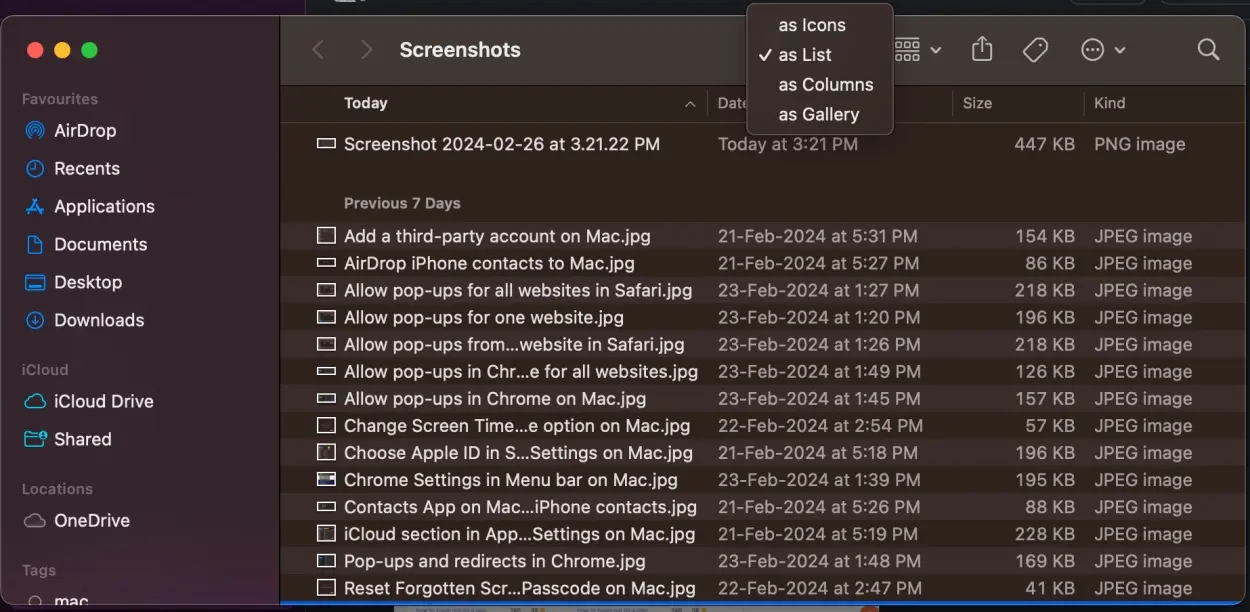
<p style="text-align: justify;">2. Từ biểu tượng&nbsp;<strong>View</strong>, chọn chế độ xem&nbsp;<strong>List, Column</strong>&nbsp;hoặc&nbsp;<strong>Gallery.</strong>&nbsp;Phương pháp này không hoạt động đối với chế độ xem&nbsp;<strong>as Icons</strong>.</p>

<figure>
<div style="text-align: justify;"><img alt="Chế độ xem danh sách từ biểu tượng View trên máy Mac" data-i="0" data-src="https://st.quantrimang.com/photos/image/2024/03/13/chon-nhieu-file-tren-mac-1.jpg" data-was-processed="true" height="612" src="https://st.quantrimang.com/photos/image/2024/03/13/chon-nhieu-file-tren-mac-1.jpg" width="1250" /></div>

<figcaption>
<div style="text-align: justify;">Chế độ xem danh sách từ biểu tượng View trên máy Mac</div>
</figcaption>
</figure>

<div style="text-align: justify;"><iframe allowtransparency="true" data-google-container-id="a!2" data-google-query-id="CKW0pK-6joUDFbCLuQUdPB4NMA" data-load-complete="true" frameborder="0" height="0" hspace="0" id="aswift_1" marginheight="0" marginwidth="0" name="aswift_1" sandbox="" scrolling="no" vspace="0" width="694"></iframe></div>

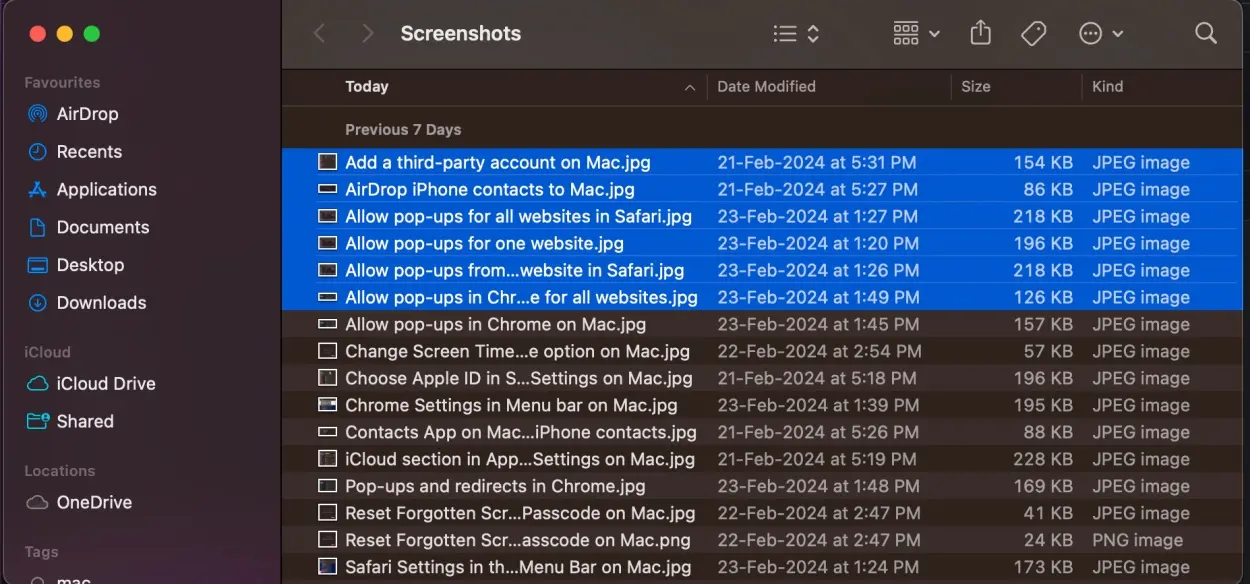
<p style="text-align: justify;">3. Chọn file đầu tiên trong chuỗi.</p>

<p style="text-align: justify;">4. Bây giờ, giữ phím&nbsp;<strong>Shift</strong>&nbsp;trên bàn phím và nhấp vào file cuối cùng trong chuỗi.</p>

<p style="text-align: justify;">Điều này sẽ tự động chọn tất cả các file ở giữa chuỗi đó. Sau khi được chọn, bạn có thể cắt, sao chép hoặc dán các file này bằng cách nhấp chuột phải vào vùng đã chọn và chọn hành động mong muốn.</p>

<figure>
<div style="text-align: justify;"><img alt="Chọn file liền kề trên máy Mac" data-adbro-processed="true" data-i="1" data-src="https://st.quantrimang.com/photos/image/2024/03/13/chon-nhieu-file-tren-mac-2.jpg" data-was-processed="true" height="584" src="https://st.quantrimang.com/photos/image/2024/03/13/chon-nhieu-file-tren-mac-2.jpg" width="1250" /></div>

<figcaption>
<div style="text-align: justify;">Chọn file liền kề trên máy Mac</div>
</figcaption>
</figure>

<h2 style="text-align: justify;">Cách 2: Chọn nhiều file không liền kề</h2>

<p style="text-align: justify;">Bạn không nhất thiết phải luôn muốn chọn các file liền kề trên máy Mac của mình. Đôi khi, bạn có thể muốn chọn các file được đặt khá xa nhau. Nếu bạn muốn chọn nhiều file trong một thư mục trên máy Mac nhưng không muốn chọn tất cả chúng thì đây là tùy chọn tốt nhất dành cho bạn.</p>

<p style="text-align: justify;">1. Mở thư mục chứa các file hoặc hình ảnh bạn muốn chọn.</p>

<p style="text-align: justify;">2. Bây giờ, bấm vào file đầu tiên bạn muốn chọn.</p>

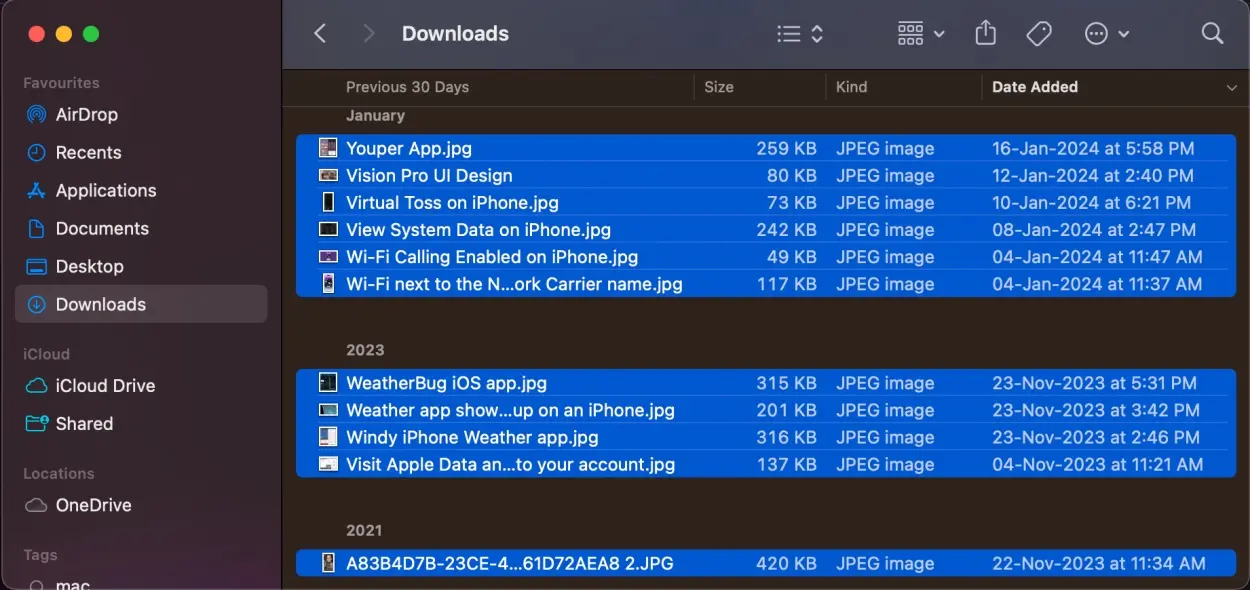
<p style="text-align: justify;">3. Giữ phím&nbsp;<strong>Command</strong>&nbsp;trên bàn phím máy Mac của bạn và nhấp vào tất cả các file khác mà bạn muốn chọn.</p>

<figure>
<div style="text-align: justify;"><img alt="Sử dụng phím Command để chọn nhiều mục trên máy Mac" data-i="2" data-src="https://st.quantrimang.com/photos/image/2024/03/13/chon-nhieu-file-tren-mac-3.jpg" data-was-processed="true" height="595" src="https://st.quantrimang.com/photos/image/2024/03/13/chon-nhieu-file-tren-mac-3.jpg" width="1250" /></div>

<figcaption>
<div style="text-align: justify;">Sử dụng phím Command để chọn nhiều mục trên máy Mac</div>
</figcaption>
</figure>

<div style="text-align: justify;"><iframe allowtransparency="true" data-google-container-id="a!3" data-google-query-id="CP6wpK-6joUDFbT_TAIdLhQKyw" data-load-complete="true" frameborder="0" height="0" hspace="0" id="aswift_2" marginheight="0" marginwidth="0" name="aswift_2" sandbox="" scrolling="no" vspace="0" width="694"></iframe></div>

<p style="text-align: justify;">4. Nếu bạn vô tình chọn một file, hãy nhấp lại vào file đó trong khi nhấn phím&nbsp;<strong>Command</strong>. Mục đó sẽ được bỏ chọn.</p>

<h2 style="text-align: justify;">Cách 3: Chọn một nhóm file</h2>

<p style="text-align: justify;">Nếu bạn muốn chọn một số lượng lớn file trên máy Mac, bạn luôn có thể sử dụng phương pháp “nhấp và kéo”. Chúng ta đã sử dụng thủ thuật này từ lâu rồi. Bạn có nhớ việc chọn nhiều ảnh trên những chiếc máy tính cũ kỹ thời thơ ấu không? Bạn có thể sử dụng thủ thuật tương tự để chọn một nhóm lớn ảnh chụp màn hình, hình ảnh hoặc các file khác trên máy Mac của mình.</p>

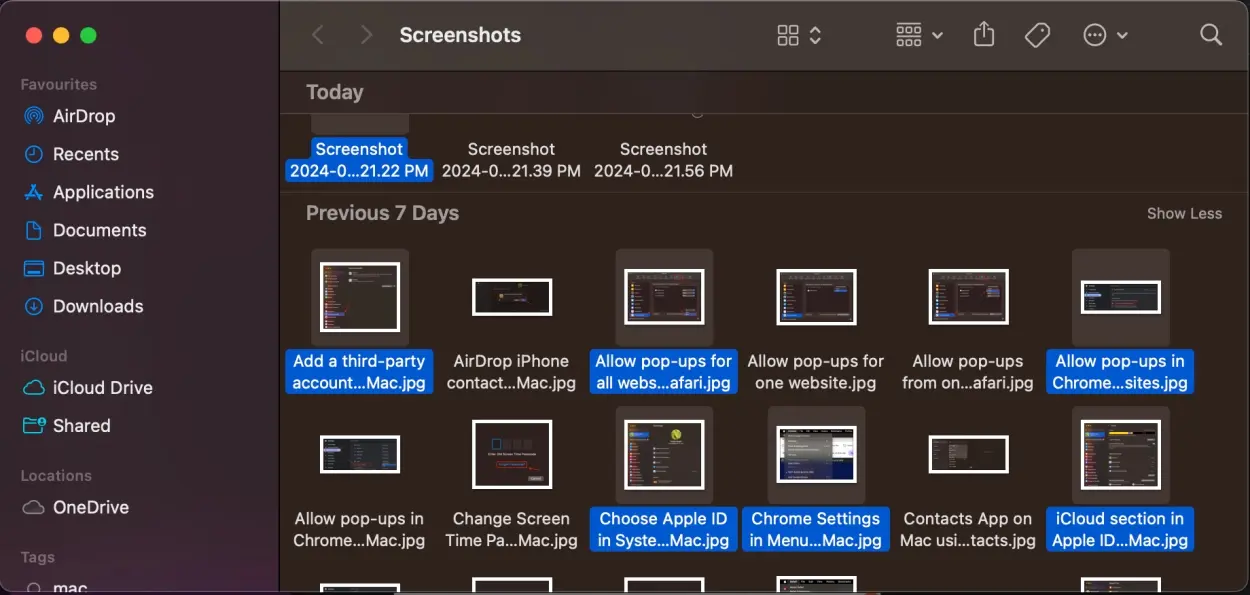
<p style="text-align: justify;">1. Khi bạn đã mở thư mục, hãy nhấp và giữ vào một khoảng trống và kéo con trỏ bằng ngón tay kia qua các file bạn muốn chọn.</p>

<p style="text-align: justify;">2. Thao tác này sẽ tạo một hộp chọn với tất cả các file mà bạn muốn chọn. Bây giờ. hãy thả con trỏ ra.</p>

<figure>
<div style="text-align: justify;"><img alt="Nhấp và kéo để chọn nhiều file trên MacBook" data-i="3" data-src="https://st.quantrimang.com/photos/image/2024/03/13/chon-nhieu-file-tren-mac-4.jpg" data-was-processed="true" height="595" src="https://st.quantrimang.com/photos/image/2024/03/13/chon-nhieu-file-tren-mac-4.jpg" width="1250" /></div>

<figcaption>
<div style="text-align: justify;">Nhấp và kéo để chọn nhiều file trên MacBook</div>
</figcaption>
</figure>

<p style="text-align: justify;">3. Nếu bạn vô tình bỏ lỡ hoặc chọn nhầm một số file, hãy giữ phím Command và nhấp vào file bạn muốn thêm hoặc xóa khỏi vùng chọn.</p>

<h2 style="text-align: justify;">Cách 4: Chọn tất cả các file trong một thư mục</h2>

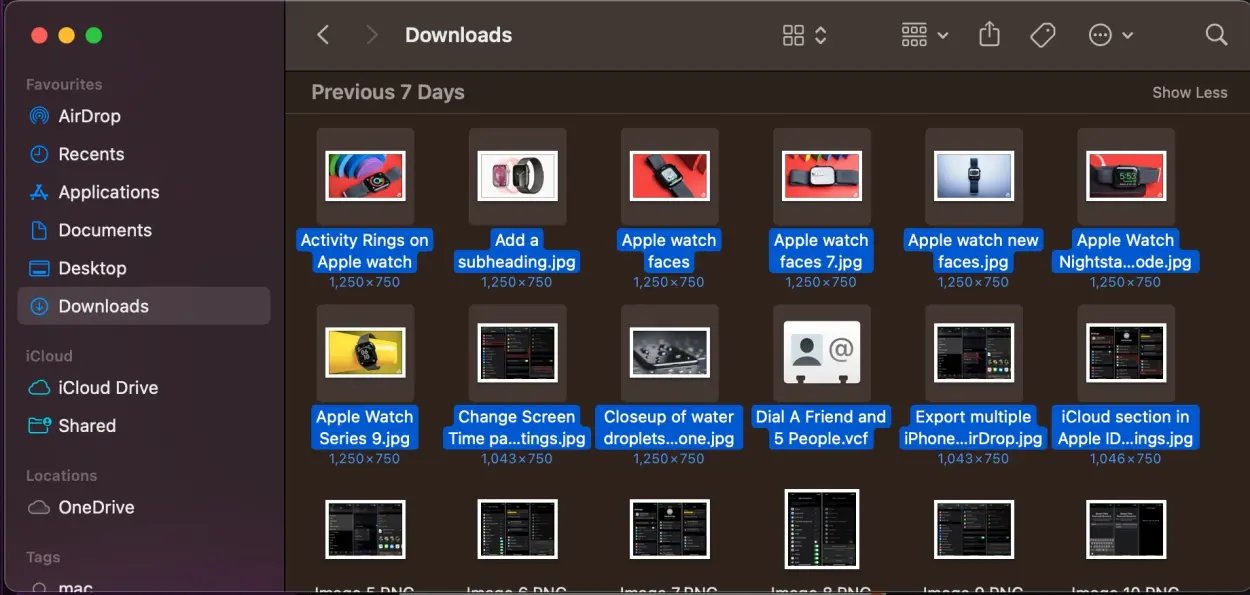
<p style="text-align: justify;">Nếu bạn muốn nhanh chóng lấy tất cả các file trong một thư mục hoặc chọn tất cả các file trên desktop của máy Mac, cách tốt nhất là nhấn&nbsp;<strong>Command + A</strong>. Đây là phím tắt để chọn tất cả các file trên máy Mac. Bất kể số đó là bao nhiêu, nó sẽ chọn tất cả các file, ứng dụng và thư mục ở một vị trí nhất định. Trong trường hợp bạn muốn xóa một vài file khỏi lựa chọn của mình, hãy nhấn phím&nbsp;<strong>Command</strong>&nbsp;và nhấp vào mục đó.</p>

<figure>
<div style="text-align: justify;"><img alt="Chọn tất cả các file trên máy Mac" data-i="4" data-src="https://st.quantrimang.com/photos/image/2024/03/13/chon-nhieu-file-tren-mac-5.jpg" data-was-processed="true" height="590" src="https://st.quantrimang.com/photos/image/2024/03/13/chon-nhieu-file-tren-mac-5.jpg" width="1250" /></div>

<figcaption>
<div style="text-align: justify;">Chọn tất cả các file trên máy Mac</div>
</figcaption>
</figure>

<div style="text-align: justify;"><iframe allowtransparency="true" data-google-container-id="a!4" data-google-query-id="CMnz56-6joUDFbIwewcdsH4Bcw" data-load-complete="true" frameborder="0" height="0" hspace="0" id="aswift_3" marginheight="0" marginwidth="0" name="aswift_3" sandbox="" scrolling="no" vspace="0" width="694"></iframe></div>

<p style="text-align: justify;">Phương pháp này rất hữu ích và nhanh chóng khi bạn muốn sao lưu dữ liệu MacBook của mình hoặc xóa một nhóm lớn những thứ không cần thiết cùng một lúc.</p>

<p style="text-align: justify;">Thật dễ dàng để chọn nhiều file trên macOS. Tùy thuộc vào nhu cầu của bạn, bạn có thể chọn nhiều hình ảnh bằng phím tắt, chọn các file liền kề cùng một lúc hoặc chọn riêng lẻ nhiều mục không liền kề trên máy Mac.</p>

<p style="text-align: justify;">Chúc bạn thực hiện thành công!</p>

<div style="text-align: justify;">&nbsp;</div>
		</div>
				<div id="author">
						<p>
				<strong>Nguồn tin:</strong>
				Quantrimang.com
			</p>
		</div>
	</div>
	<div id="footer" class="clearfix">
		<div id="url">
			<strong>URL của bản tin này: </strong><a href="https://www.nguoicodonvn2008.info/vi/news/savefile/kien-thuc-may-tinh/4-cach-chon-nhieu-file-tren-may-mac-8229.html" title="4 cách chọn nhiều file trên máy Mac">https://www.nguoicodonvn2008.info/vi/news/savefile/kien-thuc-may-tinh/4-cach-chon-nhieu-file-tren-may-mac-8229.html</a>

		</div>
		<div class="clear"></div>
		<div class="copyright">
			&copy; .&#x3A; Nguoicodonvn2008.info - Cõi lòng người cô đơn &#x3A;.
		</div>
		<div id="contact">
			<a href="mailto:admin@nguoicodonvn2008.info">admin@nguoicodonvn2008.info</a>
		</div>
	</div>
</div>
        <div id="timeoutsess" class="chromeframe">
            Bạn đã không sử dụng Site, <a onclick="timeoutsesscancel();" href="https://www.nguoicodonvn2008.info/#">Bấm vào đây để duy trì trạng thái đăng nhập</a>. Thời gian chờ: <span id="secField"> 60 </span> giây
        </div>
        <div id="openidResult" class="nv-alert" style="display:none"></div>
        <div id="openidBt" data-result="" data-redirect=""></div>
		</script>
		<div class="car-top">
  <span><img src="https://www.nguoicodonvn2008.info/themes/default/images/car.png" alt=""></span>
</div>
<script src="https://www.nguoicodonvn2008.info/assets/js/jquery/jquery.min.js"></script>
<script>var nv_base_siteurl="/",nv_lang_data="vi",nv_lang_interface="vi",nv_name_variable="nv",nv_fc_variable="op",nv_lang_variable="language",nv_module_name="news",nv_func_name="savefile",nv_is_user=0, nv_my_ofs=-4,nv_my_abbr="EDT",nv_cookie_prefix="nv4c_e856T",nv_check_pass_mstime=1738000,nv_area_admin=0,nv_safemode=0,theme_responsive=0,nv_recaptcha_ver=2,nv_recaptcha_sitekey="",nv_recaptcha_type="image",XSSsanitize=1;</script>
<script src="https://www.nguoicodonvn2008.info/assets/js/language/vi.js"></script>
<script src="https://www.nguoicodonvn2008.info/assets/js/DOMPurify/purify3.js"></script>
<script src="https://www.nguoicodonvn2008.info/assets/js/global.js"></script>
<script src="https://www.nguoicodonvn2008.info/assets/js/site.js"></script>
<script src="https://www.nguoicodonvn2008.info/themes/default/js/news.js"></script>
<script src="https://www.nguoicodonvn2008.info/themes/default/js/main.js"></script>
<script src="https://www.nguoicodonvn2008.info/themes/default/js/custom.js"></script>
<script type="application/ld+json">
        {
            "@context": "https://schema.org",
            "@type": "Organization",
            "url": "https://www.nguoicodonvn2008.info",
            "logo": "https://www.nguoicodonvn2008.info/uploads/angel.gif"
        }
        </script>
<script src="https://www.nguoicodonvn2008.info/themes/default/js/bootstrap.min.js"></script>
<script type="text/javascript">
var $scrolltop = $('.car-top');
$scrolltop.on('click', function () {
    $('html,body').animate({
        scrollTop: 0
    }, 800);
    $(this).addClass("car-run");
    setTimeout(function(){ $scrolltop.removeClass('car-run');}, 1000);
    return false;
});
$(window).on('scroll', function ()
{ 
    if($(window).scrollTop() >= 200)
    {
        $scrolltop.addClass("show");
        $scrolltop.addClass("car-down");
    }
    else
    {
       $scrolltop.removeClass("show");
       setTimeout(function(){ $scrolltop.removeClass('car-down');}, 300);
    }
});
</script>
</body>
</html>