<!DOCTYPE html>
    <html lang="vi" xmlns="http://www.w3.org/1999/xhtml" prefix="og: http://ogp.me/ns#">
    <head>
<title>3 cách kích hoạt Telnet trong Windows 10 &amp; 11</title>
<meta name="description" content="3 cách kích hoạt Telnet trong Windows 10 &amp; 11 - Savefile - Tin Tức -...">
<meta name="author" content=".: Nguoicodonvn2008.info - Cõi lòng người cô đơn :.">
<meta name="copyright" content=".: Nguoicodonvn2008.info - Cõi lòng người cô đơn :. [admin@nguoicodonvn2008.info]">
<meta name="robots" content="index, archive, follow, noodp">
<meta name="googlebot" content="index,archive,follow,noodp">
<meta name="msnbot" content="all,index,follow">
<meta name="generator" content="NukeViet v4.5">
<meta http-equiv="Content-Type" content="text/html; charset=utf-8">
<meta property="og:title" content="3 cách kích hoạt Telnet trong Windows 10 &amp; 11">
<meta property="og:type" content="website">
<meta property="og:description" content="Savefile - Tin Tức - https&#x3A;&#x002F;&#x002F;www.nguoicodonvn2008.info&#x002F;vi&#x002F;news&#x002F;savefile&#x002F;kien-thuc-may-tinh&#x002F;3-cach-kich-hoat-telnet-trong-windows-10-11-9871.html">
<meta property="og:site_name" content=".&#x3A; Nguoicodonvn2008.info - Cõi lòng người cô đơn &#x3A;.">
<meta property="og:url" content="https://www.nguoicodonvn2008.info/vi/news/savefile/kien-thuc-may-tinh/3-cach-kich-hoat-telnet-trong-windows-10-11-9871.html">
<link rel="shortcut icon" href="https://www.nguoicodonvn2008.info/favicon.ico">
<link rel="canonical" href="https://www.nguoicodonvn2008.info/vi/news/savefile/kien-thuc-may-tinh/3-cach-kich-hoat-telnet-trong-windows-10-11-9871.html">
<link rel="alternate" href="https://www.nguoicodonvn2008.info/vi/news/rss/" title="Tin Tức" type="application/rss+xml">
<link rel="alternate" href="https://www.nguoicodonvn2008.info/vi/news/rss/karaoke-dual/" title="Tin Tức - Karaoke Dual" type="application/rss+xml">
<link rel="alternate" href="https://www.nguoicodonvn2008.info/vi/news/rss/nhac-tre/" title="Tin Tức - Nhạc trẻ" type="application/rss+xml">
<link rel="alternate" href="https://www.nguoicodonvn2008.info/vi/news/rss/tru-tinh/" title="Tin Tức - Trữ tình" type="application/rss+xml">
<link rel="alternate" href="https://www.nguoicodonvn2008.info/vi/news/rss/nuoc-ngoai/" title="Tin Tức - Nước ngoài" type="application/rss+xml">
<link rel="alternate" href="https://www.nguoicodonvn2008.info/vi/news/rss/remix/" title="Tin Tức - Remix" type="application/rss+xml">
<link rel="alternate" href="https://www.nguoicodonvn2008.info/vi/news/rss/tam-su-tinh-yeu/" title="Tin Tức - Tâm sự tình yêu" type="application/rss+xml">
<link rel="alternate" href="https://www.nguoicodonvn2008.info/vi/news/rss/tho-suu-tam/" title="Tin Tức - Thơ sưu tầm" type="application/rss+xml">
<link rel="alternate" href="https://www.nguoicodonvn2008.info/vi/news/rss/cuoc-song/" title="Tin Tức - Cuộc sống" type="application/rss+xml">
<link rel="alternate" href="https://www.nguoicodonvn2008.info/vi/news/rss/phan-mem/" title="Tin Tức - Phần mềm" type="application/rss+xml">
<link rel="alternate" href="https://www.nguoicodonvn2008.info/vi/news/rss/kien-thuc-may-tinh/" title="Tin Tức - Kiến thức máy tính" type="application/rss+xml">
<link rel="alternate" href="https://www.nguoicodonvn2008.info/vi/news/rss/hoc-tap/" title="Tin Tức - Học tập" type="application/rss+xml">
<link rel="alternate" href="https://www.nguoicodonvn2008.info/vi/news/rss/tai-lieu/" title="Tin Tức - Tài liệu" type="application/rss+xml">
<link rel="alternate" href="https://www.nguoicodonvn2008.info/vi/news/rss/de-thi/" title="Tin Tức - Đề thi" type="application/rss+xml">
<link rel="preload" as="style" href="https://www.nguoicodonvn2008.info/assets/css/font-awesome.min.css" type="text/css">
<link rel="preload" as="style" href="https://www.nguoicodonvn2008.info/themes/default/css/bootstrap.non-responsive.css" type="text/css">
<link rel="preload" as="style" href="https://www.nguoicodonvn2008.info/themes/default/css/style.css" type="text/css">
<link rel="preload" as="style" href="https://www.nguoicodonvn2008.info/themes/default/css/style.non-responsive.css" type="text/css">
<link rel="preload" as="style" href="https://www.nguoicodonvn2008.info/themes/default/css/news.css" type="text/css">
<link rel="preload" as="style" href="https://www.nguoicodonvn2008.info/themes/default/css/custom.css" type="text/css">
<link rel="preload" as="script" href="https://www.nguoicodonvn2008.info/assets/js/jquery/jquery.min.js" type="text/javascript">
<link rel="preload" as="script" href="https://www.nguoicodonvn2008.info/assets/js/language/vi.js" type="text/javascript">
<link rel="preload" as="script" href="https://www.nguoicodonvn2008.info/assets/js/DOMPurify/purify3.js" type="text/javascript">
<link rel="preload" as="script" href="https://www.nguoicodonvn2008.info/assets/js/global.js" type="text/javascript">
<link rel="preload" as="script" href="https://www.nguoicodonvn2008.info/assets/js/site.js" type="text/javascript">
<link rel="preload" as="script" href="https://www.nguoicodonvn2008.info/themes/default/js/news.js" type="text/javascript">
<link rel="preload" as="script" href="https://www.nguoicodonvn2008.info/themes/default/js/main.js" type="text/javascript">
<link rel="preload" as="script" href="https://www.nguoicodonvn2008.info/themes/default/js/custom.js" type="text/javascript">
<link rel="preload" as="script" href="https://www.nguoicodonvn2008.info/themes/default/js/bootstrap.min.js" type="text/javascript">
<link rel="stylesheet" href="https://www.nguoicodonvn2008.info/assets/css/font-awesome.min.css">
<link rel="stylesheet" href="https://www.nguoicodonvn2008.info/themes/default/css/bootstrap.non-responsive.css">
<link rel="stylesheet" href="https://www.nguoicodonvn2008.info/themes/default/css/style.css">
<link rel="stylesheet" href="https://www.nguoicodonvn2008.info/themes/default/css/style.non-responsive.css">
<link rel="StyleSheet" href="https://www.nguoicodonvn2008.info/themes/default/css/news.css">
<link rel="stylesheet" href="https://www.nguoicodonvn2008.info/themes/default/css/custom.css">
<style type="text/css">
	body{background: #fff;}
</style>
    </head>
    <body>
<div id="print">
	<div id="hd_print">
		<h2 class="pull-left">.&#x3A; Nguoicodonvn2008.info - Cõi lòng người cô đơn &#x3A;.</h2>
		<p class="pull-right"><a title=".&#x3A; Nguoicodonvn2008.info - Cõi lòng người cô đơn &#x3A;." href="https://www.nguoicodonvn2008.info/">https://www.nguoicodonvn2008.info</a></p>
	</div>
	<div class="clear"></div>
	<hr />
	<div id="content">
		<h1>3 cách kích hoạt Telnet trong Windows 10 &amp; 11</h1>
		<ul class="list-inline">
			<li>Chủ nhật - 23/02/2025 21:48</li>
			<li class="hidden-print txtrequired"><em class="fa fa-print">&nbsp;</em><a title="In ra" href="javascript:;" onclick="window.print()">In ra</a></li>
			<li class="hidden-print txtrequired"><em class="fa fa-power-off">&nbsp;</em><a title="Đóng cửa sổ này" href="javascript:;" onclick="window.close()">Đóng cửa sổ này</a></li>
		</ul>
		<div class="clear"></div>
		<div id="hometext">
		</div>
				<div class="imghome">
			<img alt="3 cách kích hoạt Telnet trong Windows 10 &amp; 11" src="https://st.quantrimang.com/photos/image/2025/02/10/kich-hoat-telnet-trong-windows-4.jpg" width="460" class="img-thumbnail" />
		</div>
		<div class="clear"></div>
		<div id="bodytext" class="clearfix">
			<p style="text-align: justify;">Bất chấp các vấn đề về lỗ hổng,&nbsp;Telnet&nbsp;vẫn được người dùng Windows sử dụng làm giao thức client-server. Giao thức này chủ yếu được sử dụng để cấu hình phần cứng mạng ban đầu, truy cập từ xa, kiểm tra và chuyển tiếp cổng, cũng như các tác vụ khác không liên quan đến việc truyền thông tin nhạy cảm.</p>

<p style="text-align: justify;">Bạn có thể bật Telnet trên máy tính Windows 10 và 11 thông qua công cụ Command Prompt hoặc giao diện người dùng đồ họa (GUI). Sau đây, bài vết sẽ chỉ cho bạn nhiều cách để bật Telnet trên máy tính Windows.</p>

<h2 style="text-align: justify;">1. Bật Telnet trên Windows bằng Control Panel</h2>

<p style="text-align: justify;">Bạn có thể bật Telnet Client bằng Control Panel cổ điển. Vì đây là tính năng tùy chọn, bạn có thể bật tính năng này bằng hộp thoại Windows Optional Feature. Bạn có thể sử dụng tính năng này để thêm hoặc xóa các tính năng tùy chọn của người dùng khác trên Windows.</p>

<p style="text-align: justify;">Để bật Telnet Client bằng Control Panel:</p>

<ul>
	<li style="text-align: justify;">Nhấn&nbsp;<strong>Win + R&nbsp;</strong>để&nbsp;mở Run.</li>
	<li style="text-align: justify;">Nhập&nbsp;<strong>control</strong>&nbsp;và nhấp vào&nbsp;<strong>OK</strong>&nbsp;để&nbsp;mở Control Panel.</li>
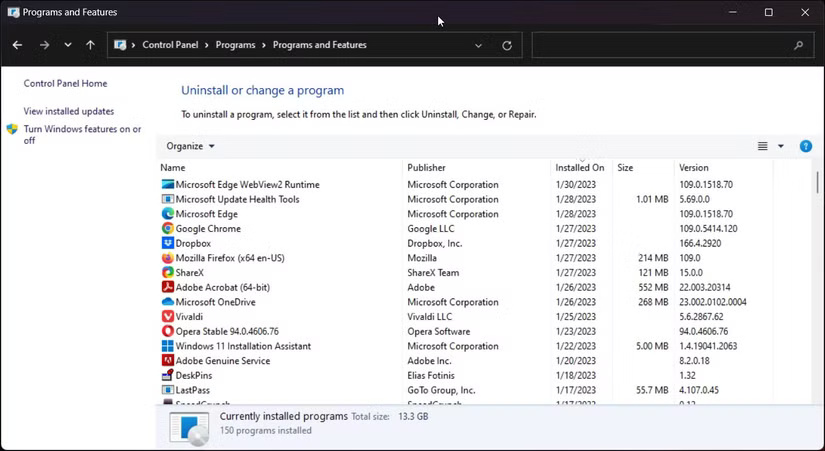
	<li style="text-align: justify;">Trong Control Panel, nhấp vào&nbsp;<strong>Uninstall a Program</strong>&nbsp;trong&nbsp;<strong>Programs and Features</strong>.</li>
</ul>

<figure>
<div style="text-align: justify;"><img alt="" data-i="0" data-src="https://st.quantrimang.com/photos/image/2025/02/10/kich-hoat-telnet-trong-windows-1.jpg" data-was-processed="true" height="451" src="https://st.quantrimang.com/photos/image/2025/02/10/kich-hoat-telnet-trong-windows-1.jpg" width="825" /></div>
</figure>

<ul>
	<li style="text-align: justify;">Trong ngăn bên trái, nhấp vào&nbsp;<strong>Turn Windows feature on or off</strong>.</li>
</ul>

<figure>
<div style="text-align: justify;"><img alt="" data-i="1" data-src="https://st.quantrimang.com/photos/image/2025/02/10/kich-hoat-telnet-trong-windows-2.jpg" data-was-processed="true" src="https://st.quantrimang.com/photos/image/2025/02/10/kich-hoat-telnet-trong-windows-2.jpg" /></div>
</figure>

<ul>
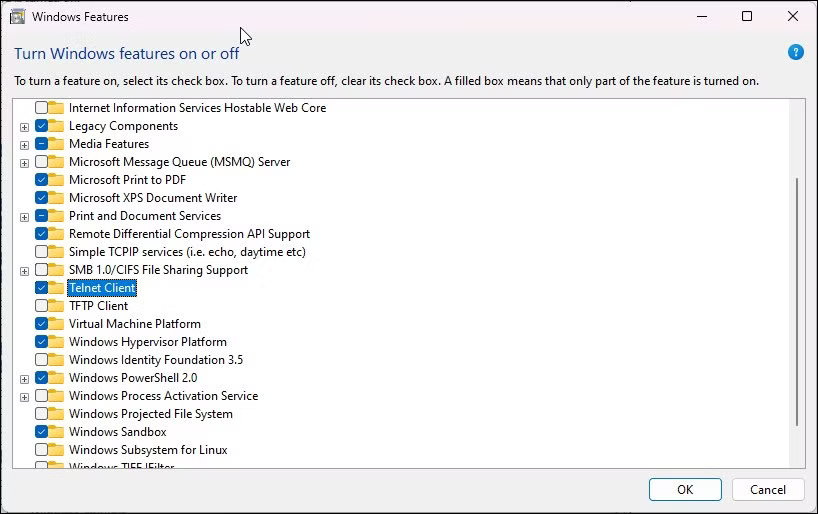
	<li style="text-align: justify;">Trong hộp thoại Windows Features, cuộn xuống và chọn&nbsp;<strong>Telnet Client</strong>.</li>
	<li style="text-align: justify;">Nhấp vào&nbsp;<strong>OK</strong>&nbsp;và đợi tính năng cài đặt. Sau khi cài đặt, hãy&nbsp;khởi động lại PC&nbsp;để áp dụng các thay đổi và bật tính năng.</li>
</ul>

<p style="text-align: justify;">Nếu bạn cần tắt Telnet:</p>

<ul>
	<li style="text-align: justify;">Mở hộp thoại&nbsp;<strong>Windows Features</strong>&nbsp;và bỏ chọn&nbsp;<strong>Telnet Client</strong>.</li>
	<li style="text-align: justify;">Nhấp vào&nbsp;<strong>OK</strong>&nbsp;và đợi tính năng gỡ cài đặt.</li>
	<li style="text-align: justify;">Nhấp vào&nbsp;<strong>Restart now</strong>&nbsp;để khởi động lại PC và áp dụng các thay đổi.</li>
</ul>

<h2 style="text-align: justify;">2. Bật Telnet Client bằng Windows PowerShell</h2>

<figure>
<div style="text-align: justify;"><img alt="" data-i="2" data-src="https://st.quantrimang.com/photos/image/2025/02/10/kich-hoat-telnet-trong-windows-3.jpg" data-was-processed="true" height="302" src="https://st.quantrimang.com/photos/image/2025/02/10/kich-hoat-telnet-trong-windows-3.jpg" width="825" /></div>
</figure>

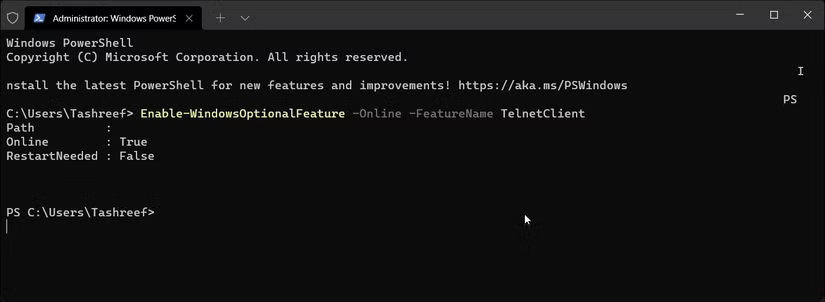
<p style="text-align: justify;">Bạn có thể sử dụng cmdlet Enable-WindowsOptionalFeature để bật Telnet Client bằng&nbsp;Windows PowerShell. Hữu ích nếu bạn không thể bật tính năng bằng hộp thoại Windows Features và nó cũng nhanh hơn phương pháp GUI.</p>

<p style="text-align: justify;">Để bật Telnet bằng Windows PowerShell:</p>

<ul>
	<li style="text-align: justify;">Nhấn&nbsp;<strong>Win + X</strong>&nbsp;để mở menu WinX.</li>
	<li style="text-align: justify;">Nhấp vào&nbsp;<strong>Windows Terminal (Admin)</strong>&nbsp;và nhấp vào&nbsp;<strong>Yes</strong>&nbsp;để mở ứng dụng Terminal với quyền admin. Nếu bạn đang sử dụng Windows 10, hãy nhập&nbsp;<strong>PowerShell</strong>&nbsp;vào Windows Search và mở Windows PowerShell với quyền admin.</li>
	<li style="text-align: justify;">Trong cửa sổ PowerShell, hãy nhập lệnh sau và nhấn&nbsp;<strong>Enter</strong>&nbsp;để bật Telnet:</li>
</ul>

<pre id="pre0">
<code>Enable-WindowsOptionalFeature -Online -FeatureName TelnetClient</code></pre>

<ul>
	<li style="text-align: justify;">Quá trình này có thể mất vài phút, vì vậy hãy đợi hoàn tất và trả về báo cáo trạng thái. Nếu thành công, bạn sẽ thấy kết quả là&nbsp;<strong>Online:True.</strong></li>
	<li style="text-align: justify;">Nếu bạn muốn tắt Telnet Client, hãy sử dụng lệnh sau thay thế:</li>
</ul>

<pre id="pre1">
<code>Disable-WindowsOptionalFeature -Online -FeatureName TelnetClient</code></pre>

<ul>
	<li style="text-align: justify;">Đóng PowerShell và khởi động lại PC.</li>
</ul>

<h2 style="text-align: justify;">3. Cài đặt Telnet Client bằng Command Prompt</h2>

<figure>
<div style="text-align: justify;"><img alt="" data-adbro-processed="true" data-i="3" data-src="https://st.quantrimang.com/photos/image/2025/02/10/kich-hoat-telnet-trong-windows-4.jpg" data-was-processed="true" height="388" src="https://st.quantrimang.com/photos/image/2025/02/10/kich-hoat-telnet-trong-windows-4.jpg" width="825" /></div>
</figure>

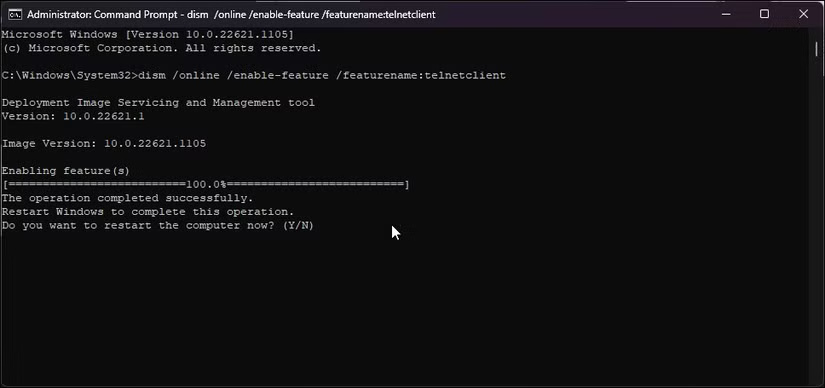
<p style="text-align: justify;">Nếu thích&nbsp;<a data-type="internal" href="https://quantrimang.com/cong-nghe/thu-thuat-command-prompt-co-the-ban-chua-biet-137984" title="6 thủ thuật thú vị bạn có thể làm trong Windows Command Prompt">Command Prompt</a>&nbsp;hơn PowerShell, bạn có thể sử dụng lệnh DISM /Online để bật các tính năng tùy chọn trên máy tính Windows 11 của mình.</p>

<p style="text-align: justify;">Thực hiện theo các bước sau để cài đặt Telnet bằng Command Prompt:</p>

<ul>
	<li style="text-align: justify;">Nhấn phím Win và nhập cmd.</li>
	<li style="text-align: justify;">Nhấp chuột phải vào Command Prompt và chọn&nbsp;<strong>Run as administrator</strong>.</li>
	<li style="text-align: justify;">Trong cửa sổ Command Prompt, nhập lệnh sau và nhấn&nbsp;<strong>Enter</strong>:</li>
</ul>

<pre id="pre2">
<code>dism /online /Enable-Feature /FeatureName:TelnetClient</code></pre>

<ul>
	<li style="text-align: justify;">Command Prompt sẽ bắt đầu bật tính năng và hiển thị thông báo hoạt động đã hoàn tất thành công.</li>
	<li style="text-align: justify;">Nếu bạn cần tắt Telnet, hãy nhập lệnh sau và nhấn&nbsp;<strong>Enter</strong>:</li>
</ul>

<pre id="pre3">
<code>dism /Online /Disable-Feature /FeatureName:TelnetClient</code></pre>

<ul>
	<li style="text-align: justify;">Chờ thông báo thành công.</li>
	<li style="text-align: justify;">Nhập&nbsp;<strong>exit</strong>&nbsp;và nhấn&nbsp;<strong>Enter</strong>&nbsp;để đóng Command Prompt.</li>
</ul>

<div style="text-align: justify;">&nbsp;</div>
		</div>
				<div id="author">
						<p>
				<strong>Nguồn tin:</strong>
				Quantrimang.com:
			</p>
		</div>
	</div>
	<div id="footer" class="clearfix">
		<div id="url">
			<strong>URL của bản tin này: </strong><a href="https://www.nguoicodonvn2008.info/vi/news/savefile/kien-thuc-may-tinh/3-cach-kich-hoat-telnet-trong-windows-10-11-9871.html" title="3 cách kích hoạt Telnet trong Windows 10 &amp; 11">https://www.nguoicodonvn2008.info/vi/news/savefile/kien-thuc-may-tinh/3-cach-kich-hoat-telnet-trong-windows-10-11-9871.html</a>

		</div>
		<div class="clear"></div>
		<div class="copyright">
			&copy; .&#x3A; Nguoicodonvn2008.info - Cõi lòng người cô đơn &#x3A;.
		</div>
		<div id="contact">
			<a href="mailto:admin@nguoicodonvn2008.info">admin@nguoicodonvn2008.info</a>
		</div>
	</div>
</div>
        <div id="timeoutsess" class="chromeframe">
            Bạn đã không sử dụng Site, <a onclick="timeoutsesscancel();" href="https://www.nguoicodonvn2008.info/#">Bấm vào đây để duy trì trạng thái đăng nhập</a>. Thời gian chờ: <span id="secField"> 60 </span> giây
        </div>
        <div id="openidResult" class="nv-alert" style="display:none"></div>
        <div id="openidBt" data-result="" data-redirect=""></div>
		</script>
		<div class="car-top">
  <span><img src="https://www.nguoicodonvn2008.info/themes/default/images/car.png" alt=""></span>
</div>
<script src="https://www.nguoicodonvn2008.info/assets/js/jquery/jquery.min.js"></script>
<script>var nv_base_siteurl="/",nv_lang_data="vi",nv_lang_interface="vi",nv_name_variable="nv",nv_fc_variable="op",nv_lang_variable="language",nv_module_name="news",nv_func_name="savefile",nv_is_user=0, nv_my_ofs=-4,nv_my_abbr="EDT",nv_cookie_prefix="nv4c_e856T",nv_check_pass_mstime=1738000,nv_area_admin=0,nv_safemode=0,theme_responsive=0,nv_recaptcha_ver=2,nv_recaptcha_sitekey="",nv_recaptcha_type="image",XSSsanitize=1;</script>
<script src="https://www.nguoicodonvn2008.info/assets/js/language/vi.js"></script>
<script src="https://www.nguoicodonvn2008.info/assets/js/DOMPurify/purify3.js"></script>
<script src="https://www.nguoicodonvn2008.info/assets/js/global.js"></script>
<script src="https://www.nguoicodonvn2008.info/assets/js/site.js"></script>
<script src="https://www.nguoicodonvn2008.info/themes/default/js/news.js"></script>
<script src="https://www.nguoicodonvn2008.info/themes/default/js/main.js"></script>
<script src="https://www.nguoicodonvn2008.info/themes/default/js/custom.js"></script>
<script type="application/ld+json">
        {
            "@context": "https://schema.org",
            "@type": "Organization",
            "url": "https://www.nguoicodonvn2008.info",
            "logo": "https://www.nguoicodonvn2008.info/uploads/angel.gif"
        }
        </script>
<script src="https://www.nguoicodonvn2008.info/themes/default/js/bootstrap.min.js"></script>
<script type="text/javascript">
var $scrolltop = $('.car-top');
$scrolltop.on('click', function () {
    $('html,body').animate({
        scrollTop: 0
    }, 800);
    $(this).addClass("car-run");
    setTimeout(function(){ $scrolltop.removeClass('car-run');}, 1000);
    return false;
});
$(window).on('scroll', function ()
{ 
    if($(window).scrollTop() >= 200)
    {
        $scrolltop.addClass("show");
        $scrolltop.addClass("car-down");
    }
    else
    {
       $scrolltop.removeClass("show");
       setTimeout(function(){ $scrolltop.removeClass('car-down');}, 300);
    }
});
</script>
</body>
</html>