<!DOCTYPE html>
    <html lang="vi" xmlns="http://www.w3.org/1999/xhtml" prefix="og: http://ogp.me/ns#">
    <head>
<title>3 cách để “Bookmark” một thư mục trong máy Mac</title>
<meta name="description" content="3 cách để “Bookmark” một thư mục trong máy Mac - Savefile - Tin Tức -...">
<meta name="author" content=".: Nguoicodonvn2008.info - Cõi lòng người cô đơn :.">
<meta name="copyright" content=".: Nguoicodonvn2008.info - Cõi lòng người cô đơn :. [admin@nguoicodonvn2008.info]">
<meta name="robots" content="index, archive, follow, noodp">
<meta name="googlebot" content="index,archive,follow,noodp">
<meta name="msnbot" content="all,index,follow">
<meta name="generator" content="NukeViet v4.5">
<meta http-equiv="Content-Type" content="text/html; charset=utf-8">
<meta property="og:title" content="3 cách để “Bookmark” một thư mục trong máy Mac">
<meta property="og:type" content="website">
<meta property="og:description" content="Savefile - Tin Tức - https&#x3A;&#x002F;&#x002F;www.nguoicodonvn2008.info&#x002F;vi&#x002F;news&#x002F;savefile&#x002F;kien-thuc-may-tinh&#x002F;3-cach-de-bookmark-mot-thu-muc-trong-may-mac-4050.html">
<meta property="og:site_name" content=".&#x3A; Nguoicodonvn2008.info - Cõi lòng người cô đơn &#x3A;.">
<meta property="og:url" content="https://www.nguoicodonvn2008.info/vi/news/savefile/kien-thuc-may-tinh/3-cach-de-bookmark-mot-thu-muc-trong-may-mac-4050.html">
<link rel="shortcut icon" href="https://www.nguoicodonvn2008.info/favicon.ico">
<link rel="canonical" href="https://www.nguoicodonvn2008.info/vi/news/savefile/kien-thuc-may-tinh/3-cach-de-bookmark-mot-thu-muc-trong-may-mac-4050.html">
<link rel="alternate" href="https://www.nguoicodonvn2008.info/vi/news/rss/" title="Tin Tức" type="application/rss+xml">
<link rel="alternate" href="https://www.nguoicodonvn2008.info/vi/news/rss/karaoke-dual/" title="Tin Tức - Karaoke Dual" type="application/rss+xml">
<link rel="alternate" href="https://www.nguoicodonvn2008.info/vi/news/rss/nhac-tre/" title="Tin Tức - Nhạc trẻ" type="application/rss+xml">
<link rel="alternate" href="https://www.nguoicodonvn2008.info/vi/news/rss/tru-tinh/" title="Tin Tức - Trữ tình" type="application/rss+xml">
<link rel="alternate" href="https://www.nguoicodonvn2008.info/vi/news/rss/nuoc-ngoai/" title="Tin Tức - Nước ngoài" type="application/rss+xml">
<link rel="alternate" href="https://www.nguoicodonvn2008.info/vi/news/rss/remix/" title="Tin Tức - Remix" type="application/rss+xml">
<link rel="alternate" href="https://www.nguoicodonvn2008.info/vi/news/rss/tam-su-tinh-yeu/" title="Tin Tức - Tâm sự tình yêu" type="application/rss+xml">
<link rel="alternate" href="https://www.nguoicodonvn2008.info/vi/news/rss/tho-suu-tam/" title="Tin Tức - Thơ sưu tầm" type="application/rss+xml">
<link rel="alternate" href="https://www.nguoicodonvn2008.info/vi/news/rss/cuoc-song/" title="Tin Tức - Cuộc sống" type="application/rss+xml">
<link rel="alternate" href="https://www.nguoicodonvn2008.info/vi/news/rss/phan-mem/" title="Tin Tức - Phần mềm" type="application/rss+xml">
<link rel="alternate" href="https://www.nguoicodonvn2008.info/vi/news/rss/kien-thuc-may-tinh/" title="Tin Tức - Kiến thức máy tính" type="application/rss+xml">
<link rel="alternate" href="https://www.nguoicodonvn2008.info/vi/news/rss/hoc-tap/" title="Tin Tức - Học tập" type="application/rss+xml">
<link rel="alternate" href="https://www.nguoicodonvn2008.info/vi/news/rss/tai-lieu/" title="Tin Tức - Tài liệu" type="application/rss+xml">
<link rel="alternate" href="https://www.nguoicodonvn2008.info/vi/news/rss/de-thi/" title="Tin Tức - Đề thi" type="application/rss+xml">
<link rel="preload" as="style" href="https://www.nguoicodonvn2008.info/assets/css/font-awesome.min.css" type="text/css">
<link rel="preload" as="style" href="https://www.nguoicodonvn2008.info/themes/default/css/bootstrap.non-responsive.css" type="text/css">
<link rel="preload" as="style" href="https://www.nguoicodonvn2008.info/themes/default/css/style.css" type="text/css">
<link rel="preload" as="style" href="https://www.nguoicodonvn2008.info/themes/default/css/style.non-responsive.css" type="text/css">
<link rel="preload" as="style" href="https://www.nguoicodonvn2008.info/themes/default/css/news.css" type="text/css">
<link rel="preload" as="style" href="https://www.nguoicodonvn2008.info/themes/default/css/custom.css" type="text/css">
<link rel="preload" as="script" href="https://www.nguoicodonvn2008.info/assets/js/jquery/jquery.min.js" type="text/javascript">
<link rel="preload" as="script" href="https://www.nguoicodonvn2008.info/assets/js/language/vi.js" type="text/javascript">
<link rel="preload" as="script" href="https://www.nguoicodonvn2008.info/assets/js/DOMPurify/purify3.js" type="text/javascript">
<link rel="preload" as="script" href="https://www.nguoicodonvn2008.info/assets/js/global.js" type="text/javascript">
<link rel="preload" as="script" href="https://www.nguoicodonvn2008.info/assets/js/site.js" type="text/javascript">
<link rel="preload" as="script" href="https://www.nguoicodonvn2008.info/themes/default/js/news.js" type="text/javascript">
<link rel="preload" as="script" href="https://www.nguoicodonvn2008.info/themes/default/js/main.js" type="text/javascript">
<link rel="preload" as="script" href="https://www.nguoicodonvn2008.info/themes/default/js/custom.js" type="text/javascript">
<link rel="preload" as="script" href="https://www.nguoicodonvn2008.info/themes/default/js/bootstrap.min.js" type="text/javascript">
<link rel="stylesheet" href="https://www.nguoicodonvn2008.info/assets/css/font-awesome.min.css">
<link rel="stylesheet" href="https://www.nguoicodonvn2008.info/themes/default/css/bootstrap.non-responsive.css">
<link rel="stylesheet" href="https://www.nguoicodonvn2008.info/themes/default/css/style.css">
<link rel="stylesheet" href="https://www.nguoicodonvn2008.info/themes/default/css/style.non-responsive.css">
<link rel="StyleSheet" href="https://www.nguoicodonvn2008.info/themes/default/css/news.css">
<link rel="stylesheet" href="https://www.nguoicodonvn2008.info/themes/default/css/custom.css">
<style type="text/css">
	body{background: #fff;}
</style>
    </head>
    <body>
<div id="print">
	<div id="hd_print">
		<h2 class="pull-left">.&#x3A; Nguoicodonvn2008.info - Cõi lòng người cô đơn &#x3A;.</h2>
		<p class="pull-right"><a title=".&#x3A; Nguoicodonvn2008.info - Cõi lòng người cô đơn &#x3A;." href="https://www.nguoicodonvn2008.info/">https://www.nguoicodonvn2008.info</a></p>
	</div>
	<div class="clear"></div>
	<hr />
	<div id="content">
		<h1>3 cách để “Bookmark” một thư mục trong máy Mac</h1>
		<ul class="list-inline">
			<li>Thứ bảy - 08/05/2021 00:54</li>
			<li class="hidden-print txtrequired"><em class="fa fa-print">&nbsp;</em><a title="In ra" href="javascript:;" onclick="window.print()">In ra</a></li>
			<li class="hidden-print txtrequired"><em class="fa fa-power-off">&nbsp;</em><a title="Đóng cửa sổ này" href="javascript:;" onclick="window.close()">Đóng cửa sổ này</a></li>
		</ul>
		<div class="clear"></div>
		<div id="hometext">
		</div>
				<div class="imghome">
			<img alt="3 cách để “Bookmark” một thư mục trong máy Mac" src="https://st.quantrimang.com/photos/image/2021/04/15/cach-bookmark-mot-thu-muc-trong-may-mac6.jpg" width="460" class="img-thumbnail" />
		</div>
		<div class="clear"></div>
		<div id="bodytext" class="clearfix">
			<p style="text-align: justify;">Nếu bạn thấy mình thường xuyên cần phải tìm kiếm và tương tác với một thư mục nhất định trong Finder trên máy Mac của mình, bạn có thể tạo “dấu trang” - &quot;bookmark&quot; cho thư mục đó để tiện truy cập nhanh khi cần. Dưới đây là ba phương pháp mà bạn có thể thực hiện.</p>

<h2 style="text-align: justify;">1. Thêm thư mục vào mục Favorites Sidebar trong Finder</h2>

<p style="text-align: justify;">Cách dễ nhất để tạo một “bookmark” truy cập nhanh cho thư mục là thêm nó dưới dạng một shortcut trong mục Favorites thuộc phần menu sidebar của Finder.</p>

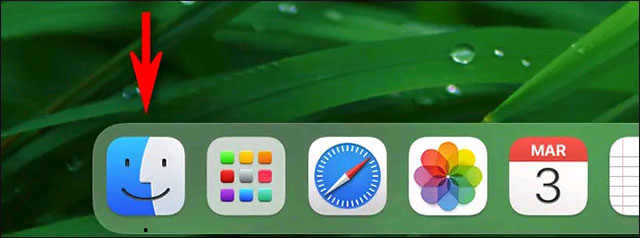
<p style="text-align: justify;">Đầu tiên, bạn nhấp vào biểu tượng&nbsp;<strong>Finder</strong>&nbsp;trong thanh&nbsp;<strong>Dock</strong>&nbsp;để đưa Finder lên nền trước.</p>

<p style="text-align: justify;"><img alt="Nhấp vào biểu tượng Finder" data-i="0" data-src="https://st.quantrimang.com/photos/image/2021/04/15/cach-bookmark-mot-thu-muc-trong-may-mac1.jpg" data-was-processed="true" height="238" src="https://st.quantrimang.com/photos/image/2021/04/15/cach-bookmark-mot-thu-muc-trong-may-mac1.jpg" width="640" /></p>

<p style="text-align: justify;">Tiếp theo, bạn mở một cửa sổ Finder mới. Nếu không thấy menu sidebar xuất hiện ở khu vực bên trái của cửa sổ, bạn điều hướng đến thanh menu hệ thống ở cạnh trên của màn hình, sau đó bấm vào&nbsp;<strong>“View” &gt; “Show Sidebar”</strong>&nbsp;(hoặc nhấn tổ hợp phím&nbsp;<strong>Option + Command + S</strong>&nbsp;trên bàn phím).</p>

<p style="text-align: justify;"><img alt="Bấm vào “View” &gt; “Show Sidebar”" data-i="1" data-src="https://st.quantrimang.com/photos/image/2021/04/15/cach-bookmark-mot-thu-muc-trong-may-mac2.jpg" data-was-processed="true" height="309" src="https://st.quantrimang.com/photos/image/2021/04/15/cach-bookmark-mot-thu-muc-trong-may-mac2.jpg" width="650" /></p>

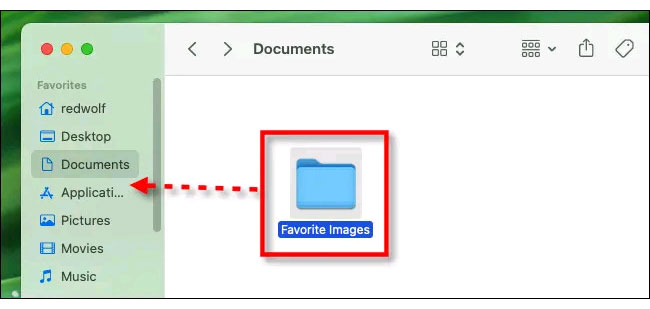
<p style="text-align: justify;">Sử dụng cửa sổ Finder đang mở, bạn điều hướng đến thư mục mà mình muốn thêm vào mục Favorites trên sidebar. Bây giờ, chỉ cần nhấp chuột phải một lần vào thư mục và kéo biểu tượng của thư mục đó vào danh sách &quot;<strong>Favorites</strong>&quot; trong menu sidebar bên trái màn hình. (Nếu danh sách &quot;Favorites&quot; đang bị thu gọn, hãy nhấp vào mũi tên nhỏ bên cạnh để mở rộng nó).</p>

<p style="text-align: justify;"><img alt="Kéo biểu tượng của thư mục vào danh sách &#039;Favorites&#039;" data-i="2" data-src="https://st.quantrimang.com/photos/image/2021/04/15/cach-bookmark-mot-thu-muc-trong-may-mac3.jpg" data-was-processed="true" height="309" src="https://st.quantrimang.com/photos/image/2021/04/15/cach-bookmark-mot-thu-muc-trong-may-mac3.jpg" width="650" /></p>

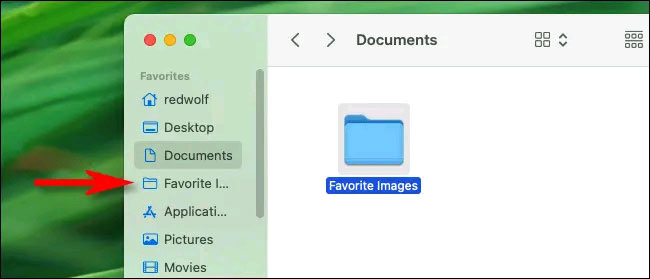
<p style="text-align: justify;">Bạn sẽ thấy shortcut tương ứng của thư mục xuất hiện trong mục Favorites này mỗi khi mở Finder. Chỉ cần click vào shortcut này là bạn đã có thể truy cập nhanh vào thư mục mà không phải điều hướng thủ công như trước.</p>

<p style="text-align: justify;"><img alt="Shortcut của thư mục sẽ xuất hiện trong mục Favorites" data-i="3" data-src="https://st.quantrimang.com/photos/image/2021/04/15/cach-bookmark-mot-thu-muc-trong-may-mac4.jpg" data-was-processed="true" height="279" src="https://st.quantrimang.com/photos/image/2021/04/15/cach-bookmark-mot-thu-muc-trong-may-mac4.jpg" width="650" /></p>

<p style="text-align: justify;">Bạn có thể lặp lại quy trình này với bao nhiêu thư mục tùy thích. Khi số lượng mục bạn đưa vào sidebar vượt quá chiều cao của cửa sổ, một thanh cuộn sẽ xuất hiện cho phép bạn cuộn qua chúng. Và nếu bạn muốn xóa một shortcut khỏi sidebar, chỉ cần kéo nó ra khỏi cửa sổ Finder là xong.</p>

<h2 style="text-align: justify;">2. Tạo shortcut trên Dock</h2>

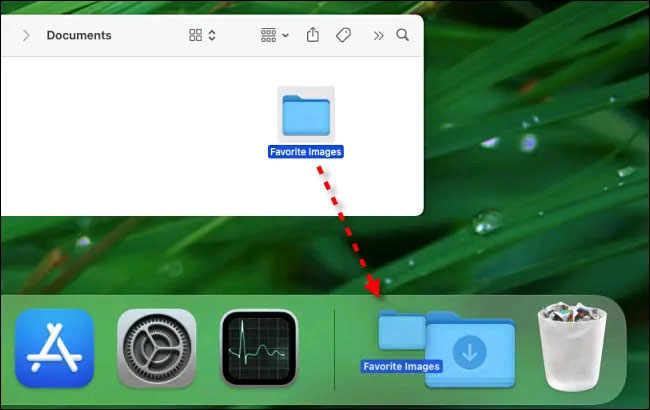
<p style="text-align: justify;">Bạn cũng có thể dễ dàng tạo Shortcut trỏ đến một thư mục cụ thể và đặt nó trong Dock của máy Mac. Để làm như vậy, trước tiên, hãy định vị thư mục trong Finder (hoặc trên màn hình desktop), sau đó kéo thư mục này vào phần khu vực bên cạnh biểu tượng&nbsp;<strong>Trash</strong>&nbsp;trên thanh Dock, như hình minh họa dưới đây.</p>

<p style="text-align: justify;"><img alt="Kéo thư mục vào Dock" data-i="4" data-src="https://st.quantrimang.com/photos/image/2021/04/15/cach-bookmark-mot-thu-muc-trong-may-mac5.jpg" data-was-processed="true" height="410" src="https://st.quantrimang.com/photos/image/2021/04/15/cach-bookmark-mot-thu-muc-trong-may-mac5.jpg" width="650" /></p>

<p style="text-align: justify;">Shortcut của thư mục sẽ lập tức được tạo tại đúng vị trí đó. Nếu nhấp vào shortcut một lần, bạn sẽ có thể xem trước nhanh nội dung của thư mục đó. Nếu bạn muốn truy cập thư mục trong Finder, hãy nhấp chuột phải vào biểu tượng của nó trong thanh Dock và chọn tùy chọn “<strong>Open</strong>” từ menu xuất hiện.</p>

<h2 style="text-align: justify;">3. Tạo “Alias” cho thư mục</h2>

<p style="text-align: justify;">Trên macOS có một thứ gọi là “<strong>Alias</strong>”, về cơ bản cũng giống như các shortcut xuất hiện trên màn hình desktop của Windows. Tất nhiên bạn cũng hoàn toàn có thể tạo Alias của một thư mục cụ thể trên màn hình desktop máy Mac của mình. Khi bạn nhấp đúp vào Alias đó, Finder sẽ mở ra và bạn sẽ thấy nội dung của thư mục tương ứng ngay lập tức.</p>

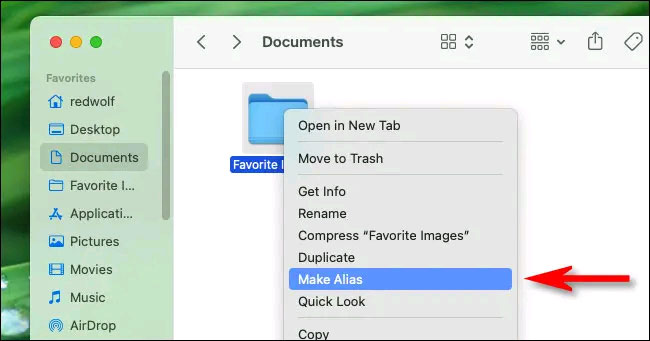
<p style="text-align: justify;">Để tạo Alias cho một thư mục, trước tiên, hãy tìm thư mục mà bạn muốn &quot;bookmark&quot; và nhấp chuột phải vào biểu tượng của nó. Trong menu bật lên, hãy chọn “<strong>Make Alias</strong>”.</p>

<p style="text-align: justify;"><img alt="Bấm vào “Make Alias”" data-i="5" data-src="https://st.quantrimang.com/photos/image/2021/04/15/cach-bookmark-mot-thu-muc-trong-may-mac6.jpg" data-was-processed="true" height="341" src="https://st.quantrimang.com/photos/image/2021/04/15/cach-bookmark-mot-thu-muc-trong-may-mac6.jpg" width="650" /></p>

<p style="text-align: justify;">Khi biểu tượng Alias xuất hiện bên cạnh thư mục, bạn có thể kéo nó ra màn hình desktop, vào thanh Dock của bạn hoặc bất kỳ vị trí nào khác trong Finder.</p>

<p style="text-align: justify;">Lần tới khi bạn muốn mở ứng dụng, chỉ cần nhấp vào Alias này.</p>
		</div>
				<div id="author">
						<p>
				<strong>Nguồn tin:</strong>
				Quantrimang.com
			</p>
		</div>
	</div>
	<div id="footer" class="clearfix">
		<div id="url">
			<strong>URL của bản tin này: </strong><a href="https://www.nguoicodonvn2008.info/vi/news/savefile/kien-thuc-may-tinh/3-cach-de-bookmark-mot-thu-muc-trong-may-mac-4050.html" title="3 cách để “Bookmark” một thư mục trong máy Mac">https://www.nguoicodonvn2008.info/vi/news/savefile/kien-thuc-may-tinh/3-cach-de-bookmark-mot-thu-muc-trong-may-mac-4050.html</a>

		</div>
		<div class="clear"></div>
		<div class="copyright">
			&copy; .&#x3A; Nguoicodonvn2008.info - Cõi lòng người cô đơn &#x3A;.
		</div>
		<div id="contact">
			<a href="mailto:admin@nguoicodonvn2008.info">admin@nguoicodonvn2008.info</a>
		</div>
	</div>
</div>
        <div id="timeoutsess" class="chromeframe">
            Bạn đã không sử dụng Site, <a onclick="timeoutsesscancel();" href="https://www.nguoicodonvn2008.info/#">Bấm vào đây để duy trì trạng thái đăng nhập</a>. Thời gian chờ: <span id="secField"> 60 </span> giây
        </div>
        <div id="openidResult" class="nv-alert" style="display:none"></div>
        <div id="openidBt" data-result="" data-redirect=""></div>
		</script>
		<div class="car-top">
  <span><img src="https://www.nguoicodonvn2008.info/themes/default/images/car.png" alt=""></span>
</div>
<script src="https://www.nguoicodonvn2008.info/assets/js/jquery/jquery.min.js"></script>
<script>var nv_base_siteurl="/",nv_lang_data="vi",nv_lang_interface="vi",nv_name_variable="nv",nv_fc_variable="op",nv_lang_variable="language",nv_module_name="news",nv_func_name="savefile",nv_is_user=0, nv_my_ofs=-4,nv_my_abbr="EDT",nv_cookie_prefix="nv4c_e856T",nv_check_pass_mstime=1738000,nv_area_admin=0,nv_safemode=0,theme_responsive=0,nv_recaptcha_ver=2,nv_recaptcha_sitekey="",nv_recaptcha_type="image",XSSsanitize=1;</script>
<script src="https://www.nguoicodonvn2008.info/assets/js/language/vi.js"></script>
<script src="https://www.nguoicodonvn2008.info/assets/js/DOMPurify/purify3.js"></script>
<script src="https://www.nguoicodonvn2008.info/assets/js/global.js"></script>
<script src="https://www.nguoicodonvn2008.info/assets/js/site.js"></script>
<script src="https://www.nguoicodonvn2008.info/themes/default/js/news.js"></script>
<script src="https://www.nguoicodonvn2008.info/themes/default/js/main.js"></script>
<script src="https://www.nguoicodonvn2008.info/themes/default/js/custom.js"></script>
<script type="application/ld+json">
        {
            "@context": "https://schema.org",
            "@type": "Organization",
            "url": "https://www.nguoicodonvn2008.info",
            "logo": "https://www.nguoicodonvn2008.info/uploads/angel.gif"
        }
        </script>
<script src="https://www.nguoicodonvn2008.info/themes/default/js/bootstrap.min.js"></script>
<script type="text/javascript">
var $scrolltop = $('.car-top');
$scrolltop.on('click', function () {
    $('html,body').animate({
        scrollTop: 0
    }, 800);
    $(this).addClass("car-run");
    setTimeout(function(){ $scrolltop.removeClass('car-run');}, 1000);
    return false;
});
$(window).on('scroll', function ()
{ 
    if($(window).scrollTop() >= 200)
    {
        $scrolltop.addClass("show");
        $scrolltop.addClass("car-down");
    }
    else
    {
       $scrolltop.removeClass("show");
       setTimeout(function(){ $scrolltop.removeClass('car-down');}, 300);
    }
});
</script>
</body>
</html>