<!DOCTYPE html>
    <html lang="vi" xmlns="http://www.w3.org/1999/xhtml" prefix="og: http://ogp.me/ns#">
    <head>
<title>10 cách mở công cụ Remote Desktop Connection trong Windows 11</title>
<meta name="description" content="10 cách mở công cụ Remote Desktop Connection trong Windows 11 - Savefile - Tin Tức -...">
<meta name="author" content=".: Nguoicodonvn2008.info - Cõi lòng người cô đơn :.">
<meta name="copyright" content=".: Nguoicodonvn2008.info - Cõi lòng người cô đơn :. [admin@nguoicodonvn2008.info]">
<meta name="robots" content="index, archive, follow, noodp">
<meta name="googlebot" content="index,archive,follow,noodp">
<meta name="msnbot" content="all,index,follow">
<meta name="generator" content="NukeViet v4.5">
<meta http-equiv="Content-Type" content="text/html; charset=utf-8">
<meta property="og:title" content="10 cách mở công cụ Remote Desktop Connection trong Windows 11">
<meta property="og:type" content="website">
<meta property="og:description" content="Savefile - Tin Tức - https&#x3A;&#x002F;&#x002F;www.nguoicodonvn2008.info&#x002F;vi&#x002F;news&#x002F;savefile&#x002F;kien-thuc-may-tinh&#x002F;10-cach-mo-cong-cu-remote-desktop-connection-trong-windows-11-7722.html">
<meta property="og:site_name" content=".&#x3A; Nguoicodonvn2008.info - Cõi lòng người cô đơn &#x3A;.">
<meta property="og:url" content="https://www.nguoicodonvn2008.info/vi/news/savefile/kien-thuc-may-tinh/10-cach-mo-cong-cu-remote-desktop-connection-trong-windows-11-7722.html">
<link rel="shortcut icon" href="https://www.nguoicodonvn2008.info/favicon.ico">
<link rel="canonical" href="https://www.nguoicodonvn2008.info/vi/news/savefile/kien-thuc-may-tinh/10-cach-mo-cong-cu-remote-desktop-connection-trong-windows-11-7722.html">
<link rel="alternate" href="https://www.nguoicodonvn2008.info/vi/news/rss/" title="Tin Tức" type="application/rss+xml">
<link rel="alternate" href="https://www.nguoicodonvn2008.info/vi/news/rss/karaoke-dual/" title="Tin Tức - Karaoke Dual" type="application/rss+xml">
<link rel="alternate" href="https://www.nguoicodonvn2008.info/vi/news/rss/nhac-tre/" title="Tin Tức - Nhạc trẻ" type="application/rss+xml">
<link rel="alternate" href="https://www.nguoicodonvn2008.info/vi/news/rss/tru-tinh/" title="Tin Tức - Trữ tình" type="application/rss+xml">
<link rel="alternate" href="https://www.nguoicodonvn2008.info/vi/news/rss/nuoc-ngoai/" title="Tin Tức - Nước ngoài" type="application/rss+xml">
<link rel="alternate" href="https://www.nguoicodonvn2008.info/vi/news/rss/remix/" title="Tin Tức - Remix" type="application/rss+xml">
<link rel="alternate" href="https://www.nguoicodonvn2008.info/vi/news/rss/tam-su-tinh-yeu/" title="Tin Tức - Tâm sự tình yêu" type="application/rss+xml">
<link rel="alternate" href="https://www.nguoicodonvn2008.info/vi/news/rss/tho-suu-tam/" title="Tin Tức - Thơ sưu tầm" type="application/rss+xml">
<link rel="alternate" href="https://www.nguoicodonvn2008.info/vi/news/rss/cuoc-song/" title="Tin Tức - Cuộc sống" type="application/rss+xml">
<link rel="alternate" href="https://www.nguoicodonvn2008.info/vi/news/rss/phan-mem/" title="Tin Tức - Phần mềm" type="application/rss+xml">
<link rel="alternate" href="https://www.nguoicodonvn2008.info/vi/news/rss/kien-thuc-may-tinh/" title="Tin Tức - Kiến thức máy tính" type="application/rss+xml">
<link rel="alternate" href="https://www.nguoicodonvn2008.info/vi/news/rss/hoc-tap/" title="Tin Tức - Học tập" type="application/rss+xml">
<link rel="alternate" href="https://www.nguoicodonvn2008.info/vi/news/rss/tai-lieu/" title="Tin Tức - Tài liệu" type="application/rss+xml">
<link rel="alternate" href="https://www.nguoicodonvn2008.info/vi/news/rss/de-thi/" title="Tin Tức - Đề thi" type="application/rss+xml">
<link rel="preload" as="style" href="https://www.nguoicodonvn2008.info/assets/css/font-awesome.min.css" type="text/css">
<link rel="preload" as="style" href="https://www.nguoicodonvn2008.info/themes/default/css/bootstrap.non-responsive.css" type="text/css">
<link rel="preload" as="style" href="https://www.nguoicodonvn2008.info/themes/default/css/style.css" type="text/css">
<link rel="preload" as="style" href="https://www.nguoicodonvn2008.info/themes/default/css/style.non-responsive.css" type="text/css">
<link rel="preload" as="style" href="https://www.nguoicodonvn2008.info/themes/default/css/news.css" type="text/css">
<link rel="preload" as="style" href="https://www.nguoicodonvn2008.info/themes/default/css/custom.css" type="text/css">
<link rel="preload" as="script" href="https://www.nguoicodonvn2008.info/assets/js/jquery/jquery.min.js" type="text/javascript">
<link rel="preload" as="script" href="https://www.nguoicodonvn2008.info/assets/js/language/vi.js" type="text/javascript">
<link rel="preload" as="script" href="https://www.nguoicodonvn2008.info/assets/js/DOMPurify/purify3.js" type="text/javascript">
<link rel="preload" as="script" href="https://www.nguoicodonvn2008.info/assets/js/global.js" type="text/javascript">
<link rel="preload" as="script" href="https://www.nguoicodonvn2008.info/assets/js/site.js" type="text/javascript">
<link rel="preload" as="script" href="https://www.nguoicodonvn2008.info/themes/default/js/news.js" type="text/javascript">
<link rel="preload" as="script" href="https://www.nguoicodonvn2008.info/themes/default/js/main.js" type="text/javascript">
<link rel="preload" as="script" href="https://www.nguoicodonvn2008.info/themes/default/js/custom.js" type="text/javascript">
<link rel="preload" as="script" href="https://www.nguoicodonvn2008.info/themes/default/js/bootstrap.min.js" type="text/javascript">
<link rel="stylesheet" href="https://www.nguoicodonvn2008.info/assets/css/font-awesome.min.css">
<link rel="stylesheet" href="https://www.nguoicodonvn2008.info/themes/default/css/bootstrap.non-responsive.css">
<link rel="stylesheet" href="https://www.nguoicodonvn2008.info/themes/default/css/style.css">
<link rel="stylesheet" href="https://www.nguoicodonvn2008.info/themes/default/css/style.non-responsive.css">
<link rel="StyleSheet" href="https://www.nguoicodonvn2008.info/themes/default/css/news.css">
<link rel="stylesheet" href="https://www.nguoicodonvn2008.info/themes/default/css/custom.css">
<style type="text/css">
	body{background: #fff;}
</style>
    </head>
    <body>
<div id="print">
	<div id="hd_print">
		<h2 class="pull-left">.&#x3A; Nguoicodonvn2008.info - Cõi lòng người cô đơn &#x3A;.</h2>
		<p class="pull-right"><a title=".&#x3A; Nguoicodonvn2008.info - Cõi lòng người cô đơn &#x3A;." href="https://www.nguoicodonvn2008.info/">https://www.nguoicodonvn2008.info</a></p>
	</div>
	<div class="clear"></div>
	<hr />
	<div id="content">
		<h1>10 cách mở công cụ Remote Desktop Connection trong Windows 11</h1>
		<ul class="list-inline">
			<li>Thứ sáu - 03/11/2023 09:56</li>
			<li class="hidden-print txtrequired"><em class="fa fa-print">&nbsp;</em><a title="In ra" href="javascript:;" onclick="window.print()">In ra</a></li>
			<li class="hidden-print txtrequired"><em class="fa fa-power-off">&nbsp;</em><a title="Đóng cửa sổ này" href="javascript:;" onclick="window.close()">Đóng cửa sổ này</a></li>
		</ul>
		<div class="clear"></div>
		<div id="hometext">
		</div>
				<div class="imghome">
			<img alt="10 cách mở công cụ Remote Desktop Connection trong Windows 11" src="https://st.quantrimang.com/photos/image/2023/11/02/mo-cong-cu-remote-desktop-connection-13.jpg" width="460" class="img-thumbnail" />
		</div>
		<div class="clear"></div>
		<div id="bodytext" class="clearfix">
			<p style="text-align: justify;">Remote Desktop Connection là ứng dụng tích hợp của&nbsp;Windows 11&nbsp;để kết nối với máy tính từ xa. Bạn có thể sử dụng nó để truy cập từ xa vào một PC khác, điều này rất hữu ích cho mục đích sử dụng cá nhân hoặc liên quan đến hỗ trợ. Trong phiên bản Windows 11 Professional và Enterprise, bạn cũng có thể kích hoạt Remote Desktop để thiết lập PC host cho tính toán từ xa.</p>

<p style="text-align: justify;">Để kết nối với PC từ xa, bạn cần mở công cụ Remote Desktop Connection. Sau khi hoàn tất, bạn có thể nhập thông tin đăng nhập cho PC từ xa để kết nối với nó thông qua cửa sổ Remote Desktop Connection. Vậy hãy cùng khám phá cách kích hoạt công cụ Remote Desktop Connection trên Windows 11 nhé!</p>

<h2 style="text-align: justify;">1. Mở Remote Desktop Connection bằng công cụ tìm kiếm Windows 11</h2>

<p style="text-align: justify;">Công cụ tìm kiếm của Windows 11 là một cách tiện dụng để tìm phần mềm, file và các accessory khác trên PC của bạn. Như vậy, bạn có thể sử dụng nó để tìm và mở Remote Desktop Connection.</p>

<p style="text-align: justify;">1. Để mở công cụ tìm kiếm, hãy nhấp vào biểu tượng kính lúp trên thanh tác vụ của Windows 11.</p>

<p style="text-align: justify;">2. Nhập&nbsp;<strong>Remote Desktop Connection</strong>&nbsp;vào hộp tìm kiếm.</p>

<figure>
<div style="text-align: justify;"><img alt="Tìm kiếm Remote Desktop Connection" data-i="0" data-src="https://st.quantrimang.com/photos/image/2023/11/02/sua-loi-no-audio-output-device-is-installed-1.jpg" data-was-processed="true" height="574" src="https://st.quantrimang.com/photos/image/2023/11/02/sua-loi-no-audio-output-device-is-installed-1.jpg" width="783" /></div>

<figcaption>
<div style="text-align: justify;">Tìm kiếm Remote Desktop Connection</div>
</figcaption>
</figure>

<div style="text-align: justify;">&nbsp;</div>

<p style="text-align: justify;">3. Sau đó bấm&nbsp;<strong>Remote Desktop Connection&nbsp;</strong>để mở accessory đó.</p>

<p style="text-align: justify;">4. Ngoài ra, bạn có thể nhấp vào tùy chọn&nbsp;<strong>Run as administrator</strong>&nbsp;trong công cụ tìm kiếm.</p>

<h2 style="text-align: justify;">2. Mở Remote Desktop Connection bằng công cụ Run</h2>

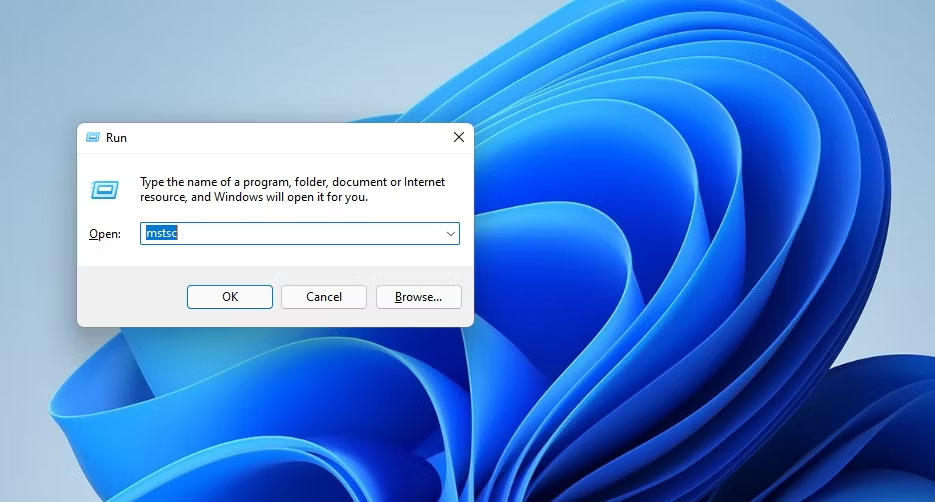
<p style="text-align: justify;">Công cụ Run là một cách để khởi chạy các ứng dụng và chương trình. Bạn có thể mở các accessory và applet Control Panel của Windows 11 chỉ bằng cách nhập lệnh Run. Đây là cách bạn có thể mở Remote Desktop Connection bằng Run:</p>

<p style="text-align: justify;">1. Nhấp chuột phải vào Start hoặc nhấn&nbsp;<strong>Win + X&nbsp;</strong>để mở menu WinX.</p>

<p style="text-align: justify;">2. Chọn&nbsp;<strong>Run</strong>&nbsp;trên menu đó.</p>

<p style="text-align: justify;">3. Nhập&nbsp;<strong>mstsc</strong>&nbsp;vào hộp&nbsp;<strong>Open</strong>.</p>

<figure>
<ul>
	<li data-block-reason="4" data-trans-vn="Che nội dung" style="text-align: justify;">&nbsp;</li>
	<li data-block-reason="2" data-trans-vn="Không quan tâm" style="text-align: justify;">&nbsp;</li>
	<li data-block-reason="3" data-trans-vn="Không phù hợp" style="text-align: justify;">&nbsp;</li>
	<li data-block-reason="1" data-trans-vn="Thấy quá nhiều" style="text-align: justify;">&nbsp;</li>
</ul>

<div style="text-align: justify;"><br />
<img alt="Hộp thoại Run" data-adbro-processed="true" data-i="1" data-src="https://st.quantrimang.com/photos/image/2023/11/02/mo-cong-cu-remote-desktop-connection-2.jpg" data-was-processed="true" height="502" src="https://st.quantrimang.com/photos/image/2023/11/02/mo-cong-cu-remote-desktop-connection-2.jpg" width="935" /></div>

<figcaption>
<div style="text-align: justify;">Hộp thoại Run</div>
</figcaption>
</figure>

<p style="text-align: justify;">4. Nhấp vào nút&nbsp;<strong>OK</strong>&nbsp;để mở Remote Desktop Connection.</p>

<h2 style="text-align: justify;">3. Mở Remote Desktop Connection bằng Windows Terminal</h2>

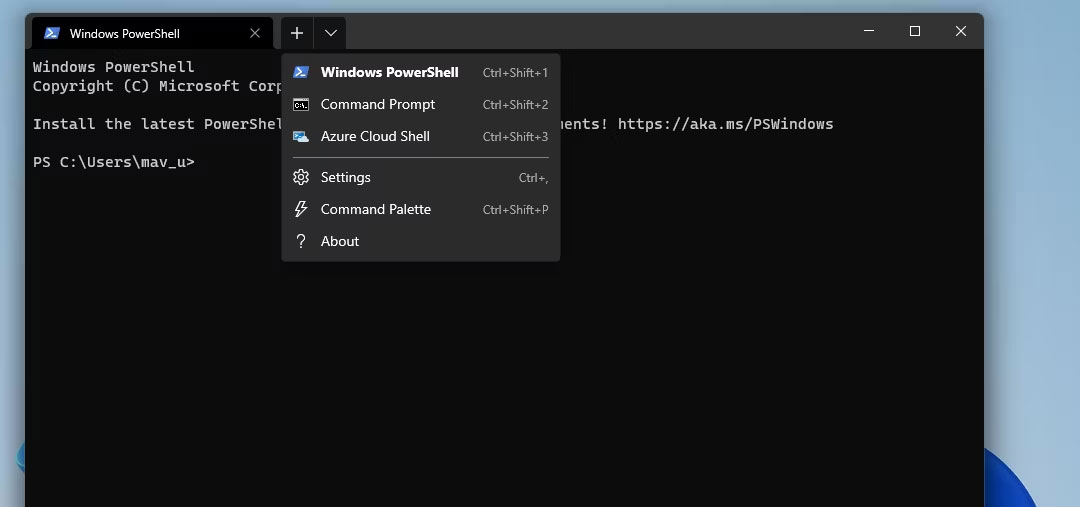
<p style="text-align: justify;">Bạn có thể mở Remote Desktop Connection bằng cả công cụ dòng lệnh Command Promt và PowerShell. Windows Terminal kết hợp cả hai công cụ dòng lệnh đó trong nền tảng desktop mới nhất của Microsoft. Bạn có thể mở RDC bằng Windows Terminal như sau.</p>

<p style="text-align: justify;">1. Mở menu Start và nhấp vào&nbsp;<strong>All apps</strong>&nbsp;ở đó.</p>

<p style="text-align: justify;">2. Chọn Windows Terminal trên menu Start.</p>

<p style="text-align: justify;">3. Nhấp vào tùy chọn&nbsp;<strong>Open a new tab</strong>&nbsp;được hiển thị ngay bên dưới để chọn Command Prompt hoặc Windows PowerShell.</p>

<figure>
<div style="text-align: justify;"><img alt="Tùy chọn Open a new tab" data-i="2" data-src="https://st.quantrimang.com/photos/image/2023/11/02/mo-cong-cu-remote-desktop-connection-3.jpg" data-was-processed="true" height="507" src="https://st.quantrimang.com/photos/image/2023/11/02/mo-cong-cu-remote-desktop-connection-3.jpg" width="1080" /></div>

<figcaption>
<div style="text-align: justify;">Tùy chọn Open a new tab</div>
</figcaption>
</figure>

<div style="text-align: justify;"><iframe allowtransparency="true" data-google-container-id="a!3" data-google-query-id="CLy32PH9p4IDFRAQrQYdwOYPNQ" data-load-complete="true" frameborder="0" height="0" hspace="0" id="aswift_2" marginheight="0" marginwidth="0" name="aswift_2" sandbox="" scrolling="no" vspace="0" width="694"></iframe></div>

<p style="text-align: justify;">4. Nhập lệnh này trong tab Command Prompt hoặc PowerShell:</p>

<pre id="pre0">
<code>mtsc</code></pre>

<p style="text-align: justify;">5. Nhấn&nbsp;<strong>Enter</strong>&nbsp;để mở Remote Desktop Connection.</p>

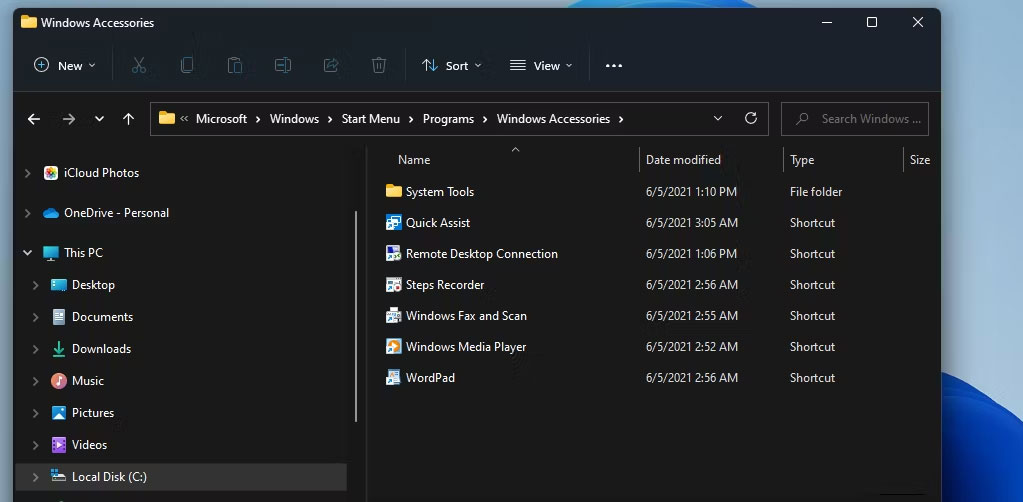
<h2 style="text-align: justify;">4. Mở Remote Desktop Connection trong thư mục Windows Accessories</h2>

<p style="text-align: justify;">Remote Desktop Connection được bao gồm trong thư mục Windows Accessories. Bạn có thể mở accessory từ thư mục Windows Accessories trong File Explorer. Để làm điều đó, hãy làm theo các bước dưới đây.</p>

<p style="text-align: justify;">1. Nhấn nút&nbsp;<strong>File Explorer</strong>&nbsp;(nút có biểu tượng thư mục) trên thanh tác vụ của Windows 11.</p>

<p style="text-align: justify;">2. Mở thư mục này trong File Explorer:</p>

<pre id="pre1">
<code>C:\ProgramData\Microsoft\Windows\Start Menu\Programs\Accessories</code></pre>

<figure>
<div style="text-align: justify;"><img alt="Thư mục Windows Accessories" data-i="3" data-src="https://st.quantrimang.com/photos/image/2023/11/02/mo-cong-cu-remote-desktop-connection-4.jpg" data-was-processed="true" height="502" src="https://st.quantrimang.com/photos/image/2023/11/02/mo-cong-cu-remote-desktop-connection-4.jpg" width="1023" /></div>

<figcaption>
<div style="text-align: justify;">Thư mục Windows Accessories</div>
</figcaption>
</figure>

<p style="text-align: justify;">3. Nhấp vào&nbsp;<strong>Remote Desktop Connection</strong>&nbsp;trong thư mục đó.</p>

<h2 style="text-align: justify;">5. Mở Remote Desktop Connection bằng File Explorer</h2>

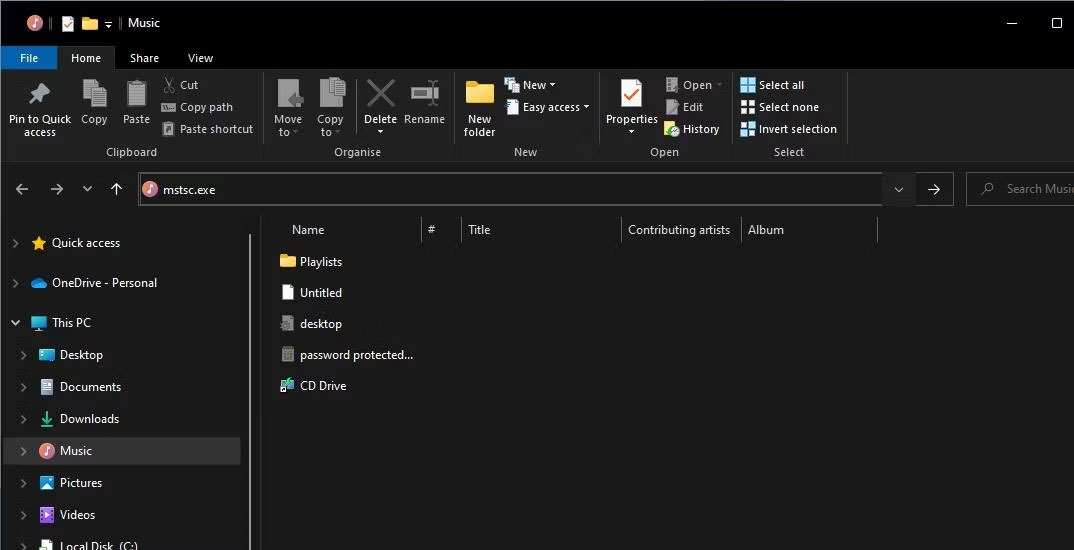
<p style="text-align: justify;">Bạn không cần phải lục lọi các thư mục trong File Explorer để mở Remote Desktop Connection. Thay vào đó, bạn có thể nhanh chóng mở Remote Desktop Connection bằng cách nhập file của ứng dụng đó vào thanh địa chỉ của Explorer như sau:</p>

<p style="text-align: justify;">1. Mở công cụ quản lý file và thư mục Explorer của Windows 11.</p>

<p style="text-align: justify;">2. Nhấp vào bên trong thanh địa chỉ của Explorer và xóa đường dẫn hiện tại trong đó.</p>

<p style="text-align: justify;">3. Nhập&nbsp;<strong>mstsc.exe</strong>&nbsp;vào thanh địa chỉ trống của File Explorer.</p>

<figure>
<div style="text-align: justify;"><img alt="Tiến trình mstsc.exe được nhập vào thanh địa chỉ của File Explorer" data-i="4" data-src="https://st.quantrimang.com/photos/image/2023/11/02/mo-cong-cu-remote-desktop-connection-5.jpg" data-was-processed="true" height="550" src="https://st.quantrimang.com/photos/image/2023/11/02/mo-cong-cu-remote-desktop-connection-5.jpg" width="1074" /></div>

<figcaption>
<div style="text-align: justify;">Tiến trình mstsc.exe được nhập vào thanh địa chỉ của File Explorer</div>
</figcaption>
</figure>

<div style="text-align: justify;"><iframe allowtransparency="true" data-google-container-id="a!4" data-google-query-id="CNeDrPL9p4IDFSAXrQYdSiYCfg" data-load-complete="true" frameborder="0" height="0" hspace="0" id="aswift_3" marginheight="0" marginwidth="0" name="aswift_3" sandbox="" scrolling="no" vspace="0" width="694"></iframe></div>

<p style="text-align: justify;">4. Nhấn&nbsp;<strong>Enter</strong>&nbsp;để mở Remote Desktop Connection.</p>

<h2 style="text-align: justify;">6. Mở Remote Desktop Connection bằng menu Start</h2>

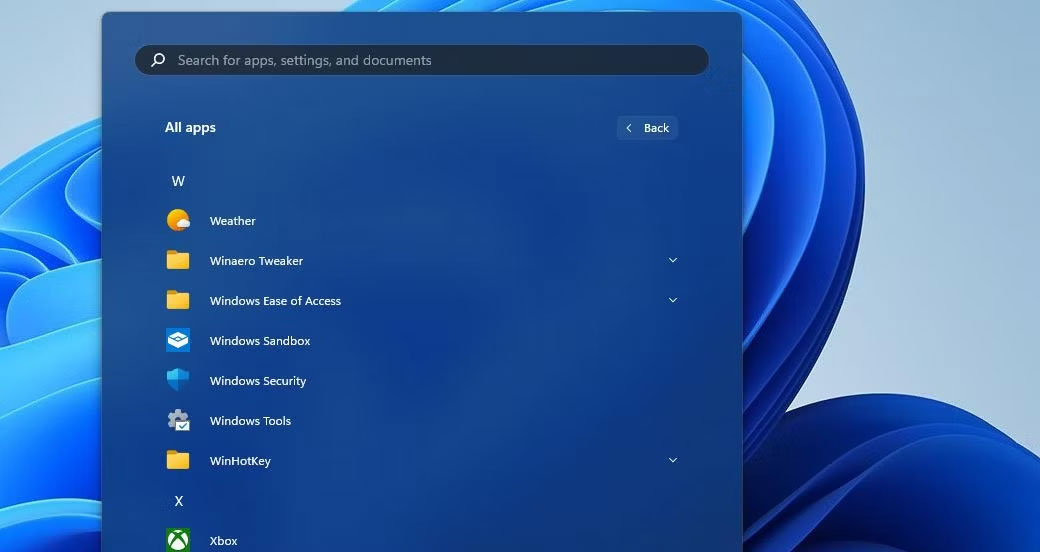
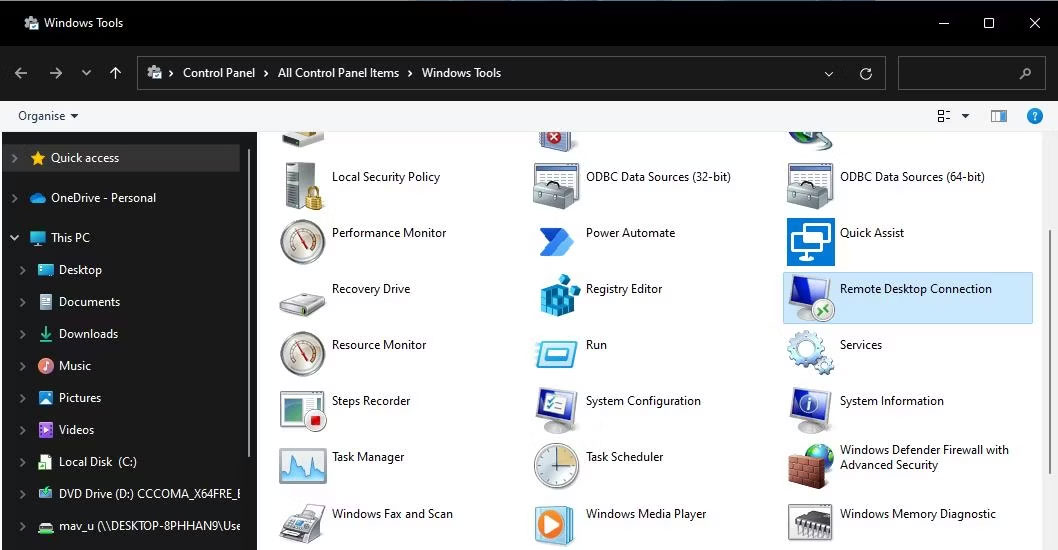
<p style="text-align: justify;">Remote Desktop Connection cũng nằm trong số các ứng dụng và tiện ích hệ thống trong thư mục Windows Tools. Thư mục đó có thể truy cập được trên menu Start. Bạn có thể truy cập Remote Desktop Connection bằng cách mở thư mục Windows Tools bằng menu Start như sau.</p>

<p style="text-align: justify;">1. Nhấn vào&nbsp;<strong>Start</strong>&nbsp;hoặc nút logo&nbsp;<strong>Windows.</strong></p>

<p style="text-align: justify;">2. Chọn tùy chọn&nbsp;<strong>All apps</strong>&nbsp;để xem tất cả các shortcut chương trình và thư mục trên menu Start.</p>

<figure>
<div style="text-align: justify;"><img alt="Shortcut thư mục Windows Tools" data-i="5" data-src="https://st.quantrimang.com/photos/image/2023/11/02/mo-cong-cu-remote-desktop-connection-6.jpg" data-was-processed="true" height="552" src="https://st.quantrimang.com/photos/image/2023/11/02/mo-cong-cu-remote-desktop-connection-6.jpg" width="1040" /></div>

<figcaption>
<div style="text-align: justify;">Shortcut thư mục Windows Tools</div>
</figcaption>
</figure>

<p style="text-align: justify;">3. Cuộn xuống menu và nhấp đúp vào&nbsp;<strong>Windows Tools</strong>.</p>

<figure>
<div style="text-align: justify;"><img alt="Ứng dụng Remote Desktop Connection trong thư mục Windows Tools" data-i="6" data-src="https://st.quantrimang.com/photos/image/2023/11/02/mo-cong-cu-remote-desktop-connection-7.jpg" data-was-processed="true" height="550" src="https://st.quantrimang.com/photos/image/2023/11/02/mo-cong-cu-remote-desktop-connection-7.jpg" width="1058" /></div>

<figcaption>
<div style="text-align: justify;">Ứng dụng Remote Desktop Connection trong thư mục Windows Tools</div>
</figcaption>
</figure>

<p style="text-align: justify;">4. Nhấp đúp vào&nbsp;<strong>Remote Desktop Connection</strong>&nbsp;trong thư mục Windows Tools.</p>

<p style="text-align: justify;">Windows Tools cũng có thể truy cập được trong Control Panel.&nbsp;<a data-type="internal" href="https://quantrimang.com/cong-nghe/mo-control-panel-windows-11-185281" title="Cách mở Control Panel trên Windows 11">Mở Control Panel</a>&nbsp;và thay đổi chế độ xem của nó bằng cách chọn&nbsp;<strong>Small icons</strong>. Sau đó, bạn có thể nhấp vào&nbsp;<strong>Windows Tools</strong>&nbsp;và chọn mở Remote Desktop Connection từ đó.</p>

<h2 style="text-align: justify;">7. Mở Remote Desktop Connection bằng Task Manager</h2>

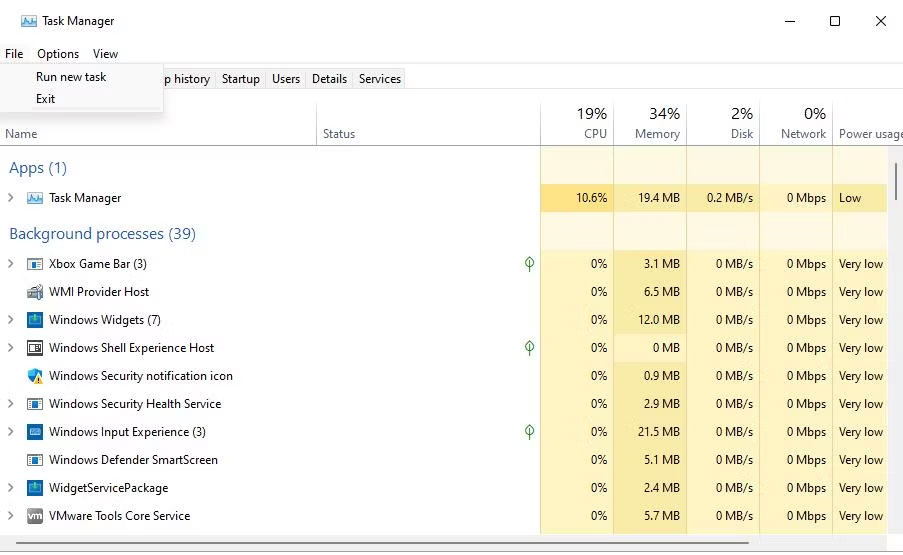
<p style="text-align: justify;"><a data-type="internal" href="https://quantrimang.com/cong-nghe/huong-dan-su-dung-task-manager-83602" title="Tất tần tật về cách sử dụng Task Manager">Task Manager</a>&nbsp;là một tiện ích mà bạn có thể vừa chấm dứt vừa chạy các tiến trình. Đây là cách bạn có thể mở Remote Desktop Connection bằng cách chạy tiến trình của nó bằng công cụ Create new task của Task Manager:</p>

<p style="text-align: justify;">1.&nbsp;<a data-type="internal" href="https://quantrimang.com/cong-nghe/6-cach-don-gian-mo-task-manager-tren-windows-119941" title="11 cách mở Task Manager trên Windows đơn giản nhất">Kích hoạt Task Manager</a>&nbsp;bằng cách sử dụng phím tắt&nbsp;<strong>Ctrl + Shift + Esc</strong>&nbsp;để truy cập tiện ích hệ thống đó.</p>

<p style="text-align: justify;">2. Nhấp vào File ở đầu Task Manager để xem một cửa sổ nhỏ.</p>

<figure>
<div style="text-align: justify;"><img alt="Tùy chọn Run new task" data-i="7" data-src="https://st.quantrimang.com/photos/image/2023/11/02/mo-cong-cu-remote-desktop-connection-8.jpg" data-was-processed="true" height="555" src="https://st.quantrimang.com/photos/image/2023/11/02/mo-cong-cu-remote-desktop-connection-8.jpg" width="903" /></div>

<figcaption>
<div style="text-align: justify;">Tùy chọn Run new task</div>
</figcaption>
</figure>

<div style="text-align: justify;"><iframe allowtransparency="true" data-google-container-id="a!5" data-google-query-id="CMDq6vL9p4IDFbNMDwIdhrEK2g" data-load-complete="true" frameborder="0" height="0" hspace="0" id="aswift_4" marginheight="0" marginwidth="0" name="aswift_4" sandbox="" scrolling="no" vspace="0" width="694"></iframe></div>

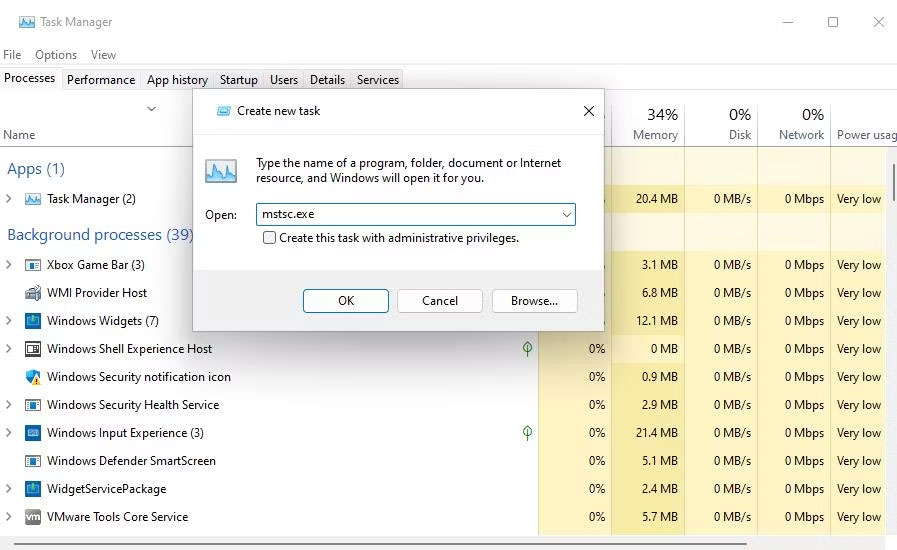
<p style="text-align: justify;">3. Chọn hộp kiểm có nhãn&nbsp;<strong>Create this task with administrative privileges</strong>.</p>

<p style="text-align: justify;">4. Nhập lệnh tiến trình&nbsp;<strong>mstsc</strong>&nbsp;vào hộp&nbsp;<strong>Open</strong>.</p>

<figure>
<div style="text-align: justify;"><img alt="Cửa sổ Create new task" data-i="8" data-src="https://st.quantrimang.com/photos/image/2023/11/02/mo-cong-cu-remote-desktop-connection-9.jpg" data-was-processed="true" height="550" src="https://st.quantrimang.com/photos/image/2023/11/02/mo-cong-cu-remote-desktop-connection-9.jpg" width="897" /></div>

<figcaption>
<div style="text-align: justify;">Cửa sổ Create new task</div>
</figcaption>
</figure>

<p style="text-align: justify;">5. Chọn&nbsp;<strong>OK</strong>&nbsp;để chạy tiến trình Remote Desktop Connection.</p>

<h2 style="text-align: justify;">8. Mở Remote Desktop Connection bằng desktop shortcut</h2>

<p style="text-align: justify;">Các desktop shortcut cung cấp cách trực tiếp nhất để mở phần mềm và accessory. Bạn có thể thiết lập shortcut cho RDC để có thể mở nó trực tiếp từ desktop của mình. Đây là cách bạn có thể thiết lập shortcut Remote Desktop Connection trong Windows 11.</p>

<p style="text-align: justify;">1. Nhấp chuột phải vào một vùng trên desktop để chọn&nbsp;<strong>New&nbsp;</strong>&gt;&nbsp;<strong>Shortcut</strong>.</p>

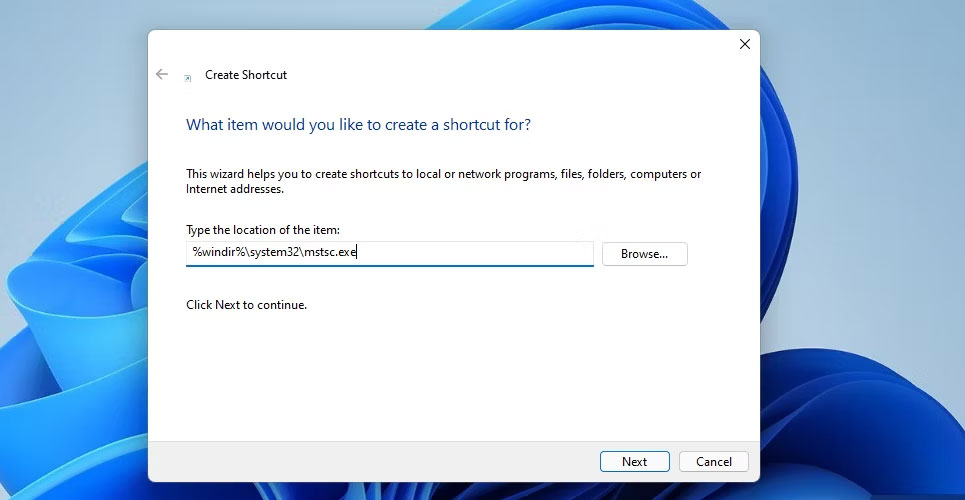
<p style="text-align: justify;">2. Nhập&nbsp;<strong>%windir%\system32\mstsc.exe</strong>&nbsp;vào cửa sổ Create Shortcut và nhấp vào&nbsp;<strong>Next</strong>&nbsp;để tiếp tục.</p>

<figure>
<div style="text-align: justify;"><img alt="Cửa sổ Create Shortcut" data-i="9" data-src="https://st.quantrimang.com/photos/image/2023/11/02/mo-cong-cu-remote-desktop-connection-10.jpg" data-was-processed="true" height="500" src="https://st.quantrimang.com/photos/image/2023/11/02/mo-cong-cu-remote-desktop-connection-10.jpg" width="965" /></div>

<figcaption>
<div style="text-align: justify;">Cửa sổ Create Shortcut</div>
</figcaption>
</figure>

<p style="text-align: justify;">3. Nhập&nbsp;<strong>Remote Desktop Connection&nbsp;</strong>vào hộp văn bản.</p>

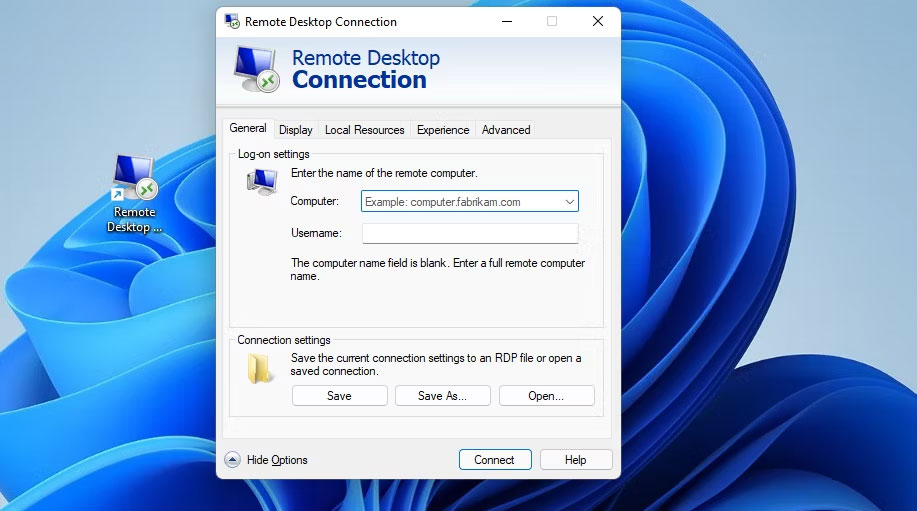
<p style="text-align: justify;">4. Nhấn nút&nbsp;<strong>Finish</strong>&nbsp;để thêm desktop shortcut như trong ảnh chụp màn hình ngay bên dưới.</p>

<figure>
<div style="text-align: justify;"><img alt="Shortcut Remote Desktop Connection" data-i="10" data-src="https://st.quantrimang.com/photos/image/2023/11/02/mo-cong-cu-remote-desktop-connection-11.jpg" data-was-processed="true" height="511" src="https://st.quantrimang.com/photos/image/2023/11/02/mo-cong-cu-remote-desktop-connection-11.jpg" width="917" /></div>

<figcaption>
<div style="text-align: justify;">Shortcut Remote Desktop Connection</div>
</figcaption>
</figure>

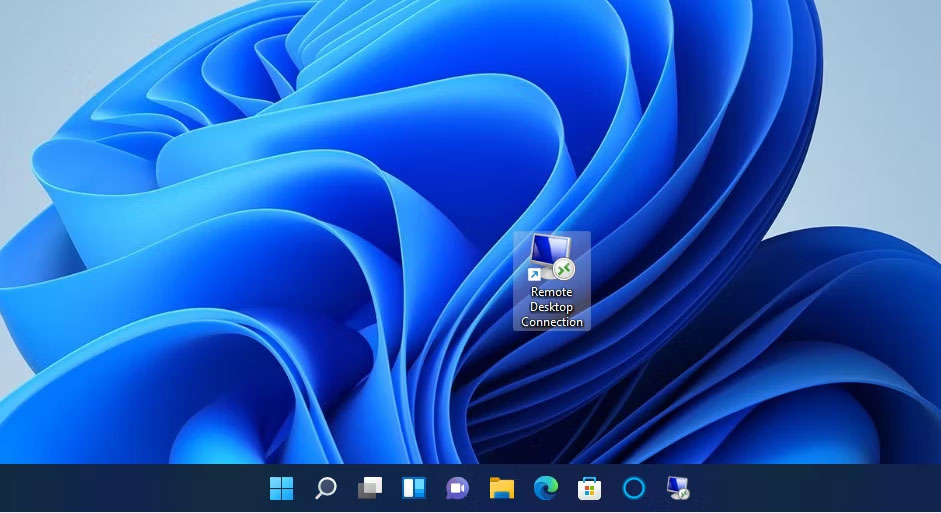
<p style="text-align: justify;">5. Bây giờ, bạn có thể nhấp vào desktop shortcut mới để mở Remote Desktop Connection.</p>

<p style="text-align: justify;">Shortcut đó sẽ chỉ mở cửa sổ RDC. Bạn cũng có thể thiết lập shortcut Remote Desktop Connection cho một PC cụ thể. Để làm điều đó, hãy nhập&nbsp;<strong>mstsc.exe /v:PC-name</strong>&nbsp;vào hộp văn bản vị trí mục của cửa sổ Create Shortcut. Thay thế&nbsp;<strong>PC-name</strong>&nbsp;ở vị trí mục đó bằng tên thực của PC cần kết nối.</p>

<p style="text-align: justify;">Nếu muốn, bạn có thể sử dụng shortcut trên thanh tác vụ cho Remote Desktop Connection. Nhấp chuột phải vào shortcut Remote Desktop Connection và chọn&nbsp;<strong>Show more options</strong>&nbsp;&gt;&nbsp;<strong>Pin to taskbar</strong>. Việc chọn tùy chọn đó sẽ thêm shortcut RDC vào thanh tác vụ như được hiển thị trong ảnh chụp nhanh bên dưới. Bạn có thể xóa desktop shortcut bằng cách nhấp chuột phải vào nó và chọn&nbsp;<strong>Delete</strong>.</p>

<figure>
<div style="text-align: justify;"><img alt="Shortcut trên thanh tác vụ Remote Desktop Connection" data-i="11" data-src="https://st.quantrimang.com/photos/image/2023/11/02/mo-cong-cu-remote-desktop-connection-12.jpg" data-was-processed="true" height="513" src="https://st.quantrimang.com/photos/image/2023/11/02/mo-cong-cu-remote-desktop-connection-12.jpg" width="941" /></div>

<figcaption>
<div style="text-align: justify;">Shortcut trên thanh tác vụ Remote Desktop Connection</div>
</figcaption>
</figure>

<div style="text-align: justify;">&nbsp;</div>

<h2 style="text-align: justify;">9. Mở Remote Desktop Connection bằng phím tắt</h2>

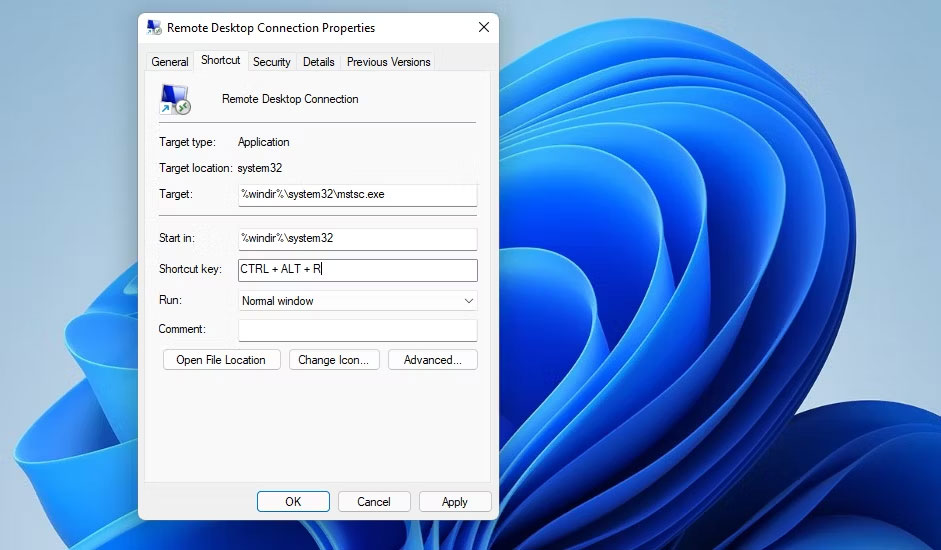
<p style="text-align: justify;">Bạn có thể thêm hotkey vào desktop shortcut RDC. Bằng cách đó, bạn sẽ có thể mở Remote Desktop Connection bằng phím tắt. Đầu tiên, thiết lập dessktop shortcut như được nêu trong phương pháp trên. Sau đó, bạn có thể thêm hot key vào shortcut đó như sau.</p>

<p style="text-align: justify;">1. Nhấp chuột phải vào shortcut Remote Desktop Connection trên desktop và chọn&nbsp;<strong>Properties</strong>.</p>

<p style="text-align: justify;">2. Nhấp vào bên trong hộp shortcut được hiển thị trong ảnh chụp màn hình bên dưới.</p>

<figure>
<div style="text-align: justify;"><img alt="Hộp Shortcut" data-i="12" data-src="https://st.quantrimang.com/photos/image/2023/11/02/mo-cong-cu-remote-desktop-connection-13.jpg" data-was-processed="true" height="550" src="https://st.quantrimang.com/photos/image/2023/11/02/mo-cong-cu-remote-desktop-connection-13.jpg" width="941" /></div>

<figcaption>
<div style="text-align: justify;">Hộp Shortcut</div>
</figcaption>
</figure>

<p style="text-align: justify;">3. Nhấn phím&nbsp;<strong>R</strong>&nbsp;để thiết lập hotkey&nbsp;<strong>Ctrl + Alt + R</strong>.</p>

<p style="text-align: justify;">4. Nhấp vào nút&nbsp;<strong>Apply</strong>&nbsp;để lưu shortcut mới.</p>

<p style="text-align: justify;">Bây giờ, bạn có thể nhấn&nbsp;<strong>Ctrl + Alt + R</strong>&nbsp;để hiển thị Remote Desktop Connection bất cứ khi nào bạn cần. Tuy nhiên, đừng xóa desktop shortcut. Shortcut đó phải được giữ nguyên để hotkey của nó hoạt động.</p>

<h2 style="text-align: justify;">10. Mở Remote Desktop Connection bằng menu ngữ cảnh</h2>

<p style="text-align: justify;">Menu ngữ cảnh là menu chuột phải mà bạn có thể mở từ desktop. Menu đó không bao gồm Remote Desktop Connection theo mặc định. Tuy nhiên, bạn có thể thêm shortcut để mở Remote Desktop Connection vào menu ngữ cảnh bằng một tinh chỉnh registry tương đối đơn giản như sau:</p>

<p style="text-align: justify;">1.&nbsp;Khởi động ứng dụng Registry Editor&nbsp;bằng cách nhấn nút&nbsp;<strong>Windows + R</strong>, nhập lệnh&nbsp;<strong>regedit</strong>&nbsp;bên trong hộp thoại&nbsp;<strong>Run</strong>&nbsp;và nhấp vào&nbsp;<strong>OK.</strong></p>

<p style="text-align: justify;">2. Nhấp vào thanh vị trí registry và xóa đường dẫn ở đó.</p>

<p style="text-align: justify;">3. Nhập vị trí này cho key shell bên trong thanh địa chỉ của Registry Editor và nhấn&nbsp;<strong>Enter</strong>:</p>

<pre id="pre2">
<code>Computer\HKEY_CLASSES_ROOT\Directory\Background\shell\</code></pre>

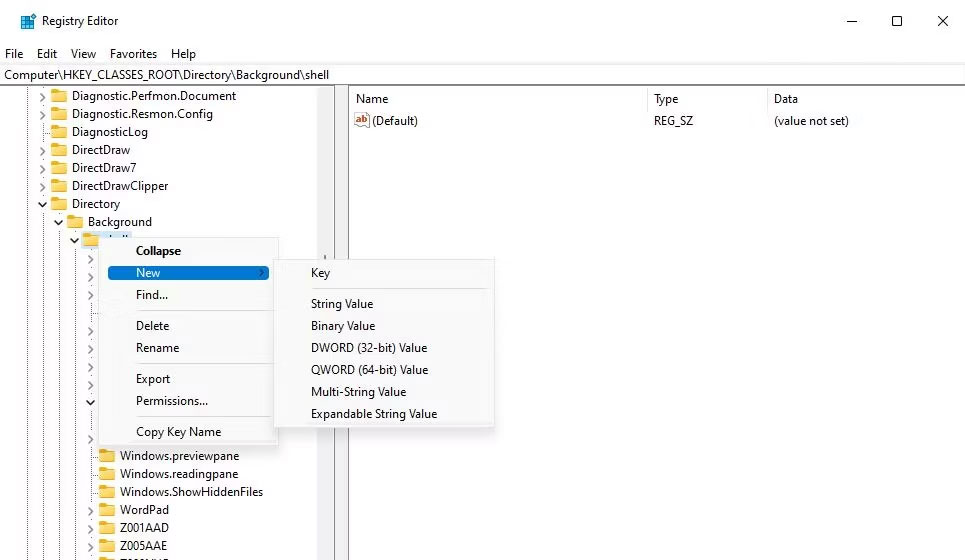
<p style="text-align: justify;">4. Nhấp vào key&nbsp;<strong>shell</strong>&nbsp;bằng nút chuột phải của bạn và chọn&nbsp;<strong>New</strong>.</p>

<p style="text-align: justify;">5. Chọn&nbsp;<strong>Key</strong>&nbsp;để thêm mục registry mới.</p>

<figure>
<div style="text-align: justify;"><img alt="Tùy chọn New &gt; Key" data-i="13" data-src="https://st.quantrimang.com/photos/image/2023/11/02/mo-cong-cu-remote-desktop-connection-14.jpg" data-was-processed="true" height="560" src="https://st.quantrimang.com/photos/image/2023/11/02/mo-cong-cu-remote-desktop-connection-14.jpg" width="965" /></div>

<figcaption>
<div style="text-align: justify;">Tùy chọn New &gt; Key</div>
</figcaption>
</figure>

<p style="text-align: justify;">6. Nhập&nbsp;<strong>Remote Desktop Connection</strong>&nbsp;làm tiêu đề cho key mới.</p>

<p style="text-align: justify;">7. Bấm chuột phải vào Remote Desktop Connection để chọn&nbsp;<strong>New</strong>&nbsp;&gt;&nbsp;<strong>Key</strong>.</p>

<p style="text-align: justify;">8. Tiếp theo, nhập&nbsp;<strong>command</strong>&nbsp;vào hộp văn bản cho subkey mới.</p>

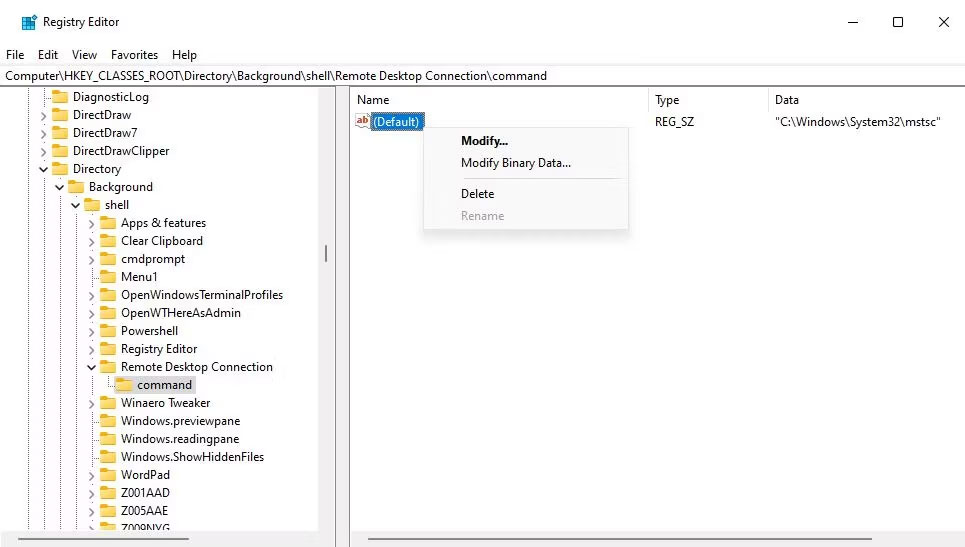
<p style="text-align: justify;">9. Bấm chuột phải vào chuỗi&nbsp;<strong>(Default)</strong>&nbsp;bên trong subkey command mới và chọn&nbsp;<strong>Modify</strong>.</p>

<figure>
<div style="text-align: justify;"><img alt="Tùy chọn Modify" data-i="14" data-src="https://st.quantrimang.com/photos/image/2023/11/02/mo-cong-cu-remote-desktop-connection-15.jpg" data-was-processed="true" height="547" src="https://st.quantrimang.com/photos/image/2023/11/02/mo-cong-cu-remote-desktop-connection-15.jpg" width="965" /></div>

<figcaption>
<div style="text-align: justify;">Tùy chọn Modify</div>
</figcaption>
</figure>

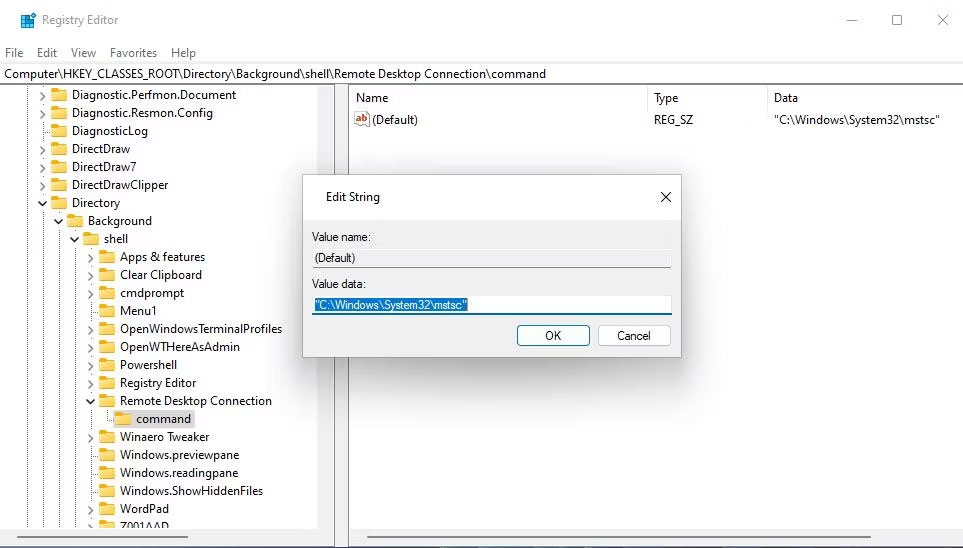
<p style="text-align: justify;">10. Nhập&nbsp;<strong>&quot;C:\Windows\System32\mstsc&quot;</strong>&nbsp;bên trong hộp&nbsp;<strong>Value data</strong>&nbsp;và chọn&nbsp;<strong>OK.</strong></p>

<figure>
<div style="text-align: justify;"><img alt="Cửa sổ chỉnh sửa chuỗi" data-i="15" data-src="https://st.quantrimang.com/photos/image/2023/11/02/mo-cong-cu-remote-desktop-connection-16.jpg" data-was-processed="true" height="548" src="https://st.quantrimang.com/photos/image/2023/11/02/mo-cong-cu-remote-desktop-connection-16.jpg" width="963" /></div>

<figcaption>
<div style="text-align: justify;">Cửa sổ chỉnh sửa chuỗi</div>
</figcaption>
</figure>

<p style="text-align: justify;">Bây giờ, bạn có thể mở ứng dụng Remote Desktop Connection từ menu ngữ cảnh desktop. Nhấp chuột phải vào bất kỳ vùng trống nào trên dessktop Windows 11 để chọn&nbsp;<strong>Show more options</strong>&nbsp;để xem menu ngữ cảnh cổ điển. Bạn sẽ thấy shortcut Remote Desktop Connection mới trên menu ngữ cảnh cổ điển.</p>

<p style="text-align: justify;">Nhấp vào shortcut đó để truy cập ứng dụng Remote Desktop Connection.</p>
		</div>
				<div id="author">
						<p>
				<strong>Nguồn tin:</strong>
				Quantrimang.com
			</p>
		</div>
	</div>
	<div id="footer" class="clearfix">
		<div id="url">
			<strong>URL của bản tin này: </strong><a href="https://www.nguoicodonvn2008.info/vi/news/savefile/kien-thuc-may-tinh/10-cach-mo-cong-cu-remote-desktop-connection-trong-windows-11-7722.html" title="10 cách mở công cụ Remote Desktop Connection trong Windows 11">https://www.nguoicodonvn2008.info/vi/news/savefile/kien-thuc-may-tinh/10-cach-mo-cong-cu-remote-desktop-connection-trong-windows-11-7722.html</a>

		</div>
		<div class="clear"></div>
		<div class="copyright">
			&copy; .&#x3A; Nguoicodonvn2008.info - Cõi lòng người cô đơn &#x3A;.
		</div>
		<div id="contact">
			<a href="mailto:admin@nguoicodonvn2008.info">admin@nguoicodonvn2008.info</a>
		</div>
	</div>
</div>
        <div id="timeoutsess" class="chromeframe">
            Bạn đã không sử dụng Site, <a onclick="timeoutsesscancel();" href="https://www.nguoicodonvn2008.info/#">Bấm vào đây để duy trì trạng thái đăng nhập</a>. Thời gian chờ: <span id="secField"> 60 </span> giây
        </div>
        <div id="openidResult" class="nv-alert" style="display:none"></div>
        <div id="openidBt" data-result="" data-redirect=""></div>
		</script>
		<div class="car-top">
  <span><img src="https://www.nguoicodonvn2008.info/themes/default/images/car.png" alt=""></span>
</div>
<script src="https://www.nguoicodonvn2008.info/assets/js/jquery/jquery.min.js"></script>
<script>var nv_base_siteurl="/",nv_lang_data="vi",nv_lang_interface="vi",nv_name_variable="nv",nv_fc_variable="op",nv_lang_variable="language",nv_module_name="news",nv_func_name="savefile",nv_is_user=0, nv_my_ofs=-4,nv_my_abbr="EDT",nv_cookie_prefix="nv4c_e856T",nv_check_pass_mstime=1738000,nv_area_admin=0,nv_safemode=0,theme_responsive=0,nv_recaptcha_ver=2,nv_recaptcha_sitekey="",nv_recaptcha_type="image",XSSsanitize=1;</script>
<script src="https://www.nguoicodonvn2008.info/assets/js/language/vi.js"></script>
<script src="https://www.nguoicodonvn2008.info/assets/js/DOMPurify/purify3.js"></script>
<script src="https://www.nguoicodonvn2008.info/assets/js/global.js"></script>
<script src="https://www.nguoicodonvn2008.info/assets/js/site.js"></script>
<script src="https://www.nguoicodonvn2008.info/themes/default/js/news.js"></script>
<script src="https://www.nguoicodonvn2008.info/themes/default/js/main.js"></script>
<script src="https://www.nguoicodonvn2008.info/themes/default/js/custom.js"></script>
<script type="application/ld+json">
        {
            "@context": "https://schema.org",
            "@type": "Organization",
            "url": "https://www.nguoicodonvn2008.info",
            "logo": "https://www.nguoicodonvn2008.info/uploads/angel.gif"
        }
        </script>
<script src="https://www.nguoicodonvn2008.info/themes/default/js/bootstrap.min.js"></script>
<script type="text/javascript">
var $scrolltop = $('.car-top');
$scrolltop.on('click', function () {
    $('html,body').animate({
        scrollTop: 0
    }, 800);
    $(this).addClass("car-run");
    setTimeout(function(){ $scrolltop.removeClass('car-run');}, 1000);
    return false;
});
$(window).on('scroll', function ()
{ 
    if($(window).scrollTop() >= 200)
    {
        $scrolltop.addClass("show");
        $scrolltop.addClass("car-down");
    }
    else
    {
       $scrolltop.removeClass("show");
       setTimeout(function(){ $scrolltop.removeClass('car-down');}, 300);
    }
});
</script>
</body>
</html>